Last updated: 2026-05-27
Source: https://support.freshservice.com/support/solutions/articles/50000013866-freddy-ai-executive-insights
Overview
Executive Insights is a strategic analytics feature designed for high-level decision-makers, such as CXOs, VPs, and Directors. While standard Freddy AI Insights focus on operational metrics at the agent group level, Executive Insights provide a broader perspective across an entire workspace or account. This allows executives to make informed strategic decisions based on aggregated performance data.
``` Note: Executive Insights is available for Freshservice Enterprise customers with Freddy AI Insights enabled. Access is controlled via the Executive Insights role, which must be assigned by an Account Administrator. ```
Video walkthrough
The following video explains how Executive Insights works through an example:
Get Executive Insights for smarter decisions - YouTube
Tap to unmute
Get Executive Insights for smarter decisions Freshservice
Freshservice7.02K subscribers
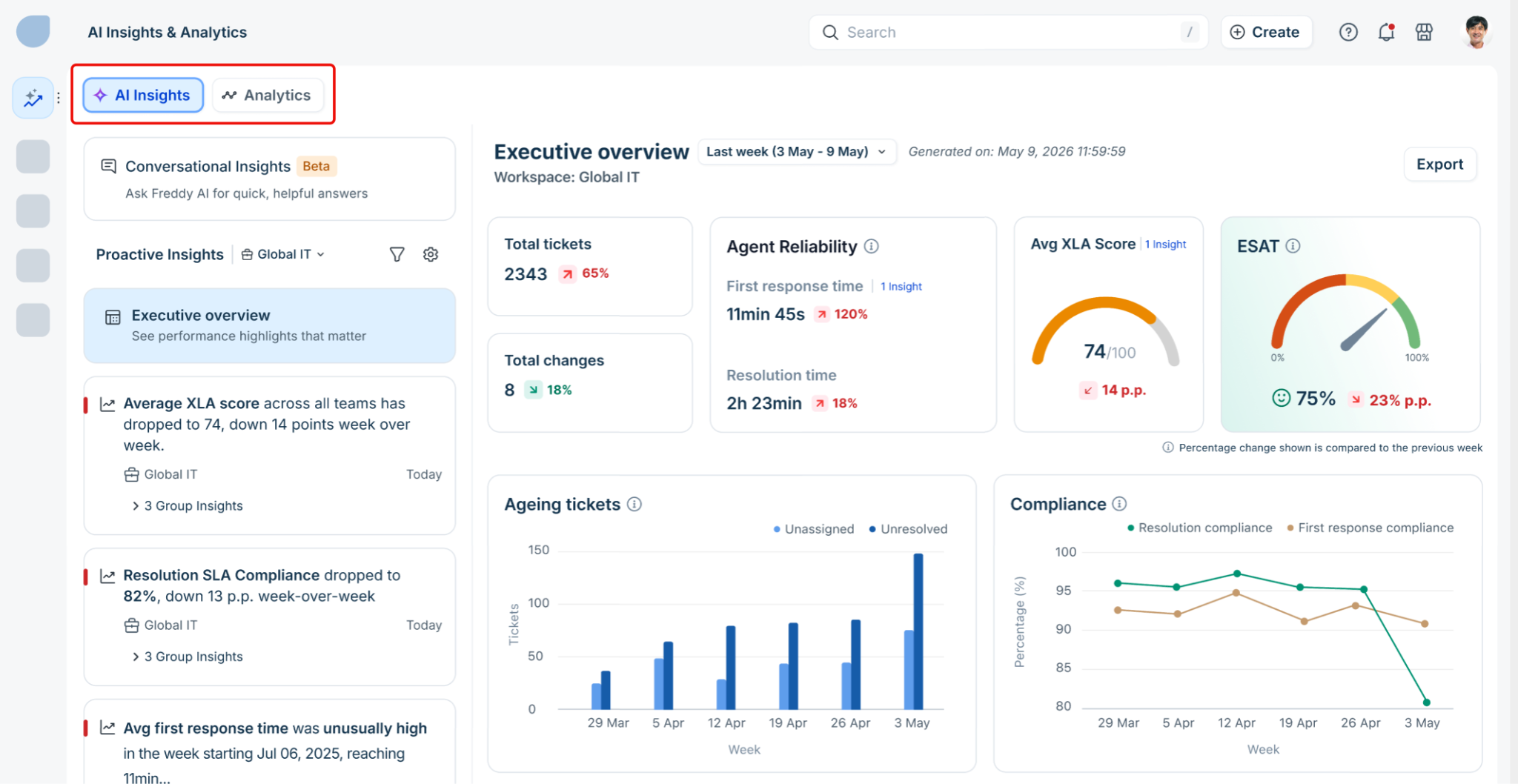
Unified AI Insights and Analytics screen
AI Insights and Analytics are now consolidated under a single umbrella. Users can toggle between:
User persona
Executive Insights is built for two groups of users:
Access to Executive Insights is role-based. The table below shows who gets access and how:
| Role | Access to Executive Insights | Scope |
|---|---|---|
| Executive Insights (default role) | Yes | Across all workspaces or all agent groups (excluding Restricted Groups) |
| Custom role with 'Access Executive Insights' permission | Yes | Same as above. The scope is automatically set to all groups. |
| Account Administrator | Can grant access to others | Assigns the Workspace Executive role via agent permissions |
| Standard Agent / Supervisor | No | Continues to use standard Freddy AI Insights only |
``` Note: Restricted Groups are always excluded from aggregated data in Executive Insights, regardless of the role assigned to the user. ```
Enable Executive Insights
Executive Insights becomes accessible once Freddy AI Insights is enabled for your account and the Workspace Executive role is assigned to the relevant user.
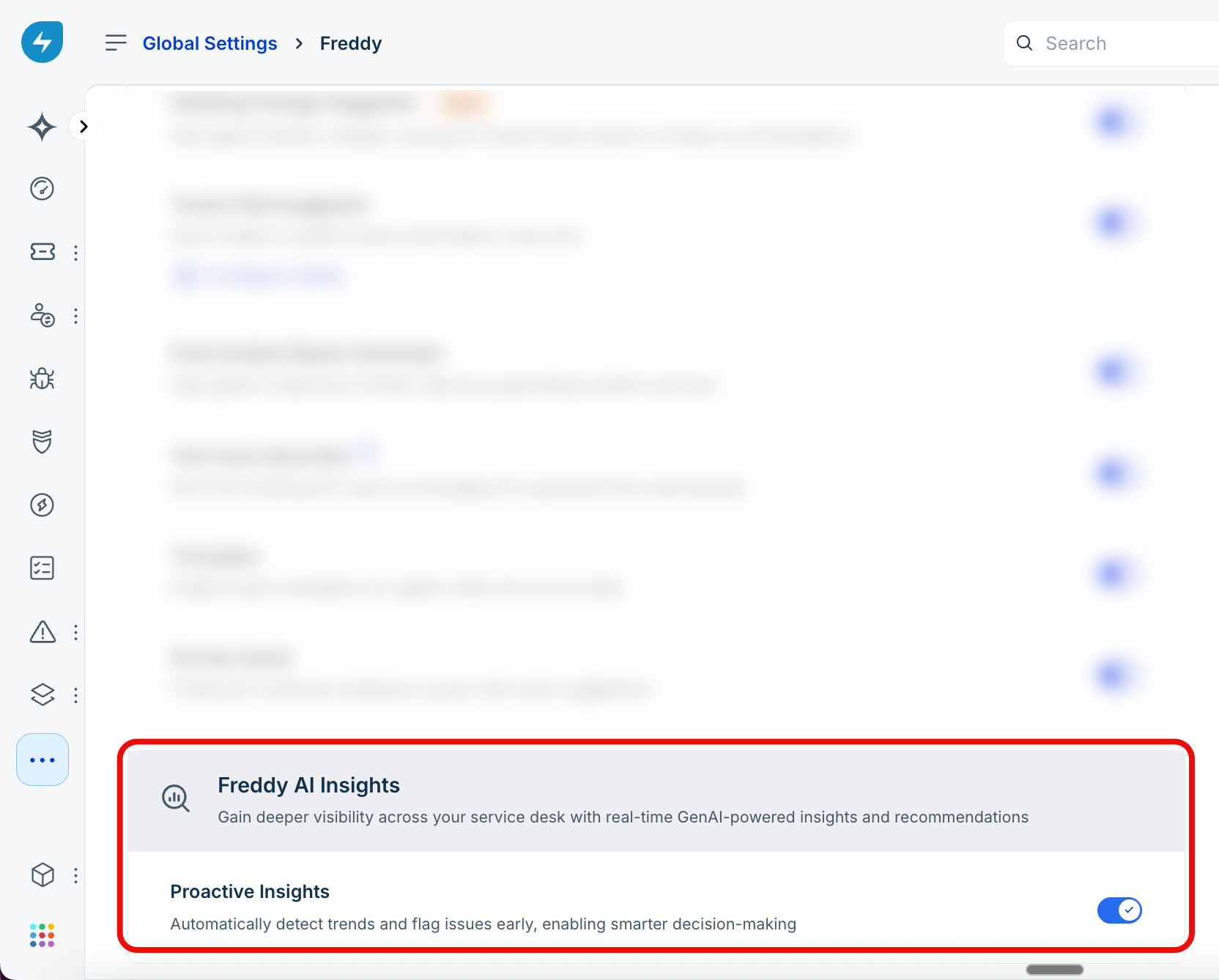
Step 1: Enable Freddy AI Insights (if not already enabled)
1. Go to Admin in your Freshservice account.
2. Navigate to Freddy AI → Freddy → Freddy AI Insights.
3. Toggle on Proactive Insights.
Step 2: Assign the Executive Insights role
If workspaces are enabled for your account:
4. Go to Admin Settings → User Management and select the agent.
5. Click Edit Permissions.
6. Navigate to Workspace Permissions → Roles.
7. Click Add Role, select Executive Insights, and save. Ensure the scope is set to ‘Across the Workspace’.
If workspaces are not enabled for your account:
8. Go to Admin Settings → User Management and select the agent.
9. Click Edit Permissions → Roles.
10. Click Add Role, select Executive Insights, and save. Ensure the scope is set to 'Across all groups in the service desk'.
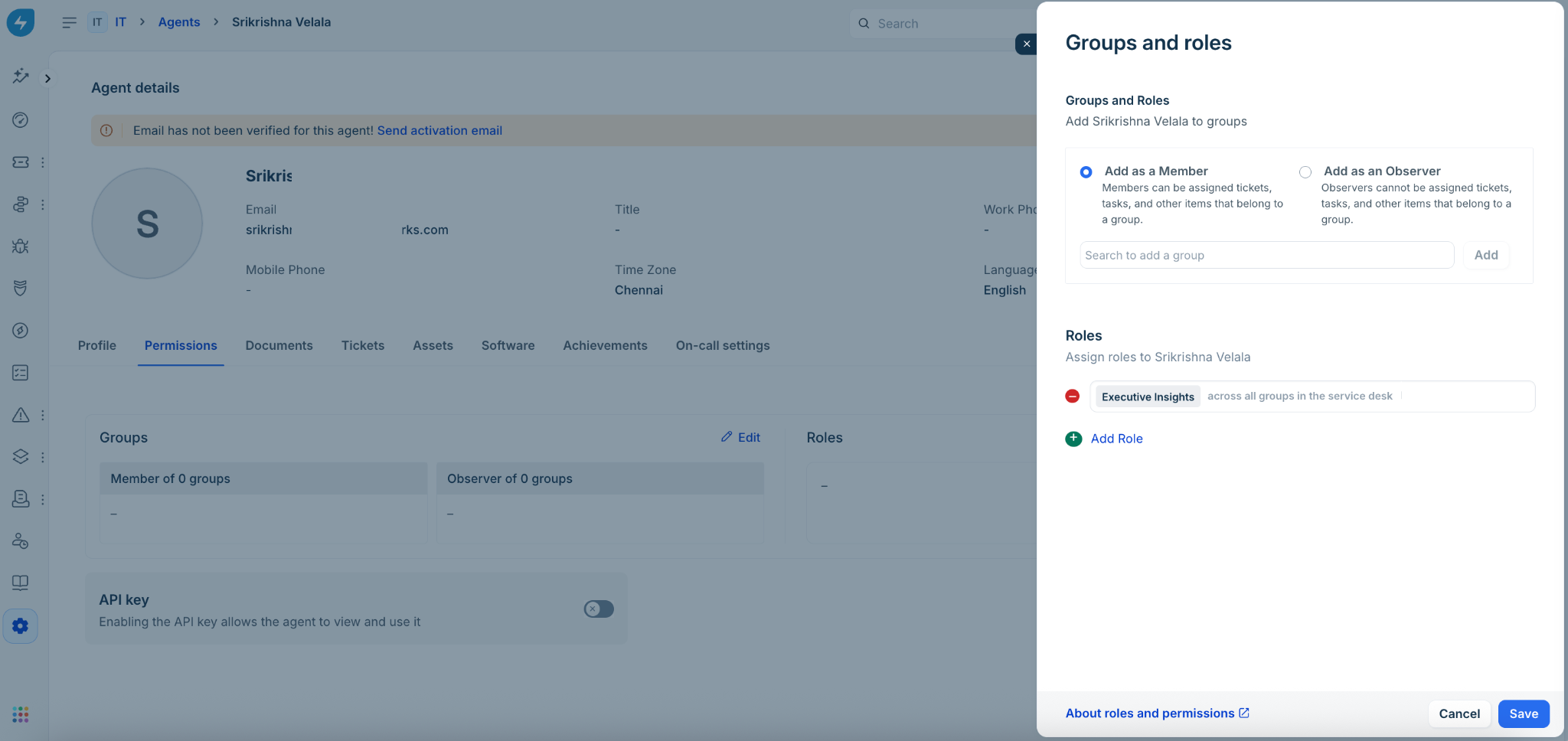
``` Note: You can also create a custom role and add the 'Freddy AI - Access Executive Insights' permission to it. Any agent assigned that custom role will get the same access as the Workspace Executive role. ```
Access Executive Insights
Open Freshservice and click the Freddy AI icon in the top navigation bar. Select AI Insights & Analytics. If you hold the Workspace Executive role, the AI Insights tab opens by default, and the Executive Insights view loads automatically.
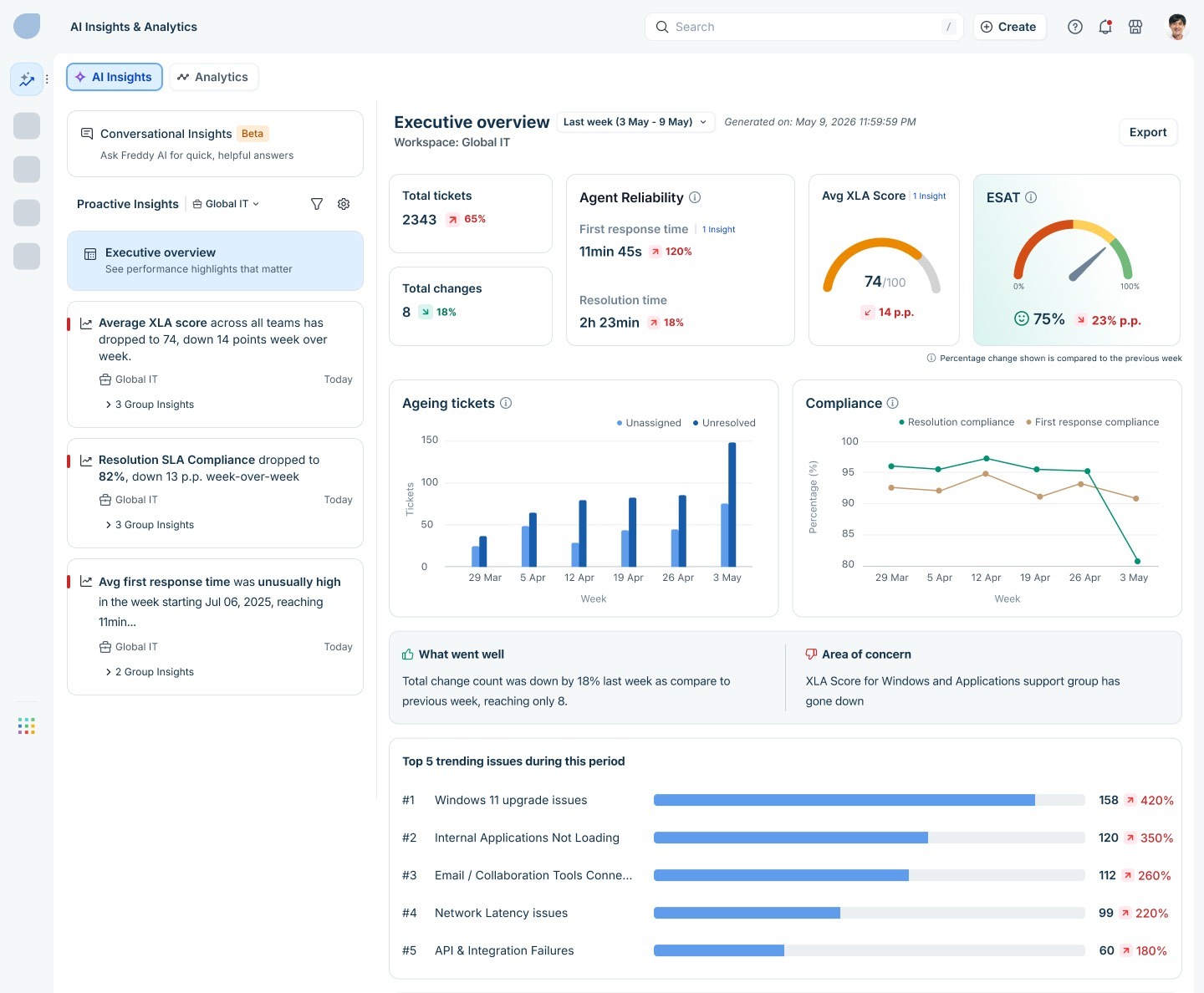
The view has three main areas:
At the top of the left panel, a workspace selector lets you filter the insights list to a specific workspace. You can also switch between AI Insights and Analytics using the tabs at the top.
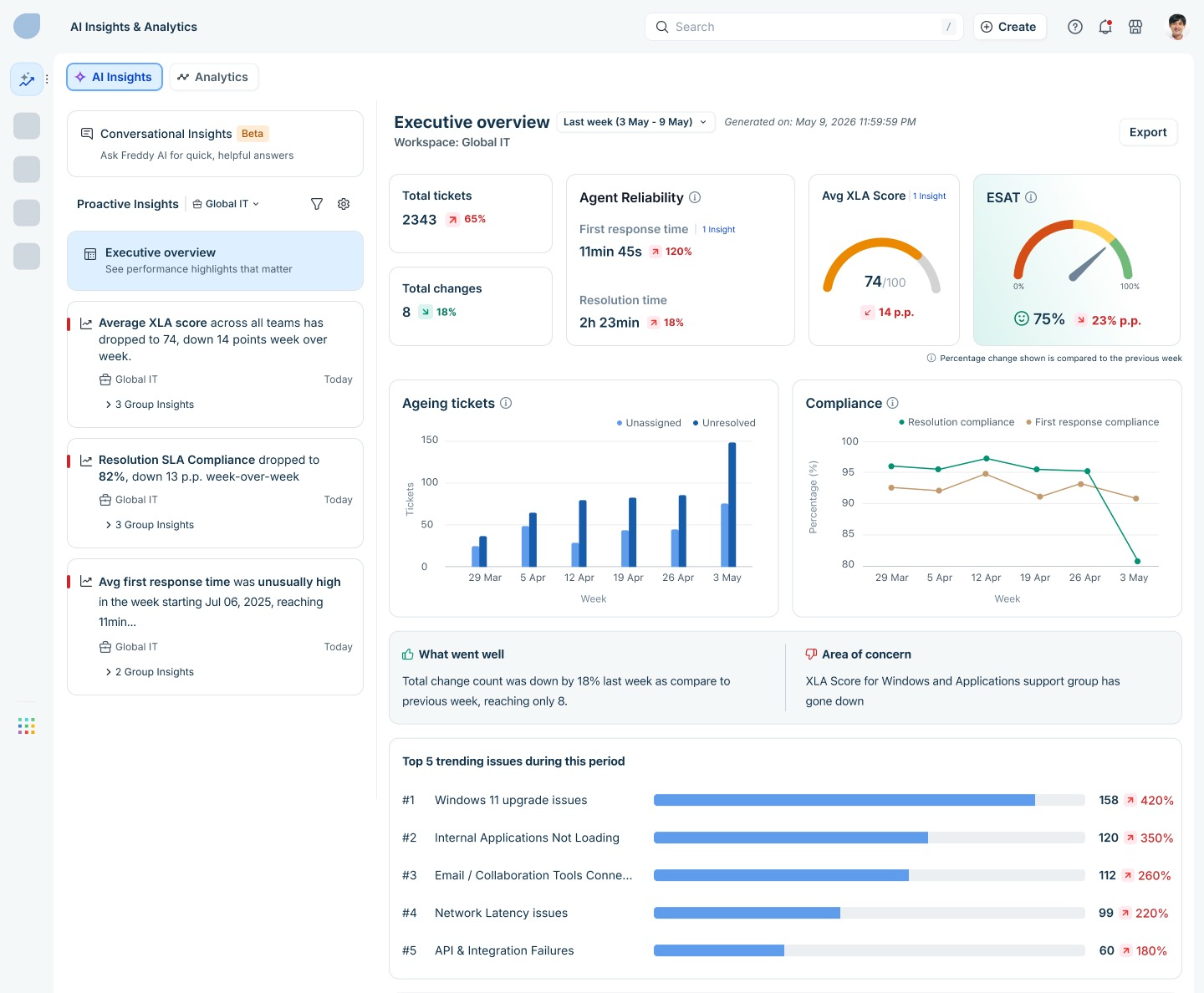
Use the Executive Overview dashboard
Click Executive Overview in the left panel to open the full performance dashboard. The dashboard defaults to Last week and shows data for your selected workspace. You can change the time period using the date selector at the top.
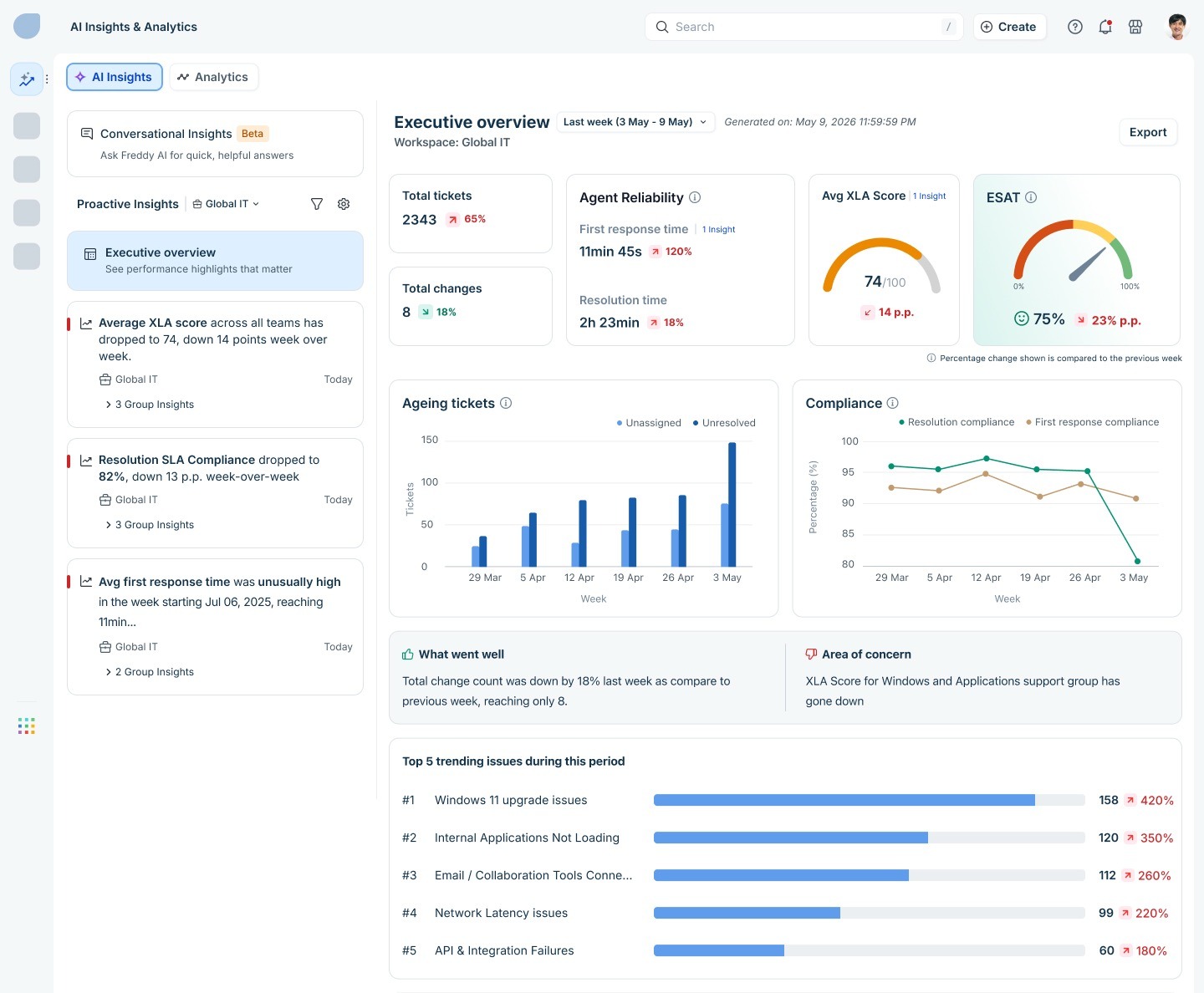
The dashboard includes the following sections:
Top Metrics Summary
Ageing Tickets Chart
SLA Compliance Chart
What Went Well / Area of Concern
Top 5 Trending Issues
Metric Overview (Drill-down)
FAQs
Q1. Who can see Executive Insights?
Only users assigned the Workspace Executive default role, or a custom role with the ‘Freddy AI — Access Executive Insights’ permission enabled. Standard agents and supervisors will continue to see the regular Freddy AI Insights experience and will not have access to the Executive Overview or the workspace-level aggregated view.
Q2. How do I get access to Executive Insights?
Contact your Freshworks Account Administrator. They can assign you the Workspace Executive role via Permissions → Workspace Permissions → Roles (if workspaces are enabled) or Permissions → Roles (if workspaces are not enabled). Once assigned, the Executive Insights view will appear automatically the next time you open AI Insights & Analytics.
Q3. Will I see data from all workspaces in my organization?
You will see aggregated data from all workspaces you have been granted access to, excluding any Restricted Groups. Restricted Groups are always excluded from the aggregated view to protect data privacy and security, regardless of your role.
Q4. What metrics are covered in the Executive Overview?
The Executive Overview includes: Total Tickets, Total Changes, Average Resolution Time, Average First Response Time, ESAT/CSAT, Resolution SLA Compliance, First Response SLA Compliance, Unassigned Tickets, and Unresolved Tickets.
Q5. How is the AI-generated Executive Summary produced?
Freddy AI analyzes aggregated metric trends across your workspaces for the selected time period (last week or last month) and generates a concise narrative highlighting the most significant changes. It identifies root causes by correlating metric movements with contributing dimensions such as ticket categories, channels, and agent group performance.
Q6. Can I drill down to individual agents or groups?
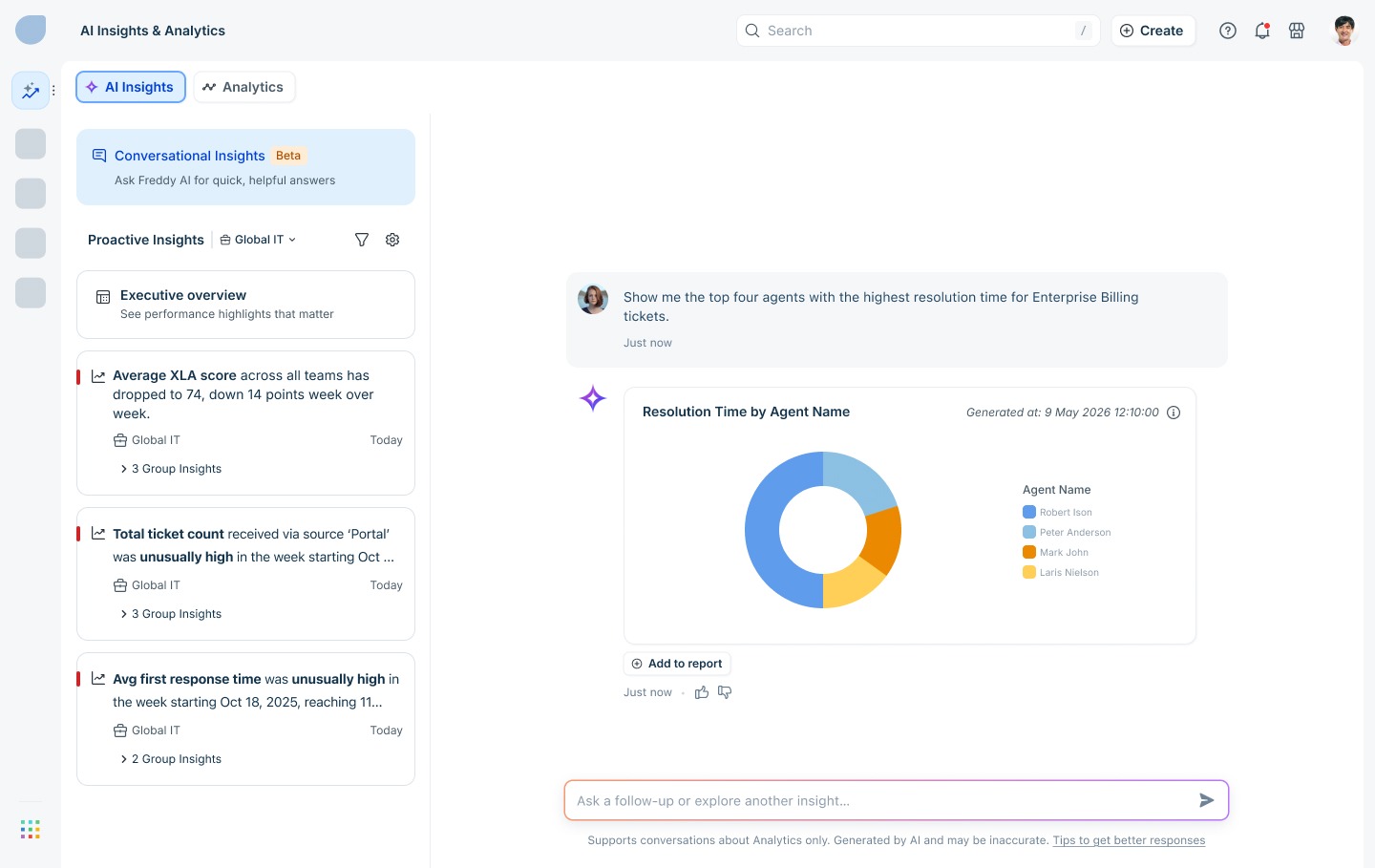
Yes. Within the Metric Overview section, you can select any KPI and view the top and bottom performing agent groups and individual agents responsible for the metric movement. You can also use Conversational Insights to ask follow-up questions in natural language, such as “Show me the top four agents with the highest resolution time.”
Q7. Can I export the Executive Overview dashboard?
Export of the overview dashboard is not available at the moment. It is on the product roadmap for a future release. Scheduling of email reports is also not available right now.
Q8. Can I create custom groups (Group of Groups) for my own rollup view?
Group of Groups customization is not available in V1. In the current release, insights are aggregated at the workspace level based on your existing workspace and group configuration.
Q9. What is the data refresh frequency?
Executive Insights data is not real-time. Sub-daily (real-time) data updates are out of scope for V1. Insights are generated on a daily/weekly cadence. The timestamp shown on each generated insight or chart indicates when the data was last refreshed.
Q10. Can I filter insights to specific workspaces or topics?
Currently, the workspace selector on the Proactive Insights panel allows you to filter the insights list to a specific workspace. Advanced customization filters (setting thresholds, topic filters, or defining a virtual Group of Groups) are planned for future releases.
Q11. Is Conversational Insights (the chat interface) available to all Workspace Executives?
Yes. Conversational Insights is available to all Workspace Executives within the Freddy AI Insights experience. It supports queries about Analytics data.
Q12. What happens if my account has no data yet (trial or new account)?
Executive Insights includes specific zero-state and content-extreme designs for trial and new accounts to ensure a functional experience even with limited data. You will see placeholder states that guide you on what data will appear once the account becomes active.