Last updated: 2026-05-14
Source: https://support.freshservice.com/support/solutions/articles/50000012647-explore-pre-built-ai-agents
Pre-built agents are fully configured starting points built around common employee service scenarios. When you select one, you get an agent that includes:
You can use a pre-built agent as-is or customize any part of it after adding it. Either way, you start from a working foundation rather than a blank canvas.
Where to find pre-built agents
Pre-built agents are available on the AI agents landing page in AI Agent Studio, under Explore pre-built AI agents. To get there:
1. Open AI Agent Studio from the Freshservice navigation.
2. Click AI agents in the left navigation.
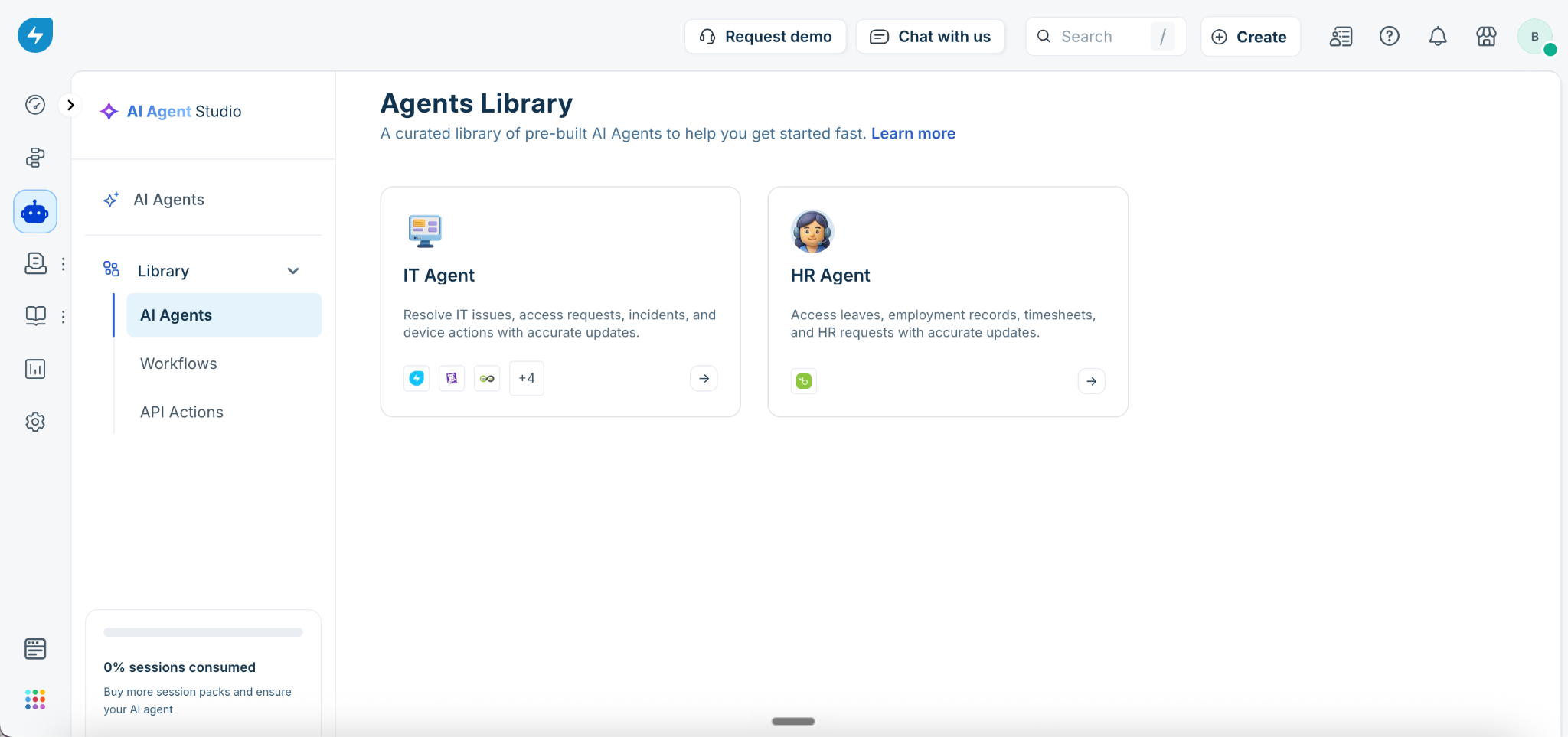
Each agent card shows its name, category, a short description, and the icons of its default app integrations. Click any card to open a preview panel with the full list of preloaded workflows, connected apps, and preset instructions. When you are ready to proceed, click Use Agent in the panel.
Available pre-built agents
Freshservice currently provides two pre-built agents, each targeting a distinct employee service area.
HR Agent
Category: Human Resources
Apps: BambooHR for AI Agents
The HR Agent helps employees access leaves, profile, timesheet, dependents, and job-related information with accurate and reliable updates. It handles routine HR requests conversationally and reduces the volume of manual work for HR teams.
Preloaded workflows:
| Workflow | What it does |
| View Leave Balance - BambooHR | Sample utterances: “What is my leave balance?” “Show my PTO balance.” “How many leave days do I have left?” |
| ApplyLeave - BambooHR | Sample utterances: “Apply for leave.” “Apply for sick leave.” “Apply for vacation leave.” |
| View Profile Details - BambooHR | Sample utterances: “Get my profile.” “View my profile details.” |
| View Timesheet Entries - BambooHR | Sample utterances: “Fetch my timesheet entries.” “Fetch the timesheet entries.” |
| View Dependents - BambooHR | Sample utterances: “View my dependents.” “Who are the dependents added in my profile?” |
| Create Dependents - BambooHR | Sample utterances: “Add new dependents.” “Help me create a new dependent.” |
| View Job Details - BambooHR | Sample utterances: “Get my job details.” “Fetch my job details.” |
Default apps:
| App | What it connects |
| BambooHR for AI Agents | Access employee profile, leave balances, timesheet entries, dependents, and job details to handle routine HR queries and updates. |
IT Agent
Category: IT Service Management
Apps: Freshservice, Datadog, Azure DevOps, Exchange Online, Microsoft Entra ID, Jamf Pro, PagerDuty (all for AI Agents)
The IT Agent helps employees resolve IT support requests, incidents, access issues, and device-related operations with accurate and reliable updates. It comes preloaded with IT support workflows that reduce resolution time and deflect repetitive tickets from your IT team.
Preloaded workflows:
| Workflow | What it does |
| Fetch Ticket details - Freshservice | Sample utterance: “I would like to get updates on issues that I reported recently.” |
| Correlating Latency with Service - Datadog | Sample utterance: “Microservice is slow.” The user can provide the name of the microservice. |
| Creating Bug - Azure Devops | Sample utterance: “Create a bug for an issue or failure” (for example, login, mobile, or application issues). |
| Search for missing email - MS exchange | Triggered when the user reports that an email is missing. |
| Password Reset - Azure AD | Triggered when the user asks for their Azure password to be reset. |
| Wipe data from Device - JamF | Sample utterance: “Wipe data from my device.” |
| Create Incident - PagerDuty | Sample utterance: “Service is down. Create incident in PagerDuty.” |
| Lock Computer - JamF | Sample utterance: “Lock my device.” |
| Revoke Sign in Sessions - Azure AD | Sample utterance: “Sign me out from all Microsoft sessions across devices.” |
Default apps:
| App | What it connects |
| Freshservice for AI Agents | Fetch ticket details, status, and updates for issues employees have reported in Freshservice. |
| Datadog for AI Agents | Correlate microservice latency and performance signals to identify the root cause of slowdowns. |
| Azure DevOps for AI Agents | Create and track bugs for login, mobile, and application failures reported by employees. |
| Exchange Online for AI Agents | Search Exchange mailboxes for missing emails and surface delivery details. |
| Microsoft Entra ID for AI Agents | Reset Azure AD passwords and revoke active sign-in sessions across Microsoft services. |
| Jamf Pro for AI Agents | Lock devices and wipe data on managed Mac and mobile endpoints in response to security or recovery requests. |
| PagerDuty for AI Agents | Create incidents for service outages so the right on-call responders are paged. |
Add a pre-built agent to your workspace
Adding a pre-built agent takes only a few steps. Once added, the agent is fully configured and ready to customize.
1. On the AI agents page, locate the agent you want under Explore pre-built AI agents.
2. Click the agent card to open the preview panel.
3. Review the preloaded workflows, default apps, and preset instructions. Click View next to any workflow to inspect it before proceeding.
4. When you are ready, click Use Agent.
The agent is added to your AI agents list. From there you can connect apps with your organization's credentials, adjust workflows, update instructions, and add knowledge sources before deploying.
``` Note: App connection status shown in the preview panel reflects default integrations for the template. You need to connect each app using your organization's credentials after adding the agent. ```
Customize a pre-built agent after adding it
Pre-built agents are starting points. After adding one, you can adjust any part of its configuration.
``` Tip: Test the agent in Preview AI agent before making any changes. This shows you what the agent already handles well and helps you focus your customizations where they matter most. ```
Best practices
Frequently asked questions
1\. Can I add more than one pre-built agent to my workspace?
Yes. Each pre-built agent is independent. You can add multiple agents, each scoped to a different service function, and deploy them on separate channels.
2\. Can I rename a pre-built agent after adding it?
Yes. Open the agent's settings after adding it to update the name, description, and avatar to match your organization's branding.
3\. Do preloaded workflows count toward my workflow limit?
Yes. Each preloaded workflow counts the same as a workflow you build manually. Disable any preloaded workflows you do not plan to use to keep your agent lean.
4\. What happens to my customizations if Freshservice updates a pre-built template?
Updates to a template in the library do not affect agents you have already added. Your configuration is independent from the moment you click Use Agent.
5\. Can I add a workflow from a different agent to my current agent?
Yes. Go to Build, click Workflows, and then click Add Workflow. You can browse the Workflow library and add individual workflows from any template to your agent, regardless of which pre-built agent you started with.