Last updated: 2025-11-21
Setting agent roles and permissions
``` Note: This feature works the same across all Freshservice products. Some screenshots or articles may reflect older designs, but the functionality remains unchanged. If certain options do not appear in your account, they may not be included in your current plan. ```
``` Note: If you have signed up on or after 12th December 2022, please refer to this section for managing agents in Freshservice. ```
Agent Roles allow you to create special privileges, allowing you to specify what an agent can see and do within your Freshservice/FSBT support portal.
By default, Freshservice lets you choose between several roles:
_(Not applicable to FSBT)_
_(Not applicable to FSBT)_
_(Not applicable to FSBT)_
Associating a Role to an Agent
To associate a role with an agent,
1. Login to your Freshservice/FSBT portal as an administrator. 2. Open up the Admin tab and click on Agents. If you have more than one workspace navigate to Admin > Global Settings > Agents. 3. Locate the agent you want to change and click on Permissions, or click on New Agent if you're adding a new agent. Under permissions, you will be able to assign roles to agents. 4. If you have more than one workspace, click on the Add to Workspace option and you will be abe to assign roles on the workspace level. 5. Click Save to save the Agent’s roles.

How does Manage Reports permission impact Reports
In Freshservice/FSBT, the Manage Reports permission allows agents to create and manage important reporting functions such as scheduled reports and data exports.
Assign Manage Reports permission
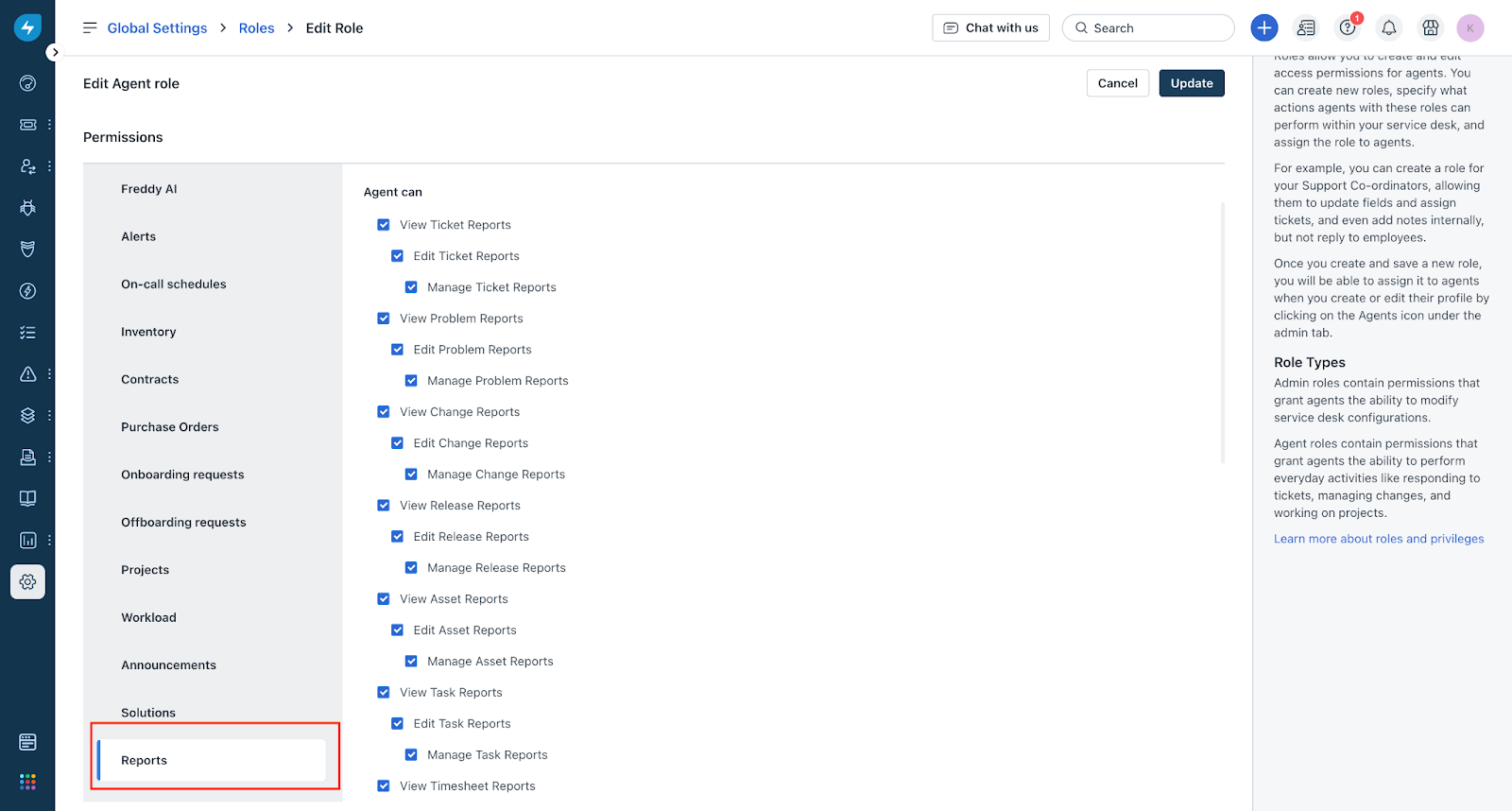
To assign an agent or admin Manage Reports permission, go to Global Settings > Roles > Edit Role > Reports \> select Manage Reports permission. Agents with Manage Reports permission can do the following:
Remove Manage Report Permission
Removing the Manage Reports permission from an agent has the following impacts:
Agents can still view reports shared with them unless specific view permissions are removed.
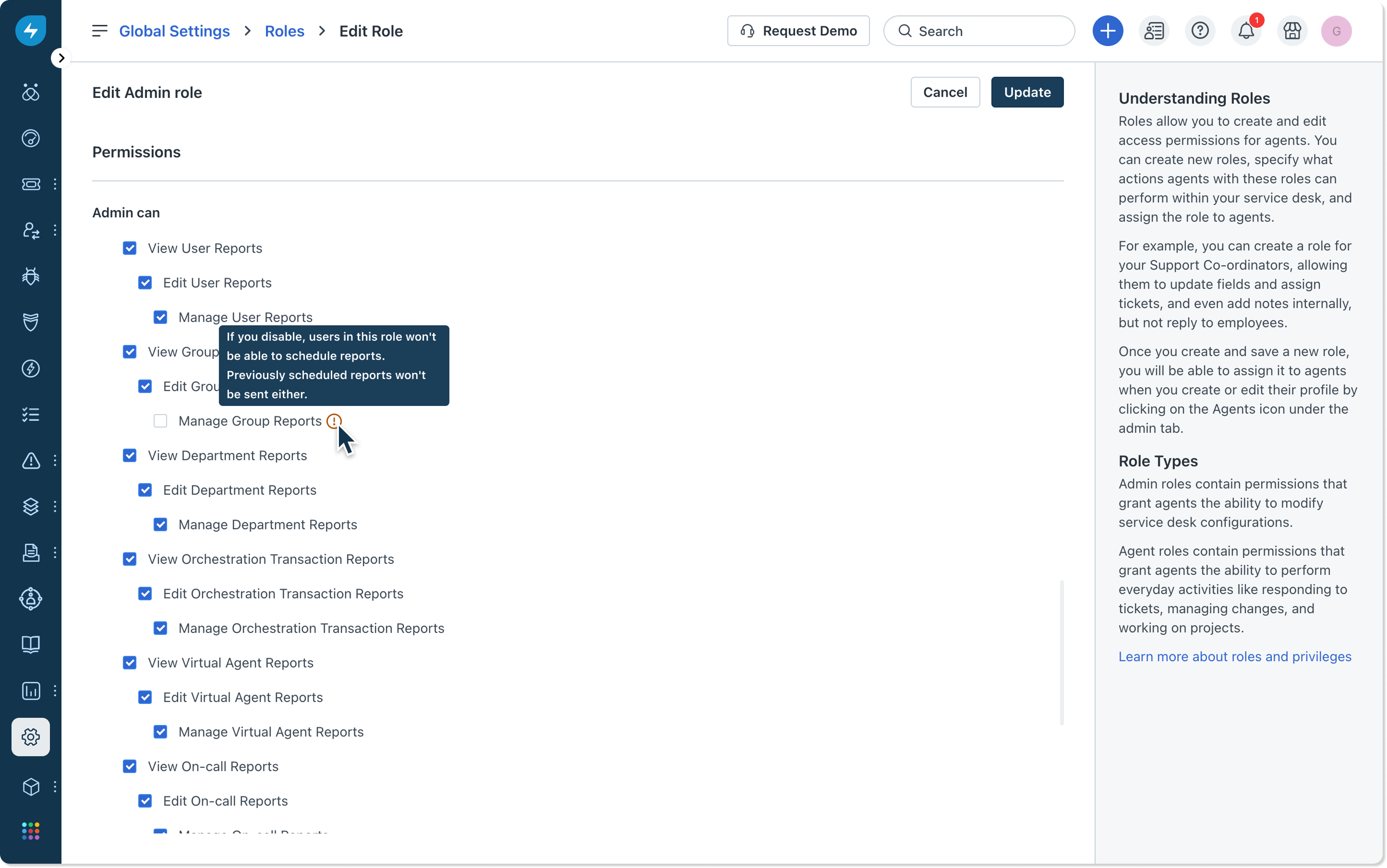
``` Note: Recreate important scheduled reports or data exports using another agent with appropriate permissions before removing permissions from the current agent. Other users will not receive the scheduled reports or cannot view any data in scheduled exports set up by an agent with removed permissions. ```
The Manage Reports permission can also be removed when you do the following actions in the Agent page:
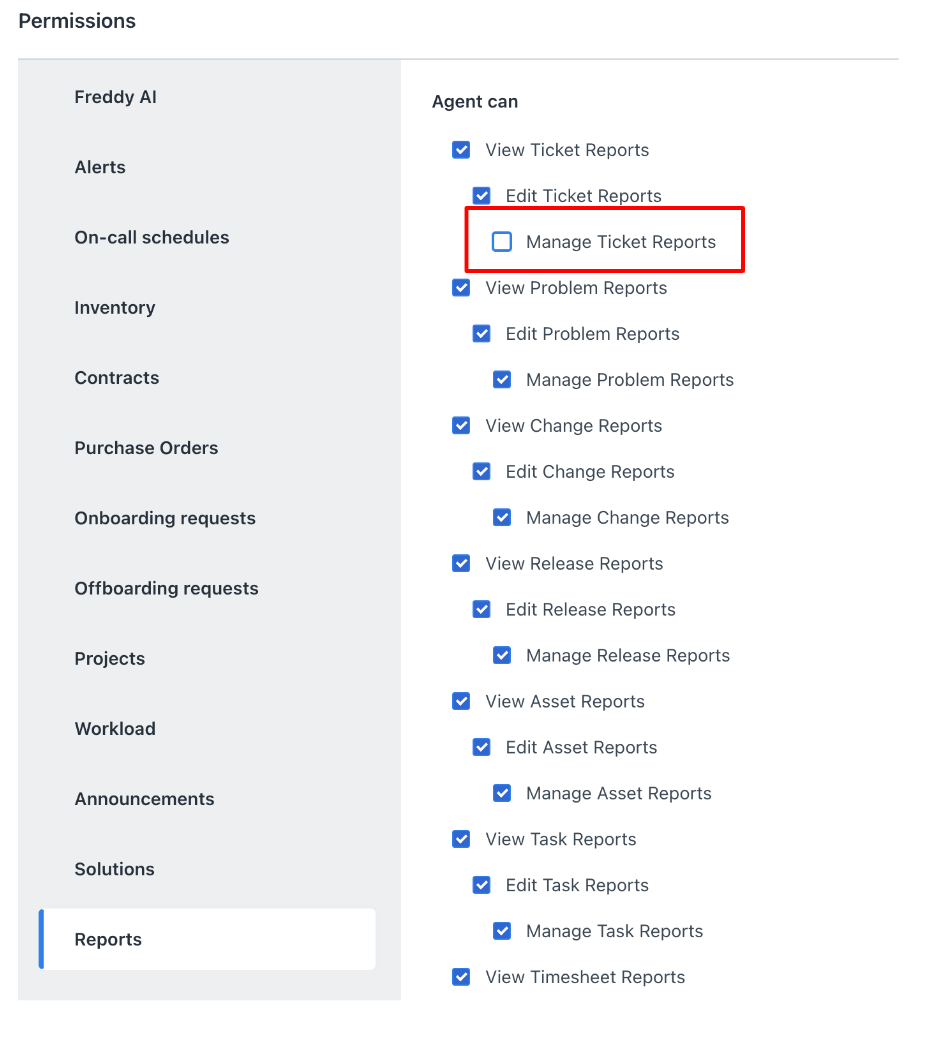
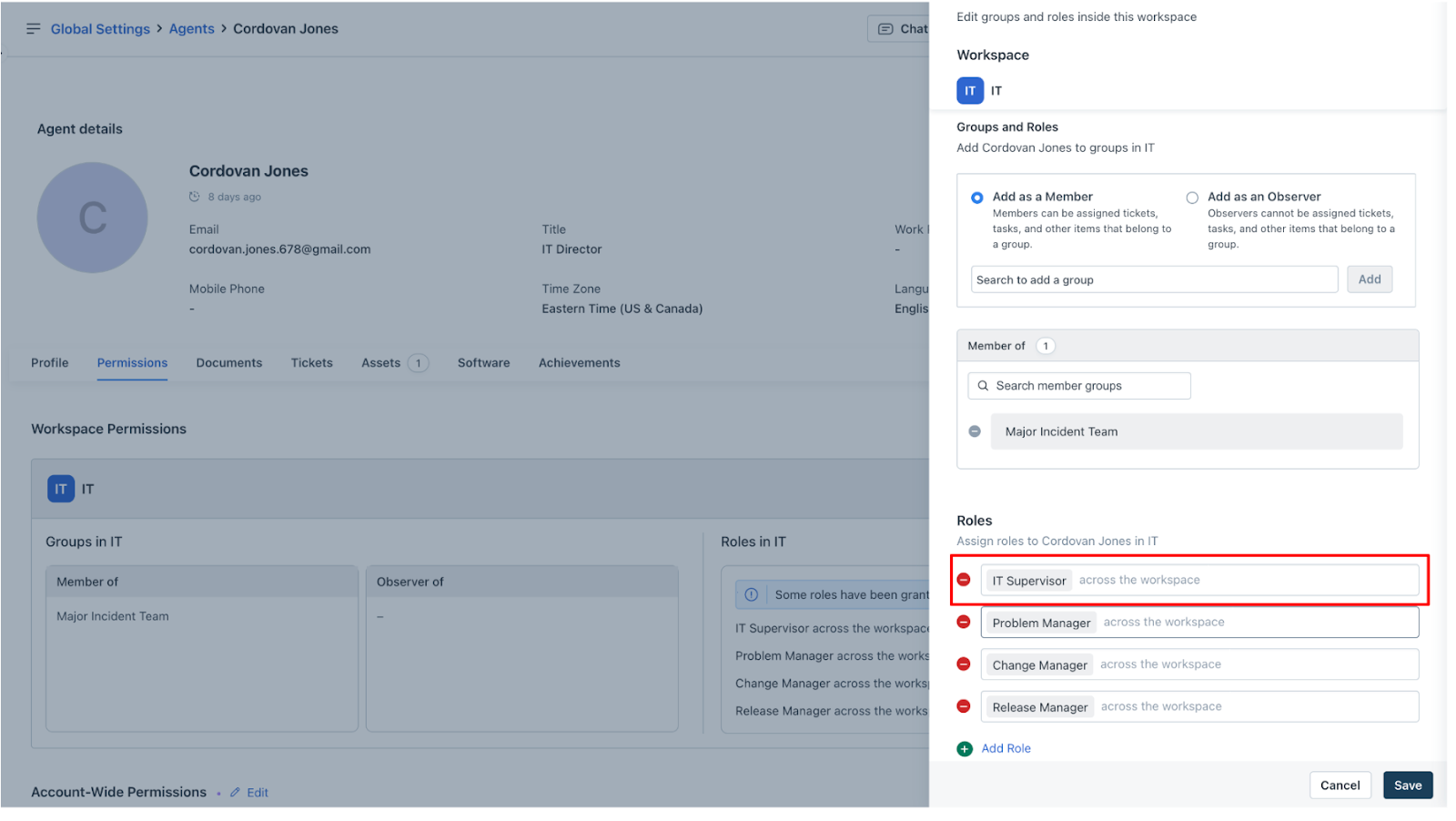
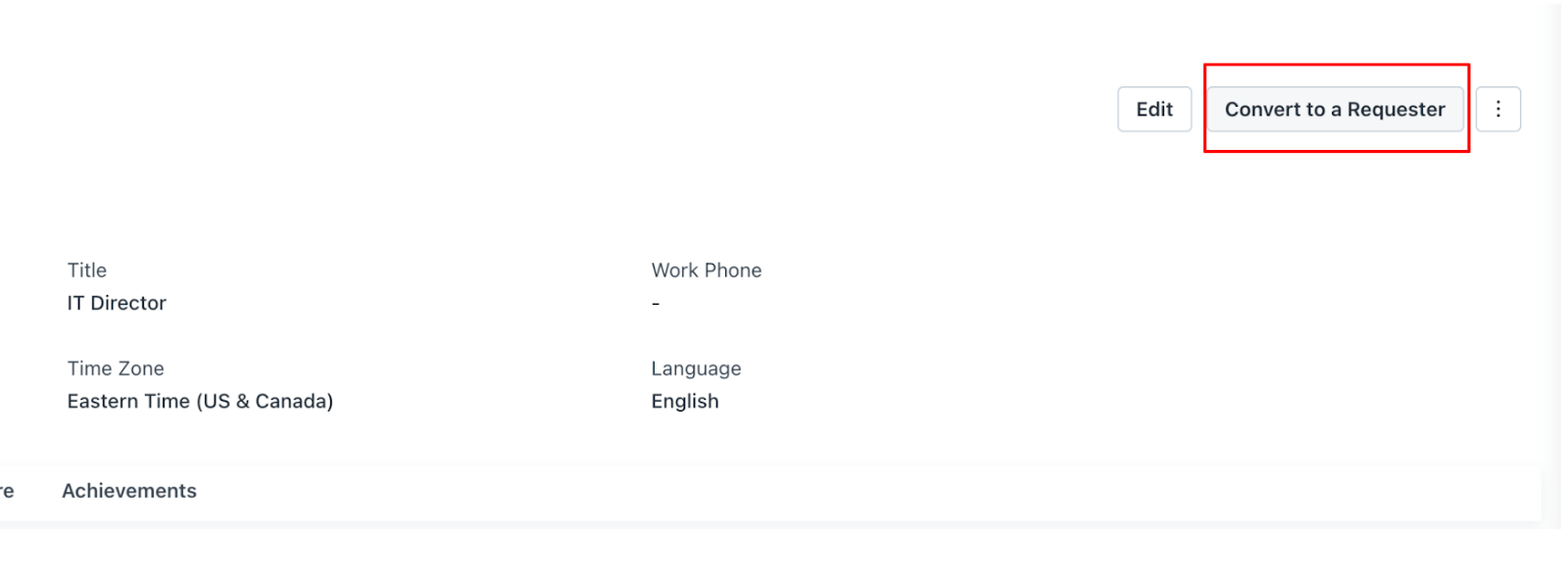
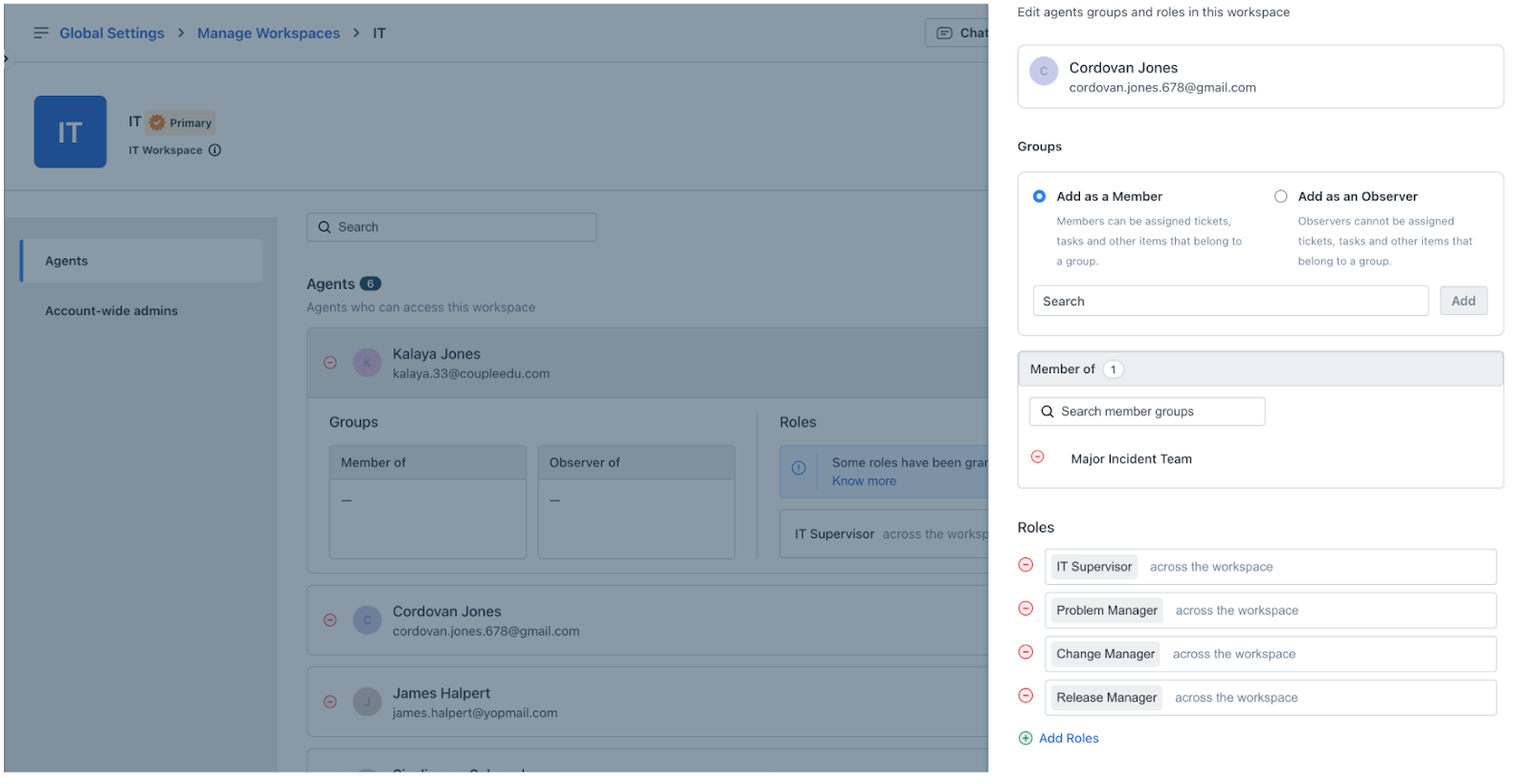
``` Note: The above actions are applicable for Admin roles as well. ```
Frequently Asked Questions (FAQs)
Q1: Why am I not receiving the reports scheduled or seeing any data in scheduled exports setup by an Agent?
A: It is likely that the “Manage Reports” permissions of the Agent who had created the reports schedules or data exports schedules might have been revoked. You can try creating the same reports, data exports schedule as an Agent who has Manage Reports permissions for all the modules.
Q2: Can an agent still view existing reports after the 'Manage Reports' permission is revoked?
A: Yes. Revoking 'Manage Reports' permissions restricts only the creation, scheduling, and export of reports. Agents can still view reports shared with them unless specific view permissions are altered.