Last updated: 2026-03-31
Source: https://support.freshservice.com/support/solutions/articles/50000011936-ping-sweep
Ping Sweep discovery identifies live IP addresses across your network by performing a series of pings against specified ranges.The data collected is automatically uploaded to your inventory, allowing you to track IP utilization and identify unknown devices on your network.
This article provides information on how to configure Ping Sweep discovery jobs, manage results, and use the external standalone utility.
Note: Available only for new signups after the 31 March, 2026 release. If you signed up earlier, refer to the existing ITAM documentation.
Prerequisites
You need the following before the installation:
Create a Ping Sweep discovery job
To configure a Ping Sweep job within the application, follow these steps:
Step 1: Add a new discovery job
1. Go to Admin > Asset Management > Scan and discover and click the Discovery Jobs tab.
2. Select Ping Sweep from the list of discovery jobs and click Add new.
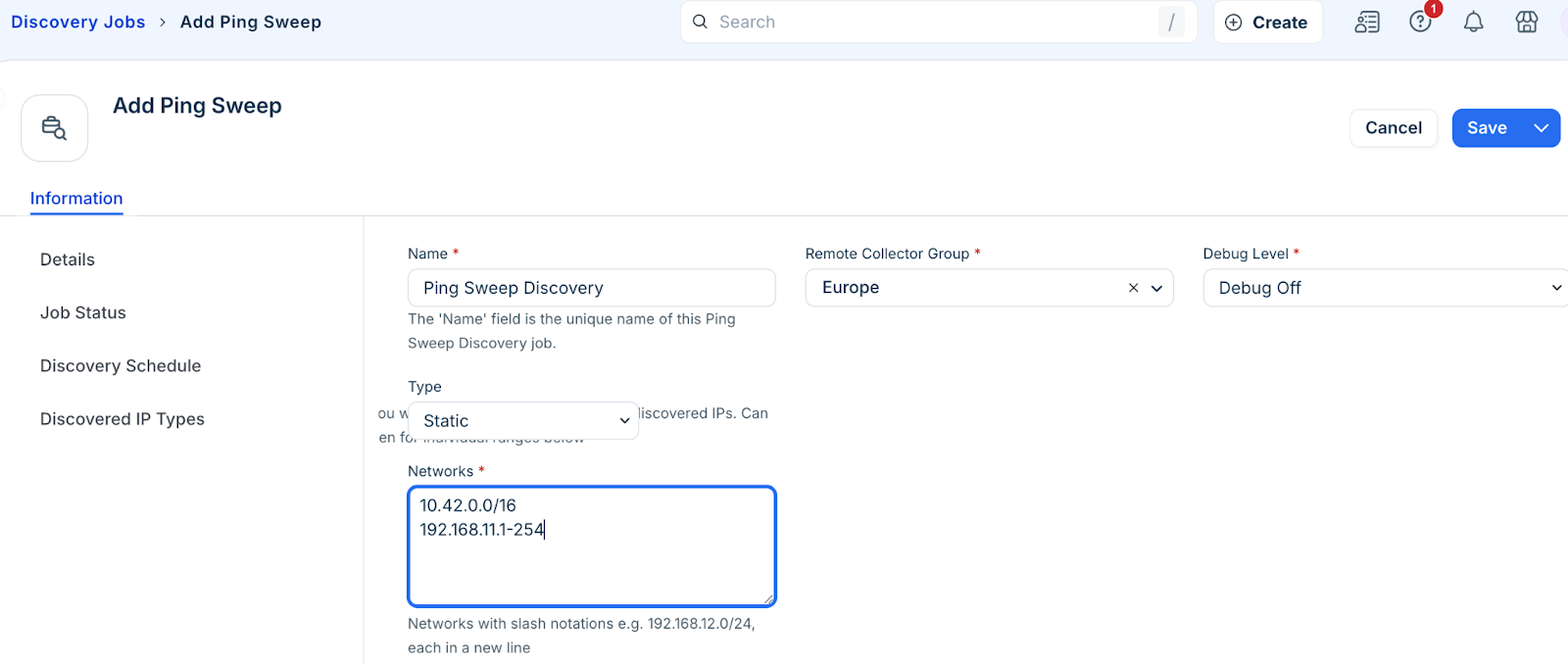
3. Fill in the following job details:
- Name: Enter a unique identifier for the job.
- Networks: Enter the range using CIDR notation. For example, 192.168.11.0/24 or hyphenated ranges (192.168.11.1-254). Multiple ranges can be separated using commas, spaces, or new lines.
Step 2: Configure discovery options
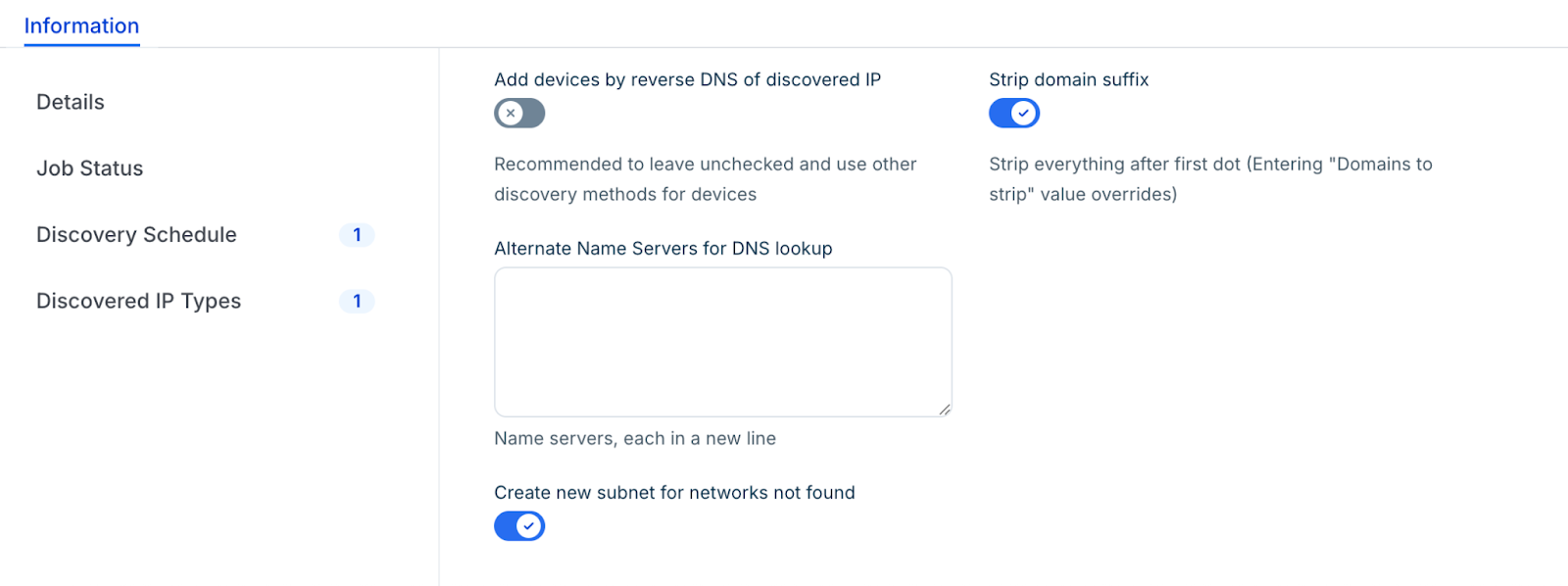
1. By defualit, the Add devices by reverse DNS is disabled. Enable only if you have a properly configured DNS environment to avoid creating duplicate devices. Enable this option, if you want to use reverse DNS values as device names.
2. Enable the Strip domain name suffix optionto remove the FQDN suffix from discovered names.
3. Enable the Create new subnet for networks not found optionto automatically generate subnets in the system if they do not already exist.
Step 3: Run or schedule the discovery job
1. In the Discovery Schedule section, click Add new to set a recurring interval.
2. Click Save.
3. To start the discovery immediately, click Run Now on the Ping Sweep list page.

View Ping Sweep data
Once the scan is complete, you can review the results:
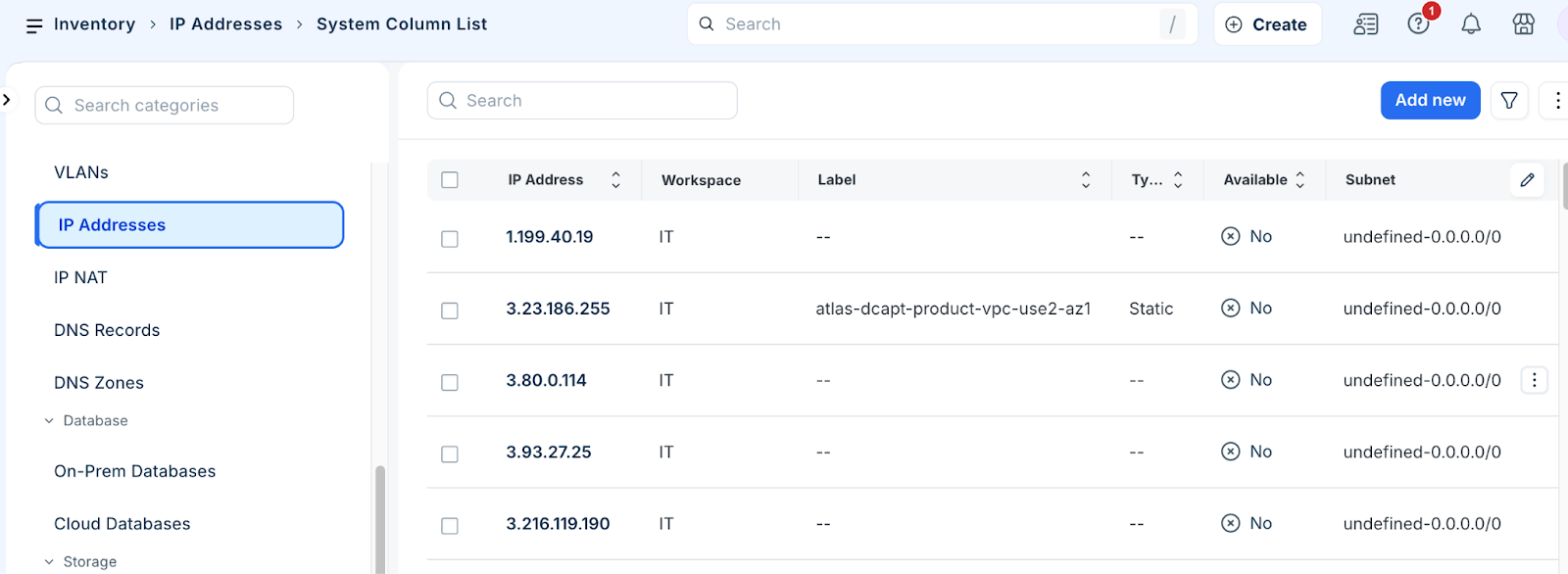
1. Click more options in the side bar > ITAsset Management > Inventory > All Resources.
2. Use the available filters to narrow the list by specific IP values or subnets.
Ping Sweep usage considerations and best practices
When configuring Ping Sweep discovery, keep the following considerations and best practices in mind to ensure accurate data collection:
Install and configure
Follow these steps to install Ping sweep:
1. Download the .zip file from the page.
2. Unzip the file and choose the appropriate executable for your OS (e.g., d42\_pingsweep\_windows\_x64.exe or d42\_pingsweep\_linux).
3. For Linux, set the file as executable: chmod +x d42\_pingsweep\_linux.
4. Copy ping.cfg.sample to ping.cfg.
5. Edit ping.cfg to include your appliance URL, credentials, and target networks.
Run and schedule
When the command prompt displays "Finished" and "Success," new and updated IP information will be visible in the application.