Last updated: 2023-06-05
Summary
Service Health Monitoring can be set up in two ways:
1. Option 1 – Manually create a service and map monitoring tools to it: Choose this option if you are going to integrate a new monitoring tool with Freshservice 2. Option 2 – Associate a monitoring tool to one or more services: Choose this option if you have already integrated one or more monitoring tools with Freshservice
``` Note: To use Service Health Monitoring, it is essential to enable, set-up, and use the Freshservice Alert Management System. ```
Option 1 – Create a service and map monitoring tools to it
1. Click on the Alert icon on the left nav to access Service Health monitoring.

2. You are now on the service list page that showcases sample data. Click on New Service.

3. Enter relevant information about the new service in the form that pops up from the right side of the screen.
1. Give the service a name such as Payments, Checkout, etc.
2. Provide a description if required
3. Specify the service type i.e. Business or Technical
4. Choose the impact of the service if it were to go down
5. Select the agent group to be notified whenever the service goes down
6. Select the individual point of contact for this service
7. Attach relevant files if needed

4. You are now on the service details page. On this page you will be able to view the information you entered about the service.

Plus, you will see the following functionalities:
1. Relationships: Use it to map all assets powering a service
2. Associations: Use it to check the top five alerts and incidents associated with the service. Click on View All to view all the associated alerts and incidents.
3. Alert configurations: Use it to access the monitoring tools generating the alerts that define the state of the service
4. Activities: Use it for a timeline view of the progression of events related to the service
5. On-call details: Use it to check the on-call agent group associated with the service
5. To start monitoring the state of a service, you need to associate it with the monitoring tools generating the alerts that convey the state of the assets related to that service. Until you map one or more monitoring tools to a service, the tool will prompt you to do so.

6. Once you associate the monitoring tools with the service, you’ll see the top 5 alerts and incidents on the service overview tab.
Note: If you are mapping the service to a new monitoring tool, follow the setup instructions in this article.
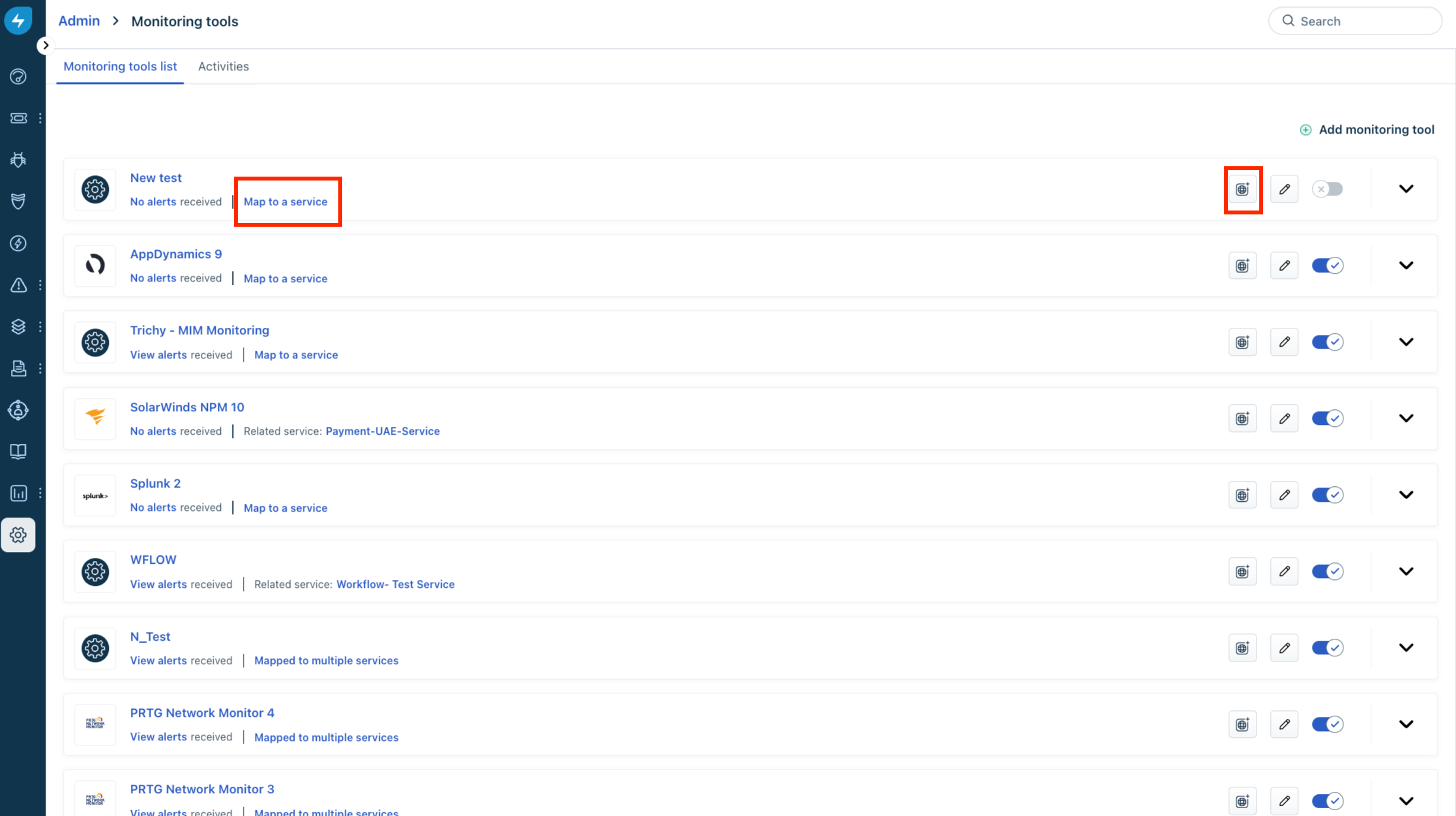
Option 2 – Associating a monitoring tool with one or more services
You can also create a service through the Alert Management module by associating a monitoring tool with a new or existing service.
1. ### In the Admin pane, scroll down to the IT Operations Management section and click on Monitoring Tools

 \#\#\# 3\. Next, choose whether you want to map the monitoring tool to a single service or multiple services*