Last updated: 2026-01-23
One of the most challenging and time-consuming tasks in managing a service desk is assigning the right parameters to the incoming tickets. By setting the right category, impact, type, and so on you can redirect tickets to the right person or team and get them resolved at the earliest.
Although it only takes a few seconds per ticket on average for a service desk manager to set the right values, things could quickly pile up owing to the volume of incoming tickets. Bridging this gap can shorten the first response as well as the resolution time.
The Ticket Field Suggester powered by Freddy Copilot uses an enhanced machine learning (ML) model with improved accuracy to suggest field values for incoming tickets. The ML algorithm learns from previous tickets and suggests the following field parameters: _Category_, _Sub-category_, _Item_, _Group_, _Priority_, _Impact_, and _Urgency_. Users can simply approve the suggested parameters, or make changes if necessary.
This article contains the following topics:
Configure ticket field suggester
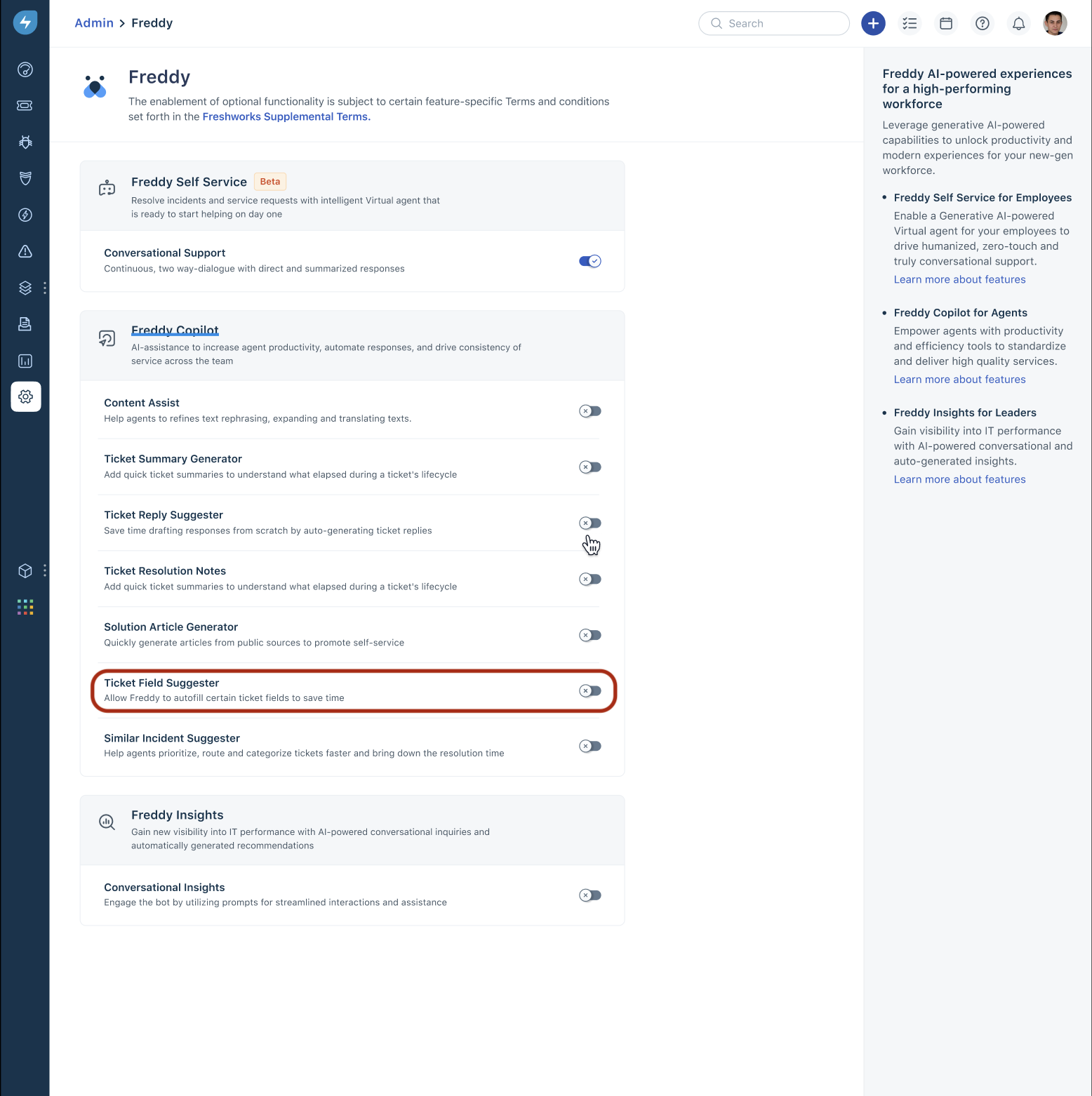
1\. Go to Admin > Freddy AI > Freddy.
2\. Enable the Ticket Field Suggester toggle under the Freddy Copilot section.
The Select ticket fields for autofill section opens to the right. All applicable fields in the Ticket Field Suggester are listed here in an enabled state (by default).
If none of the fields are ready for prediction, you will see a blue banner above the fields list. This indicates that Freddy Copilot is still learning based on the field usage.
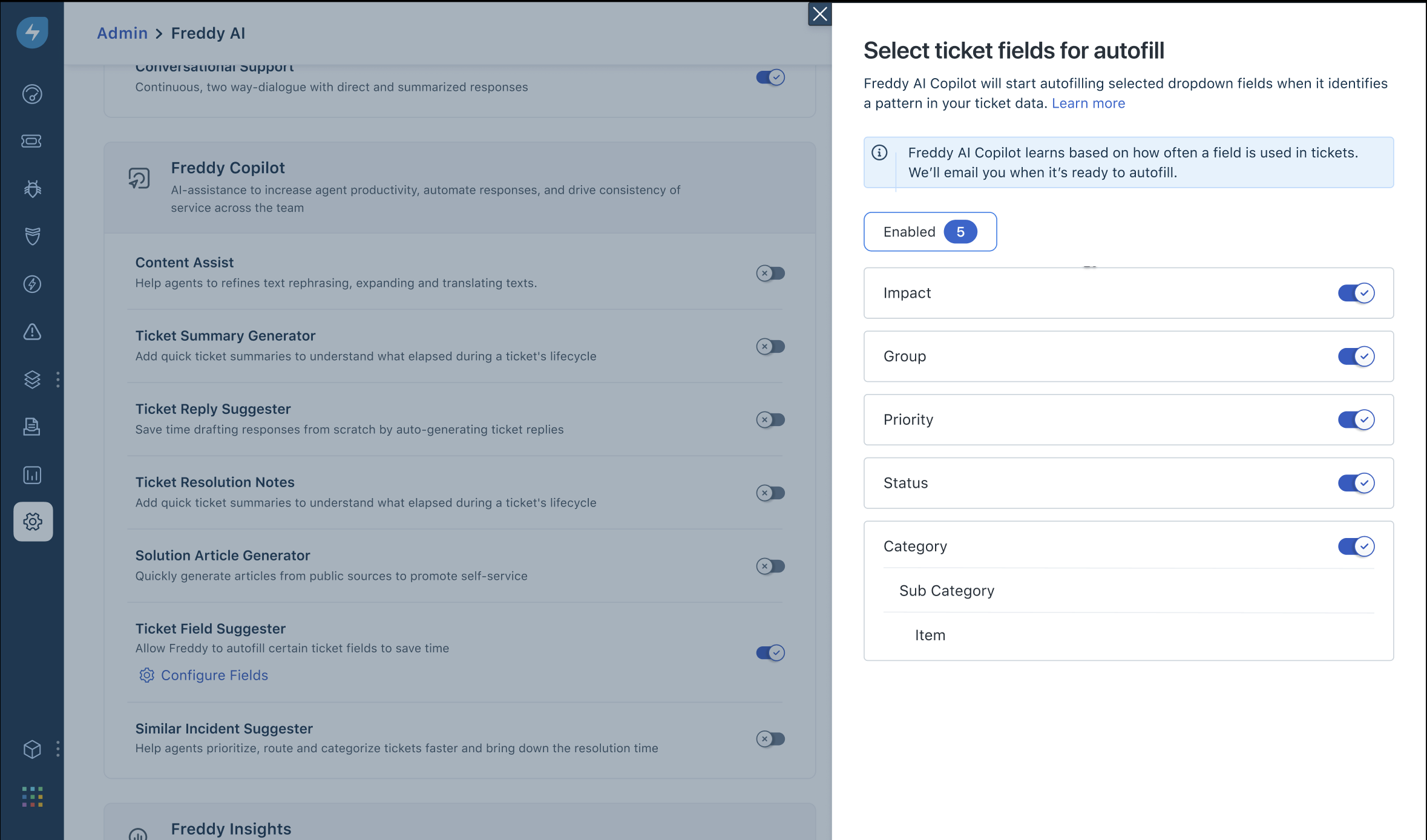
If none of the fields are available yet (which means an accurate ML model is still unavailable), your account administrator will be notified via email after the ML model is ready for at least one field.
``` Note: Your account administrator will also be notified if any fields are ready and you haven't enabled the Ticket Field Suggester feature. ```
When at least one field is ready, you can view the status of each field at the field-level.
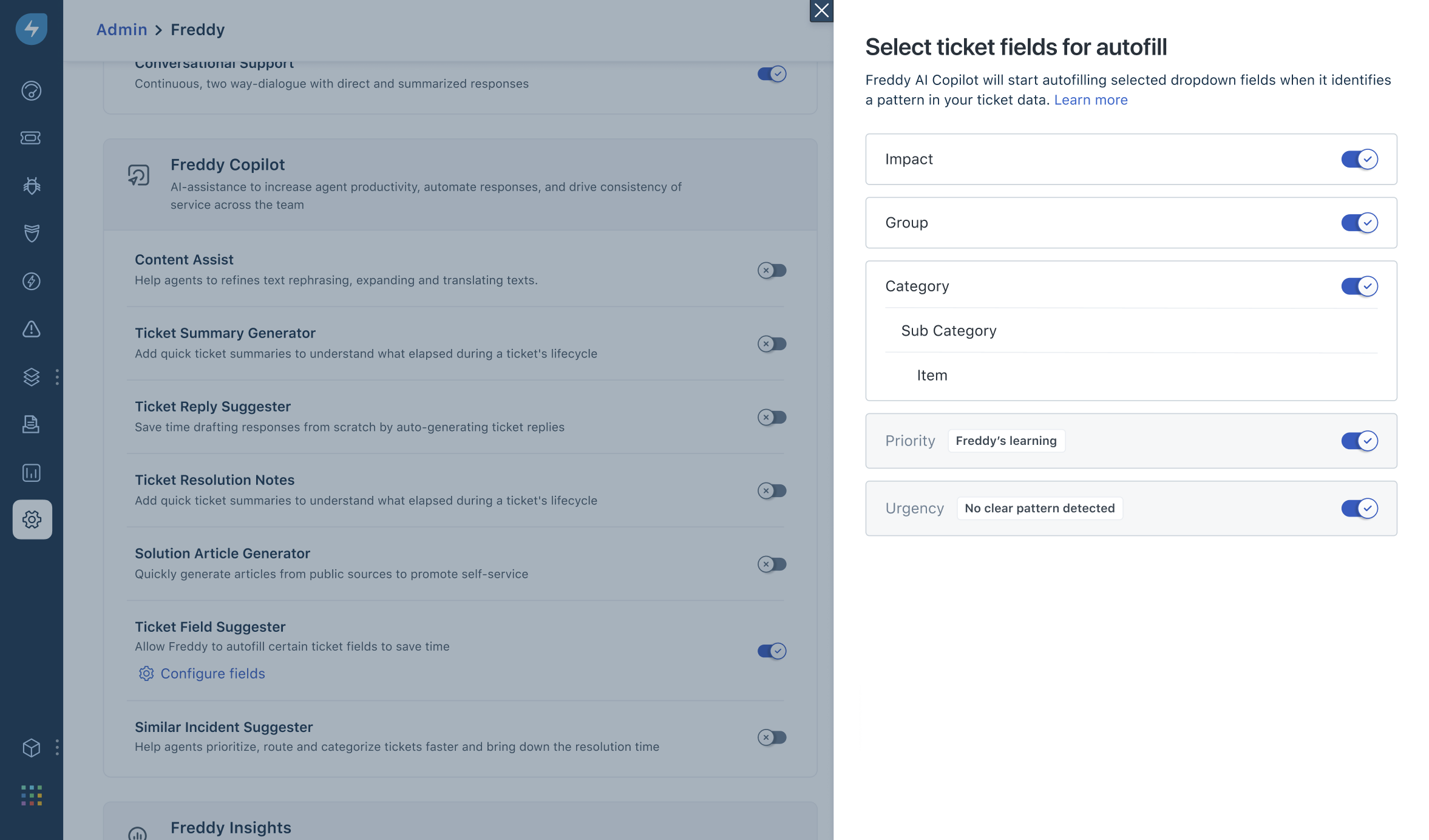
Field status
A field can either have no status or any of the following statuses:
``` Note: If you do not want any field to be suggested, you can disable the respective field toggle. Once disabled, the field is shown in the Disabled tab. The training status of any field is always empty when it’s in the disabled state. ```
Prediction mechanism
For the ML model to start evaluation, your account should have at least 1500 resolved tickets. Other conditions based on which each field or field value is included in training the ML model are as follows:
The prediction mechanism works in the following ways:
``` Note: The above conditions are set to ensure maximum accuracy of the suggestions, so that agents can benefit from this feature. ```
View and apply predictions
After you enable and configure the Ticket Field Suggester, the ML engine starts predicting fields in tickets.
You can view field predictions for a ticket under the Freddy suggestions section. If you want to see the predicted fields:
1\. Go to the Details tab of a ticket.

2\. Review and click Update to replace the default values with the predicted ones. Once an agent clicks Update, the predictions are no longer available for the ticket.
``` Note:
```
Disable ticket field suggester
If you want to disable this feature, follow these steps:
1\. Navigate to Admin > Freddy AI > Freddy.
2\. Disable the Ticket Field Suggester toggle under the Freddy Copilot section.
``` Important:
```