Last updated: 2025-08-26
``` Note: Freshworks will support the investigation of integration-related issues; however, issues originating from the third-party application are beyond Freshworks’ scope. We recommend reaching out to your account manager or the third-party provider’s support team. ```
Introduction
The integration between Freshservice and ServiceNow offers service management teams enhanced visibility and efficiency when collaborating with multiple stakeholders. Admins can seamlessly create, update, and sync tickets between both systems using predefined recipes.
With the Freshservice and ServiceNow integration, agents can:
Prerequisites
You need to have an active ServiceNow account. You will need your login credentials and ServiceNow base URL to enable this integration.
Every account administrator within Freshservice can initiate this integration.
How to install and configure app
1. Go to your Settings. Search for Apps using the search bar.
2. Click on Connector Apps. From the list of apps, click on ServiceNow Connector.
3. Install the app by clicking on the ‘Install’ button and you will be directed to the configuration page.
4. Enter the Domain URL and the API Key to connect your Freshservice account. Click Next.

5. Enter your Username, Password, and Base URL to connect your ServiceNow account. Click Connect and once the connection is established successfully, click Install.

How to check the list of all available recipes
1. After installation, go to Settings > Connector Apps. You will see your installed ServiceNow Connector app listed here. You have two options here:
a. Configure App: Use this to edit the default recipes, view Overview dashboard metrics, and configure your Widget settings. These are explained in the upcoming section.
b. Settings: If you wish to go back to your configuration page and disconnect or re-authenticate ServiceNow or Freshservice use this option.
2. Click on the Configure App option. It will take you to a tab with Overview and Recipes.
3. Click on the Recipes tab. It will show you a list of all the available recipes.

List of all the default recipes available
Here is the list of all default recipes available for the Freshservice integration with ServiceNow.
| Recipe | Function |
| ServiceNow to Freshservice Change ticket creation and upate | Create a new change ticket or update an existing one on Freshservice whenever a change ticket is raised on ServiceNow |
| ServiceNow to Freshservice service request conversation | Add a conversation note to the Freshservice ticket whenever there is a conversation note added to the corresponding servie request in Servicenow |
| ServiceNow to Freshservice Incident conversation | Add a conversation note to the Freshservice ticket whenever there is a conversation note added to the corresponding incident in Servicenow |
| ServiceNow to Freshservice change conversation | Add a conversation note to the Freshservice ticket whenever there is a conversation note added to the corresponding change ticket in Servicenow |
| ServiceNow to Freshservice incident ticket creation and upate | Create a new incident ticket or update an existing one on Freshservice whenever an incident ticket is raised on ServiceNow |
| ServiceNow to Freshservice service request ticket creation and upate | Create a new service request ticket or update an existing one on Freshservice whenever a service request ticket is raised on ServiceNow |
| Freshservice to ServiceNow Real Time Conversation for Incident | The conversation added to the Freshservice incident is updated to ServiceNow incident in real time |
| Freshservice to ServiceNow Real Time Conversation for Service Request | The conversation added to the Freshservice service request is updated to ServiceNow service request in real time |
| Freshservice to Service now change ticket creation & update | Create a change ticket or update an existing one on ServiceNow whenever a change ticket is raised on Freshservice |
| Freshservice to Service now SR ticket creation & update | Create a service request or update an existing one on ServiceNow whenever a service request is raised on Freshservice |
| Freshservice to Service now Incident ticket creation & update | Create an incident or update an existing one on ServiceNow whenever an incident is raised on Freshservice |
How to preview, edit, activate, and stop the recipe
You will be able to preview, edit, activate, and stop the available recipes.
Preview recipe
Click on the Preview button next to the recipe that you want to view. The recipe window will open and you will be able to view the steps involved in the recipe with pre-configured triggers, actions, and conditions.
On the left hand panel, you will be able to view the Recipe status, jobs executed, dependencies, and activity timeline.

Start recipe
You can activate the recipe in two ways:
1. From the main recipe page, click on the Start button corresponding to the recipe you want to activate.

2. Click on the Preview button. Within the recipe window, you will see an option to Start the recipe.
Edit recipe
Follow the below steps to edit the recipe:
1. Click on the preview button next to the recipe to open the recipe window. If the recipe is inactive, you will find the edit button available.

2. If the recipe is active, stop the recipe by clicking on the Stop recipe button. Now click on Edit recipe button.
Stop recipe
You can activate the recipe in two ways:
1. From the main recipe page, click on the Stop button corresponding to the recipe you want to stop.
2. Click on the Preview button. Within the recipe window you will see an option to Stop the recipe.
How to customize a recipe
Each recipe has the following components: Trigger, Actions, and Conditions. You can customize any part of the recipe depending on your specific use case by just clicking them.
Let’s take one of the default recipes as an example and see how you can customize it further.
Recipe - ServiceNow to Freshservice Change ticket creation & update
Trigger
The trigger acts as the starting point for any recipe. For this recipe, the trigger is a new change ticket created in service now. You can customize the trigger in the below mentioned ways.

How to Use ServiceNow Trigger Filter Query Fields
This section outlines the best practices for utilizing filter queries in ServiceNow triggers to ensure accurate and efficient data retrieval. Proper query construction is essential to avoid polling failures and optimize integration performance.
_Note:__Filter Query is an optional feature for triggers, and accessible within the optional fields section._
Key principles
Ensure to adhere to the following key principles while configuring the trigger filter queries.
1. ServiceNow API Compliance: Construct queries strictly according to the ServiceNow Table API documentation. See ServiceNow Rest APIs documentation for the latest guidelines on valid query syntax and parameters.
2. sysparm\_query Prefix: All filter queries must begin with the prefix "sysparm\_query". Queries lacking this prefix will result in polling failures and exceptions. If no filter query is needed, leave the field blank.

_Tip:__"sysparm\_query__" strings can be directly copied from the ServiceNow URL (as shown in the following screenshot), or after decoding it._
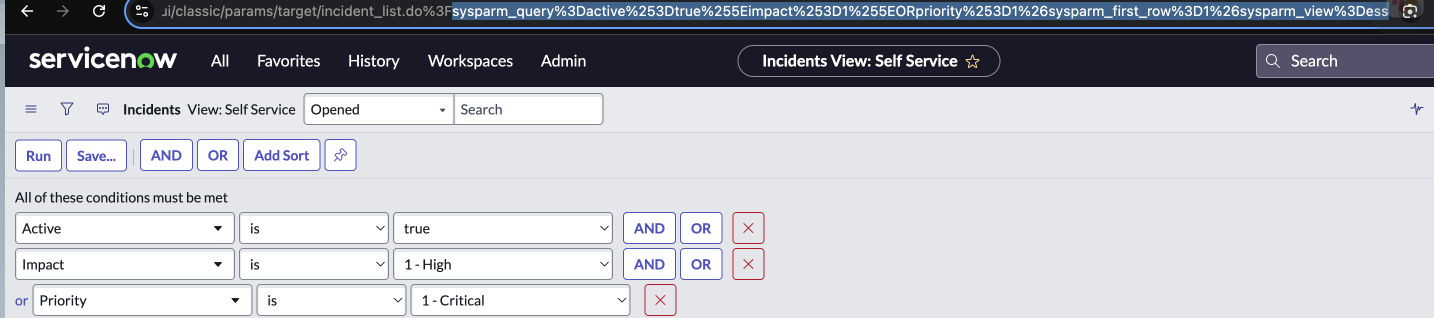


The final query sent to servicenow will be \sysparm\_query=active=true^impact=1^ORpriority=1\
Trigger-specific restrictions
1. Update Record Triggers: When the trigger being used is ‘Update’ record, the "sys\_updated\_on" parameter is not permitted in "sysparm\_query", and it will be ignored. For instance, a query like "sysparm\_query=active=true^sys\_updated\_on>javascript:gs.dateGenerate('2025-06-01','23:59:59')^impact=1" will be reduced to "active=true^impact=1".
2. New Record Triggers: Similarly, when the trigger is ‘New’ record, the "sys\_created\_on" parameter is not allowed in "sysparm\_query", and it will be disregarded.
3. Sorting: Filtering ServiceNow triggers excludes ORDERBY and ORDERBYDESC clauses when passed.
4. JavaScript Functions: Queries are prohibited from making JavaScript calls to retrieve entity values. For example, in the query "sysparm\_query=caller\_id=javascript:gs.getUserID()^active=true", the "caller\_id=javascript:gs.getUserID()" portion will be discarded, leaving only "active=true".
Query construction and best practices
1. Field and Value Referencing: Utilize the existing ServiceNow query patterns for field and value references. Alternatively, use datapills and hover to inspect the "api\_name" of the field. The "api\_name" should be used as the field identifier within "sysparm\_query".
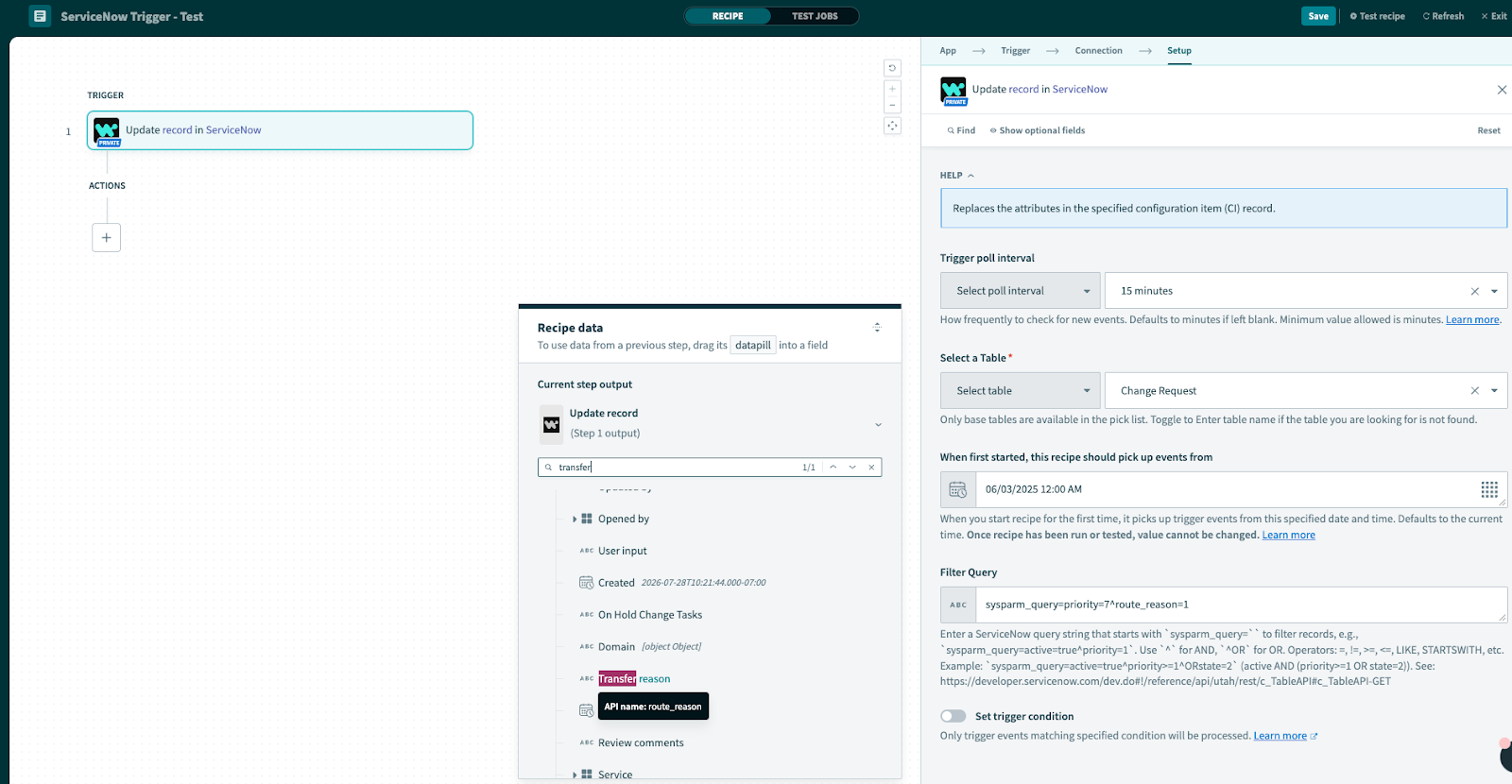
2. Value Format Verification: Examine the past successful ServiceNow job responses to determine the accurate value format for specific fields. Value examples:
Priority: "3",
Transfer reason: "1",
Task type: "change\_request",
Impact: "1"
3. Example Queries:
- Valid: sysparm\_query=active=true^impact=1^ORpriority=1
- Invalid: active=true^impact=1^ORpriority=1 4. Visual Aids: The following screenshots are concrete examples of acceptable and unacceptable query formats to enhance understanding and prevent common mistakes.
Acceptable query formats
Not acceptable query formats
Real-Time webhook triggers for ServiceNow connector
The Connector app supports real-time webhook triggers in addition to polling-based triggers, enabling faster and more efficient synchronization between ServiceNow and Freshservice. This enhancement includes four new recipes for incidents and service requests.
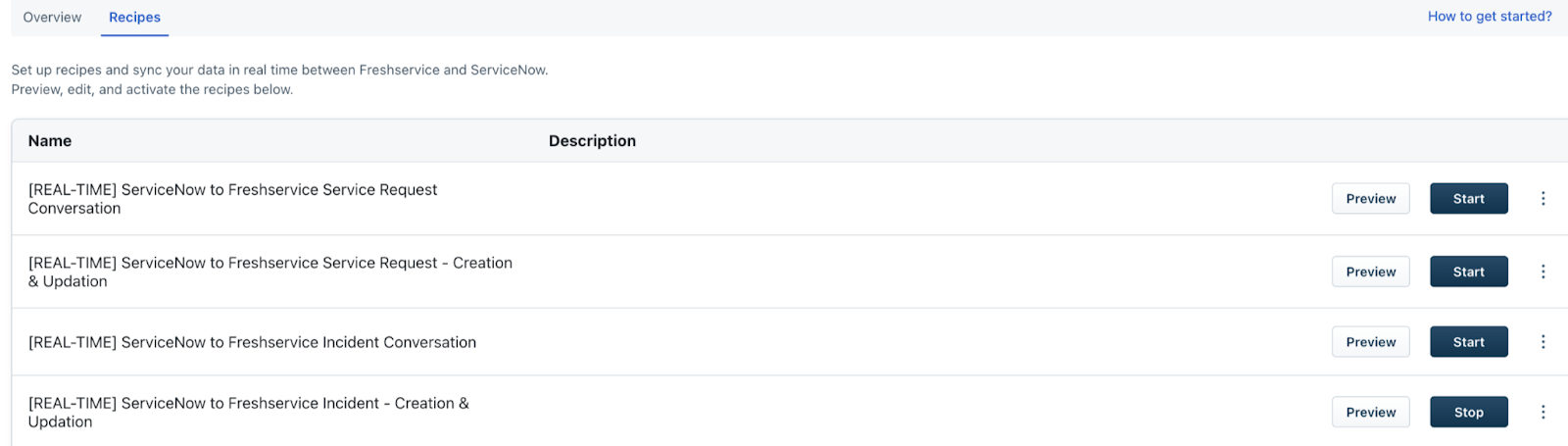
How real-time webhook triggers works
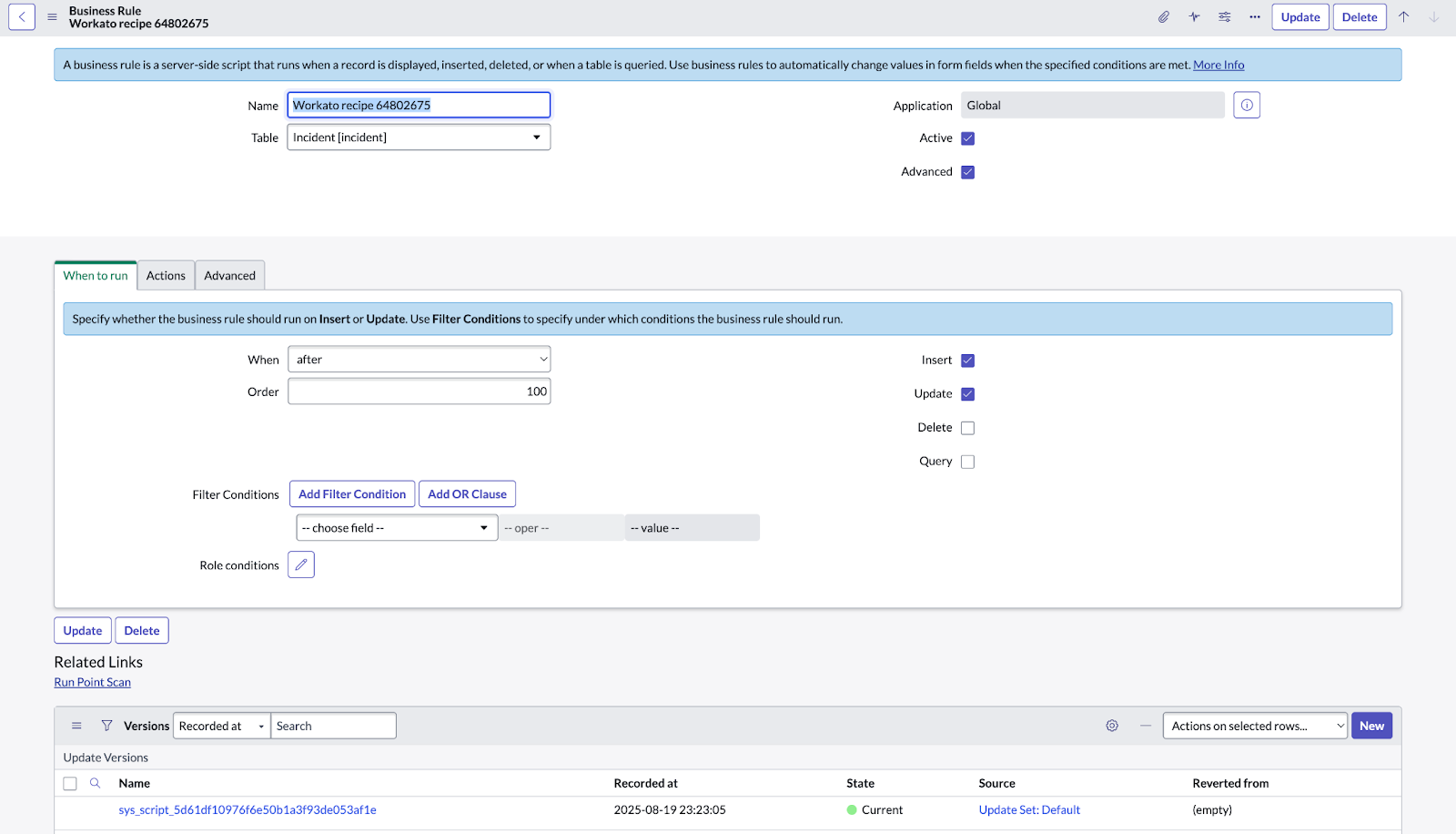
When you start a recipe with the new or updated record, Workato automatically creates a Business Rule in your ServiceNow instance.
To check the Business rule in ServiceNow go to > System Definition > Business Rules (Workato recipe \[RECIPE\_ID\]). It can be an Incident or Service Request based on your recipe.

Note: We recommend not to modify any fields in the Business Rule. These rules are created for each recipe, and any edits will break the integration. If changes are made, stop and restart the recipe to regenerate the rule.
The business rule has these specific settings:
The image shows the default field values in the auto-generated Business Rule.
Permission required
The following permissions are required in the Servicenow instance:
Best practices
Condition
The condition acts as a checkpoint within the recipe flow and executes a specific set of actions based on the condition matched. This recipe checks for two conditions. First, the recipe checks which Freshservice workspace the ticket should be added to based on the ServiceNow group source. Post that it checks if the change ticket already exists within that workspace. You will be able to check and edit the following conditions.

Action
The recipe performs a specific set of actions based on the conditions specified. Based on the conditions mentioned above, the recipe either adds or updates the change ticket within a specific workspace. You can customize the following parts of the action:

After making all the necessary changes, you can save the recipe directly or test the recipe first to check if it is working correctly.
How to check failed jobs
To view and troubleshoot the reason for a failed job under a recipe please follow the steps mentioned below:
1. Click on the Preview button of the specific recipe from the main recipe page.
2. In the recipe window, navigate to the Jobs tab.
3. You will see the list of all the jobs executed under a particular recipe here.

4. You can filter to check just the failed jobs by using the Status filter on the top panel.

5. You can click any particular job to view further details about how the job was executed.
6. If you click on a job that has failed, you will be able to view the error details that will help you identify the cause of failure.

7. You can resubmit the job once you review and fix the issue.
Overview dashboard
The Overview tab also helps you understand the total number of tasks that you've consumed (based on which your billing for the app will happen). It also helps you have a consolidated view of the number of successful job vs. failed jobs for a given recipe.

``` Note: For information on frequently asked questions (FAQs) related to the Connector Apps in Freshservice, see Connector Apps: Frequently Asked Questions (FAQs). ```