Last updated: 2026-01-30
Source: https://support.freshservice.com/support/solutions/articles/50000009365-create-an-on-call-schedule
Set up an on-call schedule to ensure that your support team is available and reachable regardless of day or time to handle critical incidents. With an on-call schedule, ensure sufficient redundancies are built into your support desk, irrespective of weekends and holidays.
How on-call schedules work:
Here's how you can set up an on-call schedule:
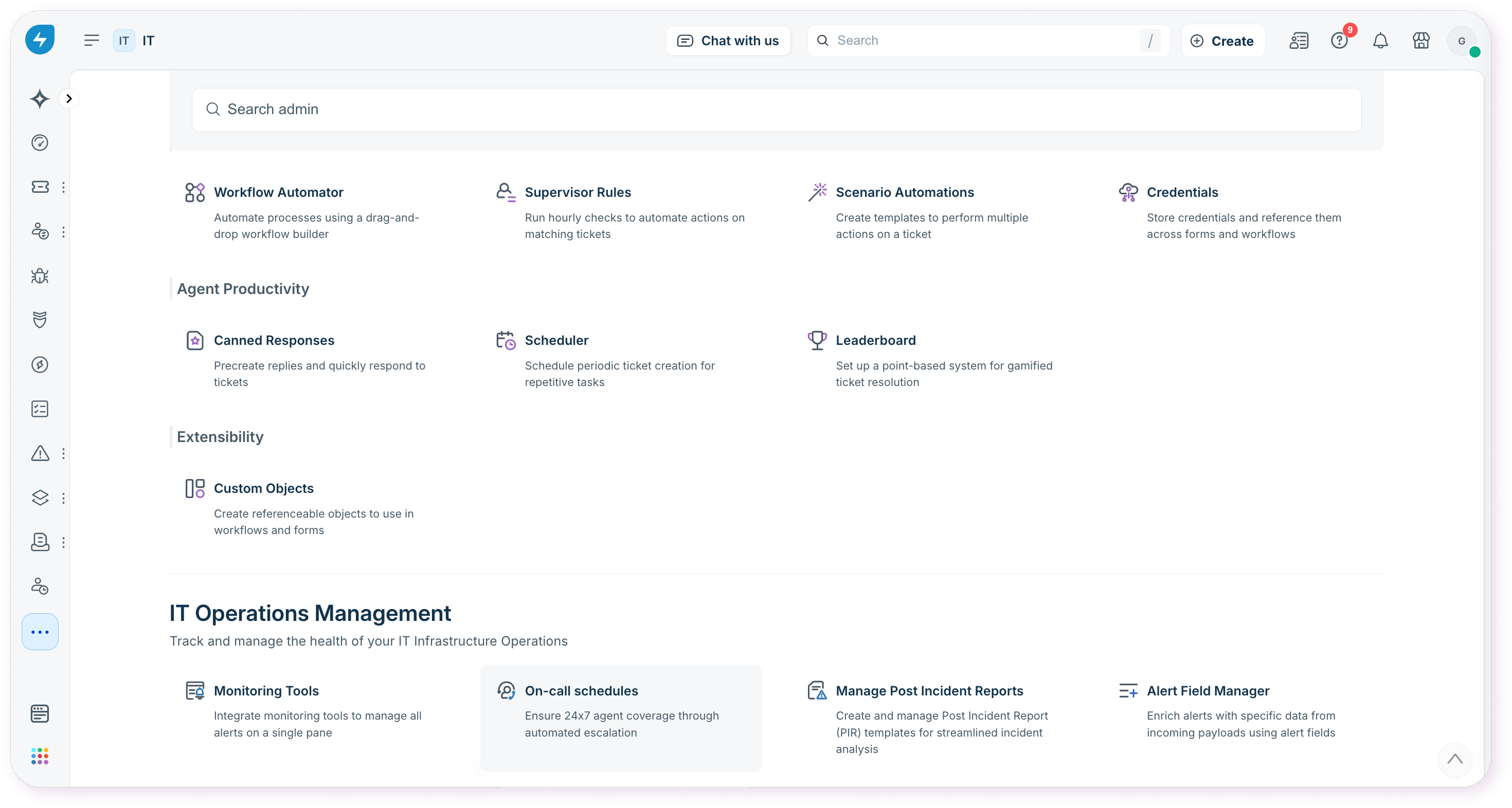
1. Go to Admin Settings > IT Operations Management section > On-Call Schedules. To set up on-call schedules for specific workspaces, go to Admin > Workspace >IT Operations Management section > On-Call Schedules.
This creates an on-call schedule. Once the on-call schedule is created, you can proceed to configure shifts to assign to the schedule. Learn more about creating shifts here.
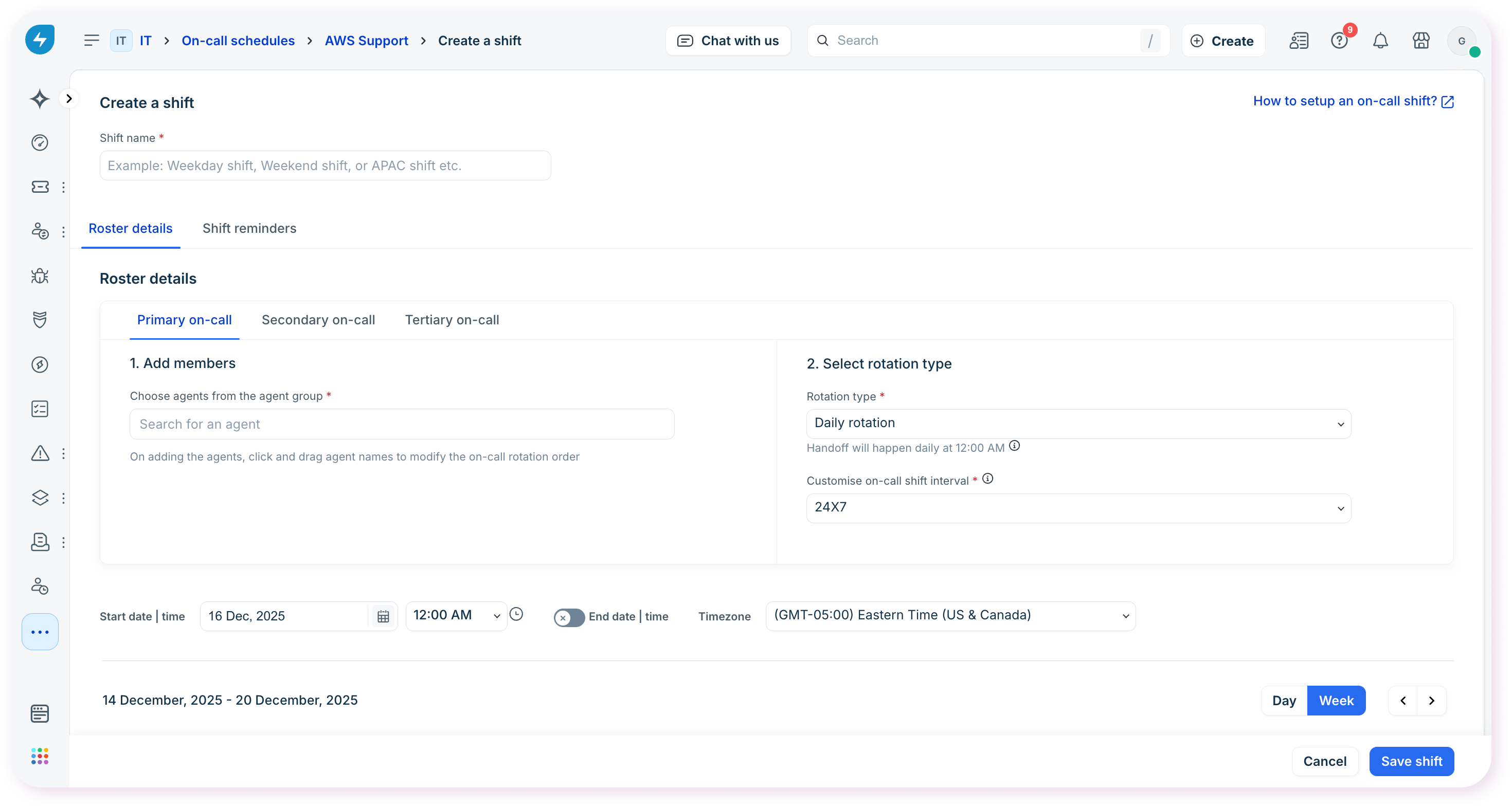
``` Note: An agent group associated with an on-call schedule will not be available for selection. In case no agent group is available for selection, go to the Admin panel, scroll down to User Management section, and create a new agent group. This new agent group will then be available for selection when you create a new on-call schedule. ```