Last updated: 2026-03-06
The "No Access" message indicates a specific permission gap between the report's data source and the user's assigned role profile. Configuring granular visibility settings ensures that your team can access the critical data insights required for their daily workflows.
Why "No Access" messages appear
Understanding the root cause of permission errors helps you determine which module settings to adjust.
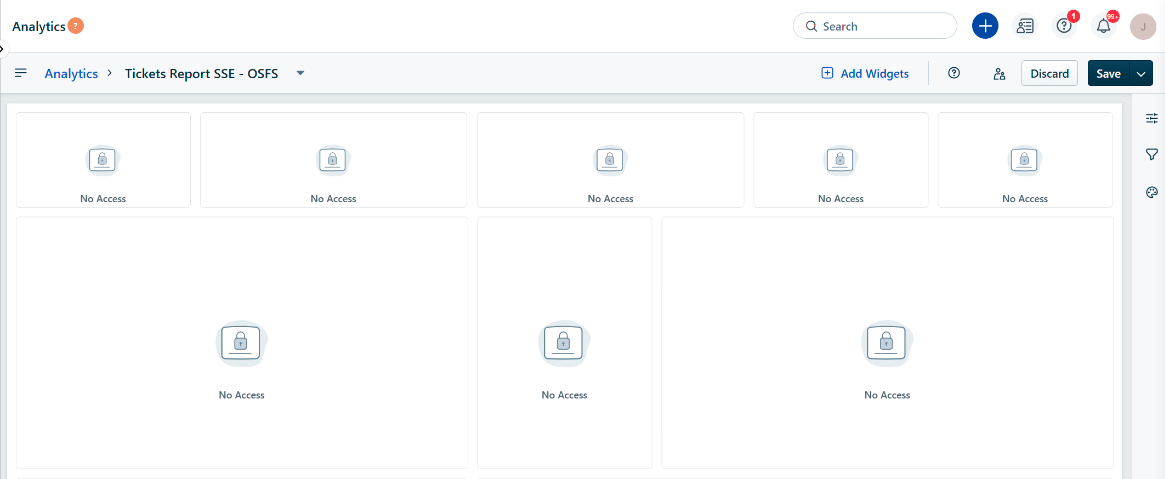
Here are the following reasons these messages appear:
Prerequisites
Before you modify access levels, ensure you have the following:
Grant report access
Updating role permissions restores visibility to widgets and ensures users see the data they need to perform their jobs.
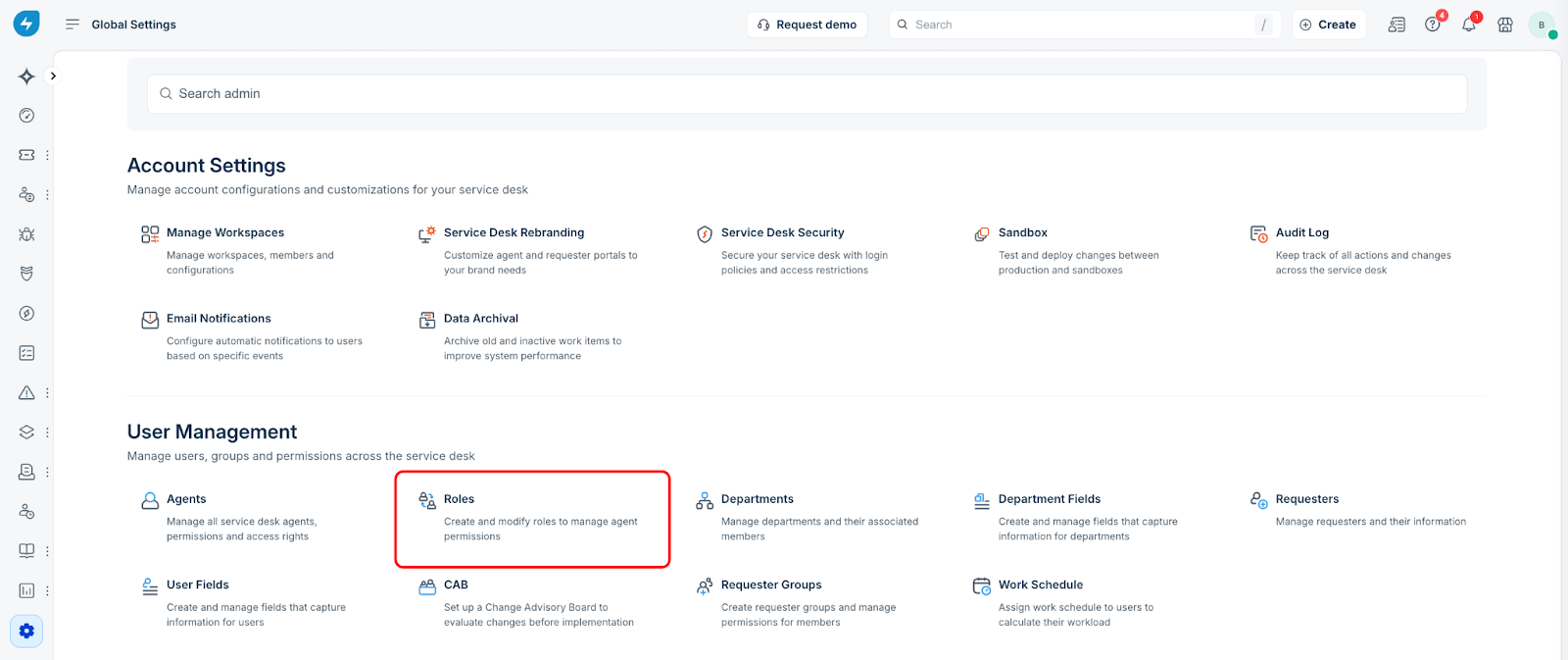
1. Select Global Settings, and then select Roles.
2. Choose Admin roles or Agent roles to view the list of specific roles in that category.
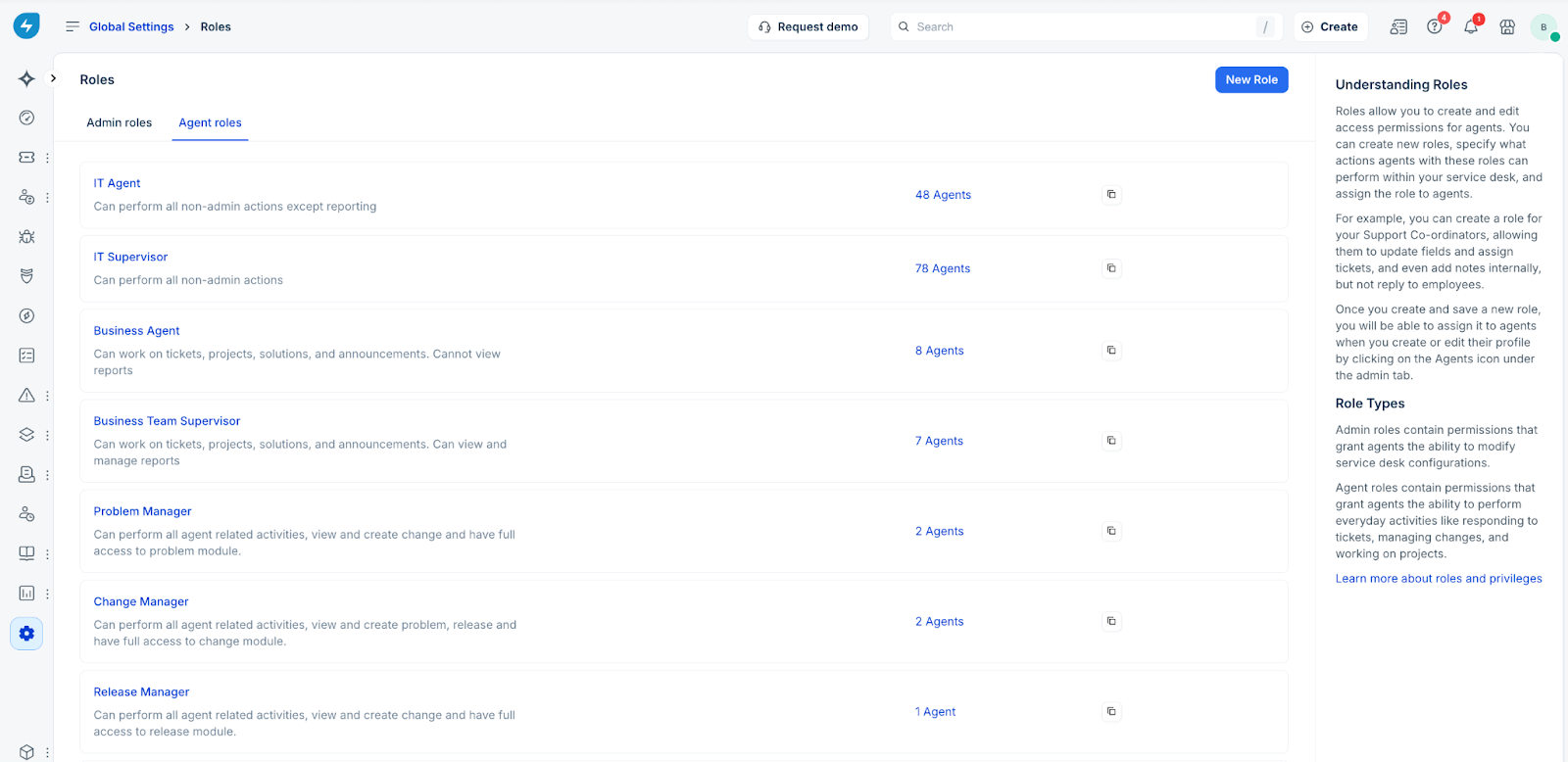
3. Select the Role Name you want to modify, such as "IT Agent."
4. Navigate to the Permissions panel, and then select Reports.
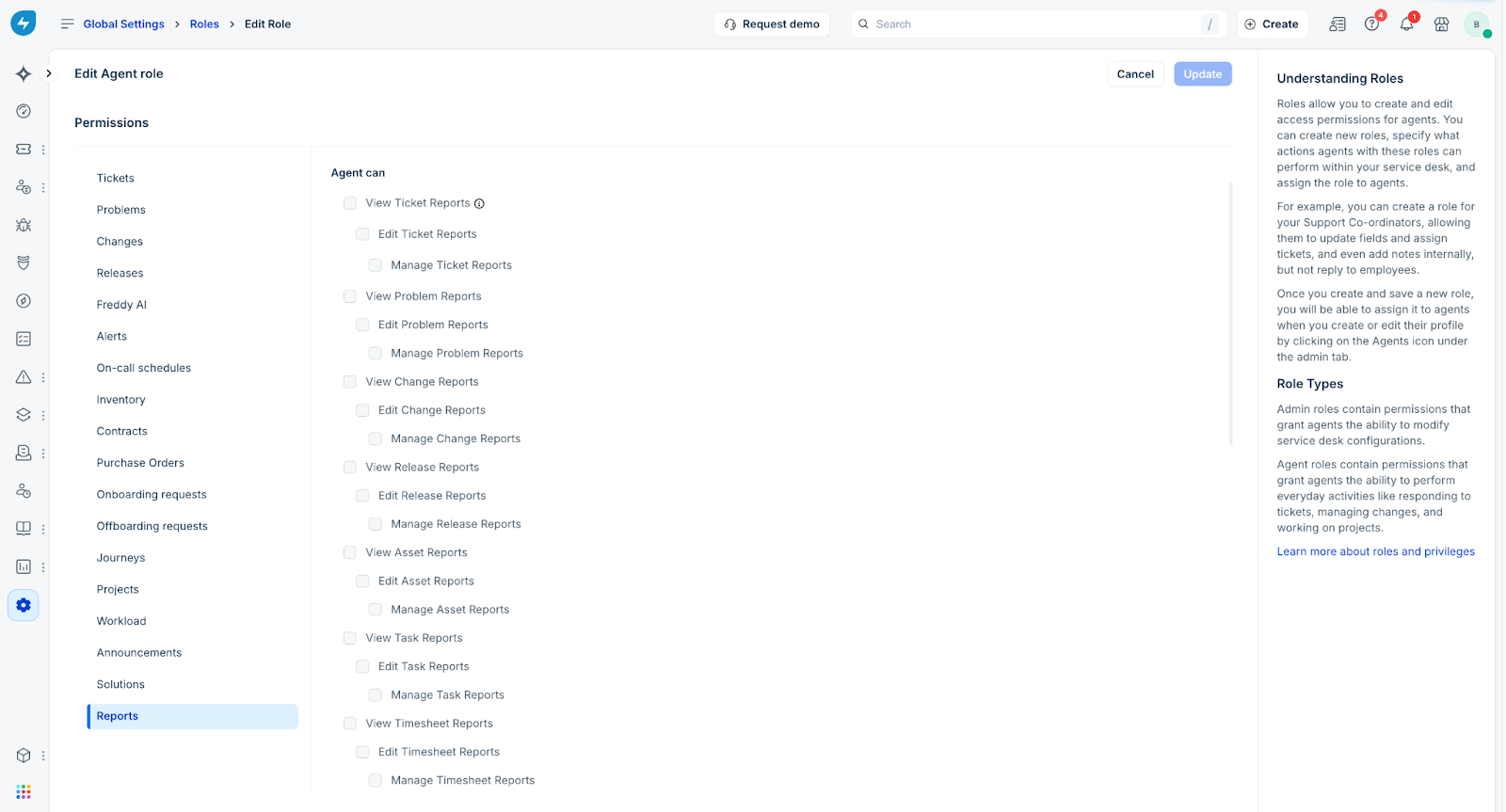
5. Select the Check boxes for the specific permissions the role requires.
- View User Reports: This allows an agent to see data within a report widget.
- Edit or Manage: This allows an agent to modify the structure and filters of a report. 6. Select Save.
Verify access
Confirm the permission update was successful by impersonating the user or having them refresh their dashboard. If the "No Access" message is replaced by data visualizations or tables, the role now has the appropriate permissions.