Last updated: 2026-03-31
Source: https://support.freshservice.com/support/solutions/articles/50000011921-other-cloud-autodiscoveries
Cloud autodiscovery jobs gather infrastructure details, monitor network traffic for Application Dependency Mapping (ADM), and track virtual machine (VM) states. Beyond major providers, support is available for a wide variety of cloud platforms. Each cloud type includes specific configuration options to ensure your CMDB remains synchronized with your virtual infrastructure. The following a cloud platform are supported:
Prerequisites
You need the following before the installation:
Alibaba Cloud
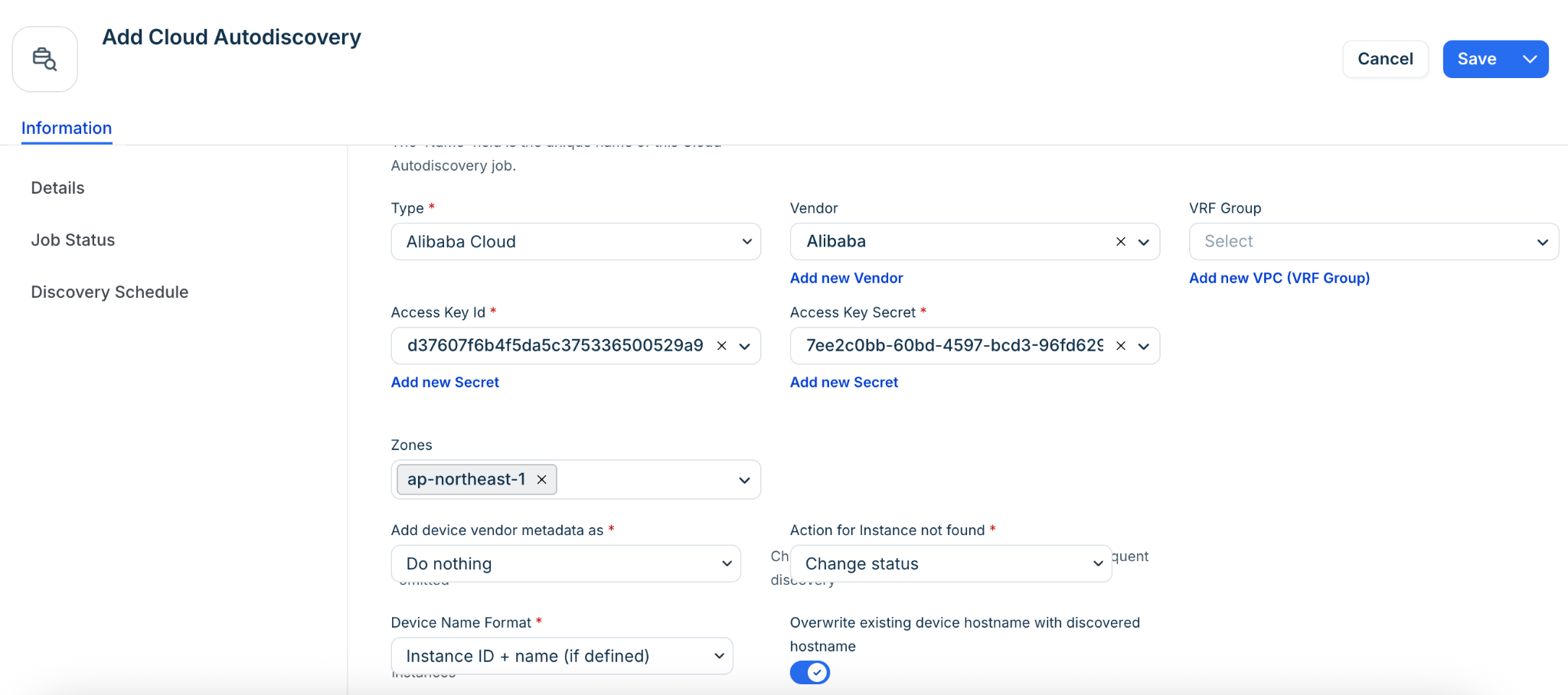
Alibaba Cloud discovery collects infrastructure information and monitors network traffic. A read only Alibaba role is sufficient for these operations.
| Cloud Service | Location in System | Information Generated |
| VMs | Devices > All Devices | Type, name, OS, RAM, CPU, serial number |
To configure the job:
1. Select Alibaba Cloud from the Type dropdown.
2. Enter the Access Key Id and Access Key Secret.
3. Select one or more Available Zones.
4. Choose an Action for Instance not found and a Device Name Format.
5. Click Save, then click Run Now.
Arista CloudVision (Preview)
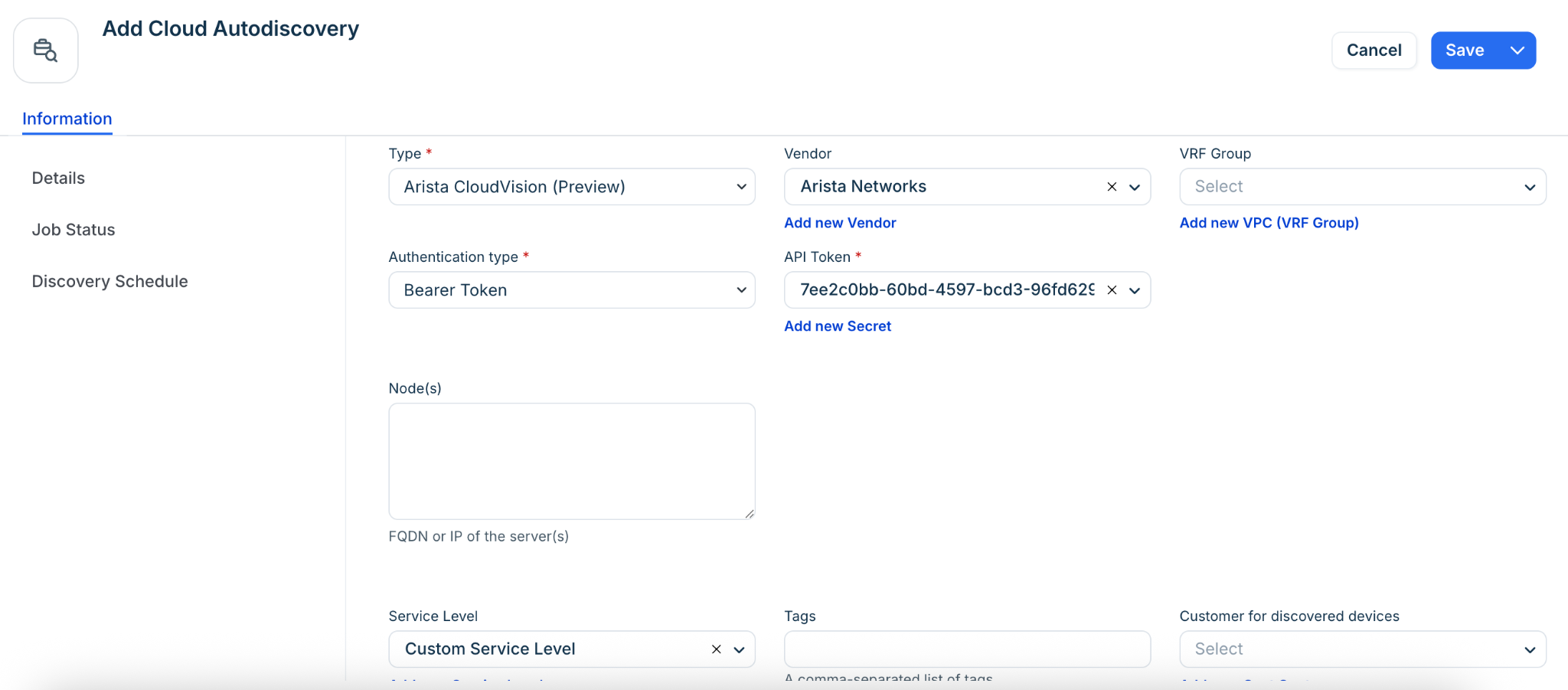
This discovery captures network infrastructure details via the CloudVision API.
| Cloud Service | Location in System | Information Generated |
| Network Infrastructure | Devices > All Devices | Device ID, status, dashboard configs |
To configure the job:
1. Select Arista CloudVision (Preview) from the Type dropdown.
2. Enter the server IP or FQDN in the Node(s) field and select a Remote Collector.
3. Select an Authentication type (Bearer Token or Basic Authentication) and provide credentials.
4. Optionally add Tags to categorize discovered items for searching and ADM calculation rules.
DigitalOcean
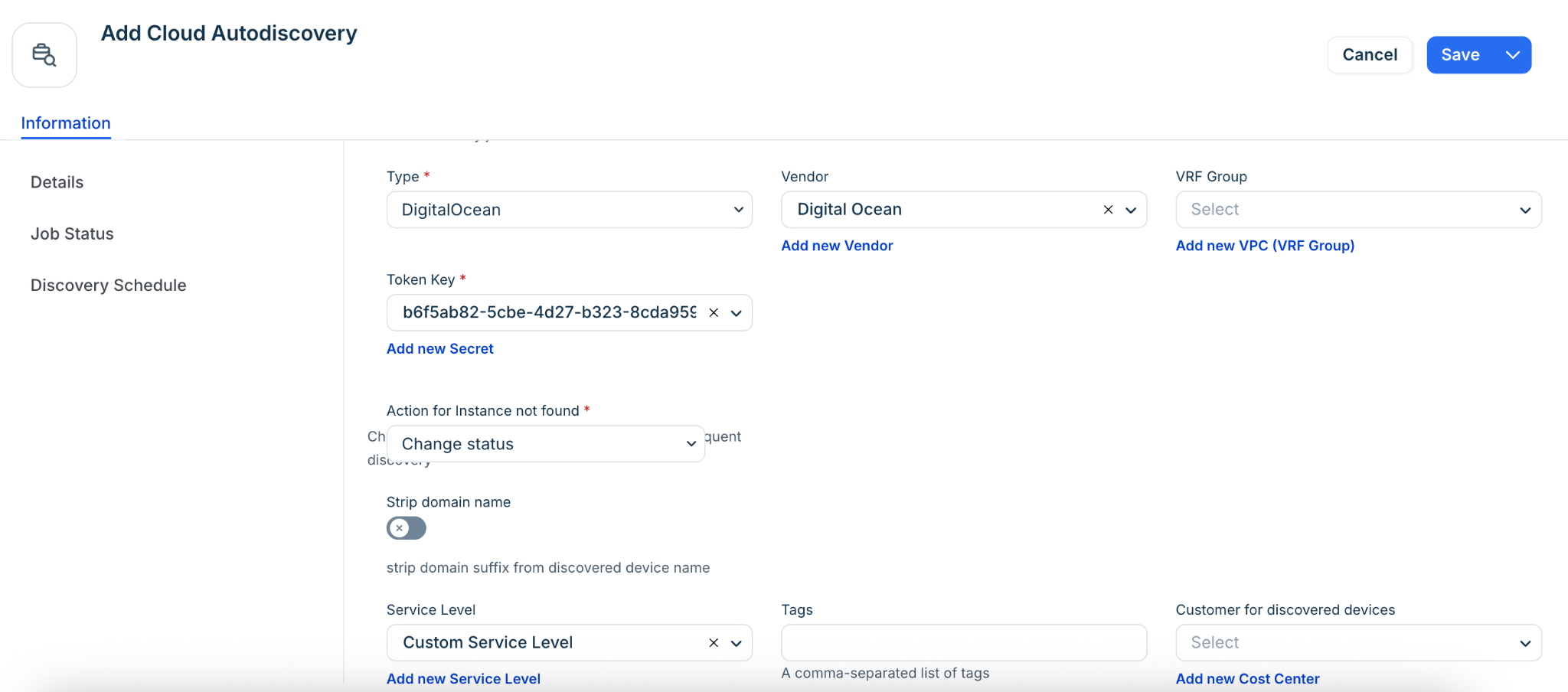
Droplets are discovered and categorized as virtual devices.
| Cloud Service | Location in System | Information Generated |
| Droplets (VMs) | Devices > All Devices | Type, name, RAM, CPU count, HDD size, OS |
To configure the job:
1. Select DigitalOcean from the Type dropdown.
2. Enter your Token Key.
3. Set the Service Level (e.g., Production or Development).
4. Save and run the job.
Linode
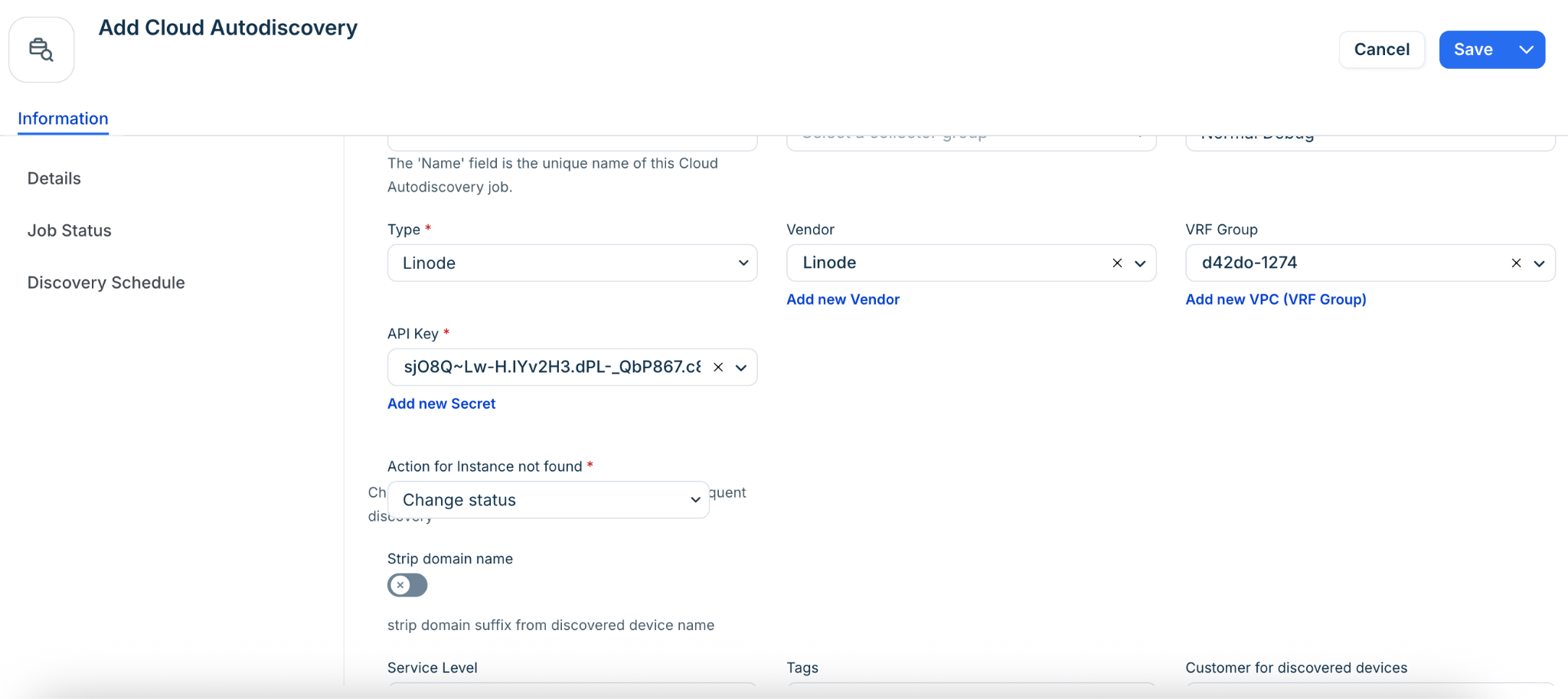
Linode instances are discovered as virtual devices. You must generate an API key in your Linode console under My Profile > API Keys before starting.
| Cloud Service | Location in System | Information Generated |
| VMs | Devices > All Devices | Name, type, RAM, OS, HDD serial/size, IP |
To configure the job:
1. Select Linode from the Type dropdown.
2. Click the plus (+) icon to add your Linode API key as a Secret.
3. Action for Instance not found: Select Delete Instance to ensure the CMDB remains in sync if an instance is removed from Linode.
4. Choose a VRF Group if you have duplicate IPs in your internal network.
OpenStack
OpenStack discovery requires specific project permissions. Ensure the user group has os\_compute\_api:os-hypervisors and os\_compute\_api:os-extended-server-attributes enabled in the policy.json.
| Cloud Service | Location in System | Information Generated |
| Hosts | Devices > Unknown Devices | Name, memory, CPU, IP, MAC |
| VMs | Devices > All Devices | Type, name, RAM, UUID, IP, MAC |
Get Details for OpenStack Discovery
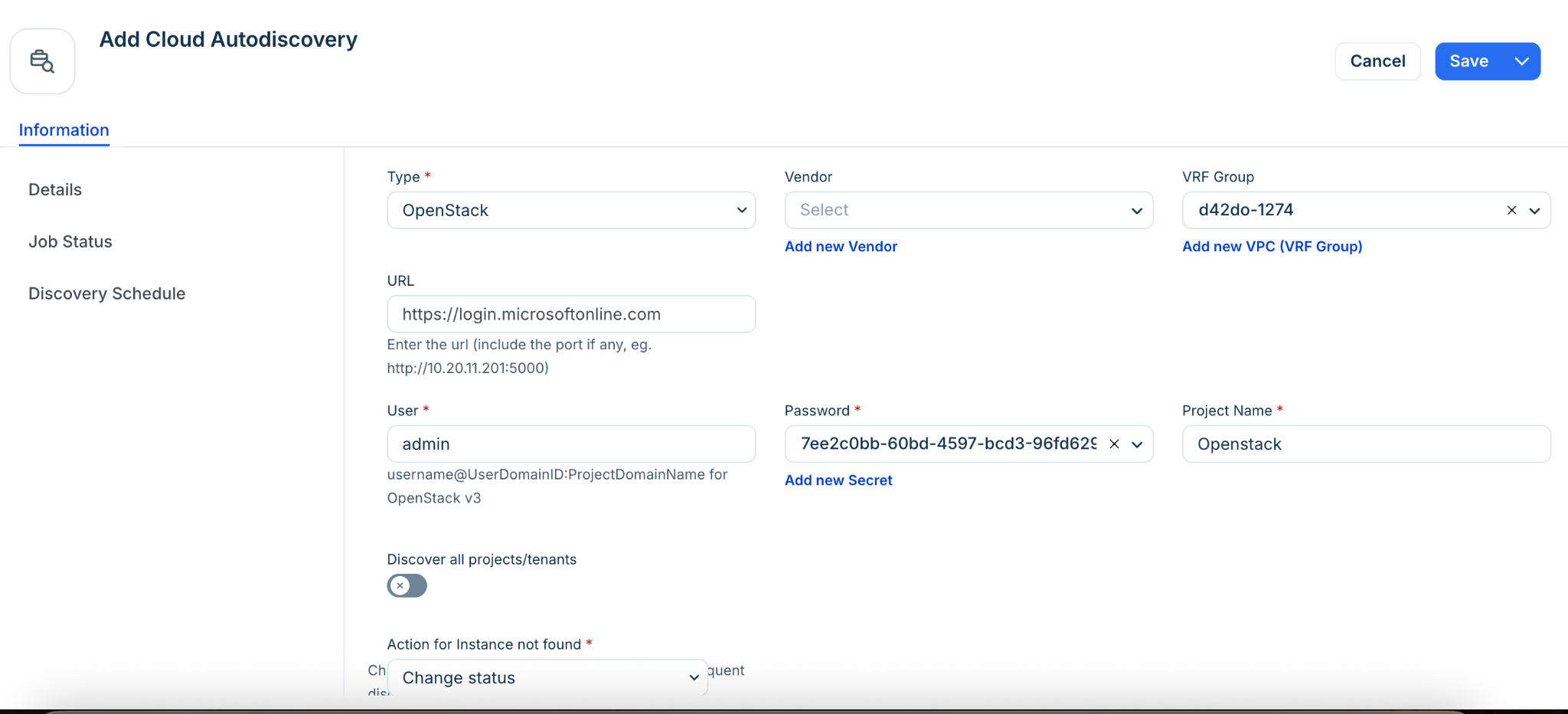
Your OpenStack User Name (username@UserDomainID:ProjectDomainName), Password, and Project Name is required for discovery.
1. Log in to OpenStack and take note of your User Name and Password.
2. When you log in to OpenStack, the Overview screen displays a list of projects.
3. Enter the name of the project you want to access in the Project Name field.
Create an OpenStack Discovery Job
To configure the job, follow these:
1. Select OpenStack from the Type dropdown menu, and fill in the User name, Password, and Project name fields.
2. If you disable Discover all projects/tenants, then the Project Name is required. When Discover all projects/tenants is enabled, Device42 will discover resources across all available projects, making the specific project name unnecessary.
3. Optionally, you can configure the following:
4. Click Save and Run Now to run the job immediately. You can also run the job manually at any time by clicking the Run Now button on the Cloud Autodiscovery list page.
Oracle Cloud
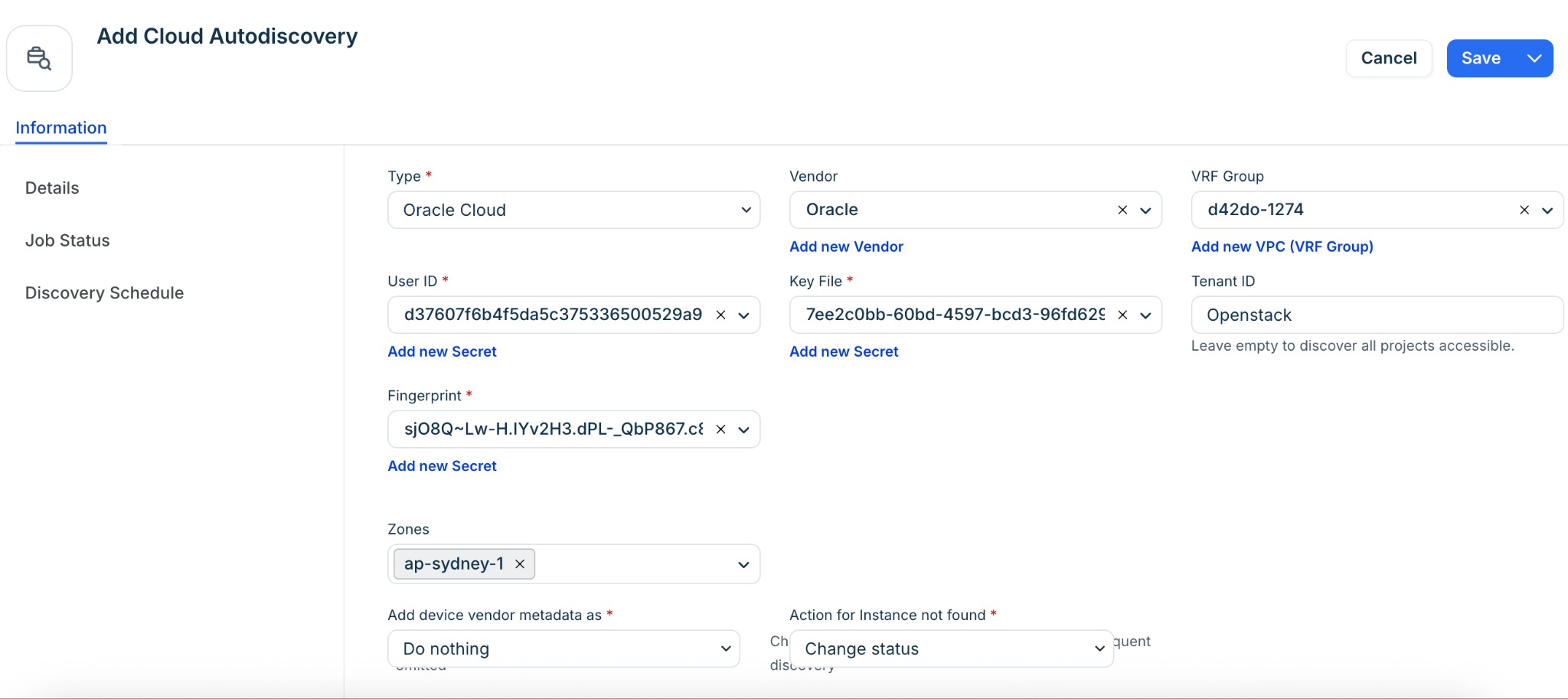
This job discovers Oracle Cloud VMs and their associated subnets.
| Cloud Service | Location in System | Information Generated |
| VMs | Devices > All Devices | Service name, instance ID, status, location |
| Subnets | Network > Subnets | Network address, mask, name |
To configure the job:
1. Select Oracle Cloud from the Type dropdown.
2. Enter the following:
User Id, Fingerprint, Key File, and Tenant ID.
3. Select the target Zones.
4. Optionally, you can:
5. Click Save and execute the job.