Last updated: 2025-08-11
Source: https://support.freshservice.com/support/solutions/articles/50000010140-asset-activity-reporting
Asset Activity Reporting provides a detailed, ongoing record of all changes made to an asset, offering valuable insights into its lifecycle. This continuous tracking helps maintain an accurate history of modifications and plays a crucial role during audits and compliance reviews.
In this article, we’ll explore how to create Asset Activity Reports using sample use cases.
Asset Activity Analytics Glossary
| Attribute | Description |
| Performed at | The time when the activity was performed. |
| Performed by User Name | The user, workflow or discovery source that made the update. Eg: Discovery Agent, Intune, Probe, etc |
| Action | Specific action performed on an asset<br>Eg: Asset created, Restored, tickets associated, <Attribute> updated |
| Performed by User Type | The type of user who performed the action.(User, Workflow or Discovery Source) |
| From Value | The previous value of the attribute before the update. |
| To Value | The new value of the attribute after the update. |
| Performed by (association) | Allows filtering of activities based on attributes of the user performing the action. For eg: Filter activities performed by users from the IT department |
_Note:__Analytics allows you to report only on the last 12 months of activities, so make sure you leverage this data periodically._
Sample Use Cases
Use Case 1: Generate a report to monitor and track location changes for an asset (can be extended to any other attribute).

1\. Navigate to Admin → Reporting → Analytics to create the custom report.

2\. Click on the New Report in the top right corner.

3\. Drag and drop the widget to create the report.

4\. Select the asset metric from the drop-down field.

5\. Click on the \+ filter and use the below conditions to track the location changes for an asset.

6\. Finally, group the assets based on the Asset Name and click on Apply.

Use Case 2: Generate a report to track how many assets were deployed or retired over the last X months.
1. Navigate to Admin → Reporting → Analytics to create the custom report.
2\. Drag and drop the widget to create the report.

3\. Select the Asset metric from the drop-down field.

4\. Click on the \+ filter and use the below conditions to track how many assets were retired over the last 3 months.

5\. Finally, click on Apply to generate the report.
Use Case 3: Export all activities over the last X months across all assets.
1. Navigate to Admin → Reporting → Analytics to create the custom report.
2\. Click on Settings from the bottom left corner of the screen.

3\. Select Data Export → Create Export.
4. Enter the name and schedule the time to export the report.
5\. Apply filters and choose the asset fields to refine the data included in the report.


6\. Finally, choose the preferred method for receiving the report.

Use Case 4: Generate a custom report on associated purchase orders or associated contracts for an asset.
1\. Go to Reporting > Analytics to create the custom report.
2\. Click New Report at the top right corner.
3\. Drag and drop the Chart widget from the right pane.
4\. Select Assets from the Metric dropdown field.
5\. Click \+ filter and select Associated Purchase Orders or Associated Contracts.
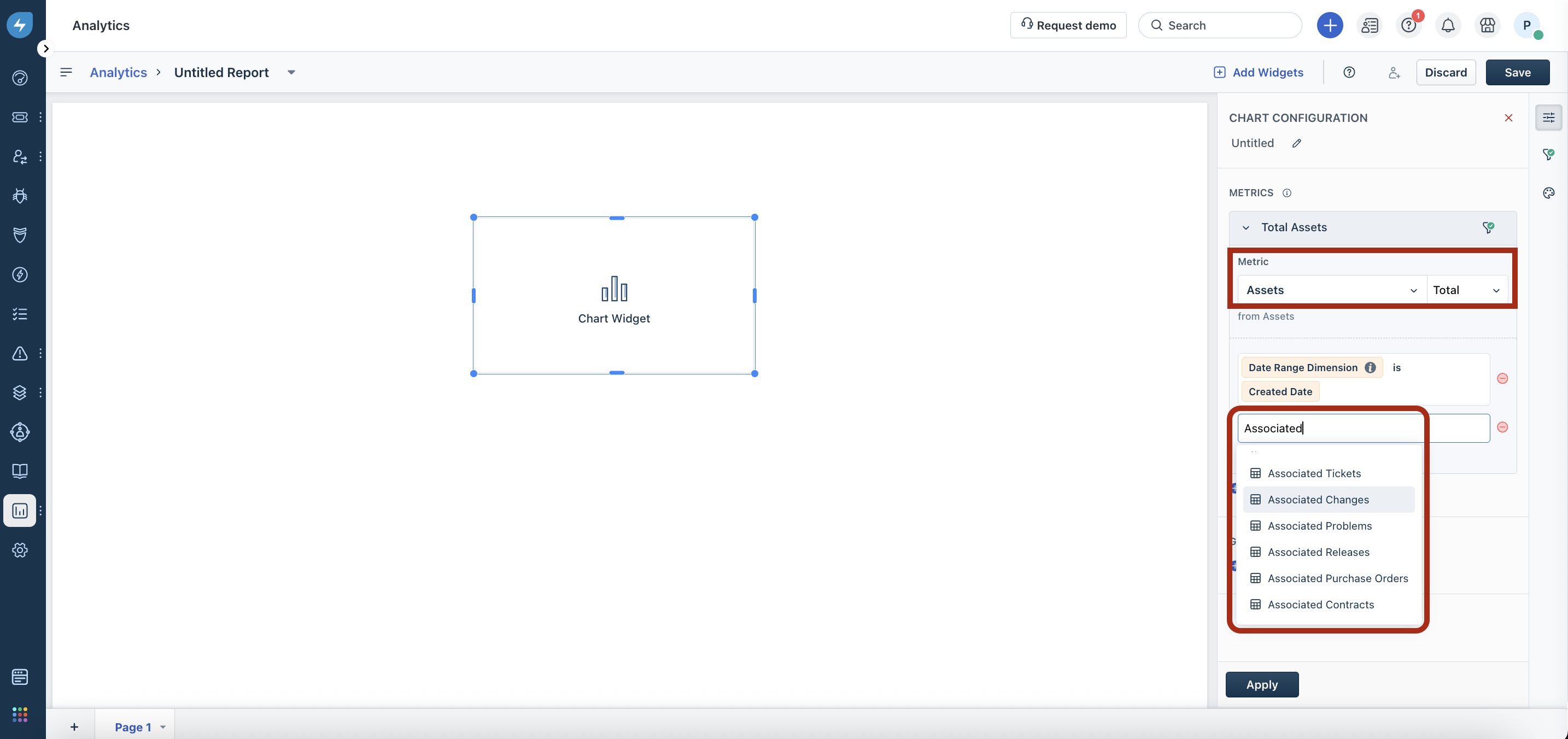
6\. Click Apply to generate the report data.
Use Case 5: Generate a custom report on upstream relationship or downstream relationship entities count for an asset.
1\. Go to Reporting > Analytics to create the custom report.
2\. Click New Report at the top right corner.
3\. Drag and drop the Chart widget from the right pane.
4\. Select Upstream Relationship Entity Count or Downstream Relationship Entity Countfrom the Metric dropdown field.
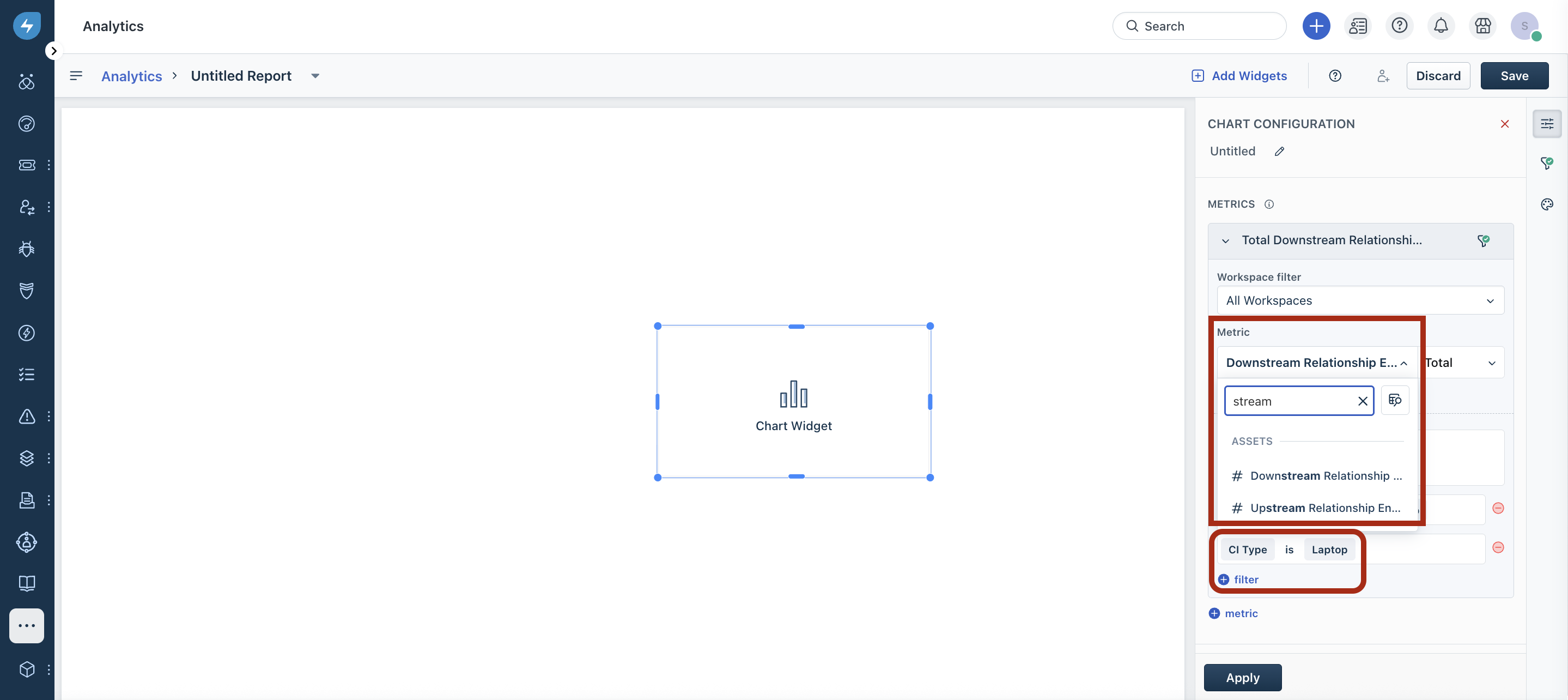
5\. Click \+ filter and select an appropriate filter, such as CI Type or Asset Name.
6\. Click Apply to generate the report data.