Last updated: 2025-12-16
When your form includes Service Item fields, you must create child activities to map each service item to a corresponding ticket. By default, child activities of type Ticket are created automatically based on the field type following the logic below.
Note: You can edit or delete these auto-generated child activities as needed.
Perform the following steps to map service items to a child activity:
1. After creating the form, any unmapped service items are listed. For example, the image below shows MacBook Pro as an unmapped service item.
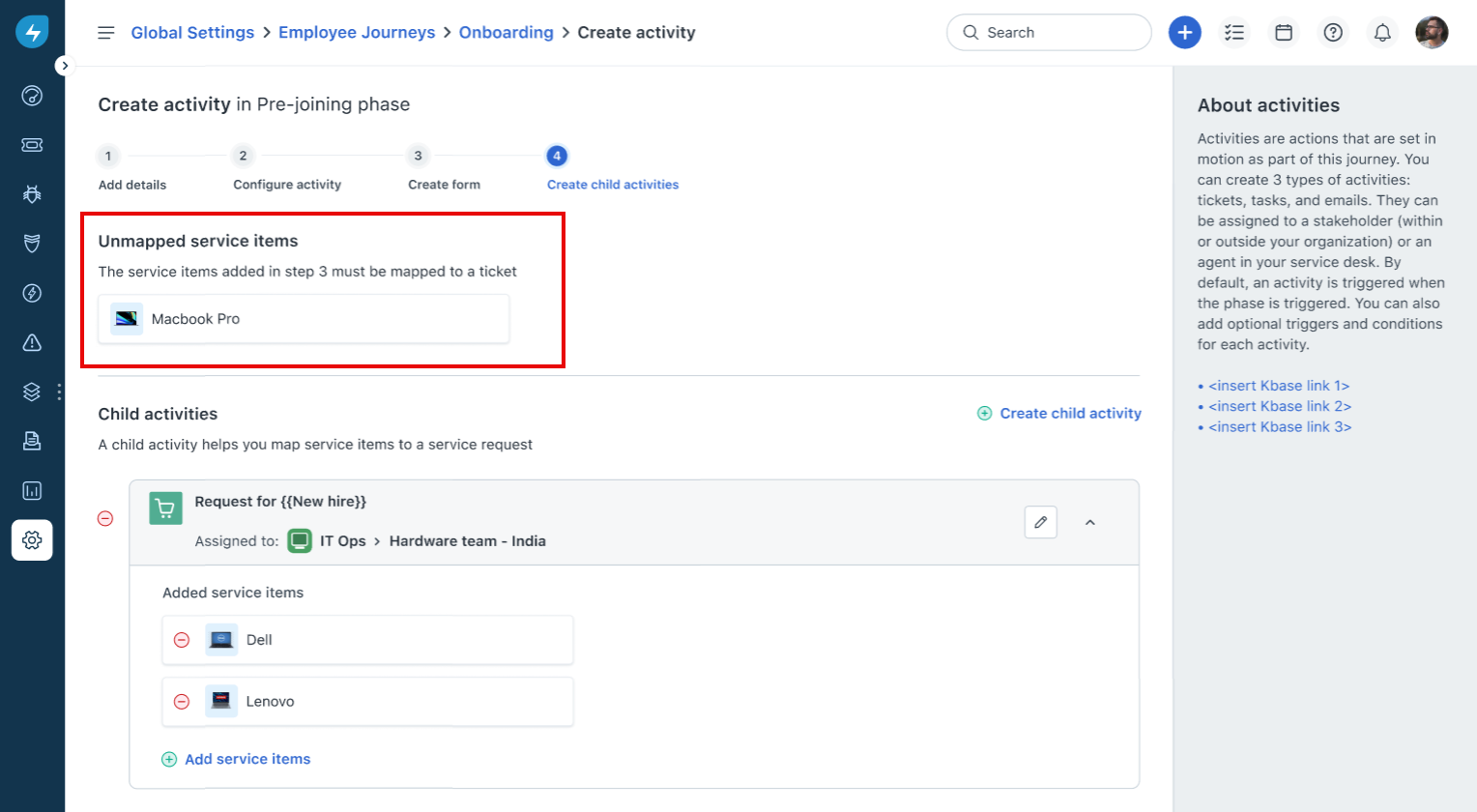
2. Click the unmapped service item.
3. In the panel that appears on the right, select the checkbox next to the service items you want to include.
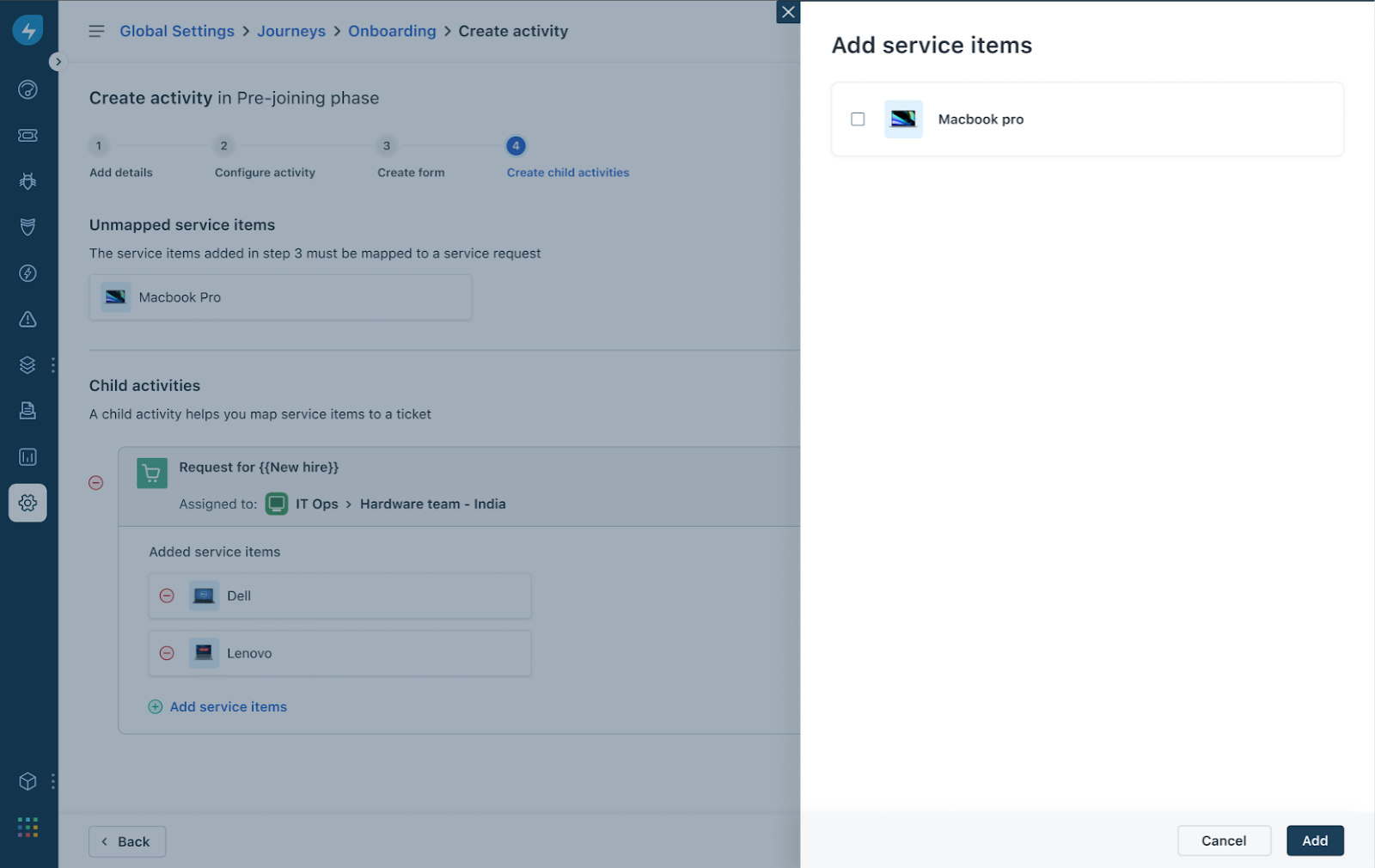
4. Click Add. A new child activity gets listed on the main screen, with the selected service items listed as shown in the image below.
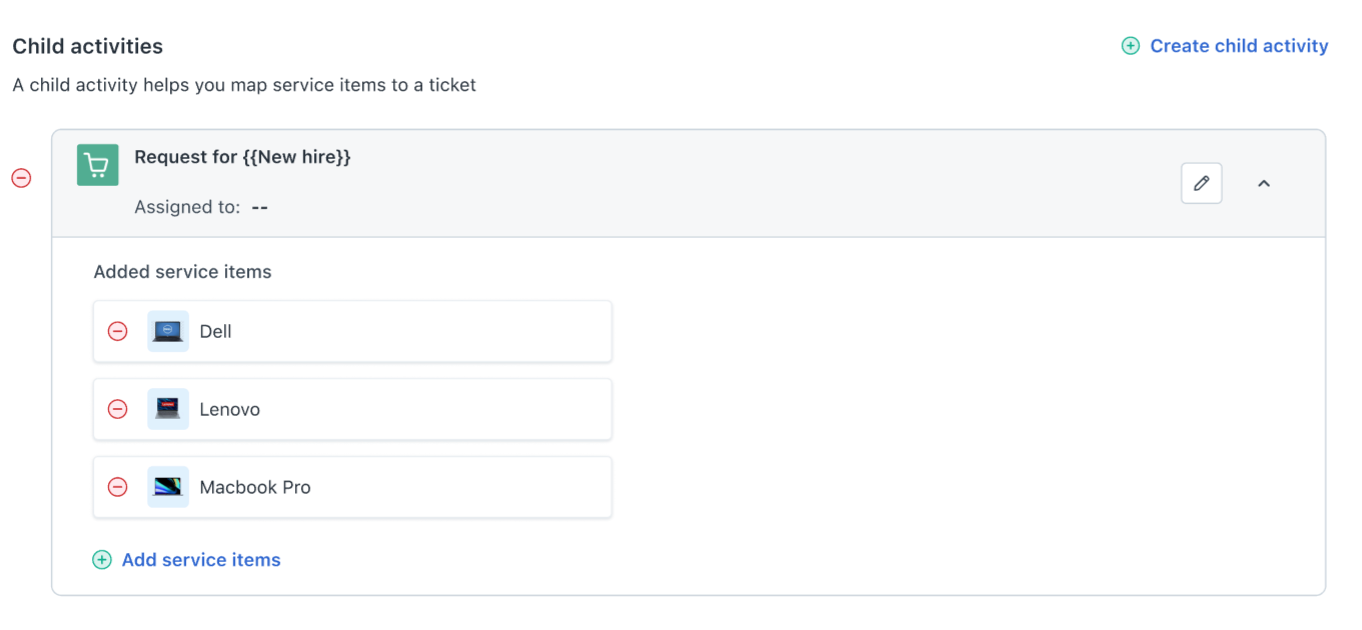
5. The system automatically assigns the appropriate workspace only when child activities are auto-created based on service items. However, agent groups are not assigned automatically.
6. If you manually create child activities and add service items, then workspaces must be configured manually. To do this, click the edit icon to set the workspace and agent group.
Edit Child Activities
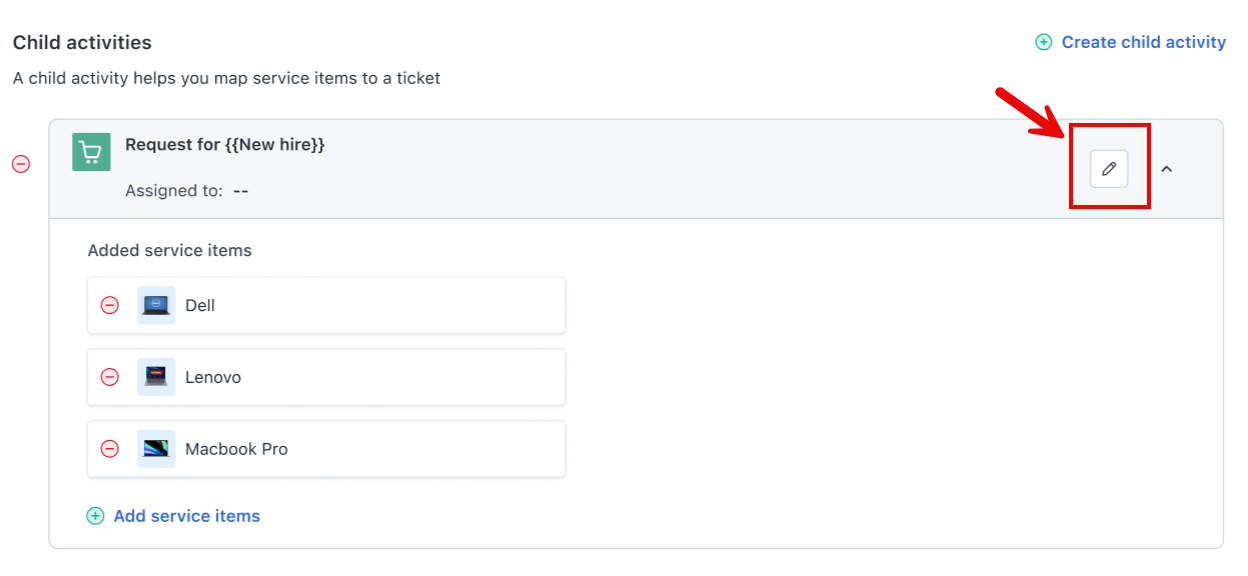
In the Edit Child Activity panel, provide the following details:
After configuring the details, click Save to finalize the child activity.