Last updated: 2026-01-30
Source: https://support.freshservice.com/support/solutions/articles/50000011841-link-a-change-to-an-incident
Link a change to an incident to track the relationship between service disruptions and the changes made to resolve them.
Freshservice lets you create a
Follow these steps to link a change to an Incident.
1. Go to the incident you want to link to a change.
2. Click Associate.
3. If the incident requires a change to restore or improve service, follow these substeps:
1. Click Change initiated by this ticket.
The Associate a change section form is displayed.
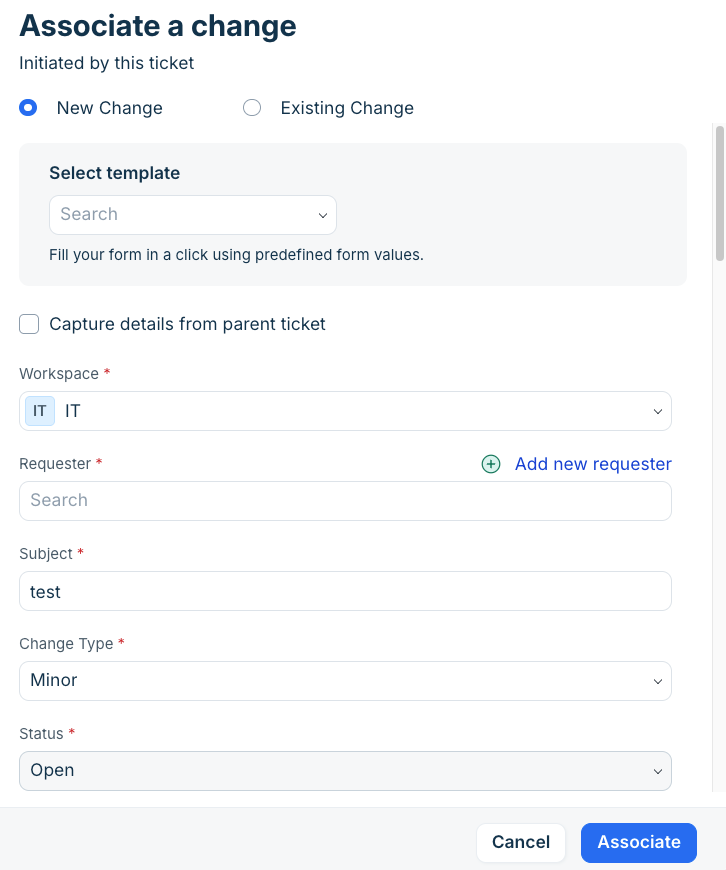
2. To create a new change, select New Change and create a new change.
Or, if you want to link to an existing change, select Existing Change and select from the available list of change.
3. Click Associate. 4. If a change caused the incident, follow these substeps:
1. Click Change initiating this ticket.
The Associate a change section is displayed and it shows an existing list of change.
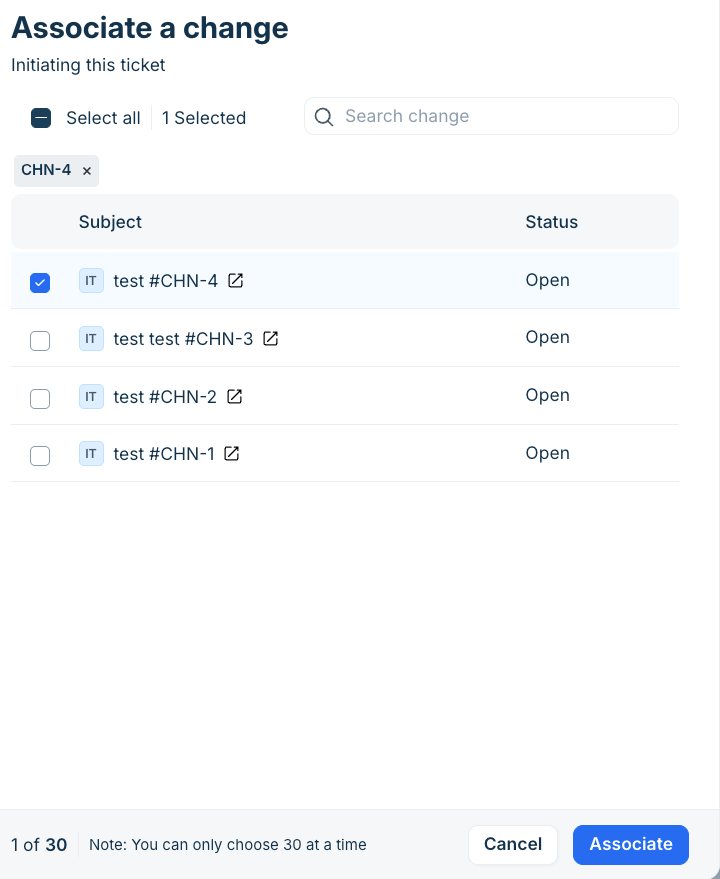
2. Select a change from the list.
3. Click Associate.
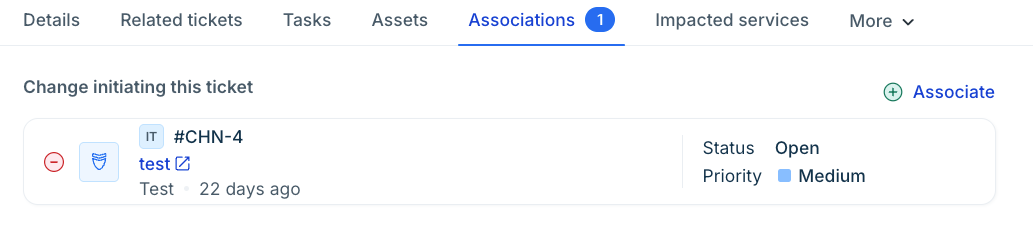
The change is linked to the incident and it is displayed under Associations as shown in the following image.