Last updated: 2025-11-12
Provide a unified employee experience with conversational AI embedded in Slack using Freddy AI Agents.
``` TABLE OF CONTENTSHow to set up Freddy AI Agent within Slack?Adding more workspaces
Adding Freddy AI Agent to public channels Form compatibility with Freddy AI Agent ```
``` Note: Connecting multiple Slack workspaces to a single Freshservice account is supported for the accounts on the following plans: Freshservice Enterprise plan (for Freddy AI Agent access) Slack Enterprise Grid (to connect multiple Slack workspaces) ```
How to set up Freddy AI Agent within Slack?
1. Go to Admin \> Channels > Servicebot for Slack.
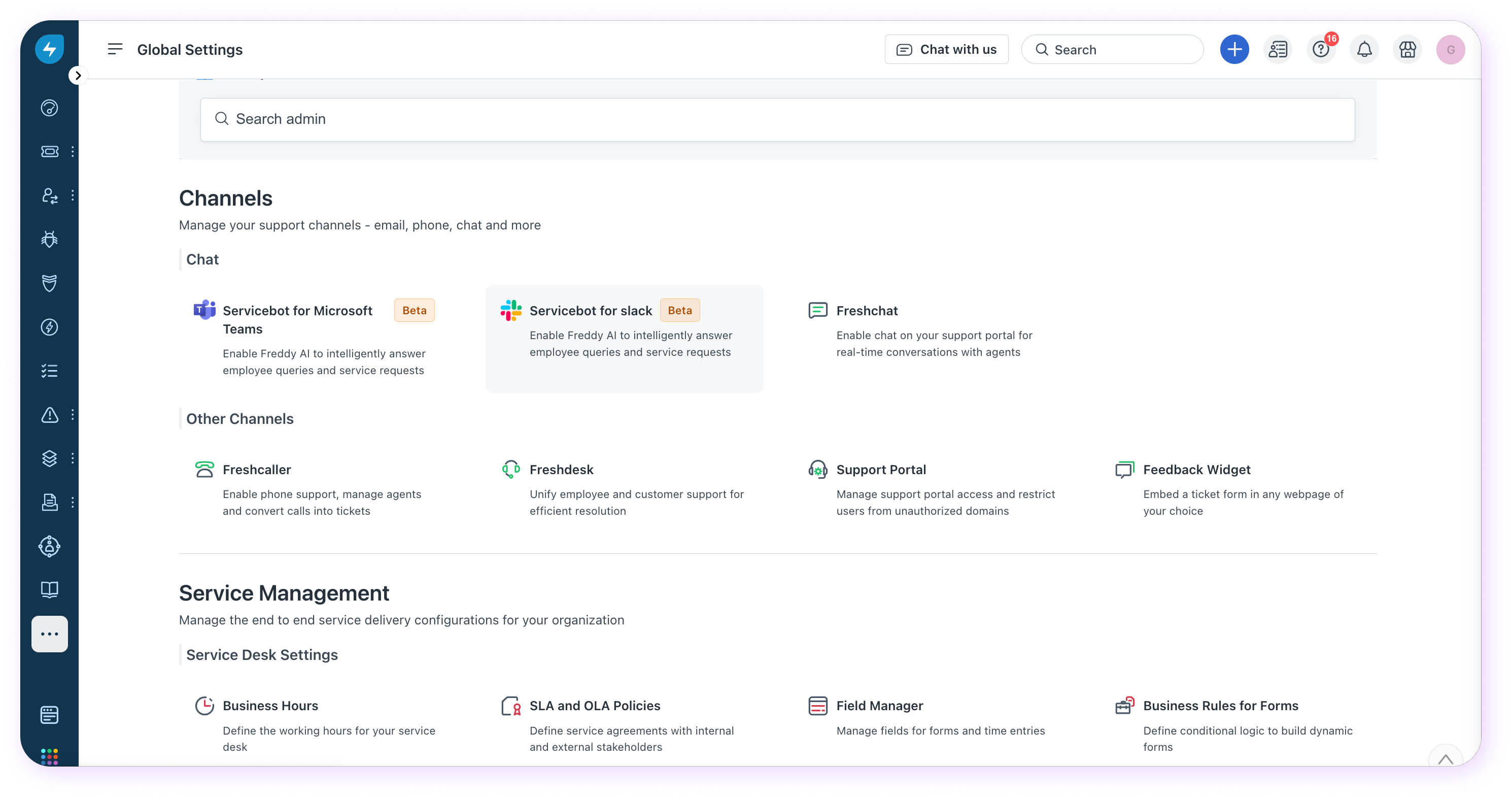
2. Click Install.
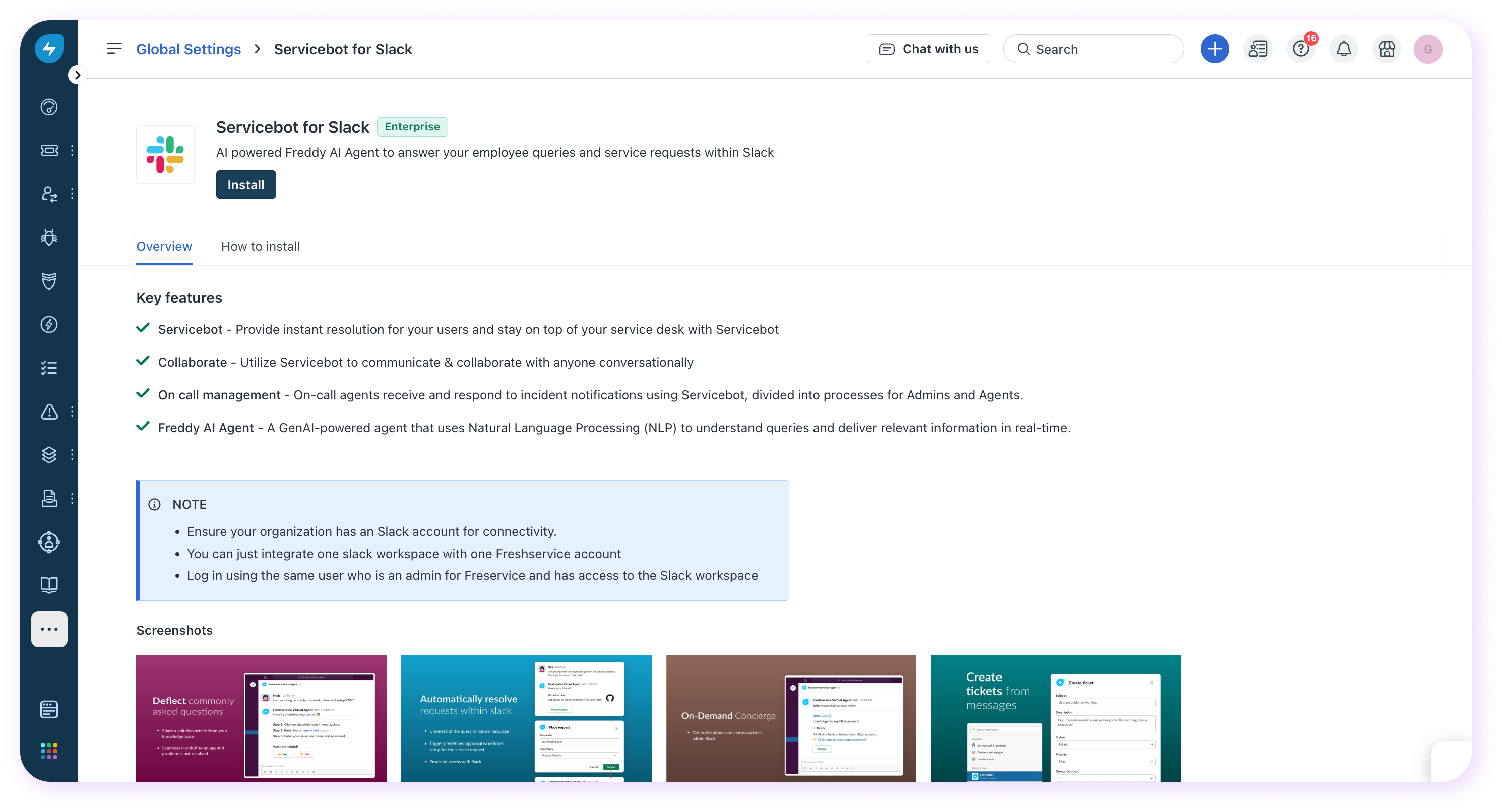
Note: Servicebot features are subject to availability based on your plans.
| Plan | Features |
| Starter | Ticket updates, Ticket management |
| Growth | Everything in Starter +<br>Ticket collaboration, On-call management |
| Pro | Everything in Growth +<br>Project management |
| Enterprise | Everything in Pro +<br>Freddy AI Agent |
| Freshservice for Business Teams | Everything in Starter +<br>Ticket collaboration |
3. Click Accept to authorise permissions by using your Slack account credentials. Click Allow to begin installation.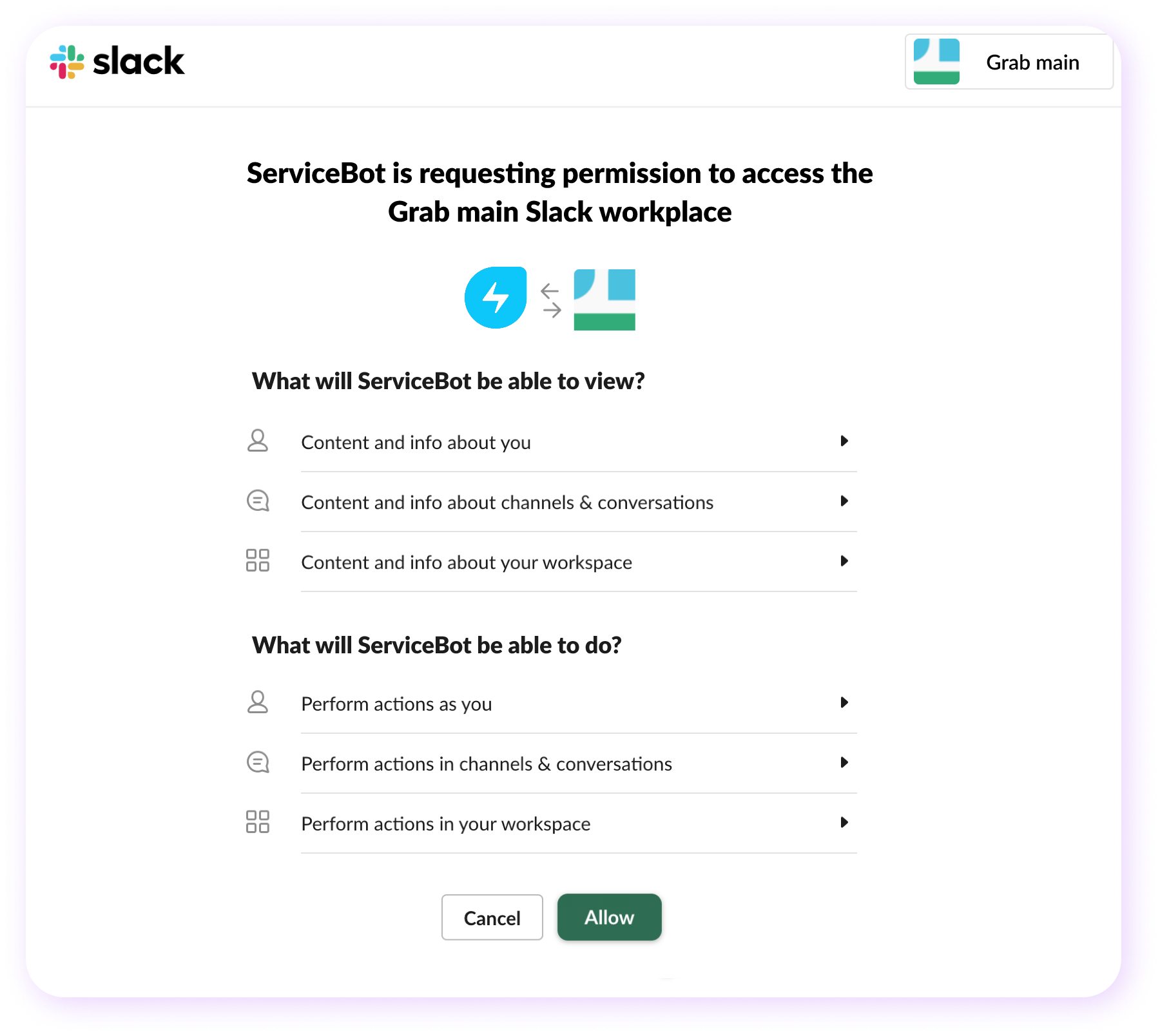
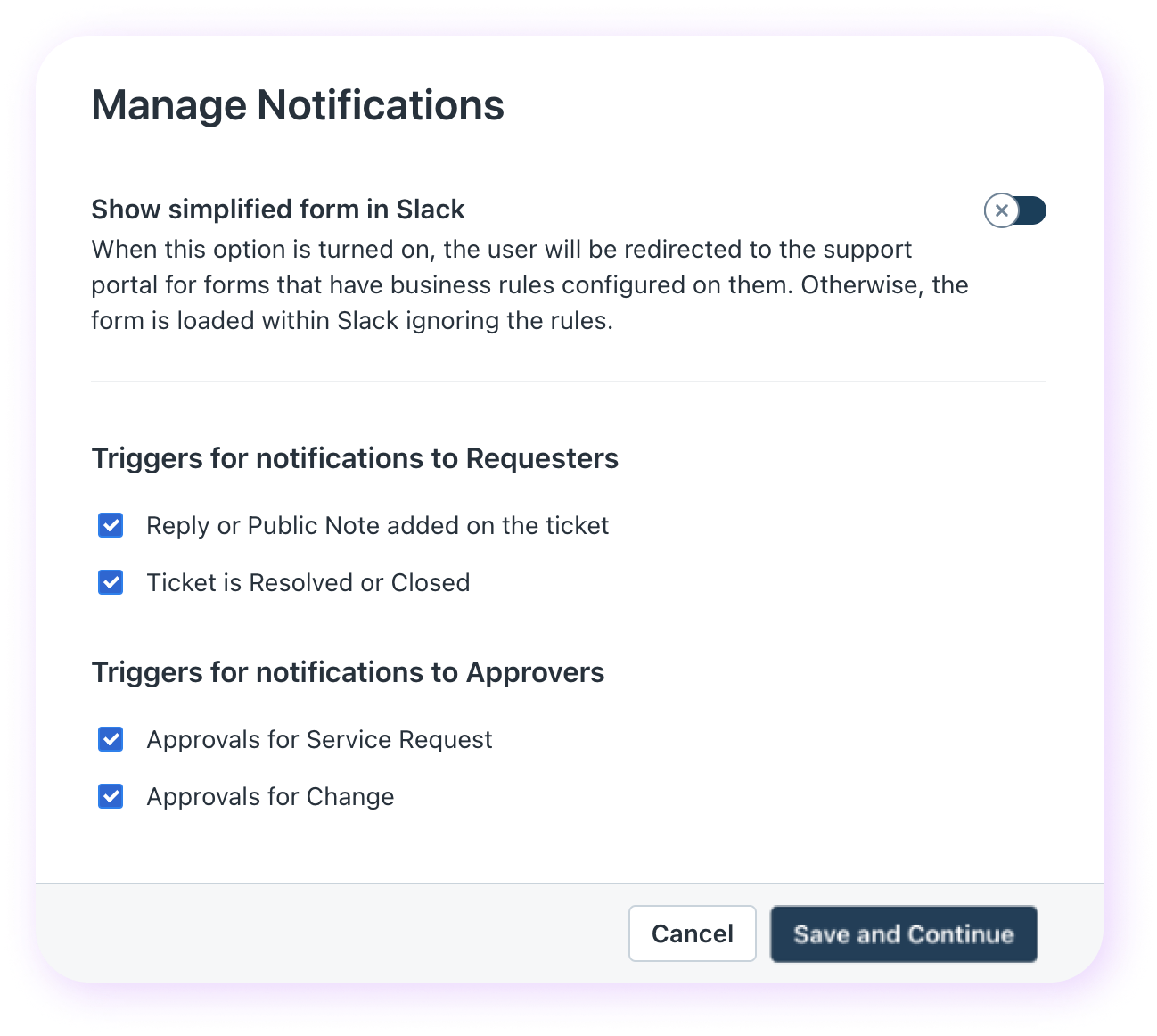
4. Select the events for which you want to set up notifications through Service bot. Then, click Save and Continue.
5. Click Get Started to open up the Freddy agent to select users. Create a test group to test the Freddy AI agent before launching it to everyone.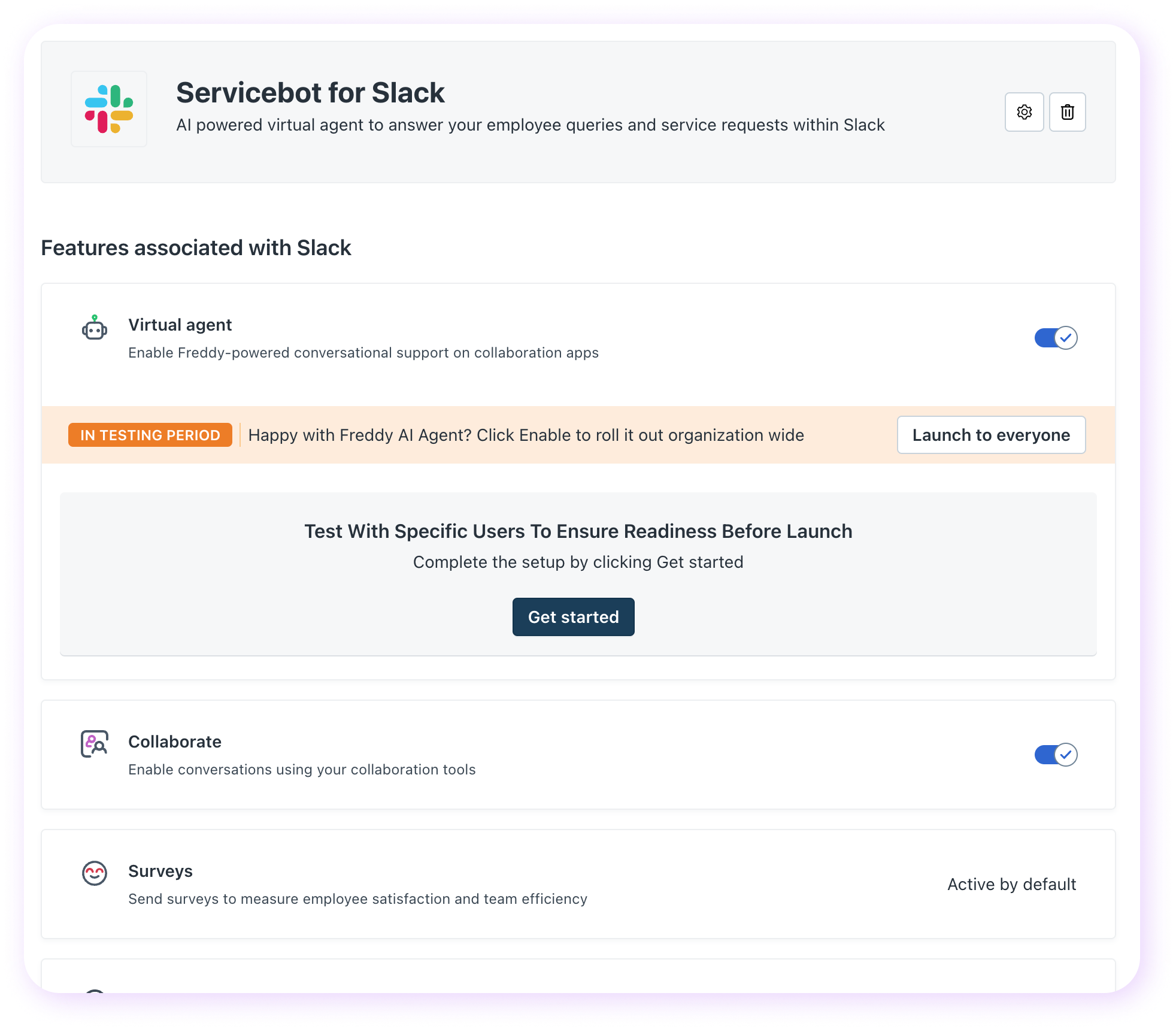
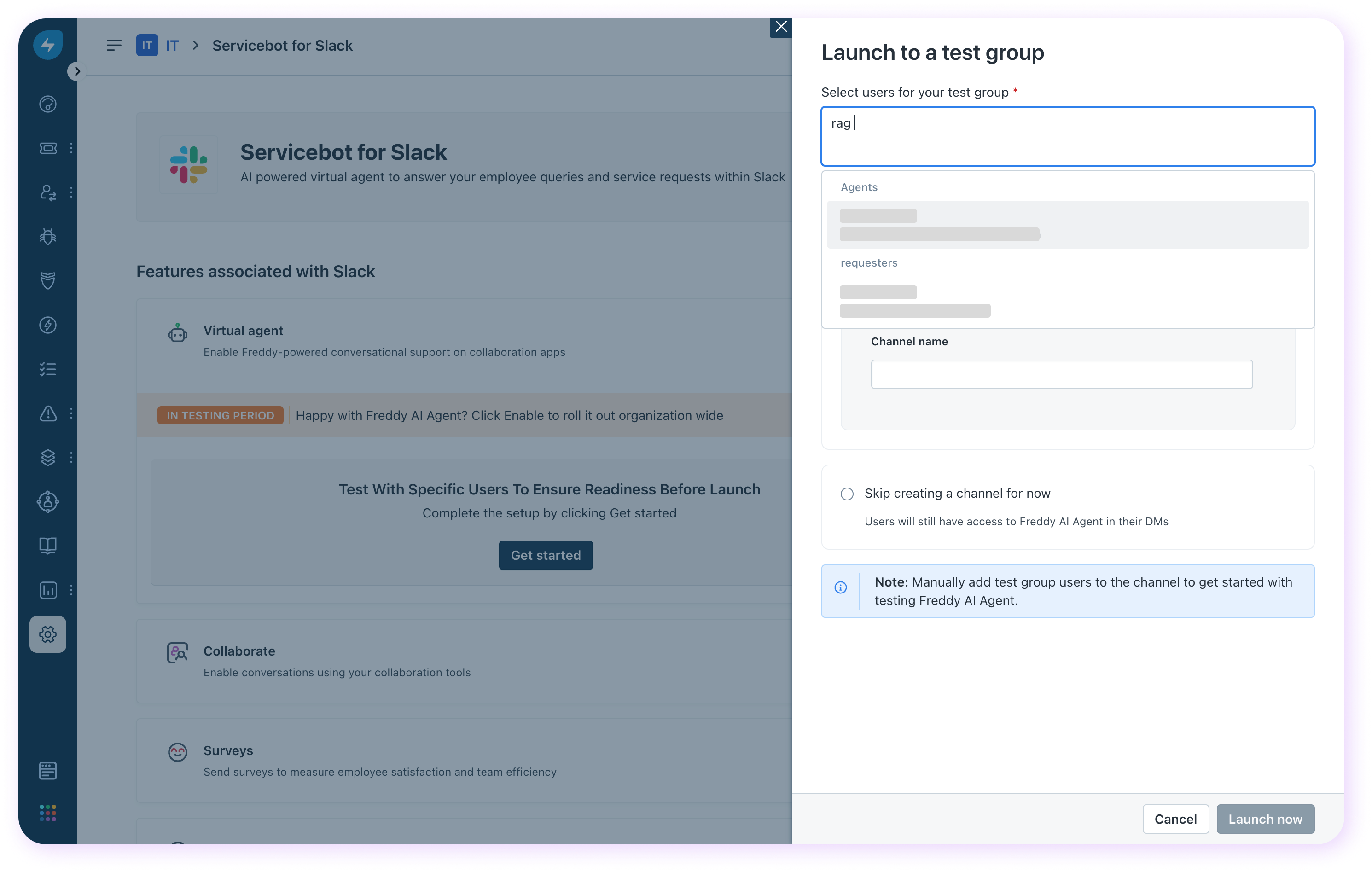
6. Add agents to the test group. You may also add requesters to the test group.
 7. Create the name of the channel to which the Freddy AI Agent will be enabled for testing.
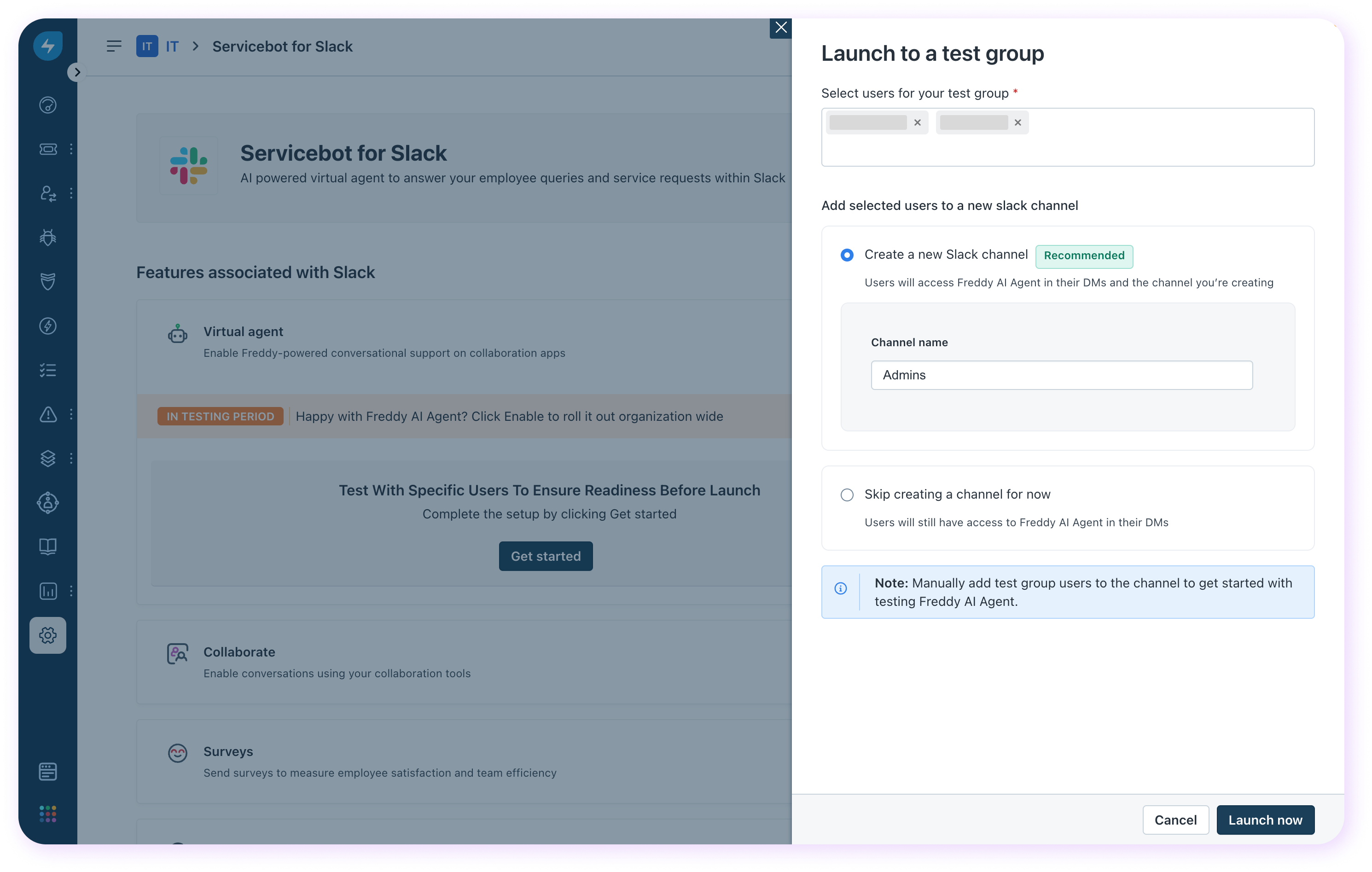 The agents added to the test group will be added to the dedicated Slack channel and receive an email notification.
``` Pro-tip: Edit the testing group to add more agents/requester to test the Freddy AI agent. ```
8. Click Launch now to enable Freddy for select users. Freddy will be launched in testing period.
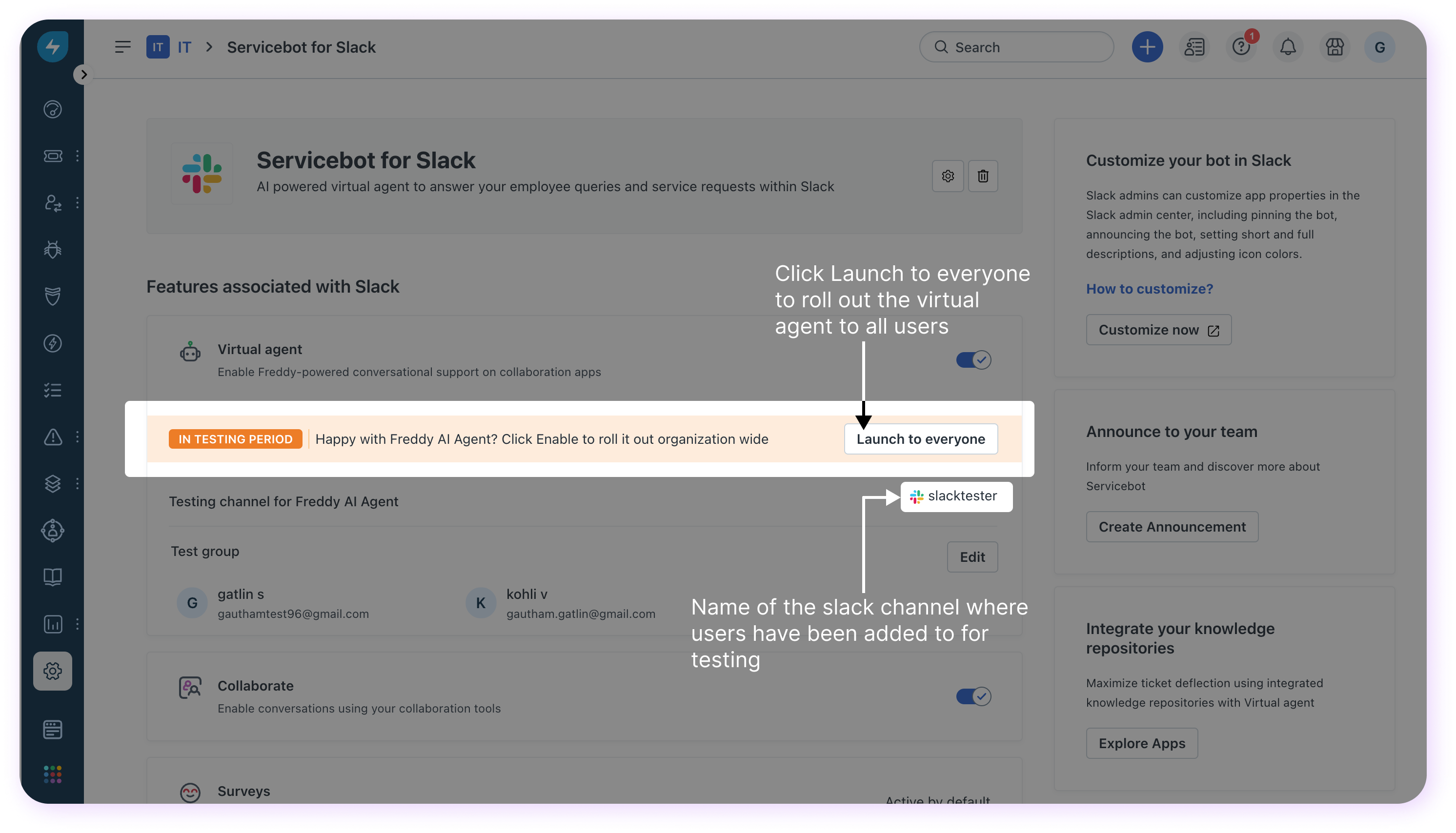
Once satisfied with the Freddy AI agent, click Launch to everyone and roll out the Freddy AI agent to all users on Slack.
Your Servicebot for Slack is now good to go. You can continue to manage configurations for all Servicebot features from the Admin page
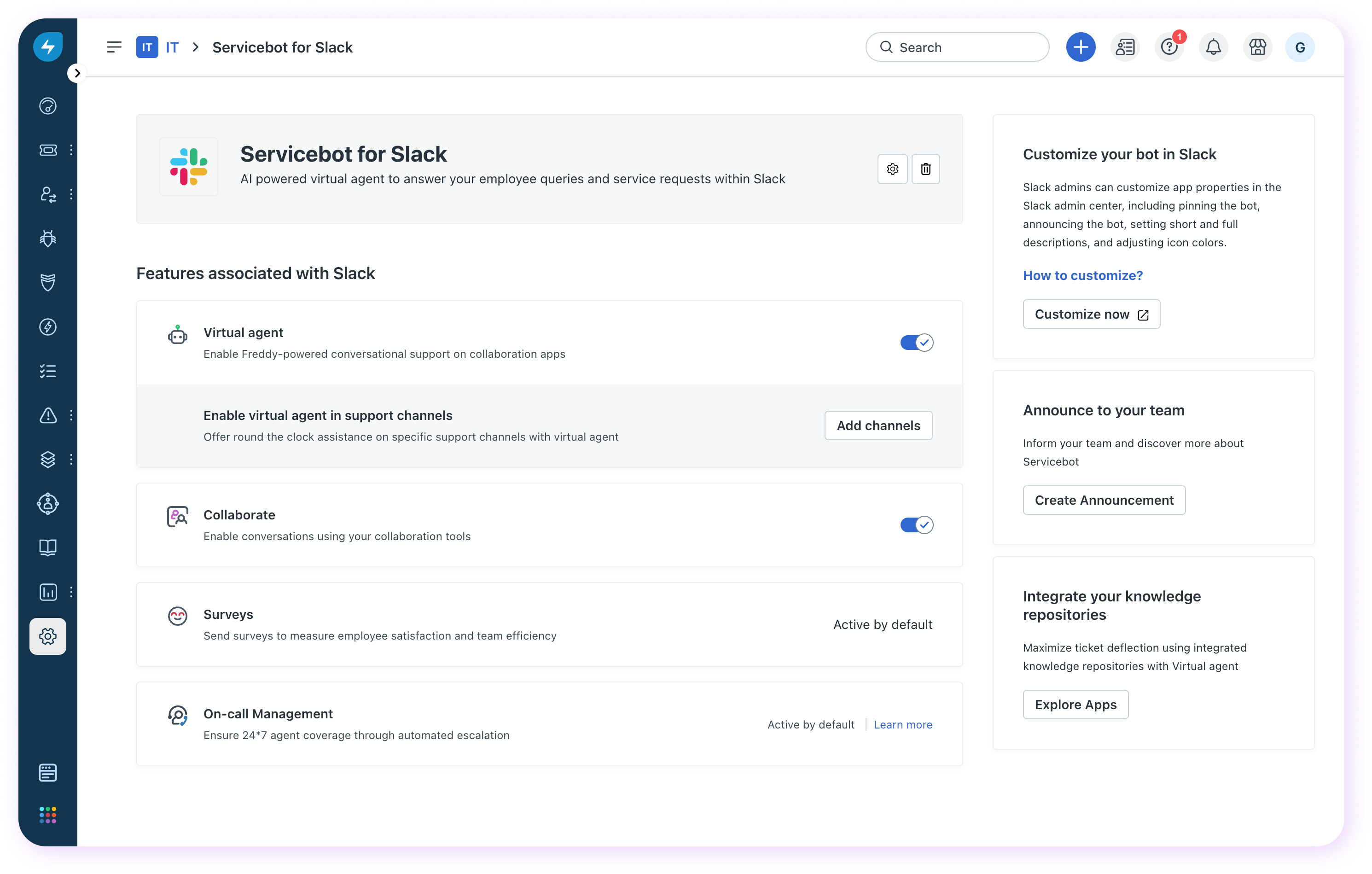
Additional configurations you can manage for Servicebot features:
Adding more workspaces:
Freshservice supports the addition of Freddy AI agent to multiple Slack workspaces. To add Freddy AI agent to a new workspace, click \+ New workspace. This opens the authorization popup. Select the relevant Slack workspace and grant authorization. Once authorization is complete, the workspace is linked to Freshservice and the Freddy AI agent is added to the workspace.
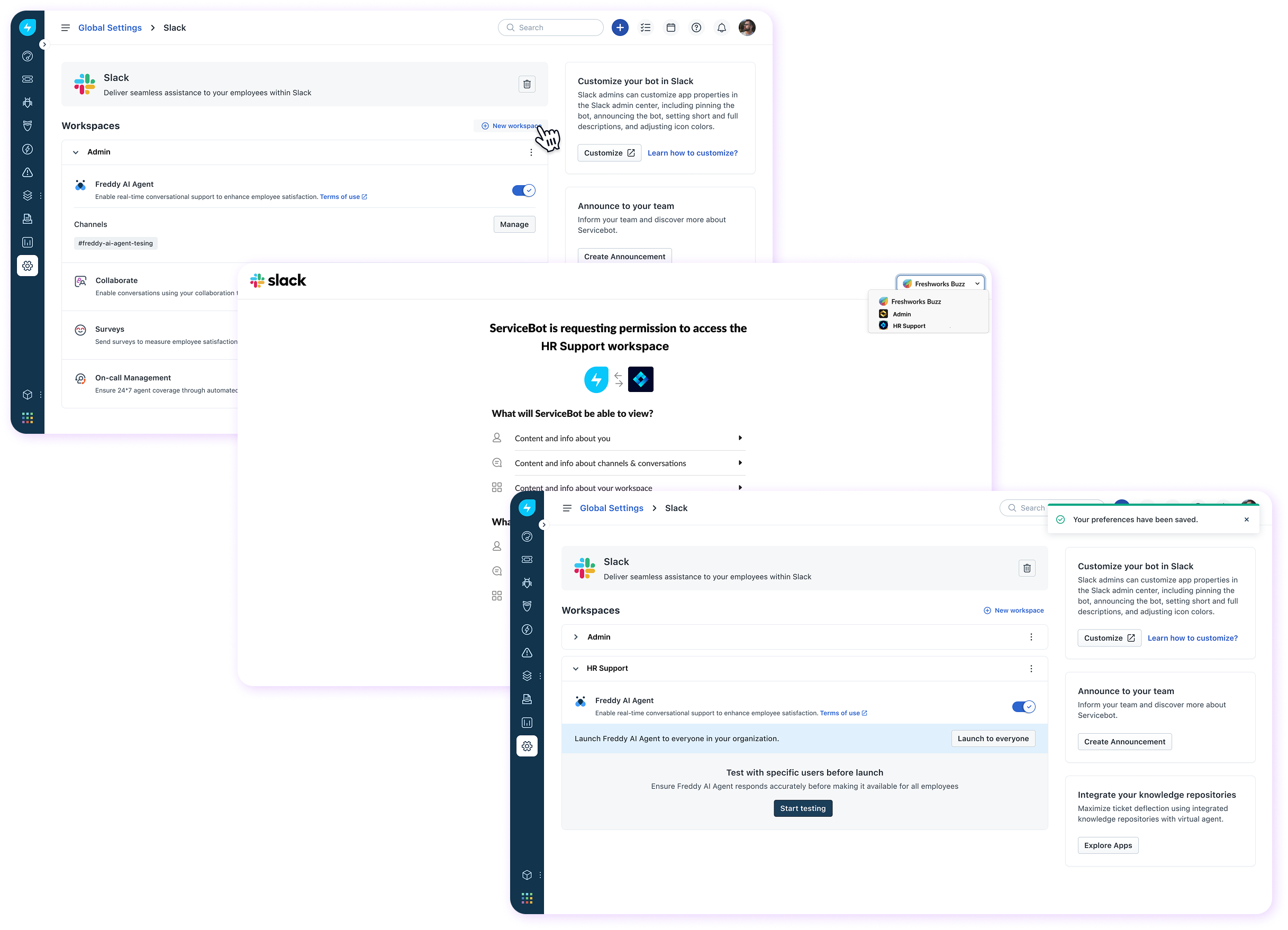 For each connected workspace, you can:
``` Note: Multi-workspace support is available only for Freddy AI Agent. Collaboration, Surveys, and On-call management are not supported in multi-workspace configurations. ```
Other configurations you can manage:
Adding Freddy AI Agent to public channels
Add Freddy AI Agent to public channels to offer quick assistance to employees and reduce workload for agents. Freddy AI Agent will intercept conversations on public channels to provide instant support. Learn more
Form compatibility with Freddy AI Agent
``` Note: Only forms simple enough to be rendered in Slack are supported. If a form is not supported, users will be redirected to the self-service portal for filling the form. ```
Make sure that your forms fulfill the following conditions to ensure that they are supported:
1. Must have less than eight fields.
2. Must have fewer than 100 choices across all dropdown fields.
3. Must not have dynamic sections
4. For Incidents:
1. Must not have business rules configured on an incident form.
2. Associating assets is not supported. 5. For Service Requests:
1. Must not have dropdown fields that select options from a data source.
2. Must not be a loaner item or have child items.
3. Must not have attachments marked as mandatory.
4. Adding attachments from Slack is not supported.