Last updated: 2025-11-10
Overview
Keep your knowledge base up to date by acting on the top trending issues surfaced by Knowledge Content Recommendations, a Freddy AI capability. It analyzes recent service desk ticket trends, groups them into clusters called Topics, and highlights knowledge gaps. Addressing these recommendations can keep your content relevant, reduce ticket volume, and improve the overall self-service experience.
``` This feature was previously known as Knowledge Insights and offered in private beta. It will move to public beta by mid-September 2025 and will be available to all Freshservice customers with the Freddy AI Copilot add-on. Learn more ```
How it works
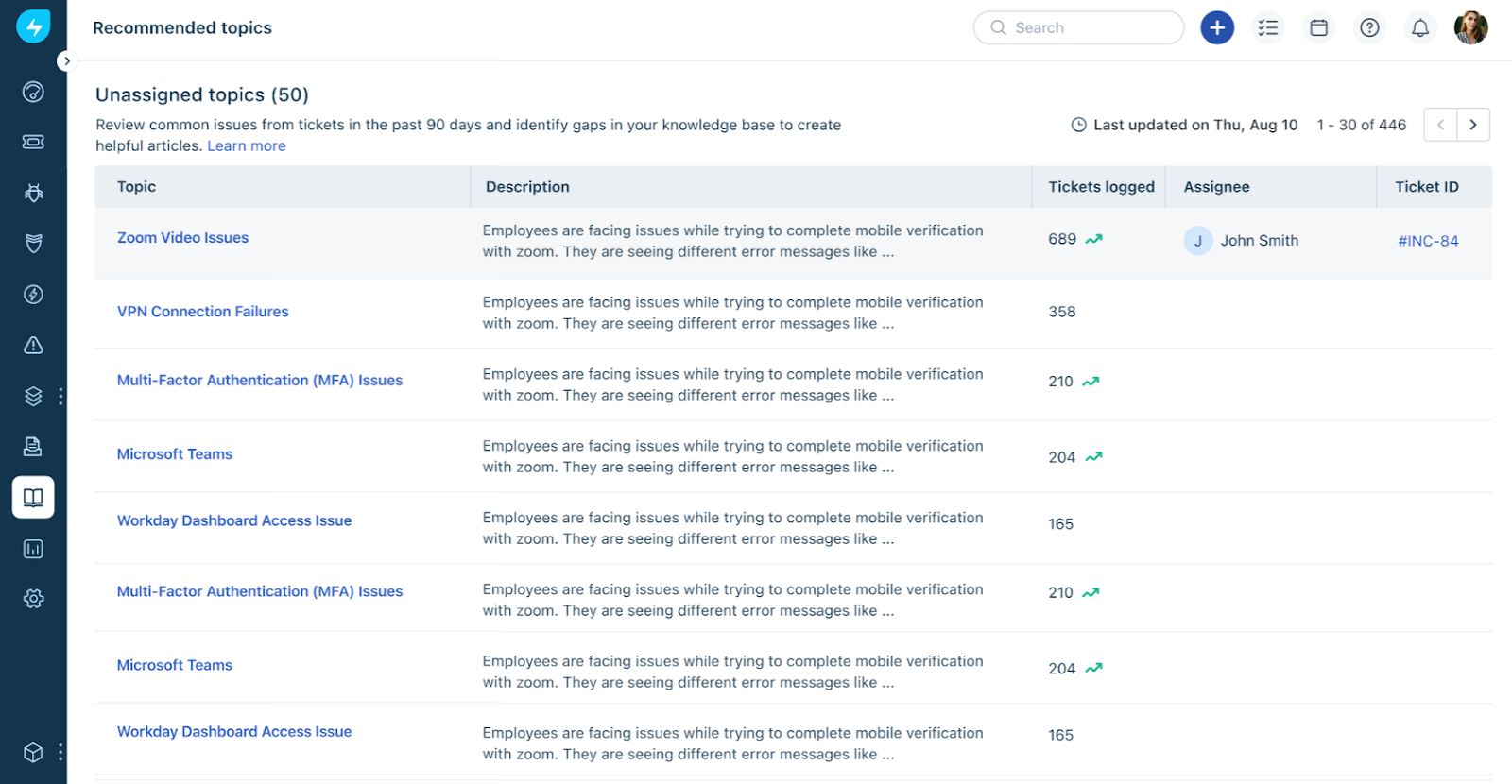
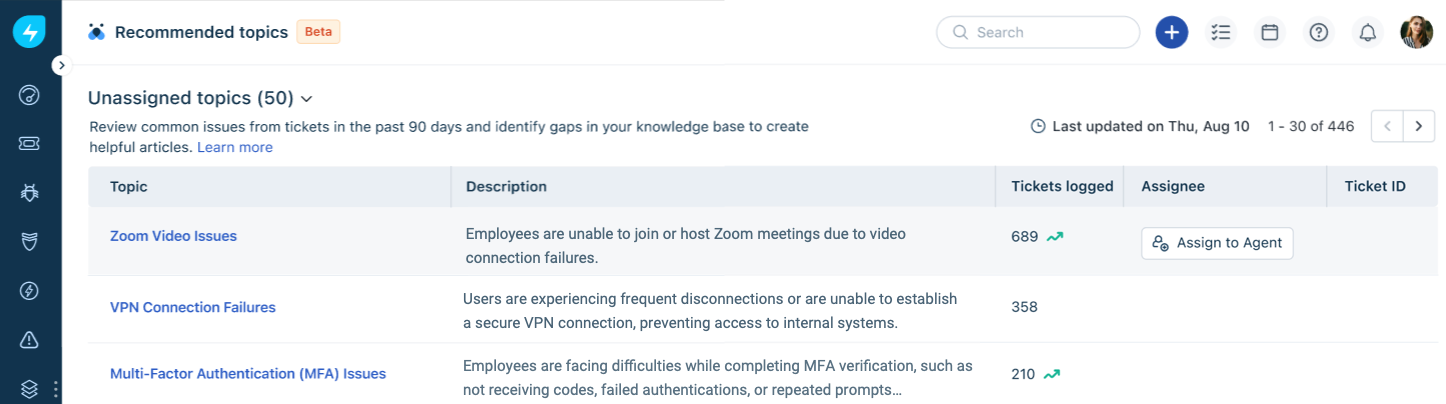
Freddy AI reviews tickets from the past 90 days and groups similar ones into Topics. Each topic includes a brief summary of the issues raised and the number of associated tickets (excluding alerts and service requests). It also provides the related ticket IDs, making it easier to investigate in detail and decide on the next steps.
Some topics can also have a trending icon against them. This icon appears if the number of tickets/incidents in the topic has increased or decreased abnormally in the last week compared to the previous weeks.

Managers assign these topics to agents, who are responsible for creating new articles or updating existing ones to address the identified issues. Learn more
Prerequisites
Before you start using Knowledge Content Recommendations, ensure the following requirements are met:
Using Knowledge Content Recommendations
As a Knowledge Base Manager, follow these steps to utilize the Knowledge Content Recommendations feature in Freshservice:
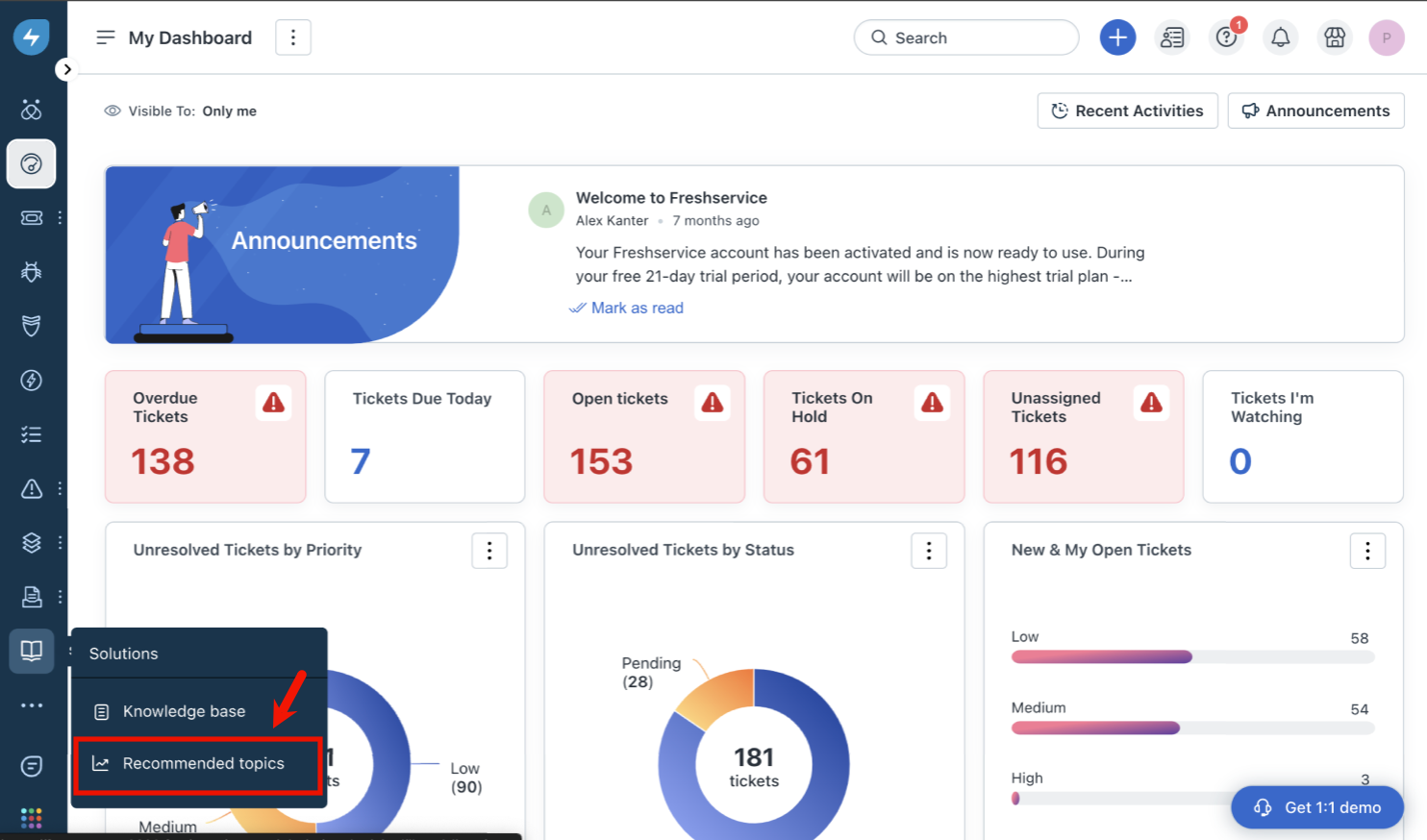
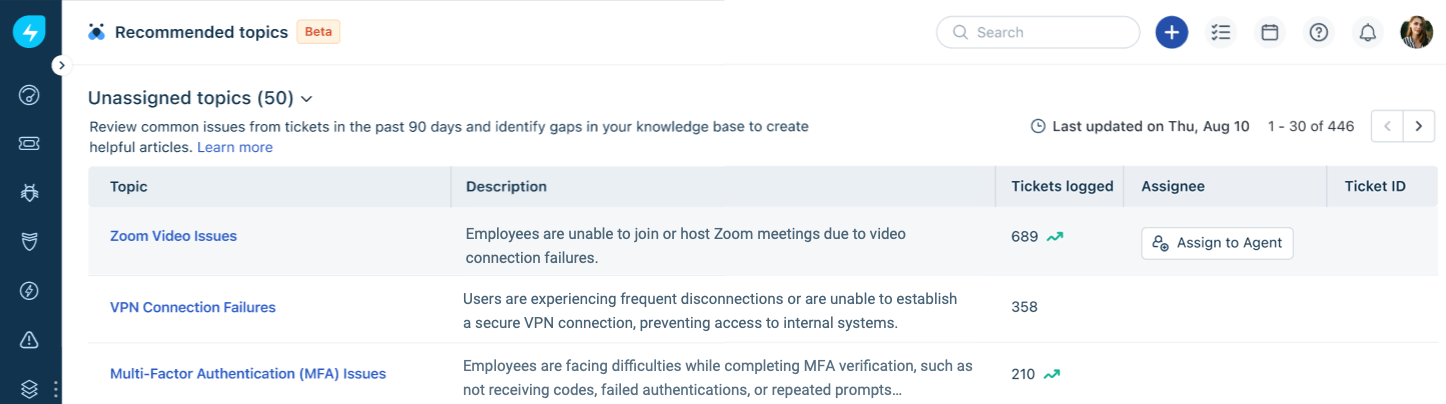
- Assigned topics: These are trending issues that already have an agent responsible for reviewing and acting on them.
- Unassigned topics: These are trending issues that do not yet have an agent assigned, and need to be picked up for resolution.
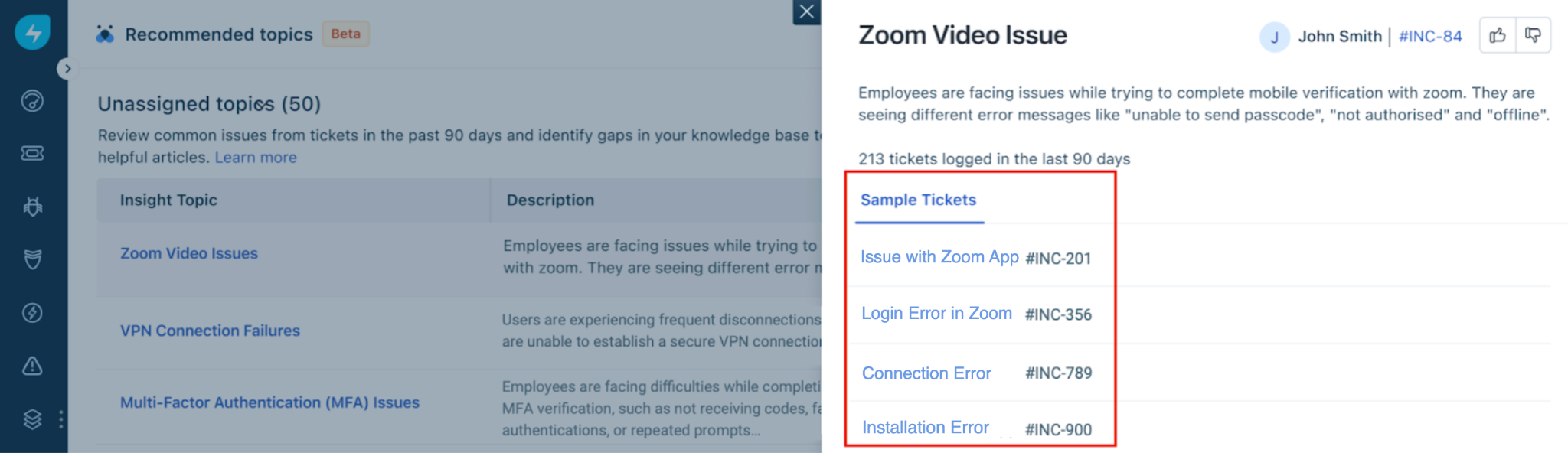
Assign a topic to an Agent
When you assign a topic to an agent or subject matter expert (SME), you make them responsible for analyzing the topic, reviewing the related tickets, and creating or updating a knowledge base article as needed. Similar to tickets, a topic is considered resolved once the article is created or updated.
As a Knowledge Base Manager, follow these steps to assign a topic to an agent:
``` Ensure that the agents have the Publish a Solution privilege enabled in the user level permissions; otherwise, this feature will not be accessible. To learn how to enable it, see Prerequisites. ```
1. You can assign a topic from either the main screen or the topic details screen by selecting Assign to Agent, as shown below.
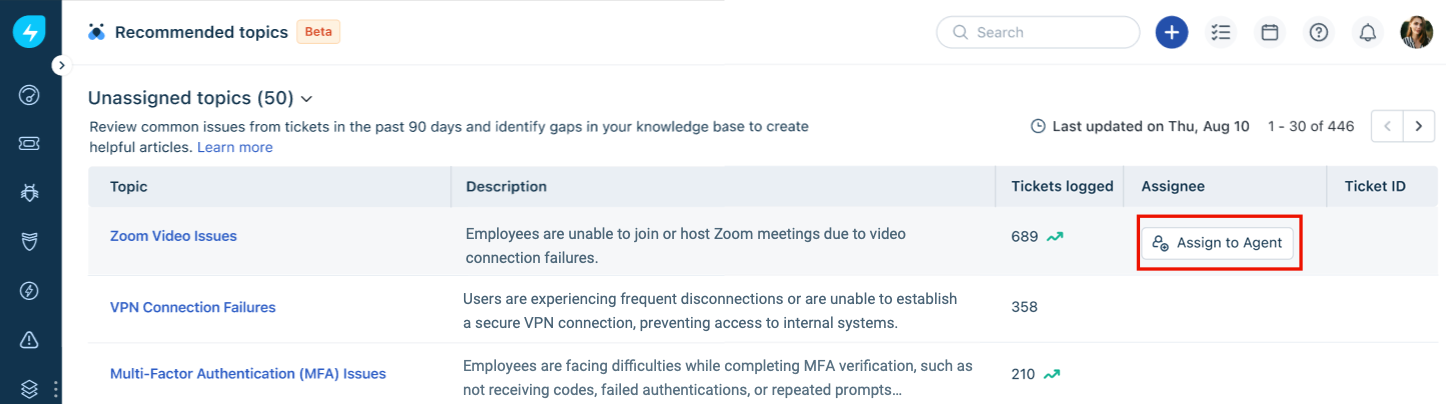
2. In the panel that opens, do the following:
- From the Group drop-down list, select the department the topic belongs to.
- From the Agent drop-down list, select the agent you want to assign the topic to. (This field is mandatory.)
- In the Description field, a short note about the ticket automatically populates for the agent. You can edit this note as needed. The field also displays a brief summary of the topic and the topic IDs tagged for the agent’s reference.
 3. After completing the above steps, select Assign at the bottom of the screen. The topic is then moved to the Assigned topics queue. The assignee’s name also appears against the topic, as shown below.

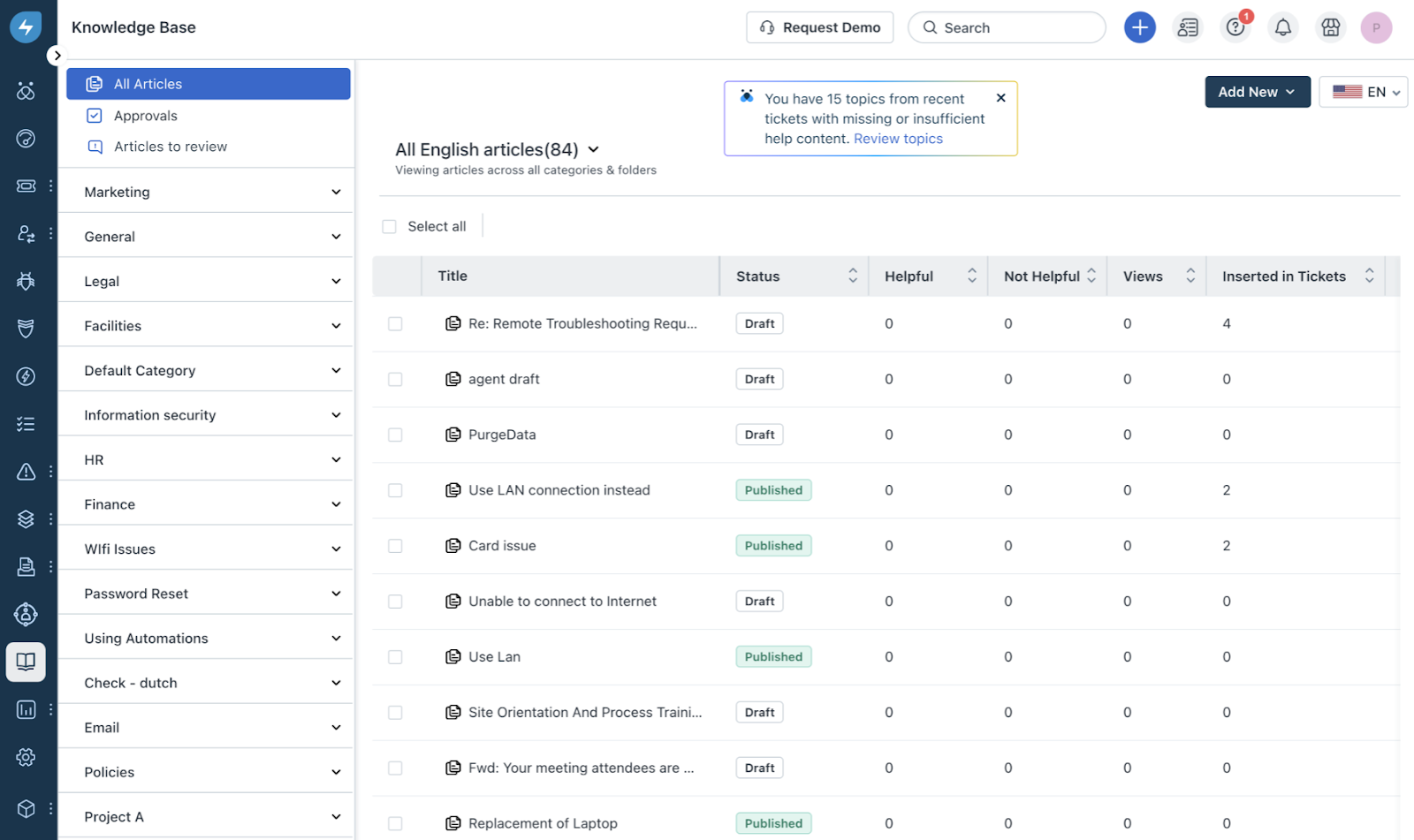
4. Once topics are assigned, the agent can review them from the Knowledge Base home screen by selecting Review topics in the notification at the top of the page. The agent can then update the related articles with any missing information.
Transition from Knowledge Insights to Knowledge Content Recommendations
As part of our ongoing AI innovation efforts, Knowledge Insights is evolving into an enhanced capability, now called Knowledge Content Recommendations. This feature will move from private beta to public beta by the end of September 2025, and will be available to all Freshservice customers with the Freddy AI Copilot add-on.
``` If you’re accessing this feature for the first time, no action is required. Knowledge Content Recommendations works automatically without any additional setup. ```
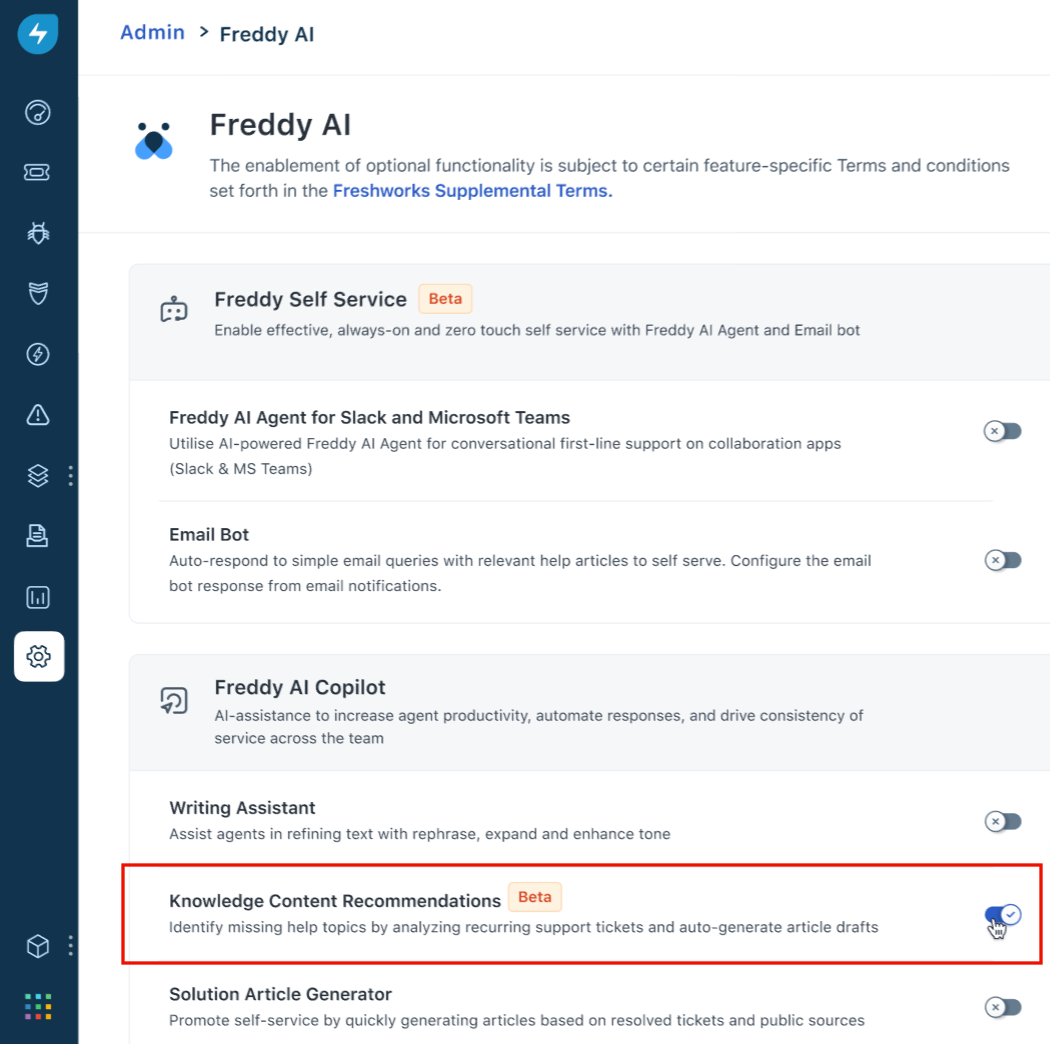
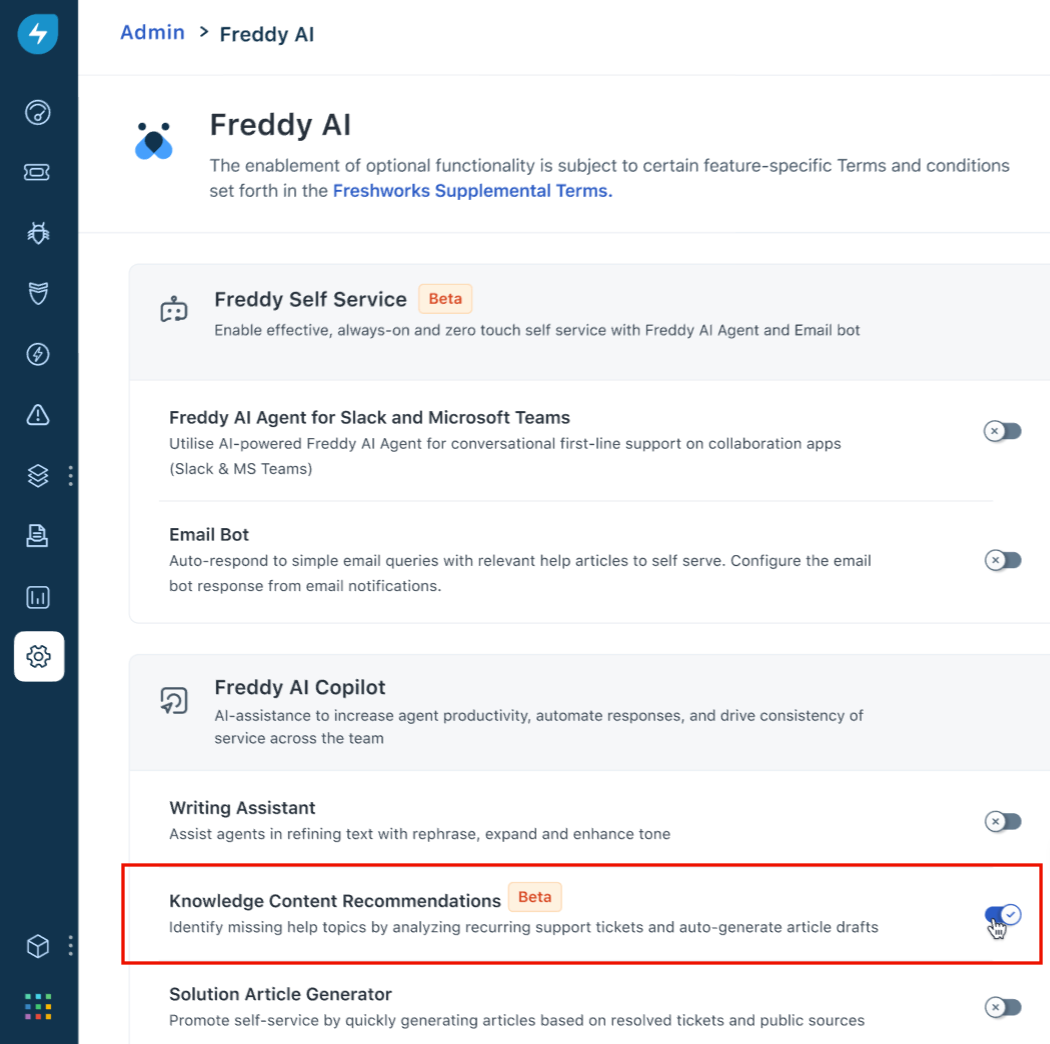
Note that if you have the add-on but still can’t access the feature, check Admin settings to confirm that Knowledge Content Recommendations is enabled, as shown in the image below.