Last updated: 2026-01-28
Connector Apps consume tasks each time an active recipe runs. If your account runs out of available tasks, recipes will fail and stop executing. To prevent interruptions, you can enable auto-recharge, which automatically adds task packs when your balance is low.
Prerequisites
Before enabling auto-recharge, ensure:
Note: If you are on anoffline billing cycle, auto-recharge cannot be enabled directly from the product. Contact your Customer Success Manager (CSM).
How Auto-recharge works
Auto-recharge adds additionaltask packsto your account whenever your available tasks drop below a threshold.
If you are on an offline billing cycle, please contact your Customer Success Manager (CSM) to enable this feature.
Note: Tasks purchased through auto-recharge are valid only until the end of your current billing cycle.
Auto-recharge Limits
Enable Auto-recharge from the Billing Section
To enable Auto-recharge, follow these steps:
1. Go to Global Settings > Plans & Billing > Active Add-ons.
2. Locate the Connector App task add-on.
3. Enable Auto-Recharge.
4. Select the number of task packs to be added automatically each time the threshold is reached.
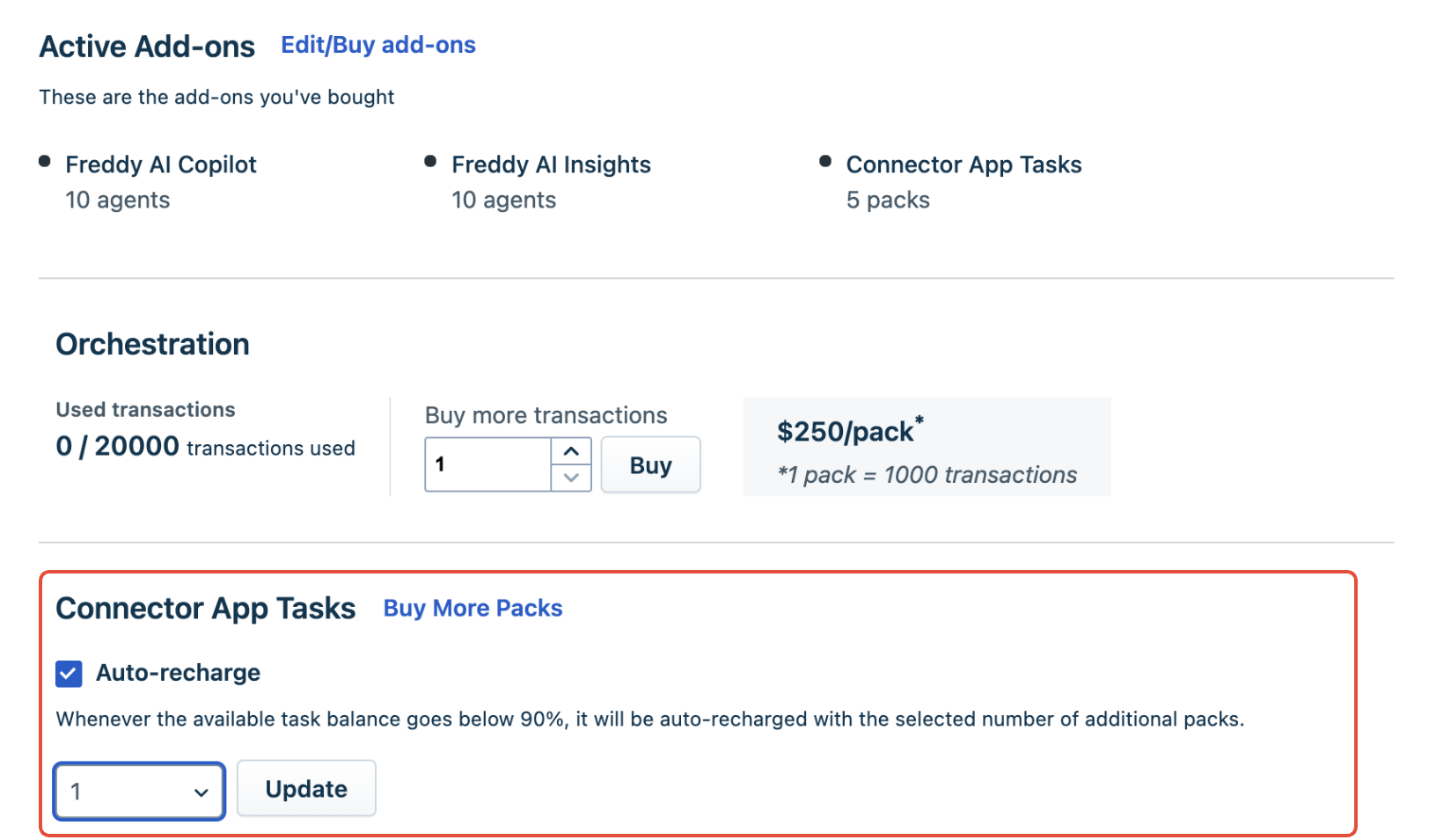
Auto-recharge will be triggered when 90% of your purchased tasks are exhausted in the account. You can select the number of packs to be Auto-recharged each time. However, we recommend 1 pack as the default, which can be increased based on the usage requirement in the account. The number of times auto-recharge can happen is limited to 4 per day and 15 per month.
The tasks purchased through Auto-recharge are valid only till your current billing cycle. Hence, set the number of packs to 1 will avoid any wastage of purchased tasks.
You need an active online payment method to enable this for your account.
If you are on anoffline billing cycle, contact yourCustomer Success Managerto enable this feature.
Disable Auto-recharge
Auto-recharge can be disabled at any time.
To disable auto-recharge, contact yourCustomer Success Manager.