Last updated: 2025-11-12
Freddy AI Insights now lets you create customized insights tailored to your team’s needs. By defining which data to include and which agent groups to analyze, you can ensure the insights generated are relevant and actionable for your operations.
What are Customized Insights?
Customized Insights let you create additional metrics on top of Freddy AI’s default Proactive Insights. Each metric includes:
Freddy AI evaluates these metrics on the regular insight schedule and shows results to everyone with access to the selected agent groups.
Who can use Customized Insights?
See which permissions allow you to view or manage customized insights.
| Permission | What you can do |
| View Ticket Reports | View all default and customized insights you have permission to see. |
| Manage Ticket Reports | Create, edit, clone, and delete customized metrics. |
Where to Find Customized Insights
Follow these steps to locate default and custom metrics in Freddy AI.
Navigate to: AI Insights Home → AI Insight Settings → Customization
Tabs:
How to Create a Customized Metric
Step-by-step instructions for creating a new customized insight.
1. Go to AI Insights Home > Insight Settings > Customization > Customized metrics.
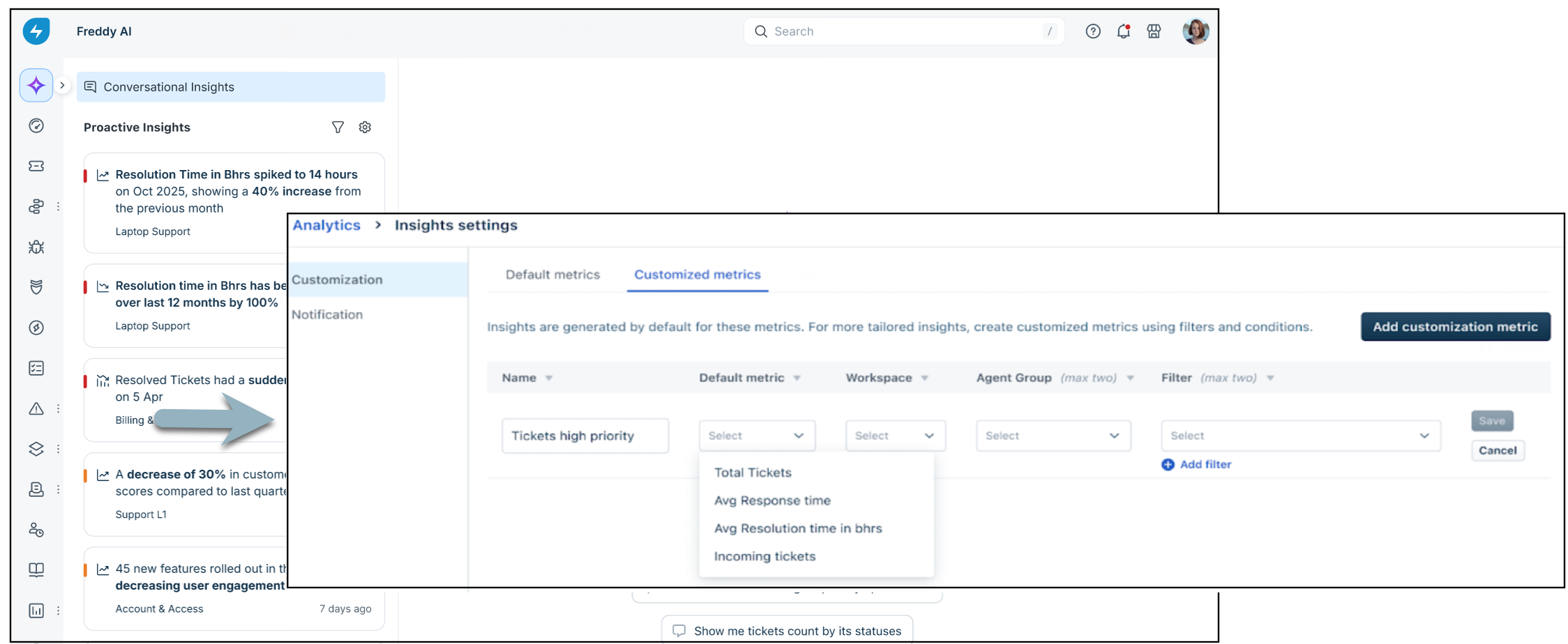
2. Click Add Customized Metric.
3. Choose a Metric.
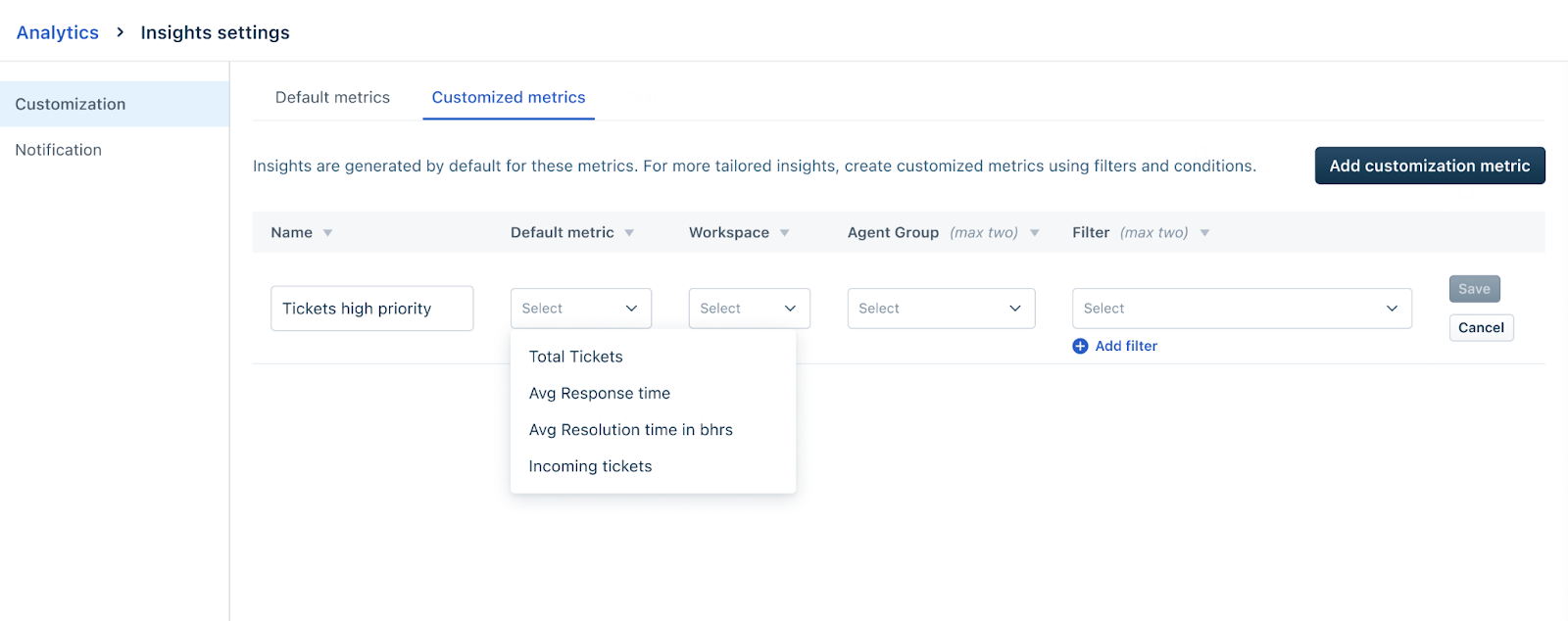
4. Add up to two data filters and use the equals or contains logical operators as available in the UI.
1. Examples: Priority = High, Channel = Chat, Category = Refunds, Source = Email
2. Keep the filters simple, as each one reduces the dataset, and over-filtering can prevent insights from being generated. 5. Select Groups (up to 2) –Choose the agent groups this customized insight should analyze. Customized Insights on this particular customized metric will be generated for these agent groups. For example, L1 Support, L2 Escalations.
6. Give it a clear, descriptive name (for example, “High-Priority Email — L1 & L2”) and Save.

``` Insights appear on the next scheduled run. If there isn’t enough eligible data, no insight may appear. ```
Key Limits (Guardrails)
Understand the quotas and restrictions when creating customized insights.
Manage Customized Insights
Learn how to edit, delete, or disable insights, and understand ownership rules.
Examples
| Name | Metric | Filters | Groups |
| High-Priority Spike by Email | Incoming Ticket Volume | Priority = High, Source = Email | L1 Support, L2 Escalations |
| SLA Breaches in APAC (Chat) | SLA Violations | Region = APAC, Channel = Chat | APAC Support |
| Network Category Stability Check | Avg Resolution Time | Category = Network | Network & Connectivity Team |
Best Practices
Tips to ensure customized insights are actionable and maintainable.
FAQs
Common questions about creating and viewing customized insights.
1. Why don’t I see my custom insight right away?
Insights appear on the next scheduled run and only if enough eligible data exists.
2. What does “enough data” mean?
Each metric has a minimum data requirement to detect changes reliably.
3. Who can view customized insights?
All users with access to the selected agent groups can view them. Only Managers can edit.
4. How many customized insights can I create?
Up to 35 per account. Delete or consolidate older ones to free capacity.
5. Can I target more than two groups?
No. Use another customized metric for additional groups.
6. Do filters use AND or OR logic?
Filters are combined using AND logic; each filter narrows the data slice.
Troubleshooting
Solutions to common issues when creating or viewing customized insights.
| Issue | What to do |
| No insights appearing | Wait for the next scheduled run. Loosen filters to increase eligible data. Verify selected groups actually receive tickets matching your filters. |
| Quota or selection limits reached | Error messages like “Max customized metrics reached (35)” indicate limits. Delete or consolidate older metrics; keep groups ≤ 2; filters ≤ 2. |
| Permission errors | Ensure you have the Manage Ticket Reports permission. Viewers cannot modify metrics. |
| Unexpected visibility | Insights follow agent group access. Anyone with access to a group sees its insights. |
Related links: