Last updated: 2025-08-27
``` Note: Freshworks will support the investigation of integration-related issues; however, issues originating from the third-party application are beyond Freshworks’ scope. We recommend reaching out to your account manager or the third-party provider’s support team. ```
Freshservice integration with Teamwork Connector enables IT teams to associate and sync the tasks and conversations (comments/notes) in Teamwork with incidents, service requests, and conversations (comments/notes) in Freshservice, allowing real-time bidirectional updates between both the platforms. This ensures that updates in one application are automatically reflected in the other and vice-versa.
This article contains the following topics:
Prerequisites for integration
Ensure you have the following, as part of the prerequisites for integration:
Install the app
To install the app:
1. Go to Admin > Automation & Productivity > Extensibility > Connector Apps.
2. Select Teamwork Connector App from the Connector Apps list.
3. Click Install. The Configuration page opens.
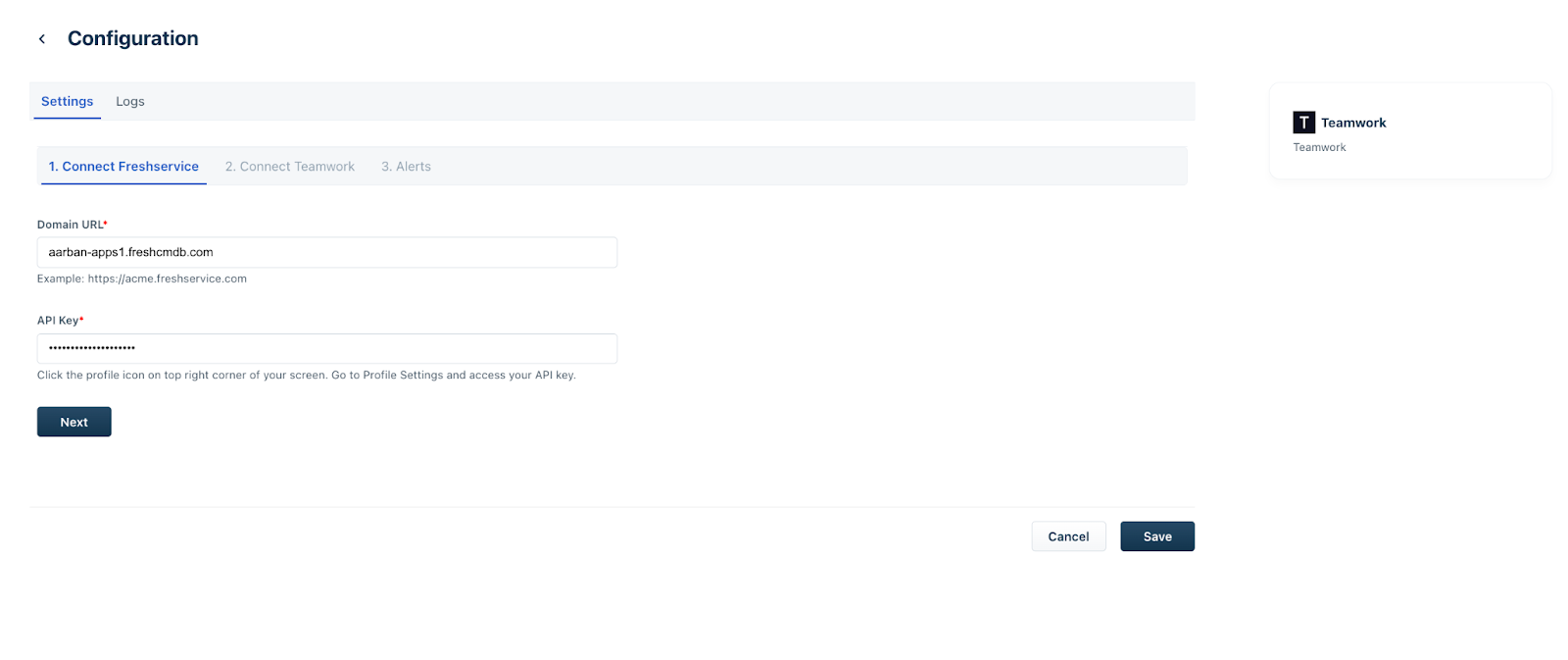
4. Ensure that your Freshservice API Key is enabled before initiating the installation. Click Next.
_Note:_ _The Domain URL and API Key__fields are auto-populated._
5. Enter the relevant Teamwork connection details in the Helpdesk and API key fields. Then, click Connect.
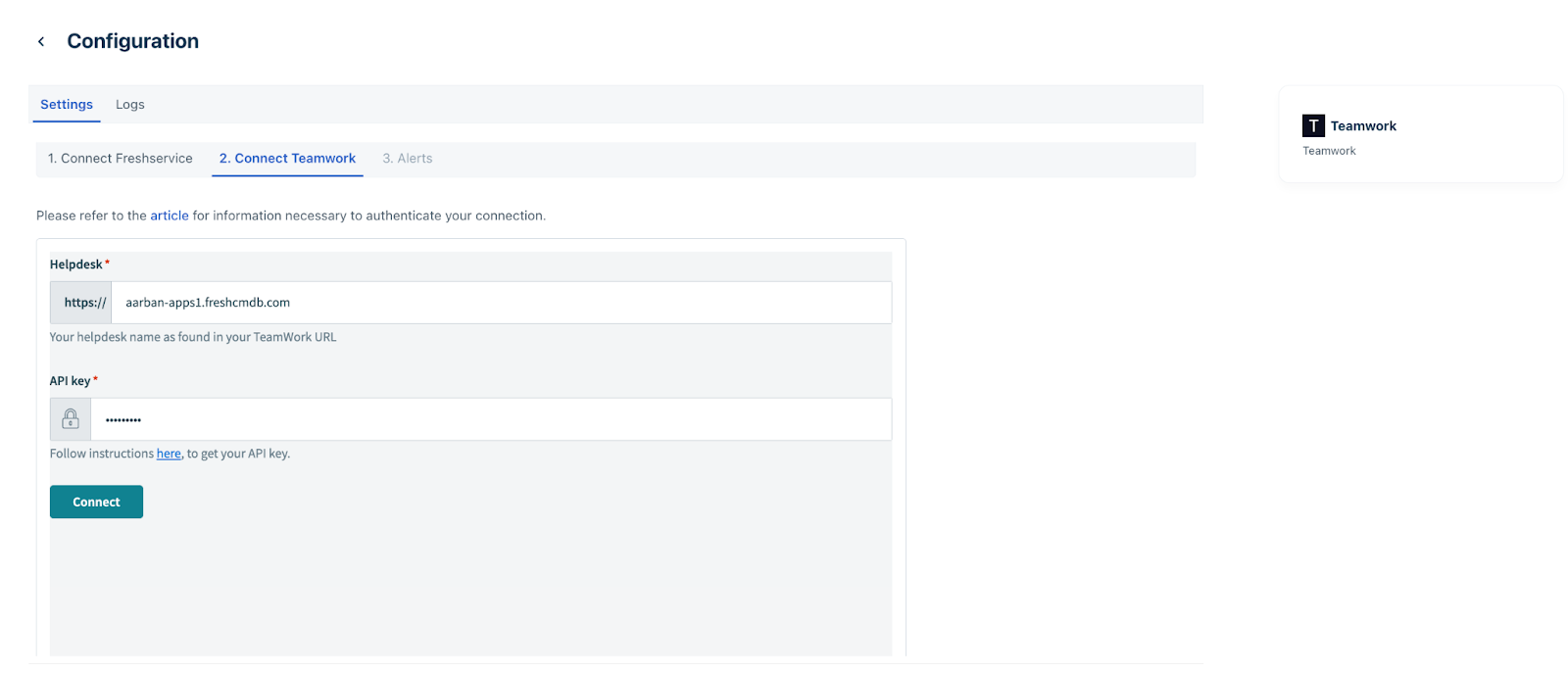
6. (After the connection is established successfully) Click Next on the Connect Teamwork tab.
7. Enable the Alerts toggle, if you want to receive email notifications on any errors that are detected within the configured recipes.
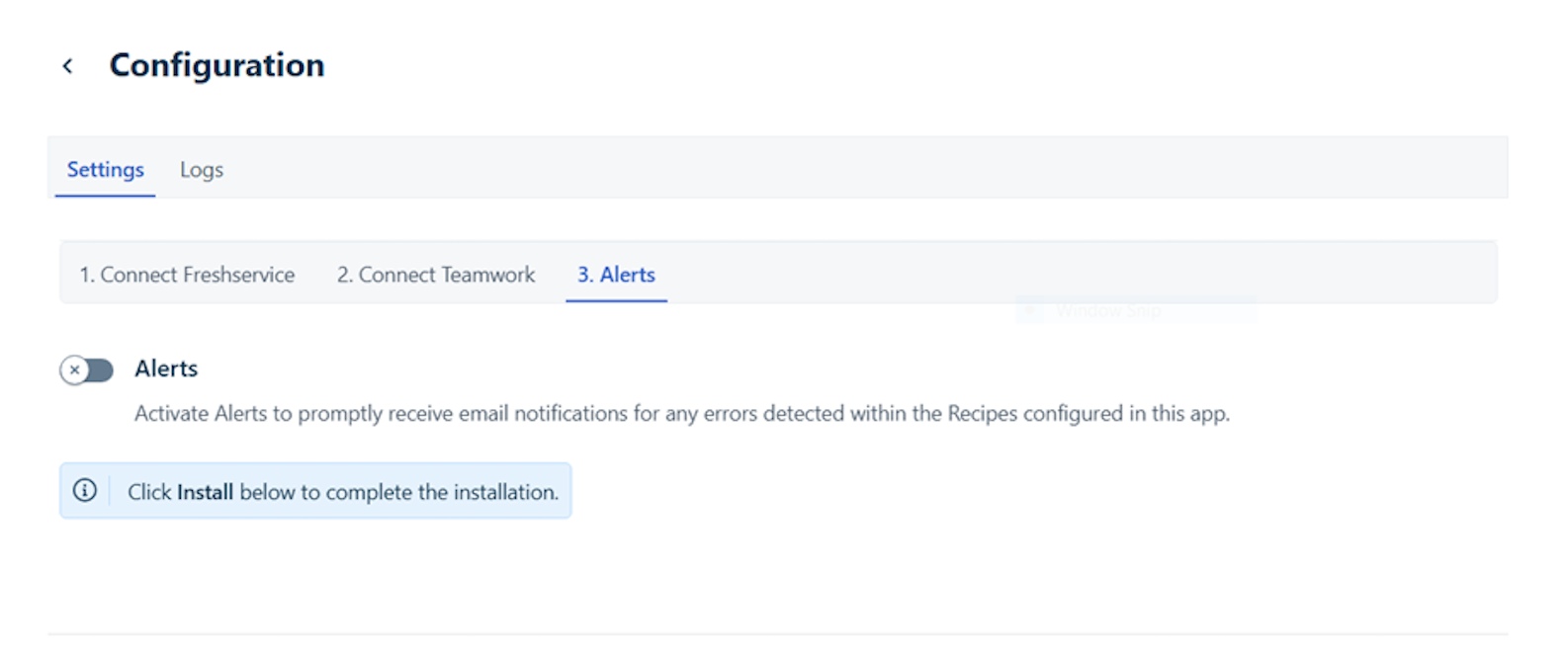
8. Enter the recipient email id(s) in the Email ID field.
9. Then, click Install.
View dashboard
The Overview page of a connector app includes the Dashboard and Dependency graph tabs.
The Dashboard helps you understand the total number of tasks you've consumed (this is the basis for your app usage billing), and also provides a consolidated graph view of the number of recipes, successful jobs, and failed jobs for all recipes.
To view the dashboard and dependency graph:
1. Go to Admin > Automation & Productivity > Extensibility > Connector Apps.
2. Click Teamwork Connector App. The Configure Teamwork Connector dialog opens.
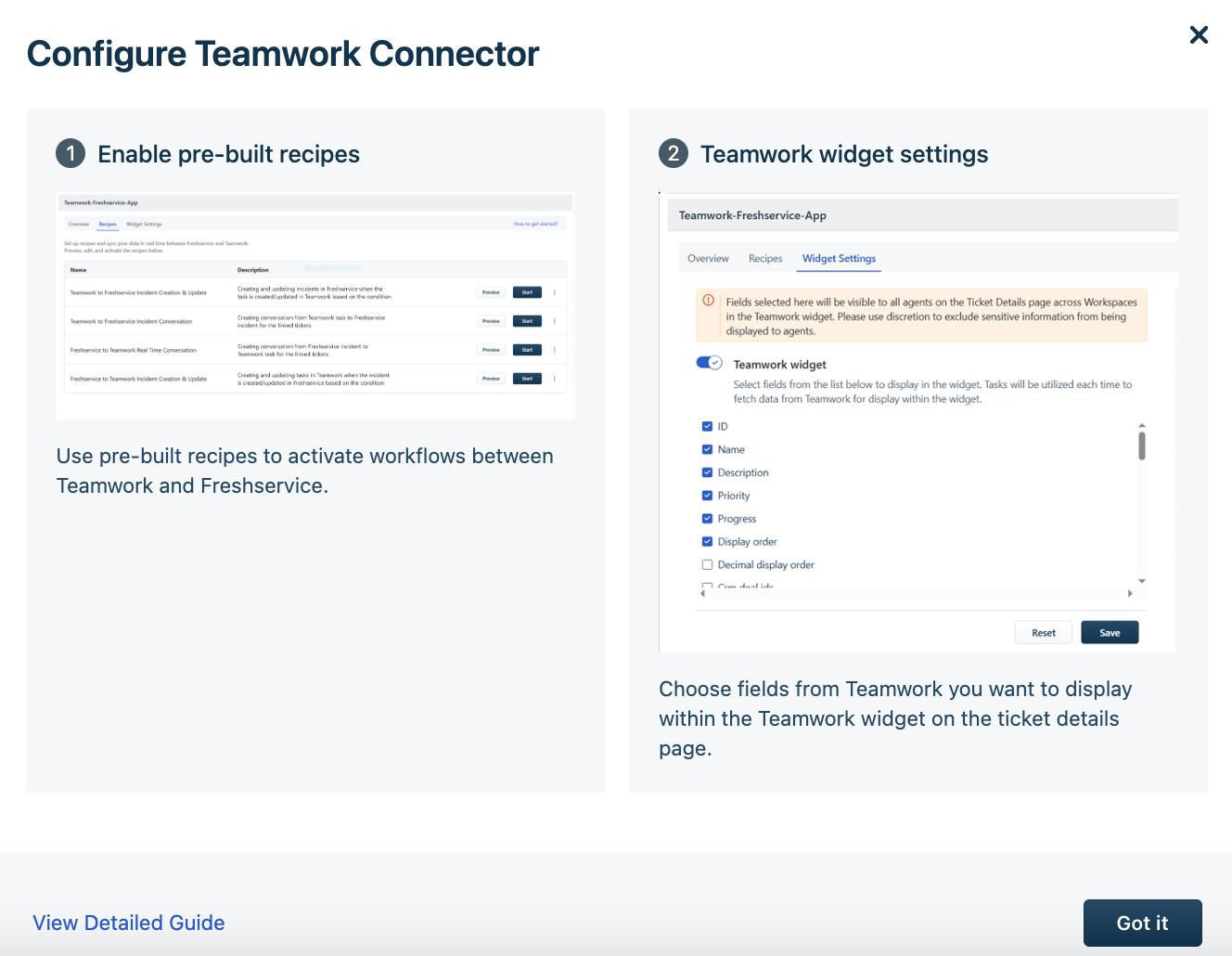
3. Click Got it. The Overview page opens.
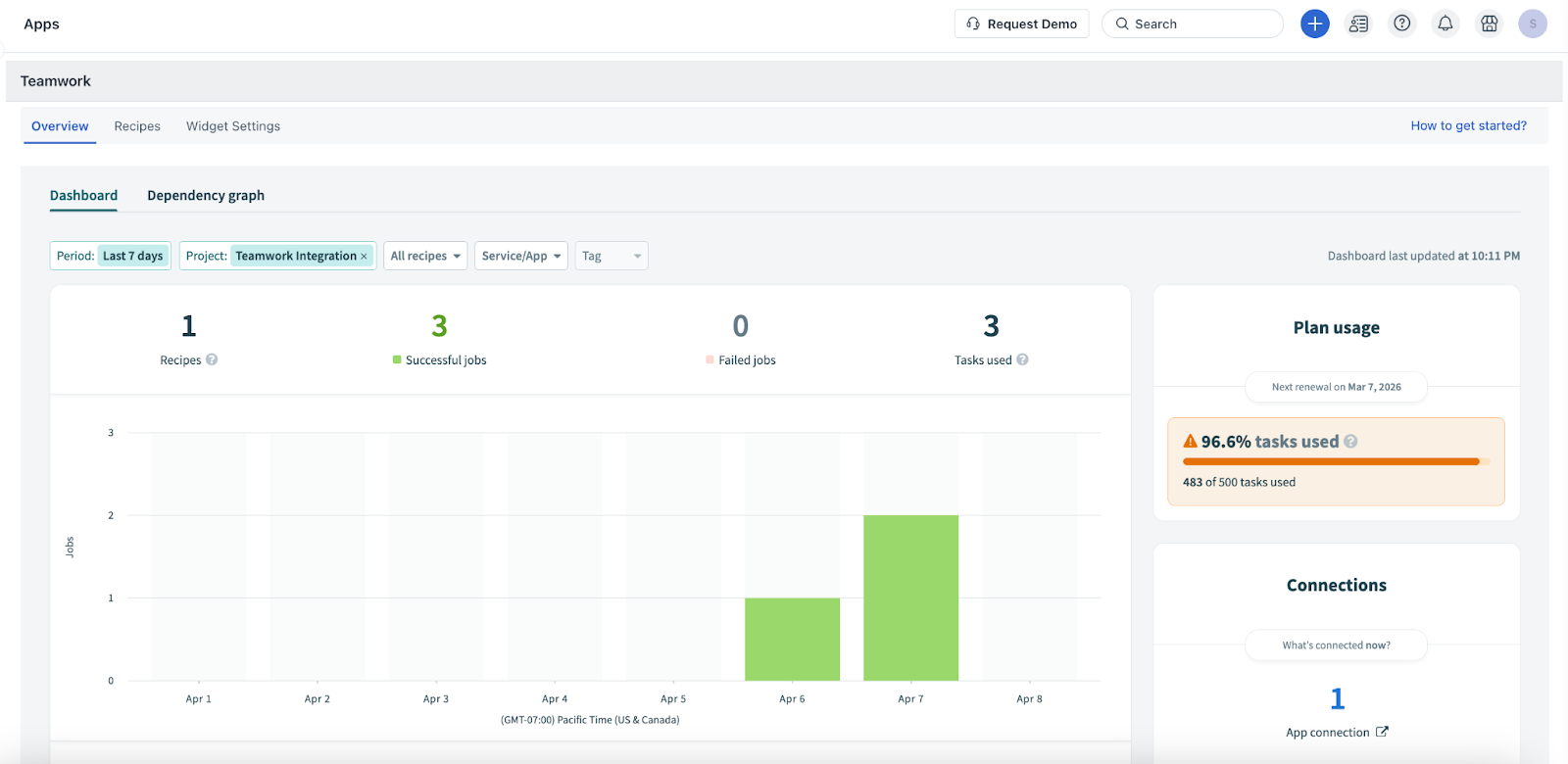
_Note:_ _Use the Period, Project, All recipes, Service/App, and Tag filters to modify the graph view. You can also sort and view the required data in a tabular format (below the graph), and view your plan usage and connection details on the Dashboard__tab._
4. Go to the Dependency graph tab to view the dependencies in a grid layout.
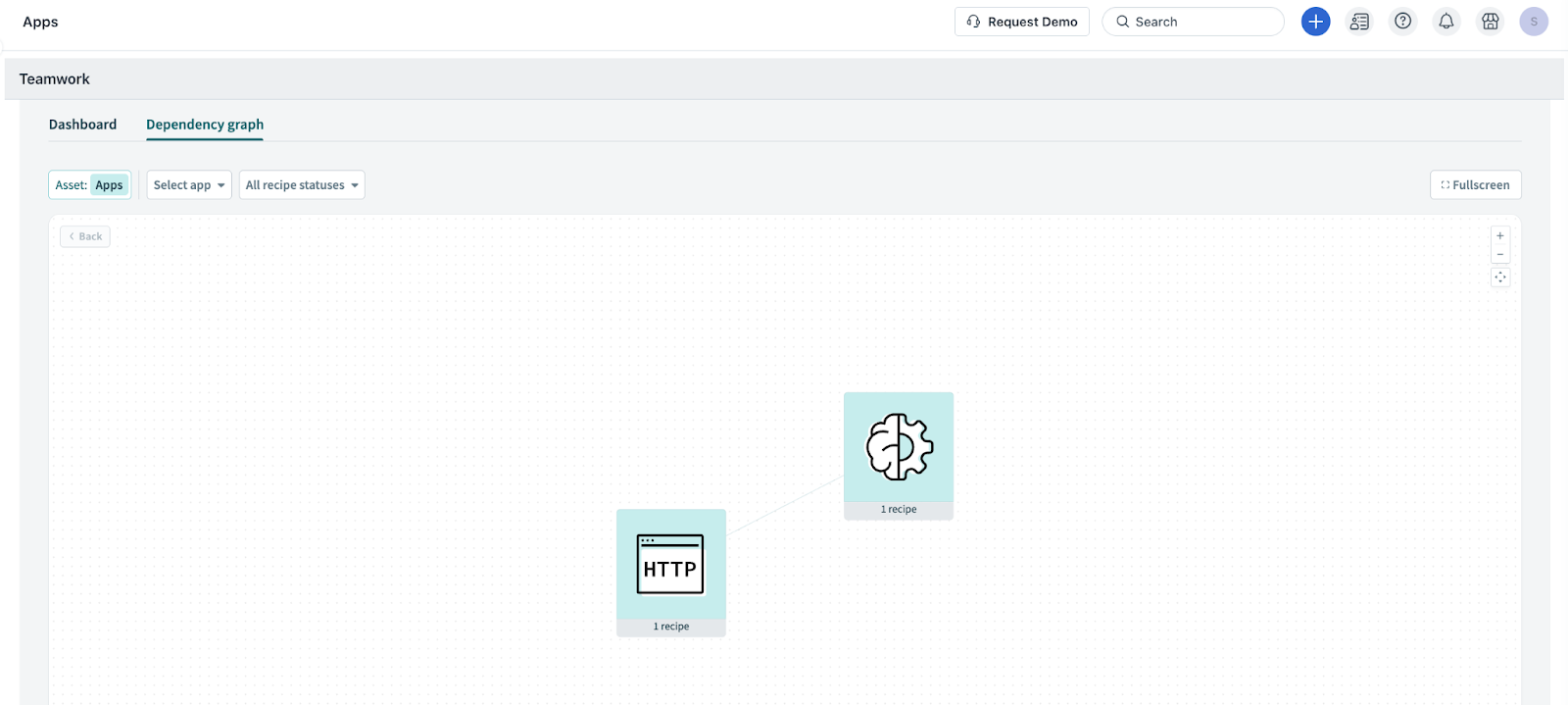
5. Click on any icon to view all dependencies, such as Connection, Recipe, API Endpoint, and so on.
_Note:_ _Use the Asset, App, and Recipe status__filters to modify the grid view._
Set up available recipes
To set up the available recipes:
1. Go to Admin > Automation & Productivity > Extensibility > Connector Apps.
2. Click Teamwork Connector App. The Overview page opens.
3. Click Recipes. The Recipes page shows you the list of available recipes for the Teamwork Connector App.
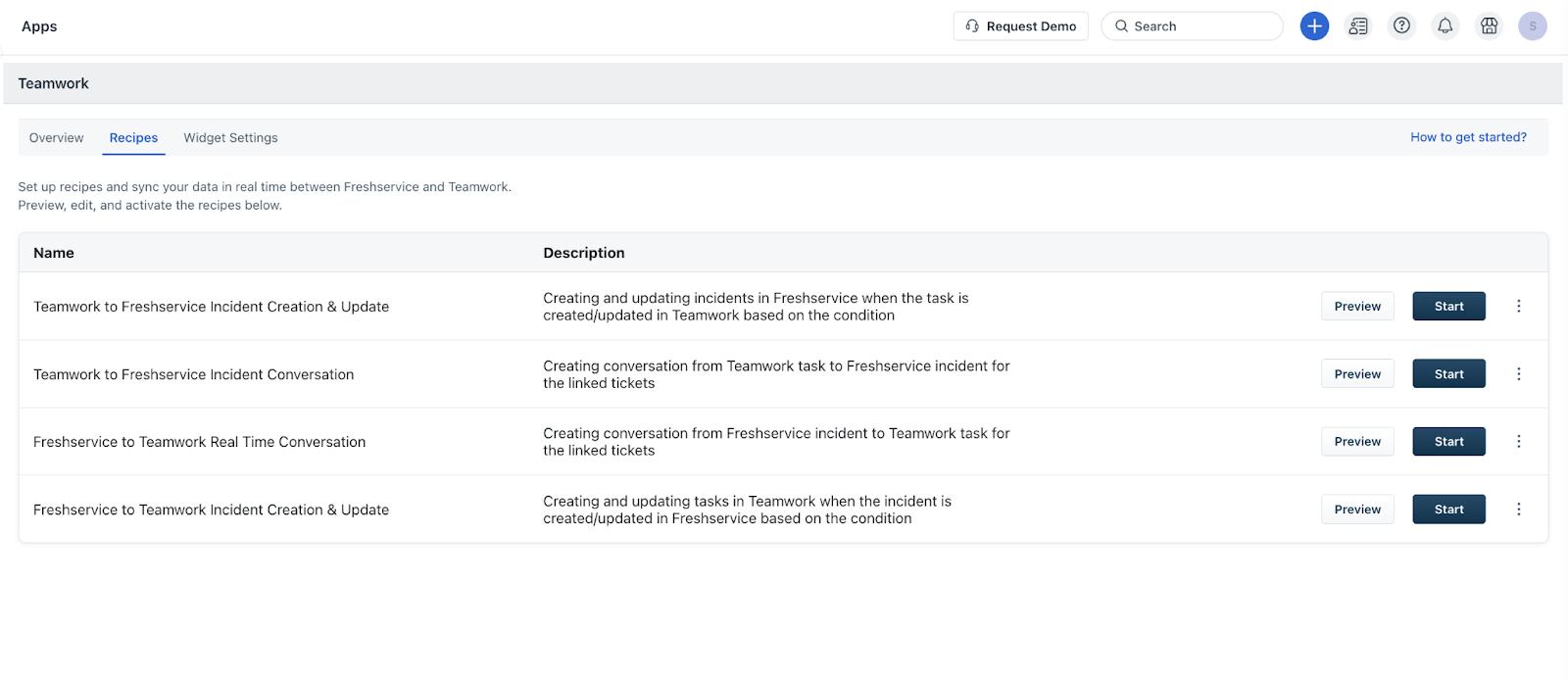
List of all the available default recipes
The following default recipes are available with the Freshservice and Teamwork Connector integration.
| Recipe | Description |
| Teamwork to Freshservice Incident Creation and Update | Helps you create or update an incident in Freshservice when a task is created or updated in Teamwork based on the specified conditions. |
| Teamwork to Freshservice Incident Conversation | Helps you sync conversations from Teamwork tasks to Freshservice incidents for the linked tickets. |
| Freshservice to Teamwork Real Time Conversation | Helps you sync conversations from Freshservice incidents to Teamwork tasks for the linked tickets. |
| Freshservice to Teamwork Incident Creation and Update | Helps you create or update a task in Teamwork when an incident is created or updated in Freshservice based on the specified conditions. |
Manage available recipes
You can preview, edit, start, test, or stop the available recipes.
Preview recipe
1. On the Recipes page, click Preview next to the recipe you want to view. The selected recipe’s preview page opens.
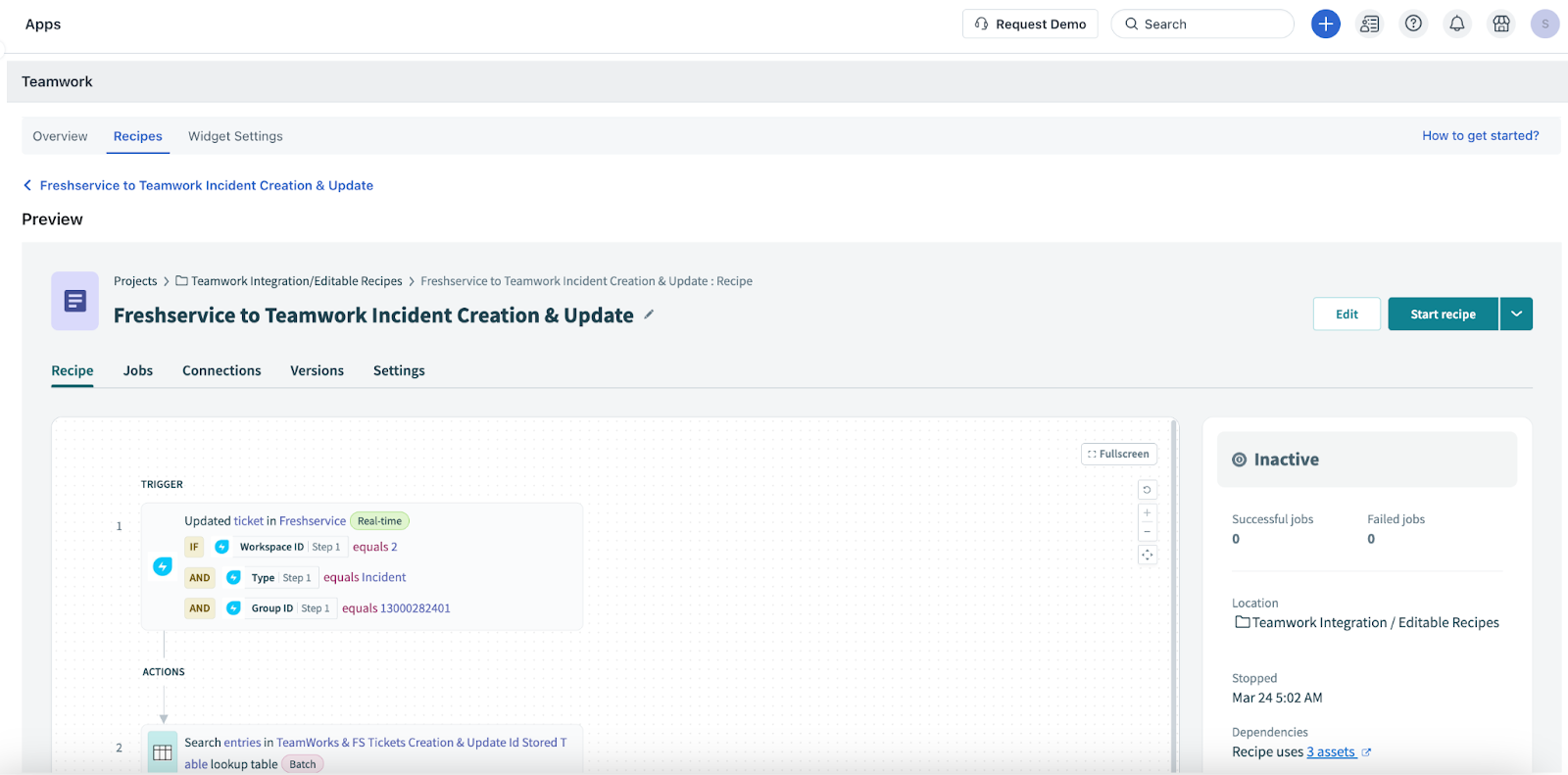
The Preview page includes the Recipe, Jobs, Connections, Versions, and Settings tabs.
2. On the Recipe tab, you can view various steps with pre-configured triggers, actions, and conditions.
3. Go to the Jobs tab to view all the jobs associated with this recipe.
_Note:_ _Use the Repeat job, Cancel job, Search jobs, All statuses, All types, and Period__filters to modify or update the Jobs list._
4. Go to the Connections tab to view all the associated connections.
5. Go to the Versions tab to view all the associated versions.
_Note:_ _Use the Compare versions, Search version comments, All periods, All change types, and All collaborators__filters to modify or update the Versions list._
6. Go to the Settings tab to view the usage metrics, dependencies, and concurrency associated with this recipe.
Start recipe
To start any recipe:
1. On the Recipes page, click Start next to the recipe you want to start.
2. Or, click Preview next to the recipe you want to start. Within the recipe preview page, you will find an option to start the recipe.
Edit recipe
To edit any recipe:
1. Click Preview next to the recipe you want to edit. The selected recipe’s preview page opens. If the recipe is active, click Stop. Then, click Edit.
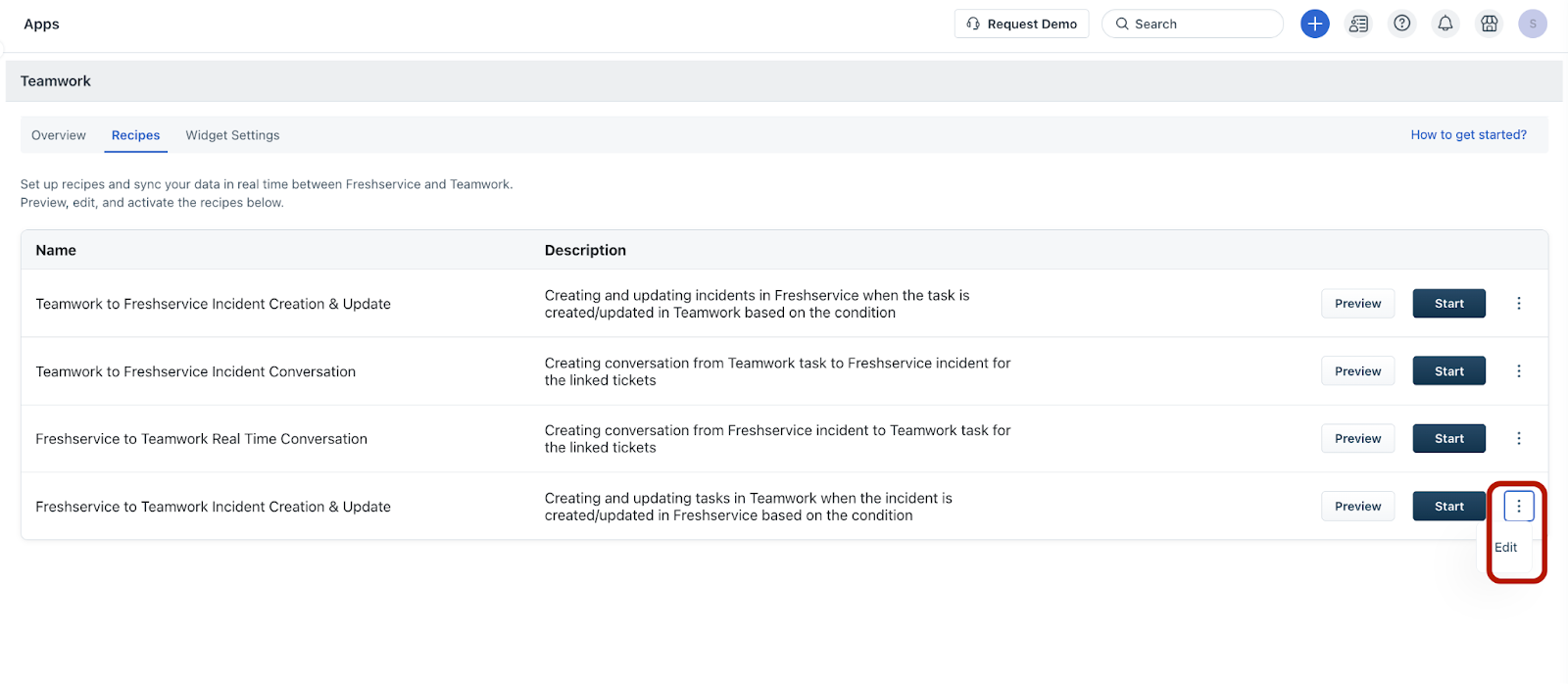
2. Or, click the ellipsis icon next to a recipe on the Recipes page. Then, click Edit.
Stop recipe
To stop any recipe:
1. On the Recipes page, click Stop next to the recipe you want to stop.
2. Or, click Preview next to the recipe you want to stop. Within the recipe preview page, you will find an option to stop the recipe.
Test recipe
To test any recipe:
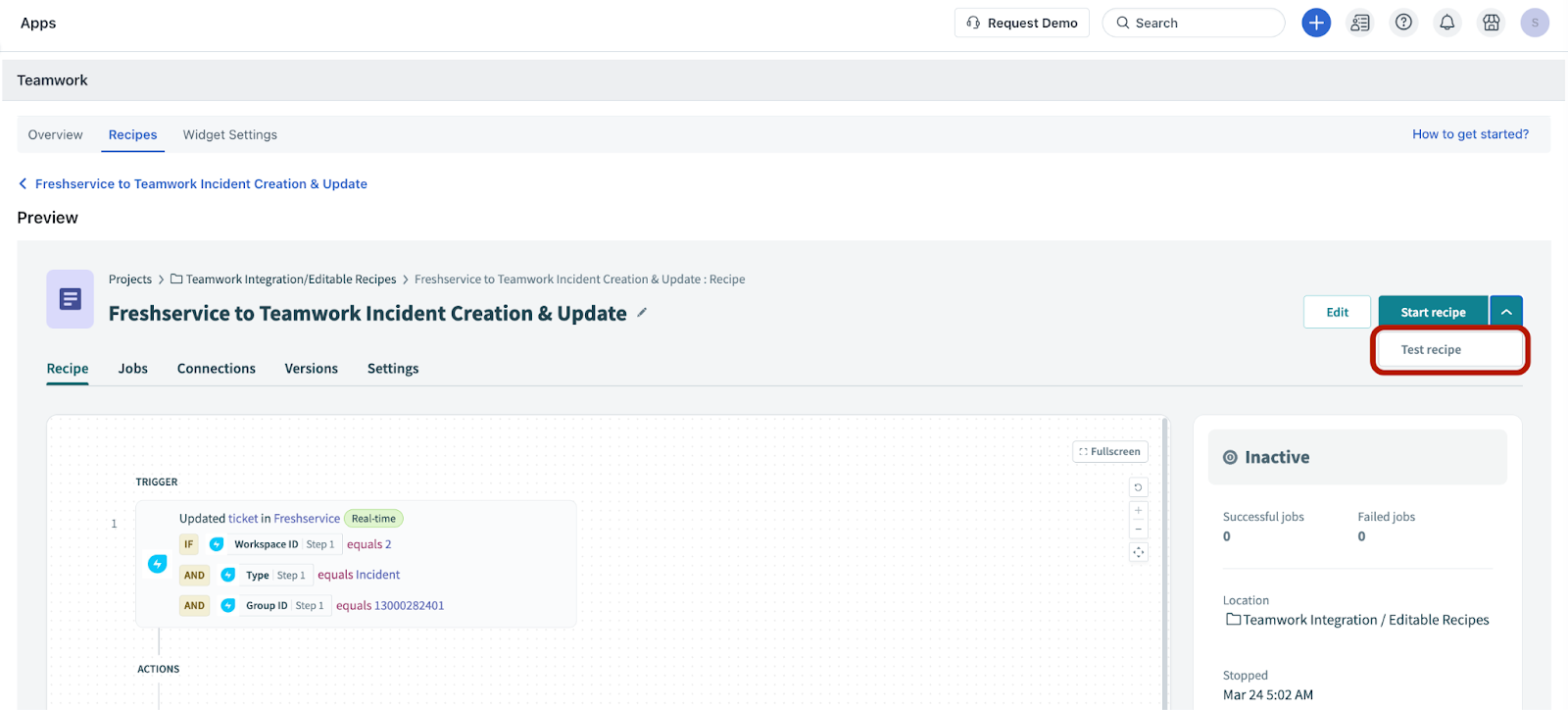
1. On the Recipes page, click Preview next to the recipe you want to test. The selected recipe’s preview page opens. If the recipe is active, click Stop.
2. Then, select Test recipe from the Start recipe dropdown.
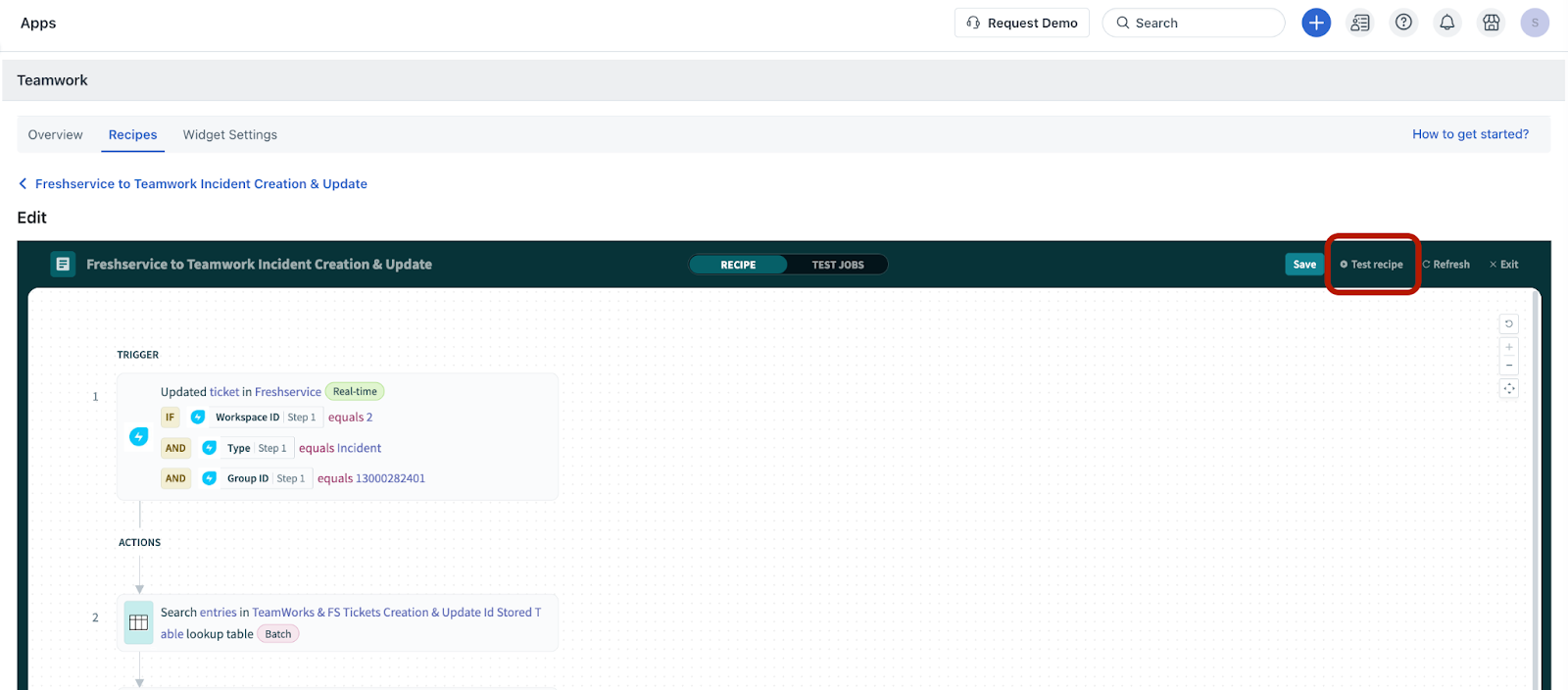
3. Or, click the ellipsis icon next to a recipe on the Recipes page, and click Edit. The selected recipe page opens.
4. Click Test recipe.
Customize recipe
Each recipe has the following components: Trigger, Actions, and Conditions. You can customize any recipe depending on your specific requirements.
Let’s take a default recipe as an example to customize it further.
Default recipe: Freshservice to Teamwork Incident Creation and Update
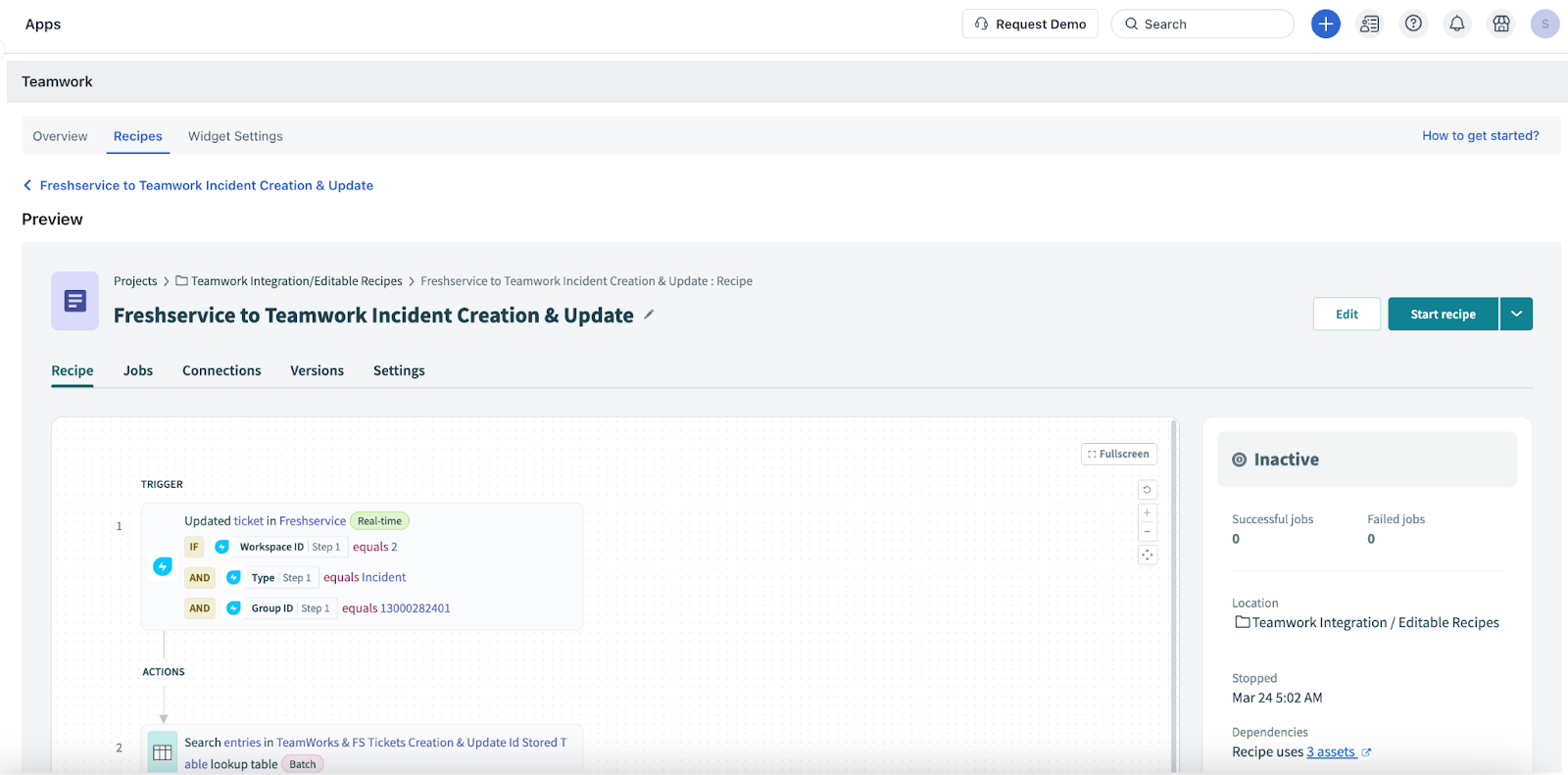
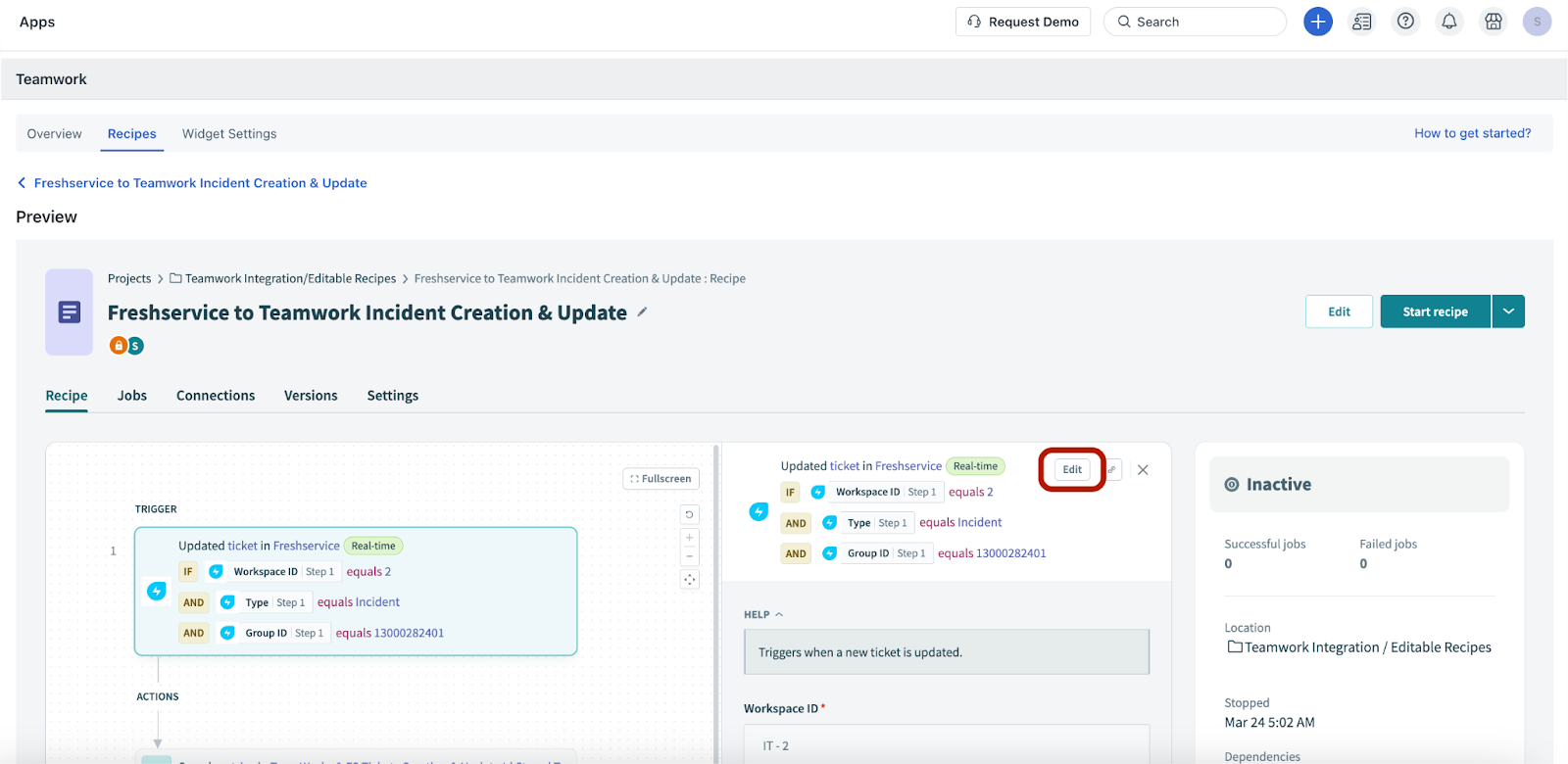
You can click any component, and use the Edit option associated with the component to customize. For example, the Trigger component (as shown in the following figure).
Trigger
This recipe component acts as the starting point for any recipe. For this default recipe, the trigger is fetching a new or updated incident from Freshservice and syncing it with a Teamwork task.
You can customize the trigger in the following ways:
Condition
This component acts as a checkpoint within the recipe flow and executes a specific set of actions based on the matched condition.
Here, the recipe checks if a new incident is created or an existing incident is updated in Freshservice. Accordingly, a task is created or updated in Teamwork.
You can check and edit the data fields and conditions.
Action
The recipe performs a specific set of actions based on the conditions met. For example, the recipe creates or updates a task in Teamwork for a new or existing incident in Freshservice.
You can customize the following parts of the action:
After customizing a recipe, you can save or test it to ensure it's working correctly.
Check failed recipe or jobs
To view and troubleshoot failed jobs under a recipe, follow these steps:
1. Click Preview next to a specific recipe on the Recipes page.
2. Go to Jobs.
3. View a list of all the jobs executed under a particular recipe.
4. Filter the failed jobs using the All statuses filter.
5. Click a failed job to view the error details and identify the cause of failure.
6. Resubmit the job after your review to fix the issue.
Configure widget settings
After you activate recipes as per your requirement, you can configure widget settings.
1. Go to Admin > Automation & Productivity > Extensibility > Connector Apps.
2. Click Teamwork Connector App. The Overview page opens.
3. Click Widget Settings. This page shows you a list of fields you can select to display in the Teamwork widget on any ticket details page across different workspaces.
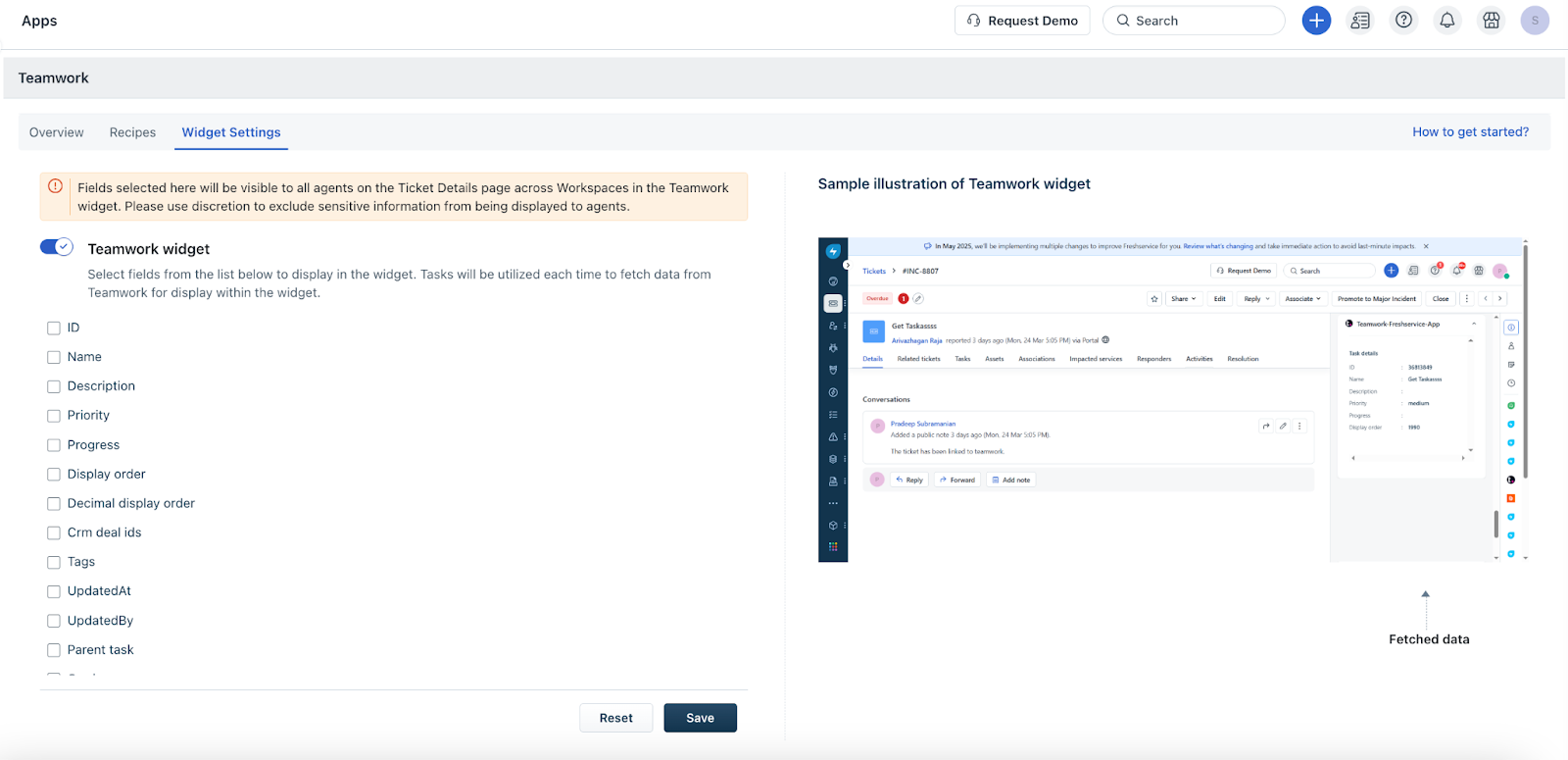
4. Enable the Teamwork widget toggle.
5. Select the fields you want to display in the Teamwork widget on the ticket details page.
_Note:__A sample illustration is shown on the right-side section for your reference._
6. Click Save.
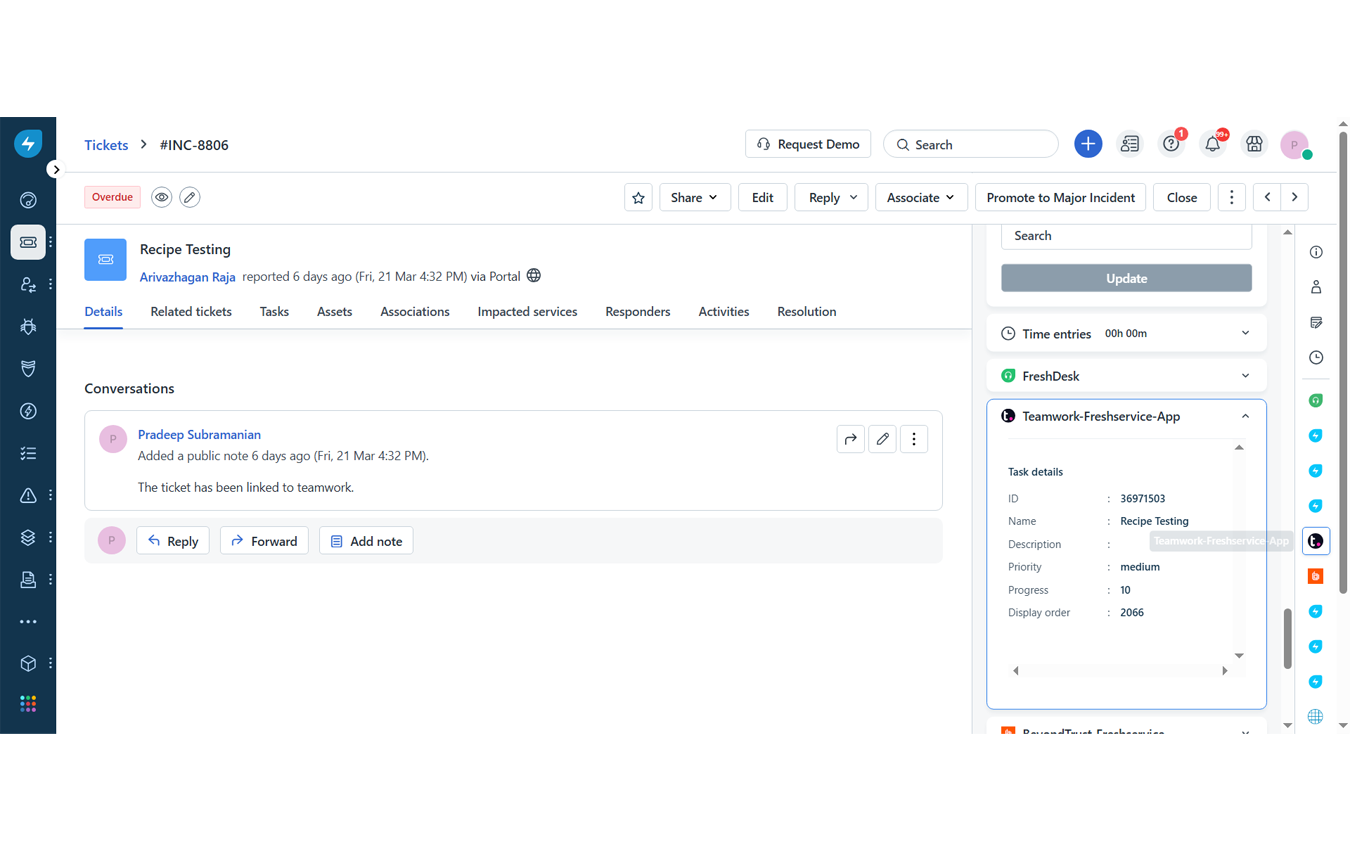
The widget will now be active and available to use within Freshservice tickets (as shown in the following figure).
_Note:_ _For information on frequently asked questions (FAQs) related to the Connector Apps in Freshservice, see Connector Apps: Frequently Asked Questions (FAQs)__._