Last updated: 2025-01-29
Freshservice allows you to create and use custom Post-Incident Report (PIR) templates instead of relying on the default template. This ensures consistency with your organization’s reporting standards.
Prerequisites
You must have Admin permission: Manage Post Incident Report Templates to set up and modify PIR templates.
Accessing PIR Templates
1. Navigate to Workspace Settings > IT Operations Management > Post Incident Report Templates.
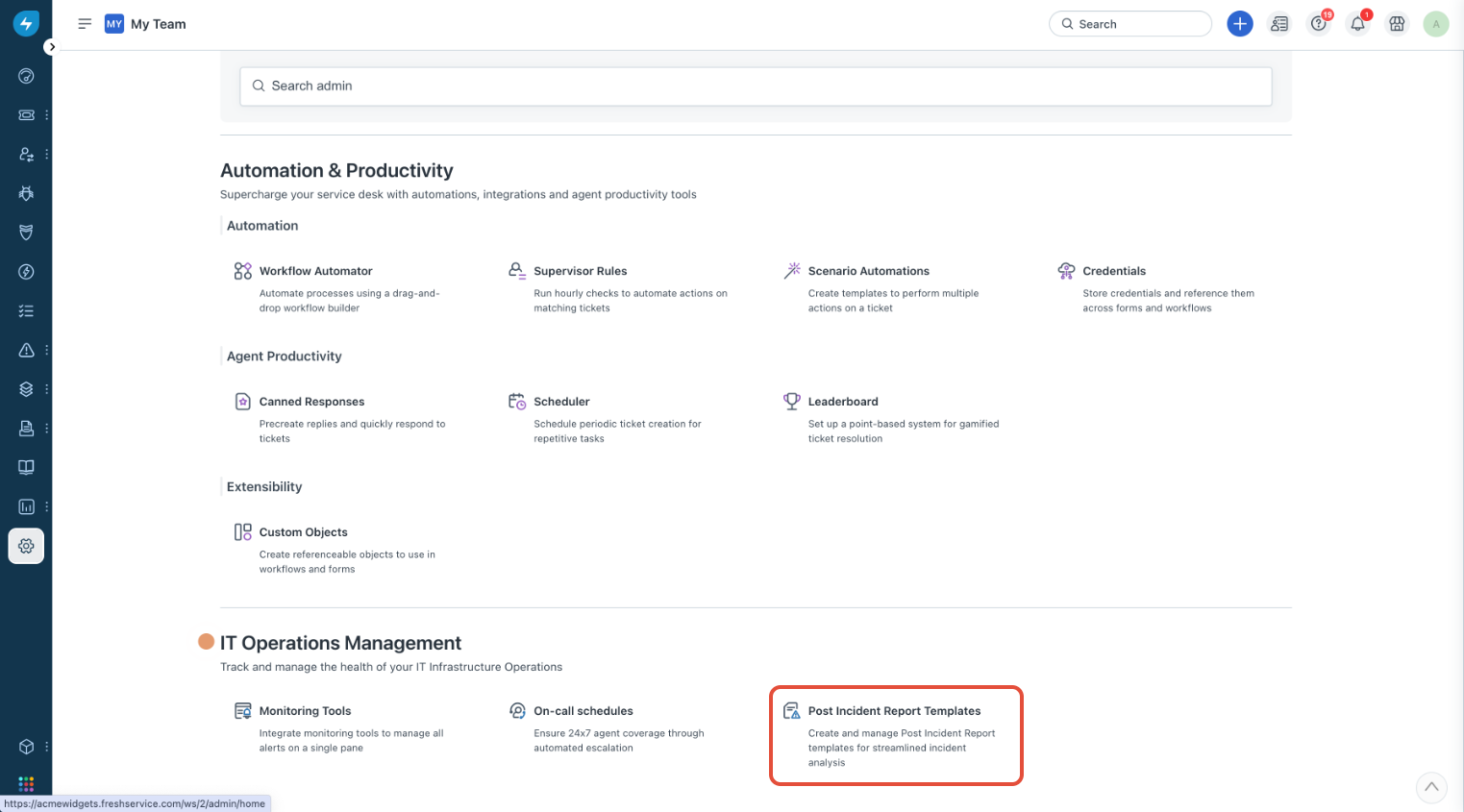 2. You will see a default Freshservice template named Freshservice PIR template seeded in the system. - This template cannot be edited or deleted. - It can be disabled only after creating a new template.
Creating a New PIR Template
To create a new template, click on New Template and choose one of the following options:
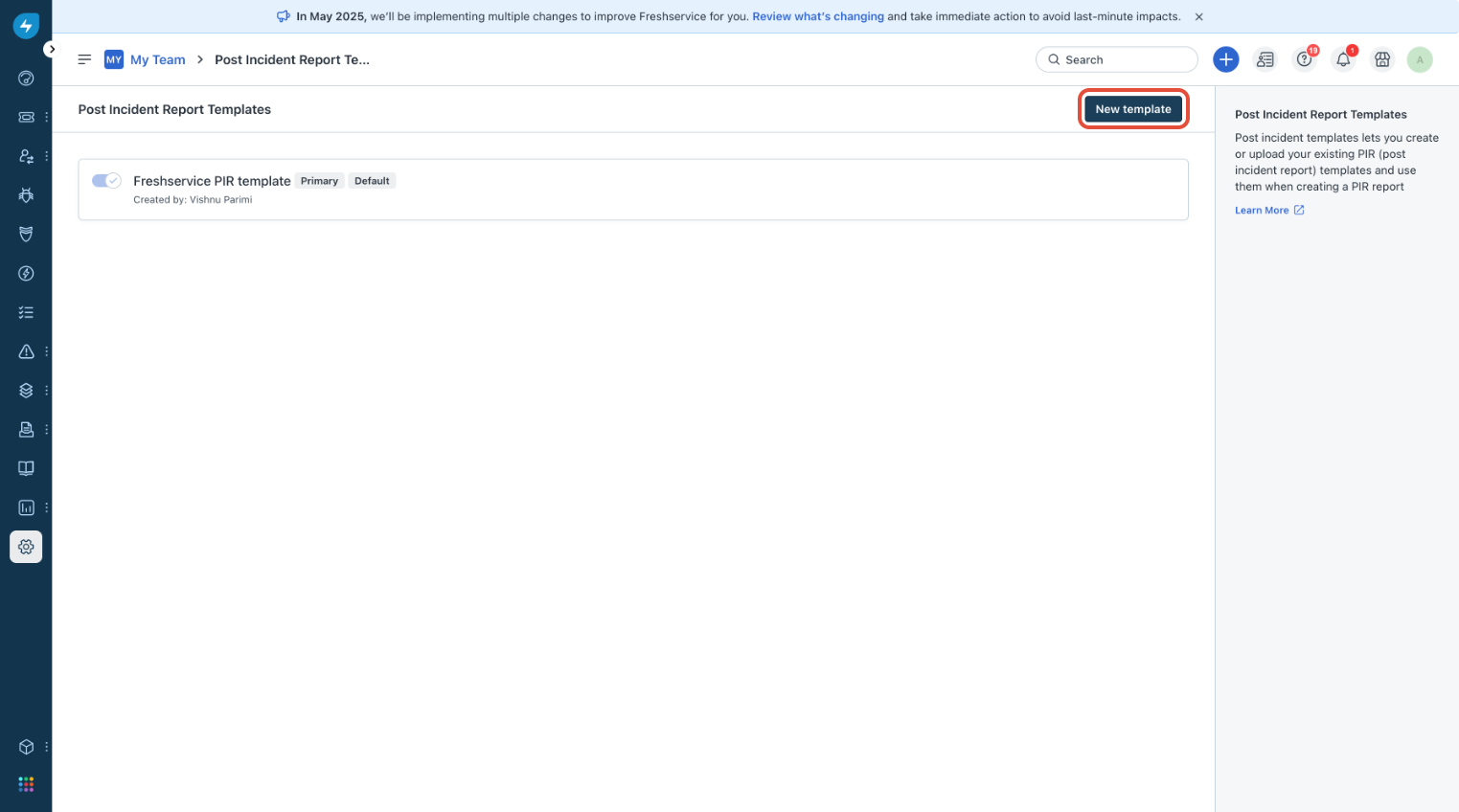
1\. Create from Scratch
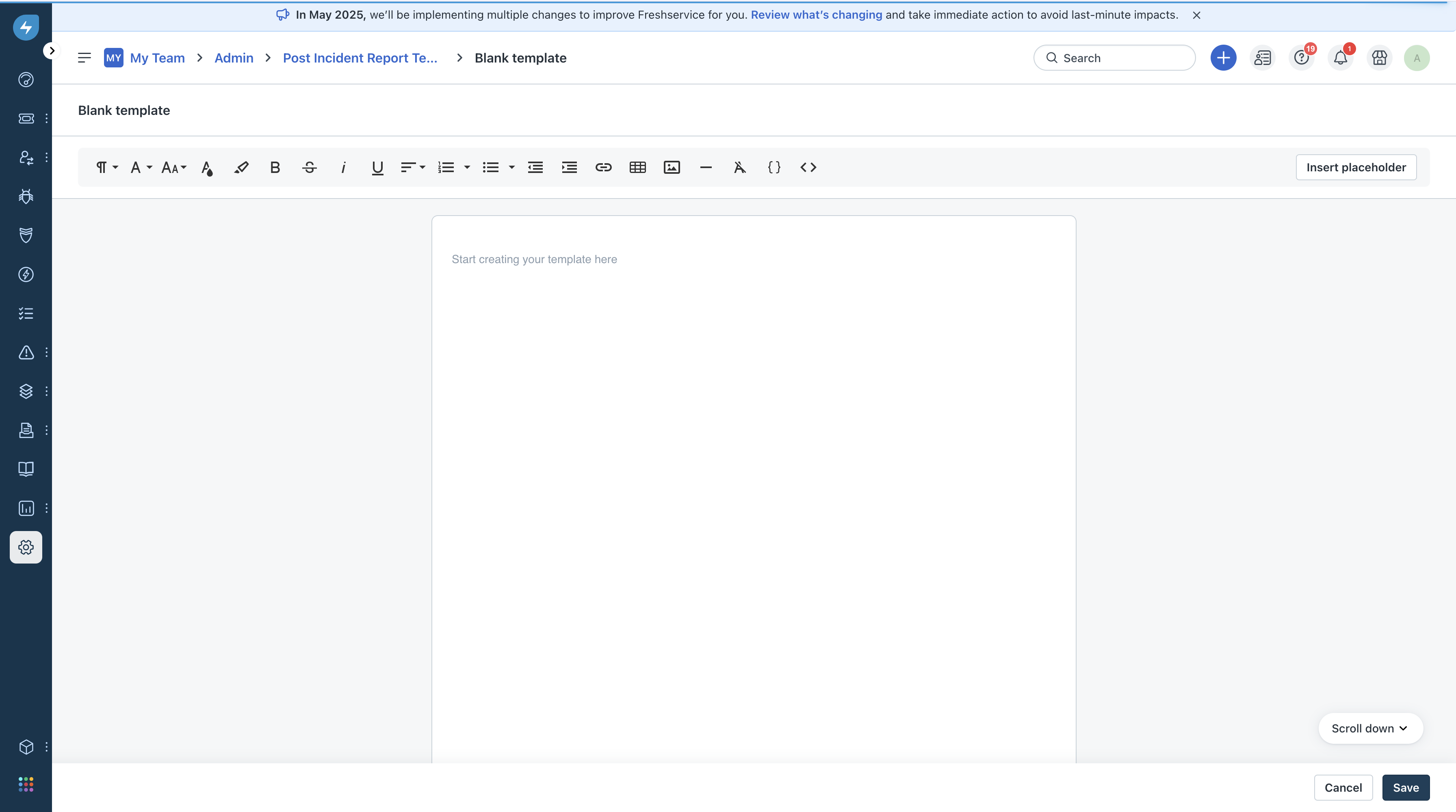
2\. Upload an Existing Template
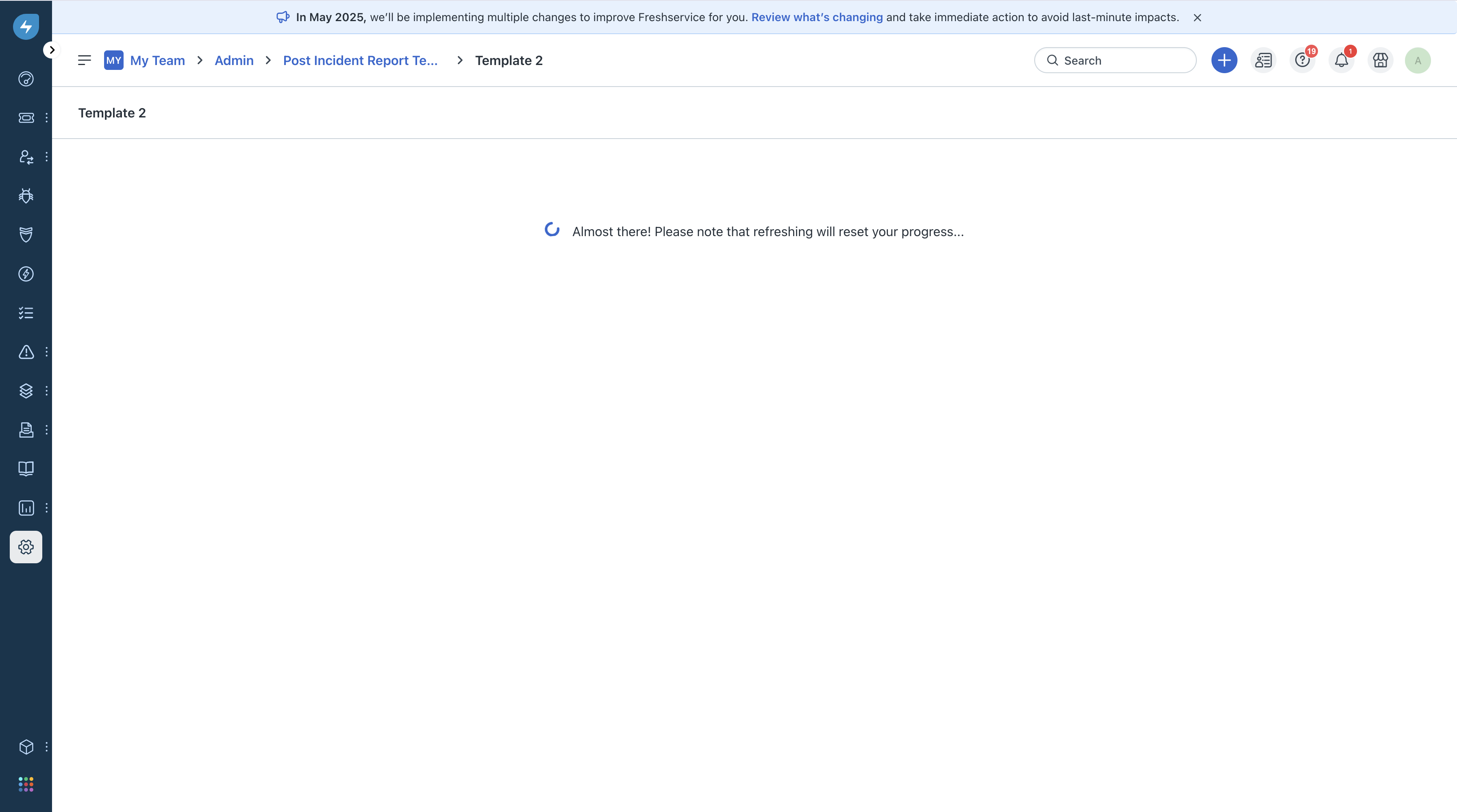
Note: Closing the tab, navigating out of the above page or refreshing will reset the progress of document conversion
You can also clone an existing template and then edit it to create a new template
Customizing the PIR Template
Once a template is created (via clone, scratch, or upload), you can:
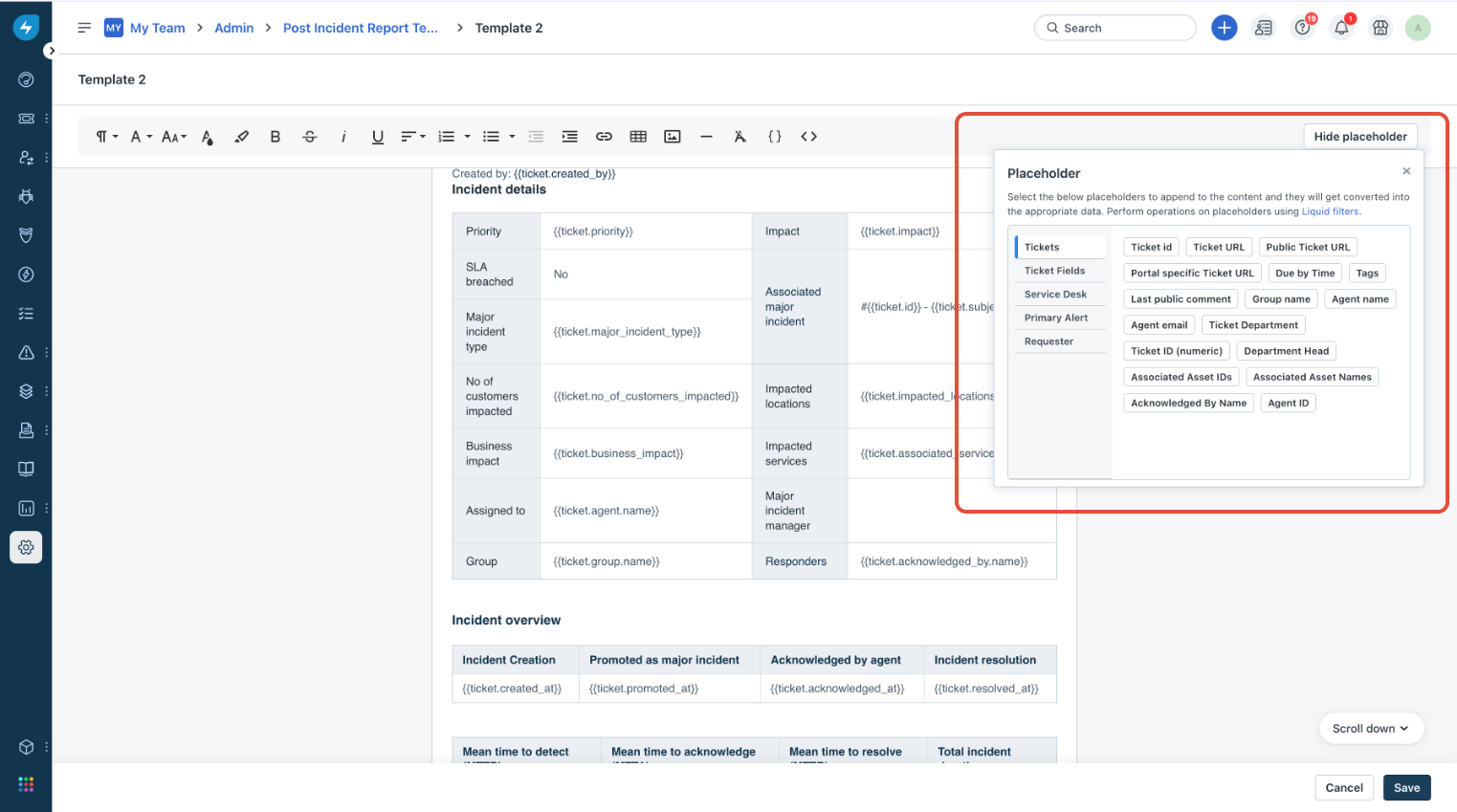
- Choose from predefined placeholders to insert dynamic ticket data. This ensures that when a Post Incident Report is created using that template, the ticket field data for that major incident will automatically be filled in the place of the placeholder thereby saving on manual effort and ensuring accuracy. - Liquid filters can also be used to support formatting modifications of placeholders
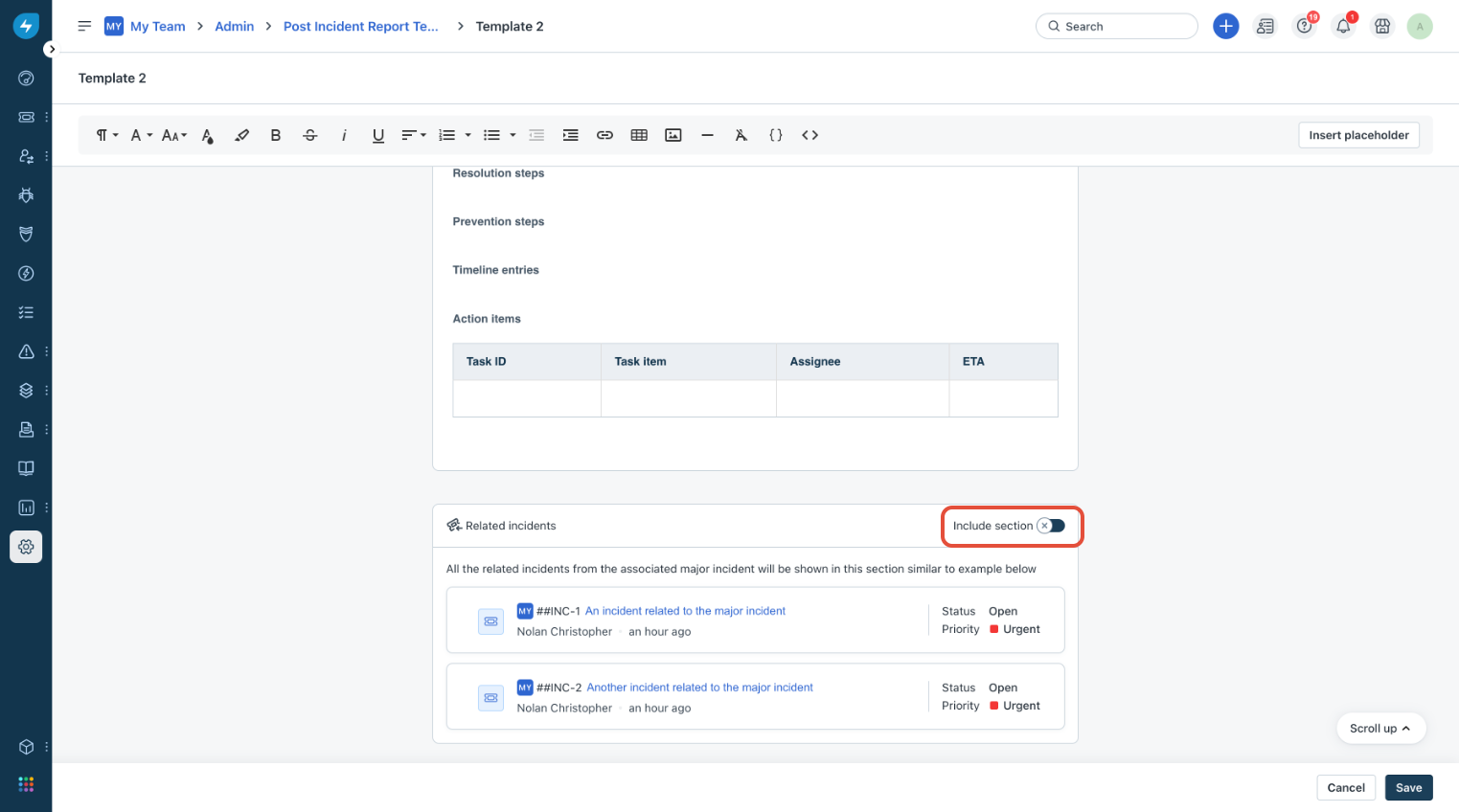
- Toggle Include Section to enable/disable this feature.
Enabling & Managing Templates
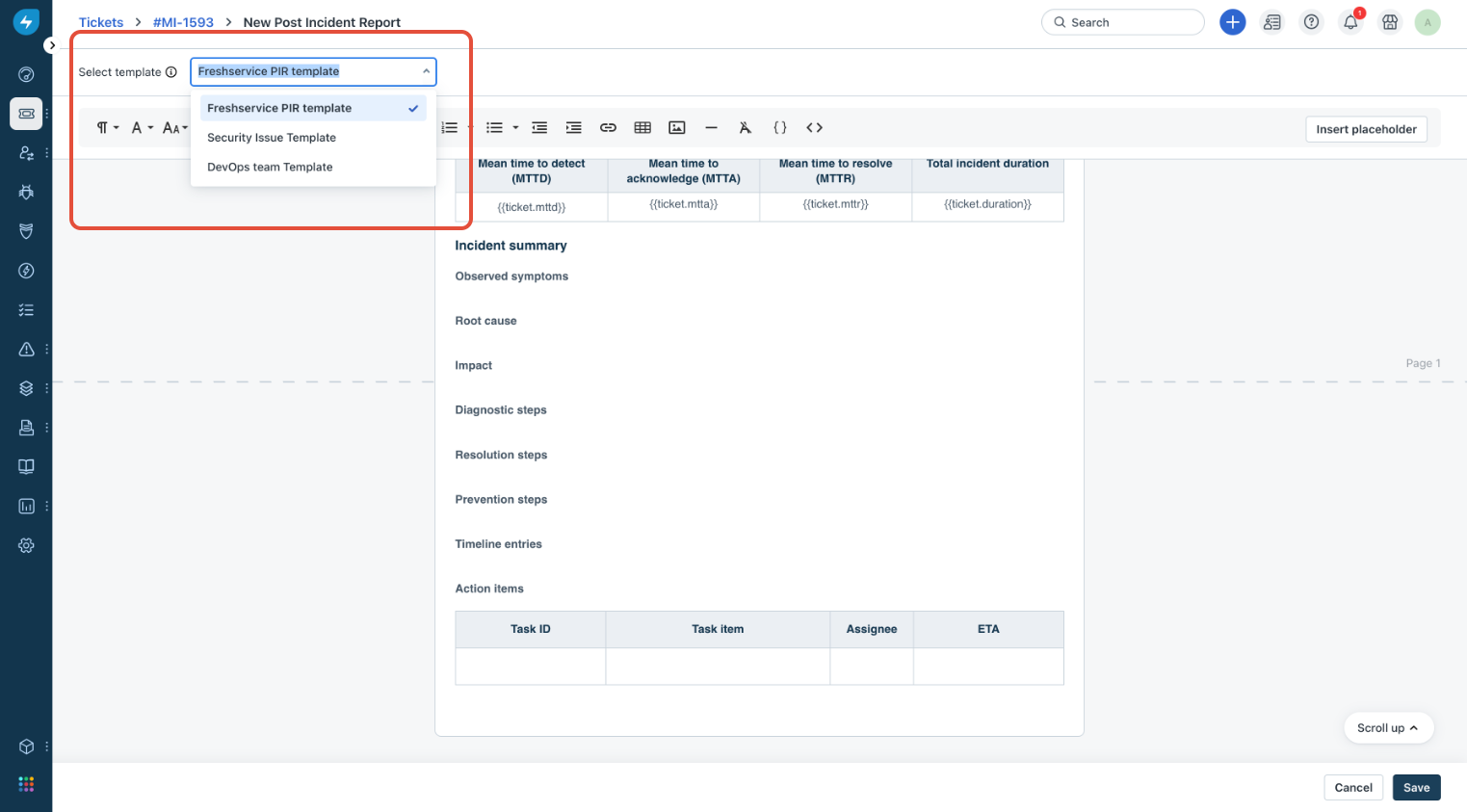
By setting up custom PIR templates, you streamline the incident review process, ensuring consistency and reducing manual effort.
``` Freddy powered Post Incident Report generation is currently only supported on Freshservice PIR template. Support for Freddy generation of PIR on user-generated template is ```