Last updated: 2023-05-03
How to modify the due date of a ticket?
Freshservice displays a ticket's due date and time, based on the applied SLA. You can view the due date and time in the top right corner of the ticket view page under the following categories:
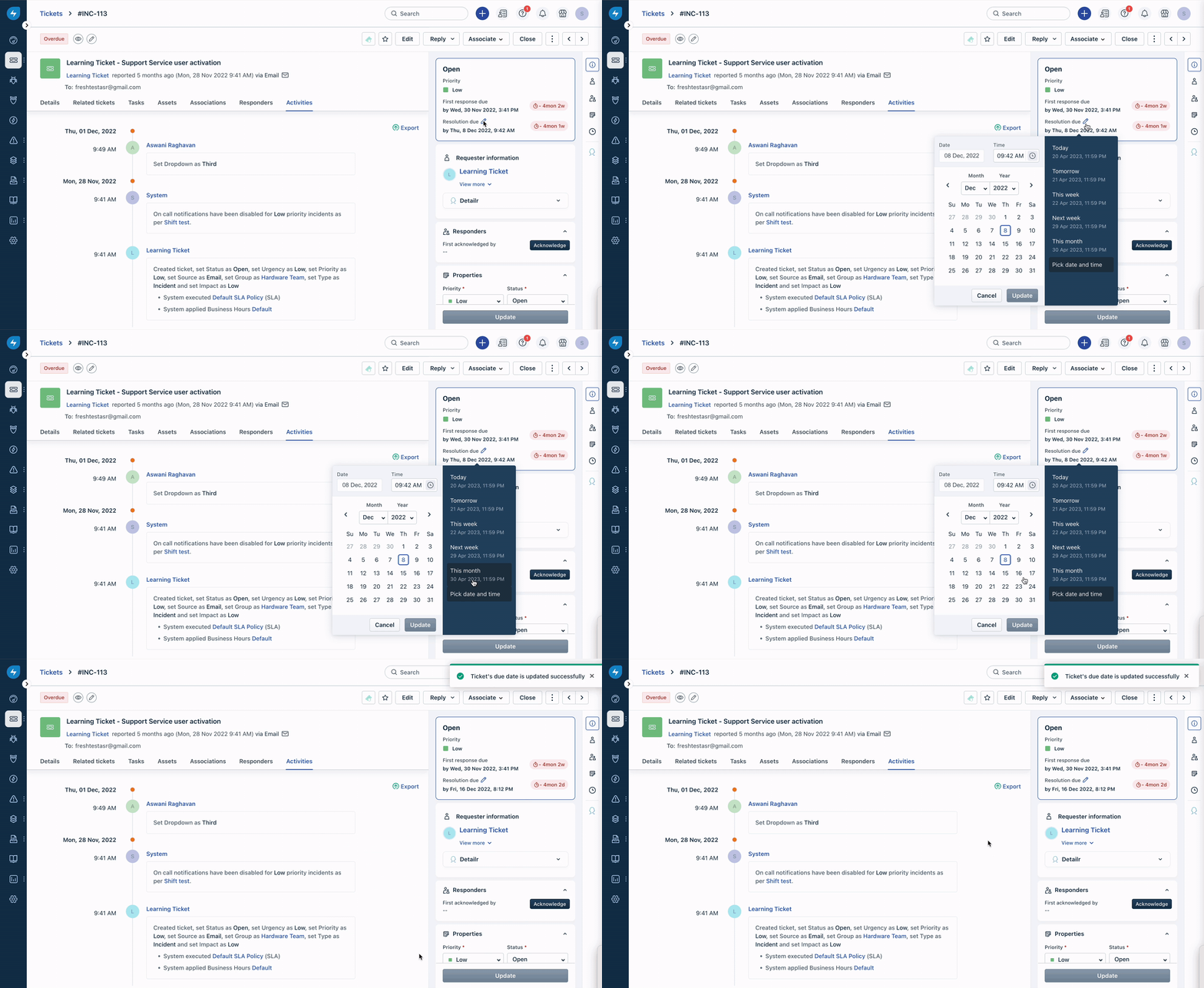
By default, the first response due of a ticket cannot be edited. However, to change the resolution due to an unresolved ticket, follow these steps:
1. Go to the Ticket View page and click on the pencil icon next to the Resolution due date and time. 2. Choose one of the applicable preset values like today, tomorrow, this week, next week, and this month. These values will be calculated from the created date and time of the ticket. 3. Select the Pick date and time option if you want to set the due date and time to a specific date and time.
Please note that the ability to edit the resolution due can be restricted using an app. If you cannot find the edit option, check if the app Ticket Due by property customization is installed in your portal.