Last updated: 2025-08-27
``` Note: Freshworks will support the investigation of integration-related issues; however, issues originating from the third-party application are beyond Freshworks’ scope. We recommend reaching out to your account manager or the third-party provider’s support team. ```
Freshservice integration with Greenhouse ATS Connector allows enterprise service teams to trigger employee onboarding workflow directly from the applicant tracking system (ATS) whenever a new hire is added.
Note: The Greenhouse ATS Connector app is available only for Pro and Enterprise accounts on Freshservice.
This article contains the following topics:
Prerequisites for integration
Ensure you have the following, as part of the prerequisites for integration:
Note: These permissions are required for the Greenhouse Connector App's out-of-the-box recipe 'Employee Onboarding from Greenhouse to Freshservice'. If you modify this recipe to choose different actions, then the GET permissions may change accordingly.
Install and configure the app
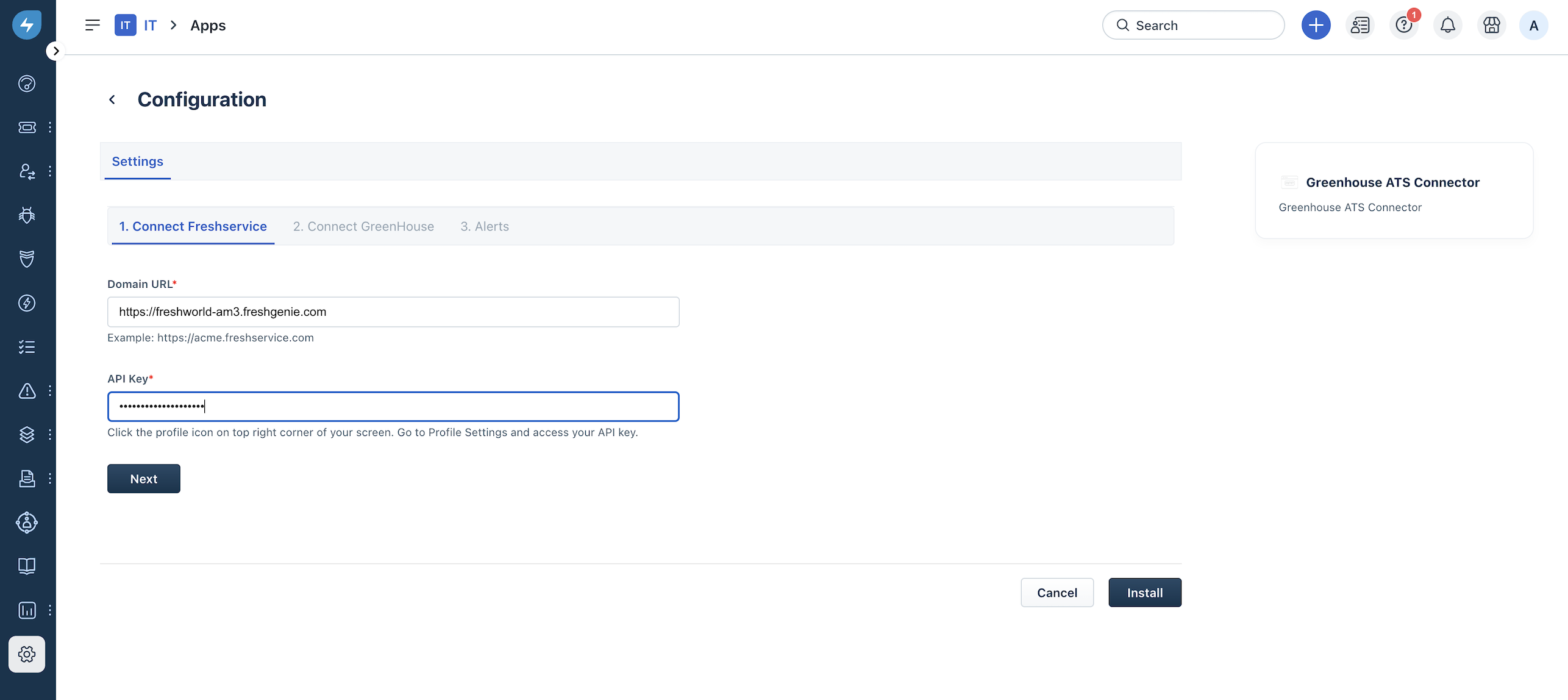
1. Go to Admin \> Automation & Productivity \> Extensibility \> Connector Apps. 2. Select Greenhouse ATS Connector from the Connector Apps list. 3. Click Install. The Configuration page opens. 4. Enter the relevant Freshservice connection details in the Domain URL and API Key fields. Then, click Next.
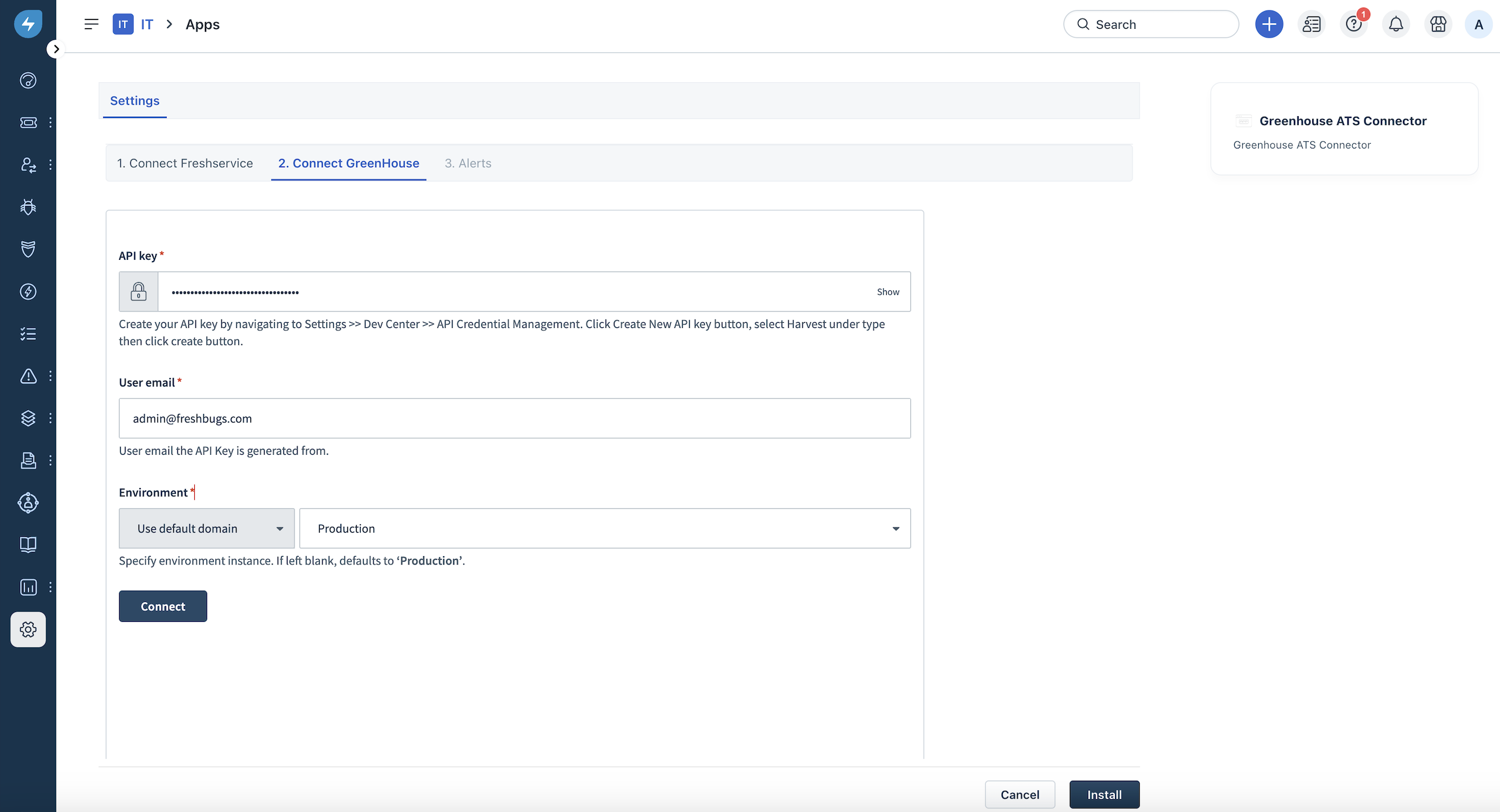
 5. Enter the relevant Greenhouse connection details in the API key and User email fields. 6. Select the relevantdropdown option(s) under the Environment section. Then, click Connect. 7. (After the connection is established successfully) Click Install.
Check the available recipes list
After the app is installed, you can check the available recipes list.
1. Go to Admin > Automation & Productivity > Extensibility > Connector Apps****. The Greenhouse ATS Connector app will be listed here. 2. Click Configure App to go to the Overview and Recipes page. 3. Click Recipes to see the list of all available recipes.
Note:
List of all the available default recipes
The following default recipe is available with the Freshserviceand Greenhouse ATS Connector integration.
| Recipe | Function |
| Employee Onboarding from Greenhouse to Freshservice | Automate the employee onboarding workflow in Freshservice based on new hire information from Greenhouse |
Preview, edit, activate, or stop recipe
You can preview, edit, activate, or stop the available recipes.
Preview recipe
1. Click Preview next to the recipe you want to view. On the recipe preview page that opens, you can view various steps with pre-configured triggers, actions, and conditions. 2. On the left panel, you can view the recipe status, jobs executed, dependencies, and activity timeline.
Start recipe
To start any recipe:
1. On the Recipes page, click Start next to the recipe you want to start. 2. Or, click Preview next to the recipe you want to start. Within the recipe preview page, you will find an option to start the recipe.
Edit recipe
To edit any recipe:
1. Click Preview next to the recipe you want to edit. 2. If the recipe is active, click Stop. Then, click Edit.
Stop recipe
To stop any recipe:
1. On the Recipes page, click Stop next to the recipe you want to stop. 2. Or, click Preview next to the recipe you want to stop. Within the recipe preview page, you will find an option to stop the recipe.
Customize recipe
Each recipe has the following components: _Trigger_, _Actions_, and _Conditions_. You can customize any recipe depending on your specific requirements.
Let’s take a default recipe as an example to customize it further.
_Default recipe: Employee Onboarding from Greenhouse to Freshservice_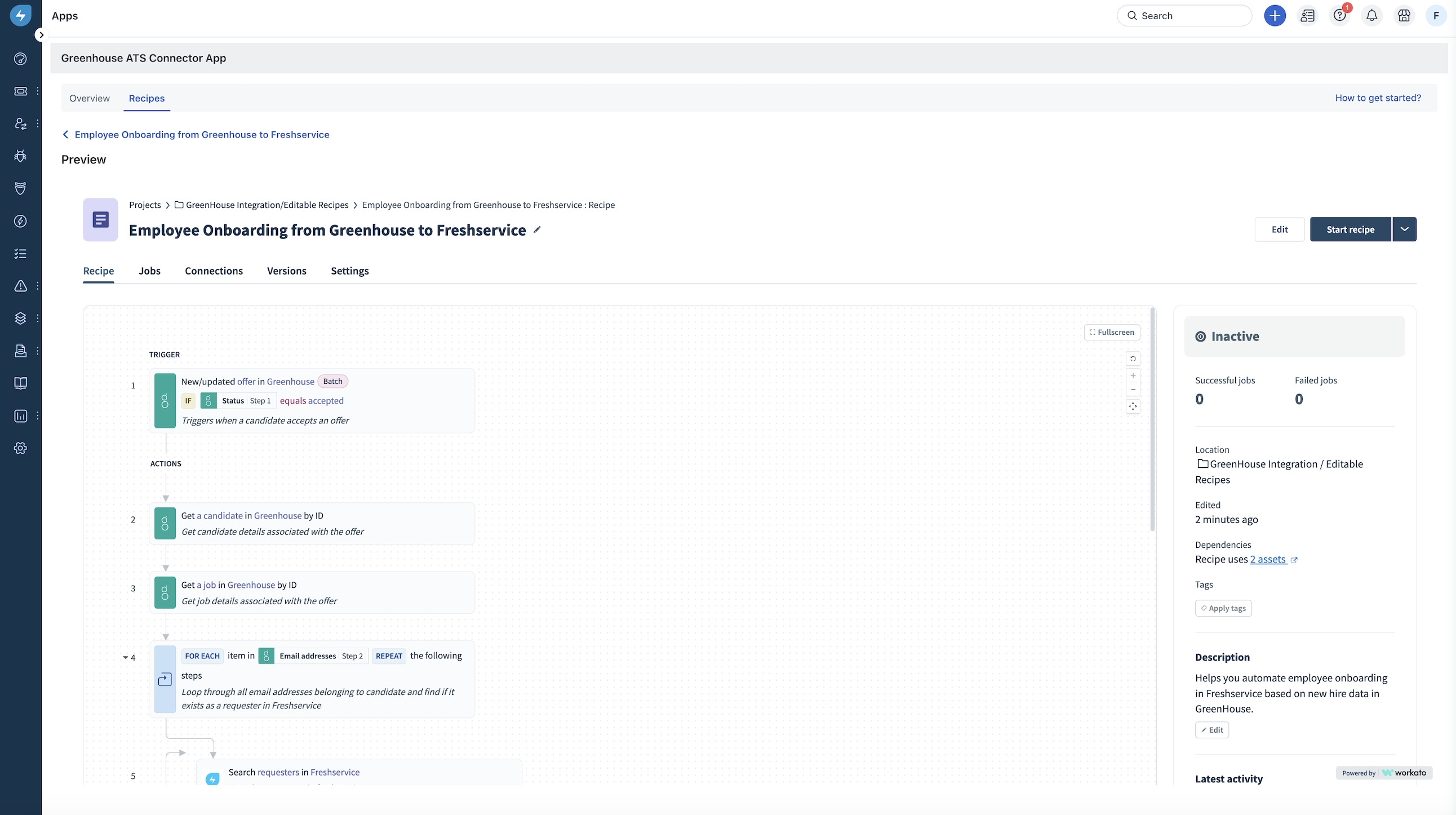
Trigger: This recipe component acts as the starting point for any recipe. For this default recipe, the trigger is a new hire added on Greenhouse.
You can customize the trigger in the following ways:
Condition: This component acts as a checkpoint within the recipe flow and executes a specific set of actions based on the matched condition.
Here, the recipe checks if the employee details are present in Freshservice. If employee details are present, it stops the workflow. If not present, it creates a new onboarding request in Freshservice.
You can check and edit the following conditions:
Action: The recipe performs a specific set of actions based on the conditions met. Based on the conditions mentioned, the recipe creates an onboarding request in Freshservice for the new hire added to Greenhouse.
You can customize the following parts of the action:
After customizing a recipe, you can save or test it to ensure it's working correctly.
Check failed recipe or jobs
To view and troubleshoot failed jobs under a recipe, follow these steps:
1. Click Preview next to a specific recipe from the Recipes page. 2. Go to Jobs. 3. View a list of all the jobs executed under a particular recipe. 4. Filter the failed jobs using the Status filter on the top panel. 5. Click any job to view details about how the job was executed. 6. Click a failed job to view the error details and identify the cause of failure. 7. Resubmit the job after your review to fix the issue.
View dashboard
The Overview tab of a recipe helps you understand the total number of tasks you've consumed (this is the basis for your app usage billing). It also provides a consolidated view of the number of successful jobs vs. failed jobs for any recipe.
``` Note: For information on frequently asked questions (FAQs) related to the Connector Apps in Freshservice, see Connector Apps: Frequently Asked Questions (FAQs). ```