Last updated: 2025-12-16
IN THIS ARTICLE
Add Fields
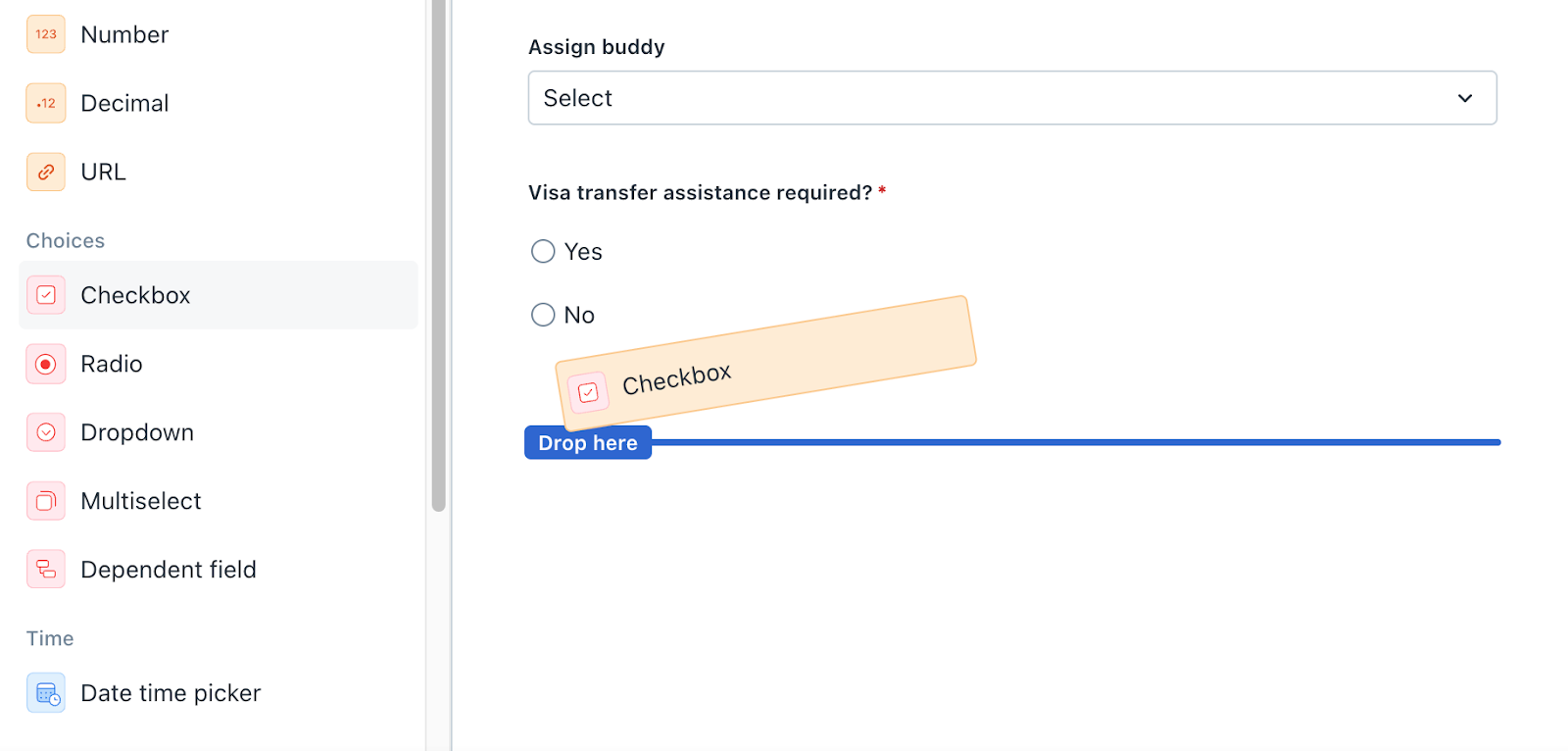
To add field to the form, simply drag and drop the required field into the form, then configure its properties by adding a field label and specifying whether it is mandatory.
Edit Fields
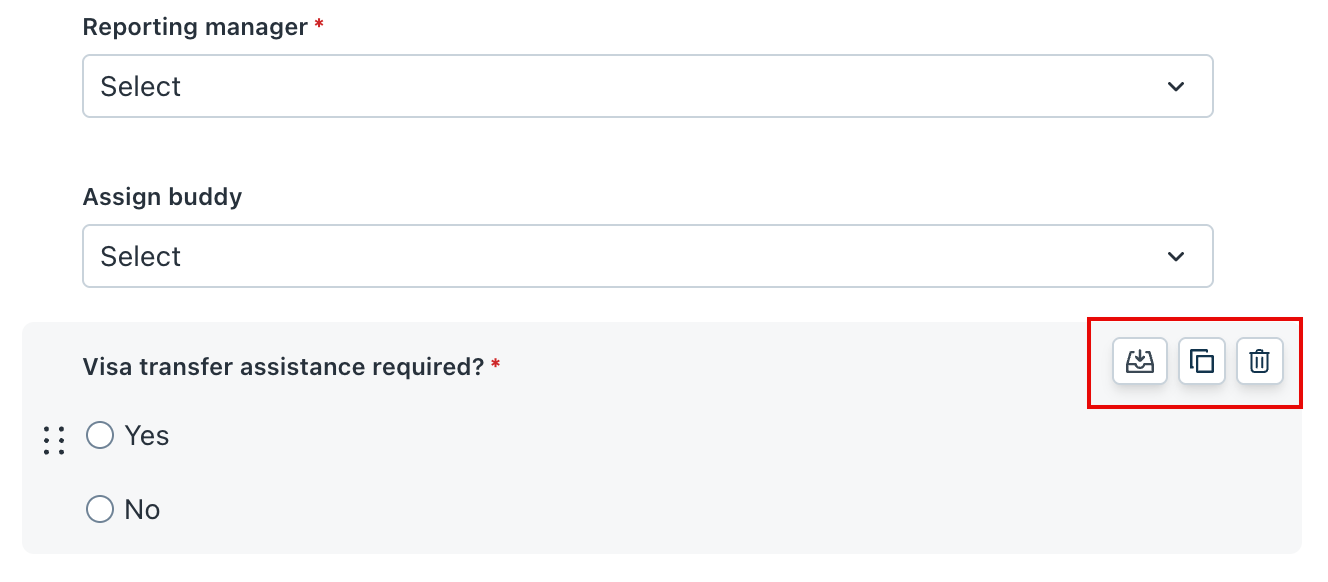
You can modify these fields or add new ones as needed. To archive, clone, or delete an existing field, hover over the field and select the appropriate option.
Edit Field Properties
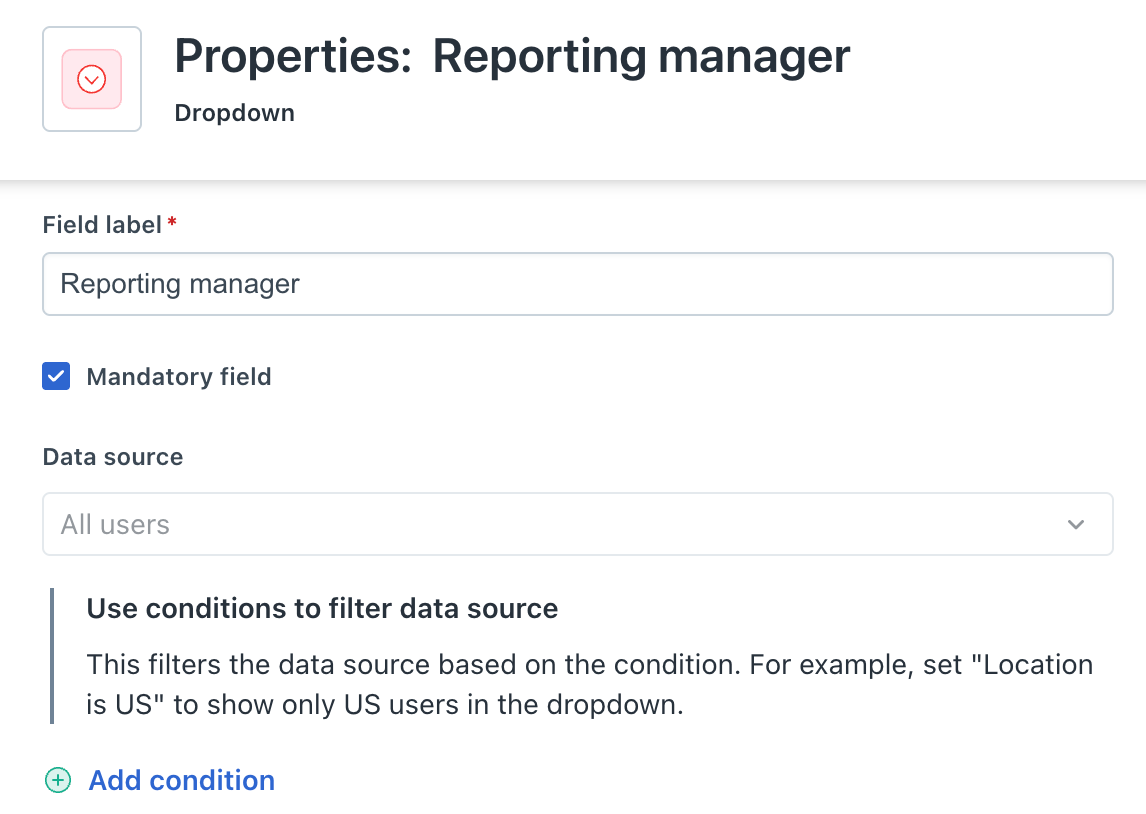
To view a field’s properties, click the field to open the side panel, where you can edit the field label, choose whether it's mandatory, view the configured data source, and more. Note that the properties vary depending on the field type.
Form Field Options
When designing a form—whether the Initiator form or a form created as a part of activity configuration—you can use various field types to capture stakeholder inputs and journey-specific information. Each field type serves a distinct purpose and supports different input formats.
The following field types are supported:
Section
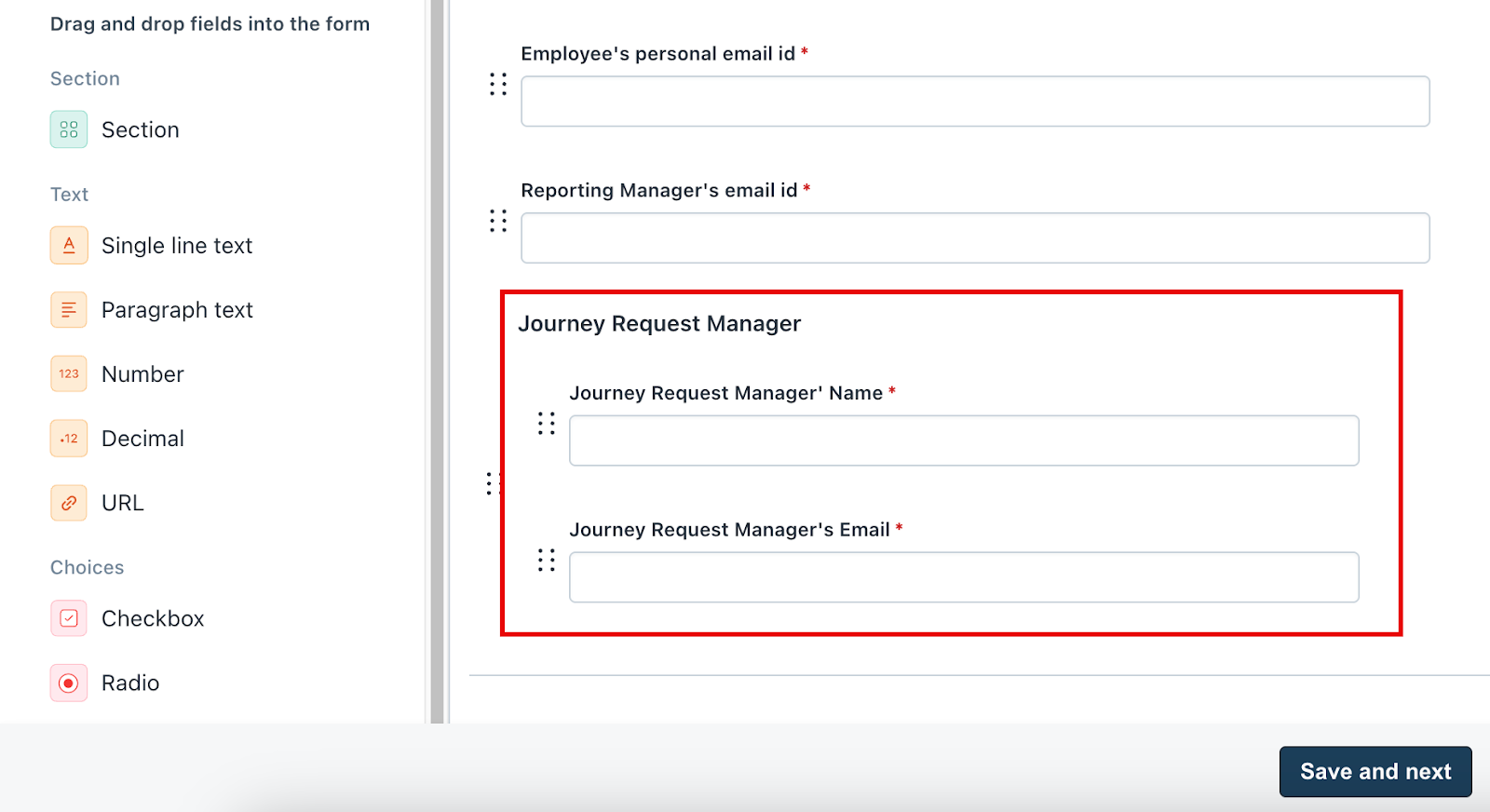
Use the Section field to organize the form into logical groups. This improves readability and makes data entry easier. For example, create a section to include all fields related to the reporting manager together. This enhances clarity for initiators when filling out the form.
Text Fields
Use text fields when you need to collect direct user input without restricting the response to predefined options.
| Field Type | Description | Example Use Case |
| Single Line Text | Accepts short, single-line input. | Enter employee name: John Doe |
| Paragraph | Accepts longer, multi-line text. | Describe the purpose of the journey. |
| Number | Accepts whole numbers only. | Enter employee ID: 12345 |
| Decimal | Accepts decimal values. | Specify budget allocation: 1500.75 |
| URL | Accepts valid website URLs. | Link to onboarding documents: https://example.com |
Choice Fields
Use these when you want to standardize input and minimize data errors by offering fixed options.
| Field Type | Description | Example Use Case |
| Checkbox | Allows selection if the option is required | Select the checkbox to mark a field as mandatory. |
| Radio Button | Allows only one selection from the list | Choose employment type: Full-time, Contractor |
| Dropdown | Shows a list of options in a drop-down format. To learn how to configure conditions in dropdown, click here. | Select department: HR, IT, Finance |
| Multiselect | Allows selecting multiple values from a dropdown. To learn how to configure conditions in multiselect, click here. | Choose tools to be provisioned: Slack, Jira, Zoom |
| Dependent Fields | Dynamically changes the next field options based on prior selection | If Department = IT, show Tool Options = GitHub, Azure |
Time Fields
Use this field to collect schedule-sensitive data such as start dates, interview times, or access activation times.
| Field Type | Description | Example Use Case |
| Date Time Picker | Captures both date and time input | Select start date: 10 May 2025, 09:00 AM |
Contact Info
Use this when collecting contact information for stakeholders such as new hires, managers, or journey initiators.
Note: This is a required format for stakeholder identification.
| Field Type | Description | Example Use Case |
| Email Input | Captures a valid email address | Enter Reporting Manager Email: rm@example.com |
Display Text
Use this to guide users or provide context without expecting input. Ideal for instructions, disclaimers, or section introductions.
| Field Type | Description | Example Use Case |
| Content | Displays non-editable information or instructions | “Please complete the below section carefully.” |
File Upload (Attachment)
Use the File upload (Attachment) field to collect documents, text files, or images as part of the journey request. In the properties panel, you can configure the number of attachments allowed, specify accepted file formats such as PDF, TXT, JPG, and PNG, and set whether the field is mandatory.
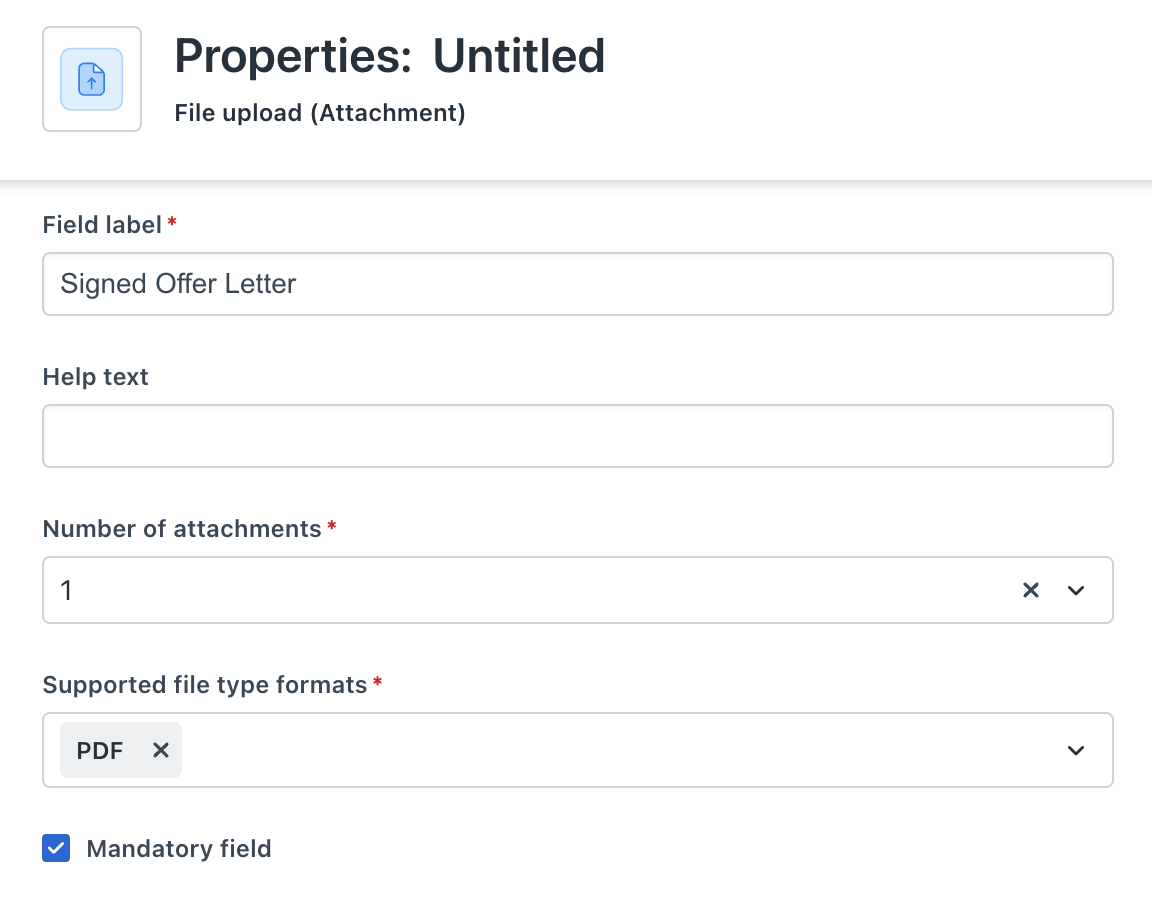
| Field Type | Description | Example Use Case |
| Attachments | Allows users to upload files | Upload a signed offer letter or ID proof document. |