Last updated: 2025-11-18
``` Note: This feature works the same across all Freshservice products. Some screenshots or articles may reflect older designs, but the functionality remains unchanged. If certain options do not appear in your account, they may not be included in your current plan. ```
Introduction to Freshdesk-Freshservice/FSBT integration
Freshservice/FSBT and Freshdesk integration help internal support teams on Freshservice/FSBT collaborate with customer support teams on Freshdesk to get a 360 view of customer issues for faster resolution. This integration enables companies to streamline and accelerate the service management process and deliver outstanding support from a unified window.
Bene fits of th is integration
This integration enables support teams to effortlessly collaborate with your internal teams on Freshservice/FSBT on codependent tickets. With seamless collaboration and real-time ticket updates, your internal agents can stay on top of any query that comes their way and help resolve customer issues faster.
With the Freshdesk-Freshservice/FSBT integration, your teams will be able to:
Which agent can access this integration?
Agents and admins on both Freshdesk and Freshservice/FSBT can access this integration as per defined visibility. But only the Freshdesk and Freshservice/FSBT Admins will be able to initiate and set up this integration.

Freshservice/FSBT admin experience and configuration for integration
How can admins set up visibility of a Freshservice/FSBT ticket for Freshdesk agents?
How Freshservice/FSBT admin can improve agent productivity and prioritize customer issues for faster resolution
Custom SLA: Freshservice/FSBT admins can configure a custom SLA for service requests/incidents of tickets generated from Freshdesk to ensure quick resolution.
Step 1: Go to the Freshservice/FSBT Admin page> SLA Policies> Create a new SLA policy.
Step 2: Define response time, resolution time, Operational hours
Step 3: Select source as Freshdesk to enforce SLA on tickets incoming from Freshdesk

Custom Reports: Admin can keep a tab on essential metrics to analyze the performance of the Freshservice agents on service requests and incidents generated from Freshdesk as the source.
Step 1: Go to Freshservice Analytics & Reports
Step 2: Create a new report or clone and edit an existing report with desired metrics (example, agent performance)
Step 3: Click filter and add source as Freshdesk.
Step 4: Apply the filter and save this report.


_Learn more about Custom reports and Analytics on Freshservice/FSBT_
Workflow Automation: To improve agent productivity, the Freshservice admin can automate the workflow to standardize the process for customer issues raised from Freshdesk.
Step 1: Go to Freshservice/FSBT admin> Workflow Automator.
Step 2: Select tickets from the new Automator on the top right corner of the page
Step 3: Drag and drop the event and select “ticket is raised”
Step 4: Now drag and drop the condition and select source as Freshdesk. Add other conditions as per requirement.
Step 5: Now add an action such as “assign to a specific agent or group”.
Step 6: Save and activate.

_Learn more about Workflow Automator_
_Learn how to set up the configuration and agent experience_
How does this integration help internal teams on Freshservice/FSBT?
Internal operations flow for Freshservice/FSBT agents
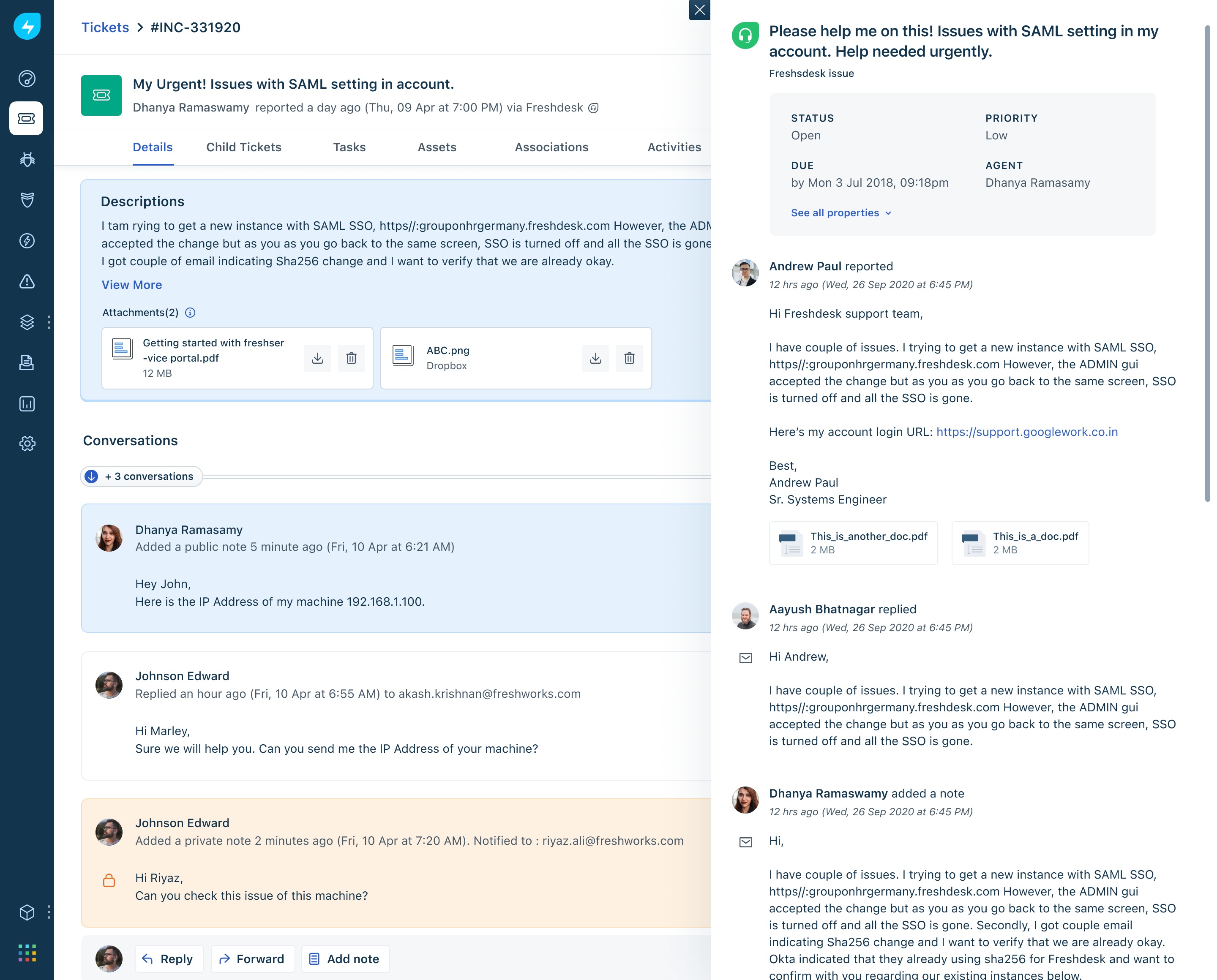
What information about Freshdesk tickets can the Freshservice/FSBT agents view?

_Learn how to sync fields between FD-FS/FSBT_
Also, check out how to create incidents and service requests from Freshdesk to Freshservice/FSBT.