Last updated: 2026-03-31
Source: https://support.freshservice.com/support/solutions/articles/50000012099-db2-discovery-on-nix-targets
DB2 Discovery on \*nix targets
Note: Available only for new signups after the 31 March, 2026 release. If you signed up earlier, refer to the existing ITAM documentation.
DB2 database discovery is supported specifically for \*nix targets. It retrieves comprehensive instance details, connection information, and schema data by querying administrative views and table functions. This integration ensures that your database inventory accurately reflects active instances and their respective configurations within your infrastructure.
Prerequisites
Review the following requirements to ensure your environment is prepared for successful DB2 detection and cataloging.
You need the following before the installation:
Permissions for DB2 Discovery
For discovery to return detailed information about your database instance, you need the following permissions:
1\. Privileges for ENV\_SYS\_INFO:
2\. Privileges for SNAPAPPL\_INFO:
3\. Privileges for ENV\_INST\_INFO:
4\. Privileges for DBCFG:
5. Privileges for CONTAINER\_UTILIZATION:
6\. Privileges for Monitoring:
7\. Privileges for Routines:
Additional SELECT privileges:
Required authorities:
- SYSMON
- SYSMAINT
- SYSCTRL
- SYSADM
Set up a PostgreSQL Discovery job
Follow these steps to establish a connection to your DB2 environment and configure a discovery job:
1. Go to Admin > Asset Management > Scan and discover and click the Discovery Jobs tab.
2. Select Hypervisors/\*nix/win Autodiscovery from the list of discovery jobs and click Add new.
3. Select \*nix job type as your target platform.
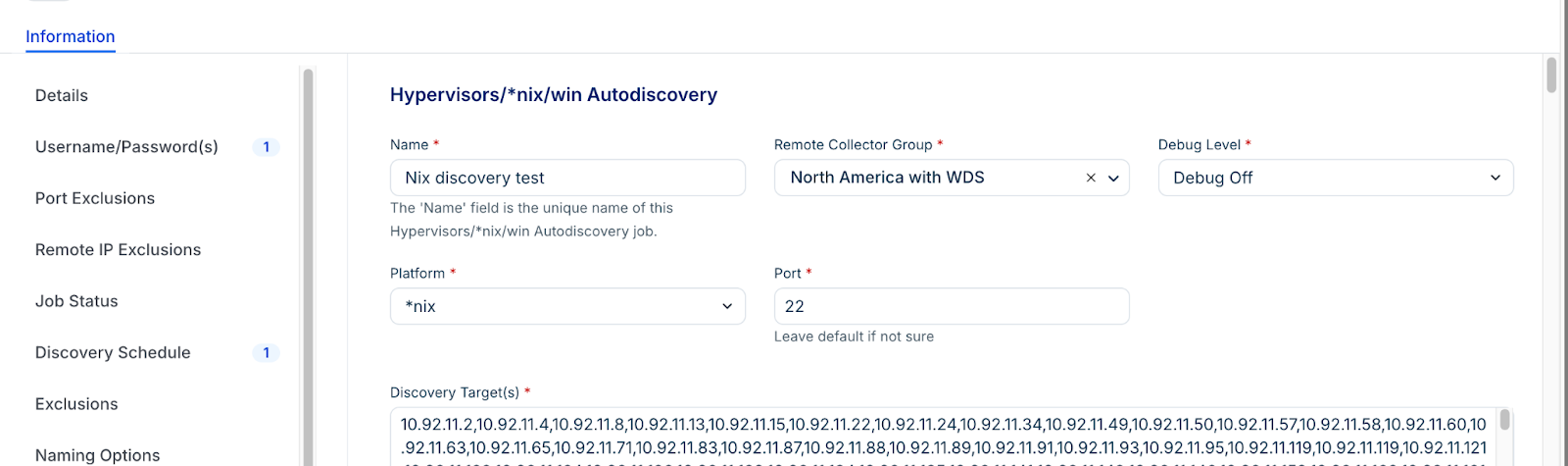
4. Enable the Collect database server information toggle.
5. Fill out both sets of credentials:
- Database Username / Password(s): Credentials to authenticate to the Oracle database.
- Discovery Target(s) Credential(s): Credentials to authenticate to the host server.
Note: You can enter multiple credentials in a preferred order. The job tries each credential in order and stops at the first successful authentication. Subsequent runs start with the last successful credential.
6. Click Save.
7. Click Run Now on the job details page to test the connection.
View discovery results
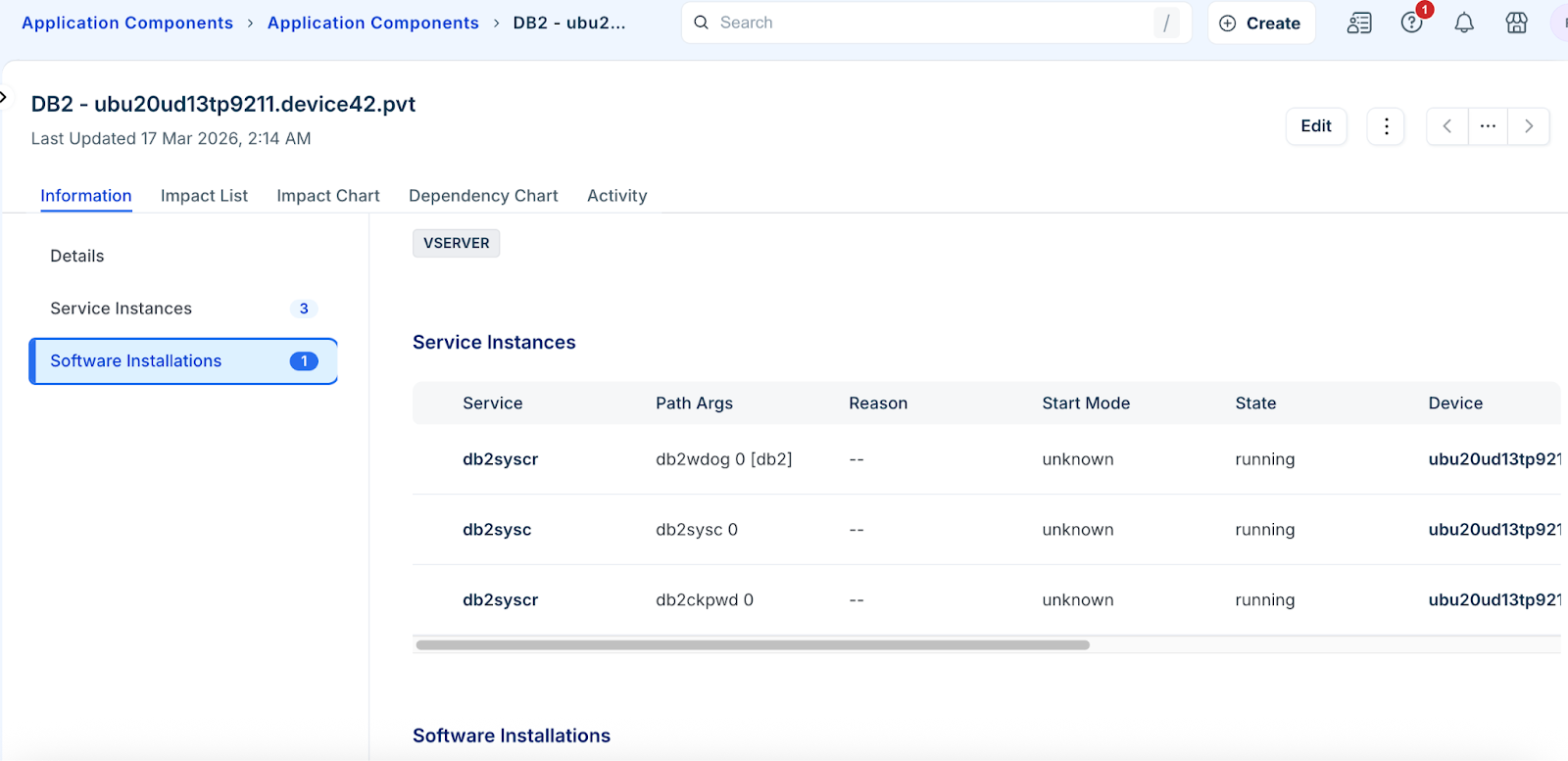
Locate and analyze the details of your discovered DB2 instances through the application components.
Application components
View the high level service details and dependency maps for your environment.
1. Navigate to Applications > Application Components.
Search for DB2 to filter the list.