Last updated: 2025-09-09
As organizations transition towards self-service experience for employees, it is difficult to scale this effort effectively due to knowledge sources and information spread across various platforms. Employees find it challenging to manually search the necessary information from multiple data sources, as this process can be highly time-consuming and inefficient.
Freshservice's unified search through the SharePoint Search Connector allows you to integrate the SharePoint Online (cloud version) knowledge sources enabling effective self-service at scale. It helps retrieve information from SharePoint with comprehensive and efficient Freddy AI Agent search capabilities, allowing employees to find accurate information quickly.
This article contains the following topics:
Prerequisites for integration
Ensure you have the following, as part of the prerequisites for integration:
Integrate the SharePoint Search Connector
1. Go to Admin > Automation & Productivity > Extensibility > Apps.
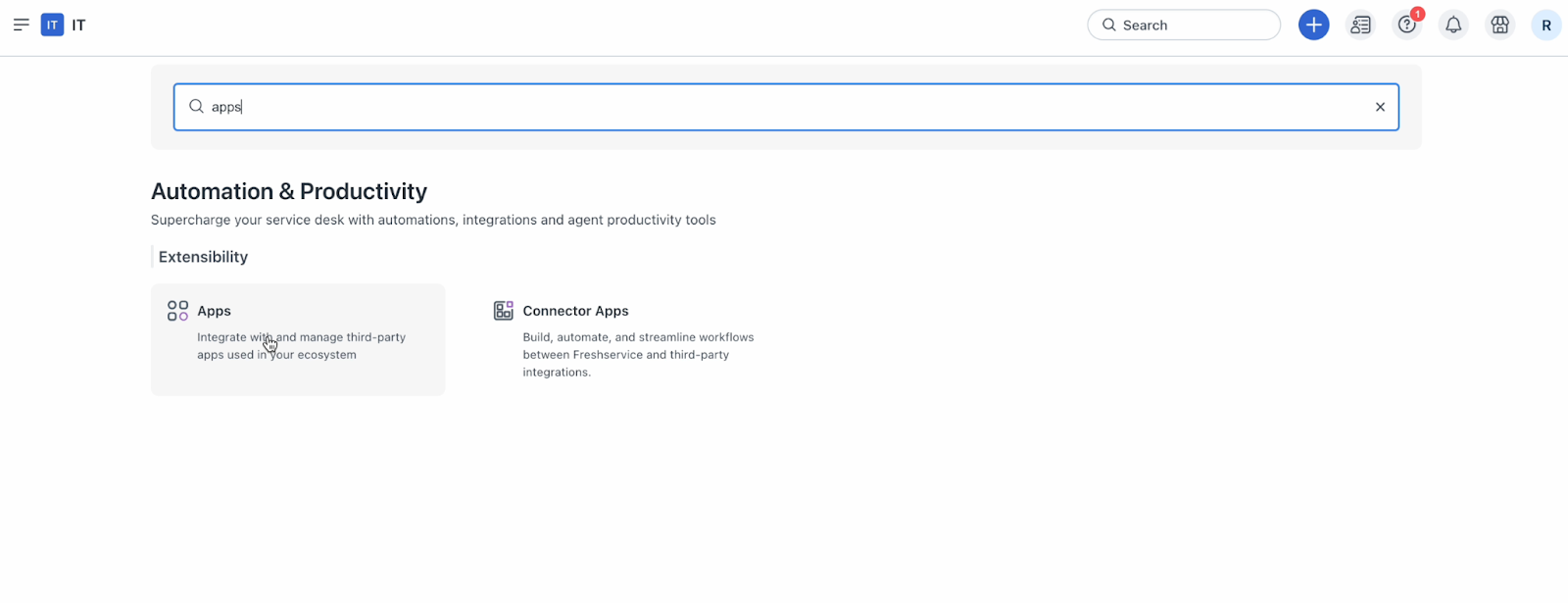
2. Or, click the Marketplace Apps icon on the top-right corner, and select Marketplace Apps.
3. Search and select the SharePoint Search Connector app using the Search apps option.
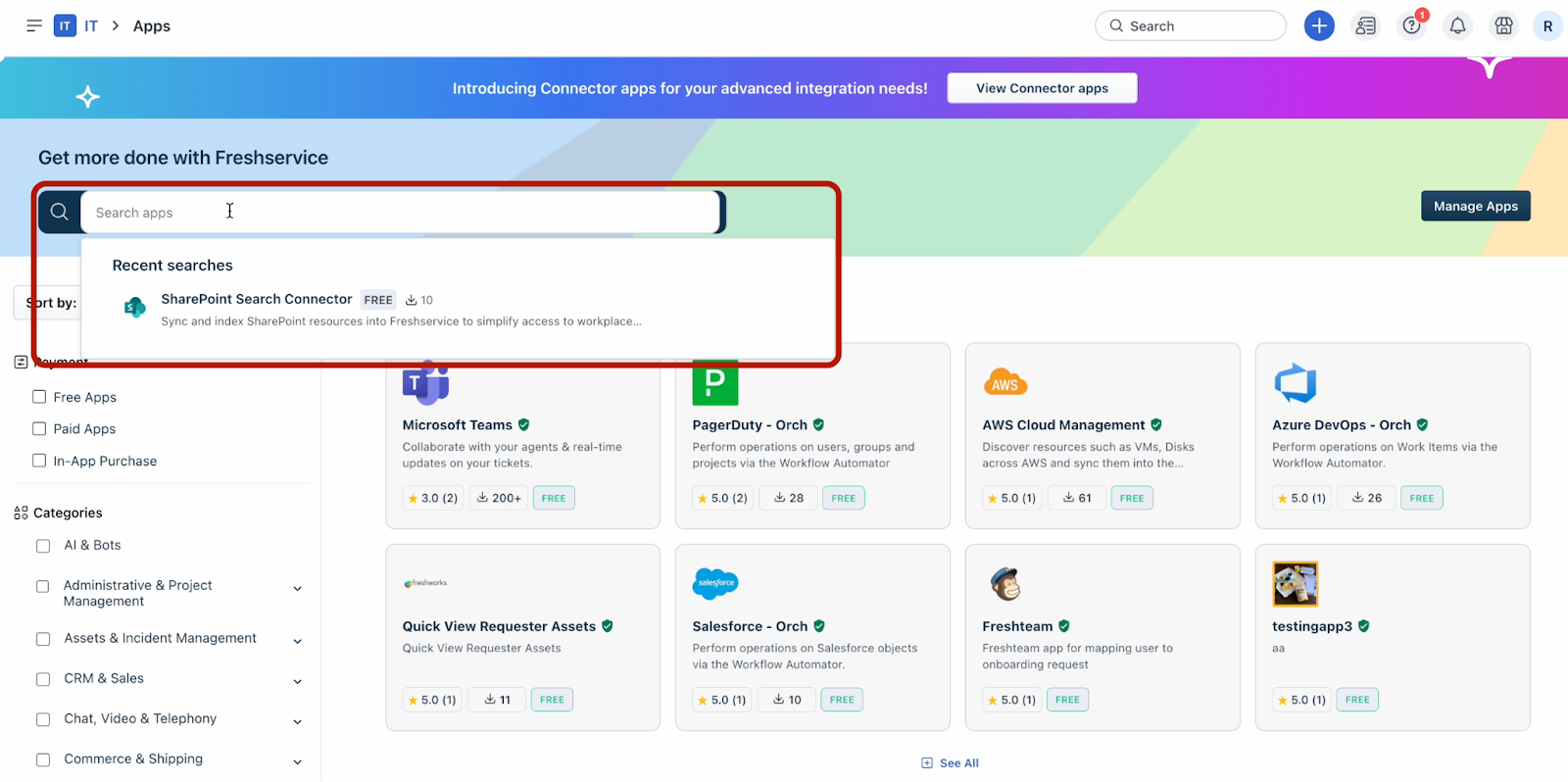
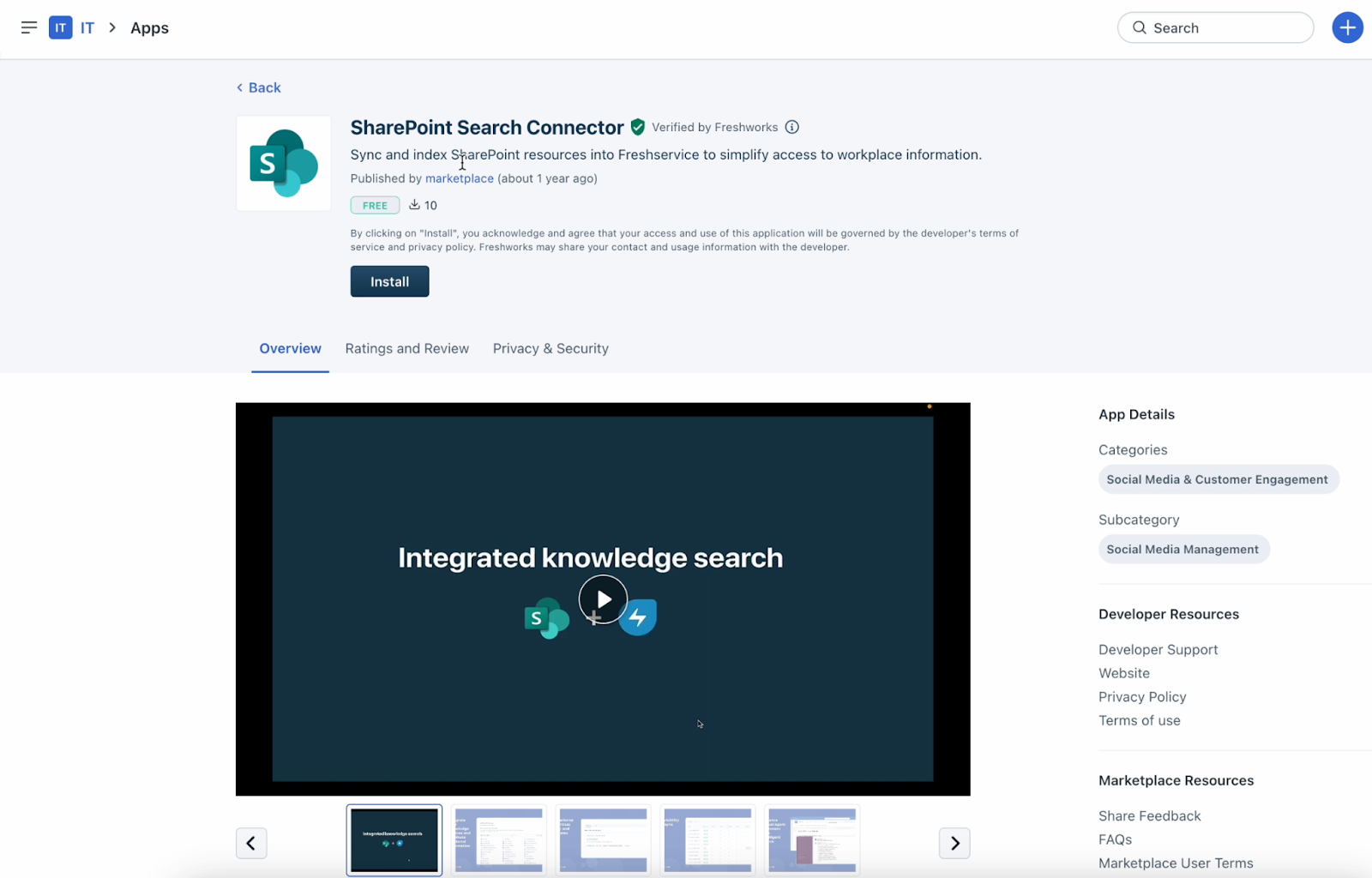
4. Click Install on the installation page.
5. Sign in using your Microsoft account credentials to complete the authentication process.
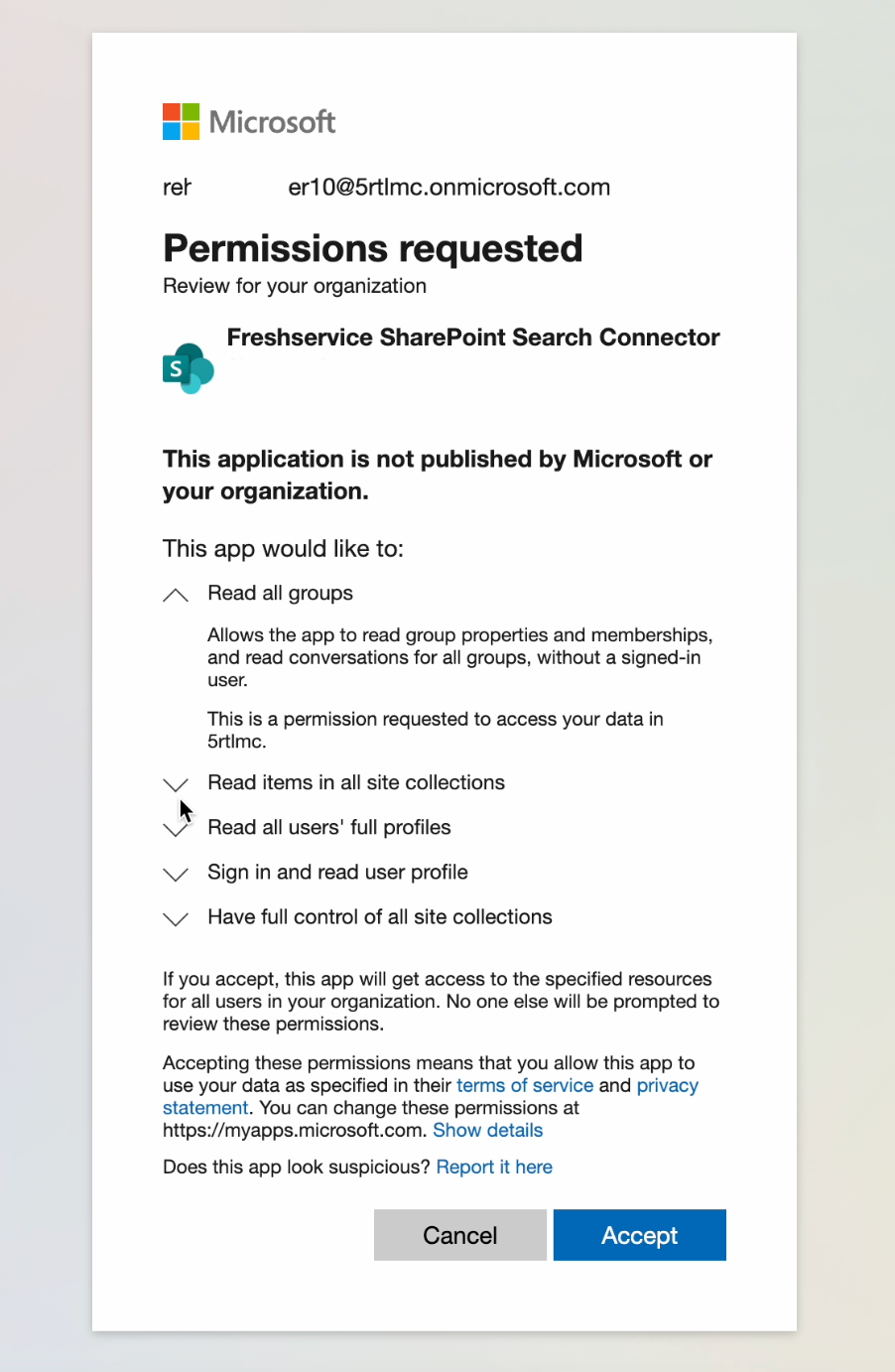
6. Review permissions and click Accept on the Permissions requested page.
The Configuration page opens. All the sites from your SharePoint account are listed on this page.
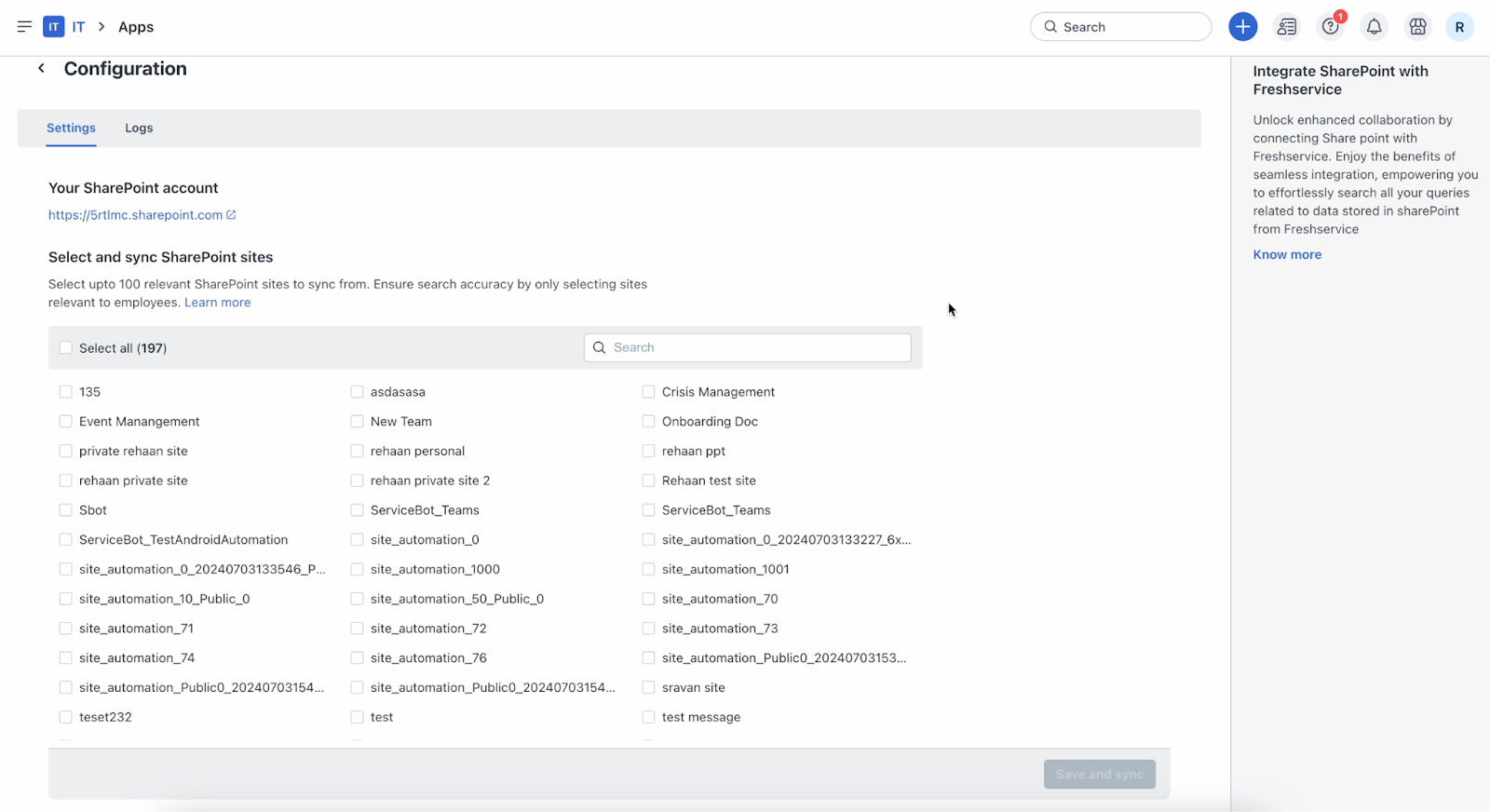
7. Select the SharePoint sites you want to sync. You can select up to 100 relevant SharePoint sites.
8. Click Save and sync.
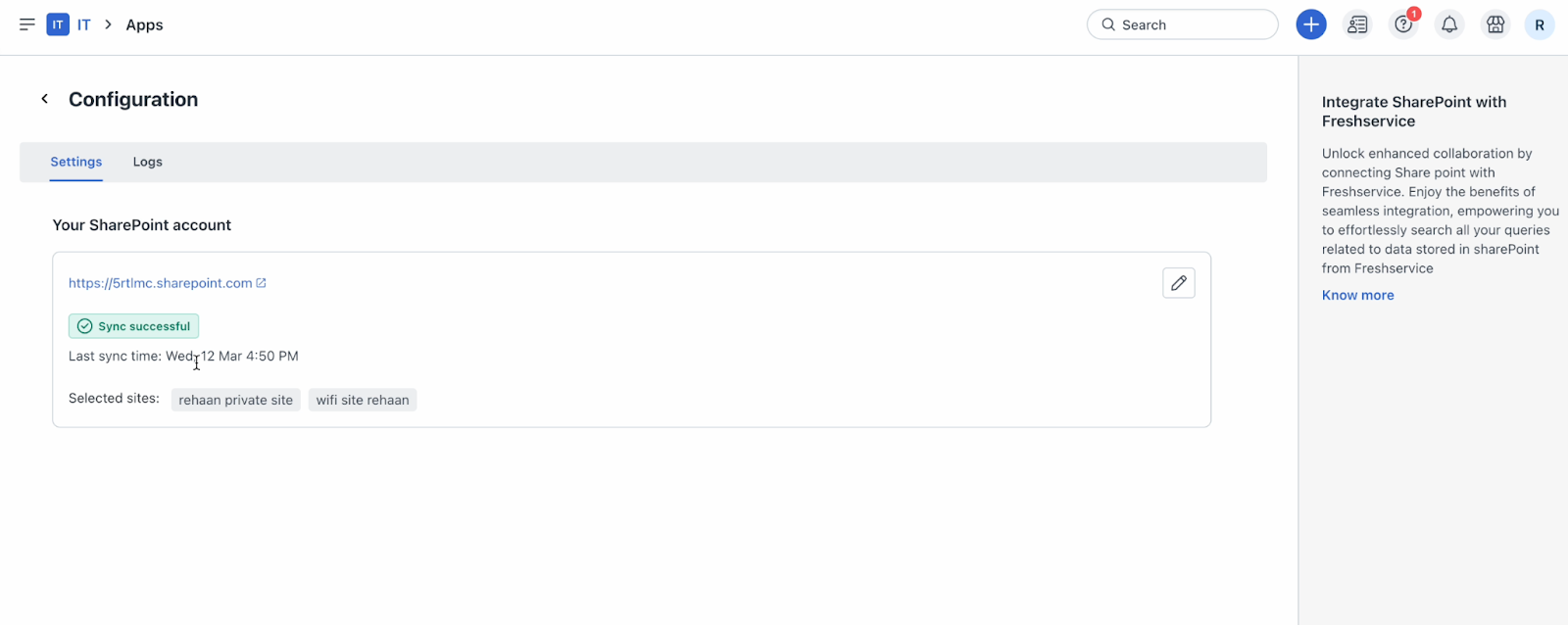
The sync status is shown on the Settings tab of the Configuration page.
_Note:_
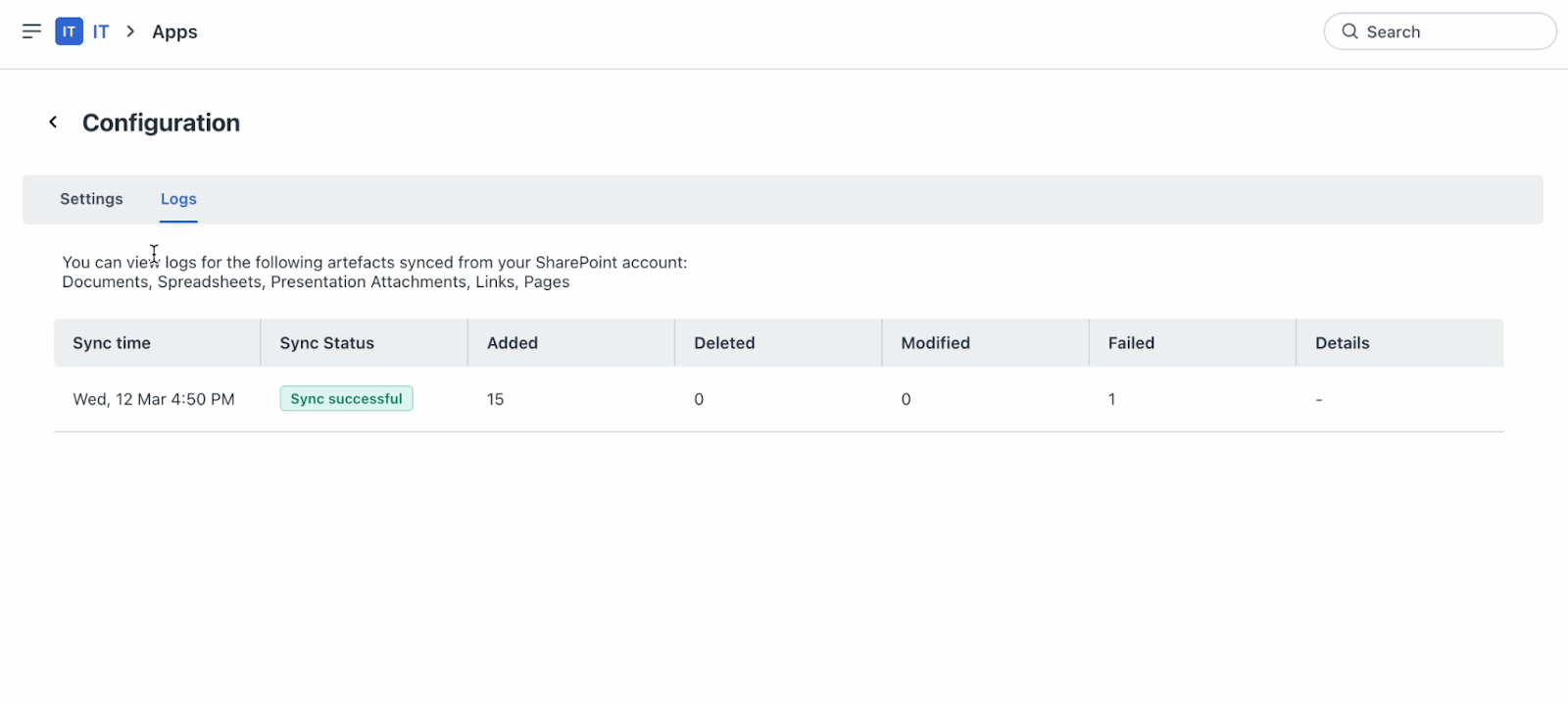
9. Click the Logs tab to view logs for the artefacts synced from your SharePoint account.
_Note:_
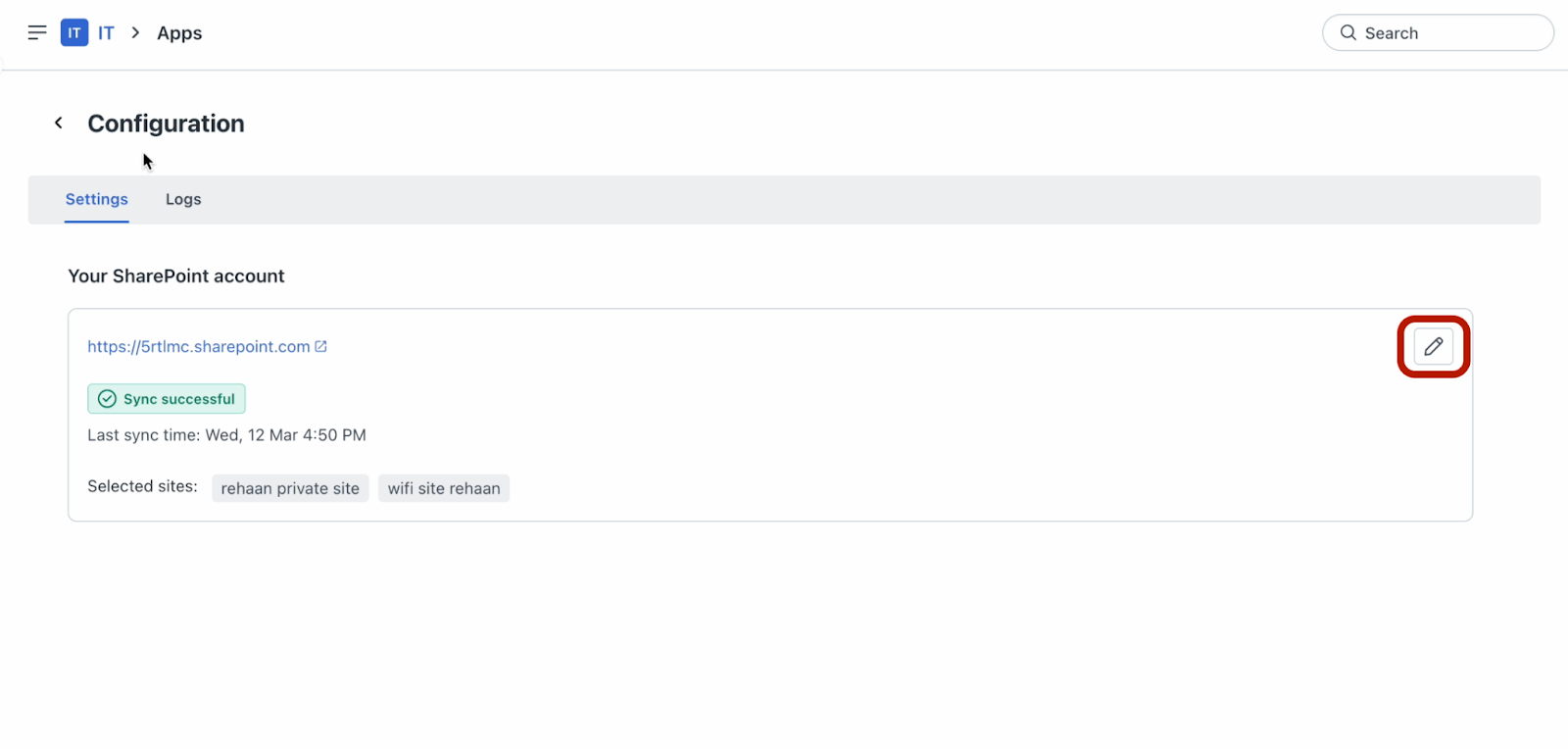
10. If you want to update the SharePoint sites for sync, use the edit option on the Settings tab of the Configuration page.
_Note:__It is recommended to select the sites with the most relevant and recent data._
After the sync is complete, information from the selected SharePoint sites is integrated with Freddy AI Agent’s search capabilities.
_Note:__A one-time initial data sync is performed from the selected sites including user access permissions._
Features
_Note:__If a user asks a query on a Slack or Microsoft Teams channel, the SharePoint response will always be delivered to the user over a direct message (DM). This is because the Freddy AI Agent will be unable to check if everyone in the channel has access to the SharePoint content._
Upcoming enhancements
The following enhancements related to the unified search are planned to be included soon:
Frequently asked questions (FAQs)
1. Which version of SharePoint is supported with this integration?
Today, the integration is only supported for SharePoint Online (cloud version). We are actively working on supporting SharePoint on-premise versions as well.
2. Why is full control of all site collections required?
Full control of all site collections is required to fetch the SharePoint site permissions. This is a technical limitation from Microsoft which was introduced in 2024.
3. What happens when part of my data is in SharePoint and rest in Freshservice knowledge base?
Our Freddy-powered Freddy AI Agent has the intelligence to provide you with the most relevant response by unifying the content from various sources.
4. How does Freddy AI Agent ensure that users only see documents they have access to?
When a user asks a query, Freddy AI Agent checks to see if the user has access to the content that’s retrieved from SharePoint to answer the query. The user’s email address is used to uphold the access privileges between SharePoint and Freshservice. Admins should ensure that the email address field is populated on SharePoint and there is parity between SharePoint and Freshservice.
5. What to do if I face data sync issues?
If you encounter persisting data sync errors, reach out to your CSM or support@freshservice.com for further assistance.
6. What search methods are used for retrieving results from SharePoint?
Hybrid search method, which is a combination of context-based and keyword search is used to retrieve results from SharePoint.
7. In what scenarios will data not sync?
The data will not sync when there is an empty document, incorrect file format, or when the file size exceeds 50 MB.
8. Is text from tables and images included in the indexed content?
No, currently the text within tables and images is not extracted or indexed. At this time, only plain text content is parsed during the sync. However, support for table and image content is being actively explored based on customer feedback.
9. How long will the initial/full sync take?
The duration of the initial sync depends on the number of files and the total size. On an average, syncing 1,000 files totalling 250 MB takes around 3 hours to complete.