Last updated: 2024-03-13
The Assets page displays all the assets in your service desk as a list. The following columns can be displayed on the asset list view page.
| Column name | Description |
| Asset Type | Category or classification of an asset. |
| Location | Physical or logical position of the asset. |
| Used By | Person or entity utilizing the asset. |
| Department | The organizational unit responsible for the asset. |
| Managed By | Individual or group overseeing the asset. |
| Asset Tag | A unique identifier for asset tracking |
| Impact | Effect of the asset on operations. |
| End of Life | The time when the asset becomes obsolete or unusable. |
| Discovery Enabled | Indicates whether the asset is configured to be automatically discovered by a Discovery Probe or Agent. |
| Created by - Source | Specifies a source that created an asset. Some of the sources include Discovery Agent, Discovery Probe, SCCM Probe, Jamf, Chrome Connector, Cloud Discovery apps, and Workflows. |
| Created by - User | Specifies the user that created an asset. |
| Created Date | The date and time when the asset record was initially created |
| Last updated by - Source | Specifies a source that last updated an asset. Some of the sources include Discovery Agent, Discovery Probe, SCCM Probe, Jamf, Chrome Connector, Cloud Discovery apps, and Workflows. |
| Last updated by - User | Specifies the user that updated an asset. |
| Updated Date | The date and time when the asset record was last modified or updated |
| Managed By Group | Group responsible for managing the asset. |
| Source | The source from which the asset was discovered and tracked.<br>Eg, Discovery Agent, Discovery Probe, Device 42, SCCM Probe. |
Customizing Columns
You can use the column customizer to modify the columns displayed in the Asset list.
Here's how you can customize the columns in the Asset List:
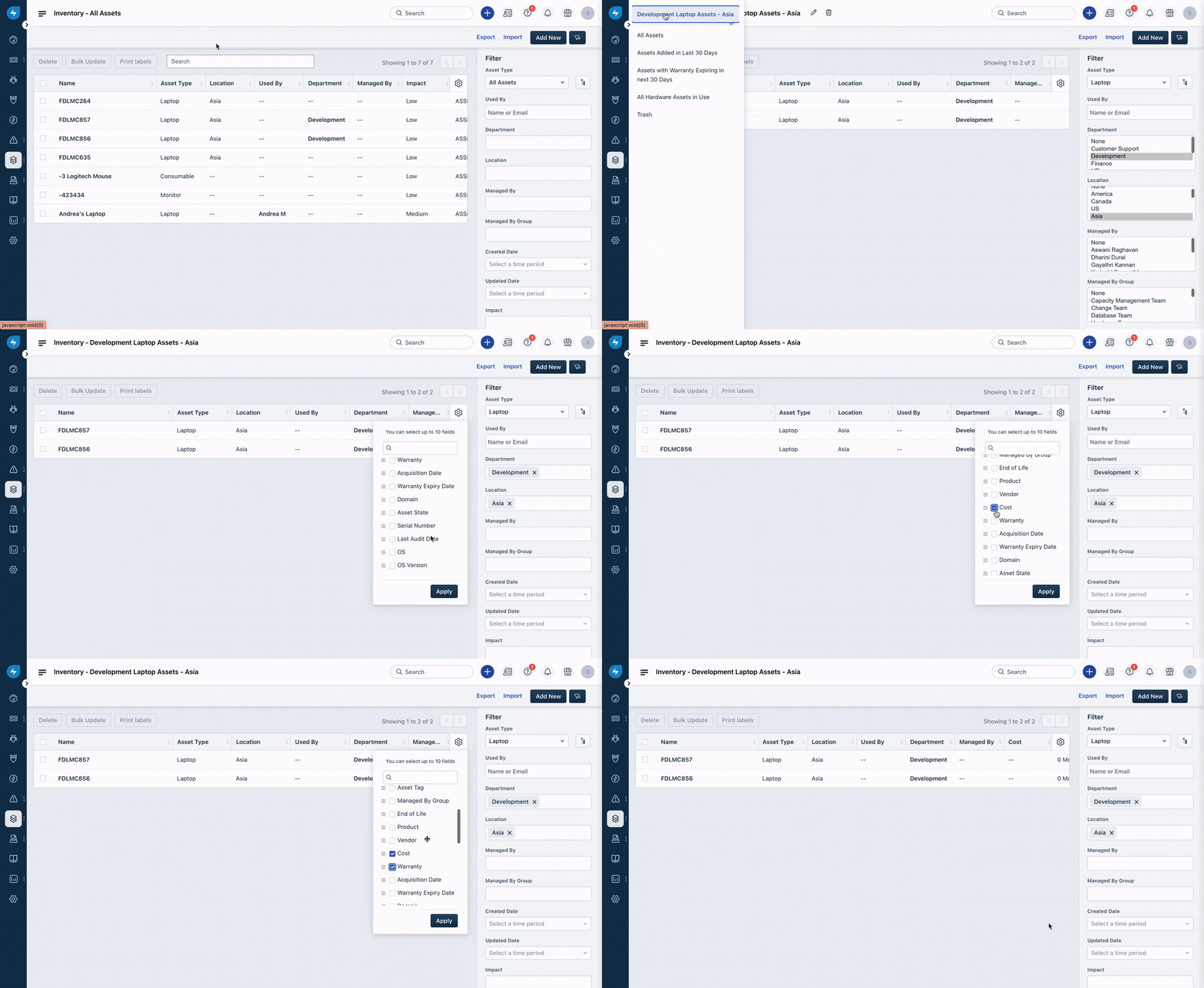
1. Select the view for which the columns must be customized and click on the column customizer. Refer to this solution to learn how to create/modify a view. 2. Based on the Asset type of the view selected, the options in the column customizer will also change.
For example, in the All Assets View, only the fields common across all the asset types will be displayed. If a specific asset type is selected, the fields relevant to that type will also be displayed along with the common fields. In the example considered here, the asset type selected is Laptop, and the fields relevant to Laptop Asset Type are displayed.
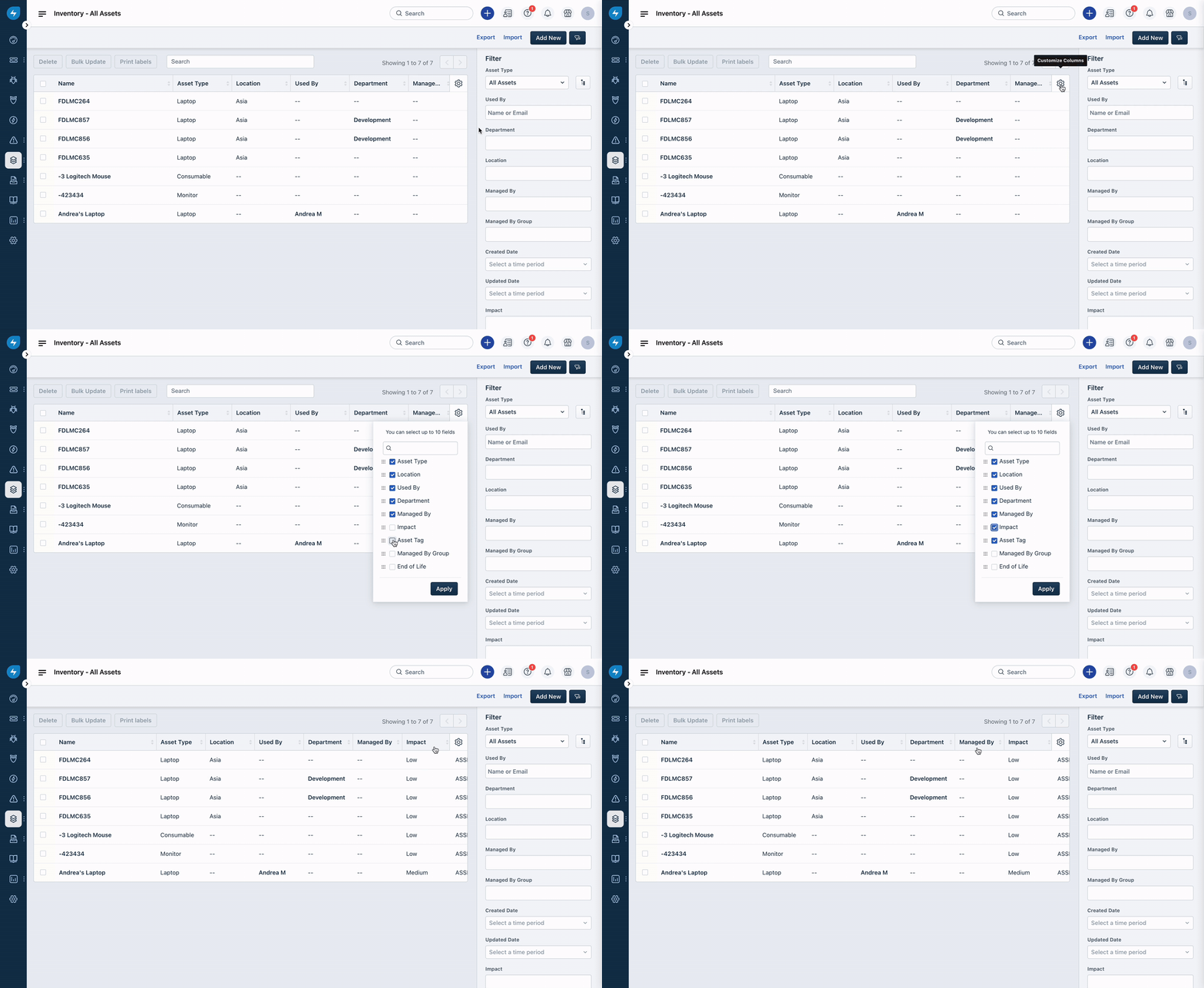
3. Select the required fields (up to 10 fields can be selected). If you would like to rearrange the columns, drag and drop the fields to the required position. 4. Click Apply to save the configuration to the selected view.
``` Important Note: The Column Customizer is not available in the Hierarchy and can be used only with Asset Views. To customize the columns, please use an existing view or create a new view so that the column configuration can be saved in the view. ```