Last updated: 2025-12-16
Understanding guest profile in Journeys
IN THIS ARTICLE
How Guest User Profiles are Created
Guest user profiles are created automatically when a journey request is submitted using a personal email address that does not already exist in the system. This typically occurs in the following cases:
The system checks whether a user profile already exists for the provided email address:
Why guest profiles include a dummy mobile number
All guest profiles are created with a default mobile number (for example, 00000). This is required because the system mandates either a mobile number or an email address to create a user profile. Since guest users typically do not provide contact numbers, a dummy number is used as a placeholder.
Note: The dummy number is used solely for profile creation and does not serve any other functional purpose.
Why the personal email is not stored in the profile
Although a personal email address triggers the creation of a guest user profile, the email address is not stored in the profile. This behavior helps:
Behavior and Restrictions for Guest User Profiles
Guest profiles differ from standard user profiles in the following ways:
- Assignee dropdowns
- CC fields
- Requester fields in service request forms
Email Transition for Guest Profile (New Hire)
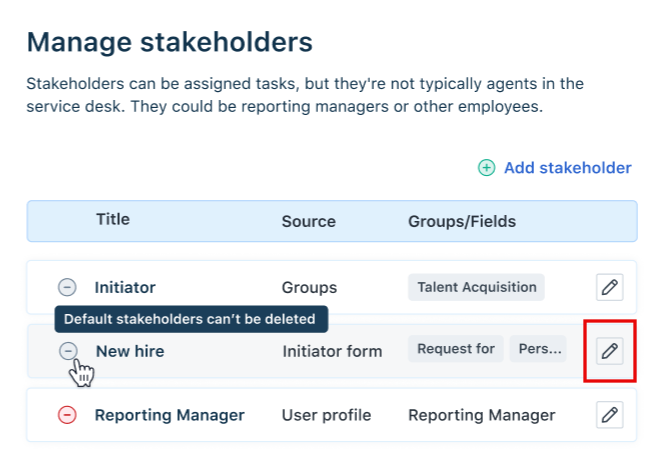
For all onboarding journeys, a New Hire stakeholder is added automatically and cannot be deleted. If this stakeholder is not needed, simply do not assign any tasks to them.
When onboarding a new hire, ensure they are transitioned from their personal email ID to their official business email ID to maintain continued access and communication.
As an Admin, you can configure this transition by performing the following steps:
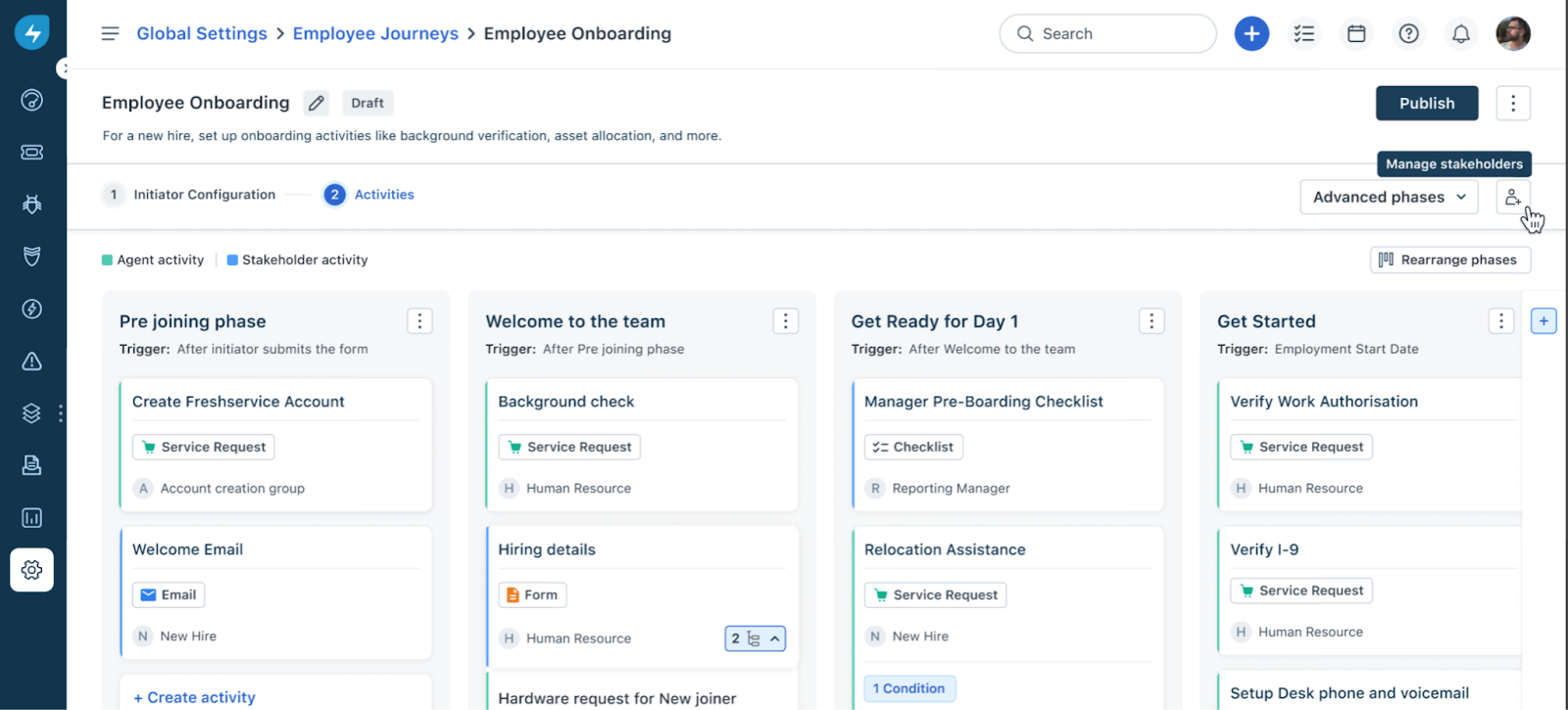
1. In the Journey configuration screen, click the Manage Stakeholders icon shown in the image below.
2. Locate the New Hire stakeholder and click the Edit icon.
3. In the Edit Stakeholder panel, click \+ Select form field and choose the new hire’s personal email field from the initiator form. The New Hire stakeholder can have two possible sources:
- Personal email – Selecting a personal email creates a temporary profile in the system, allowing to assign tasks to the new hire until a requester profile is created in your Freshservice instance.
- Business email – The business email is sourced from the Request for field in the journey request. The user associated with this field will start receiving tasks immediately. Therefore, ensure to select the correct profile in the Request for field to ensure proper task routing.
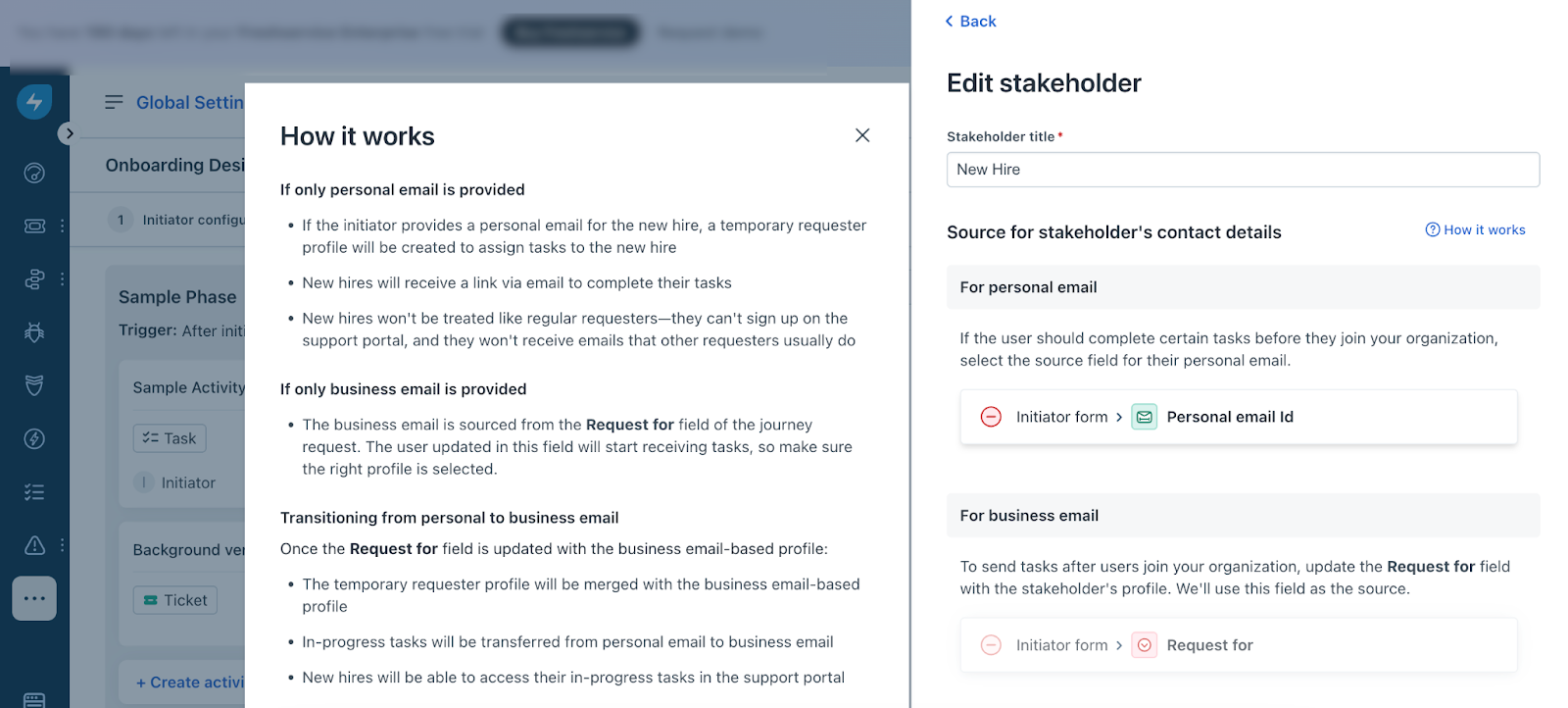 4. Once the Request for field is updated with the business email-based profile:
- The temporary requester profile will be merged with the business email-based profile.
- In-progress tasks will be transferred from personal email to business email.
- New hires will be able to access their in-progress tasks in the support portal.