Last updated: 2026-03-31
MSSQL Server Database Discovery on Windows and \*nix targets
Note: Available only for new signups after the 31 March, 2026 release. If you signed up earlier, refer to the existing ITAM documentation.
MSSQL server discovery requires a separate set of credentials to authenticate to the database instance.
Note: Ensure the discovery credentials have appropriate permissions to view the databases you want to discover.
Discovery supports the following MSSQL versions on Windows and \*nix platforms:
Permissions requirements for MSSQL Discovery
To retrieve detailed instance information, the discovery credentials require View Server State permissions and read access to the following system views:
The following snippet is necessary for retrieving data from some of the preceding views, such as sys.master\_files, even when the user has read permissions enabled:
USE \[master\];
GO
GRANT VIEW ANY DEFINITION TO \[discovery\_user\];
GO
Note: The discovery user must belong to the administrator's user group to discover databases successfully.
Create a MSSQL Discovery job
To set up a new discovery job, follow these steps:
1. Go to Admin > Asset Management > Scan and discover and click the Discovery Jobs tab.
2. Select Hypervisors/\*nix/win Autodiscovery from the list of discovery jobs and click Add new.
3. Select a Windows or \*nix job type based on your target platform.
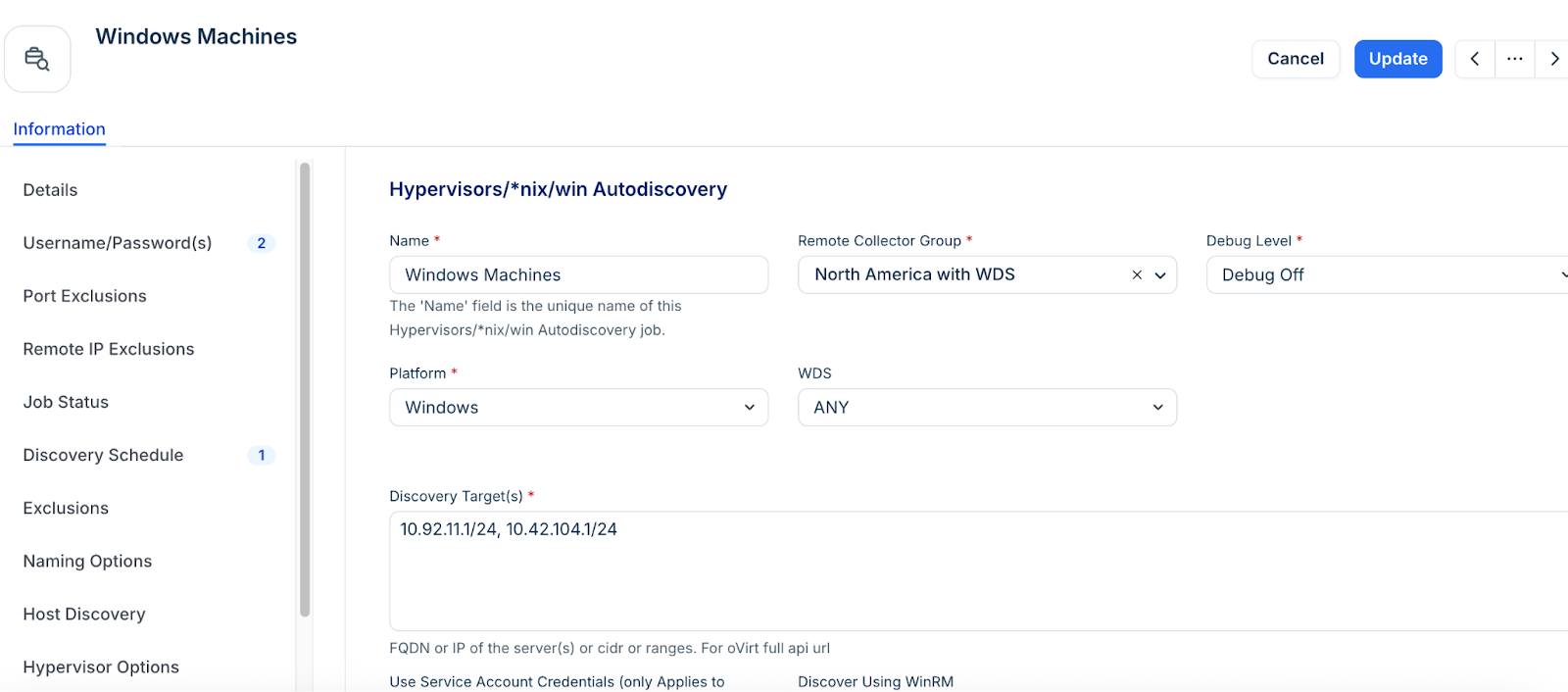
4. Enable the Collect database server information toggle.
5. Fill out both sets of credentials:
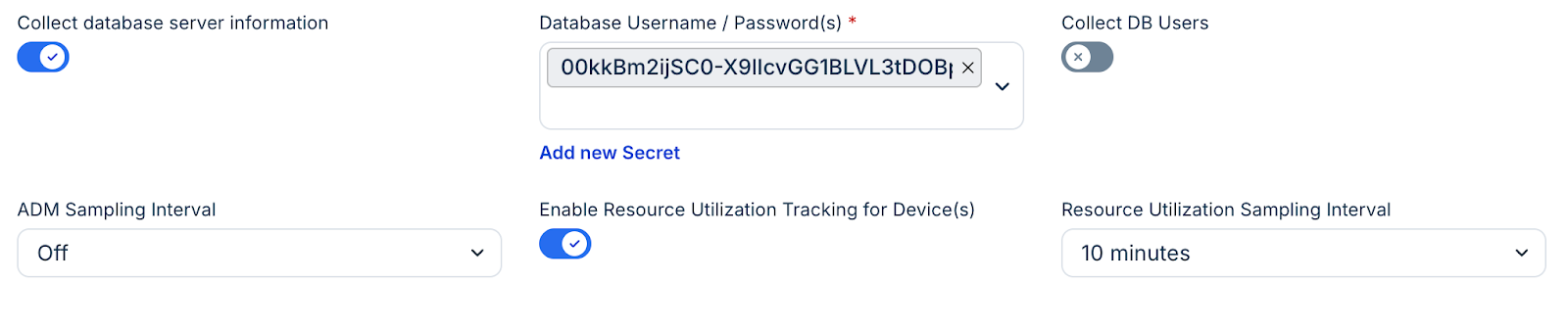
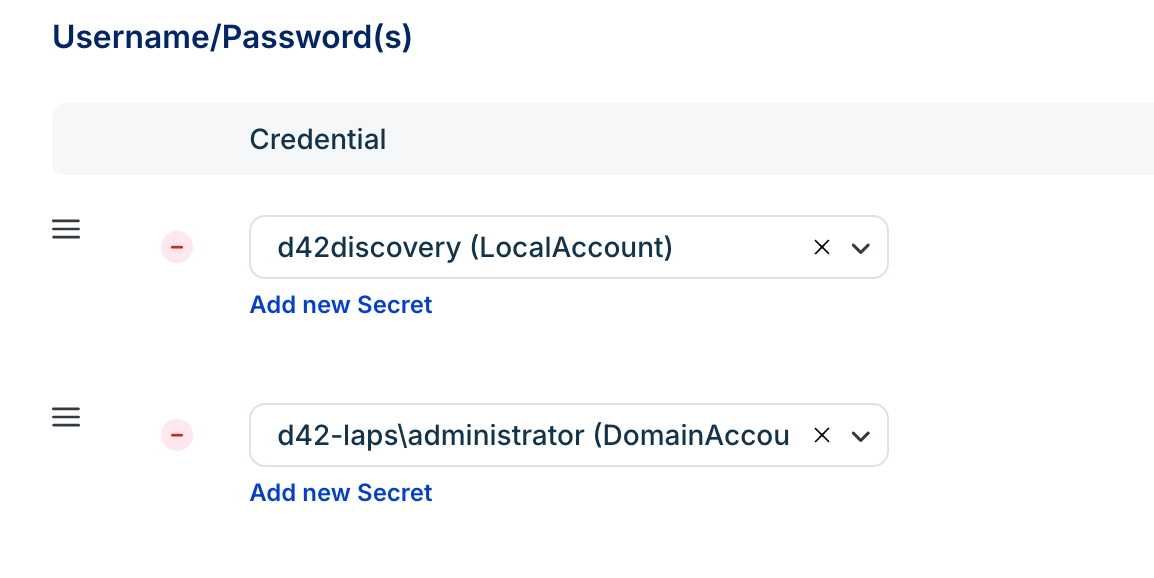
6. In the Discovery Schedule section, click Add new to create an autodiscovery for the job. You can create multiple schedules.
7. Click Save, then click Run Now to start the discovery.
As MSSQL databases are detected, discovery will import a list of all the instances, databases, and connection details it finds. You can see the status of the discovery job on the job setup section.
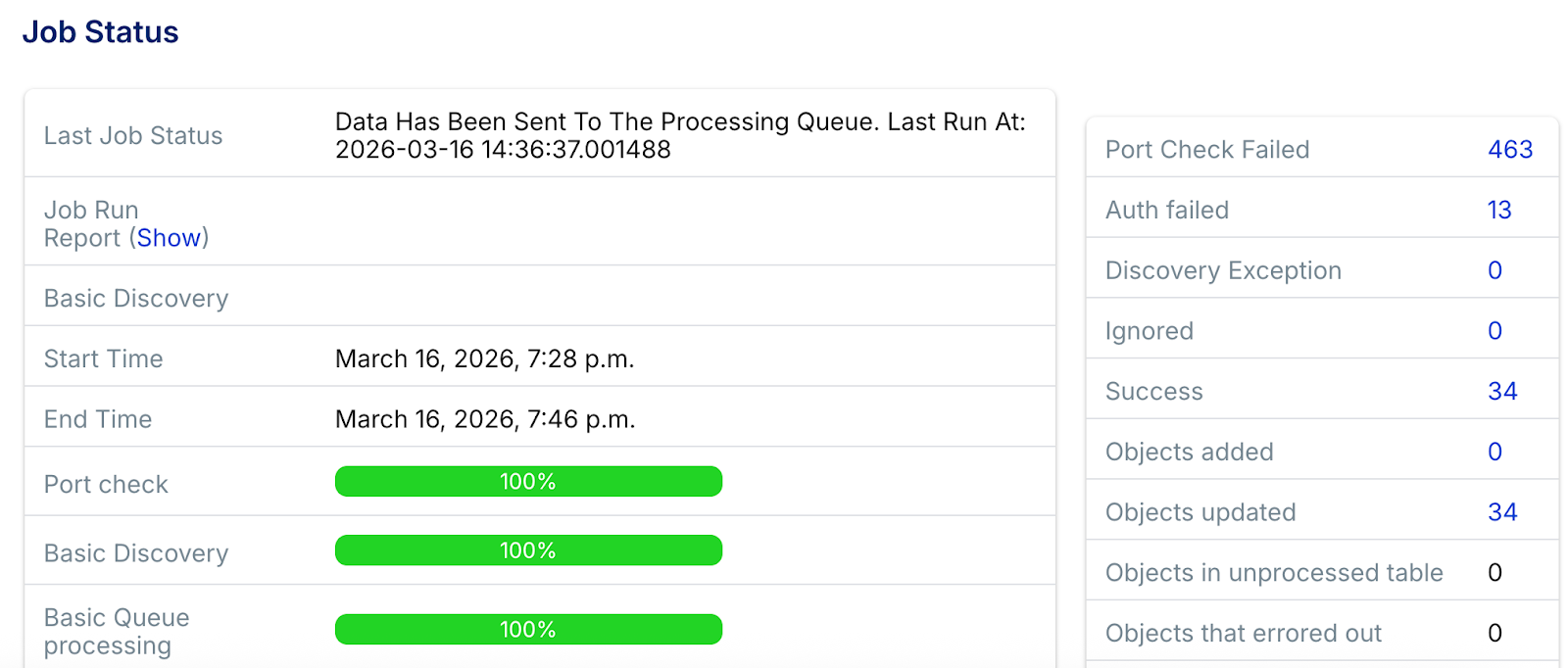
View MSSQL Discovery job results
Locate and analyze the details of your discovered database instances through multiple sections in the interface.
Application components
Narrow down your infrastructure list to focus specifically on detected database services.
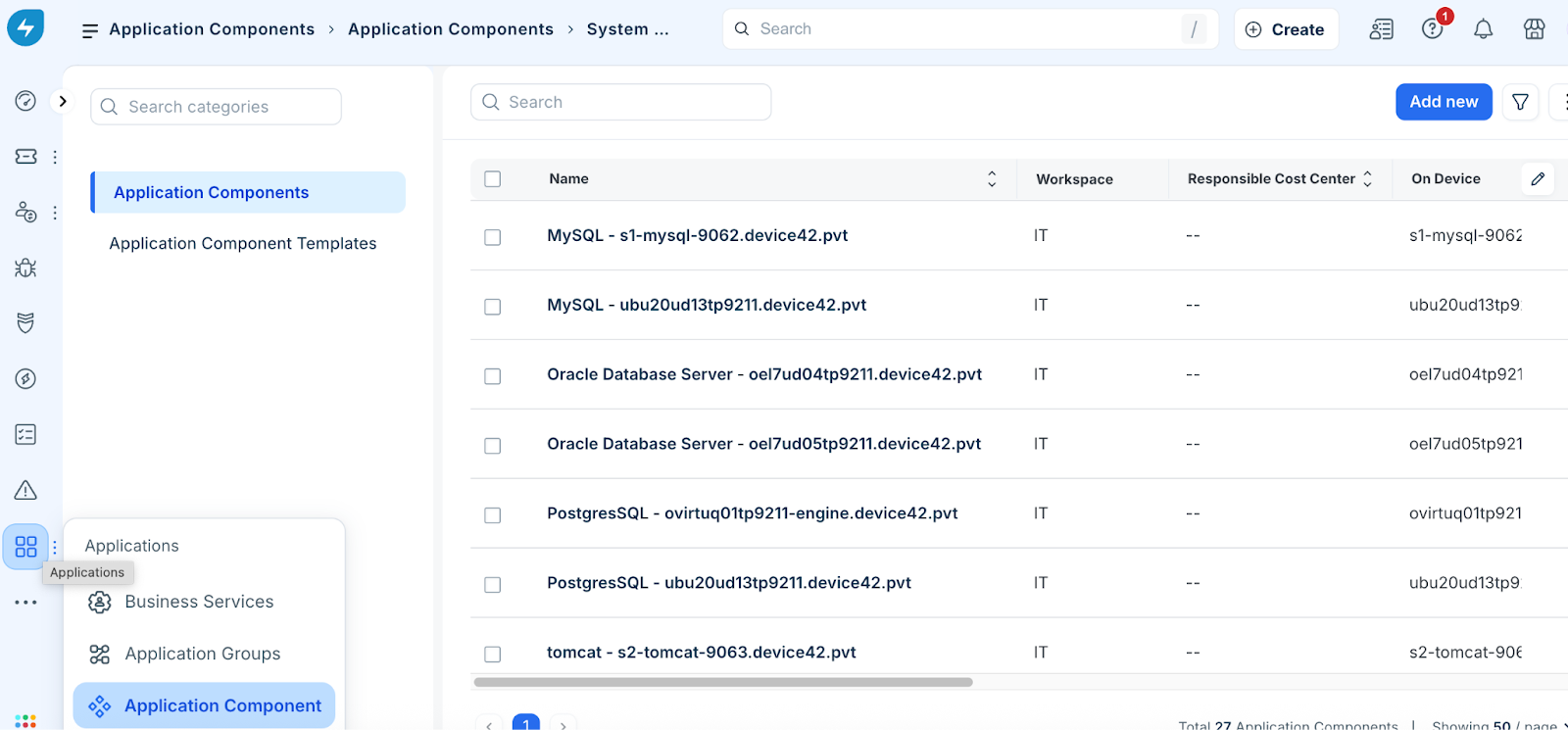
1. Go to Applications > Application Components.
2. Search for SQL to narrow down the list.
3. Click the Name of an application component to view specific database details and server instances.
Device record
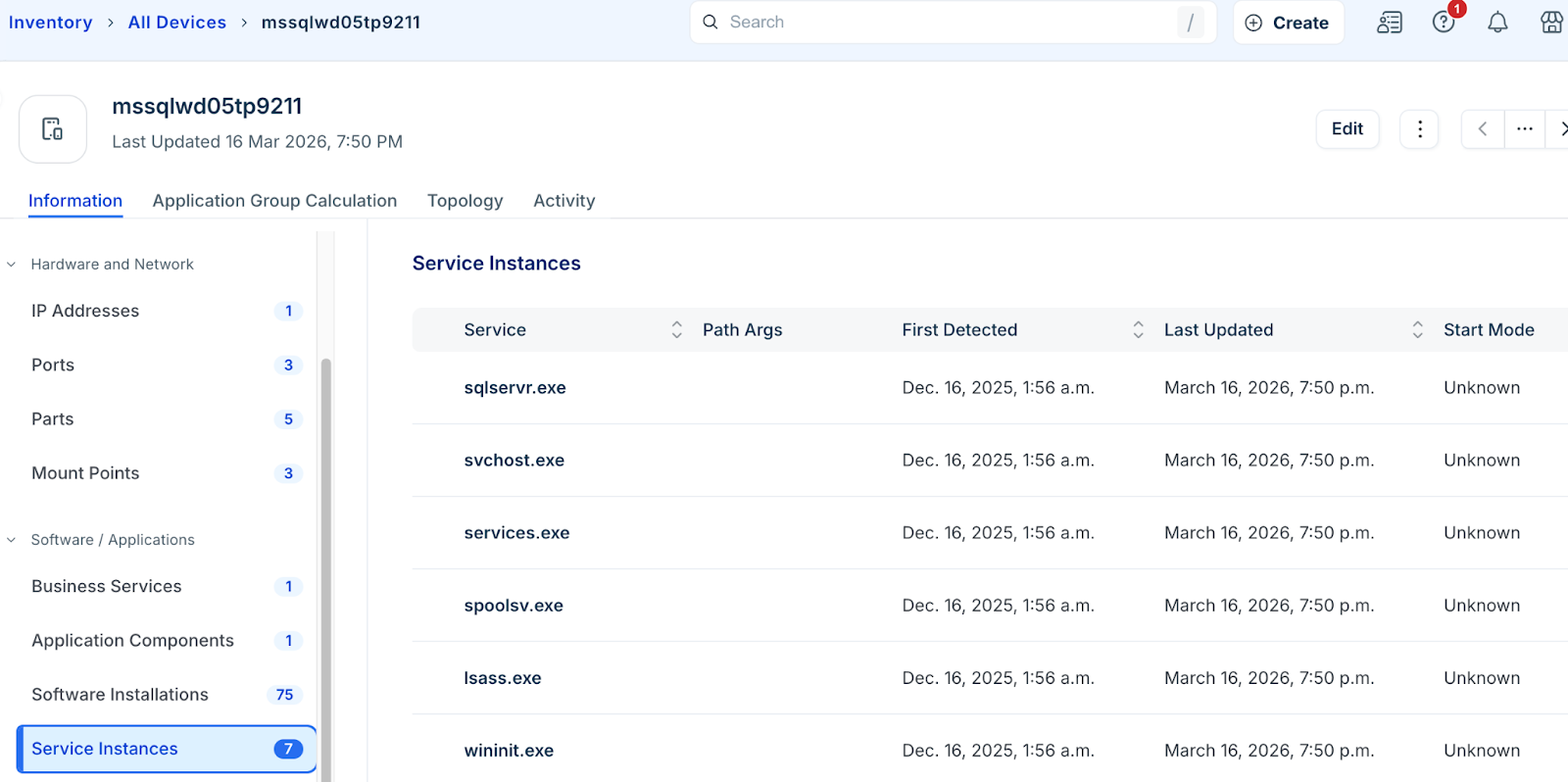
You can also view results by navigating to the discovered Windows server instance's CI.
1. In the side bar, click IT Asset Management > Inventory > All Devices and select the discovered server.
2. From the details view, you can access Service Instances, Software, and Database Instances.
3. Click the name of a Database Instance to view resource details, schema data, memory stats, and network details.
Available SQL database instance information
Access granular metadata and configuration details for every discovered Microsoft SQL instance within your inventory.
You can click the name of a Database Instance from the Application Component view or the Resources list page to view the following information:
SQL cluster data
If your environment utilizes SQL cluster databases, discovery returns the following information about the clusters: