Last updated: 2024-11-13
The Discovery Hub feature in Freshservice enables you to access a unified and comprehensive suite of discovery tools for IT asset management from a centralised location in the application, such as:
CONTENTS
Accessing the Discovery Hub
To access the Discovery Hub:
Go to Admin \> Global Settings \> Asset Management \> Discovery Hub.
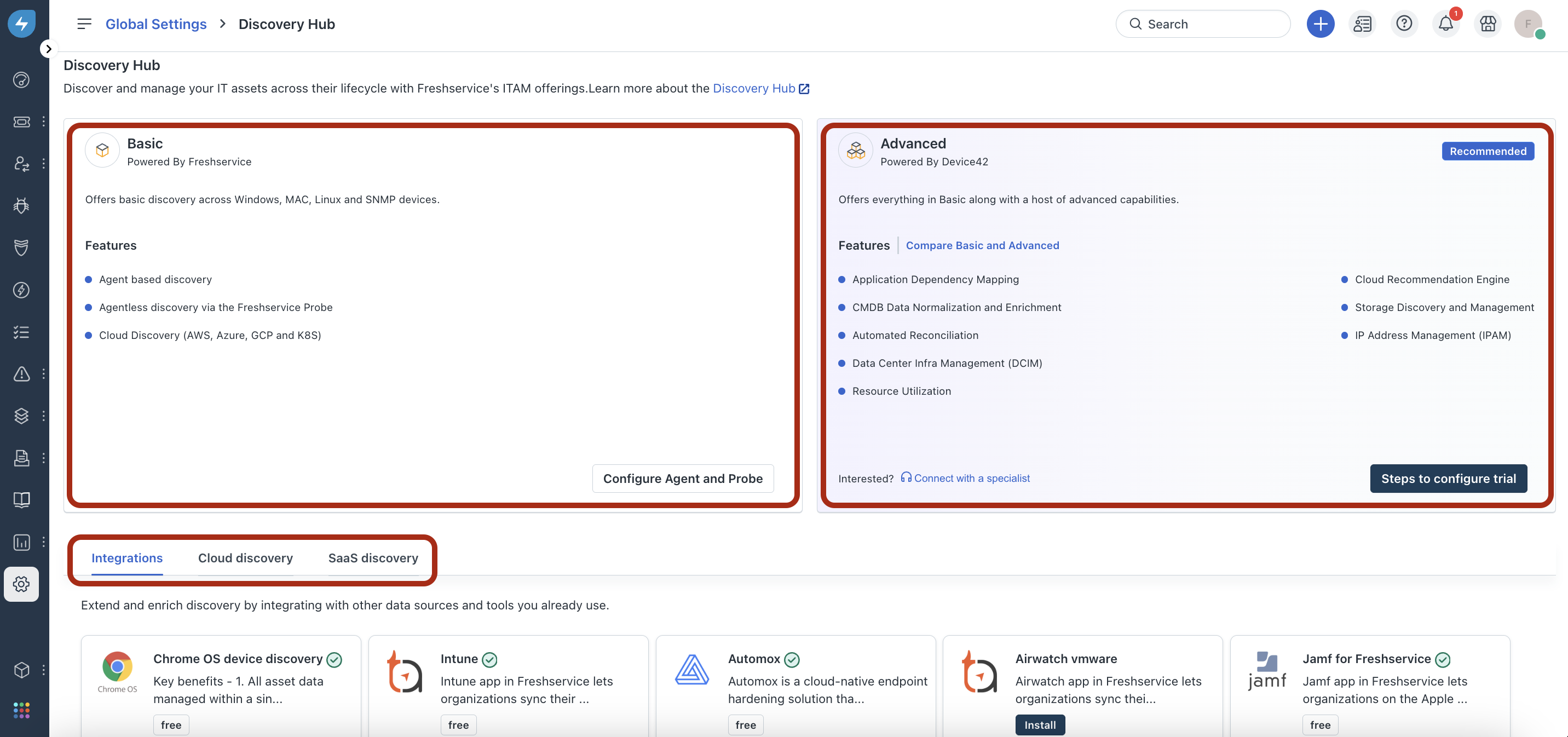
The Discovery Hub page opens. On this page, you can view the various configuration options for discovery, such as Basic, Advanced, Integrations, and so on.
Configuring Basic discovery
The Basic discovery features include _Agent based discovery_, _Agentless discovery via the Freshservice Probe_, and _Cloud discovery_.
To configure Basic discovery:
Click Configure Agent and Probe in the Basic discovery section.
The Discovery page for setting up Agent and Probe opens in a new tab.
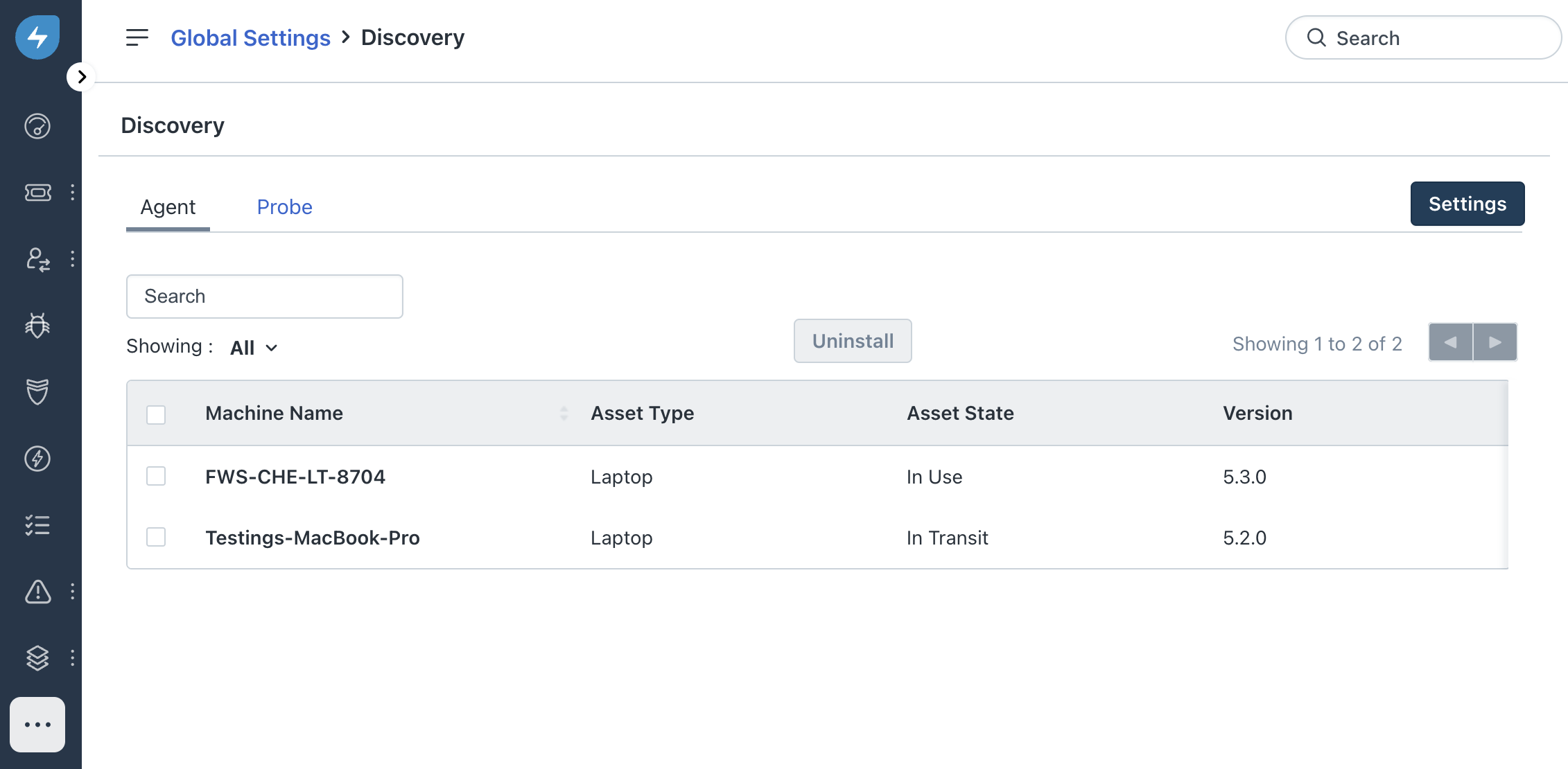
``` Resources: See Freshservice Discovery Agent for information on how to set up the Agent. See Freshservice Discovery Probe for information on how to set up the Probe. ```
Configuring Advanced discovery
The Advanced discovery features include all the Basic features and additional features, such as _Application Dependency Mapping_, _Cloud Recommendation Engine_, _Automated Reconciliation_, and more.
Click Compare Basic and Advanced in the Advanced discovery section to view the features comparison.
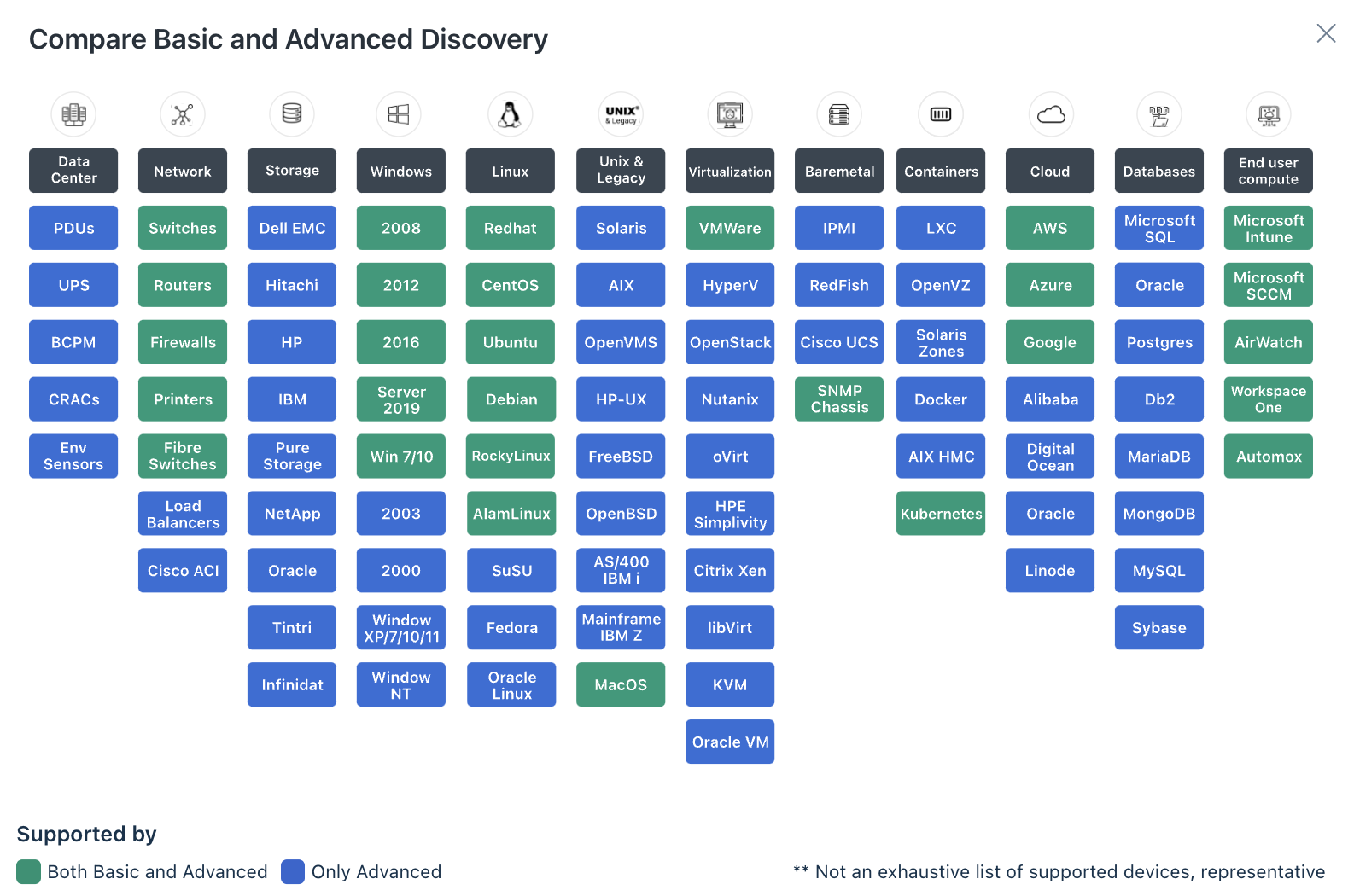
We recommend you to try-out and upgrade to Advanced discovery to make the best use of advanced discovery capabilities.
``` Note: If you want to learn more about advanced discovery, use the Connect with a specialist option to submit your specific requirements. A specialist from our team will reach out to you. ```
To configure the trial version of Advanced discovery:
1\. Click Steps to configure trial in the Advanced discovery section.
The Advanced Discovery page opens.
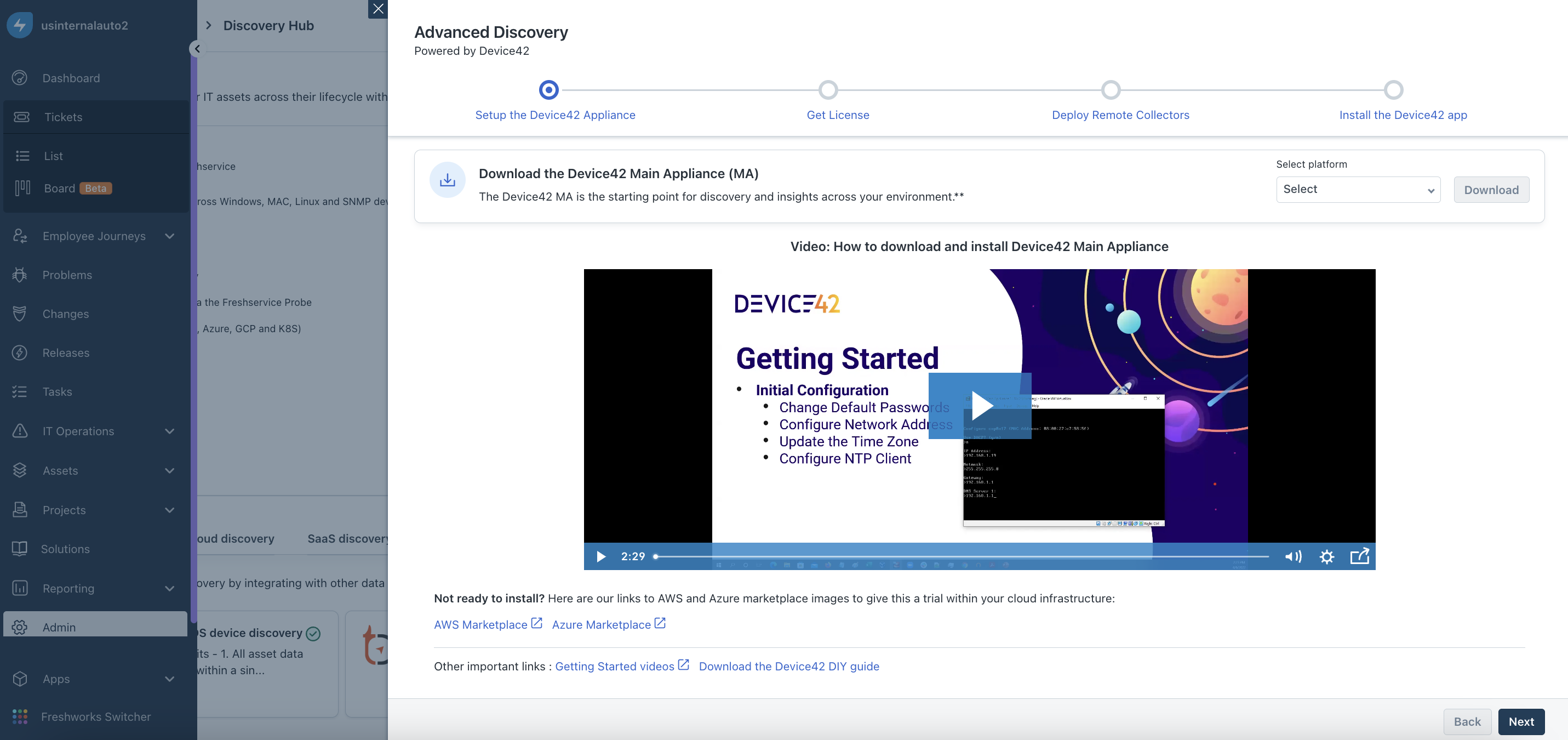
2\. Select the required platform from the Select platform dropdown, and download the _Device42 Main Appliance (MA)_.
The _Device42 MA_ includes configuration of default passwords, network address, and NTP client; and updating the time zone (watch the video for more information on how to download and install _Device42 MA_).
``` Note: You can also refer to the AWS and Azure marketplace links, and other important links to learn more about advanced discovery with Device42. ```
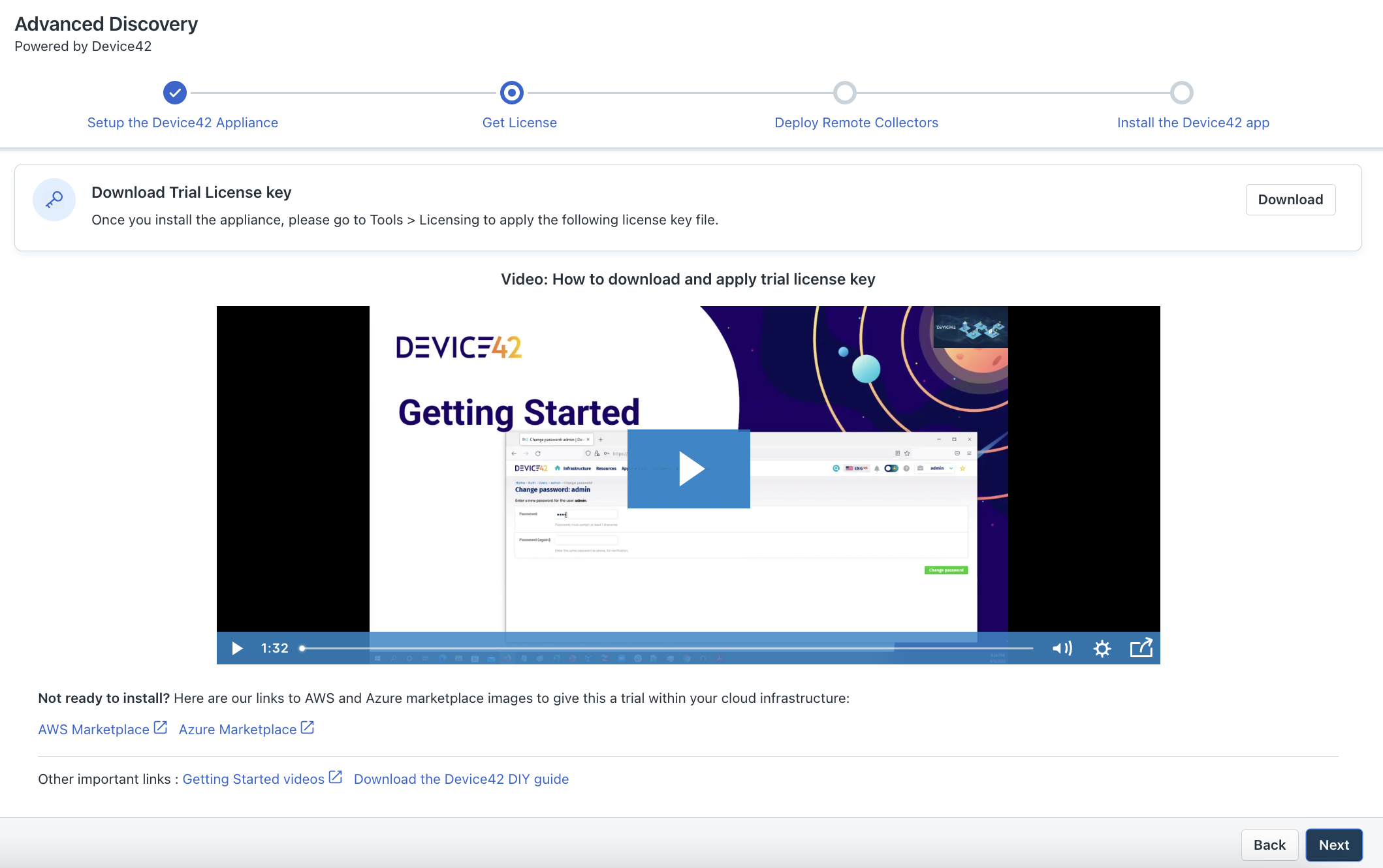
3\. Click Next. Then, download the trial license key (watch the video for more information on how to download and apply the trial license key).
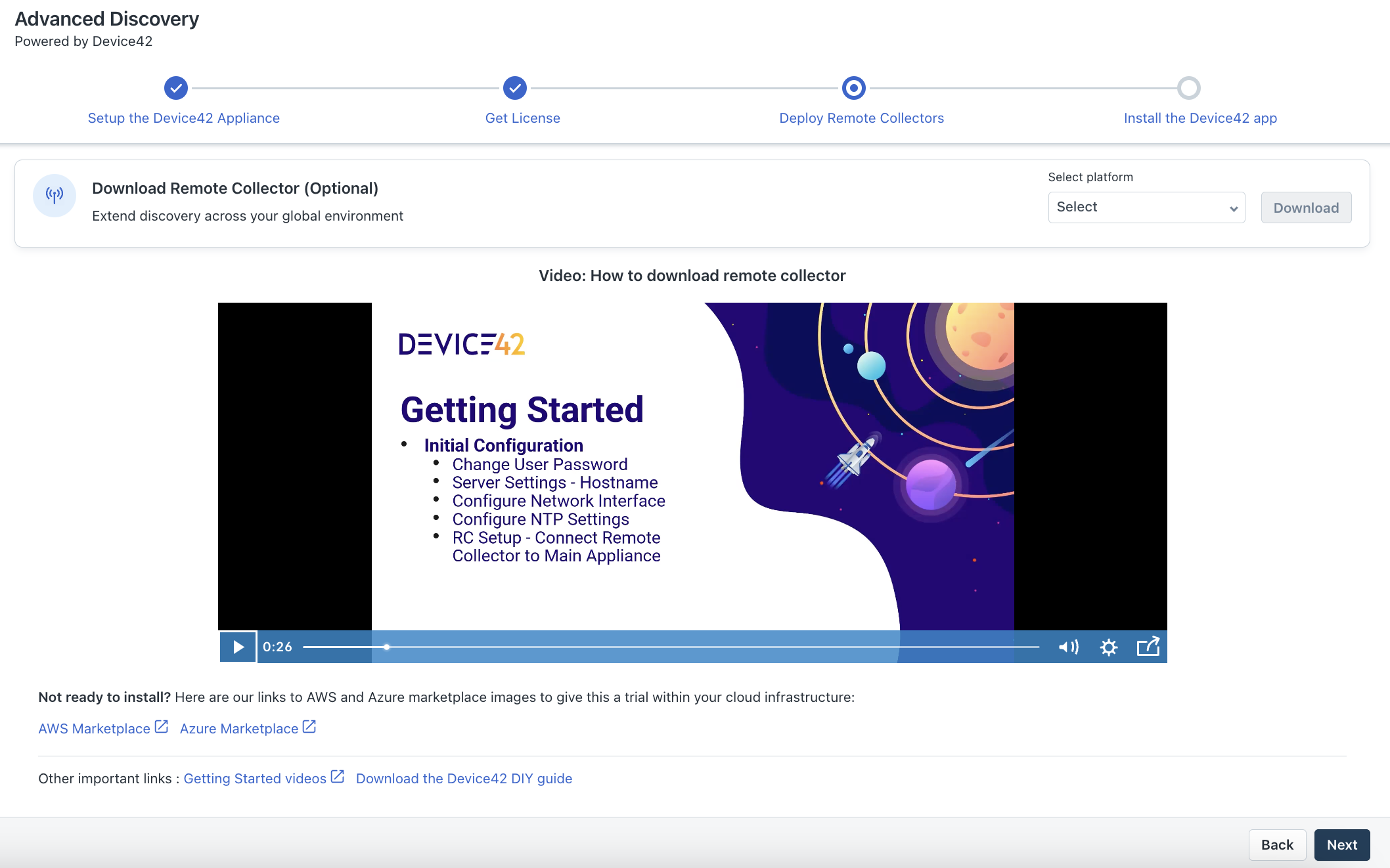
4\. Click Next. Then, select the required platform from the Select platform dropdown, and download the _Remote Collector_.
The _Remote Collector_ extends the discovery capabilities across your global environment, such as configuration of network interface, NTP settings, connection to _Device42 MA_, and so on (watch the video for more information on how to download _Remote Collector_).
5\. Click Next.
The Device42 for Freshservice installation page opens.
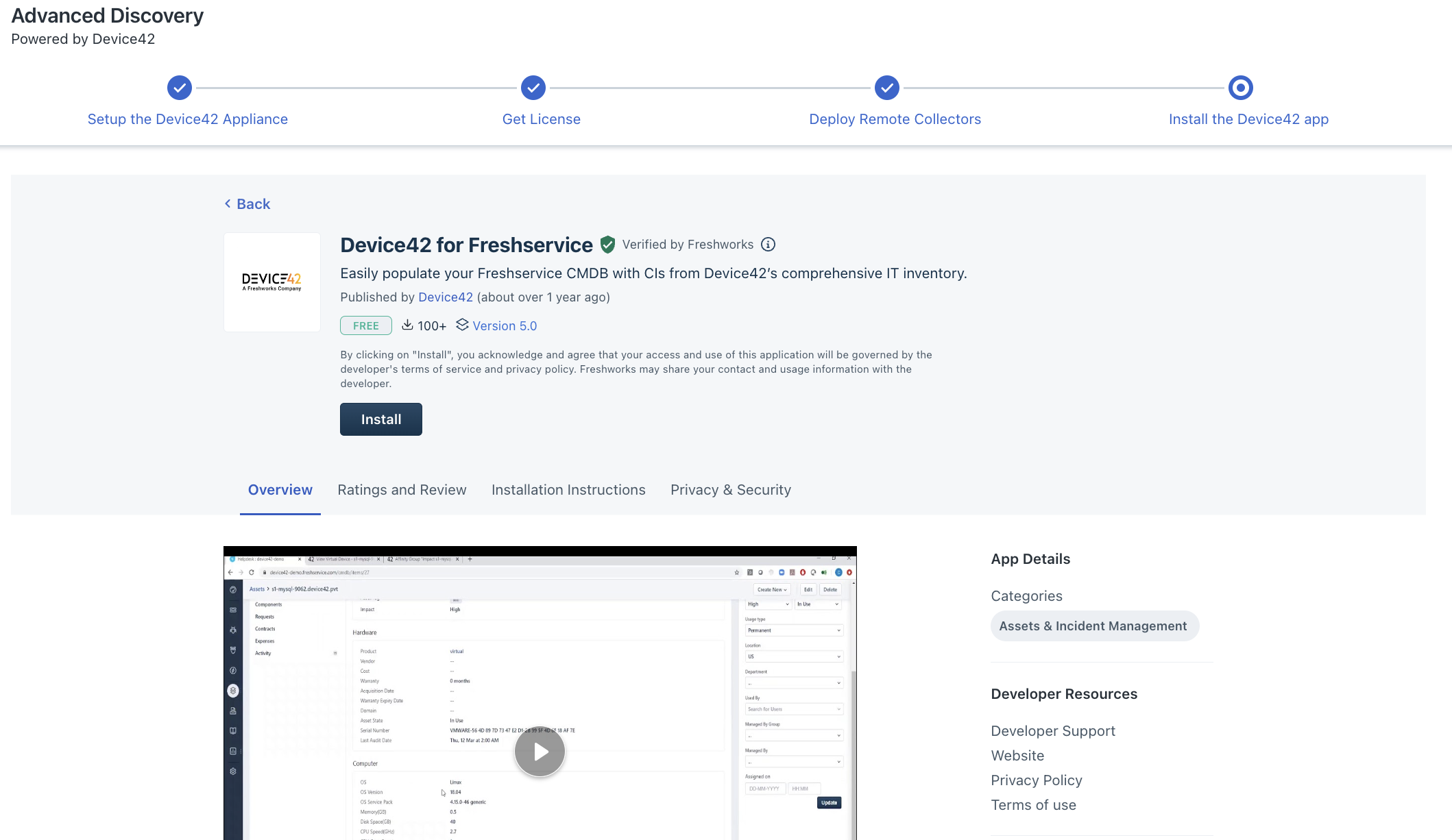
6\. Click Install.
The Configuration page opens.
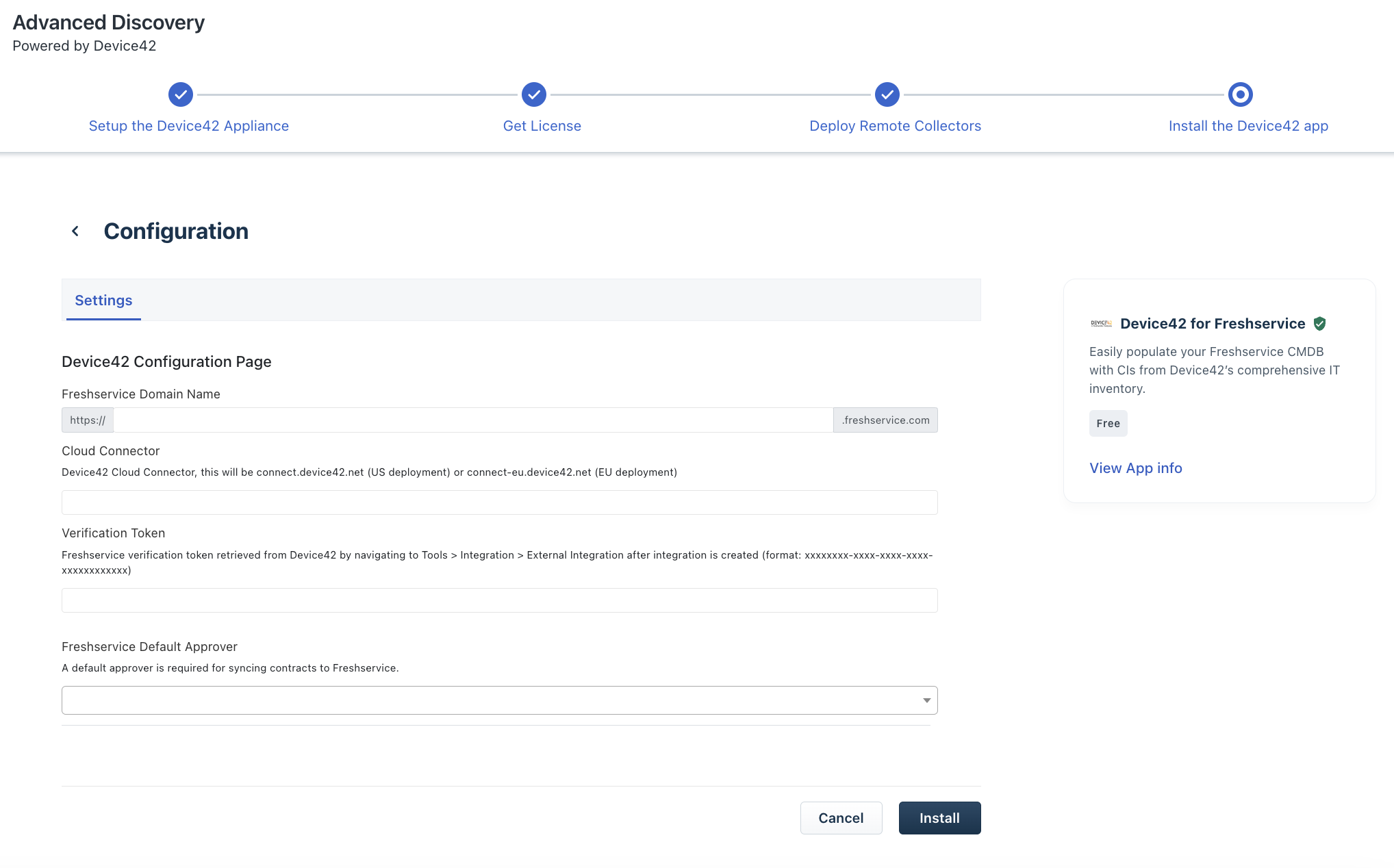
7\. Enter relevant details in the Freshservice Domain Name, Cloud Connector, and Verification Token boxes.
8\. Select a default approver from the Freshservice Default Approver dropdown.
9\. Click Install.
You are now set up with the trial version of Advanced discovery.
Configuring Integrations, Cloud, and SaaS discovery
Integrations
From the Integrations tab on the Discovery Hub page, you can extend discovery capabilities with other data sources and tools, such as _Intune_, _Automox_, _Airwatch_, and more.
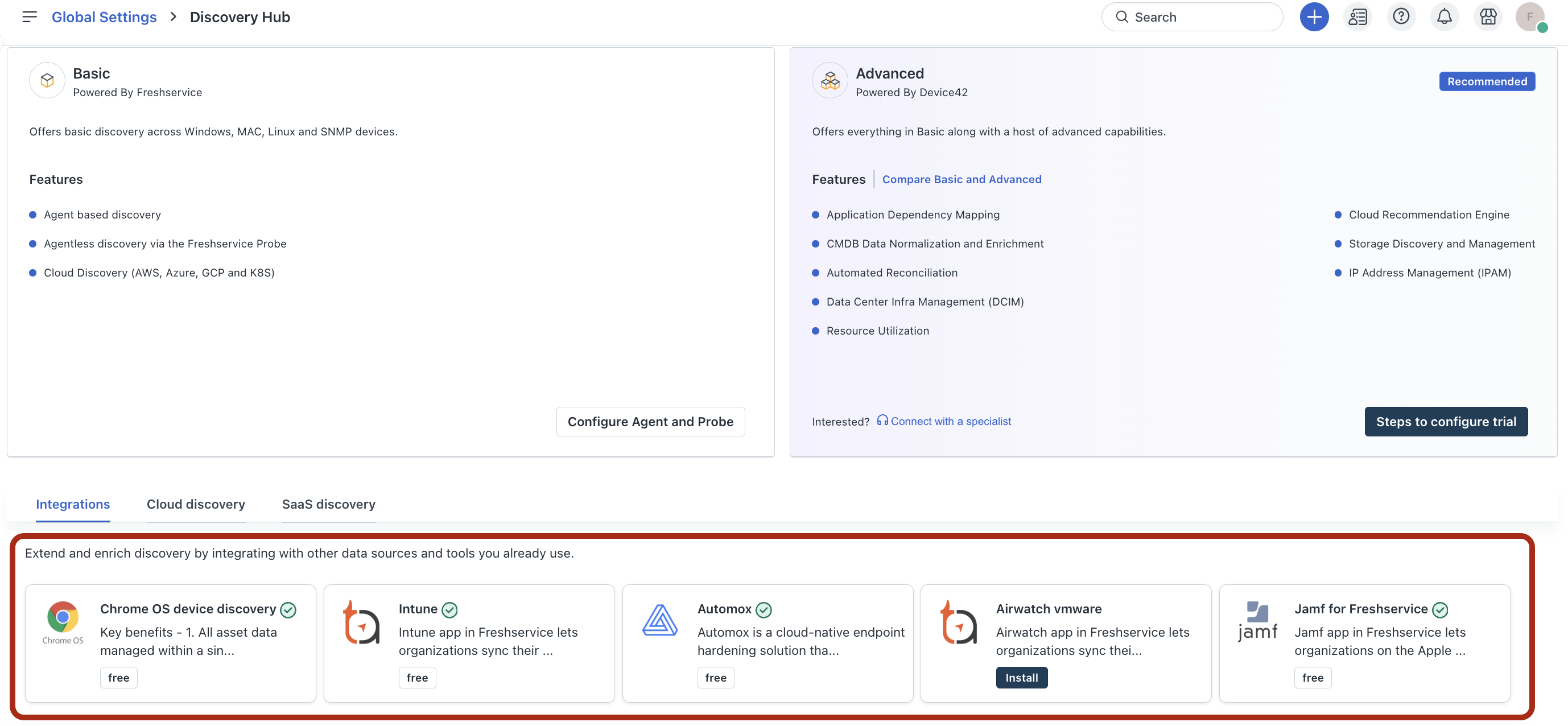
1\. Click on any integration you want to install or update (if already installed). For example, _Airwatch vmware_.
The installation or edit settings page of the selected integration opens.
2\. Proceed with Install or Edit settings(if already installed) options.
Cloud discovery
From the Cloud discovery tab on the Discovery Hub page, you can integrate with cloud providers to build a system for cloud resources, such as _AWS Cloud Management_, _Azure Cloud Discovery_, and more.
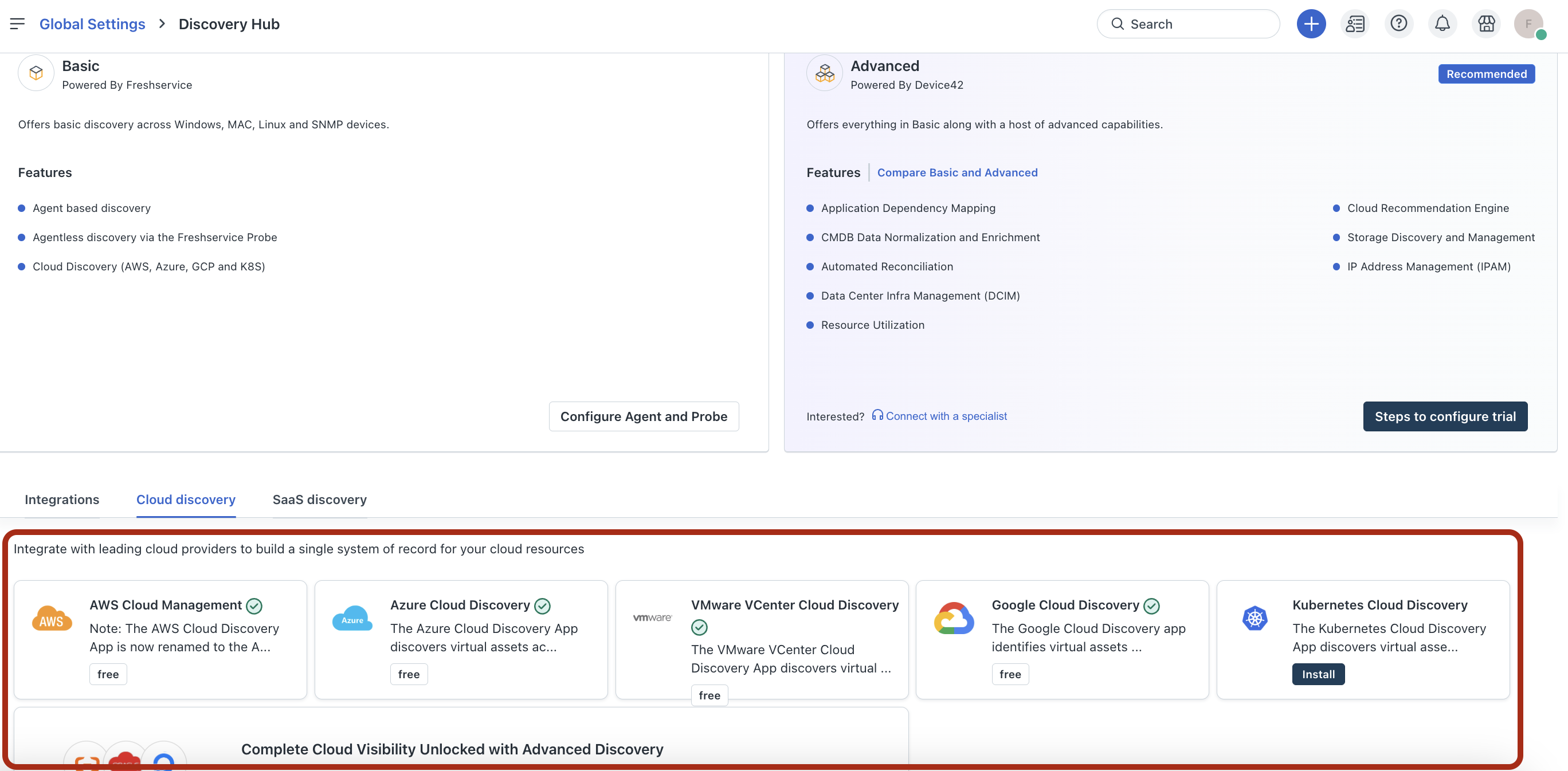
1\. Click on any Cloud discovery app you want to install or update. For example, _Google Cloud Discovery_.
The installation or edit settings page of the selected application opens.
2\. Proceed with Install or Edit settings options.
SaaS discovery
From the SaaS discovery tab on the Discovery Hub page, you can discover a range of SaaS applications, such as _GSuite - Orch_, _Zoom - Orch_, _Slack - Orch_, and more.
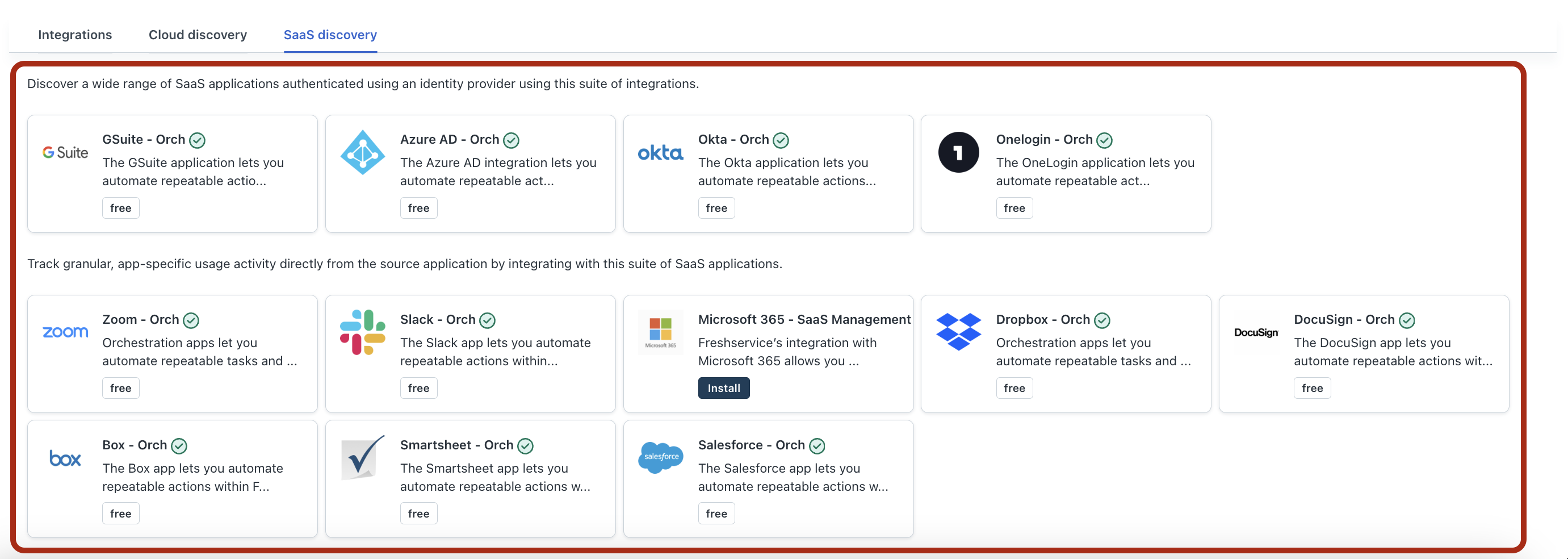
1\. Click on any SaaS discovery app you want to install or update. For example, _Dropbox - Orch_.
The installation or edit settings page of the selected application opens.
2\. Proceed with Install or Edit settings options.