Last updated: 2026-01-23
Source: https://support.freshservice.com/support/solutions/articles/50000009156-freddy-ai-insights-overview
Freddy AI Insights overview
Freddy AI Insights helps service leaders gain clear visibility into service desk performance using generative AI. It proactively surfaces trends, anomalies, and root causes across key metrics, enabling faster, data-driven decisions. With customizable views and conversational access, teams can identify issues early and take timely, informed action.
Freddy AI Insights features
Freddy AI Insights provides the following capabilities:
| Solution / Group / Category | Feature | Description |
| Freddy AI Insights | Proactive Insights with Root Cause Analysis | Identifies issues and uncovers underlying causes. |
| Customized Insights | Offers insights tailored to your business context. | |
| Conversational Insights | Surfaces insights conversationally via natural language prompts. |
Enable Freddy AI Insights
If you are a Freshservice Enterprise customer and Freddy AI Insights is not enabled for your account, you can enable it by following the steps below:
1\. Go to Admin.
2\. Navigate to Freddy AI > Freddy > Freddy AI Insights.
3\. Toggle on Proactive Insights.
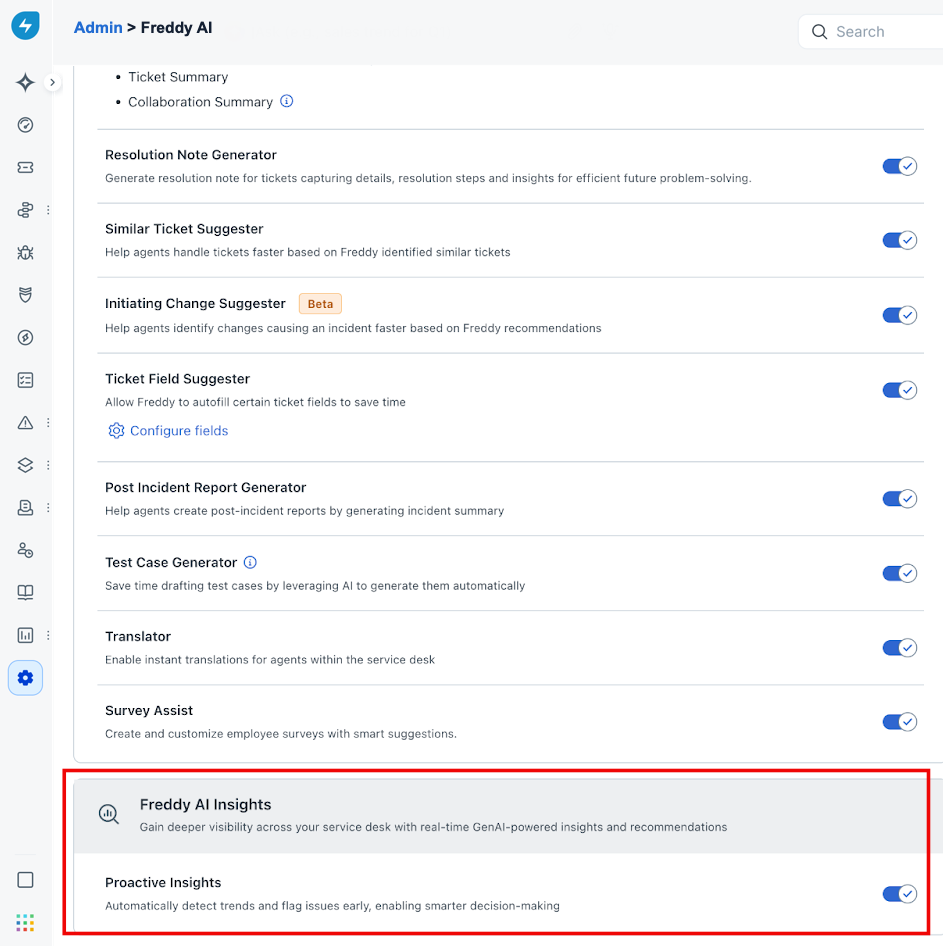
If Freddy AI Insights is enabled for your account, as an Admin, you can enable Freddy AI Insights for additional agents by performing the following steps:
1. Go to Admin Settings → User Management
2.Select a user from the Agent dropdown
3\. Click Edit Permissions
4\. Under ‘Groups and Roles’, add the Freddy Insights permission
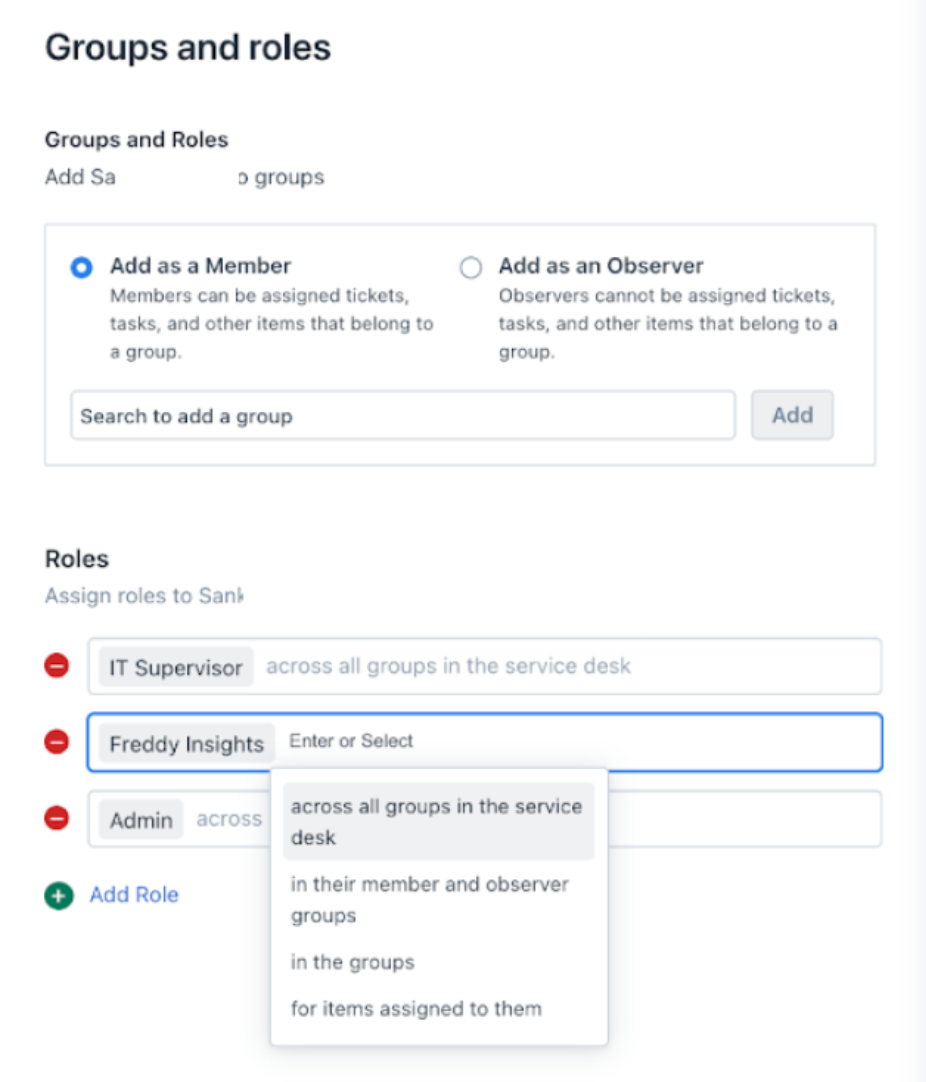
When Freddy AI Insights is enabled by default for your account, certain roles may have the necessary permissions. Automatic enablement details have been summarised below.
| Customer Plan Details | AI Insights Auto-Enabled? | Insights Permissions to Default Supervisor Role | Insights Permissions to Existing Custom Roles with “View Tickets Report” permission |
| Enterprise without AI Copilot | No. AI Insights have to be manually turned ON | Permission will be auto-assigned on enabling AI Insights | Permission will be auto-assigned on enabling AI Insights |
| Enterprise with AI Copilot (Enabled AI Insights during Public Beta phase) | Yes | Permission will have to be manually assigned | Permission will have to be manually assigned |
| Enterprise with AI Copilot (Not enabled AI Insights during public Beta phase) | No. AI Insights have to be manually turned ON | Permission will be auto-assigned on enabling AI Insights | Permission will be auto-assigned on enabling AI Insights |
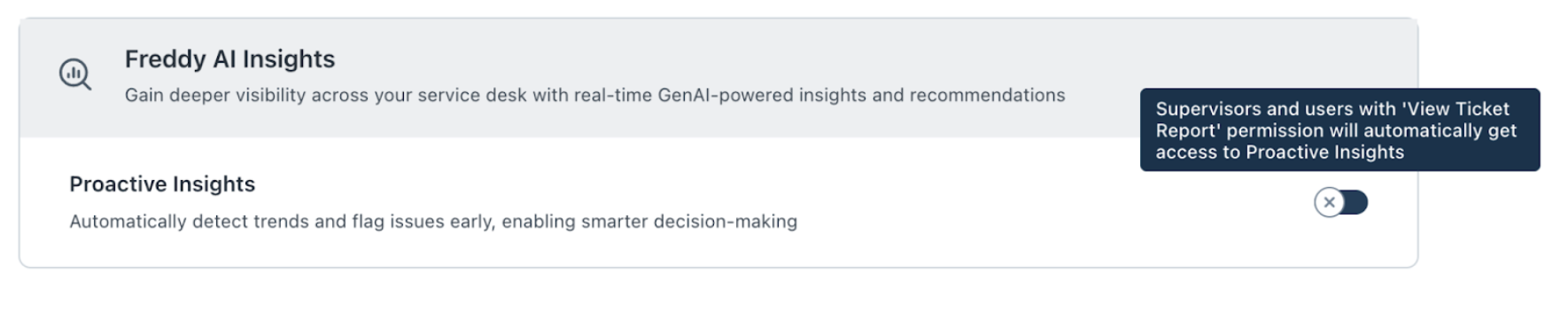
``` In addition to the above, account admins who created the account will receive the "Freddy Insights" role by default if the feature is enabled. ```
Analyze insights using root cause analysis
To run an operationally efficient organization, it’s important to drive informed decisions while spending optimal time and resources on sourcing insights. With Freddy AI, get the right insights at the right time when you need to act on them.
Freddy AI monitors and analyzes your service desk to provide timely insights. You can stay on top of insights about trends, outliers, and top increasing/decreasing metrics and take action as needed.
Use cases
Use case 1: Identify and address rising resolution times with proactive insights
An increase in average resolution time can be a significant problem for a support desk leader. It can lead to longer wait times for customers, decreased customer satisfaction, and reduced productivity for support agents. Additionally, it can be a sign of underlying problems with the support process, such as a lack of resources or inefficient workflows. Proactive insights that alert support desk leaders about an increase in average resolution time can be extremely useful, as these insights allow leaders to identify and address the root cause of the problem before it becomes a major issue.
To view the Average Resolution Time trend:
1\. Go to FreddyAI \> Proactive Insights.
2\. Select the relevant insight (that is, Average Resolution Time).
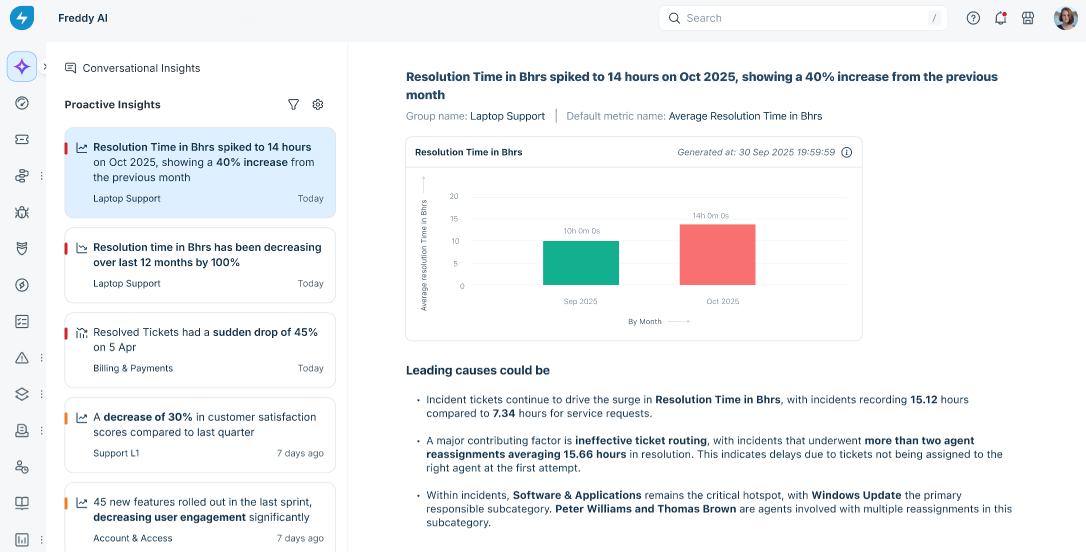
Freddy AI will present a visual representation of the average resolution time trend. This trend analysis, generated by Freddy AI, offers valuable insights into the fluctuation and pattern of average resolution time over a specified period.
Use case 2: Figure out the underlying root cause for the recent increase in resolution of SLA violated tickets
Resolution of service-level agreement (SLA) violations can have a significant impact on a support desk, leading to increased customer dissatisfaction, reduced customer loyalty, lost revenue, and damage to the support desk's reputation. In scenarios where SLA violations have suddenly spiked, an actionable root cause analysis can be invaluable. It can help the support desk to quickly identify and fix the problem, prevent the issue from escalating, save time and effort, and improve customer satisfaction.
To find the underlying root cause
1\. Go to FreddyAI > Insights.
2\. Select the relevant insight.
3\. Go to the ‘Leading Causes could be’ section.
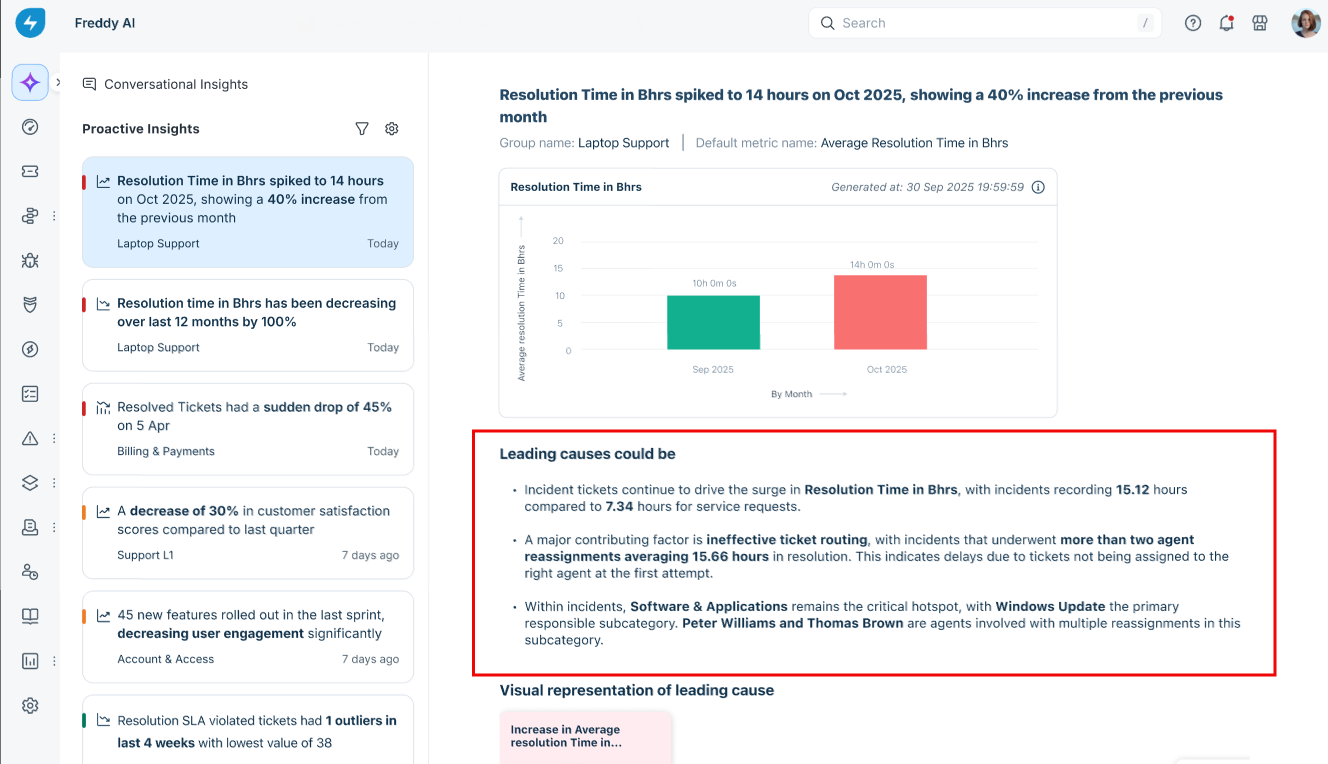
You will find a tree map representation of the underlying root causes, along with a natural language-based summary.
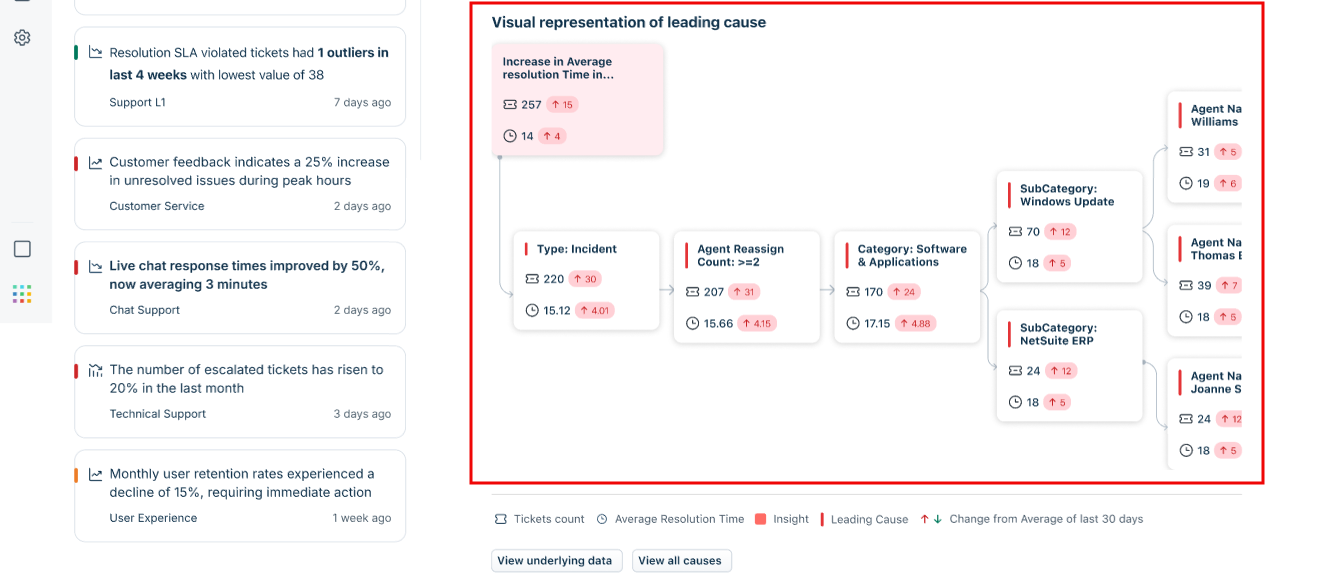
Metrics supported for Freddy AI Insights
Freddy AI currently generates insights on the following most important service desk metrics of the Tickets module:
| Service Desk Metric | AI Insight Types (weekly and monthly) | Attributes considered |
| Survey Score | Trend changes<br>Spike<br>Fall<br>Overall trend<br>Outliers<br>Longest increase or decrease (only weekly) | - |
| Total Incoming Tickets | Category | |
| Resolution SLA Violated Tickets | Category, Agent name | |
| First Response SLA Violated Tickets | ||
| Average Resolution Time in Bhrs | - | |
| Average Response Time in Bhrs | ||
| Average First Response Time in Bhrs | - | |
| Resolved Tickets | - | Resolution status |
Types of Insights supported
Freddy AI currently supports and generates the following types of insights:
| Insight Type | Description | Example |
| Majority | Highlights the maximum/dominant/majority value associated with a particular metric or group-by | 80% of the ITOps team’s SLA violated Tickets are from the Hardware Category. |
| Outliers | Detects a metric value when it is unusually large or small in a given time frame | Two anomalies were observed in the ITOps Average Resolution Time. The largest value of 1hr:2mins was observed in the week of January 1. |
| Trend Change<br>(Spike & Fall) | Spot any increase or decrease in any metric in a time period | A 15% spike was observed in the ITOps Average Resolution Time in the week of January 15, 2025. |
| Longest Increase/Decrease | Finds sustained growth or drop periods in metrics | ITOps Tickets saw the longest period of increase, 17%, from the week of January 5 to February 7. |
| Recent Change | Compares the most recent data point to the previous one for any given time period | Last week, the ITOps Average Resolution Time was 27% lower compared to its previous week. |
| Overall Trend | Tracks the upward or downward movement of a metric in the given time period | 22% increase in ITOPs Average Resolution Time observed in the last 12 weeks |
Frequency of Insight Generation
AI Insights are generated in the following frequencies:
| Frequency | Time period we look back on | Minimum number of days with data to be active or present | Refresh frequency |
| Weekly | 12 weeks | 6 weeks | Every Monday |
| Monthly | 1 year | 6 Months | On the first day of every month |
Usability Features
Create a Personalized Filtered View
Freddy AI Insights lets you slice results by Agent Group and Metric. Leaders and admins often have access to a large number of groups, which could mean wading through a large number of insights to find the most relevant and actionable one at the time. Combine these filters to surface only the insights that matter to you at that moment.
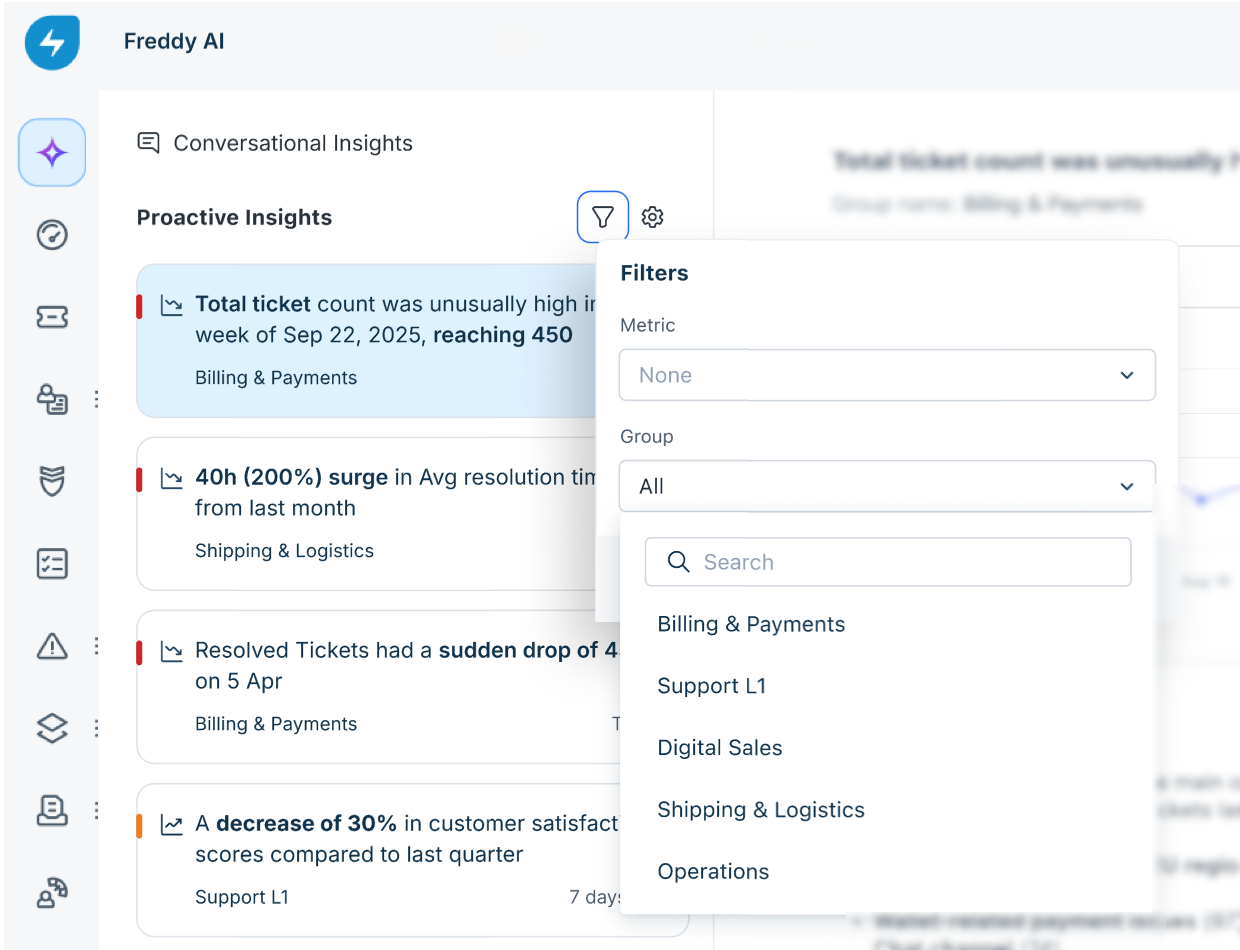
Then, a ‘ Filtered’ view of insights will appear, which will show insights for your saved filter preferences.
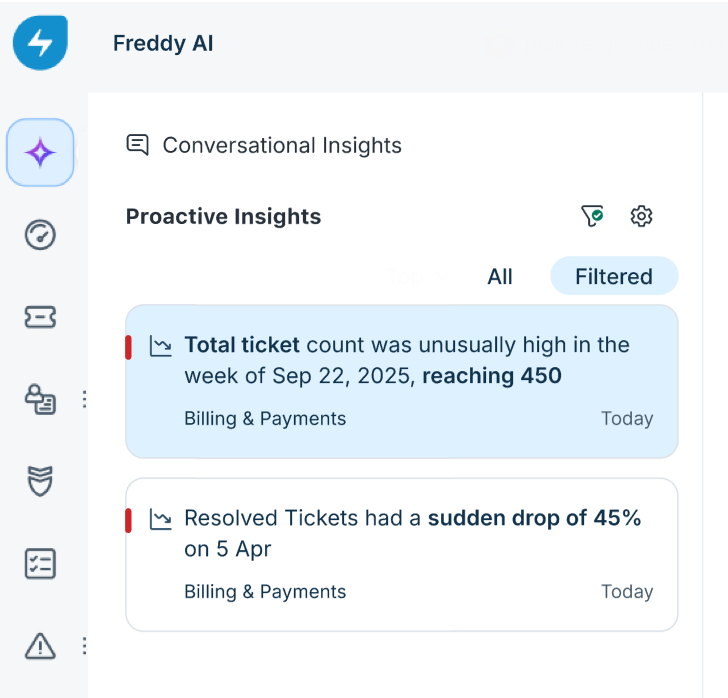
This view persists across multiple browser sessions, meaning every time you visit the Freddy AI page for a new session, the ‘Filtered’ view last created by you would be persisted and shown. This is particularly useful for leaders who have access to a large number of agent groups but generally want to focus on a few specific agent groups most of the time.
AI Insights in the hierarchy of importance
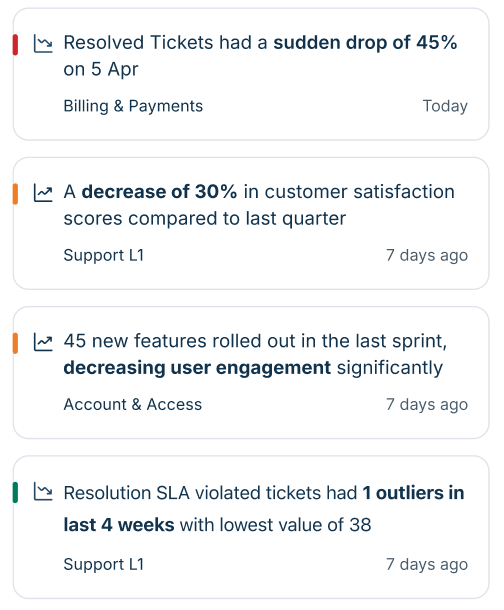
Insight cards on the left side pane are sorted according to their importance for you, as assessed by Freddy AI. So the most important insights are at the top, while the lesser ones are at the bottom. AI Insights are also colour coded depending on their criticality:
Related links: