Last updated: 2026-04-02
Note: Available only for new signups after the 31 March, 2026 release. If you signed up earlier, refer to the existing ITAM documentation.
Applicable plans: Growth , Pro, Enterprise
In the Discovery phase, you configure and run discovery jobs to scan your IT environment and collect asset data. These jobs systematically identify infrastructure components, including network devices, servers, desktops, laptops, and cloud resources, and store the discovered information in the central database.
Discovery is the second phase of the asset management implementation process and plays a critical role in building an accurate and up-to-date inventory. For a complete view of the implementation workflow, see the
Overview of the Discovery phase
During the Discovery phase, you will perform the following tasks:
1. Prepare for discovery -Configure credentials, subnets, and required ports to enable secure access to your environment.
2. Create and run discovery jobs -Define and run discovery scans for different asset types based on your infrastructure. There is a recommended order later on.
3. Verify discovery results -Review discovery scores, logs, and records to confirm accuracy and resolve issues.
4. Schedule automated discovery -
5. Configure discovery schedules to keep asset information current over time. As a best practice, don't start all discoveries at the same time.
You can review results and schedule discovery jobs immediately after running them, rather than waiting until you create all discovery jobs.
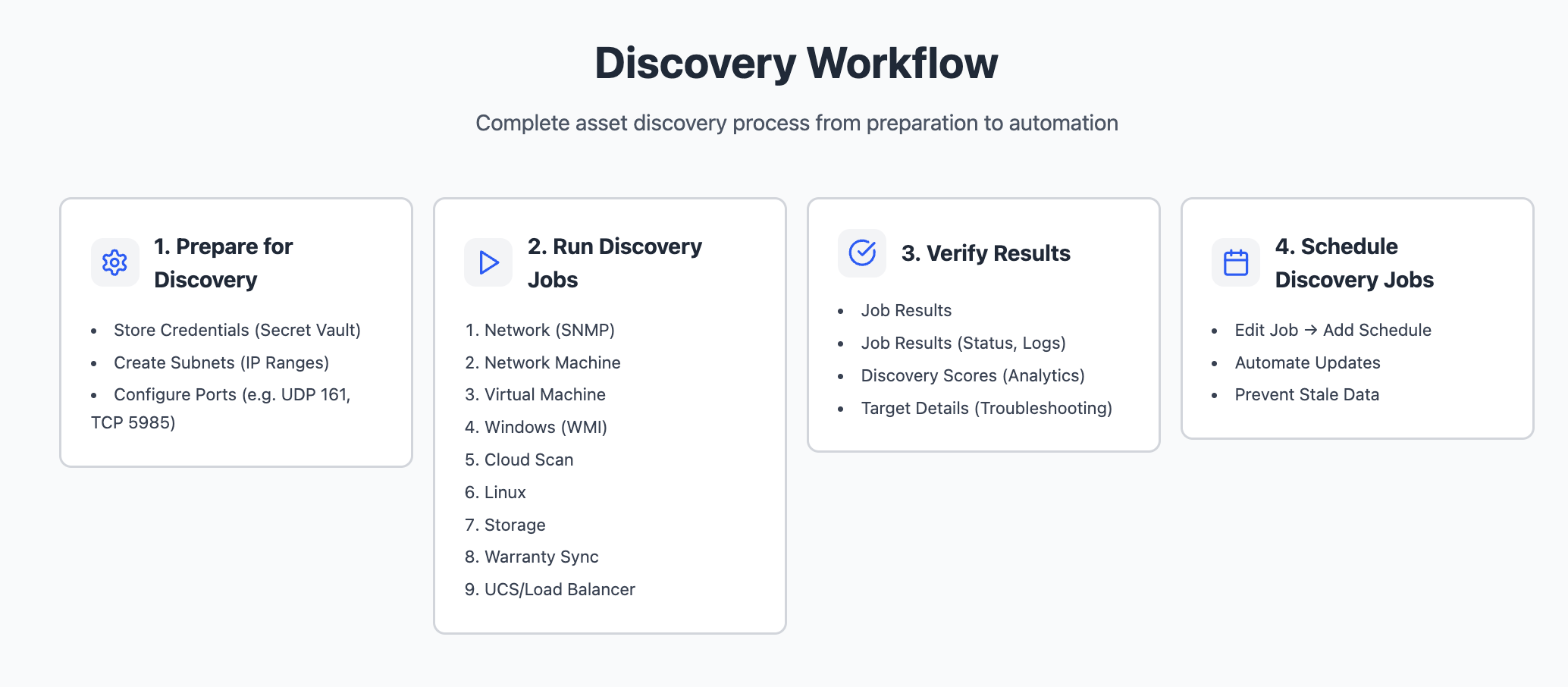
Task 1: Prepare for Discovery
Before you run any discovery jobs, configure the foundational settings that allow discovery to securely access your environment. This setup includes defining connectivity requirementsand ensuring you grant appropriate permissions
1.1 Store Discovery Credentials
You can create secrets or add them while creating a discovery. Credentials (Secrets) are stored centrally in the Secret Vault at Global Settings > Admin > Asset Management > Credential Management > Secret Vault. Incorrect credentials are a common cause of discovery failure.
| Discovery Type | Required Credential |
| SNMP | SNMP V1, V2, V3 Community String (Read only) |
| Linux | SSH Login Credentials |
| Windows | Service Account (WMI or WinRM access). We recommend a service account for discovery |
1.2 Configure ports
Ensure the necessary ports are open between the Remote Collector and the target devices. For example, SNMP requires UDP Port 161, while Windows discovery typically requires Port 5985/5986 (WinRM) or Port 135 (WMI).
Note: Testing that ports are open is one of the first and most common steps for troubleshooting discovery.
For more information about the list of all ports that may be used to access targets for discovery, along with their directionality, refer to Discovery Port Configurations.
Task 2: Discovery Jobs order
To achieve the best results and minimize future reconciliation, run discovery jobs in the following order. You can skip any jobs that are not applicable to your organization.
| Order | Discovery | Description |
| 1 | Network (SNMP) | Uses Simple Network Management Protocol (SNMP) to build your L2 Network landscape by discovering and gathering information from network devices such as switches, routers, and printers, collecting hardware and connectivity details. |
| 2 | Virtual Machine | V-Server autodiscovery collects data from hypervisors such as VMware, Citrix Xen, libvirt, and oVirt. |
| 3 | Windows/Hyper-V | Brings in Windows and Hyper-V machines, performing deep discovery on Hypervisors, and Windows OS using WMI and WinRM protocols. It collects comprehensive hardware and software details and discovers virtualization platforms such as VMware, Hyper-V, and others. It gathers information about virtual machines, hosts, and their configurations. |
| 4 | Linux | Brings in host information, parts, OS, Service processes, and installed software and applications and configuration files for Linux and Unix machines. |
| 5 | Cloud | Brings in virtual machines and storage in Amazon Web Services, Microsoft Azure, Cloudstack, Openstack, and numerous other platforms. Discovers infrastructure and resources in various cloud environments such as AWS, Azure, Google Cloud, and Alibaba Cloud. It collects detailed information about the cloud assets and their configurations. |
| 6 | Storage | Discovers Storage Arrays for on premise storage solutions, using the appropriate API for the vendors required. Detailed information of Controllers, LUNs, Storage Pools and Disks in use. Connected to the appropriate hypervisors and file servers with a breakdown of usage. |
| 7 | Certificate | Scans and discovers SSL certificates across your network. It gathers information about the certificates and alerts you before they expire. |
| 8 | UCS/Load Balancer | Discovers Cisco Unified Computing System (UCS) and Application Centric Infrastructure (ACI) environments, as well as load balancers like F5. It collects detailed configuration and performance data. |
Task 3: Verify Discovery Jobs
After you run discovery jobs in the Discovery phase, verify the results to confirm discovery accuracy and completeness. Freshservice provides multiple views to help you evaluate discovery outcomes at the job level, device level, and target level. You can evaluate discovery success using the following views:
3.1 Discovery job results
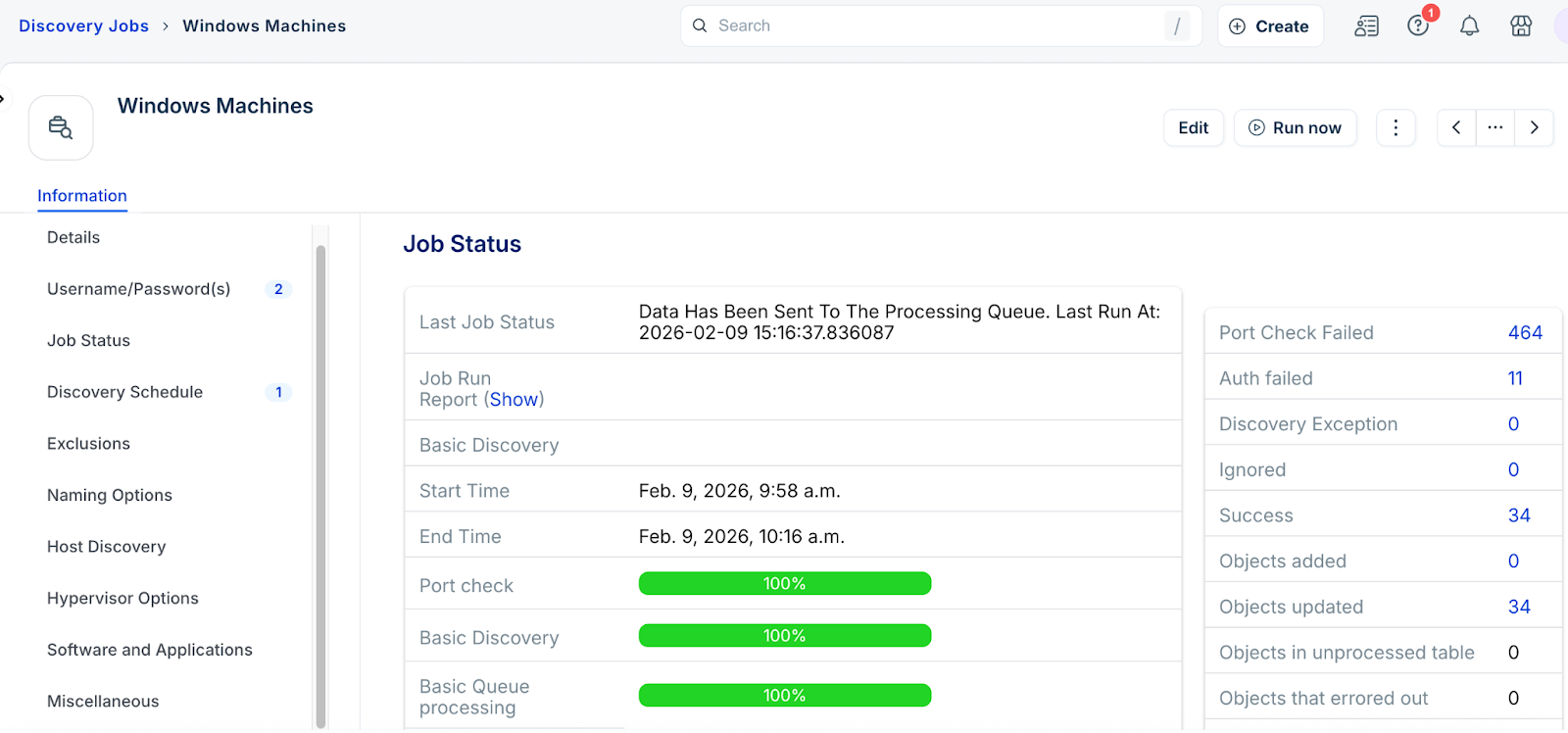
After you run a discovery job, you can view Job Status. This page provides a high-level summary of the discovery job outcome.
In the Job Status section, you can:
Click Show next to the Job Run Report to view the job report log. Use this log to understand how the system executed the job and identify potential issues.
The Discovery Breakdown section highlights common discovery outcomes, such as port check failures or authentication failures. Click the count for any breakdown category to view the associated Discovery Scores. From there, you can drill down into Discovery Target Details for individual items.
3.2 Discovery scores
The Discovery Scores page allows you to evaluate discovery success in detail across all discovery jobs. It provides a consolidated summary of discovery performance, including discovery success rates and discovery queues.
Each discovered device appears as a separate entry. For each entry, you can review:
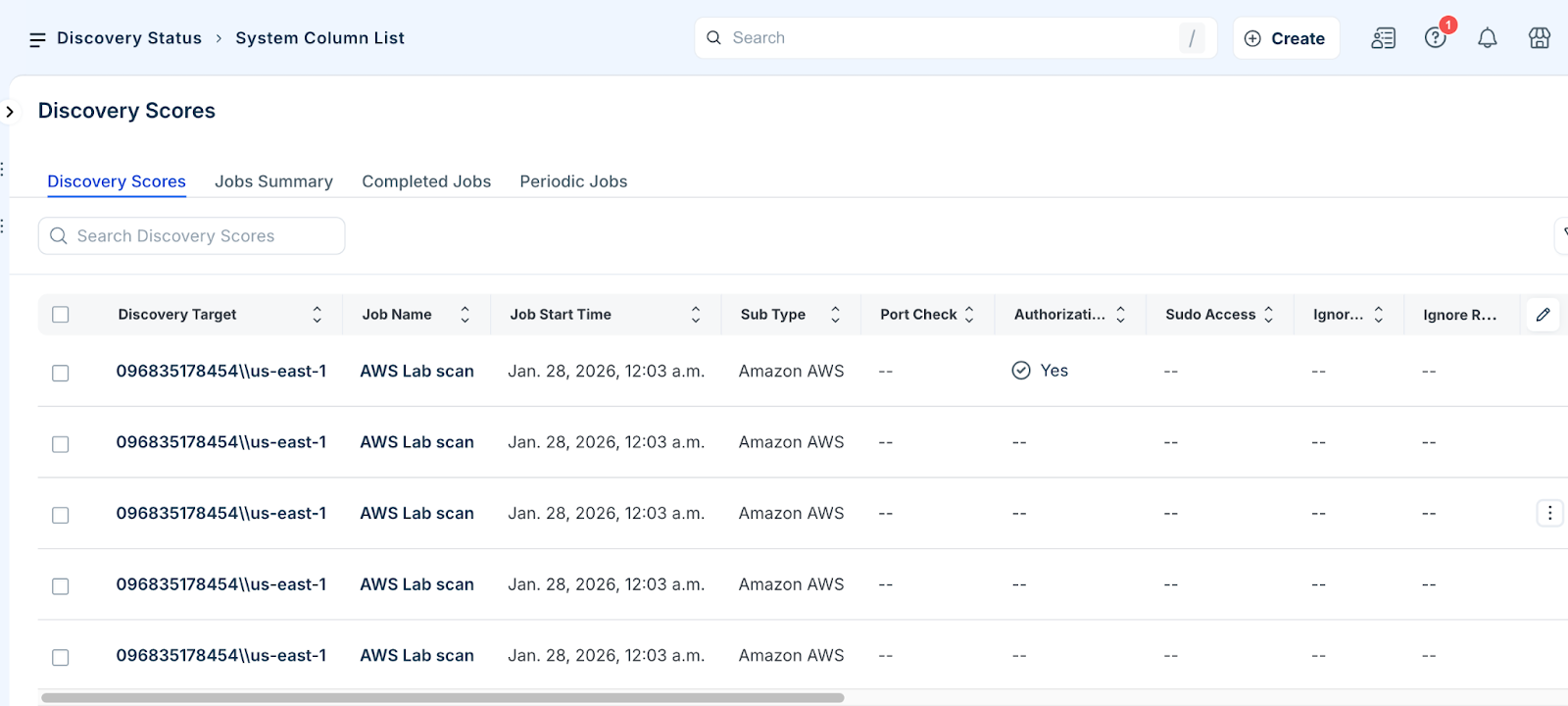
Access discovery scores
To review Discovery Scores:
3.3 Discovery Target details
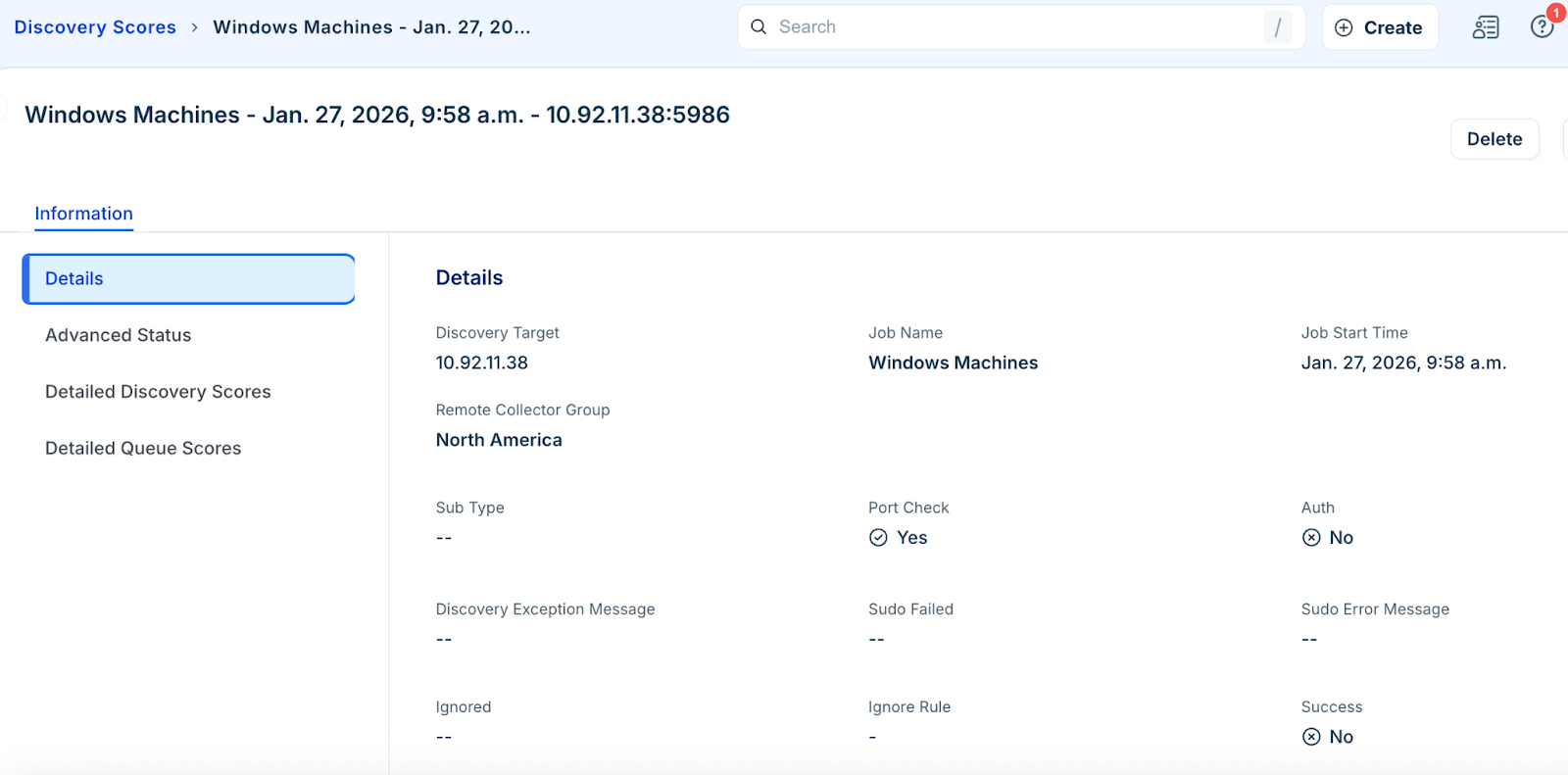
Discovery Target Details provide detailed discovery information for a single discovery target within a specific discovery job. A discovery target typically represents an IP address or resource discovered during a scan.
To access Discovery Target Details, click a discovery target from the Discovery Scores page.
You can view the following sections to view extended diagnostic information:
Use this information to troubleshoot discovery issues and improve overall discovery success.
Task 4: Schedule Discovery Jobs
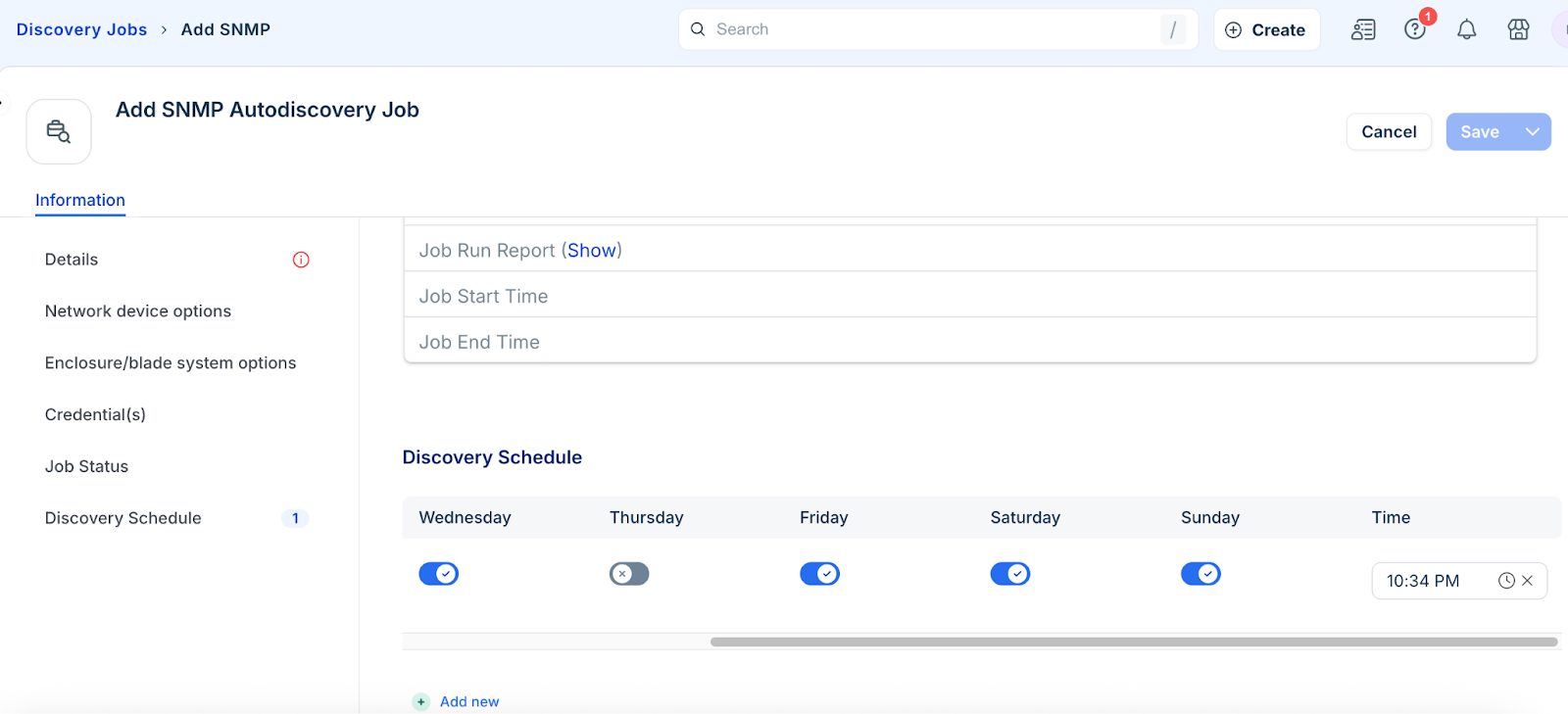
After you validate that a discovery job runs successfully, schedule it to run automatically. Automating discovery prevents asset data from becoming outdated and ensures continuous visibility.
1. Go to the specific discovery job type such as Discovery Hub > Scand and Discovery > Discovery Jobs > SNMP.
2. Click Job Name and then click Edit.
3. In the Discovery Schedule section, click Add new.
4. Specify the schedule you want and click Save.
Note: We recommend that you do not run all discovery scans at the same time.
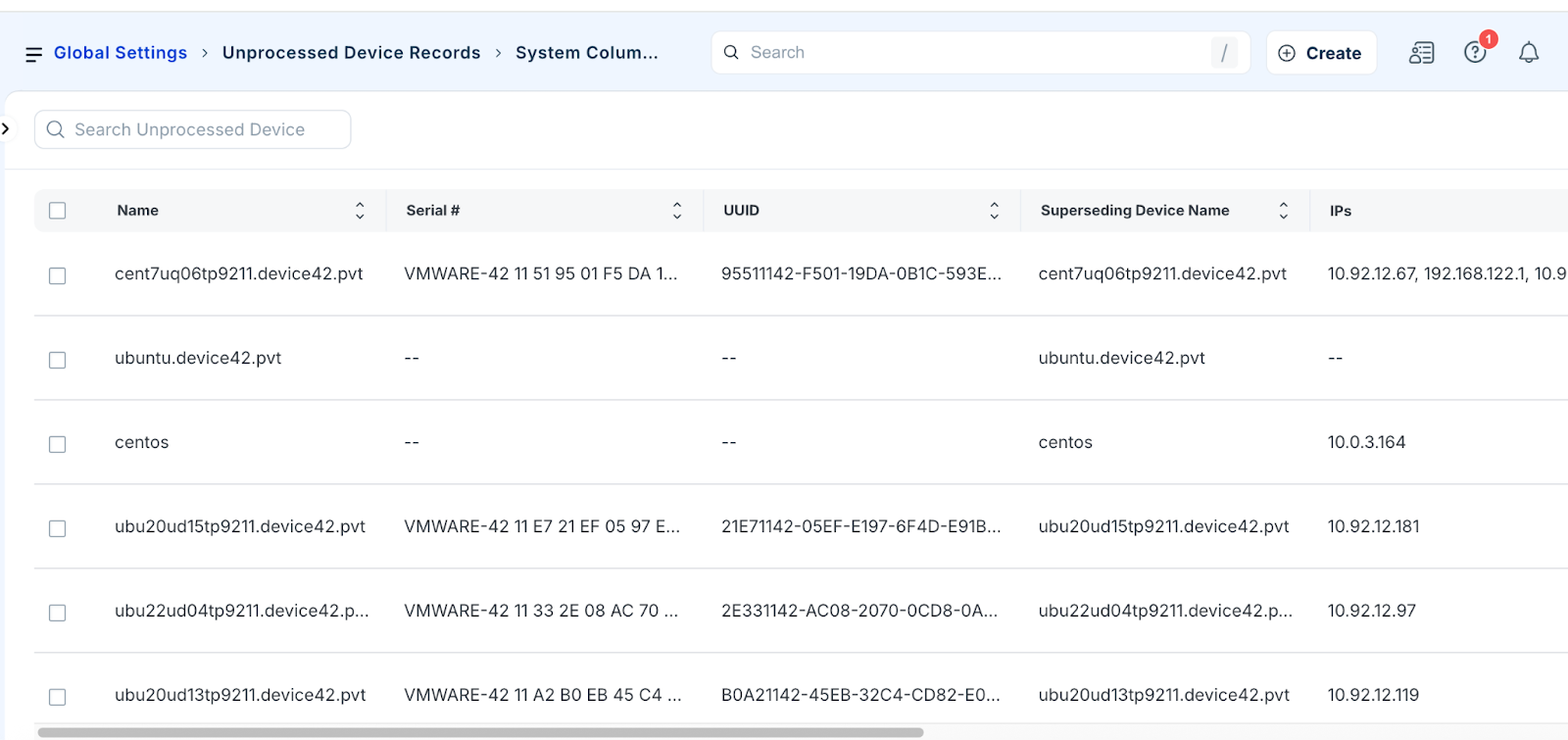
Discovery and Unprocessed Device Records
Unprocessed Device Records represent discovered devices that the system could not confidently match to an existing device record. This situation commonly occurs when you use Moderate or Conservative device matching levels.
At these levels, the system evaluates multiple attributes such as hostname, IP address, MAC address, serial number, and UUID and calculates a combined matching score. If the score does not meet the required threshold, the system does not merge the device with an existing record. Instead, it classifies the device as Unprocessed, which requires manual review.
You can take the following actions on unprocessed records:
To view Unprocessed Device Records, go to Admin > Asset Management > Discovery Hub.
Unprocessed Device Records Best Practices
Follow these best practices to maintain clean and accurate data:
Refer to Unprocessed Device Recordsfor detailed information on matching levels, Enhanced Device Matching, and related configurations.
Post Discovery Data Management
Maintaining a clean database requires ongoing management of hardware types and specialized software modules.
Software License Management (SLM)
If you have the SLM module, you can include software discovery in HyperVisors / \nix / Windows jobs by checking the Discover Software box. This applies to platforms including \nix, Classic WinRM, IBM i/AS400, IBM z/OS, and SCCM. This feature is applicable to Pro or enterprise plans.
Handling Unknown Device Types
All non virtual devices are initially assigned the Unknown device type because the system has not yet been told which hardware type they belong to.
Discovery Job best practices
Follow these best practices to ensure your discovery jobs run efficiently, securely, and consistently while delivering accurate results.
Planning and organization
Configuration and Security
Scheduling
Discover phase checklist
The Discover phase is complete when: