Last updated: 2023-09-28
Creating a new scenario automation
Often your agents need to perform a series of actions or tasks before they can push a ticket to the next level. Scenario Automation in Freshservice let you perform a whole bunch of tasks with a single click, right from within a ticket.
For example, you could have a scenario to process returns. With just a click, you can tag the ticket as "Returns", send a notification to the "Refunds" group, and set the status of the ticket as "Processing Refund".
Note that Scenario Automations can be configured at a workspace level only. All scenario automations (both personal and shared) across workspaces that an agent has access to will be populated within the scenario automation settings.
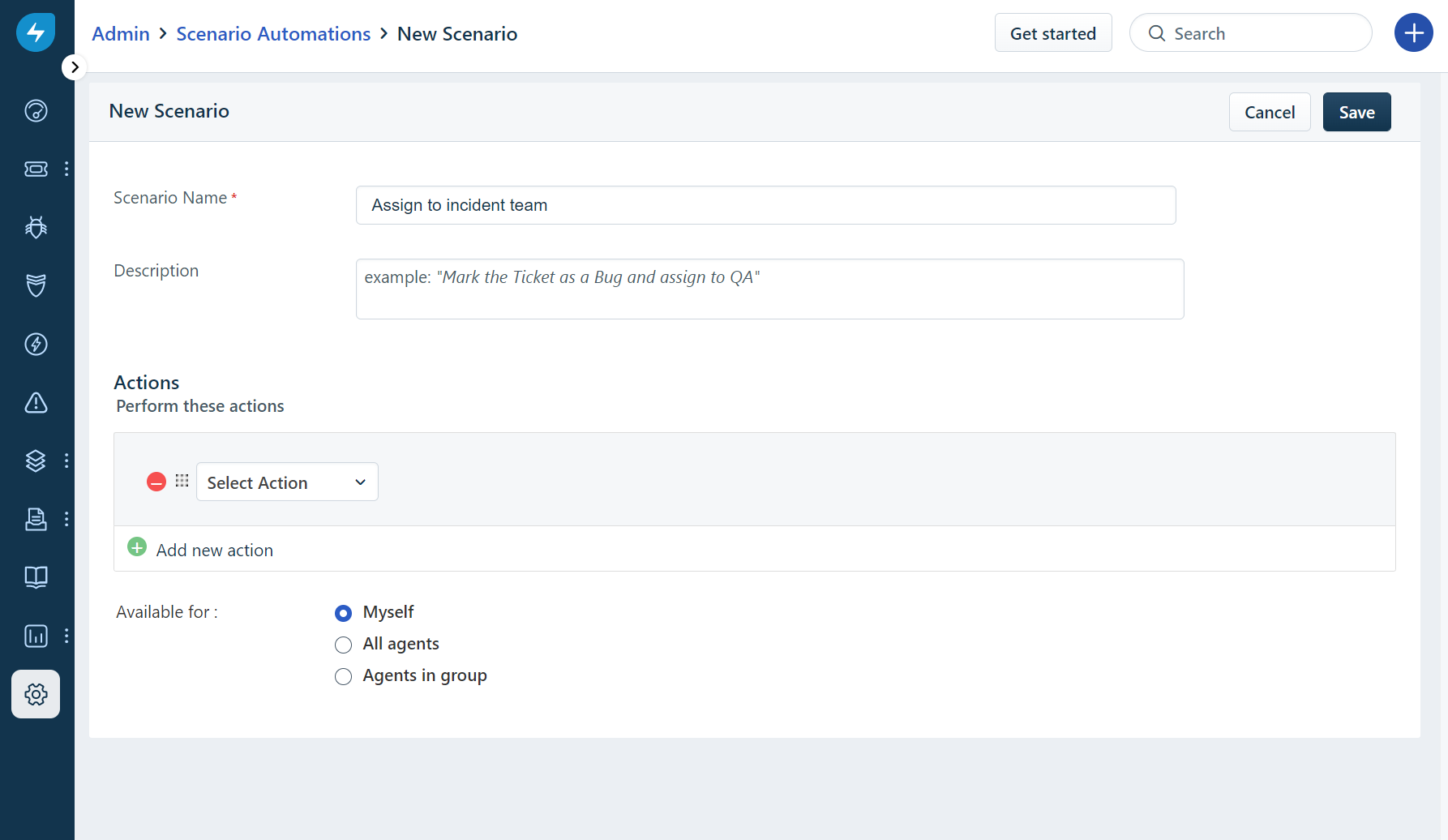
A quick guide to creating a scenario automation:
- For example, to set the ticket status to “High”, select “Set Status as” in the first drop-down list and choose “High”
- You can delete any action by clicking on the - symbol
The list of scenario automation created will be listed on the Scenario Automations page. You can also Edit an existing entry or Delete it by hovering over the option and choosing Edit or Delete.
Executing a scenario automation on your tickets
Once you have created a few scenario automations, you can use them to complete a series of tasks with a single click. Scenario Automations are available for all agents across your service desk and can be used from inside tickets.
Quick guide for automating a scenario:
