Last updated: 2024-10-08
About the integration:
Site24x7 is a website and server monitoring service that examines the availability and various performance trends of your endpoints, internet resources, servers, network resources, cloud resources, VMs, applications and more from a single console. By integrating Site 24x7 with Freshservice, you can manage all your alerts within Freshservice and create actionable incidents automatically to act upon your issues on time.
Every time an alert is generated in Site 24x7, it creates a new alert in Freshservice. On closure of the alert in Site 24x7, the same gets auto resolved in Freshservice too.
Configuration in Freshservice :
Step 1:
Head to the Admin panel, scroll down to IT Operations Management, and select Monitoring Tools.
If your account has more than one workspace, navigate to Admin > {Worskpace Name} > IT Operations Management> Monitoring Tools.

Step 2:
You are now on the Monitoring Tools list page. Select Add monitoring tool to add a new integration.

Step 3
You will see a list of pre-configured integrations, the gateway to custom integration using webhooks, and the option to use email as a channel for alerts. Select *Site 24X7.*
Step 4
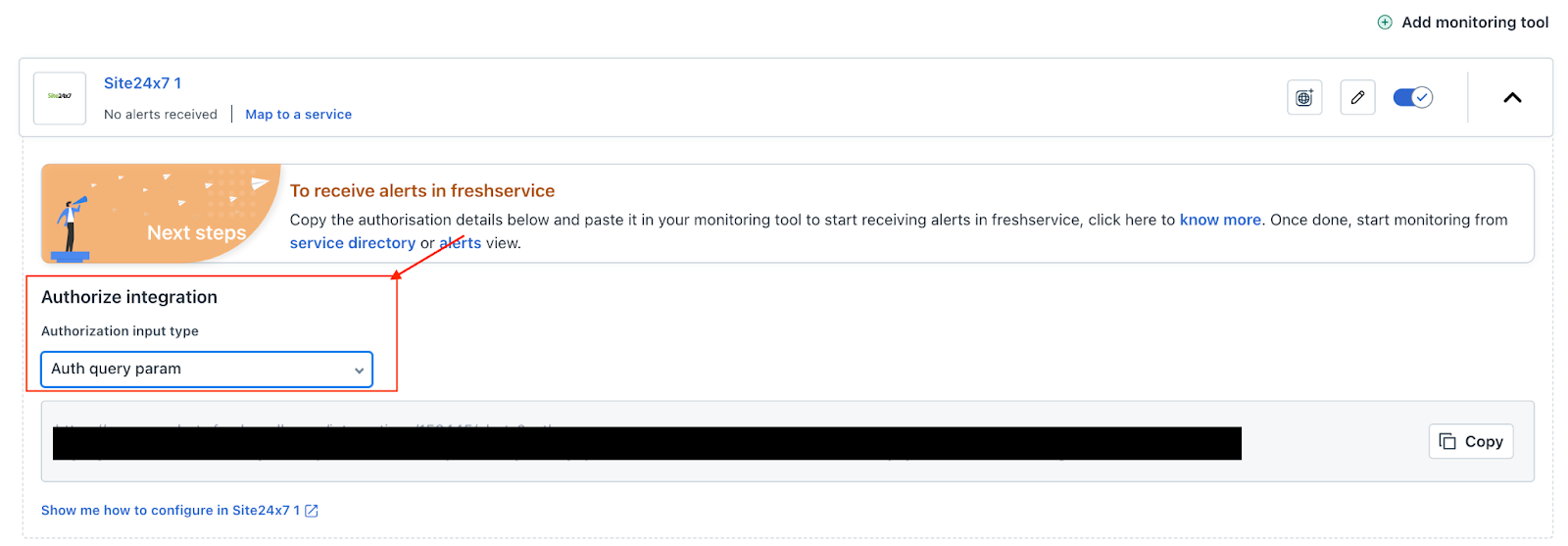
Change the Authorization Input Type to "Auth query param" and copy the URL
Configuration in Site 24x7
01. Login to your Site 24x7 account 02. Go to Admin page and select Third Party Integration 03. Click on Integrate now button in Webhooks to set up a webhook based integration 04. Give your integration and a name and paste the Auth Param URL copied from Freshservice in Step 4 in the Hook URL field
 05. Set the following fields. - Accessibility - Global - HTTP method - POST - Uncheck the option to " Send Incident Parameters" - Check the option " POST as JSON" and " Send Custom Parameters" - Copy the custom parameters and paste it in the tool 06. ```generic
```
Generic
07. Select Authentication method as Basic/NTLM 08. Give the username and password both as admin. 09. Select Integration level as All Monitors 10. Enable the options to Trigger Incidents when my monitor is in "Critical" status and Trigger Incidents when my monitor is in "Trouble" status 11. Click on Save. 12. On clicking on Save, you will find your webhook integration getting listed under Third Party Integrations. Click on Trigger Test Alert to send your alert to Freshservice.
