Last updated: 2025-11-10
This article outlines how Freshservice supports multi-language translation and provides detailed information on how translation functions across various parts of the application.
How translation works
Freshservice allows administrators and users to configure language preferences, enabling content and interfaces to be displayed in multiple languages. This feature enhances accessibility, improves communication, and ensures consistency across the platform for diverse audiences.
Key highlights of multi-language support:
Translation mechanisms across Platform areas
Freshservice provides translation support across various parts of the platform. The table below outlines how translations work in each area.
| Areas | Content type | Translation support |
| User Interface content | Standard Freshservice content visible to users | Automatically displays in the language set by the logged-in user, irrespective of the account’s language |
| Configurable long-term content | Long-lived, structured content that persists over time for example, Custom fields, dropdown values, and solution articles, and service items. | Users can manually input translations for secondary languages |
| Ticket and Interaction content | Ticket subjects, descriptions, conversations, and fields in tickets and problems, changes, or releases details | Users can click the Translate option to view content in their preferred language |
| Freddy-generated content | Conversation with virtual agent | Responses are generated in the language set at the user level |
Translation in specific areas
User interface content
User interface content includes standard Freshservice content visible to users. It is automatically displayed in the language set by the logged-in user, regardless of the account's primary or secondary language settings.
For example- If a user sets their language to Japanese, all user interface content will be displayed in Japanese.
Configurable long-term content
User-entered content refers to structured, long-lived content that is created and managed by admins or agents within Freshservice. Admins and agents with appropriate privileges can enter content in secondary languages. This includes custom fields, dropdown values, and solution articles.
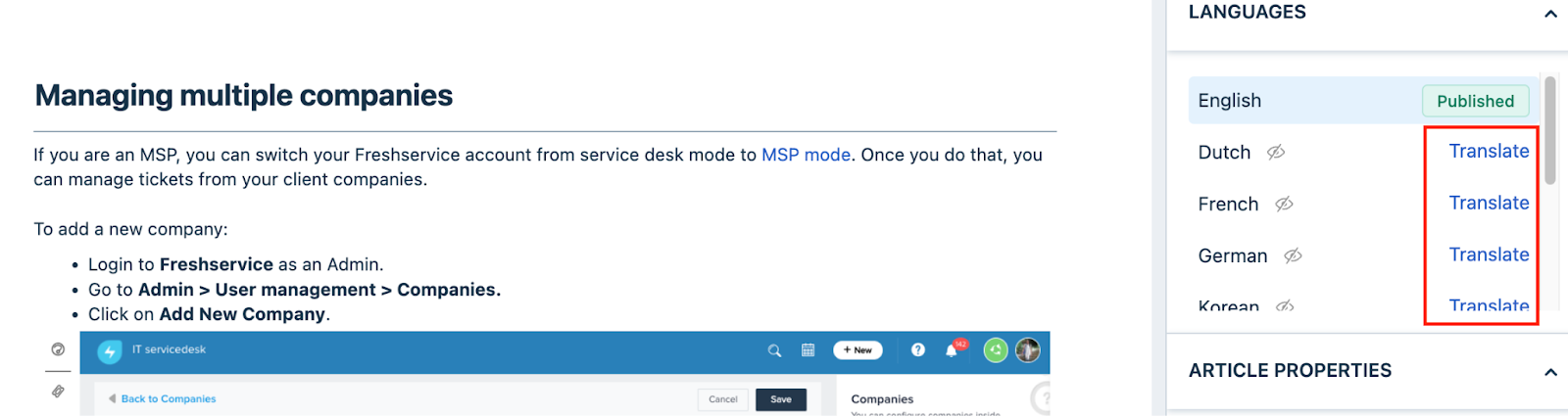
For instance, if a solution article titled "Managing Multiple Companies" is created in English, an admin or agent with privilege to set languages will have the option to create the solution article in the selected secondary languages. A Translate option will be visible beside each of your set secondary Language as shown in the following image.
Multiple language support is available for the following user-entered content:
Note: The languages must be added as secondary languages for the Service desk, so that agents can enter the required content in the respective language.
Ticket and Interaction content
Conversational content refers to messages exchanged between agents and requesters. Examples include ticket subjects, descriptions, conversations, and fields in tickets and problems, changes, or releases details. For more information, see Translate incoming tickets on the go to support your global workforce
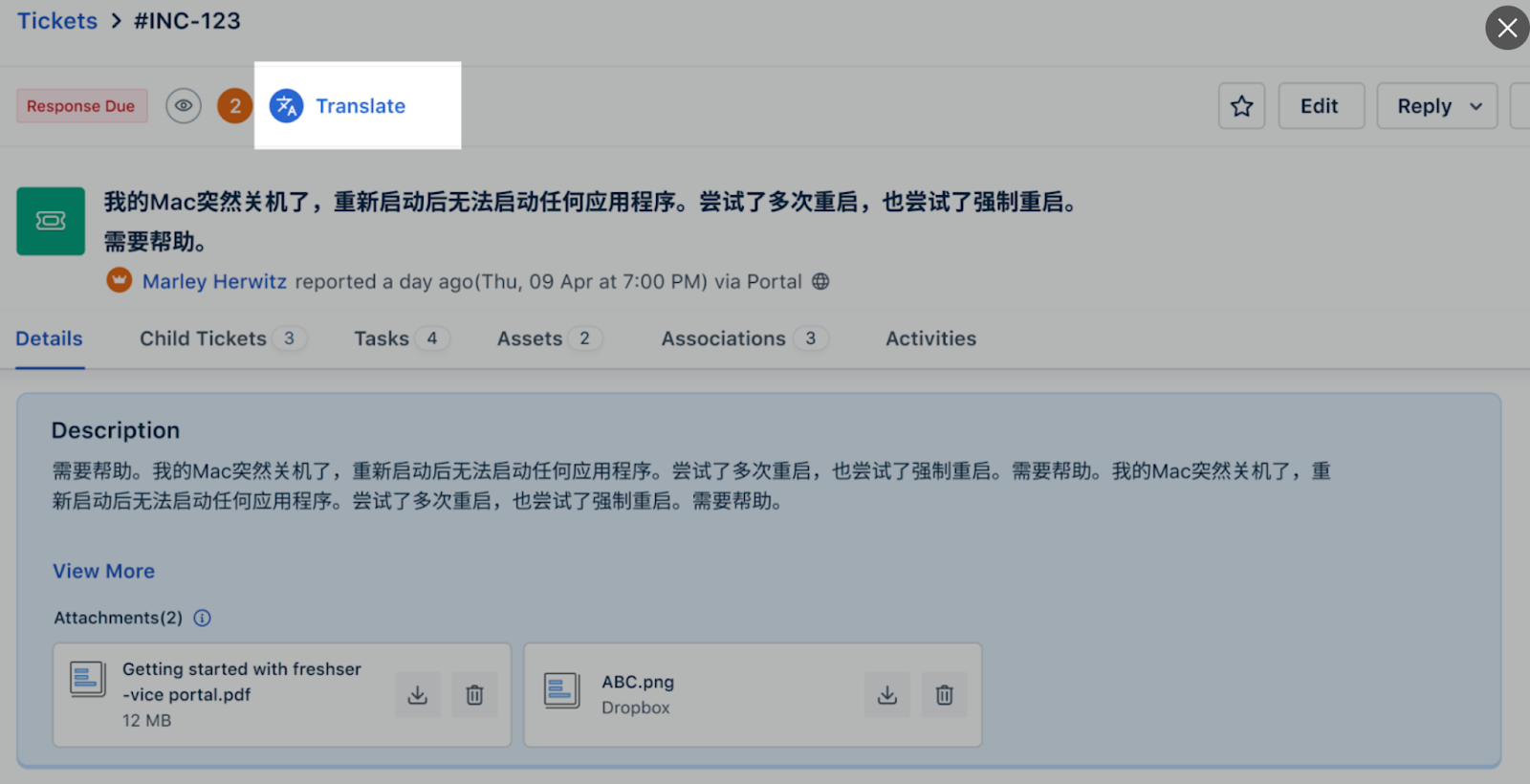
For example: If an agent working in English encounters a ticket in another language, they can click Translate to view the conversation in their preferred language.
Freddy-generated content
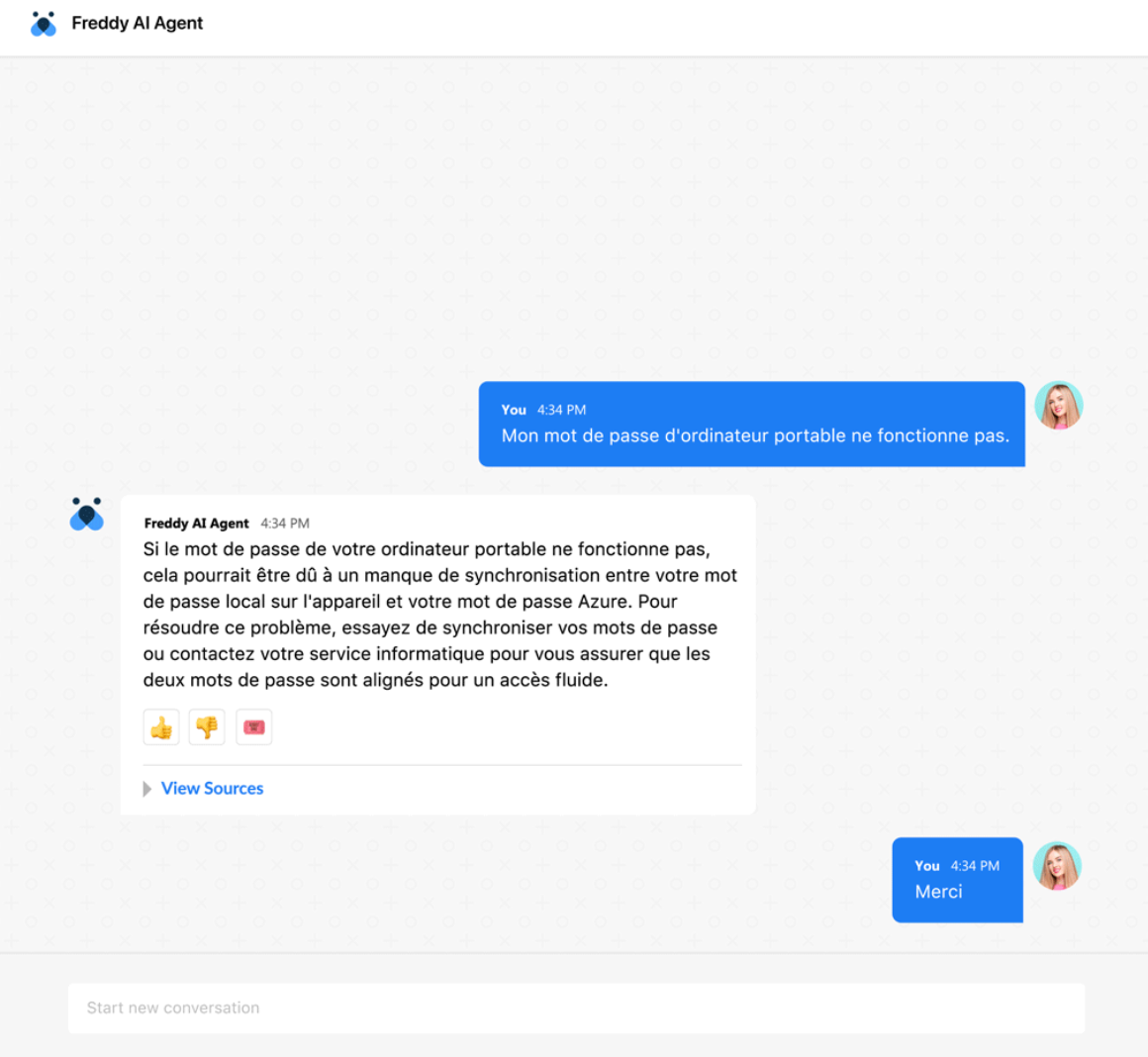
Freddy, Freshservice’s AI-powered assistant, generates responses based on user queries. These responses are generated in the language set at the user level. The following image shows an example.
Manage language preferences
Freshservice allows language preferences to be configured at two levels:
Account level
The account level settings in Freshservice allow administrators to define the default language preferences for the entire service desk.
The following types of language settings are available.
| Language settings | Description |
| Primary Language | The primary language selected for the service desk will be the default language for newly created users. All configurations like solution articles, fields will be in the primary language. |
| Secondary Language | You can also select secondary languages, which are available for users to input translated content. These languages are used for specific content entries that can be displayed to users in their respective languages. |
For more details, see List of Languages Supported in Freshservice.
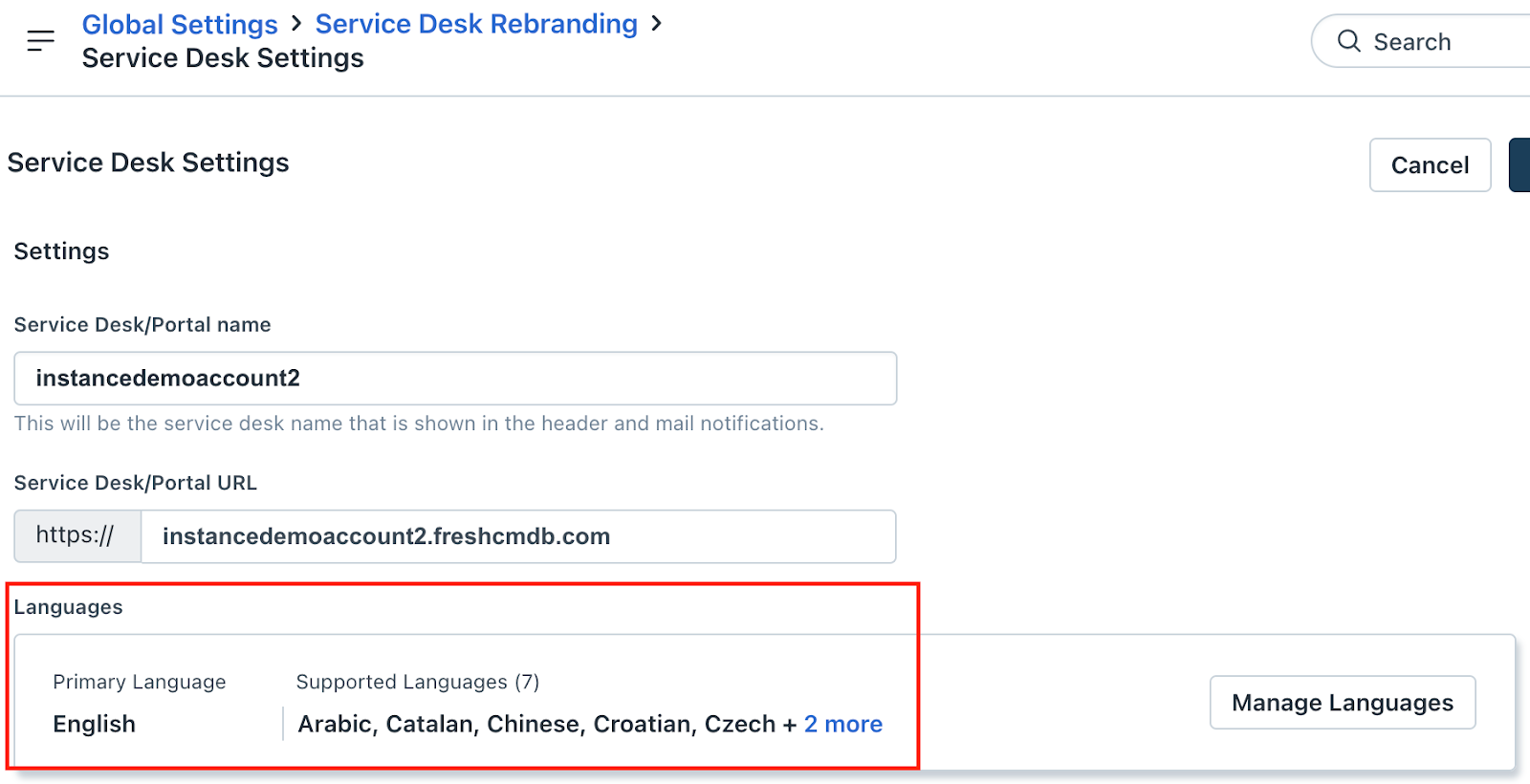
At the account level, you can define the default language for your service desk:
1. Go to Admin. The Global settings page appears.
2. If your account has multiple workspaces, go to Global Settings > Account Settings > Service Desk Rebranding > Service Desk Settings.
3. Click Manage Language.
4. In the Set Primary Language section, download the translation file and add translations for your supported languages.
5. Upload the translated file to the appropriate language.
6. Click Save.
Note: The language set at the account level is determined by the language preference chosen when the customer first created the trial account.
User level
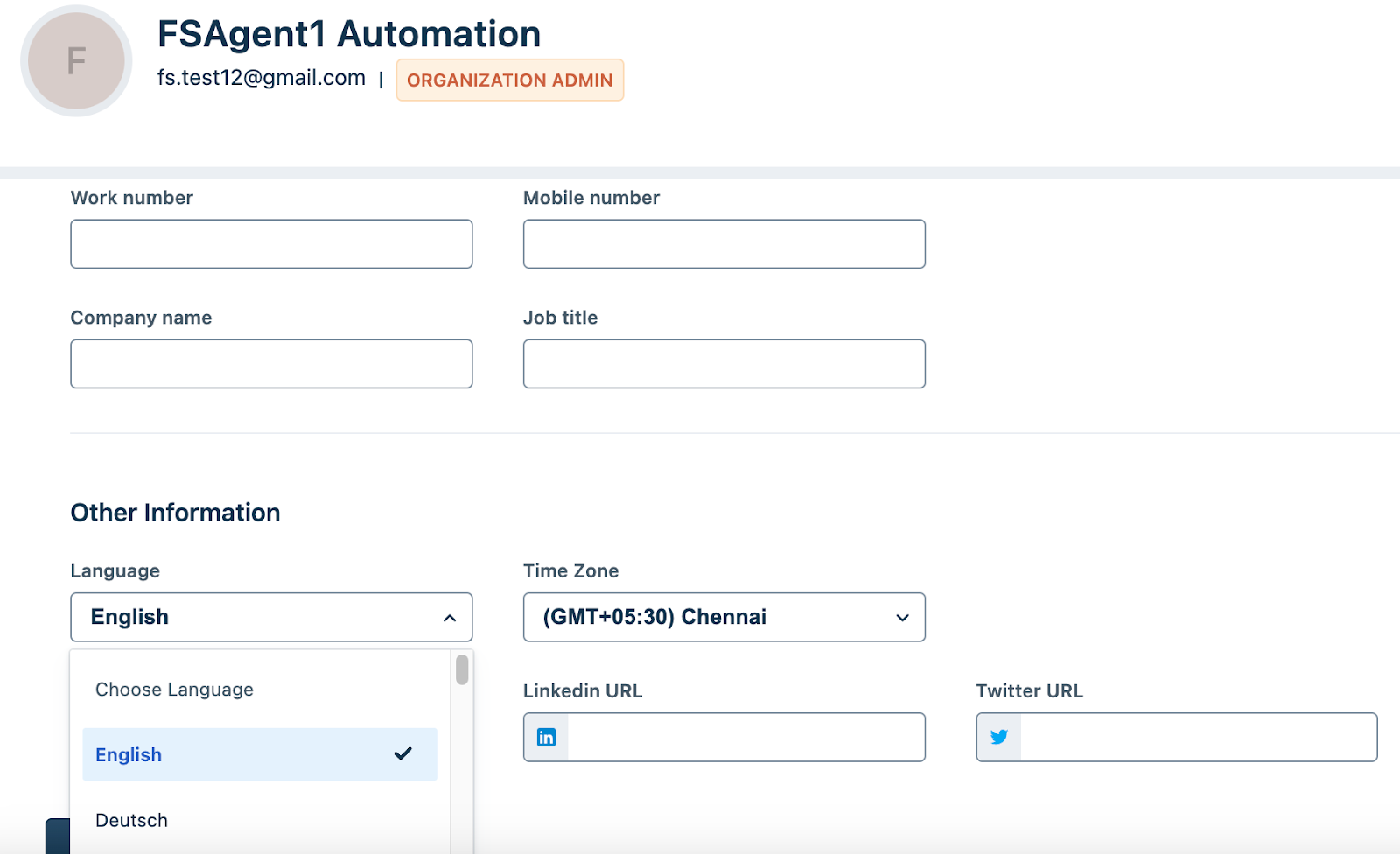
Users can set their language preferences at the user level, which will override the account's primary language. This allows users to interact with the platform in their preferred language, regardless of the default language set by the organization.
Note: