Last updated: 2026-04-10
``` Effective May 14, 2026, Conversational Insights is Generally Available (GA) for all customers on the Freshservice Enterprise Plan. ```
Conversational Insights transforms how you interact with Freshservice to get the most relevant service desk insights. Instead of building reports manually, you can now get instant insights by simply asking questions in simple English. This powerful tool acts as your personal data analyst, creating insightful charts and reports on demand, anytime.
Learn how Conversational Insights works
Conversational Insights is a feature that empowers you to explore your service desk data through simple text prompts or commands. Ask questions in your own words, and Freddy AI will instantly generate relevant charts and visualizations. With multi-turn support, you can ask follow-up questions to drill down deeper into your data. You can also add any chart to your Freshservice Analytics reports with a single click, making it easier than ever to build comprehensive dashboards.
Key Benefits:
Enable Conversational Insights
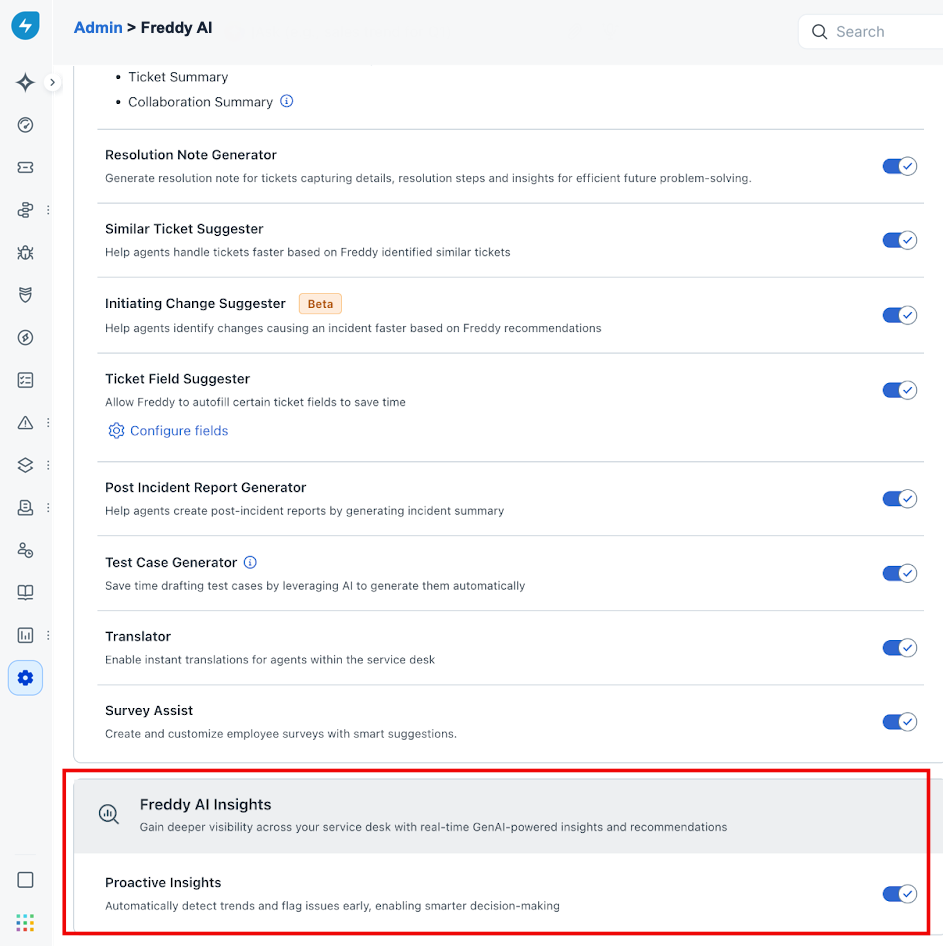
Conversational Insights is available as a part of the Freddy AI Insights feature and becomes accessible when Freddy AI Insights is enabled. If you are a Freshservice Enterprise customer and Freddy AI Insights is not enabled for your account, perform the following steps to enable Freddy AI Insights:
1. Go to Admin in your Freshservice account.
2. Navigate to Freddy AI > Freddy > Freddy AI Insights.
3. Toggle on Proactive Insights.
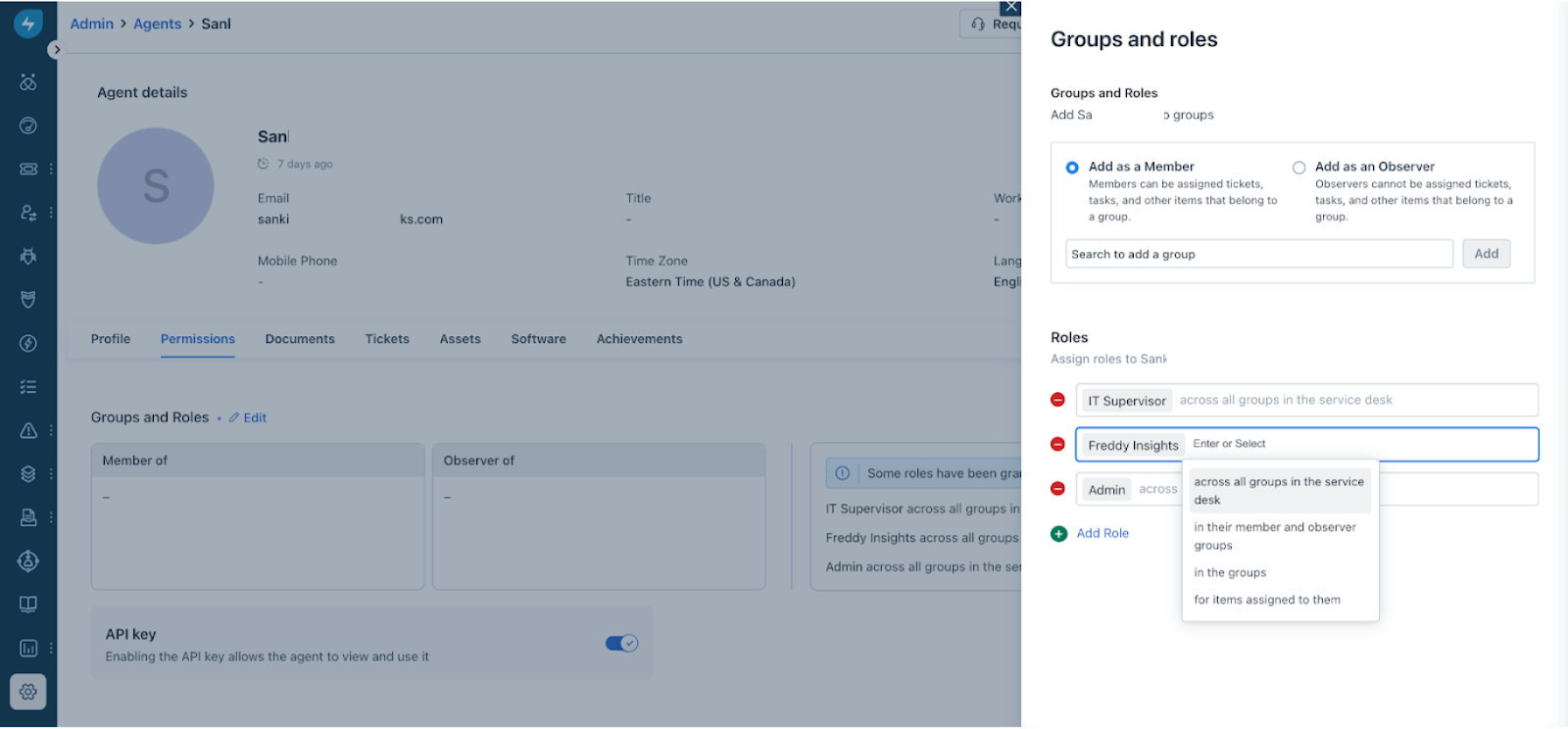
If Freddy AI Insights is enabled for your account, as an Admin, you can enable Freddy AI Insights for additional agents by following these steps:
1. Go to Admin Settings → User Management.
2. Select a user from the Agent dropdown.
3. Click Edit Permissions.
4. Under Groups and Roles, add the Freddy Insights permission.
Generate reports and charts
1. Open Freshservice and click on the Freddy Icon, right at the top of the menu. The Freddy window appears with the ProactiveInsights on the left.
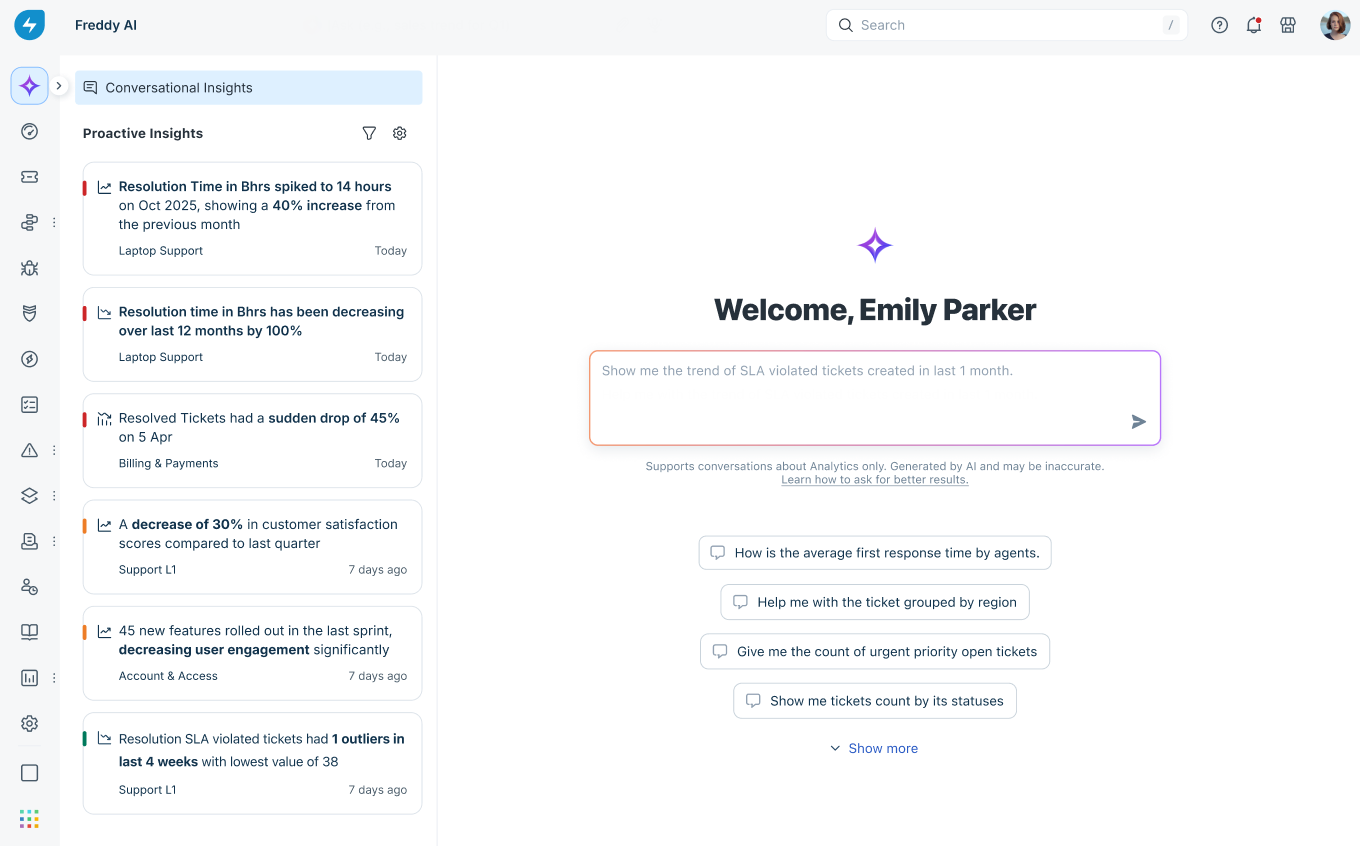
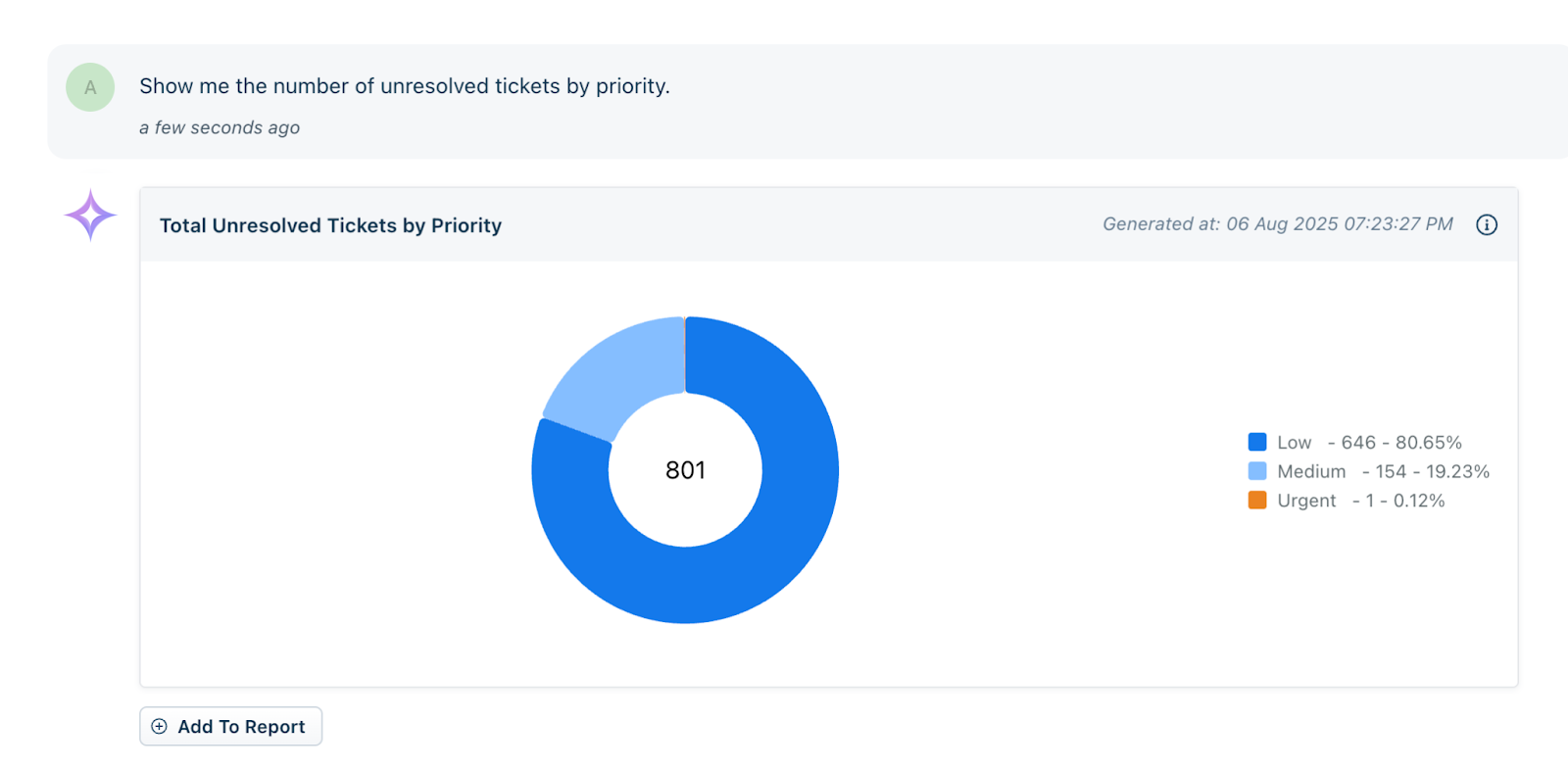
2. Type your question in the input box in natural language. For example, "Show me the number of unresolved tickets by priority." The Prompts section also has a list of predefined most-used prompts that you can use.

Conversational Insights processes your request and generates the most appropriate chart to visualize the data.
3. Ask follow-up questions. You can continue the conversation to refine your results. For example, you may ask, "Now show me this for the last 30 days."
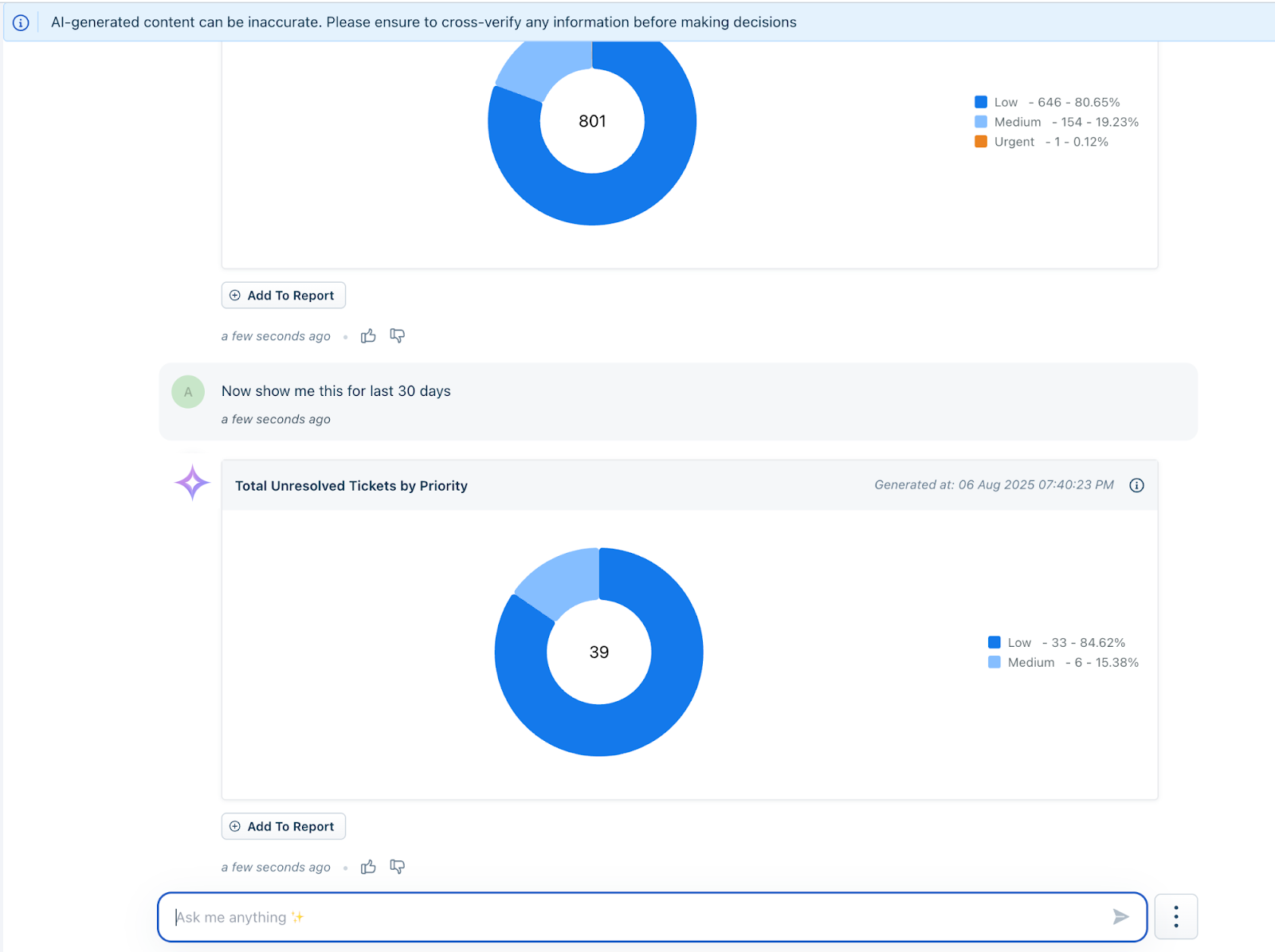
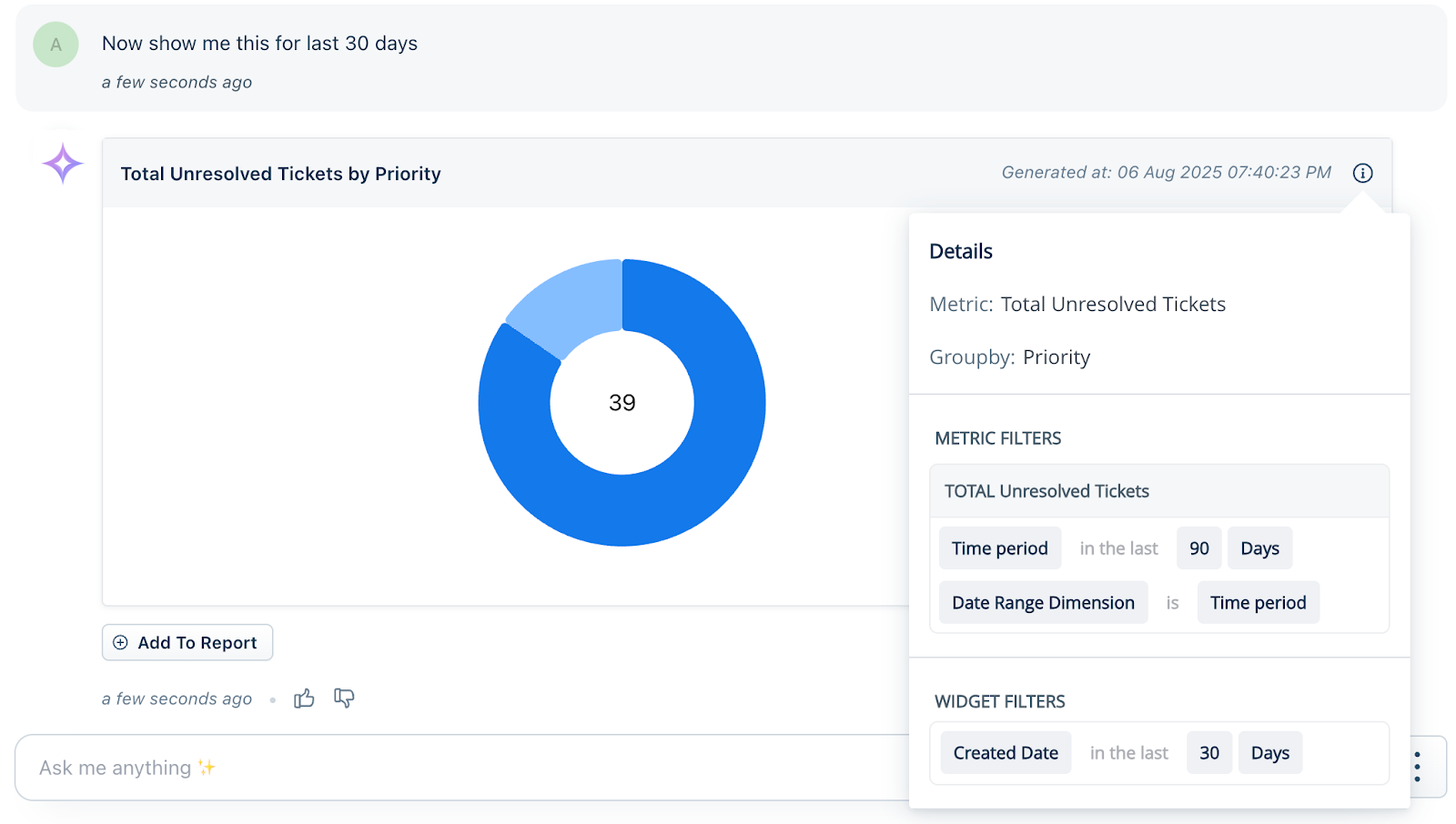
4. Click on the ‘i’ icon and get details of the query used by freddy to generate the chart.
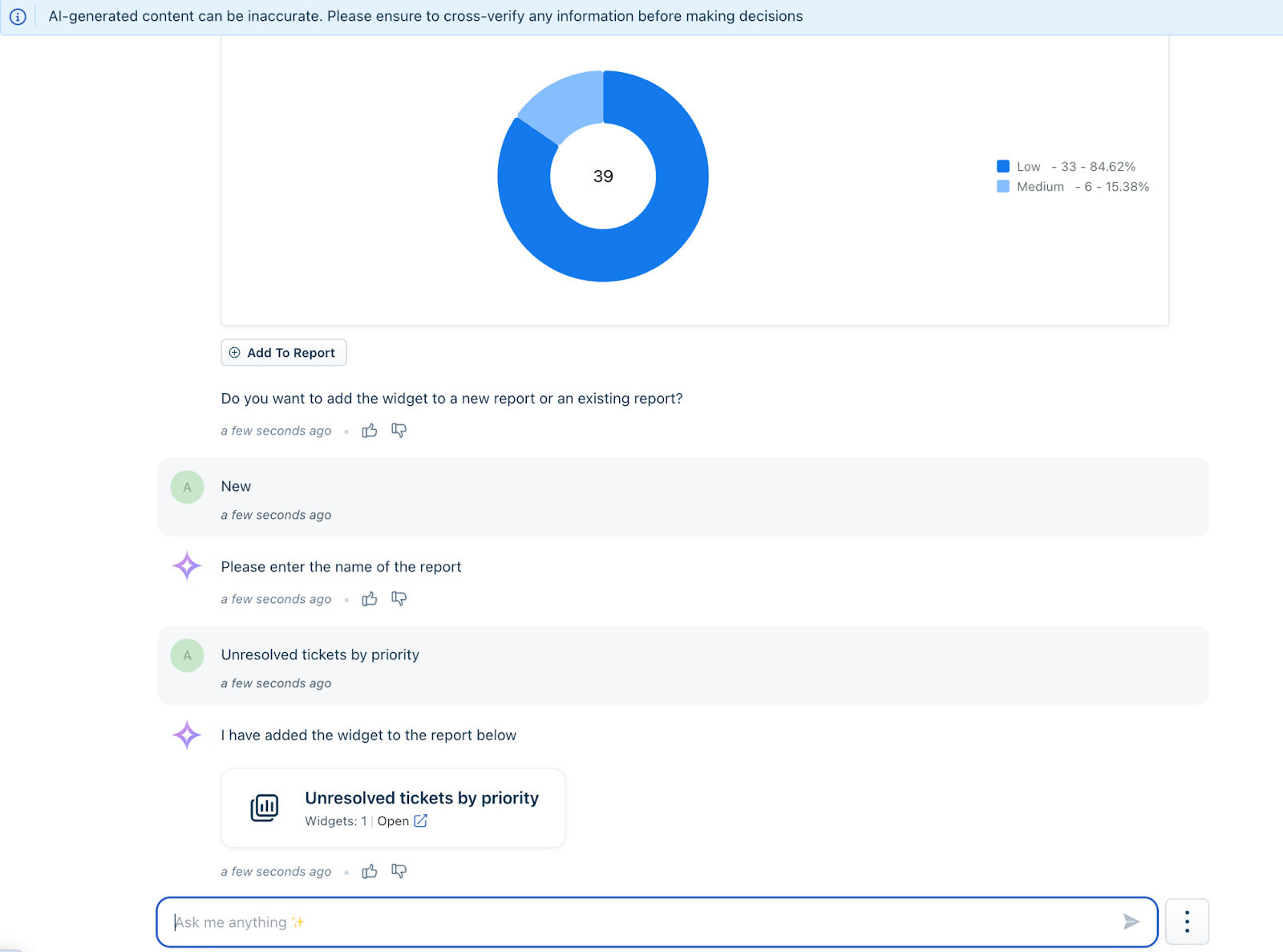
5. If you want to add this chart to your Freshservice Analytics reports, click the Add to Report button.
6. Freddy uses your conversation history as context for the next question. To start a new and independent session, select Clear Conversation to remove the previous context.
Manage usage limits
Conversational Insights comes with a service limit of 100 queries per account per month. The Service limit is a threshold that provides a benchmark to help you evaluate the service while maintaining full access to all features. To ensure our early adopters can realize the full value of the tool without friction, this limit is currently not enforced during the promotional period.
Because we are prioritizing a seamless experience at this stage, you can expect the following:
Optimize your queries for better results
For the most accurate results in Conversational Insights:
Try these example prompts
Here are a few examples of effective prompts to get you started:
Note: You can view sample tips by selecting the bulb icon shown below.
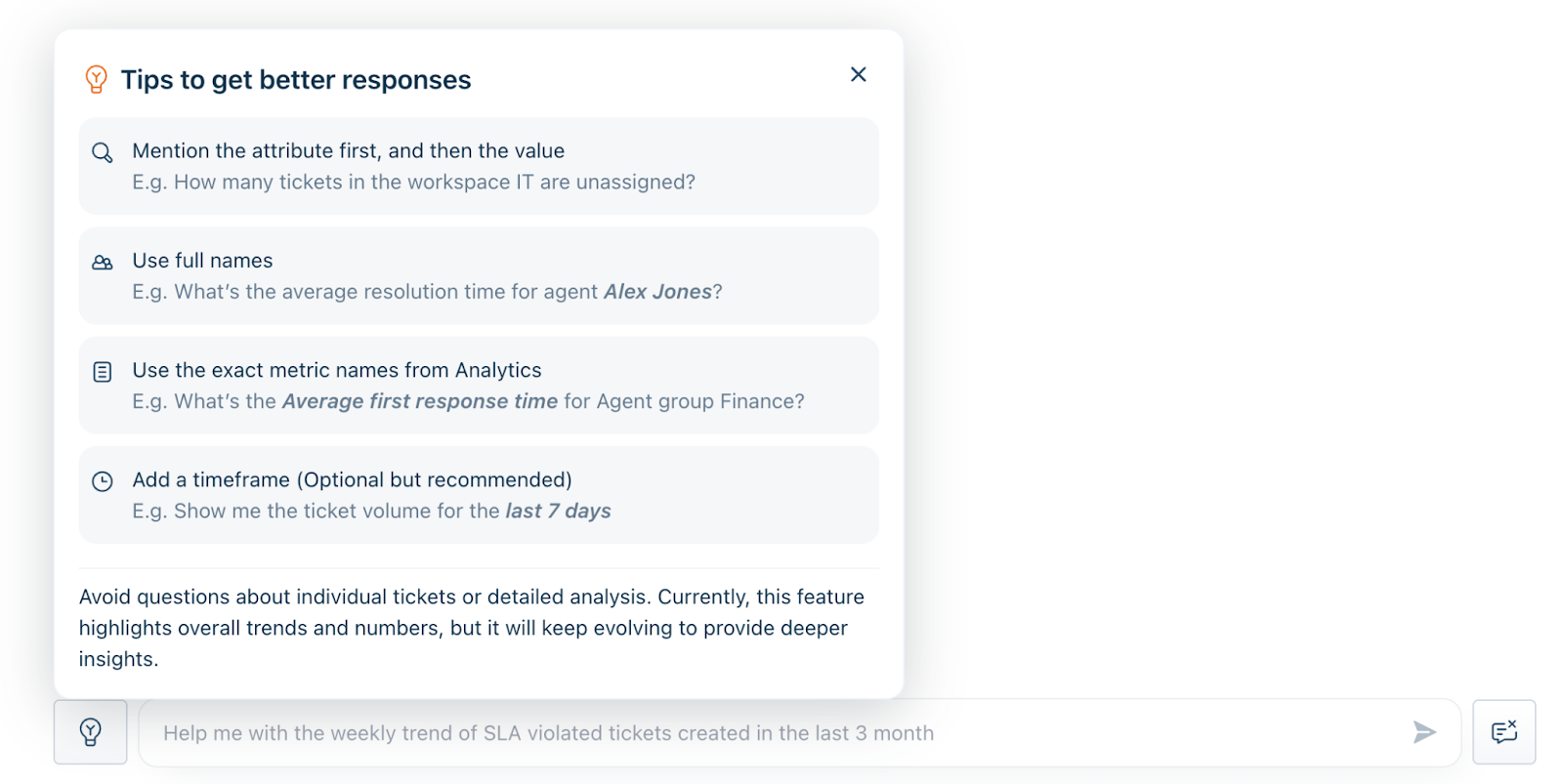
Review terms and conditions
Effective May 14, 2026, Conversational Insights is officially Generally Available (GA) for all customers on the Freshservice Enterprise Plan. Use of this feature is subject to our Service limits to ensure consistent performance and reliability for all users.
Activation Timelines
Data Accuracy & AI Usage
Related Links