Last updated: 2025-11-18
``` Note: This feature works the same across all Freshservice products. Some screenshots or articles may reflect older designs, but the functionality remains unchanged. If certain options do not appear in your account, they may not be included in your current plan. ```
``` Note: Freshworks will support the investigation of integration-related issues; however, issues originating from the third-party application are beyond Freshworks’ scope. We recommend reaching out to your account manager or the third-party provider’s support team. ```
Introduction to Connector Apps
Freshservice/FSBT Connector Apps offers an advanced approach to integration, providing a seamless connection between Freshservice and third-party applications. The Connector Apps have out-of-the-box workflows that help IT and employee service teams automate key workflows at scale.
With Freshservice/FSBT Connector App, you can:
Connector Apps can be found in the Freshservice/FSBT marketplace. From the dashboard go to Global Settings and search for Connector Apps to find the list of Connector Apps available on Freshservice/FSBT.
Connector App Categories & Use Cases
Connector Apps for Freshservice/FSBT are available across the following categories catering to specific use cases mentioned below.
| Categories | Use cases | Apps Available |
| HCM | User Sync<br>Employee onboarding<br>Employee offboarding | Workday<br>BambooHR<br>UKG<br>ADP<br>Workable<br>Personio<br>HiBob<br>Paylocity |
| ITSM Solutions | Ticket Sync | ServiceNow<br>ManageEngine ServiceDesk Plus |
| DevOps | Change management<br>Development Intake Process | Azure DevOps<br>GitHub<br>Jira |
| Project Management | Project-ticket sync | Smartsheet<br>Monday.com |
Connector App Components
Connector Apps have pre-built recipes with multiple components, allowing users to customize the recipe to suit their specific requirements. This section will look into each of these in detail.
What is a Connection?
Every Connector App requires a connection to be established before the user can start customizing it.
Connections are established via APIs using OAuth2.0, OAuth1.0, API Key etc. Each app requires a two-step authentication, Freshservice/FSBT authentication followed by the app specific authentication to establish the necessary connection.
What are Recipes?
Workflows inside Connector Apps are called Recipes. They automate business processes like onboarding and offboarding. Recipes constitute a set of components that will help you customize the workflow according to your requirements.
Click here for more details on how to set up and configure recipes.
Every Recipe consists of the following three components:
Triggers
Each recipe starts running based on triggers. Triggers are conditions or events that happen on the third-party app, based on which a particular recipe starts running. The editor allows you to access several pre-built triggers, and choose from available types of triggers to customize the recipe.
Example: A recipe can be triggered whenever a new hire is added to the HCM system
Condition
The condition acts as a checkpoint within the recipe flow and executes a specific set of actions based on the condition matched.
Example: The recipe checks if a particular ticket associated with a project on the project management tool already has a ticket mapped to it on Freshservice/FSBT
Action
Actions carry out a specific operation in the target app based on the trigger and conditions fulfilled as a part of the recipe. These operations include Create, Update, Search, and many others. Actions may also be in the form of If-else, repeat loops or stop statements.
Example: The recipe can create an offboarding request in Freshservice/FSBT as the final action
Widget
Most of the Connector Apps come equipped with a widget that can be accessed on the ticket details page. The user can choose what fields to be showcased in the widget as per their requirement from the available set of fields. The user can keep the widget or turn it off.
The Widget settings can be accessed from the recipe overview page.
Tasks and Jobs
What is a Task?
Connector Apps recipes consume a specific set of tasks to complete the execution. A task is a unit of work whenever the recipe performs an action.
Example -
Monitoring Tasks
Connector Apps are billed based on ‘Task’ consumption. For an app-level usage view, this can be reviewed in the Overview section of individual apps. This can be reviewed in the Connector App dashboard section for a global account-level view.
What is a Job?
A job is the full execution of the recipe, which can include multiple tasks.
Monitoring Jobs
The job listing page showcases all the jobs executed as part of the recipe. You can apply a filter to check the failed jobs and debug them.
Clicking on individual failed jobs will open a window that showcases the steps and reasons for the errors.
Billing and Auto-recharge
Connector Apps tasks can be purchased as add-ons from the billing section of the dashboard.
Connector App Tasks Add-On
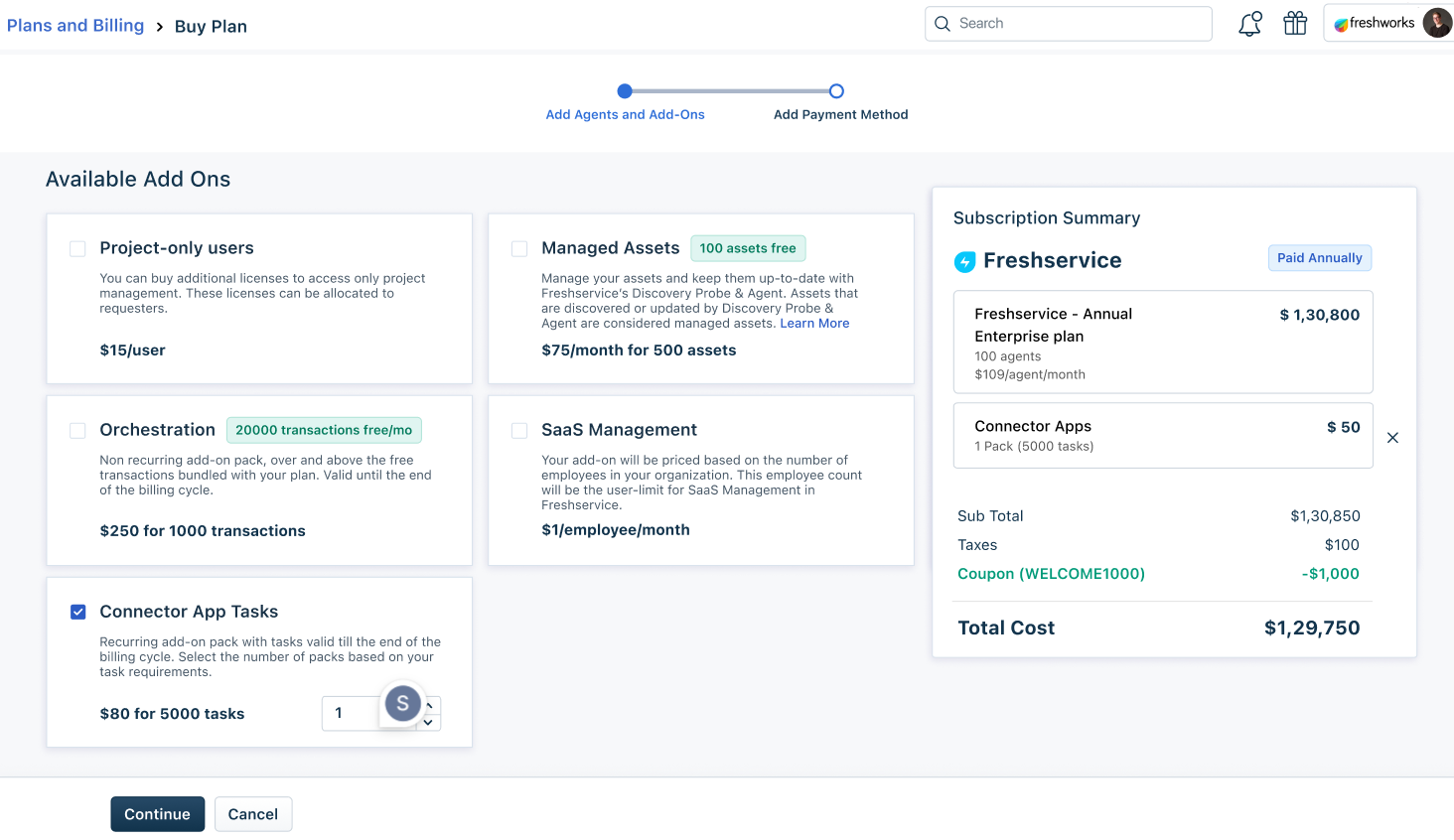
To use Connector Apps, you will require Tasks. You can get started with a one-time free credit of 500 tasks. However, if you need additional tasks, you will need to purchase these tasks. They are available as an add-on and priced at $80 for 5k tasks valid till your billing cycle. You can purchase multiple packs of 5k tasks and these will be recurring with your billing cycle.
_Table 1: Connector App Tasks Add-On Pricing Across Currencies_
| USD | EUR | GBP | AUD | INR |
| $80 | €80 | £65 | AU$120 | ₹6,640 |
How to Purchase Connector App Tasks
1\. Login using your Freshservice/FSBT credentials
2\. Navigate to the Admin Settings and search for _Connector Apps_ in the search bar.
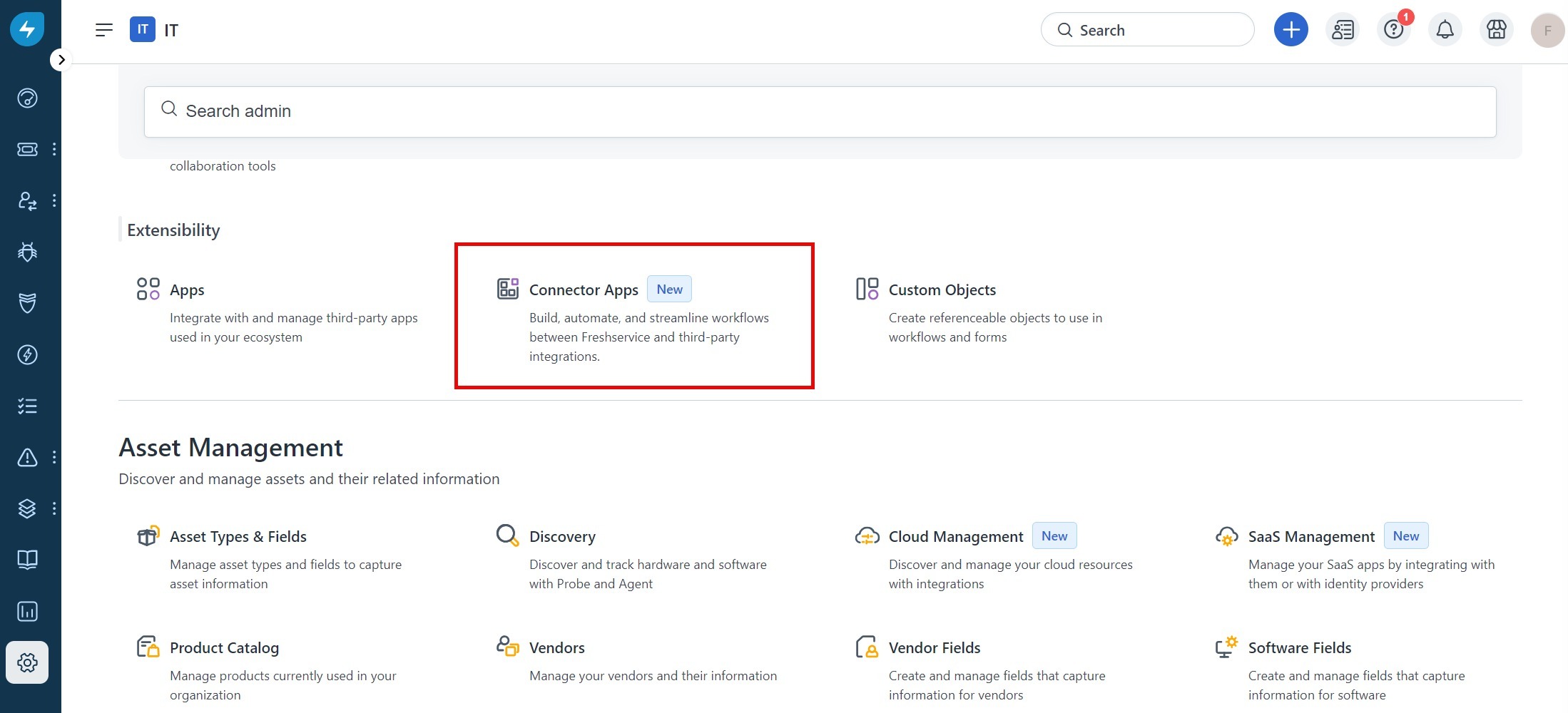
3\. Click Connector Apps. The Connector Apps dashboard will be displayed.
4\. Click Purchase Tasks button on the top-right corner of your account. You will be redirected to the Plans and Billing section of your Freshservice/FSBT account.
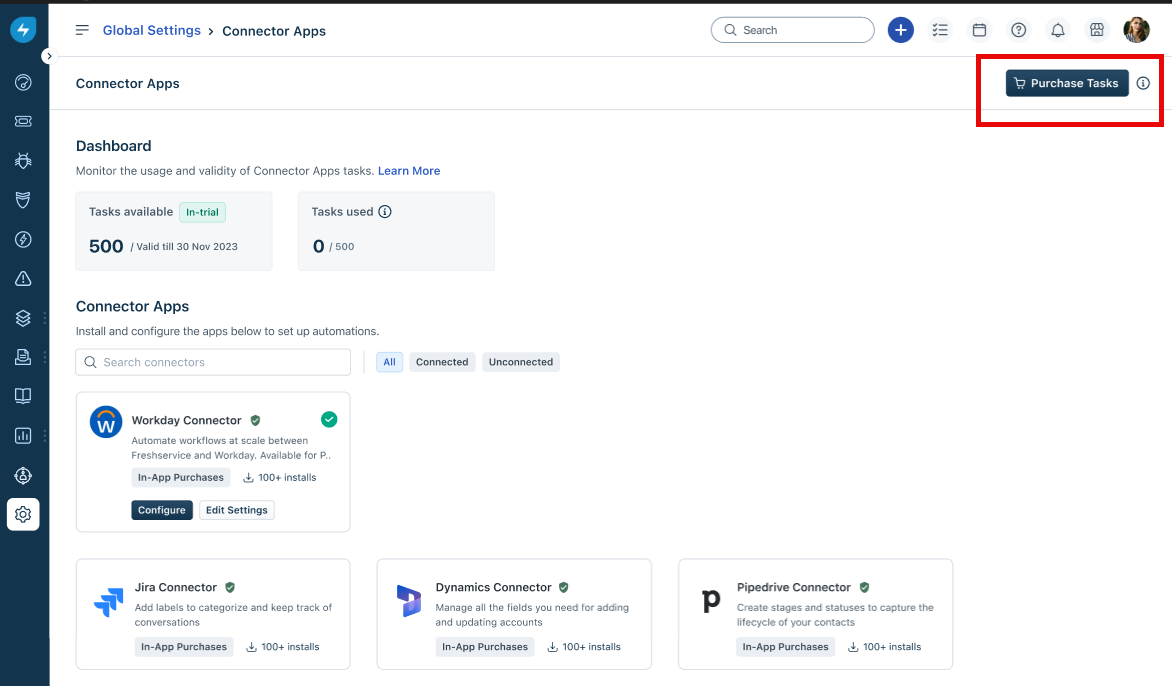
5\. Under the Available Add-Ons section, hover over Connector App Tasks, select the number of packs you want.
6\. Click Continue to proceed with your billing process.
How to enable Auto-recharge for Connector App Tasks
You can enable auto-recharge to avoid running out of tasks while the jobs are being executed.
You can limit the number of packs that can be auto recharged in a day and a month. By default, the number of tasks will be limited to 4 packs per day an 15 packs per month.
If you are on an online billing cycle, please write to <email> to get this enabled.