Last updated: 2024-10-14
This article describes how to integrate the Freshservice Support SDK (FSSupportSDK) to work with your iOS mobile applications.
The FSSupportSDK helps you add the following Freshservice support features to your mobile app:
Requirements
The FSSupportSDK has the following requirements:
The FSSupportSDK integration process involves:
Creating a new application
Note: If you have an existing application, you can skip this process and proceed with adding the FSSupportSDK.
You can create a new application for your mobile app using Xcode.
1. In Xcode, select File > New > Project.
2. Or, select Create a new Xcode project on the Welcome to Xcode window.
3. Ensure iOS is selected on the top menu bar. Select Single ViewApp, and click Next.
See the Apple developer documentation for more information.
Adding the FSSupportSDK
You can add the FSSupportSDK using one of the following ways:
Adding the FSSupportSDK using Cocoapods
pod 'FSSupportSDK'
Adding the FSSupportSDK using Swift Package Manager
See the Apple developer documentation for more information.
Initializing the FSSupportSDK
Before using any of the FSSupportSDK features, you must initialize the SDK in your application.
The initialization process involves setting up authentication information, configuring the theme, and other necessary setup tasks.
Note: Set up the authentication flow using the following link to get the necessary authentication information (such as, domain, slug, and userToken).
Initialization within AppDelegate
To initialize the FSSupportSDK, import the necessary dependencies and add the following code snippet in the ‘AppDelegate’ file of your application.
Swift:
```generic
```
Generic
Configuration options
You can use the following configurations to customize your app.
Once initialized and configured, the FSSupportSDK is ready for use within your application.
Deinitialization
The SDK must be deinitialized during your application logout or any switch-user scenarios.
Swift:
```generic
```
Generic
Adding Freshservice features to your application
The FSSupportSDK provides access to various support-related features with UIKit and SwiftUI Support.
Below are the support features and their corresponding methods for integration. By using these methods, the FSSupportSDK provides easy access to essential Freshservice support features within your app.
View Dashboard
After you have integrated the FSSupportSDK with your iOS mobile application, the SDK allows you to present a dashboard with specific support features you want to display in your mobile app.
The Dashboard provides access to the following support features:
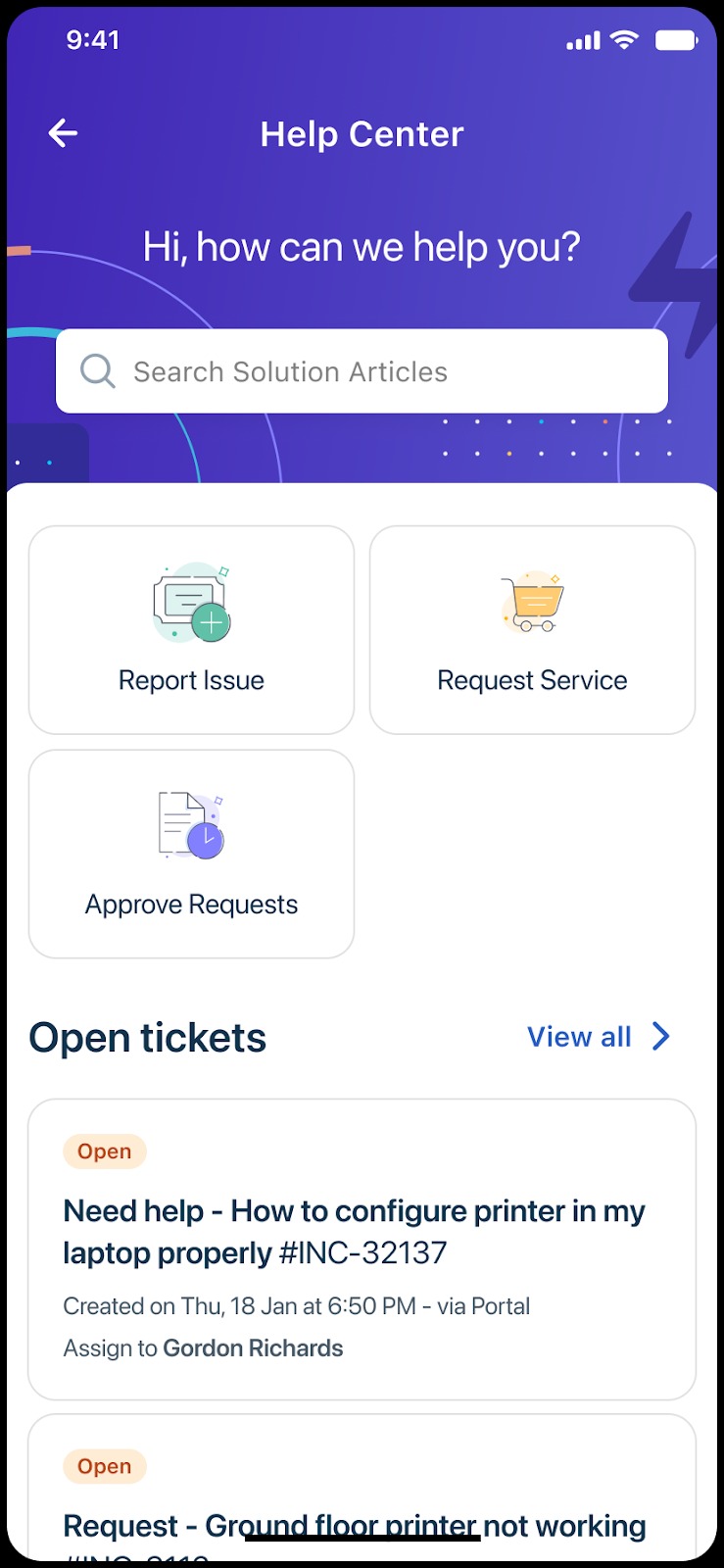
Use the following methods to integrate the Dashboard feature.
UIKit:
```generic
```
Generic
SwiftUI:
```generic
```
Generic
Supported modules
View my Tickets
The FSSupportSDK allows you to integrate the Open Tickets feature in your mobile app, which displays the list of tickets raised by a requester/user. This integration helps requesters access their open tickets directly and eliminates the need to access the Dashboard.

Use the following methods to integrate the Open Tickets feature.
UIKit:
```generic
```
Generic
SwiftUI:
```generic
```
Generic
Raise an Issue
The FSSupportSDK allows you to integrate the Raise an Issue feature in your mobile app, which allows requesters to report a new issue or submit a support request. This integration helps requesters raise an issue directly and eliminates the need to access the Dashboard.

Use the following methods to integrate the Raise an Issue feature.
UIKit:
```generic
```
Generic
SwiftUI:
```generic
```
Generic
Request a Service
The FSSupportSDK allows you to integrate the Request a Service feature in your mobile app, which allows requesters to initiate a service request. This integration helps requesters initiate a service request directly and eliminates the need to access the Dashboard.

Use the following methods to integrate the Request a Service feature.
UIKit:
```generic
```
Generic
SwiftUI:
```generic
```
Generic
View Approval Requests
The FSSupportSDK allows you to integrate the View Approval Requests feature in your mobile app, which allows users to view and manage approval requests. This integration helps users manage approval requests directly and eliminates the need to access the Dashboard.

Use the following methods to integrate the View Approval Requests feature.
UIKit:
```generic
```
Generic
SwiftUI:
```generic
```
Generic