Last updated: 2025-06-18
Switching from Basic to Advanced ITAM can be done through the discovery hub. Use the discovery hub to set up Device42 in a guided step-by-step manner. Before setting up, if you wish to understand the difference between Basic and Advanced ITAM, click Compare Basic and Advanced.
The Device42 setup involves 4 major steps. Learn more here.
1. Setting up the Device42 Appliance: Select and download the Device42 Main Appliance (MA). The Device42 MA includes configuration of default passwords, network address, and NTP client; and updating the time zone.
2. Get License: Download and apply the trial license key
3. Deploy Remote Collectors: The Remote Collector extends the discovery capabilities across your global environment, such as the configuration of network interface, NTP settings, connection to Device42 MA, and more.
4. Install the Device42 app: Enter relevant details in the Freshservice Domain Name, Cloud Connector, and Verification Token boxes. Select a default approver from the Freshservice Default Approver dropdown and complete the installation process. When this is complete, Freshservice is notified of your transition from the basic to the advanced version of asset management.
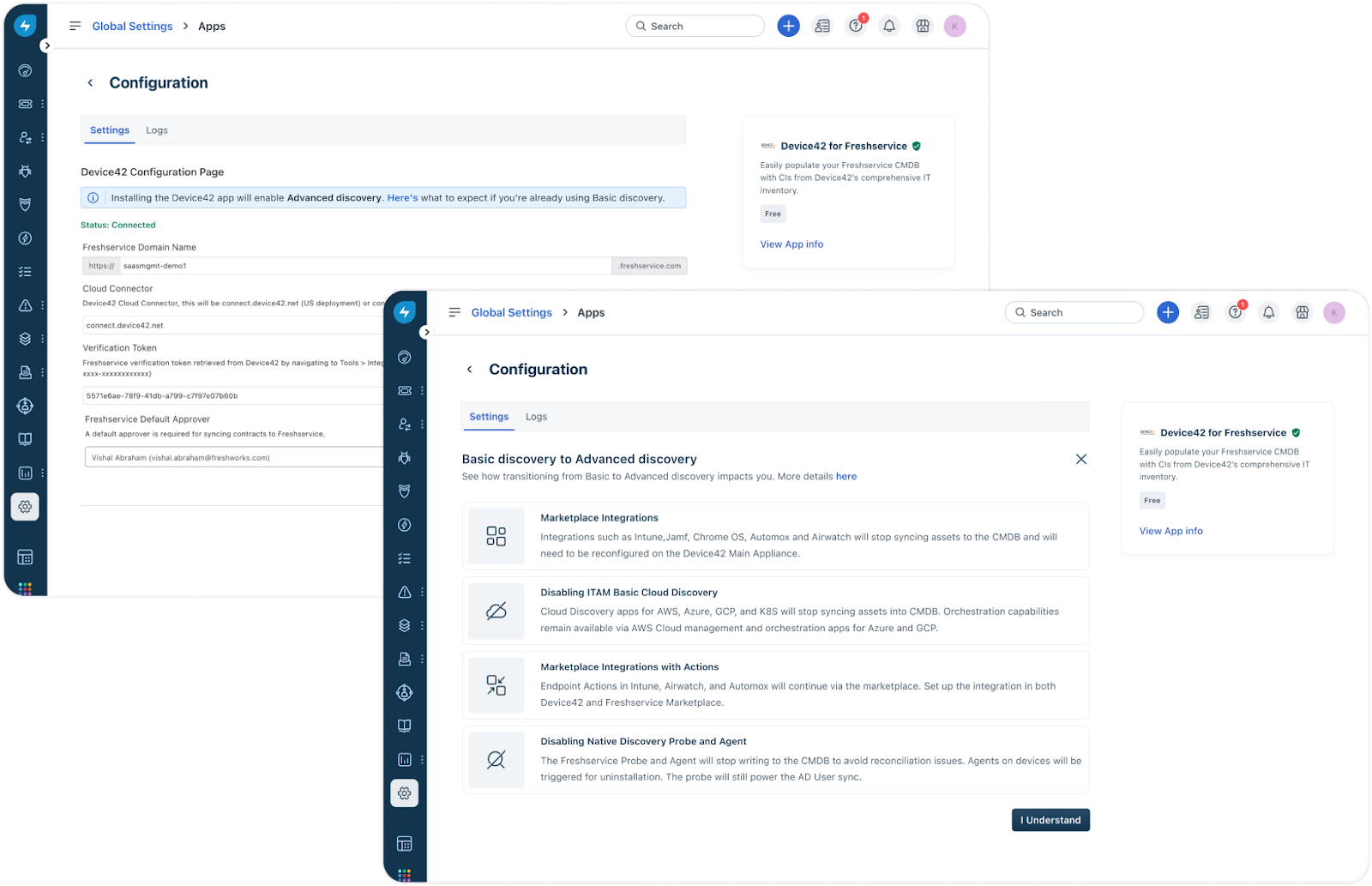
What happens to basic discovery when moving from Basic to Advanced discovery?
Once your account transitions from basic to advanced discovery, your existing basic discovery configuration will cease writing into the CMDB to prevent reconciliation issues. The D42 integration will take over discovery. When transitioning to advanced discovery, your native discovery applications, cloud assets, and integrations will be impacted. Here’s a list of impacts and how you can fix them to ensure there are no disruptions:
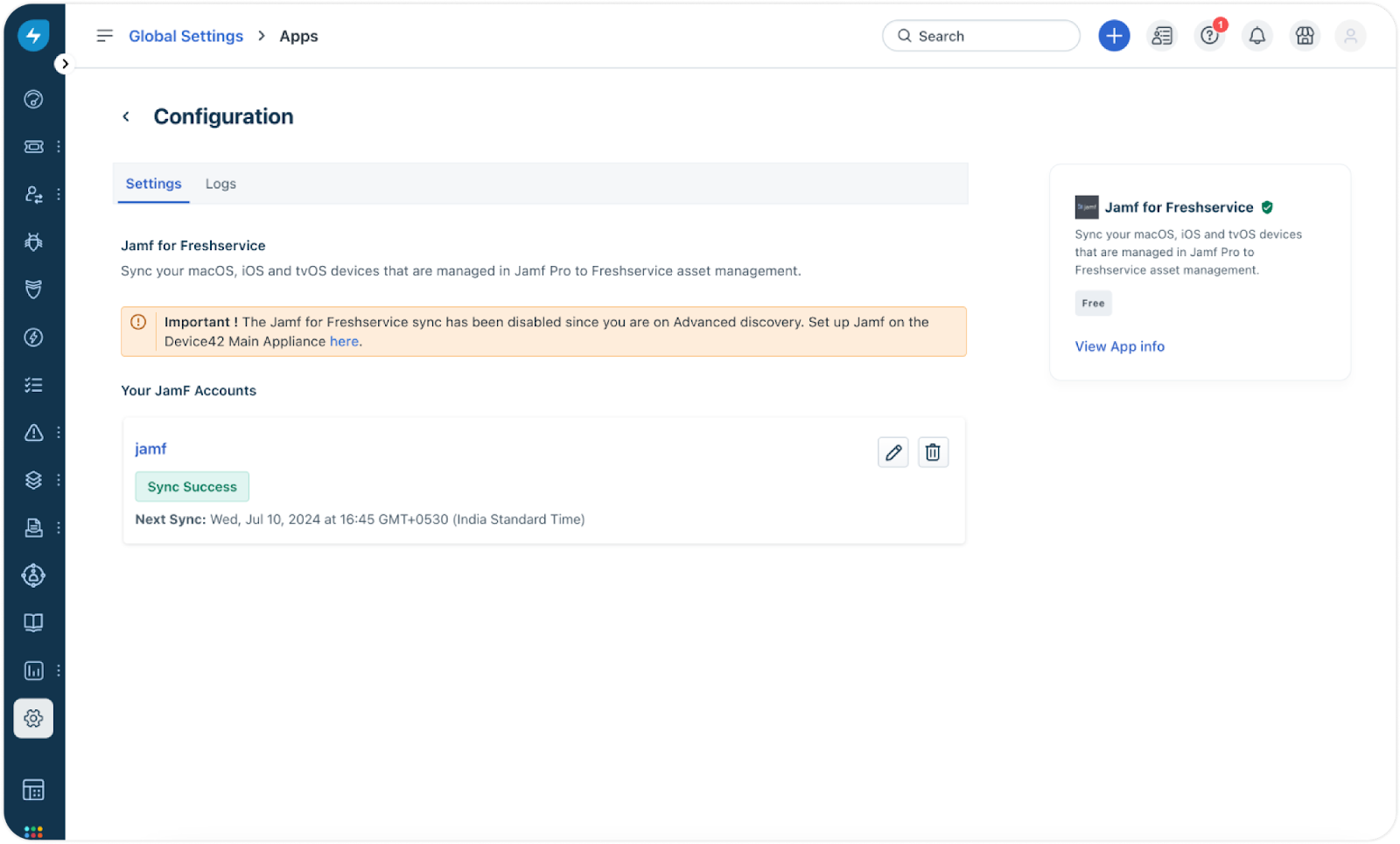

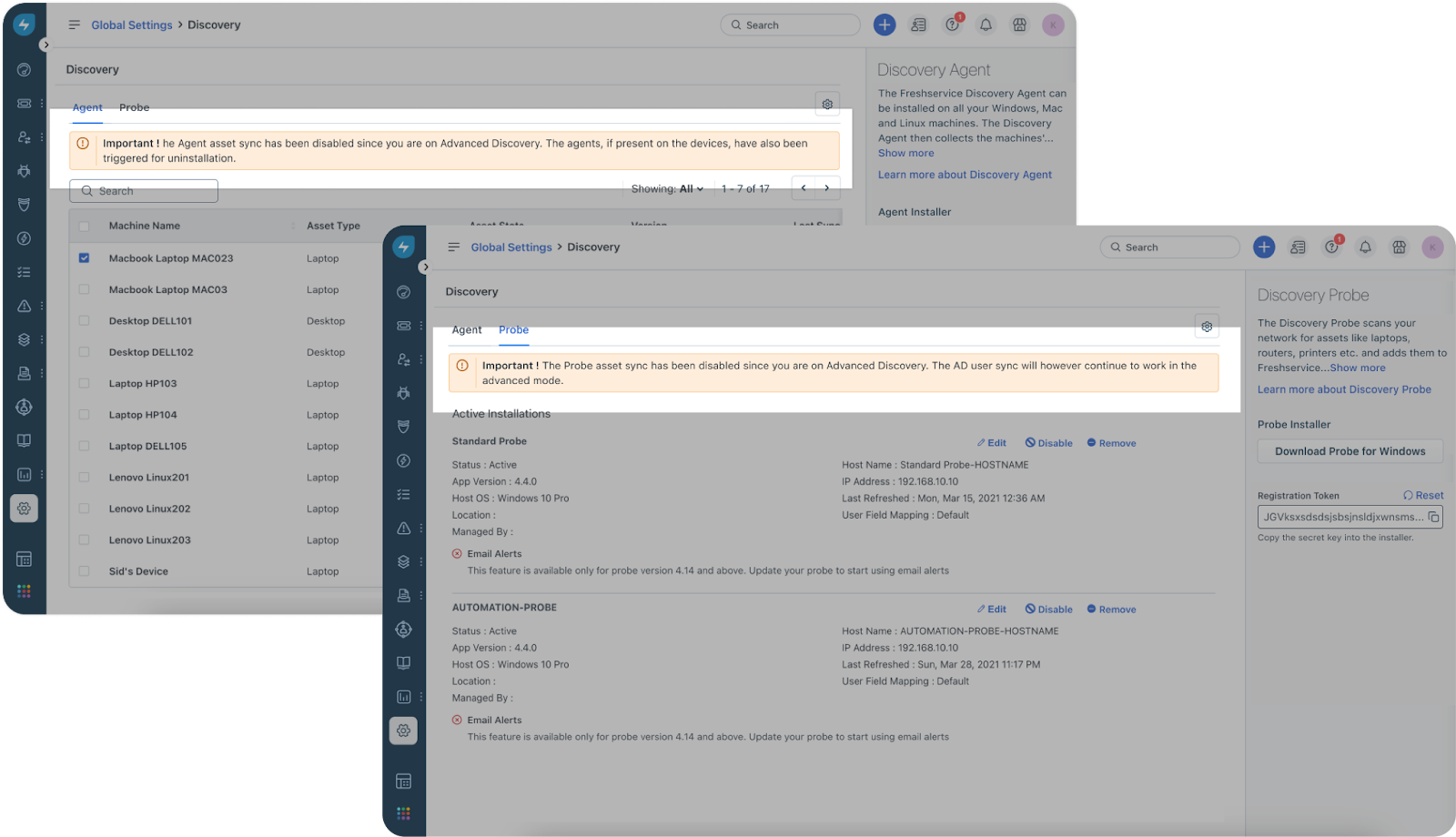
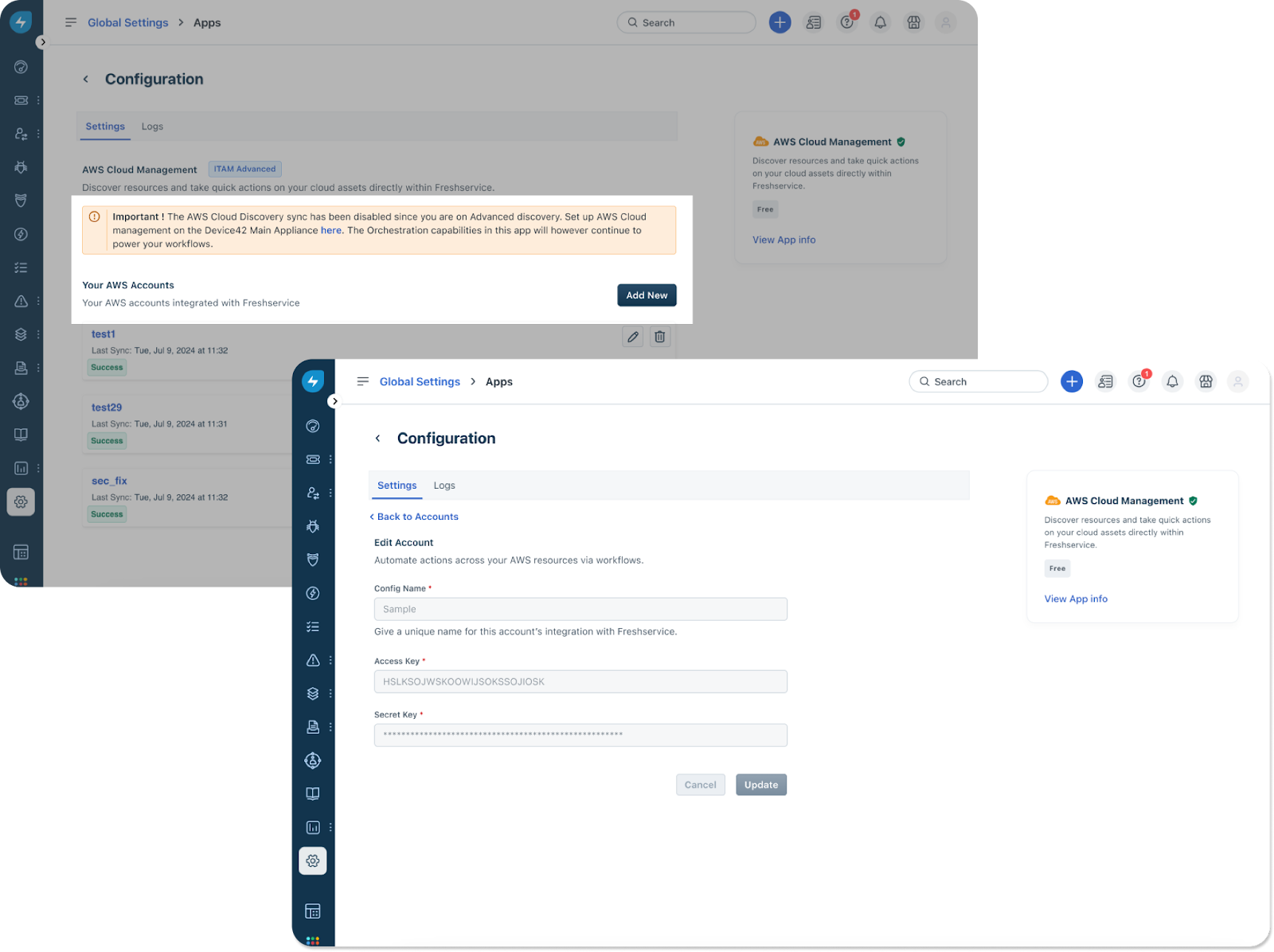
Once your account transitions to Advanced discovery, all compute resources under the cloud discovery hierarchy will be moved by D42 to hardware assets. This is applicable only for customers using Cloud discovery. Learn more here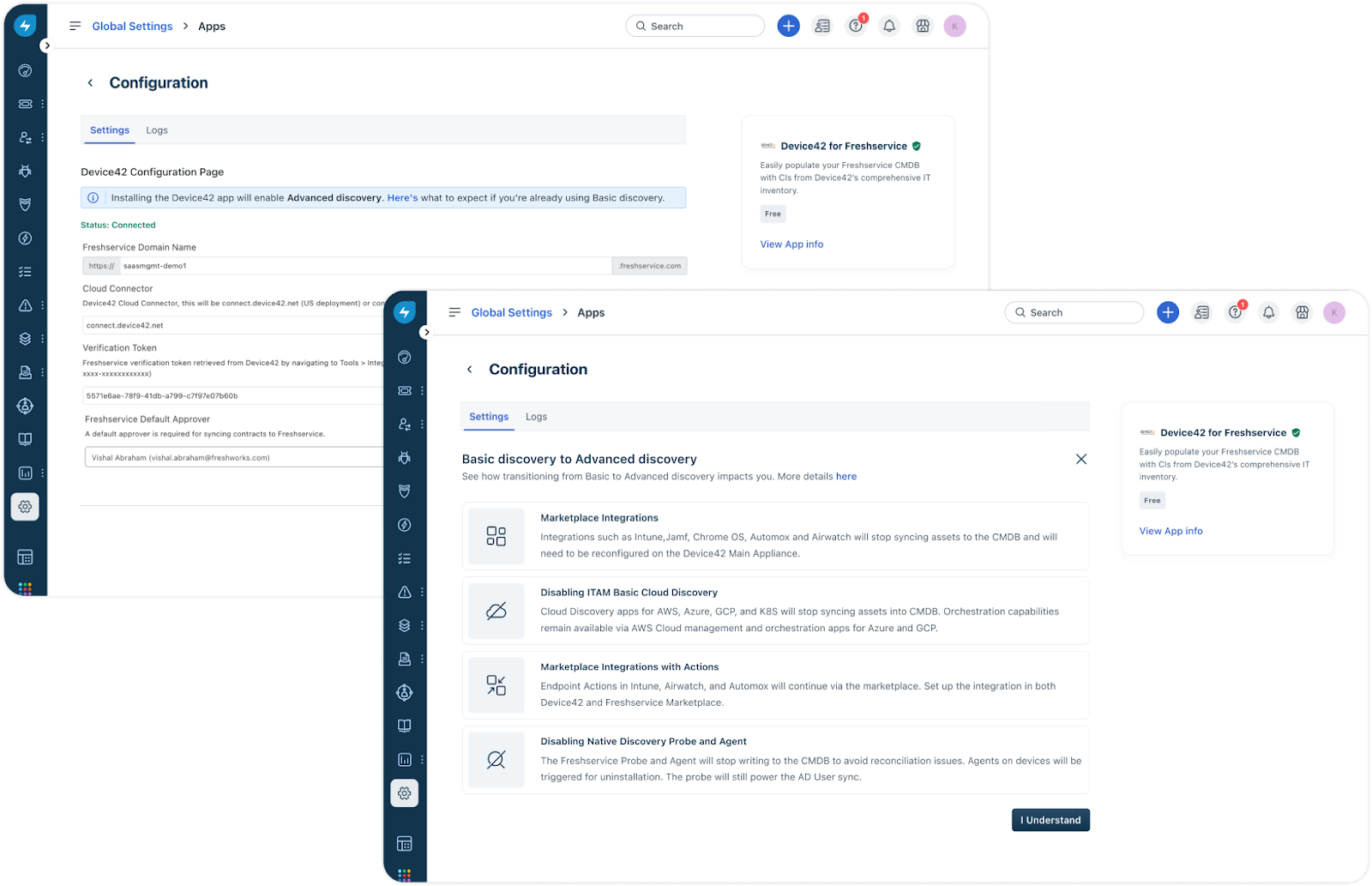
Switching back to Basic ITAM
If you’re a user of Advanced ITAM and switch back to Basic ITAM, the Device42 application will stop writing to your CMDB. Basic ITAM Discovery will start writing back into the CMDB.