Last updated: 2026-03-31
Note: Available only for new signups after the 31 March, 2026 release. If you signed up earlier, refer to the existing ITAM documentation.
Applicable plan: Growth, Pro, Enterprise
Microsoft Azure autodiscovery allows you to automate the inventory of your cloud infrastructure. By integrating with Azure, Freshservice identifies virtual machines, Kubernetes clusters, databases, networks, and load balancers, importing them as manageable assets into your CMDB.
Freshservice provides insights into your Azure resources and services by using an application service principal in accordance with Microsoft’s security recommendations. This article provides details about creating an application service principal with limited permissions to enable an inventory of Azure resources.
Prerequisites
You need the following before the installation:
Application preparation
To begin, you must set up an application within your Azure environment to allow Freshservice to communicate with the Azure API.
1. Log in to the Azure portal.
2. Go to Azure Active Directory > Enterprise Applications > New Application > Create Your Own Application.
3. Name your application and select the Integrate any other application you don’t find in the gallery (Non-gallery) option.
4. Once created, go to the top-level directory and choose App Registrations.
5. Select your application and note the Application (client) ID and the Directory (tenant) ID.
6. Select Certificates & Secrets and click New Client Secret.
7. Add a description and expiration date, then click Add.
Note: Copy the string in the Value column immediately. This is used as the Client Secret ID for discovery. It will not be visible again once you sign out.
How it works
Discovery can be performed at two levels:
Note: The assignable scope in the policy below assumes you are performing subscription level discovery. If you are performing tenant level discovery, be sure to change the assignable scope to: /providers/Microsoft.Management/managementGroups/root-management-group-id-goes-here.
Role preparation You must create a role with limited permissions to adhere to the principle of least privilege.
Subscription Level
Follow these steps to configure discovery for a specific Azure subscription:
1. Go to the Subscriptions section in the Azure portal and select the subscription you would like to allow this application to discover.
2. Copy the Subscription ID, as it will be used later for discovery.
Note: The Discover all subscriptions option should be unchecked to enable subscription level discovery. By default, this option is selected for tenant level discovery.
3. Go to Subscriptions > Select your Subscription > Access Control (IAM) > Roles > Add > Add Custom Role.
4. Enter a name for the custom role and an optional description, then select either Start from scratch or Start from JSON.
{
"properties": {
"roleName": "D42Discovery",
"description": "",
"assignableScopes": \[\ \ "/subscriptions/subscription-id-goes-here"\ \ \],
"permissions": \[\ \ {\ \ "actions": \[\ \ "Microsoft.AAD/domainservices/read",\ \ "Microsoft.AlertsManagement/smartdetectoralertrules/read",\ \ "Microsoft.Compute/disks/read",\ \ "Microsoft.Compute/sshpublickeys/read",\ \ "Microsoft.Compute/virtualMachines/read",\ \ "Microsoft.Compute/virtualmachines/extensions/read",\ \ "Microsoft.Compute/virtualmachinescalesets/read",\ \ "Microsoft.ContainerService/managedClusters/accessProfiles/listCredential/action",\ \ "Microsoft.ContainerService/managedClusters/listClusterUserCredential/action",\ \ "Microsoft.ContainerService/managedClusters/read",\ \ "Microsoft.DBforMariaDB/servers/databases/read",\ \ "Microsoft.DBforMariaDB/servers/read",\ \ "Microsoft.DBforMySQL/flexibleservers/read",\ \ "Microsoft.DBforMySQL/flexibleservers/databases/read",\ \ "Microsoft.DBforPostgreSQL/flexibleservers/read",\ \ "Microsoft.DBforPostgreSQL/serverGroupsv2/\*",\ \ "Microsoft.DBforPostgreSQL/servers/databases/read",\ \ "Microsoft.DBforPostgreSQL/servers/read",\ \ "Microsoft.DocumentDB/databaseAccounts/cassandrakeyspaces/read",\ \ "Microsoft.DocumentDB/databaseAccounts/gremlinDatabases/read",\ \ "Microsoft.DocumentDB/databaseAccounts/mongodbDatabases/read",\ \ "Microsoft.DocumentDB/databaseAccounts/privateEndpointConnections/read",\ \ "Microsoft.DocumentDB/databaseAccounts/read",\ \ "Microsoft.DocumentDB/databaseAccounts/sqlDatabases/read",\ \ "Microsoft.DocumentDB/databaseAccounts/tables/read",\ \ "Microsoft.Insights/actiongroups/read",\ \ "Microsoft.Insights/components/read",\ \ "Microsoft.Insights/datacollectionrules/read",\ \ "Microsoft.Insights/metrics/read",\ \ "Microsoft.KeyVault/vaults/read",\ \ "Microsoft.ManagedIdentity/userassignedidentities/read",\ \ "Microsoft.Migrate/migrateprojects/read",\ \ "Microsoft.Network/applicationgateways/read",\ \ "Microsoft.Network/connections/read",\ \ "Microsoft.Network/dnsresolvers/read",\ \ "Microsoft.Network/loadBalancers/read",\ \ "Microsoft.Network/localnetworkgateways/read",\ \ "Microsoft.Network/networkInterfaces/read",\ \ "Microsoft.Network/networksecuritygroups/read",\ \ "Microsoft.Network/networkwatchers/flowlogs/read",\ \ "Microsoft.Network/networkwatchers/read",\ \ "Microsoft.Network/privateEndpoints/read",\ \ "Microsoft.Network/privatednszones/read",\ \ "Microsoft.Network/privatednszones/virtualnetworklinks/read",\ \ "Microsoft.Network/publicIPAddresses/read",\ \ "Microsoft.Network/routetables/read",\ \ "Microsoft.Network/virtualNetworks/read",\ \ "Microsoft.Network/virtualnetworkgateways/read",\ \ "Microsoft.OperationalInsights/querypacks/read",\ \ "Microsoft.OperationalInsights/workspaces/read",\ \ "Microsoft.OperationsManagement/solutions/read",\ \ "Microsoft.RecoveryServices/vaults/read",\ \ "Microsoft.Resources/subscriptions/resourceGroups/read",\ \ "Microsoft.Servicebus/namespaces/read",\ \ "Microsoft.Sql/managedInstances/databases/read",\ \ "Microsoft.Sql/managedInstances/read",\ \ "Microsoft.Sql/servers/databases/read",\ \ "Microsoft.Sql/servers/read",\ \ "Microsoft.SqlVirtualMachine/sqlVirtualMachines/read",\ \ "Microsoft.Storage/storageAccounts/blobServices/containers/read",\ \ "Microsoft.Storage/storageAccounts/privateEndpointConnections/read",\ \ "Microsoft.Storage/storageAccounts/read",\ \ "Microsoft.Web/serverfarms/read",\ \ "Microsoft.Web/sites/functions/read",\ \ "Microsoft.Web/sites/read"\ \ \],\ \ "notActions": \[\],\ \ "dataActions": \[\],\ \ "notDataActions": \[\]\ \ }\ \ \]
}
}
Tenant Level
If using the Tenant ID for discovery, you must create a Single Role at the tenant level. Follow these steps to configure discovery across all subscriptions within an Azure tenant:
1. Go to Management Groups > Select your Azure Tenant Group > Access Control (IAM) > Roles > Add > Add Custom Role.
2. Enter a custom role name and description, then select Start from scratch or Start from JSON.
3. If using the Start from scratch option, you will need to manually select each permission needed for this application to access the desired resources.
4. If using the Start from JSON option, copy and paste the JSON data and save it as a .json file. Be sure to change the assignable scope to /providers/Microsoft.Management/managementGroups/root-management-group-id-goes-here.
5. Upload this file on the Basics page when creating the role, and the permissions will be automatically defined.
6. After defining the permissions, select Next to define the scope this application will have access to.
7. Select Next to review or copy the JSON, then Next and Create.
Apply the role
1. To apply the role, go back to the Access Control (IAM) > Add > Add Role Assignment.
2. Select your newly created role and choose Next to bring you to the Members tab.
3. Select the User, group, or service principal > Select members, and choose the application created in the previous steps.
4. Select Next and then Review + Assign.
Your custom role is now applied to your new application and can be used for discovering Azure Resources.
Configure Azure Kubernetes Service (AKS)
When Authentication and Authorization is set to Azure AD authentication with Kubernetes RBAC and Kubernetes local accounts is disabled:
You can specify multiple groups within the Cluster admin ClusterRoleBinding selection. This can be useful if you want to keep the discovery user or service principal in a separate, dedicated discovery group rather than adding it to an existing group.
Create an Azure discovery job
To set up the automated discovery job, follow these steps:
1. Go to Admin > Asset Management > Scan and discover and click the Discovery Jobs tab.
2. Select Cloud from the list of discovery jobs and click Add new.
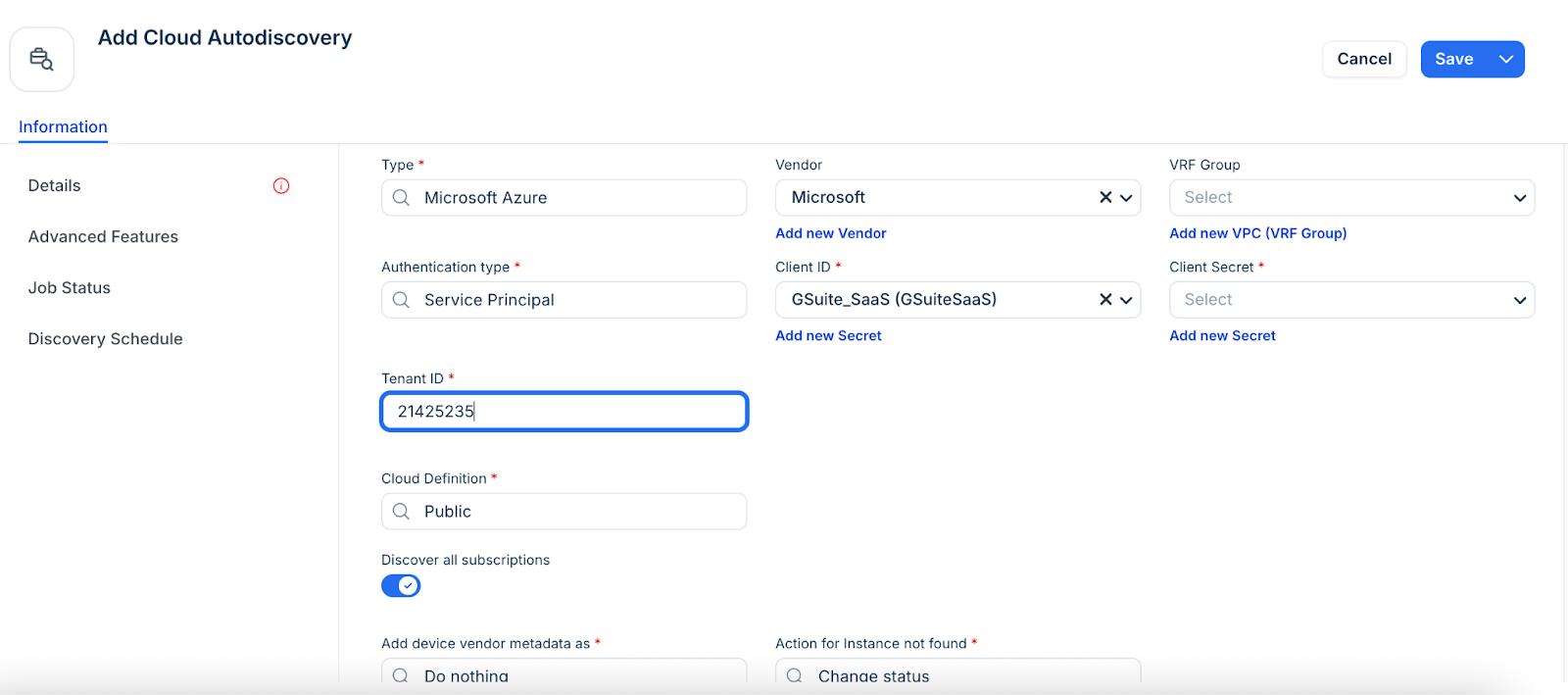
3. Enter a job name and select Microsoft Azure as Type.
4. Select a remote collector group.
5. Select Service Principal as the Authentication type.
6. Click Add new Secret and create a new secret or select the existing one. Repeat this for Client Secret.
7. Select a VRF Group to place all discovered IPs in subnets. This is useful if you have duplicate IPs in your internal network.
8. Paste the Directory (tenant) ID directly into the Tenant ID field.
9. Configure the following additional options:
- Discover all subscriptions: Enable for tenant level or disable for specific subscription discovery.
- Kubernetes Discovery: Enable to pull in AKS resources.
- Extended Summary Discovery (Preview): Enable to discover all resources with abbreviated detail.
10. Enter a Tag name tocategorize and filter discovered devices by your chosen tags.
11. Enable Strip domain name to strip the discovered domain suffix (everything after the first period) from the device instance name.
12. Select an option from the Service Level drop-down, or add a new Service level category. For example, you can set it so that the Development, Deployment, or Production service level is applied to discovered items.
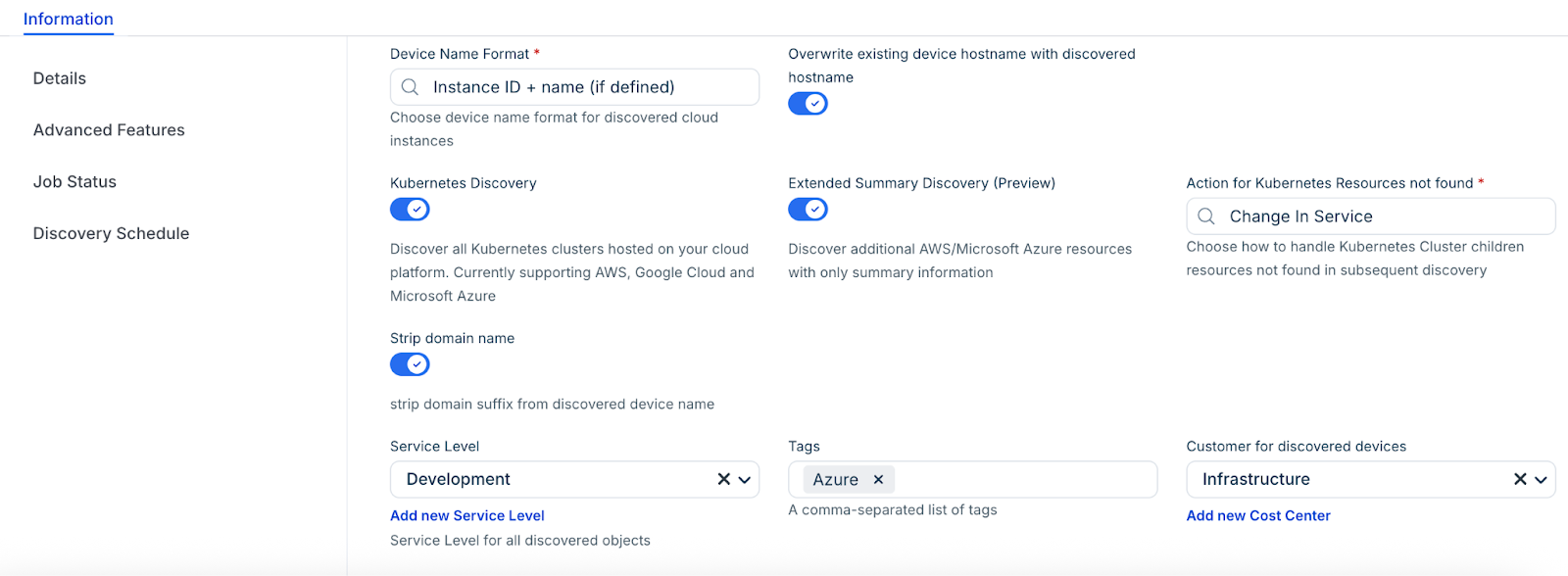
13. Select a customer for discovered devices to add another specialized classification or create a new by using the Add new Cost Center option.
14. In the Discovery Schedule section, click Add new to create an autodiscovery for the job. You can create multiple schedules.
15. Click Save, then click Run Now to start the discovery.
Configure SAML for Azure
To ensure seamless authentication:
1. In Azure, change the Signing Option to Sign SAML response.
2. In the Appliance Manager, go to Global Settings > SAML 2.0 Settings.
3. Verify that the Username field has a value of name.
Azure Discovery Items
The following Azure resources are discoverable. Instances of Azure Database for PostgreSQL flexible servers are also supported.
| Service or Object Name | Where in ITIM | Accessed API | Sample Information Generated | Permission(s) Required |
| SQL Server | Resources > All Resources | management.azure.com | Name, virtual subtype, tags | Microsoft.Sql/servers/read, Microsoft.Sql/servers/databases/read |
| Managed SQL Server | Resources > All Resources | management.azure.com | Name, virtual subtype, tags, tables | Microsoft.Sql/managedInstances/read, Microsoft.Sql/managedInstances/databases/read |
| Azure DB for MySQL | Resources > All Resources | management.azure.com | Name, virtual subtype, tags, tables | Microsoft.DBforMySQL/flexibleservers/read, Microsoft.DBforMySQL/flexibleservers/databases/read |
| Azure DB for Postgres | Resources > All Resources | management.azure.com | Name, virtual subtype, tags, tables | Microsoft.DBforPostgreSQL/servers/read, Microsoft.DBforPostgreSQL/servers/databases/read |
| Azure DB for MariaDB | Resources > All Resources | management.azure.com | Name, virtual subtype, tags, tables | Microsoft.DBforMariaDB/servers/read, Microsoft.DBforMariaDB/servers/databases/read |
| Cosmos DB | Resources > All Resources | management.azure.com | Name, virtual subtype, tags, tables | Microsoft.DocumentDB/databaseAccounts/read, Microsoft.DocumentDB/databaseAccounts/sqlDatabases/read, Microsoft.DocumentDB/databaseAccounts/cassandrakeyspaces/read, Microsoft.DocumentDB/databaseAccounts/gremlinDatabases/read, Microsoft.DocumentDB/databaseAccounts/mongodbDatabases/read, Microsoft.DocumentDB/databaseAccounts/tables/read, Microsoft.DBforPostgreSQL/serverGroupsv2/\*, Microsoft.DocumentDB/databaseAccounts/privateEndpointConnections/read, Microsoft.Network/privateEndpoints/read, Microsoft.OperationalInsights/workspaces/read (Log Analytics Reader on workspace level) |
| SQL VM | Resources > All Resources | management.azure.com | Name, virtual subtype, tags, tables | Microsoft.SqlVirtualMachine/sqlVirtualMachines/read |
| Functions | Resources > All Resources | management.azure.com | Resource group name, runtime, trigger, function type | Microsoft.Web/sites/read, Microsoft.Web/sites/functions/read |
| Kubernetes (AKS) | Devices > Unknown | management.azure.com | Containers, nodes, clusters | Microsoft.ContainerService/managedClusters/read, Microsoft.ContainerService/managedClusters/accessProfiles/listCredential/action |
| Load Balancers | Devices > All Devices | management.azure.com | Name, tags, IP | Microsoft.Network/loadBalancers/read, Microsoft.Network/publicIPAddresses/read |
| Networks (as VRF Groups) | Network > VRF Groups | management.azure.com | Name | Microsoft.Network/virtualNetworks/read |
| Subnets | Network > All Subnets | management.azure.com | Network, mask, name | Microsoft.Network/virtualNetworks/read |
| VMs | Devices > All Devices | management.core.windows.net | Name, OS version, RAM size, CPU, IP, MAC | Microsoft.Compute/virtualMachines/read, Microsoft.Network/networkInterfaces/read, Microsoft.Network/publicIPAddresses/read |
| Blob Storage | Resources > All Resources | management.azure.com | Capacity, available capacity | Microsoft.Storage/storageAccounts/read, Microsoft.Storage/storageAccounts/blobServices/containers/read, Microsoft.Storage/storageAccounts/privateEndpointConnections/read, Microsoft.Network/privateEndpoints/read |
| Workspaces | Resources > All Resources | management.azure.com | Microsoft.OperationalInsights/workspaces/read | |
| Extended Summary Discovery | Resources > All Cloud Resources | management.azure.com | Microsoft.Resources/subscriptions/resourceGroups/read | |
| Extended Summary Discovery Supplementary Permissions | Resources > All Cloud Resources | management.azure.com | microsoft.aad/domainservices/read, microsoft.alertsmanagement/smartdetectoralertrules/read, microsoft.compute/disks/read, microsoft.compute/sshpublickeys/read, microsoft.compute/virtualmachines/extensions/read, microsoft.compute/virtualmachinescalesets/read, microsoft.containerservice/managedclusters/read, microsoft.dbforpostgresql/flexibleservers/read, microsoft.documentdb/databaseaccounts/read, microsoft.insights/actiongroups/read, microsoft.insights/components/read, microsoft.insights/datacollectionrules/read, microsoft.managedidentity/userassignedidentities/read, microsoft.migrate/migrateprojects/read, microsoft.network/applicationgateways/read, microsoft.network/connections/read, microsoft.network/dnsresolvers/read, microsoft.network/loadbalancers/read, microsoft.network/localnetworkgateways/read, microsoft.network/networkinterfaces/read, microsoft.network/networksecuritygroups/read, microsoft.network/networkwatchers/read, microsoft.network/networkwatchers/flowlogs/read, microsoft.network/privatednszones/read, microsoft.network/privatednszones/virtualnetworklinks/read, microsoft.network/privateendpoints/read, microsoft.network/publicipaddresses/read, microsoft.network/routetables/read, microsoft.network/virtualnetworkgateways/read, microsoft.network/virtualnetworks/read, microsoft.operationalinsights/querypacks/read, microsoft.operationalinsights/workspaces/read, microsoft.operationsmanagement/solutions/read, microsoft.recoveryservices/vaults/read, microsoft.servicebus/namespaces/read, microsoft.storage/storageaccounts/read, microsoft.web/serverfarms/read, microsoft.web/sites/read, Microsoft.Resources/subscriptions/resourceGroups/read/read |
Virtual device with Azure Discovery
To view the details of your discovered virtual devices, follow these steps:
1. In the side More options > IT Asset Management > All Devices.
2. Select Virtual from the Type filter to display the list of virtual devices.
3. Click on a device name to enter the view or edit mode.
4. Locate the Cloud Instance Information details at the bottom of the page.
Locate Azure cloud account tags
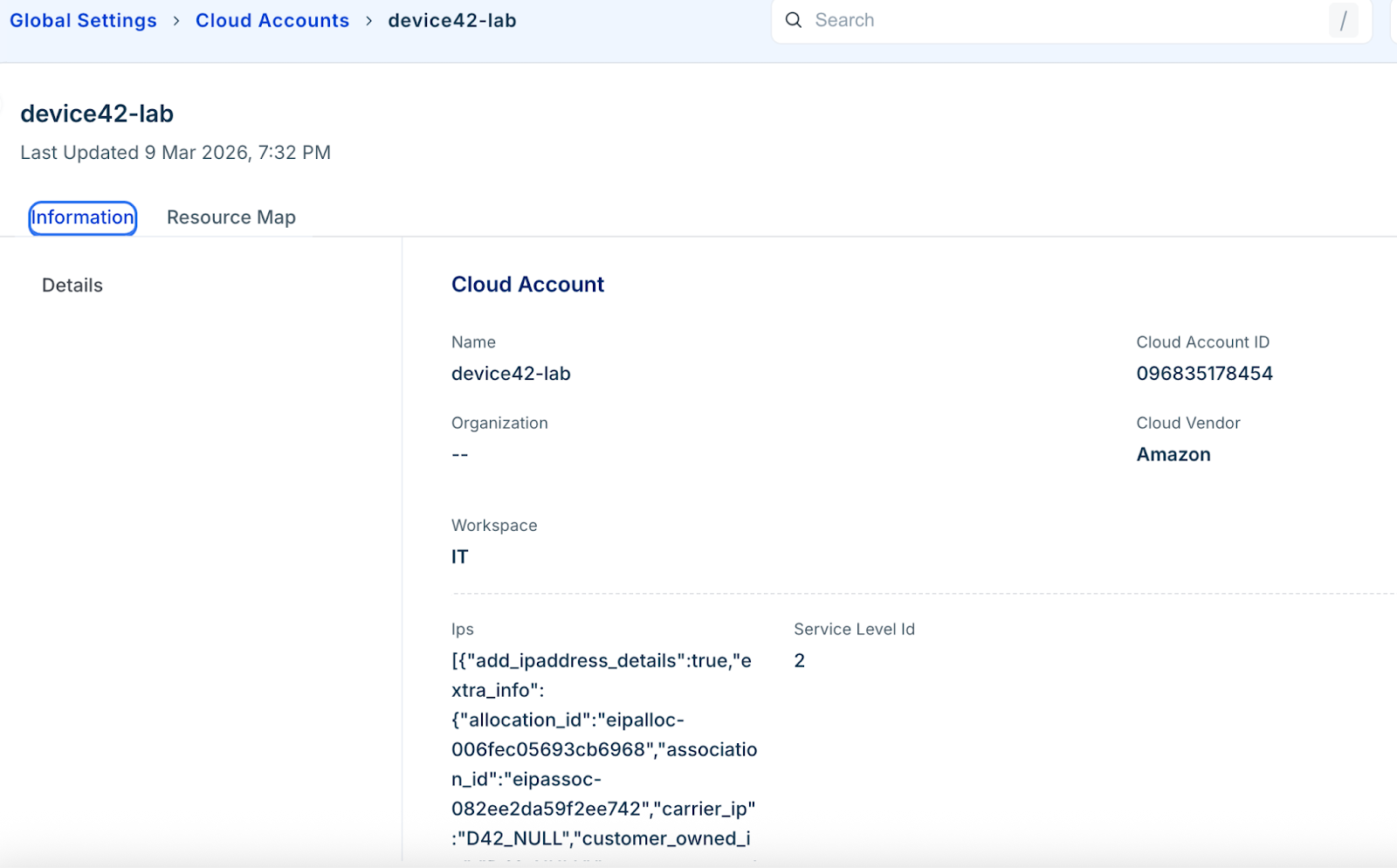
Go to Admin > Asset Management > Discover Hub > Cloud Accounts and select your GCP account. The available discovered account-level tags will be listed under the CloudVendor Custom Fields section.
To view the details of your discovered virtual devices, follow these steps:
1. In the side More options > IT Asset Management > All Devices.
2. Select Virtual from the Type filter to display the list of virtual devices.
3. Click on a device name to enter the view or edit mode.
4. Locate the Cloud Instance Information details at the bottom of the page.