Last updated: 2025-12-04
The fundamental question is, what do satisfaction surveys measure? It is as simple as understanding how happy your customers are with the product or services they receive.
With a Satisfaction survey as a built-in functionality in Freshservice, it gets easier to measure service desk efficiency and customer satisfaction with every support ticket. Once the survey is activated, you can set up reports and configure workflows to improve your service based on feedback.
Surveys can be configured both at a global and local level.
Order of execution: Local surveys are executed first, followed by global surveys. The first survey to match the conditions gets triggered.
How to Create a Satisfaction Survey?
If your account has more than one workspace: To modify global workflows, navigate to Admin > Global Settings > Service Management > Service Desk settings > Satisfaction Survey.
To modify workspace-level workflows, navigate to Admin > Workspace Settings > {Workspace Name} > Service Management > Service Desk settings > Satisfaction Survey****
``` Important Note: Workspace admins can view the list of global and local workflows applicable to their workspace. The global workflows execute first, followed by the workspace-level workflows, to allow for the workspace-level workflows to take precedence over the global workflow. For example, A global workflow can be configured to route tickets to the right workspace based on the subject/description. ```

- You can make it mandatory for users to answer your question using Mark as a mandatory option
Show emoticons alongside the choices
- You can also quantify customer satisfaction by assigning scores to each choice using the Assign Scores behavior option
- You can assign any value to these choices and based on those values the total score will be determined

- If the score lies between 0% <= Score <= 40%, the response will be considered a Negative sentiment
- If the score lies between 40% < Score <= 60%, the response will be considered as Neutral sentiment
- If the score lies between 60% < Score <= 100%, the response will be considered as Positive sentiment


``` 1. Emoticons are available only for choice based questions 2. Scores cannot be assigned for text based questions ```
How to configure conditions to trigger the survey and survey questions?
You can create multiple surveys and configure conditions to define which survey will be triggered for which tickets, based on ticket fields. The Criteria section gives users the flexibility to set trigger conditions for a particular survey.
For example, you can create a separate survey for the IT teams and a separate one for the HR teams.
``` Use case scenario: Defining a survey for only IT teams ```


How to create reports based on survey responses?
A detailed article on how to create reporting for Satisfaction Survey is available here

- Inside the Survey Question module, you can create widgets based on the Question Score metric and create filters at the ticket level as well as at the survey level - Along with other group-by options, you can also group that metric based on the Choices of the survey questions or create buckets of Questions Score and group based on those buckets


If you are using the Freshservice Leaderboard to gamify your service desk, you can offer points to your agents for every happy rating they receive. You can also motivate your team to drive better customer satisfaction by letting them compete for the "Customer Wow Champ" trophy.
Note:
Faq:
1. Unable to receive survey links from the ticket, how to resolve this?
If an agent has raised the ticket kindly have the below toggle enabled.

2\. Is it possible to reorder the survey?
I'm afraid we don't have a reorder option. You can only trigger a survey from a ticket or include the survey placeholder in any of the notifications.
3\. How to view the survey responses sent?
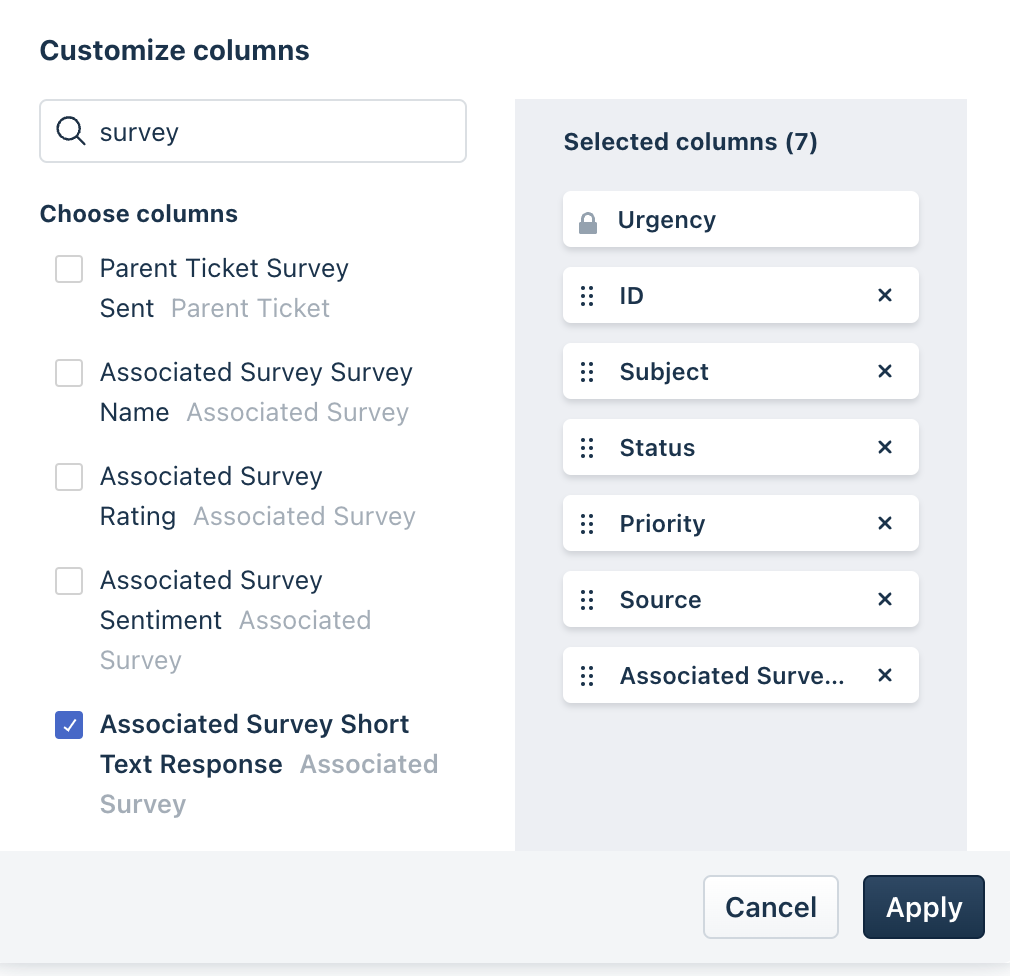
Go to the Analytics module, then either create a new report or select an existing one. Add a Chart Widget and set "Tickets" as the metric with the filter "survey sent is not empty" then click save. To view the survey responses, click on the underlying data and select "associated survey short text response."