Last updated: 2026-03-31
Note: Available only for new signups after the 31 March, 2026 release. If you signed up earlier, refer to the existing ITAM documentation.
Linux and Unix discovery identifies server details and configurations to streamline asset management within Freshservice. This article provides information on how to set up SSH-based discovery jobs, use SSH key authentication, and configure the required permissions.
Freshservice supports SSH-based Linux and Unix discovery to gather critical host and virtual machine details.
Discovery items
Successfully configured discovery jobs collect the following information:
Within the Parts section of device details, the CPU, RAM, and storage entries for the device will be displayed. You may also see additional information such as model number, slot, and location.
Create a Linux/Unix discovery job
To configure your server discovery, follow these steps:
Step 1: Add a new discovery job
1. Go to Admin > Asset Management > Scan and discover and click the Discovery Jobs tab.
2. Select Hypervisors / \*nix / Windows and click Add new.
3. Select \*nix as the platform.
4. Fill in the following job details:
- Job Name: Enter a unique identifier for the job.
- Discovery Target(s): Enter hostnames, IPs, IP ranges, or CIDR blocks.
- Port: Default is 22. Change this only if a custom SSH port is used.
- Use telnet if SSH port is closed: Enable this to fall back to telnet (port 23) if the SSH port is found to be closed. 5. Enable Collect database server information to discover Oracle database servers.
6. In the Discovery Target(s) Credential(s) field, select a username with permissions to connect to the targets.
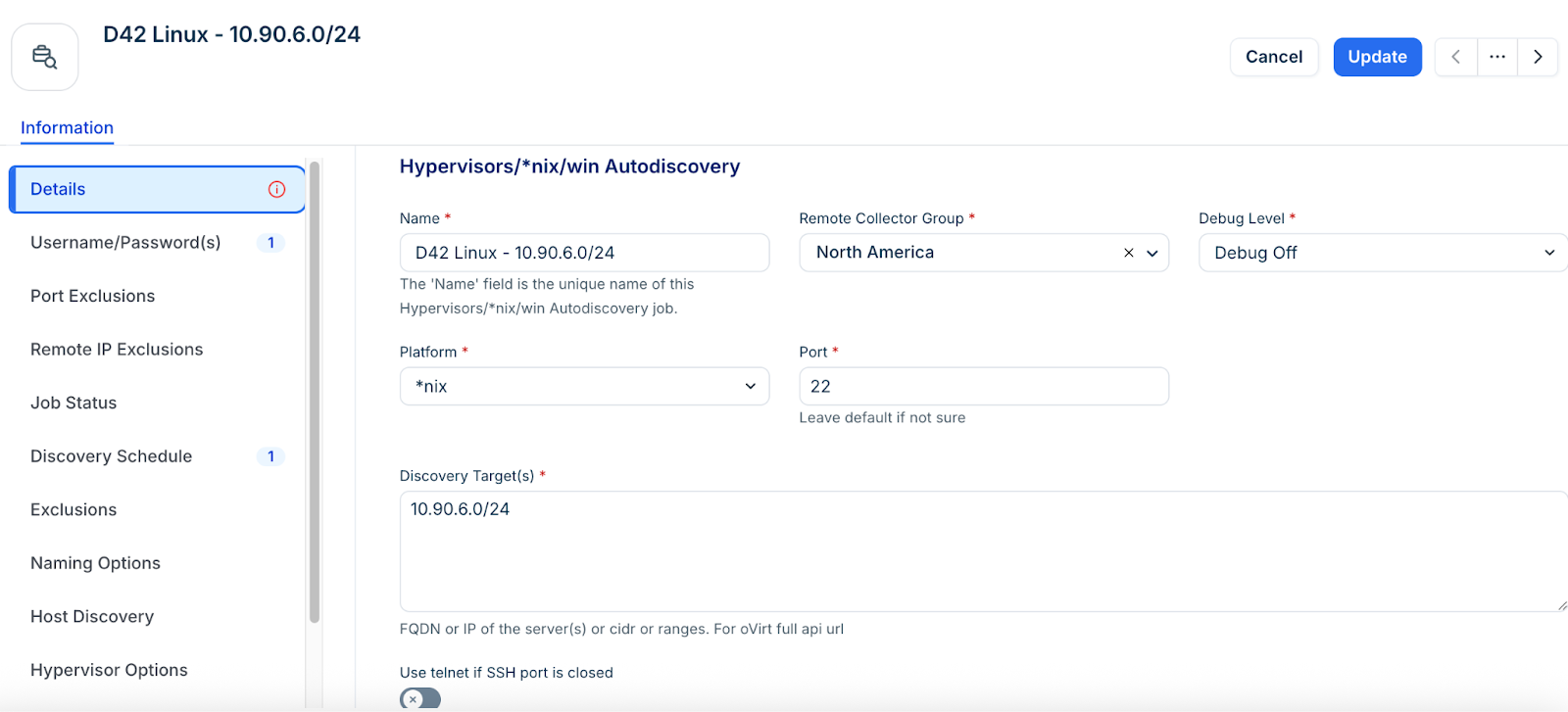
Step 2: Add credentials and exclusions
1. Username/Password(s) - Enter credentials for the server.
2. Port Exclusions \- Enter the start and end port range that you want to exclude from the discovery.
3. Remote IP Exclusions - Do not discover connections to or from any of these remote IPs.
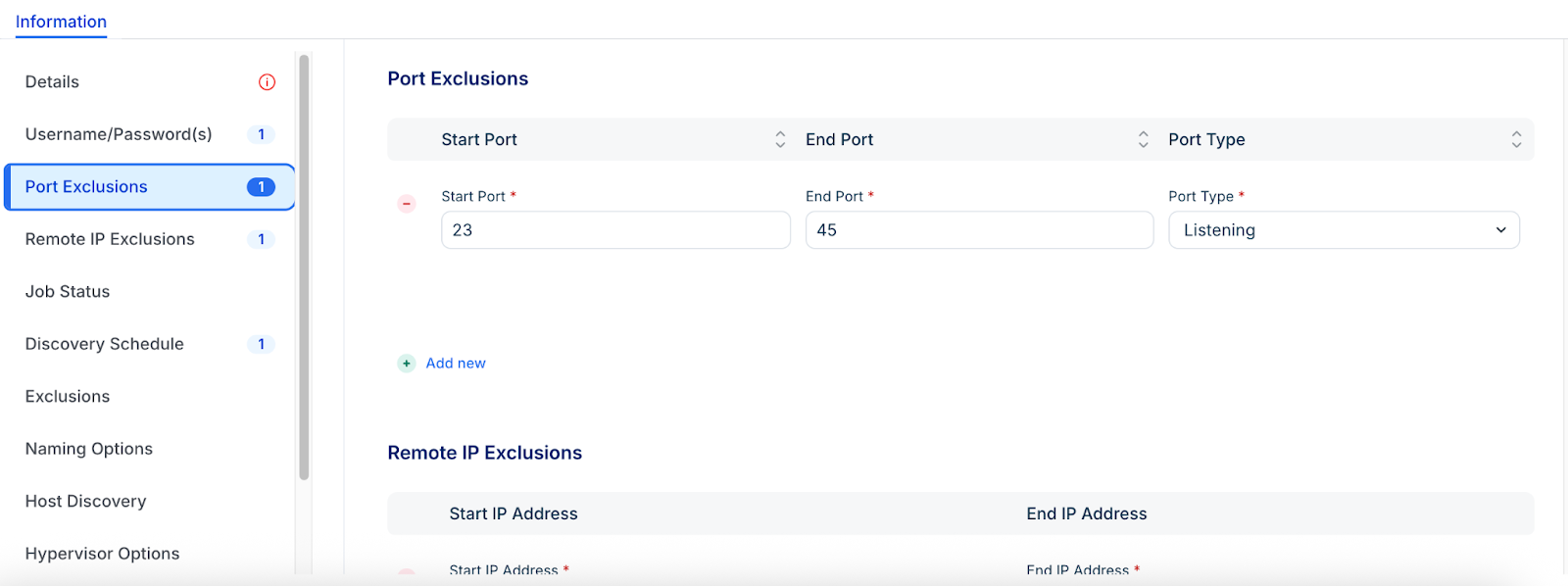
Step 3: Configure exclusions
You can prevent IP and MAC addresses from being included in the database during discovery. Devices with these addresses will still be discovered but the detailed information that would typically be collected and stored is ignored.
1. Exclude Server(s) -List the server IPs to exclude from discovery. This is useful for ignoring individual IPs when the discovery target is specified as a range or CIDR block.
2. Ignore Interfaces \- List the network interfaces to ignore during discovery.
3. Ignore IP(s) \- Do not discover connections to or from any of these remote IPs.
4. Ignore MAC(s) \- Do not discover connections to or from any of these remote MAC addresses.
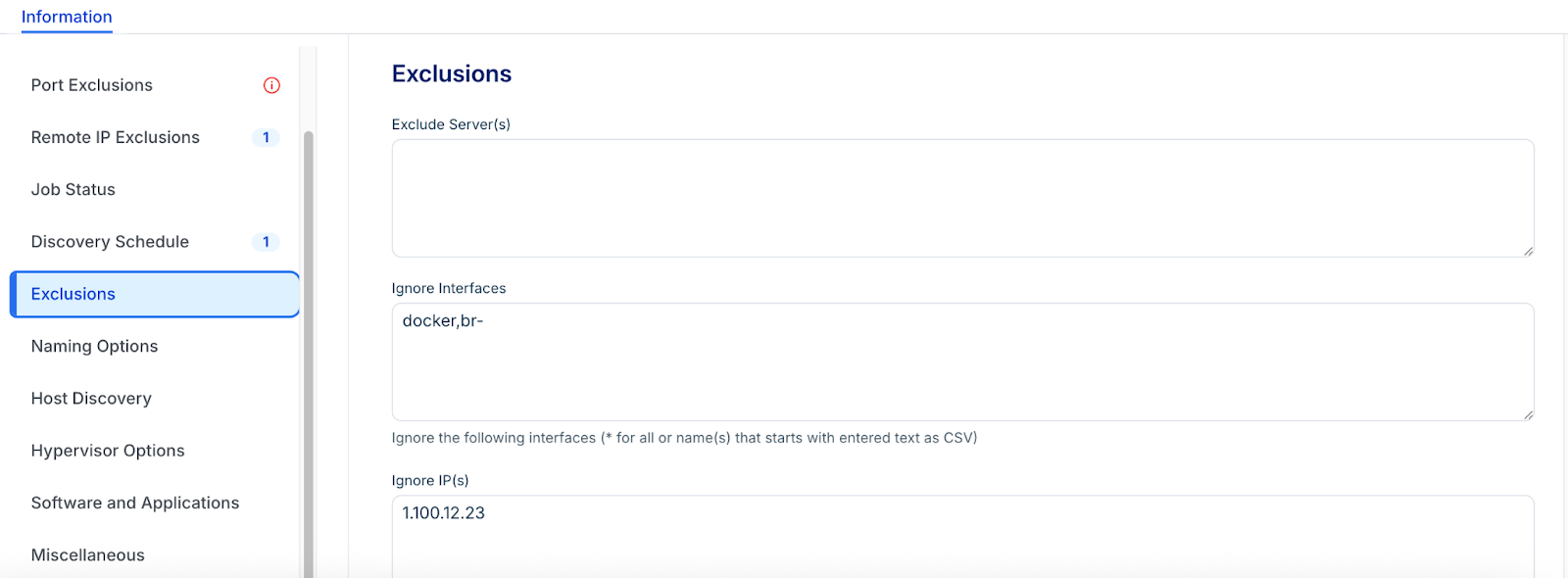
Step 4: Schedule and run the discovery job
1. In the Discovery Schedule section, click Add new to create an autodiscovery schedule.
2. Click Save.
3. To start the discovery immediately, click Run Now on the Discovery Jobs tab.
Note: Newly created jobs will not run on the first day of creation to prevent a high volume of simultaneous tasks. If you would like to run a job after its initial creation, click Run Now.
Step 5: Configure discovery options and naming
1. Device Name Format \- Set the to determine how discovered devices are labeled. For example, Hostname as Discovered or Hostname plus Domain Name.
2. Strip domain suffix -Enable this option to strip the domain suffix from discovered servers.
3. Domains to strip -Enter an ordered list of domains to strip from hostname, listing one per line. If left blank, the full domain is stripped; if specified, the first match is stripped.
4. Prioritize DNS domain name \- Enable to name discovered devices using the hostname plus FQDN. If disabled, discovered devices use the hostname plus the YP/NIS domain name.
Note: After upgrading to v19.06, existing jobs have the Prioritize DNS domain name option disabled by default (devices are named using the hostname plus the YP/NIS domain name).
5. Set the device name as the name given in the server field of the autodiscovery job -If enabled and discovered through hostname or FQDN, the device will be named using the discovery target name provided.
6. Overwrite existing device hostname with discovered hostname: Enable this option to give precedence to the discovered hostname.
7. Add any aliases as Non-Authoritative Aliase- If enabled, aliases will only go to the Non-Authoritative Aliases list and bypass the alias list.
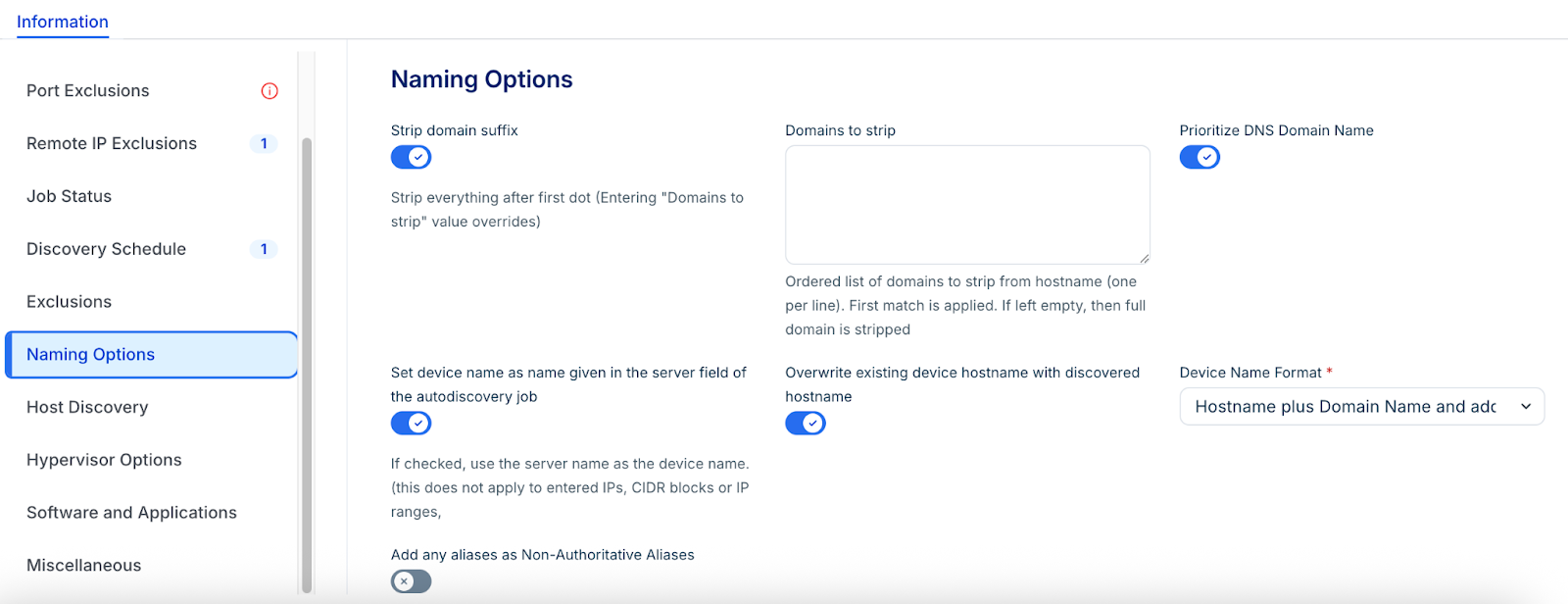
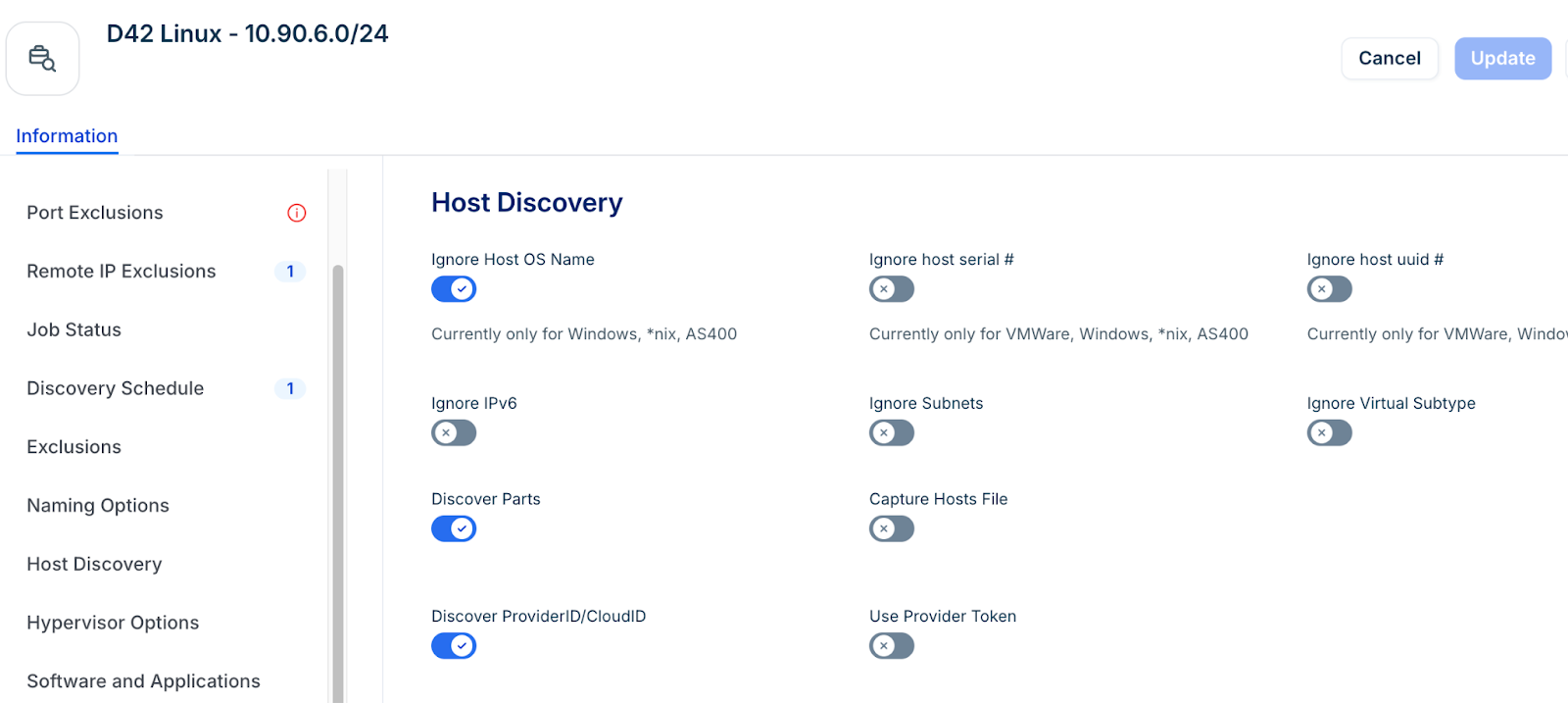
Step 6: Configure Host Discovery
Enable the Discover ProviderID/CloudID option to view the Provider Token option, which might be needed for authentication with the cloud service provider.
Step 7: Miscellaneous Options
1. Specify the timeout range between 10 to 600 seconds in the Timeout field to set the maximum wait time for a server response.
2. Enable the Check for Banner option for discovery to detect and remove banner messages. The Check for Banner option is also available through API.
Note:
Configure SSH key authentication (Optional)
Using SSH keys is more secure than password-based authentication.
1. Generate an RSA key pair on your machine using ssh-keygen -t rsa.
2. Copy the public key to the target host using ssh-copy-id -i $HOME/.ssh/id\_rsa.pub user@target.
3. In the discovery job, select a credential that includes the SSH Private Key file.
4. If the key has a passphrase, enable Use Password and provide the passphrase.
Supported SSH Key Ciphers
Using SSH keys is more secure than password-based authentication. Freshservice supports the following ciphers for SSH key-based discovery:
Configure SSH key authentication
To set up SSH key authentication, follow these steps:
Step 1: Create a new key pair or you can use an existing one
To generate a new RSA key pair, run the following command:
ssh-keygen -t rsa
1. Follow the prompts to set the file location. The default is $HOME/.ssh/id\_rsa.
Note: If a key already exists at this location, it will be overwritten unless you choose a different file location.
2. Optionally, provide a passphrase for the private key. For example:
Generating public/private RSA key pair.
Enter file in which to save the key (/Users/vivek/.ssh/id\_rsa):
Enter passphrase (empty for no passphrase):
Enter same passphrase again:
Your identification has been saved in /Users/vivek/.ssh/id\_rsa.
Your public key has been saved in /Users/vivek/.ssh/id\_rsa.pub.
The key fingerprint is:
80:5f:25:7c:f4:90:aa:e1:f4:a0:01:43:4e:e8:bc:f5 vivek@desktop01
The key's randomart image is:
+--\[ RSA 2048\]----+
\| oo ...+. \|
\|.oo . .ooo \|
\|o .o. . .o . \|
\| o ...+o. \|
\| o .=.=S \|
\| . .Eo . \|
\| \|
\| \|
\| \|
+-----------------+
The command generates two files:
3. Save a copy of the private key (id\_rsa) on your local machine to upload to the discovery job.
4. Copy the public key to your target hosts using the following command:
ssh-copy-id -i $HOME/.ssh/id\_rsa.pub discovery\_user@discoverytarget.com
This sets up your target hosts for remote SSH-key-based authentication using the same user account you used to run the command. Verify that your SSH key-based login works from a remote terminal.
Manual setup option
1. Create the .ssh directory in the home directory you'll be using for discovery and create an authorized\_keys file in it.
2. Substitute $HOME with your discovery user's username and set the permissions by running:
mkdir -p $HOME/.ssh
chmod 0700 $HOME/.ssh
3. Create the $HOME/.ssh/authorized\_keys file if it doesn't already exist.
Copy the entire newly generated public key and paste it on a new line in the authorized\_keys file. It will look something like this:

Step 2: Create a discovery job with SSH key auth
1. Go to Admin > Asset Management > Scan and discover and click the Discovery Jobs tab.
2. Select Hypervisors / \*nix / Windows and click Add new.
3. In the Discovery Target(s) Credential(s) field, select a credential that includes the SSH private key file. Or click Add new Secret to enable and upload the key file.
4. To automate the process, select Add another Auto Discovery Schedule while editing a job to set a recurring interval.
5. Click Save and run your discovery job to begin Linux discovery using an SSH key.
After saving a discovery job, you can run it immediately using the Run Now button on the view and edit pages of the specific job, or you can run it from the list page grid under Discovery > HyperVisors / \*nix / Windows.
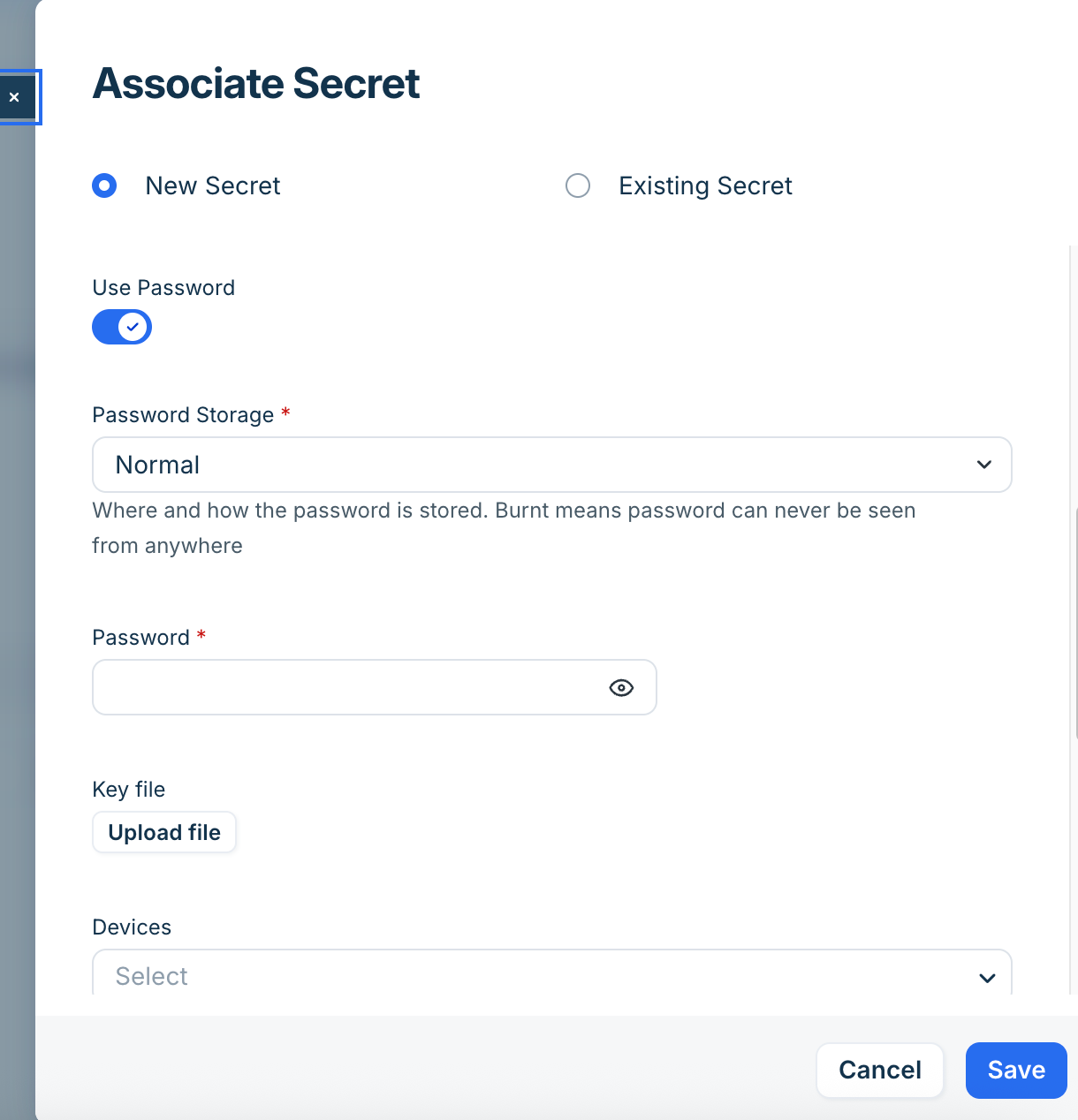
You can download the key file later if needed by navigating to Asset Management > Global Settings > Secret Vault > System Column List and click the relevant Secret.
Linux hostname discovery details
During discovery, the system first runs the hostname command to identify the short name. To obtain the domain name, the system runs the following commands in order of priority:
1. domainname
2. dnsdomainname
3. ypdomainname
4. nisdomainname
If no domain name is found with any of those commands, run cat /etc/resolv.conf. Search for a domain token and assign the domain as the second token after domain.
Linux considerations
Discovery is compatible with Redhat, Debian, CentOS, Ubuntu, and Oracle distributions. Ensure your platform supports the following commands for full data collection:
Hostname:
/bin/hostname
Manufacturer, Hardware, and Serial #:
sudo /usr/sbin/dmidecode -s system-manufacturer
sudo /usr/sbin/dmidecode -s system-product-name
sudo /usr/sbin/dmidecode -s system-serial-number
IP Info:
/sbin/ifconfig -a
Memory:
cat /proc/meminfo
CPU Info:
sudo /usr/sbin/dmidecode
Configure Linux permissions and sudo
Some discovery commands require root privileges. The system first attempts to run commands without sudo; if permission is denied, it retries with sudo.
Supported sudo commands
The following table lists commands that may require elevated privileges:
| Command | Run with sudo? | OS flavor |
| adb | Sometimes | Linux |
| cat | Sometimes | All |
| cd | Sometimes | All |
| chkconfig | Sometimes | Linux |
| crontab | Always | All |
| cstm | Sometimes | HP-UX |
| dataserver | Sometimes | All |
| dmidecode | Sometimes | Linux:Freebsd:OpenBSD:Mac |
| dmesg | Sometimes | Linux:Debian:OracleLinux:HPUX |
| docker | Always | Linux |
| echo | Sometimes | Linux |
| exportfs | Sometimes | All |
| fcinfo | Always | Solaris |
| fdisk | Always | All |
| find | Sometimes | Linux:FreeBSD:OpenBSD |
| format | Always | Solaris |
| grep | Sometimes | All |
| hadoop | Sometimes | All |
| hdparm | Sometimes | All |
| hdfs | Sometimes | All |
| ioscan | Sometimes | HPUX |
| iptables | Always | lxc |
| kdb | Sometimes | Aix |
| last | Always | MacOS |
| ls | Sometimes | All |
| lslpp | Sometimes | Aix |
| lsof | Always | All |
| lspci | Always | All |
| lxc-attach | Always | Linux |
| lxc-ls | Always | Linux |
| netstat | Sometimes | All |
| pfiles | Always | Solaris |
| print\_manifest | Sometimes | HPUX |
| pwdx | Sometimes | All |
| showmount | Sometimes | Linux |
| ss | Sometimes | All |
| su $oracle\_user | Sometimes | Discovers Oracle application information by running necessary commands as the Oracle user |
| su $sap\_hana\_user | Sometimes | Discovers SAP HANA application information by running necessary commands as the SAP user |
| SYBASE.sh | Sometimes | All |
| system\_profiler | Sometimes | MacOS |
| systemctl | Sometimes | All |
| systool | Always | All |
| swlist | Sometimes | HPUX |
| virsh | Always | Linux |
| vzctl | Always | Linux |
| vzlist | Sometimes | Aix |
| zlogin | Always | Solaris (For Zones) |
The following example shows how to allow a user or group to run a specific sudo command without being prompted for a password:
%your-group-here ALL = (ALL) NOPASSWD:/usr/sbin/dmidecode, /sbin/hdparm, /sbin/fdisk
Adjust the paths as needed to match the location of each program. If these permissions are missing, the discovery client cannot discover hardware, manufacturer, serial number, and so on, as well as service dependencies and application configuration information. You might also need to comment out Default Require tty in the /etc/sudoers file.
SUDO PATH in non-interactive shells
In non-interactive shells where the PATH is not set, commands may execute multiple times. To prevent this, ensure the sudoers file contains the following line:
Defaults secure\_path="/usr/local/sbin:/usr/local/bin:/usr/sbin:/usr/bin:/sbin:/bin:/snap/bin"
Alternatively, apply it specifically to the discovery account:
Defaults:DISCOVERY\_ACCOUNT secure\_path="/usr/local/sbin:/usr/local/bin:/usr/sbin:/usr/bin:/sbin:/bin:/snap/bin"