Last updated: 2026-03-31
Source: https://support.freshservice.com/support/solutions/articles/50000012070-manage-dns-records
``` Note: Available only for new signups after the 31 March, 2026 release. If you signed up earlier, refer to the existing ITAM documentation. ```
Centralizing DNS data allows you to maintain a clear map of how domain names resolve to your physical and virtual infrastructure. This article covers the management of DNS records within Freshservice, including supported record types.
Prerequisites
Before managing DNS records, ensure you have the following:
Supported record types
Freshservice supports a wide range of DNS record types, which can be categorized as follows:
``` Note: A/AAAA records are automatically associated with existing IP addresses. Alternatively, they can be linked to new IP addresses at the time of their creation. ```
Add a DNS record
To manually add a DNS record, follow these steps:
1. Go to IT Asset Management > Inventory > DNS Records and click Add New.
2. Enter a name for the record in the Name field.
3. Select the record category from the Type dropdown menu and choose the appropriate domain from the DNS Zone dropdown menu.
Caution: Once a record is saved, you cannot change its Type. Please ensure the correct category is selected before saving.
4. (Optional) Provide additional details, such as Tags and the TTL (Time to Live) value.
5. Click Save.
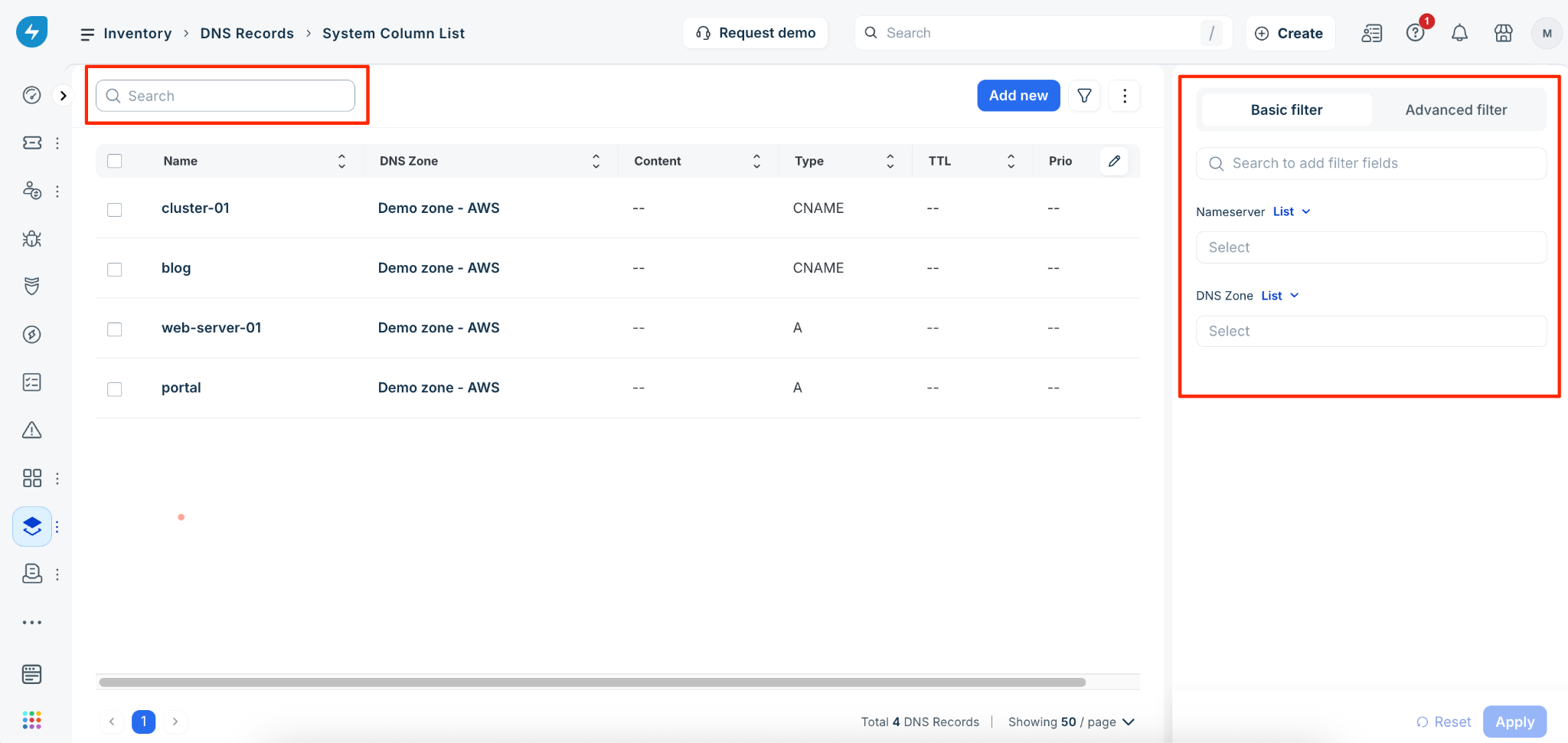
Filter DNS records
To manage your DNS data effectively, you can use the following tools on the DNS Records page to locate, view, or edit specific entries: