Last updated: 2026-03-31
Note: Available only for new signups after the 31 March, 2026 release. If you signed up earlier, refer to the existing ITAM documentation.
Applicable plan: Growth, Pro, Enterprise
Google Cloud Platform (GCP) discovery provides an automated inventory of your cloud infrastructure and identifies virtual machines, Kubernetes clusters, databases, networks, and load balancers, and importing them as manageable assets.
Prerequisites
You need the following before the installation:
bigquery.datasets.get
bigquery.models.getMetadata
bigquery.models.list
bigquery.tables.get
bigquery.tables.list
cloudsql.instances.list
compute.addresses.list
compute.backendServices.get
compute.disks.get
compute.disks.list
compute.firewalls.list
compute.globalForwardingRules.list
compute.images.get
compute.images.list
compute.instances.list
compute.machineTypes.get
compute.networks.list
compute.regions.list
compute.subnetworks.get
compute.targetSslProxies.get
container.clusters.list
container.configMaps.list
container.cronJobs.list
container.daemonSets.list
container.deployments.list
container.endpoints.list
container.ingresses.list
container.namespaces.get
container.namespaces.list
container.nodes.list
container.persistentVolumes.list
container.pods.list
container.replicaSets.list
container.replicationControllers.list
container.resourceQuotas.list
container.services.list
container.statefulSets.list
resourcemanager.projects.get
Google Cloud Platform Discovery Items
The following table outlines the objects the system discovers and their resulting location.
| Cloud Service/Object Name | Location | Accessed API | Information Generated |
| K8s (GKE) Discovery | Devices > Unknown | Compute API, Container API | Containers, pods, clusters |
| Networks (as VRF Groups) | Network > VRF Groups | Compute API | Name |
| Subnets | Networks > Subnets | Compute API | Mask, name, VRF Group |
| SQL DB | SQL Admin API | Tables, instances, and so on. | |
| VMs | Devices > All Devices | Compute API | Type, Name, RAM, OS, CPU, cores, etc. |
Additional discovered items include Storage, Networking, and comprehensive Kubernetes mentioned below:
Storage:
Networking:
Databases:
Kubernetes:
Create a new GCP Discovery job
To set up a new discovery job for your Google Cloud environment, follow these steps:
1. Go to Admin > Asset Management > Scan and discover and click the Discovery Jobs tab.
2. Select Cloud from the list of discovery jobs and click Add new.
3. Select Google Cloud as the discovery from the Type drop-down.
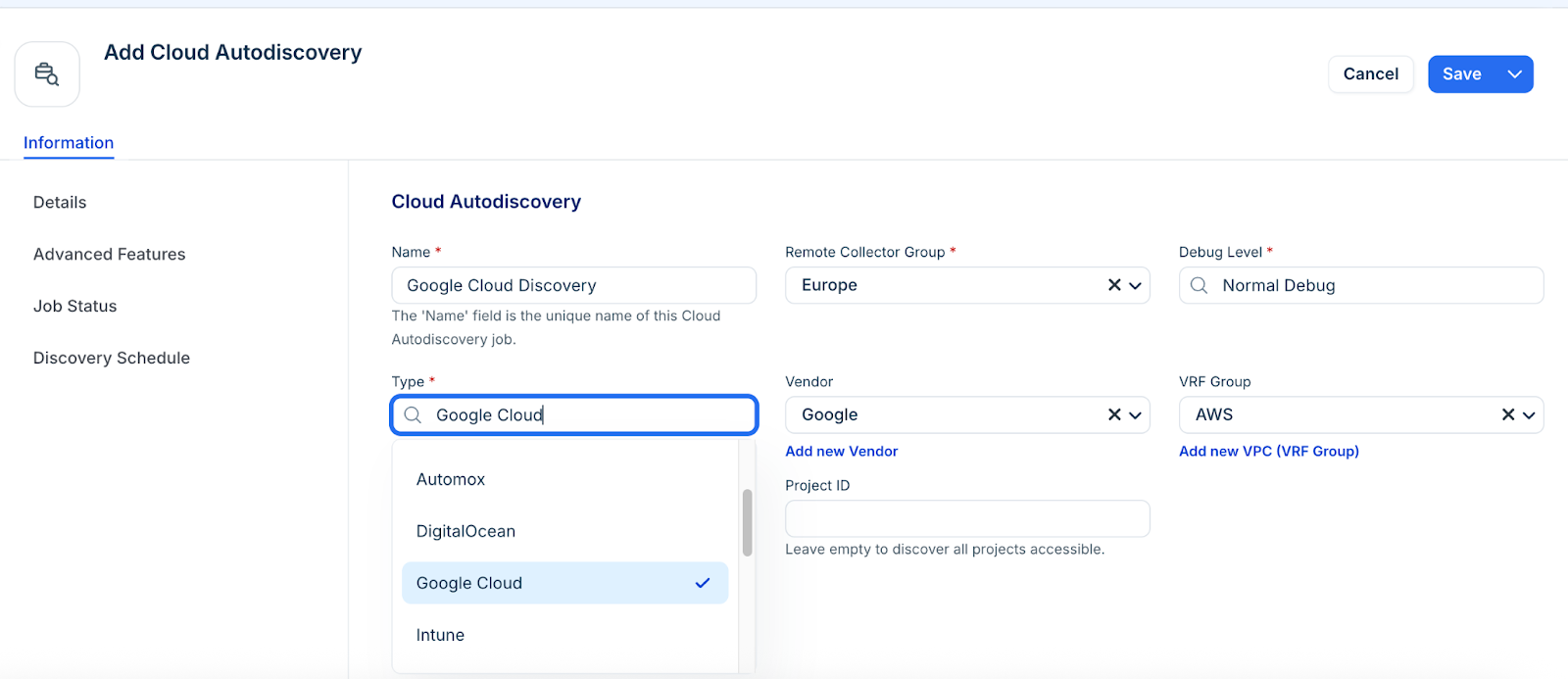
4. Leave the Project ID field blank to discover all accessible projects, or enter a specific ID to limit the scope.
5. Do these steps to add your Google Cloud Engine JSON credentials:
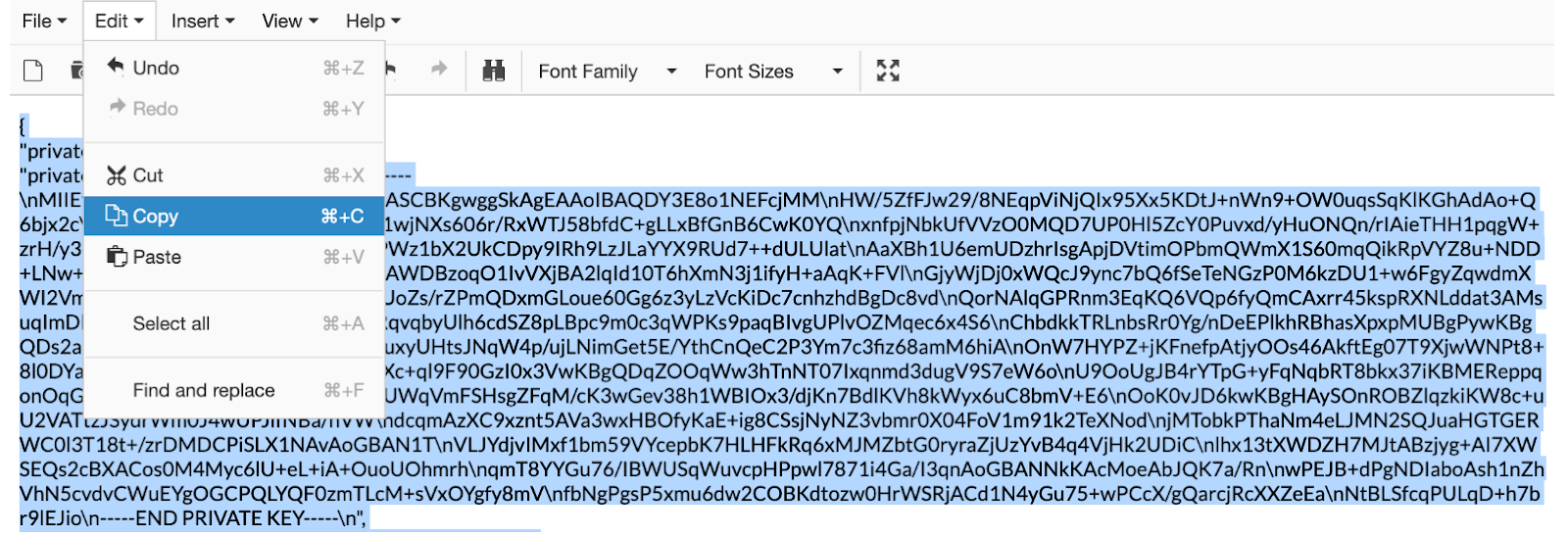
1. Locate and save your Google Cloud Engine JSON key to your local machine.
2. Open the key in a text editor and copy its contents.
3. Paste the copied JSON text into the Credentials JSON field.
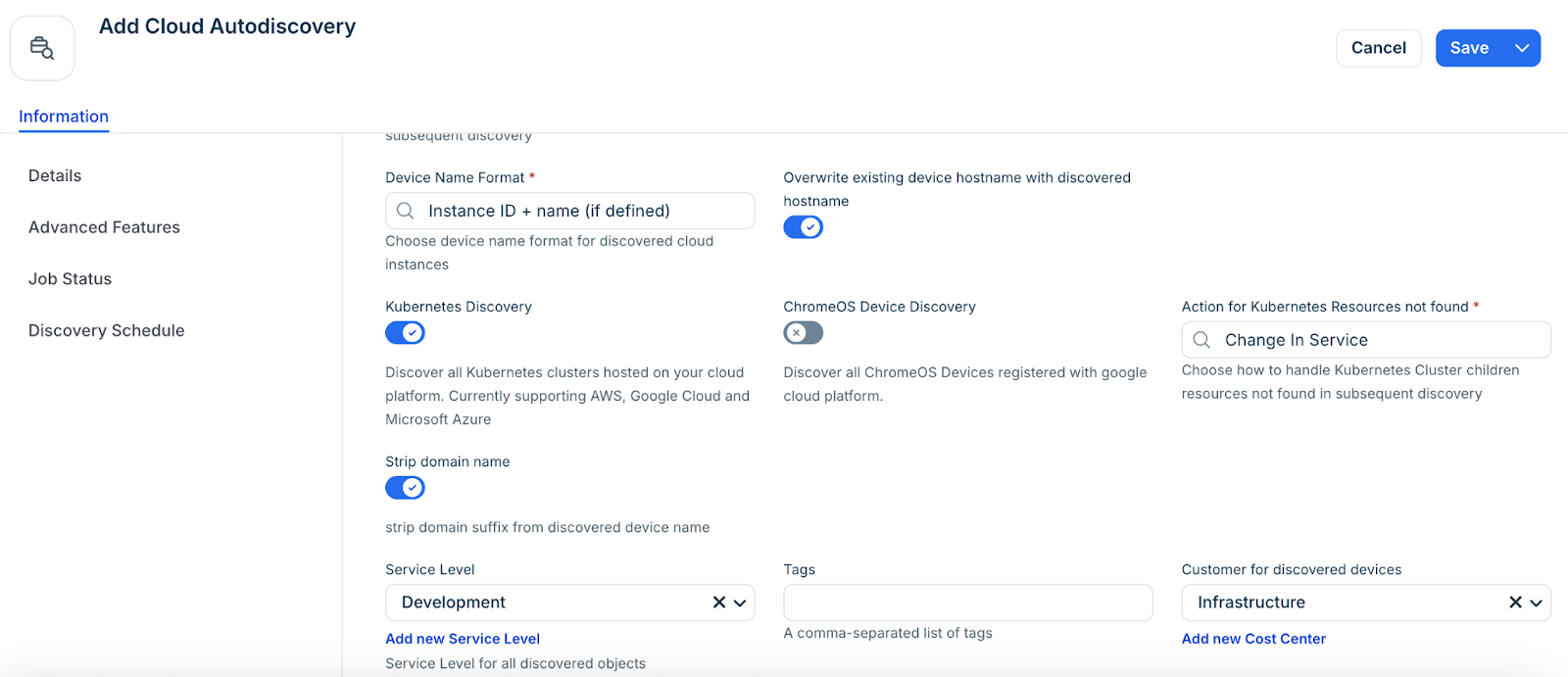
6. Configure the following options as required:
7. Select an option from the Service Level drop-down, or add a new Service level category. For example, you can set it so that the Development, Deployment, or Production service level is applied to discovered items.
8. Select a customer for discovered devices to add another specialized classification or create a new by using the Add new Cost Center option.
9. In the Discovery Schedule section, click Add new to create an autodiscovery for the job. You can create multiple schedules.
10. Click Save.
Locate GCP Account Tags
Go to Admin > Asset Management > Discover Hub > Cloud Accounts and select your GCP account. The available discovered account-level tags will be listed under the Custom Fields section.