Last updated: 2026-01-28
Overview
Freshservice lets you automatically upload generated documents to preconfigured locations in Microsoft SharePoint, eliminating the need for manual downloads and re-uploads.
By mapping SharePoint folders within document templates, teams like HR and business functions can ensure that employee-related documents, such as offer letters, onboarding forms, and compliance records, are stored in the correct location immediately after generation, given the sensitive and specific nature of these documents.
This helps organizations:
Install the SharePoint app
Prerequisites
For more information on how to install the app, refer to SharePoint Integration app for Freshservice.
Configure storage mapping for a document template
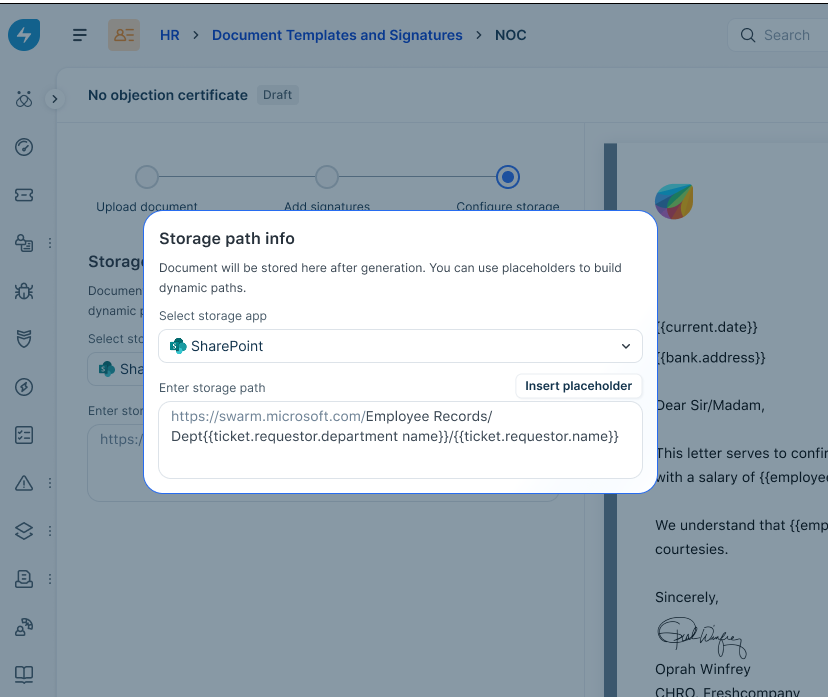
After installing the SharePoint app, map the SharePoint storage path where generated documents must be saved.
Storage mapping is defined at the document template level, ensuring consistent behavior across service items, workflows, and future automations.
Prerequisites
To configure storage mapping
Perform the following steps to configure storage mapping:
1. Go to Admin > Document Templates.
2. Open the document template you want to configure.
3. In the Storage settings, select SharePoint as the storage app.
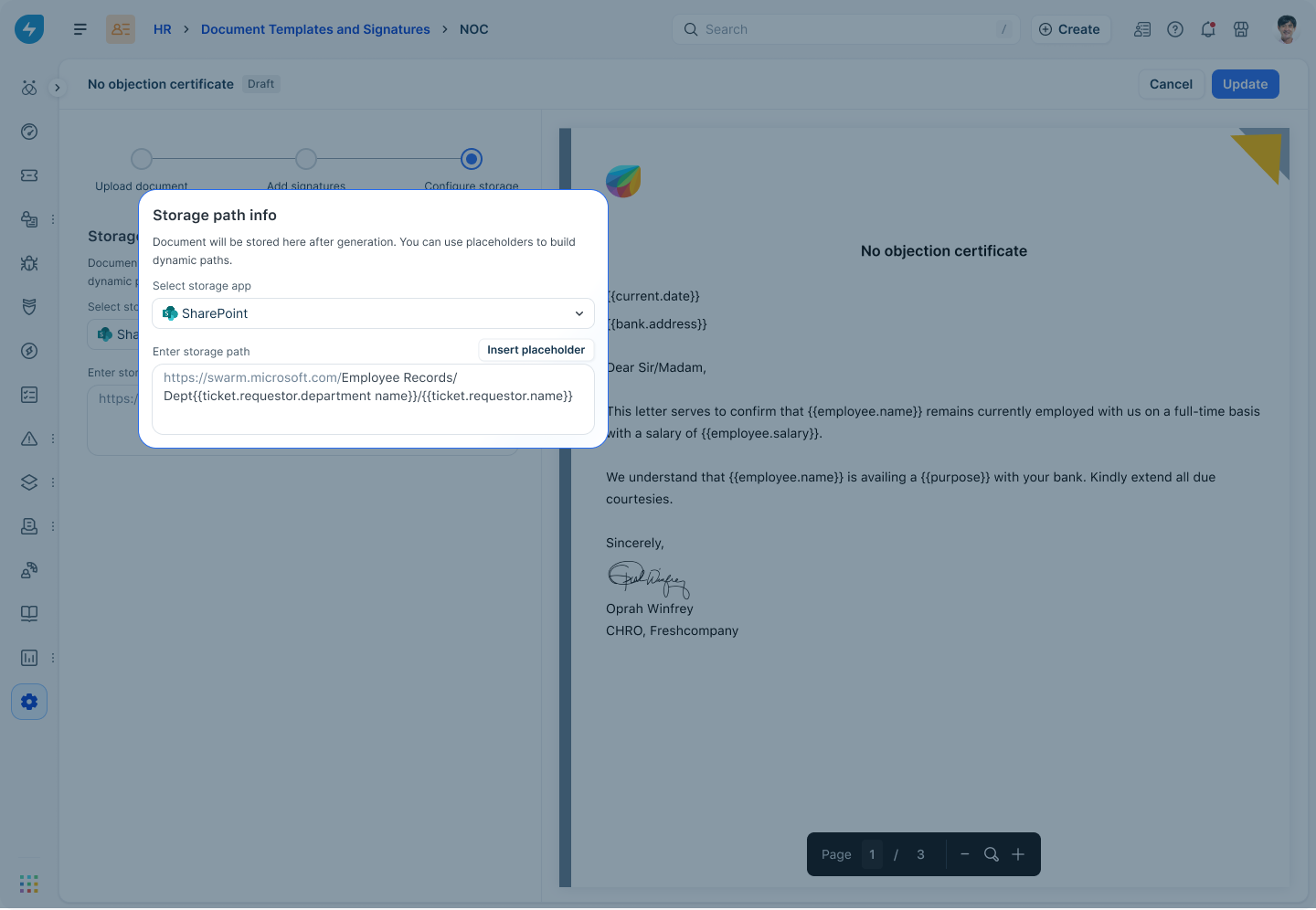
4. In the Storage path field, enter the target SharePoint folder path.You can include dynamic placeholders in the storage path, such as employee name or ID, that might be stored in Freshservice as requester/requested for fields.
For example, HR Documents/{{Requester.Name}}/Onboarding
Freshservice resolves these placeholders during document generation and uploads the document to the corresponding SharePoint folder.
5. Save the document template. When the document is generated, Freshservice automatically uploads it to the mapped SharePoint folder and keeps the file linked to the ticket for reference.
Note:
View the document upload status from the ticket
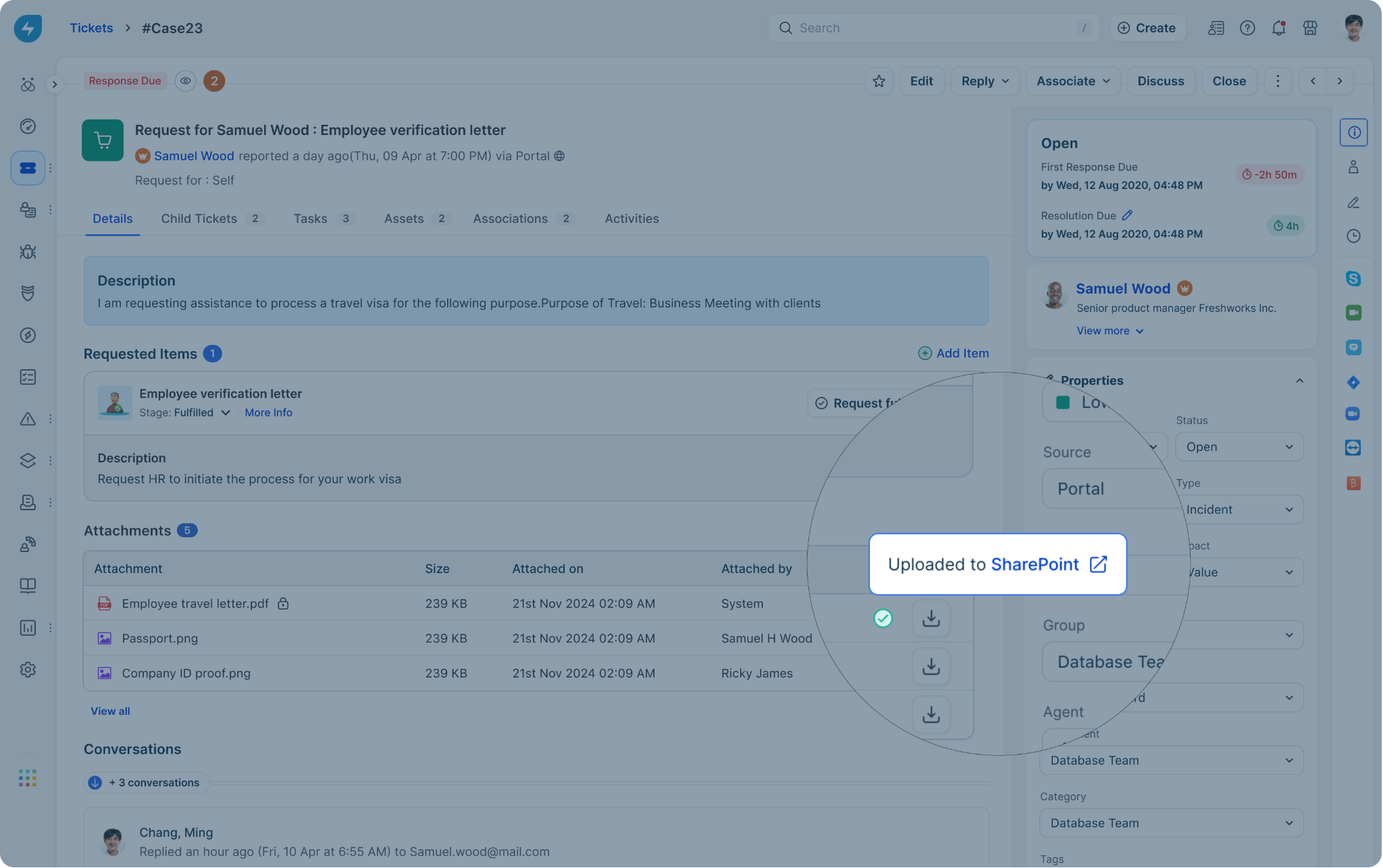
After a document is generated, agents can verify whether it was successfully uploaded to SharePoint directly from the ticket. This helps agents confirm storage completion and identify failures without switching contexts.
To view the upload status
Perform the following steps to view the upload status:
1. Open the ticket where the document was generated.
2. Go to the Attachments section.
3. Locate the generated document. For each document, Freshservice shows the following details:
| Status | Description |
| Successful | The document was uploaded successfully, and the SharePoint link is available. Agents can open the document using the SharePoint link. |
| Failed | The upload failed. The failure reason is shown on the ticket. Agents can contact an admin to retry the upload from the app settings. |
View app logs and retry failed document uploads
Admins can review document upload activity and retry failed uploads from the SharePoint app settings. This helps troubleshoot upload issues without regenerating documents.
To view app logs
Perform the following steps to view app logs:
1. Go to Admin > Apps > Installed Apps.
2. Open the SharePoint app.
3. Select App logs.
The logs display the following information:
| Field | Description |
| Document | Name of the generated document |
| Status | Upload result – Successful or Failed |
| Date and time | When the upload attempt occurred |
| Failure reason | Reason for failure, if applicable |
To retry failed uploads
Note:
Perform the following steps to retry failed uploads:
1. In App logs, identify entries with a Failed status. Make sure to fix the failure issue with respect to the SharePoint app. 2. Once the issue is resolved, select one or more failed entries. 3. Click Retry.
Freshservice reattempts uploading the documents using the original storage configuration.
Upload failure handling
If a document upload fails, Freshservice displays the failure reason in the app logs.
Common failure scenarios include the following:
Agents can use the failure message to inform admins, who can then fix and retry the upload from the SharePoint app settings.
Admin notifications for upload failures
Failure notifications are sent in batches, allowing admins to review and take action without continuously monitoring logs.
Admins can then use the view app logs to identify failed uploads and retry them in bulk.
Frequently asked questions
1\. Can I configure different folders for different templates?
Yes. Storage mapping is configured per document template, allowing each template to point to a different SharePoint folder.
2\. Can I change the storage location after documents are generated?
No. Storage mapping is applied during document generation. Changes apply only to future documents.
3\. Are restricted documents supported?
Yes. Restricted documents can also be uploaded to SharePoint, and access to the SharePoint link follows existing permission rules.
4\. Does this work for documents generated automatically through workflows?
Yes. Documents generated through workflows or auto-send actions follow the same upload behavior and status tracking.
5\. Will files be overwritten if the same document is generated again?
No. Freshservice prevents overwrites.
6\. Does Freshservice create folders automatically in SharePoint?
No. Folder creation is not supported. Target folders must already exist in SharePoint with the appropriate permissions.
7\. What happens if the SharePoint app is disabled or uninstalled?
The behaviour differs based on whether the app is disabled or uninstalled:
Known limitations
In the current version of the SharePoint integration, the following limitations apply: