Last updated: 2025-10-13
Use test notifications to verify the contact details provided for on-call schedules work seamlessly. If contact details are added without testing the notifications, there’s a likelihood of missed alerts, last-minute "pager tests," and increased anxiety before critical outages.
Freshservice provides you to ability to test notifications on all your channels. Here are the channels supported:
Testing on-call channels
To test all the channels added to your on-call settings,
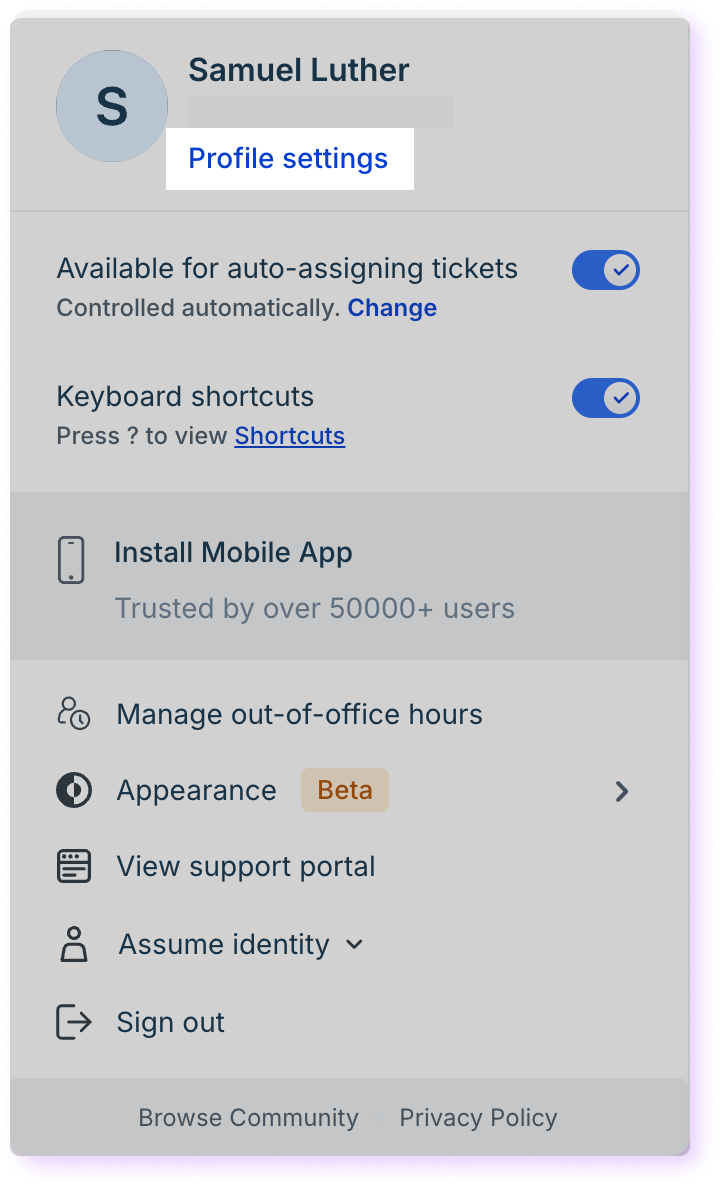
1. Click the profile icon and go to Profile Settings.
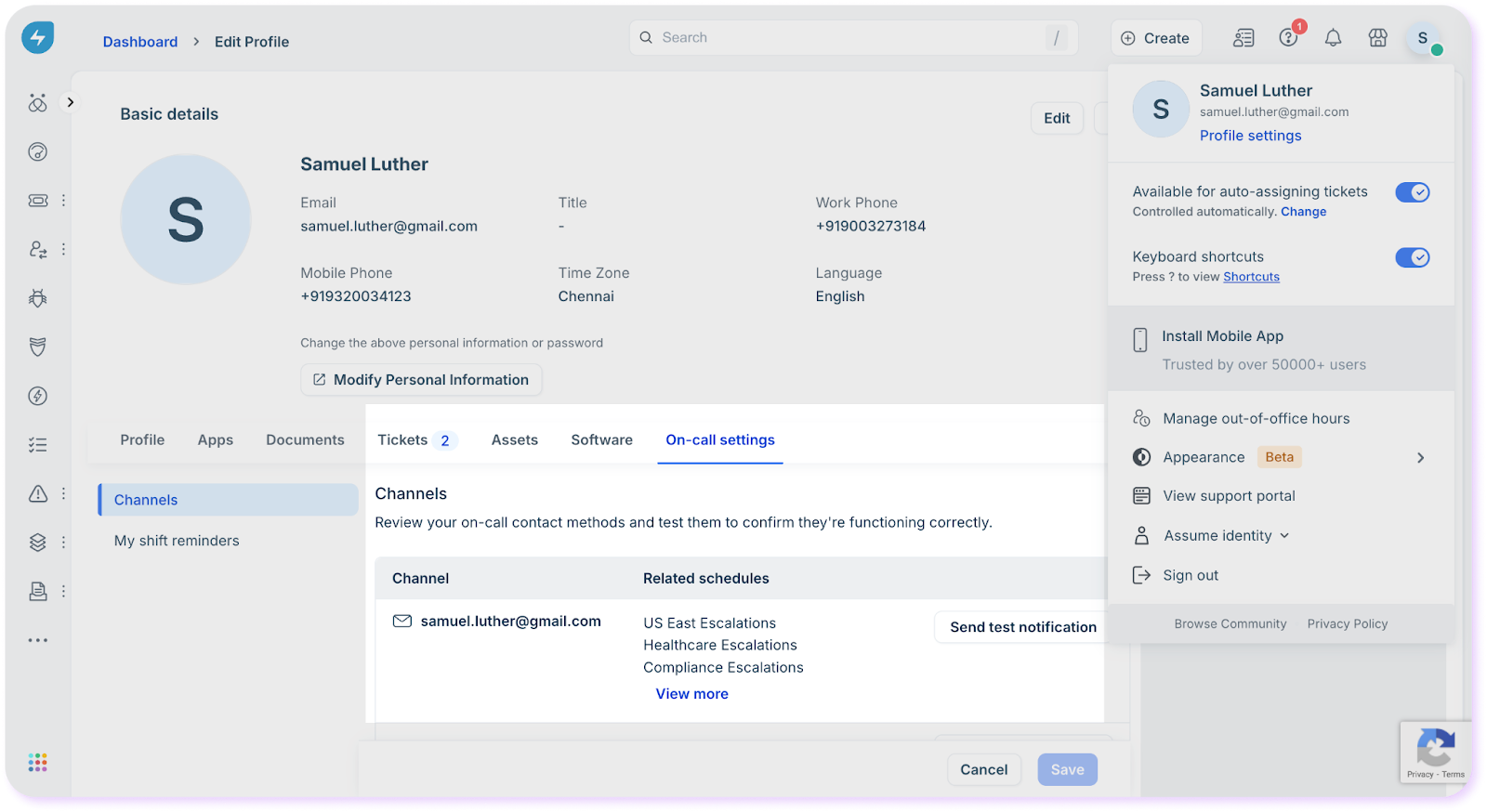
2. Go to On-call settings. This section allows you to test all the channels that have been added as part of your on-call availability.
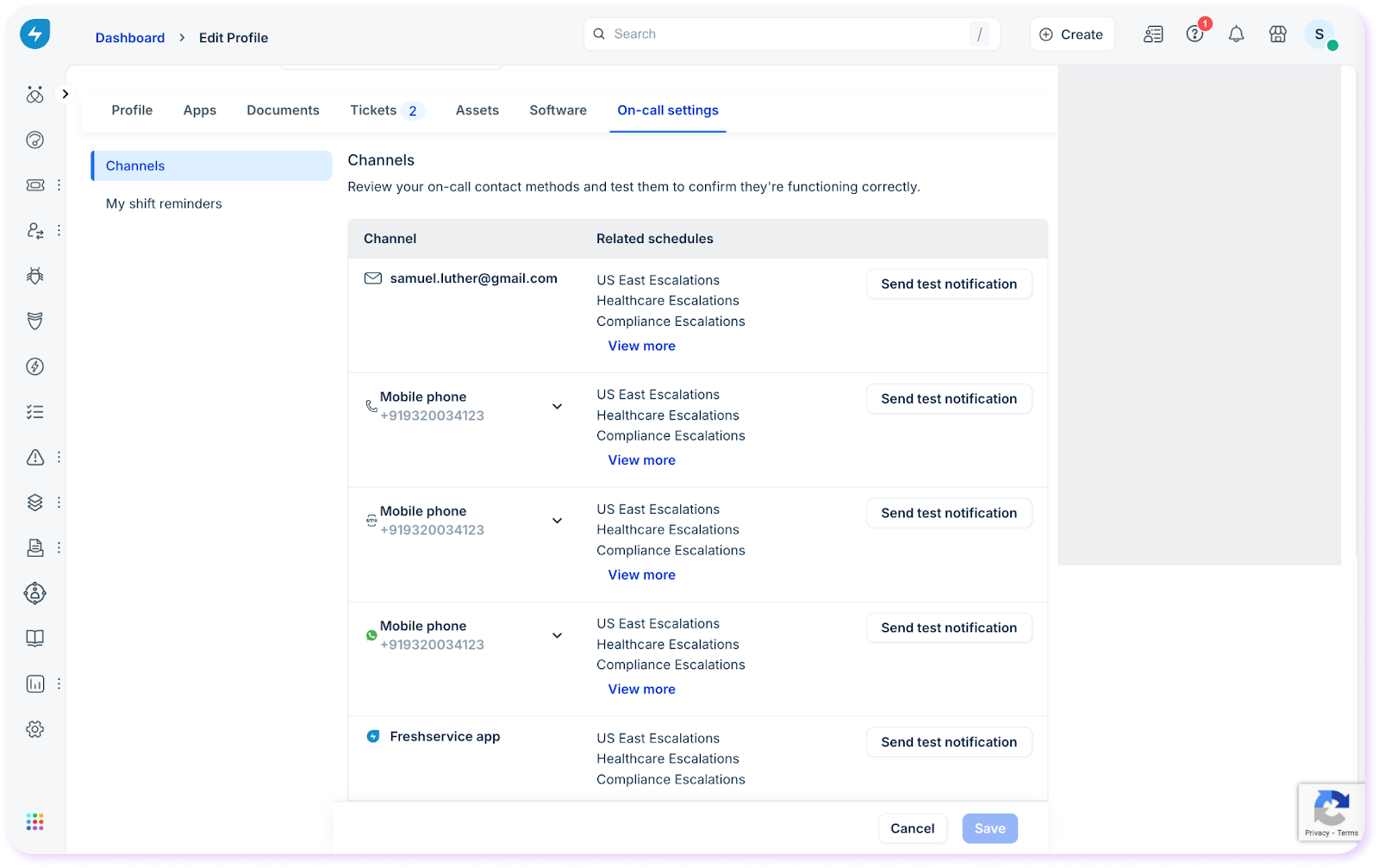
3. Click the Send test notification button for a specific channel to test whether the notification is triggered.
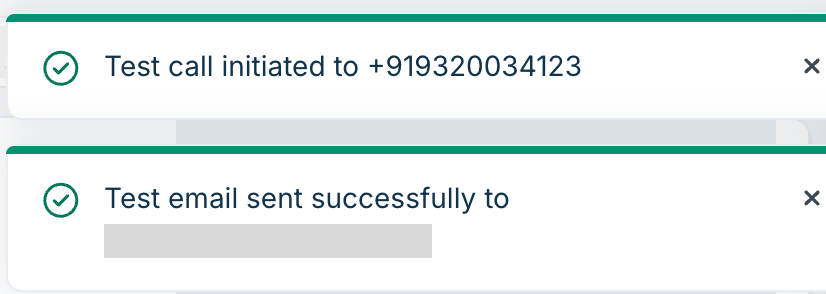
A test notification is triggered to the channel you clicked.
Review your on-call contact methods and test them to confirm they're functioning correctly. On-call management is crucial for maintaining system reliability and ensuring prompt responses to incidents.
``` Note: WhatsApp allows only 20 test notifications in 24 hours. If the limit is breached, the user can send a test notification only after 24 hours. If 3 subsequent WhatsApp notifications are not responded to, the WhatsApp account will be disconnected, and the user will be required to reauthorize their WhatsApp number. ```