Last updated: 2025-12-11
Source: https://support.freshdesk.com/support/solutions/articles/50000011786-csat-agent-experience
``` Note: The new CSAT Agent experience only applies if you have signed-up after Dec 1, 2025. Not sure of your signup date? Learn how to find it here . ```
Once Admins have built and configured how surveys should be sent, agents have the option to add surveys when they:
1. Respond to tickets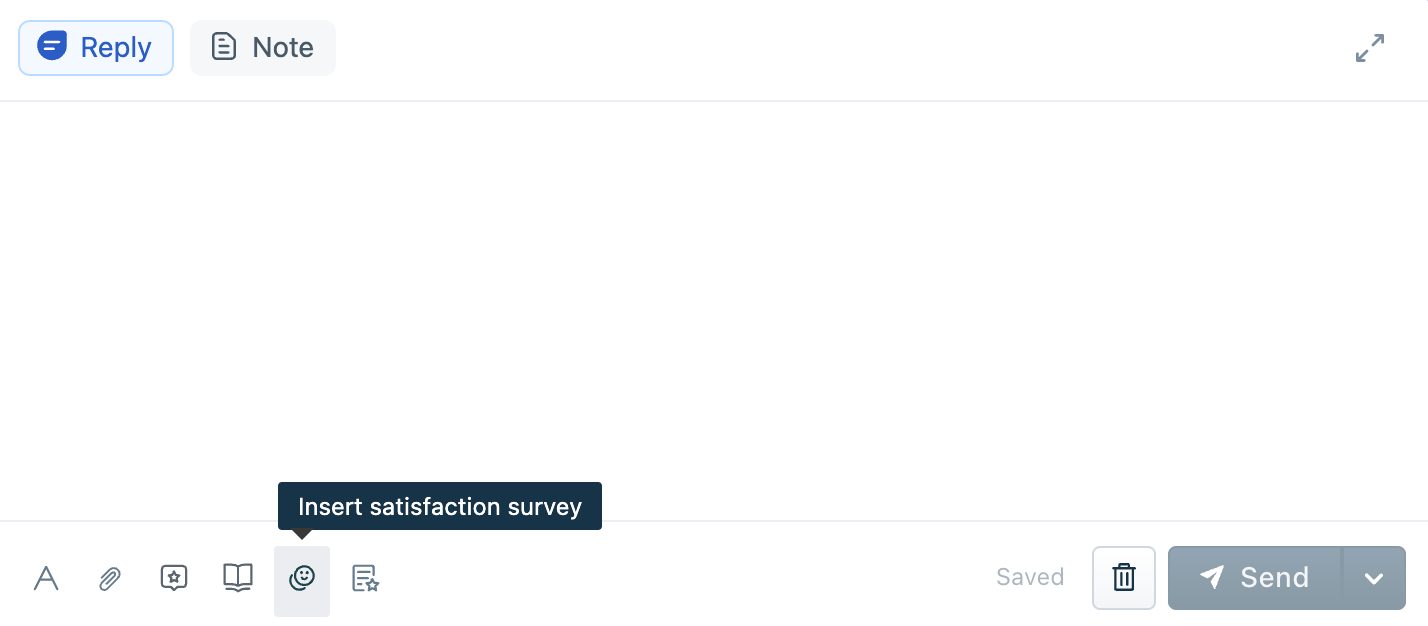
2. In canned responses
3. While setting up an automation rule, or
4. In their email signature
In all of the above methods, Agents can add surveys to emails in two ways:
Use this when you want the survey to stand out or when the email contains a lot of other details. In case of Email, survey will be attached tpwards the agent of the agent message. In the case of meta channels or web chat, survey will be sent as a new message. 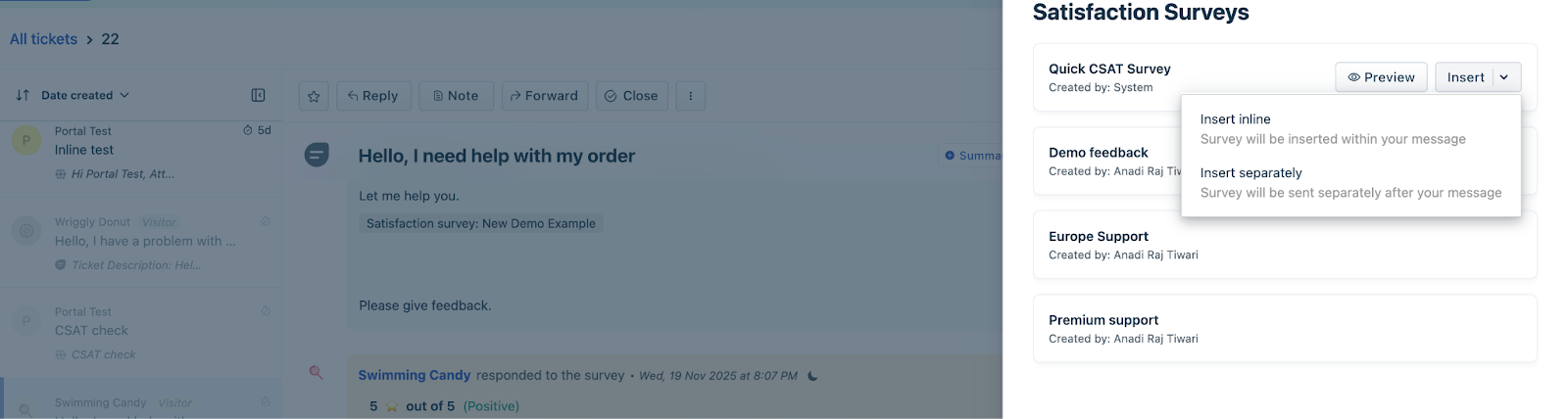
Agents can track surveys by clicking on Activities (top right) on the Ticket details page.
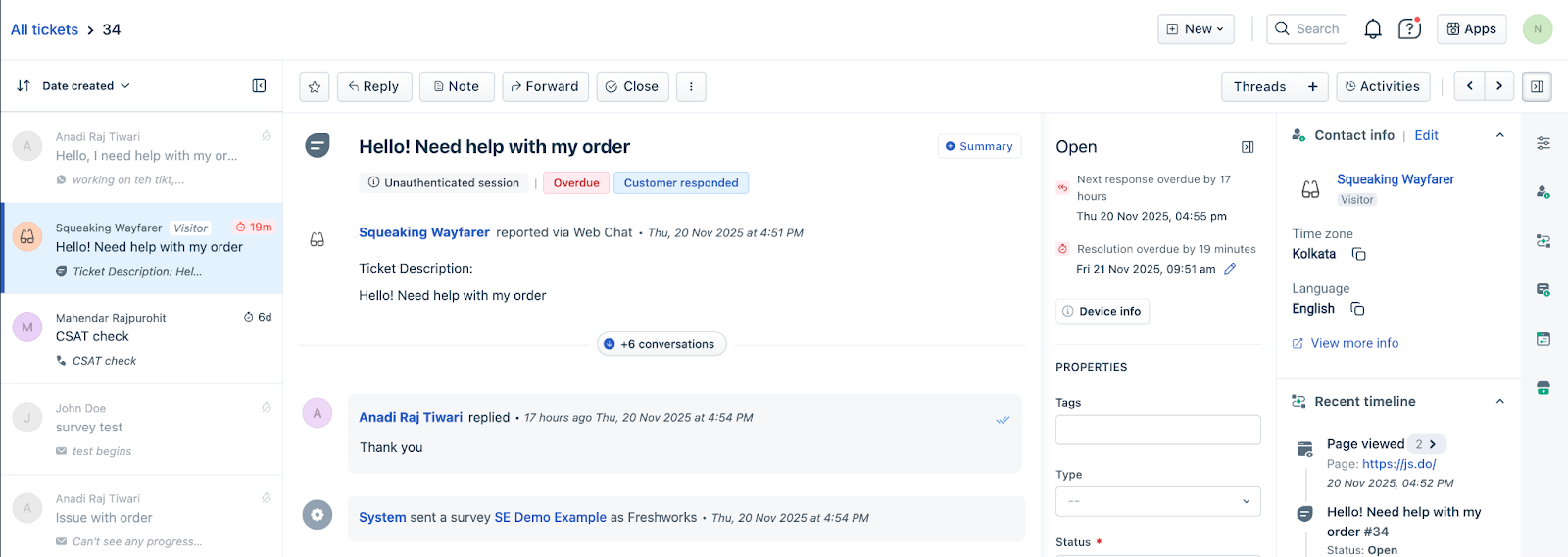
In the response cards, Agents can view the surveys that are sent along with the rating.
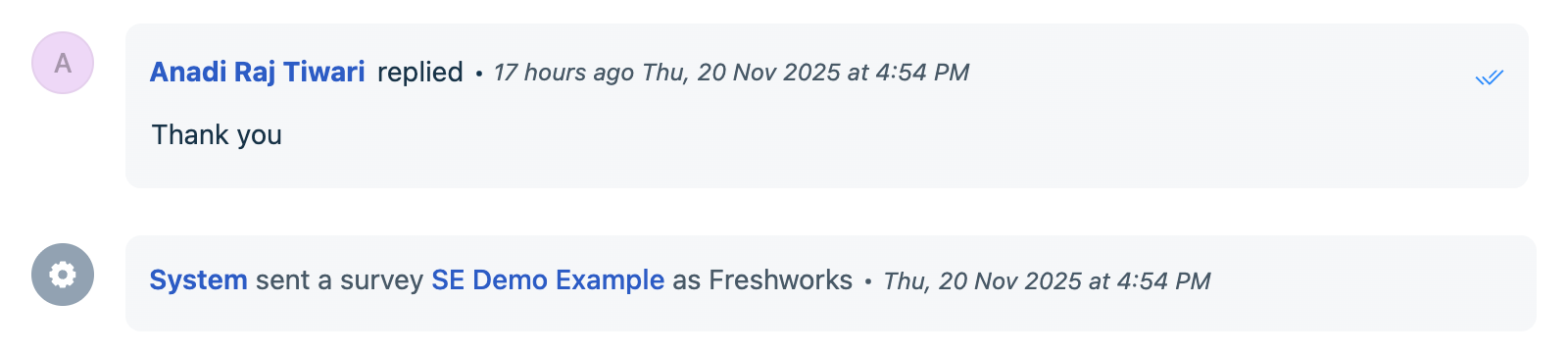

Agents can click on View response to view the survey responses.
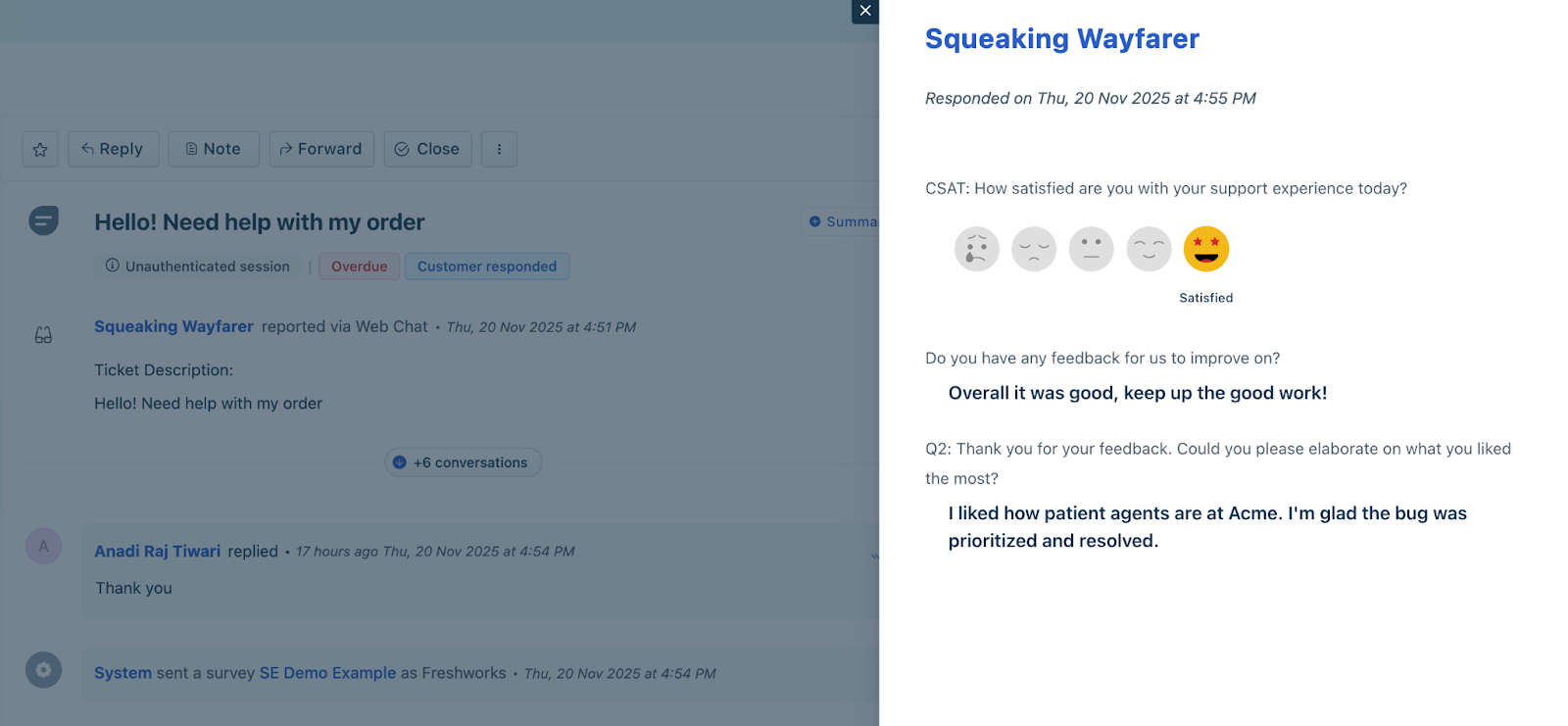
Let’s look at how Agents can add surveys in detail:
Reply Editor
Agents can add a satisfaction survey to the reply editor by clicking the Insert satisfaction survey button. This will open an overlay where they can select the desired survey.
Email Signature
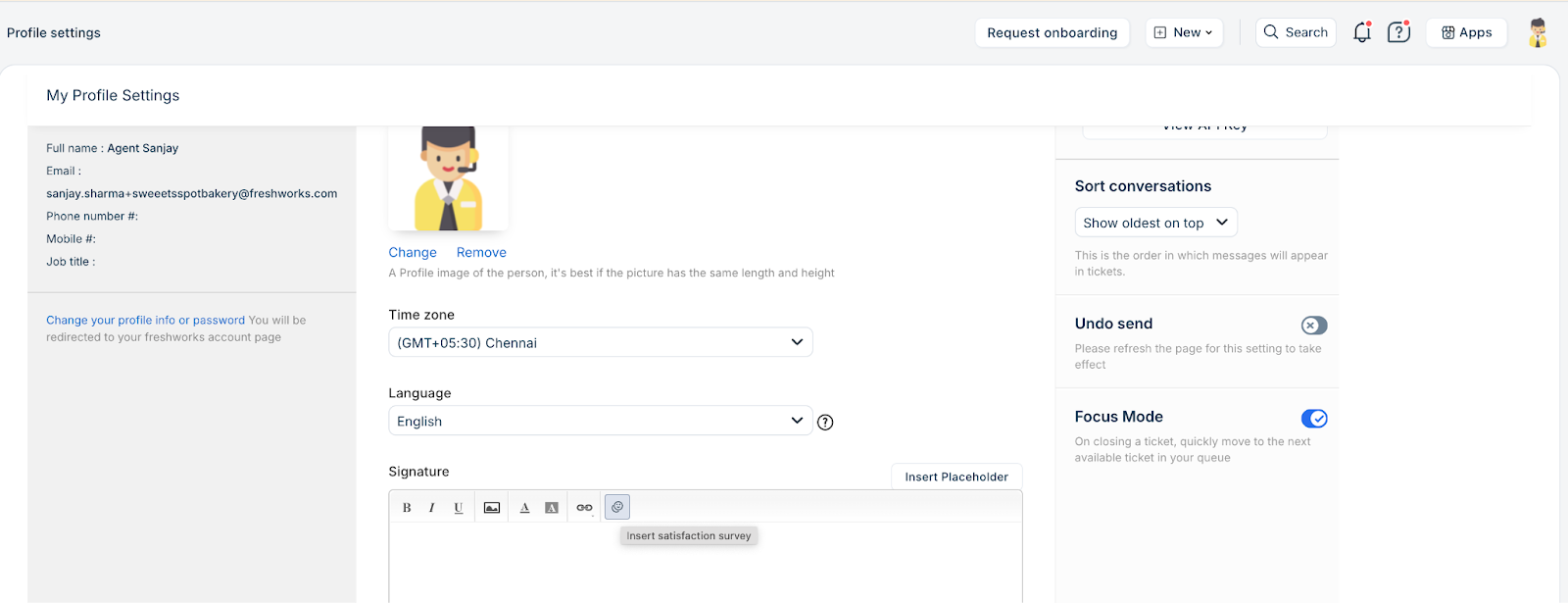
Agents can add a survey to their email signature to collect feedback on every reply, and it is not limited to ticket closure.
To add an email signature,
1. Click profile photo on the top right > Profile settings
2. In the Signature section, click Insert satisfaction survey
3. In the Satisfaction surveys overlay, choose the type of survey you want to add and click Save changes
As an admin you can also add a survey to an agent during agent creation from Admin > Agents > New Agent > Signature section
Canned responses
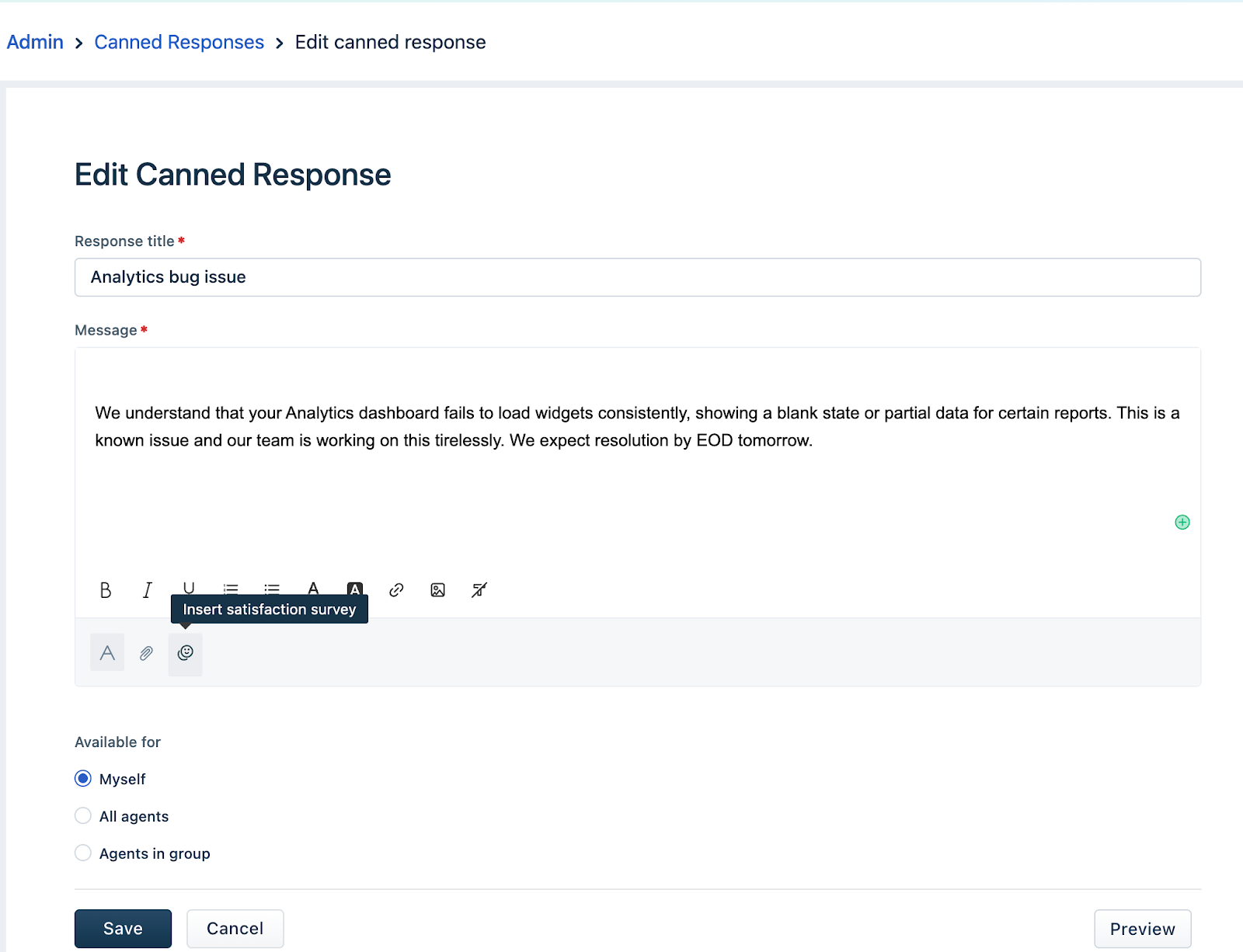
You can add a survey to canned responses. To add a survey to a canned response,
1. Go to Admin > Canned Responses \> Edit an existing canned response or click New Canned Response to create a new response
2. In the messages section, click Insert satisfaction survey
3. In the Satisfaction surveys overlay that appears, choose the survey you want to add.
End-User Experience
When customers receive and respond to surveys, their experience varies slightly based on the survey type, the channel, and whether interactive surveys are supported.
Retaking Surveys
Partial Responses
Handling Multiple Requests for the Same Survey
When Surveys Fall Back to Web Links (Meta Channels)
Customers on Meta channels (Facebook, Instagram, WhatsApp) receive a web survey link instead of an interactive survey when:
Note: Surveys not rendering can be checked by using the Preview option available in each channel. Here, while creating or editing a survey, use the Preview button while configuring the survey for any channel.
Invalid Response Handling (Meta Channels)
This optimization ensures higher CSAT completion rates.
Channel Compatibility Notes
Some survey formats are not supported as interactive messages on Meta channels such as Facebook, Instagram, and WhatsApp.
When a survey is incompatible with a Meta channel, Freshdesk automatically sends it as a web link instead, ensuring customers can still complete it without any issues.