Last updated: 2026-01-21
Exporting & Importing Canned Responses
Admins can instantly import and export the canned responses to manage them better. You can import and/or export an entire folder of responses or specific responses. With the exported responses, you can easily audit and analyze them and make changes if required, and then do a simple import to update the canned responses for the agents' usage. This will also help businesses maintain agent productivity by minimizing their need to search, check and edit outdated canned responses.
As an admin, you may want to:
``` Note: Admins will only be able to view 30 canned responses per page. ```
As an agent, you will have a quickly accessible, readable view of all responses with easy and quick search either in the product or through an excel sheet.
Sorting Canned Responses
You can sort the canned responses within each folder to locate the required canned responses faster and for ease of analysis. There are six sort options available to Admins today:
1. Title (A-Z) Ascending 2. Title (Z-A) Descending 3. Date Updated Ascending 4. Date Updated Descending 5. Date Created Ascending 6. Date Created Descending
Exporting Canned Responses
1. Log in as an admin 2. Navigation:
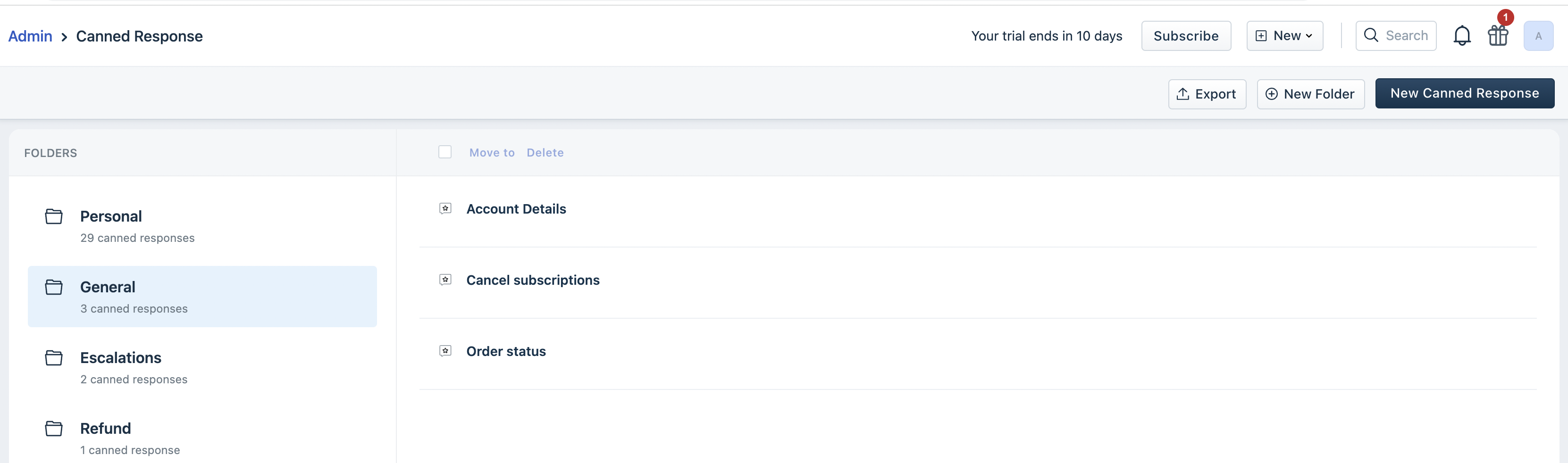
1. Select the folder from where you want to export the responses 2. You can export the responses from all the folders in your account or select specific responses from a folder 3. Click Export Selected Responses and choose how you want to export the responses
 4. Click Export again - On successful completion, the response file will be sent to your registered mail id as a downloadable link

``` Note: The link will expire 15 days from the time of export. ```
Importing Canned Responses
1. Log in as an admin 2. Navigation:

3\. Click the Import button to upload your .CSV (as of now, only .CSV is supported)
- The canned response content should be mapped to the 'Content HTML' column
- Do NOT change the 'Canned Response ID' field when you update the details on the export sheet, as that is the unique ID with which the system will do the update
- You can move canned responses to a different folder by updating the Folder Name in the CSV file
- Use the Visibility column to set the visibility to 'Available to all' or 'Available to groups'
- Mention the group names exactly how they are spelled under Admin > Groups, and separate the groups with two piping symbols - \|\| - The canned response is updated based on the 'Content HTML' column - any changes to text and formatting should be made to this column and imported
``` Note: If you are mentioning the Folder name, you must mention visibility. Otherwise, the import will fail. ```
- This error report will have details of the successful uploads and a link to a CSV file calling out the errors for the canned responses that failed to update
Common import scenarios
The following are common scenarios and corresponding success/failure reports:
| Scenario | Report |
| Empty title and Content HTML | The import will fail |
| Mention a mix of valid and invalid group names | |
| Mention an invalid combination of visibility, folder, and group | You will get a failure email mentioning 'Invalid folder, visibility, and group association' |
| Importing duplicate canned response | You will get a failure email mentioning 'Duplicate response' |
| Update a canned response by mentioning the canned response ID twice (in two rows) in the CSV file | The canned response will be updated with the second row's content |
| Import with a canned response ID that doesn’t exist but with an existing correct title and Content HTML | You will get a failure email mentioning 'No canned response' |
| When the canned response title is less than 3 characters | You will get a failure email mentioning 'Title is too short' |
| When you try to update a folder name as 'Personal' on the Free program | You will get a failure email mentioning 'Personal canned response unavailable in plan' |
| Mention only Visibility as 'Personal response' but leave the Folder name and Group name columns empty | Successful import |
| Mention a folder name, that doesn’t exist | Successful import - a new folder with that name will be created |
``` Note: Your import file size can be a maximum of 100MB only. ```
Click here to learn about canned responses usage & analytics.