Last updated: 2023-04-05
Replying to a ticket
You can reply to tickets by clicking on the reply icon at the bottom and draft your message. Once your message is drafted, you can add recipients and also add emails to the CC/BCC section.
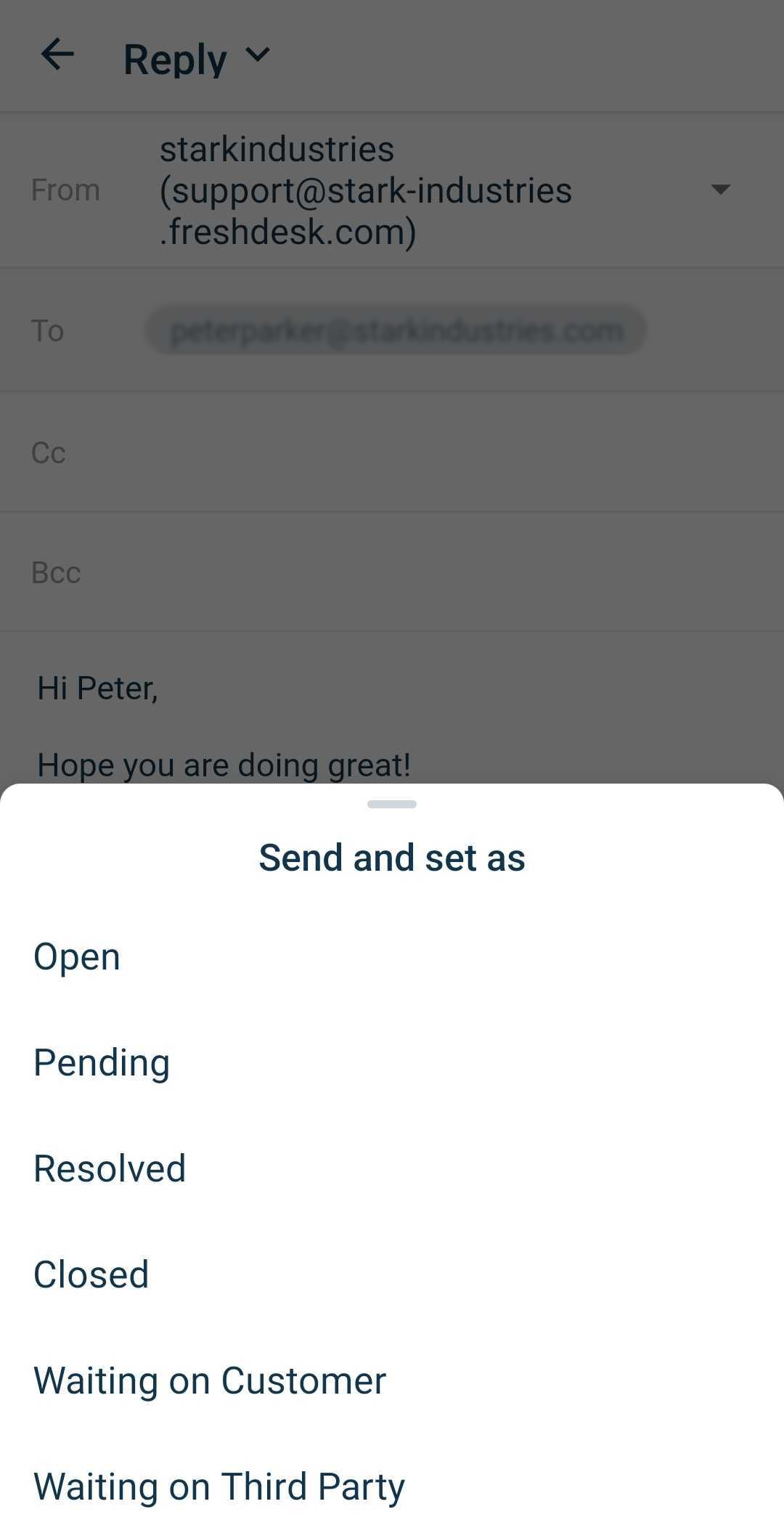
You also have options to insert solutions, canned responses, and include attachments. Once you are done, click send. You can change the status of the ticket by clicking the dropdown next to the send button before sending the reply.

Adding a Note
Add a Note option lets you add a private or public note. You can add the agents you want the note to be sent to, select if you want the note to be visible to the customer or not (by default, the note is private). Once you are done adding a note, click add note. You’ll be able to update the status of the ticket from here as well

Forwarding a Ticket
Select the Forward option at the bottom right of the screen. Type in the message you want to add and specify recipient IDs, after which the send option would appear. You can forward to multiple email addresses and also use cc and bcc.

Inserting canned responses, solution articles, and attachments
You can attach files from your phone, insert knowledge base articles, or use canned responses in your replies. If you choose to send a solution article, you can either paste the content alone, or send the article as a link. These options are available when you choose to reply or forward to a ticket
Ticket Properties, Closing a ticket and using scenario automations
The three-dotted menu on the top right has options to do the following:

The top bar has Edit Ticket Properties icon next to the ticket number. This allows you to change ticket details like “Type”, “Source”, “Priority”, “Agent Assigned to” and more.
If you would like to watch a ticket, press the star icon next to edit ticket properties.