Last updated: 2026-04-01
Integrate Freshdesk with JIRA plus
This document provides a high-level overview of the Freshworks-Jira integration, also referred to as the Atlassian Jira Plus App, covering its installation, configuration, and key features.
Overview
The Freshworks-Jira integration enables seamless synchronization between Freshworks support tickets and issues in Atlassian Jira, allowing support and development teams to collaborate efficiently without leaving their respective platforms.
Installation and Configuration
The video outlines the steps required to install and configure the integration. Key configuration points include:
Key Features
The integration enables several core functionalities:
- Advanced Field Mapping: Map custom Freshdesk fields (such as Source, Group, Agent, Freshdesk Ticket Number, Customer Name, Customer Email Address, Customer Phone number, and Company Name) with custom JIRA text fields for comprehensive data transfer and viewing.
- Priority Sync: Optionally sync priorities to ensure JIRA issue priority reflects the severity of impact on customers in Freshdesk.
- In JIRA, engineers get a complete view of all customer conversations related to an issue. You can expand any ticket to view all conversations between the customer and the support team as well as all relevant ticket information.
- JIRA Issue Visibility: Freshdesk tickets can be found in the ‘Freshdesk for JIRA’ tab in JIRA.
Steps to Install the app and connect a Jira instance
A. Install the Atlassian Jira Plus App in Freshdesk
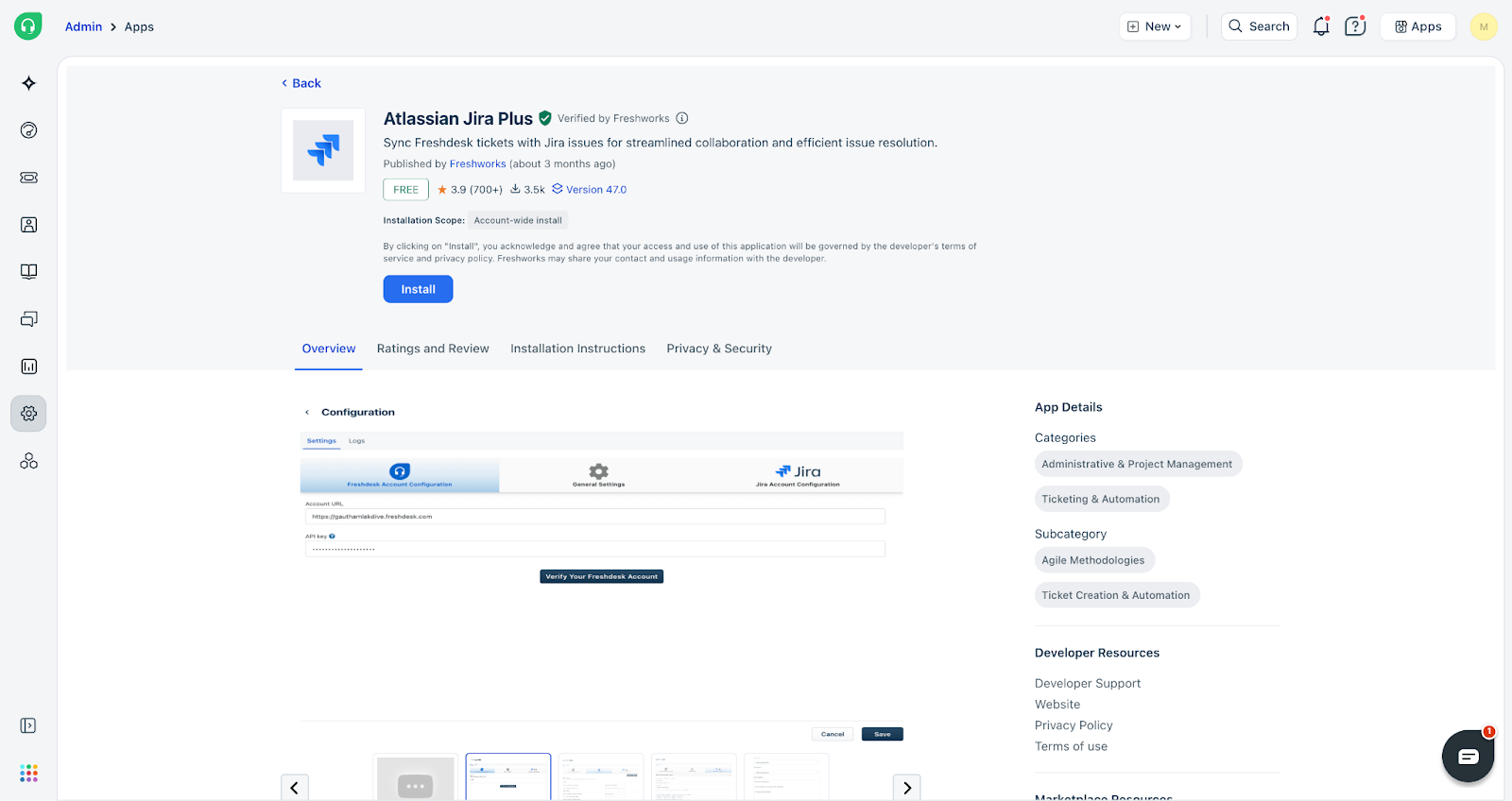
1. Go to Freshworks marketplace and search for Atlassian Jira Plus app. Click on Install and enter your Freshdesk URL. This will take you to the Admin > Apps section of your Freshdesk instance. Alternatively, you can also login as Account administrator to your Freshdesk instance and search for Apps in Admin settings.
2. Click Install on the Atlassian Jira Plus App listing.
B. Authenticate Freshdesk domain
1. After clicking on ‘Install’, you will be prompted to authenticate your Freshdesk account.
2. Authenticate Freshdesk account with Freshdesk domain and API Key.
3. Once authenticated, you can proceed to the configuration steps under Section B.
C. Connect a Jira Account
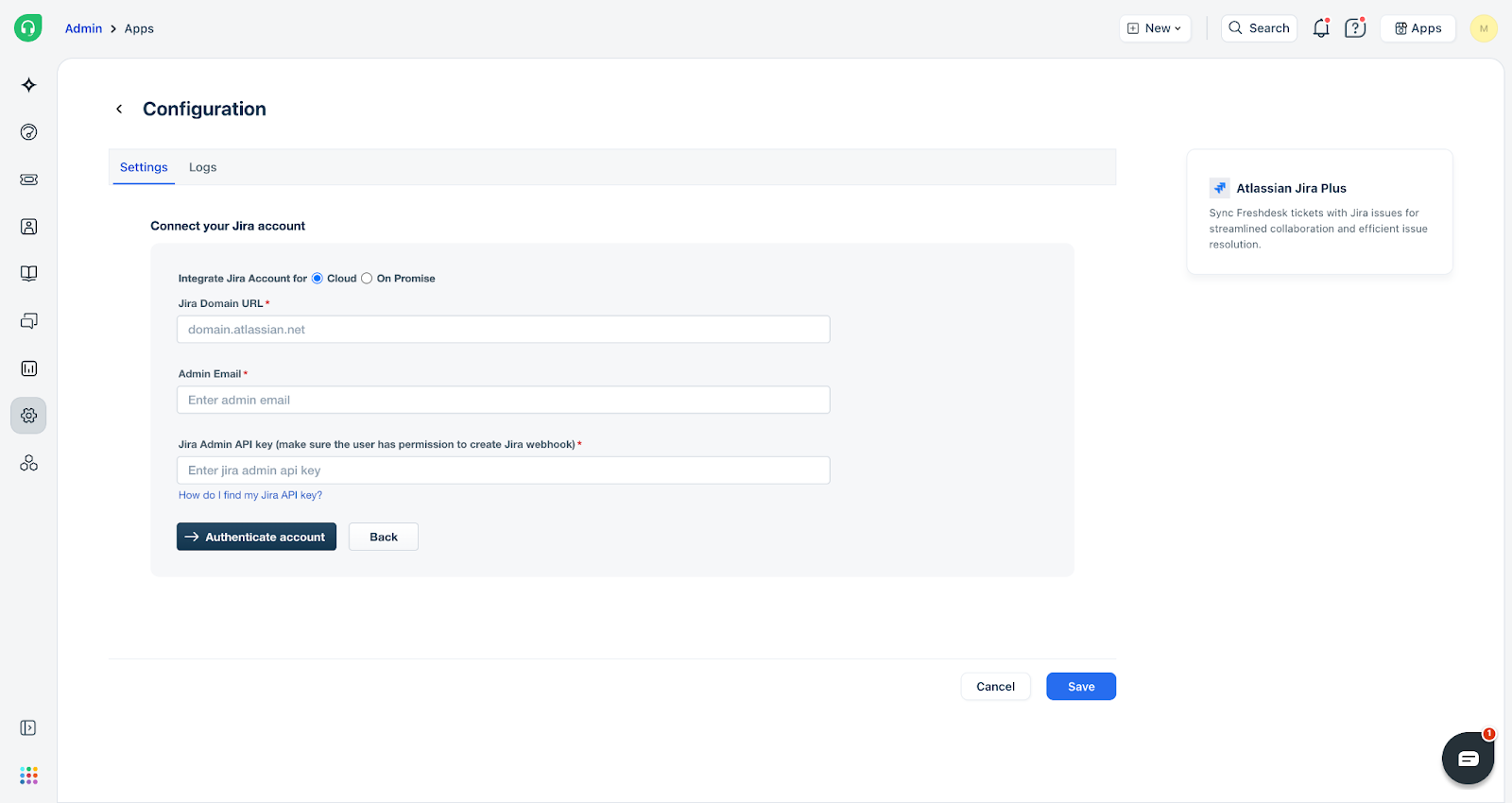
1. Select Jira Cloud or On-Prem
2. Add a Jira account by providing the Jira domain URL, admin email, and admin API key. (The Admin API key can be created from id.atlassian.com). The Jira account is authenticated and connected.
3. IP Allowlist for Jira On-Prem
- To ensure Freshdesk can connect to your JIRA server, you must add a firewall exception for the following VPC IP addresses. The specific IPs required depend on the location of your Freshdesk account.
| Region | IP Address |
| United States | 18.233.117.21, 35.168.222.30 |
| Europe Central | 18.197.138.225, 52.57.69.21 |
| India | 13.232.159.149, 13.233.170.242 |
| Australia | 13.211.182.225, 52.63.187.64 |
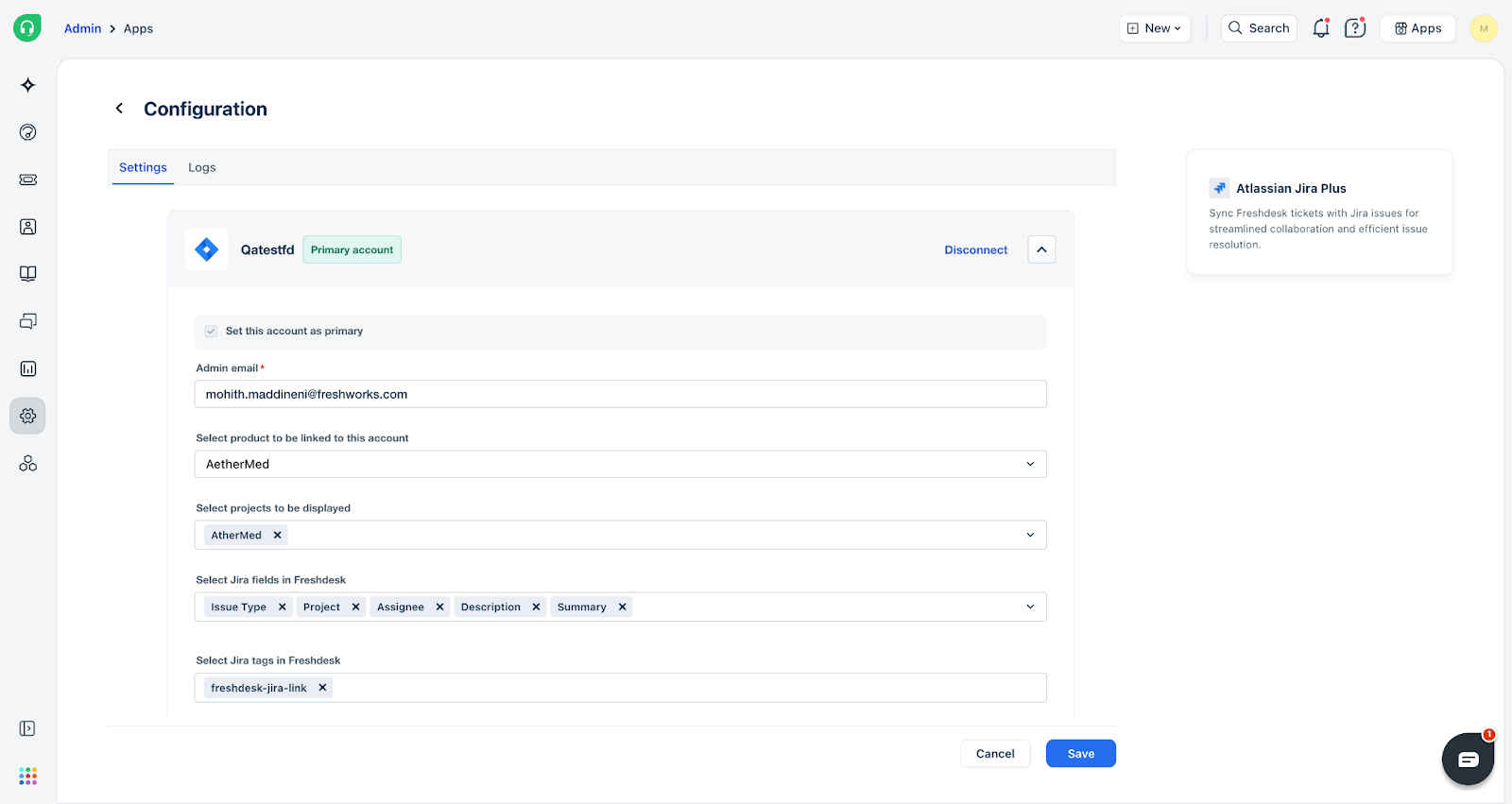
4. Configure account settings by selecting a Freshdesk product for the connected Jira account.
- Select the Freshdesk product to be linked to the connected Jira account.
- Select from the list of Jira Spaces/Projects to be displayed to the Freshdesk agents.
- Select Jira issue fields to be displayed in Freshdesk.
- Select a custom tag to be added to every Freshdesk ticket upon linking with Jira.
- Map Jira statuses with Freshdesk statuses (one to one mapping).
- Map custom Freshdesk fields with custom Jira fields for sync.
- Save the config with all these settings.
- Multiple such Jira accounts can be added, and each Jira account can be mapped to a Freshdesk product for ticket-issue linking.
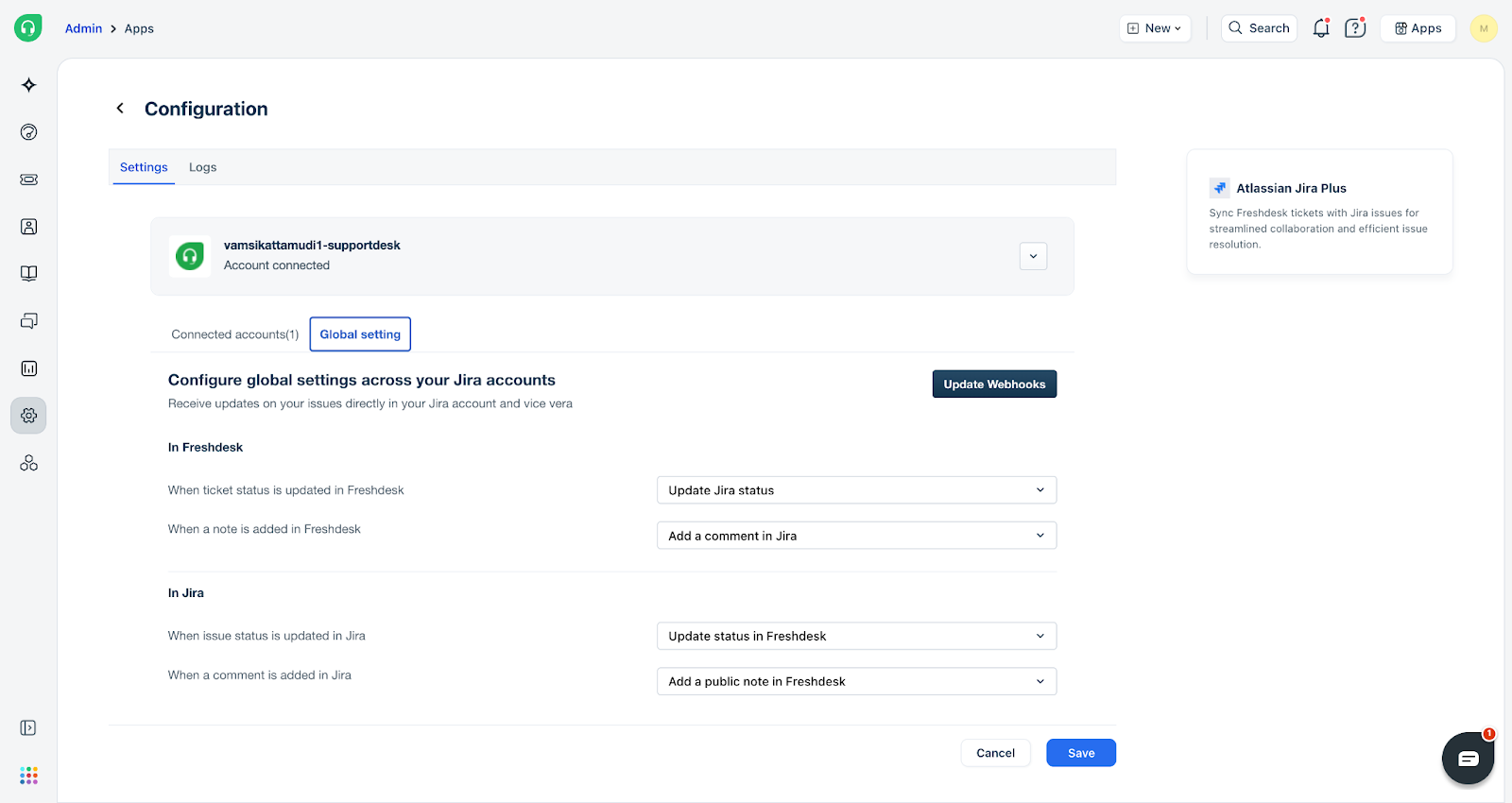
D. Global Settings (Sync Settings)
These are sync settings applicable to all Jira accounts added:
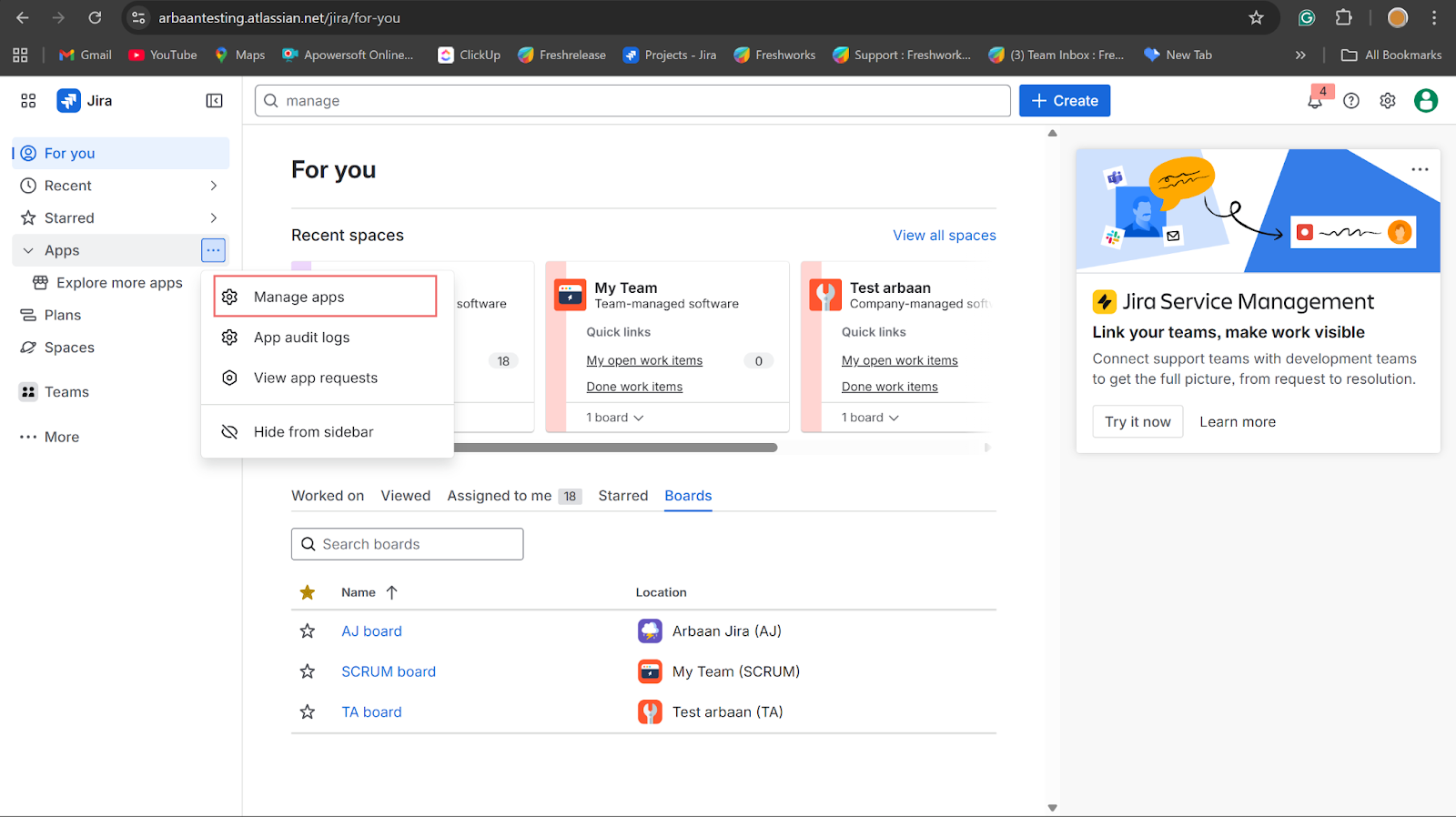
E. Install ‘Freshdesk by Freshworks’ app on your Jira Instance:
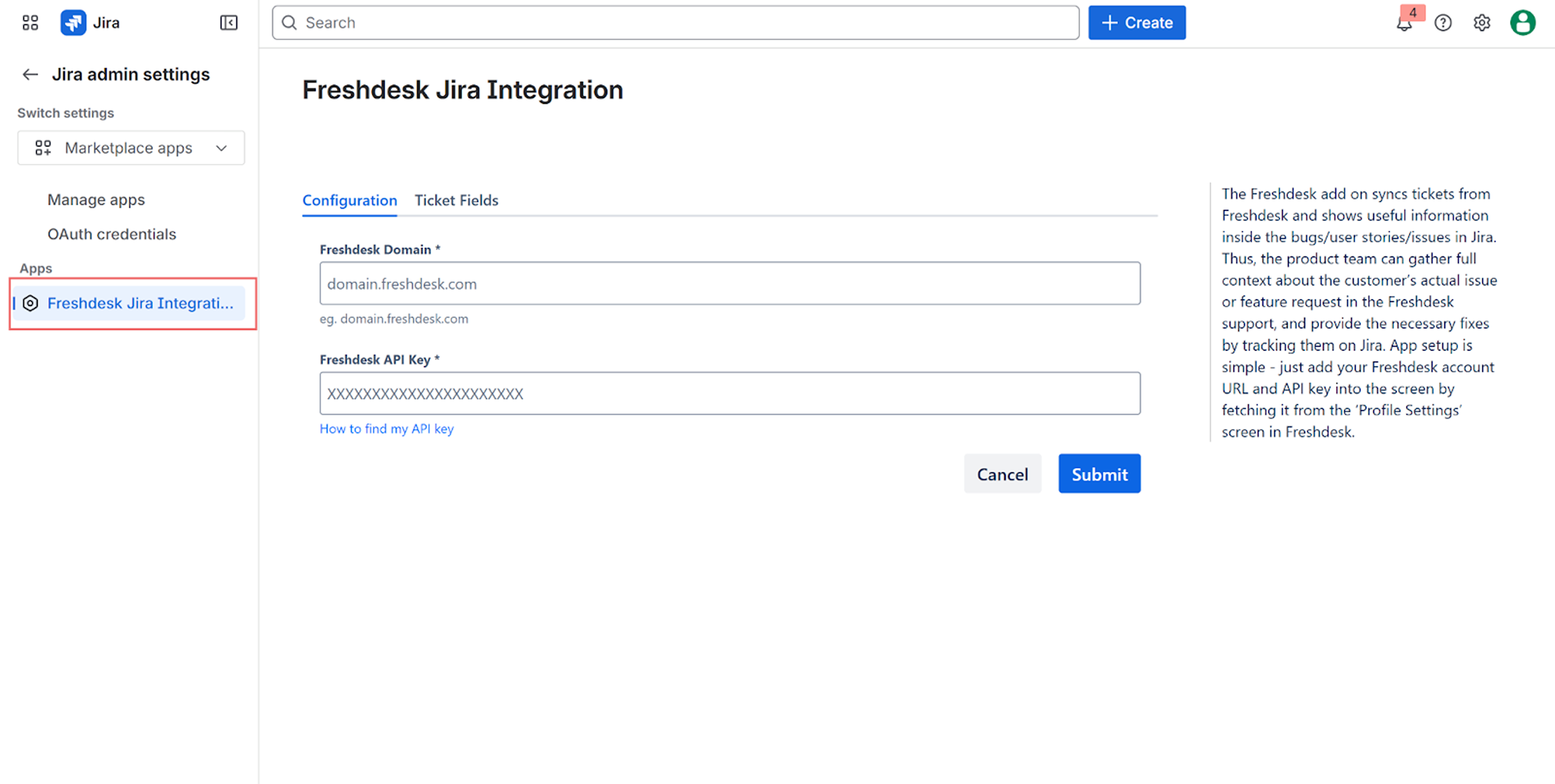
- In Freshdesk Jira Integration, configure the Freshdesk domain, API Key and click ‘Submit’
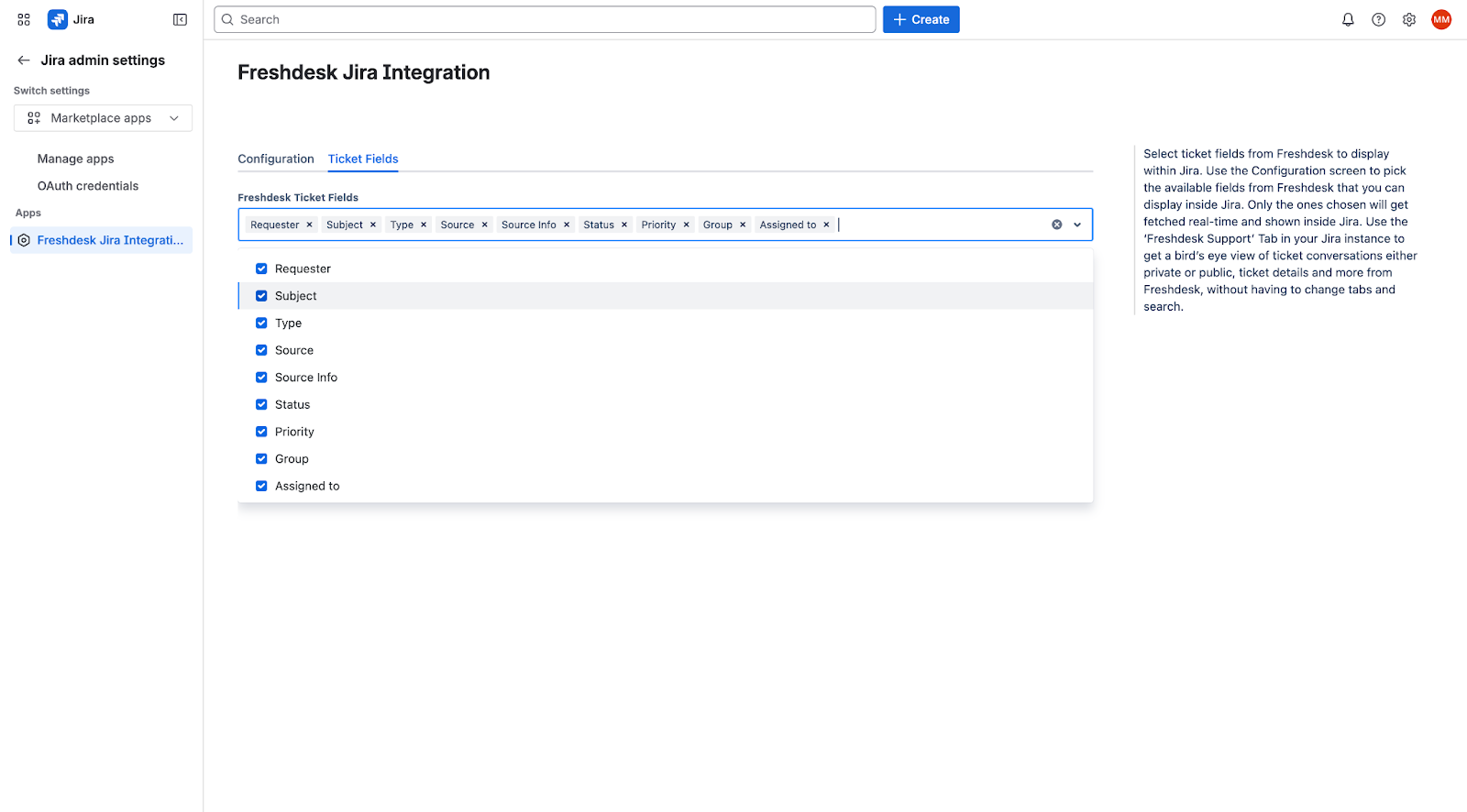
- Next, choose the Freshdesk ticket fields that you want to appear in the Jira issue
F. Linking or Creating a Jira Issue from a Freshdesk Ticket
Once installed, the Atlassian Jira Plus app is displayed in the ticket sidebar in Freshdesk, offering two main options: Create Issue and Link Issue.
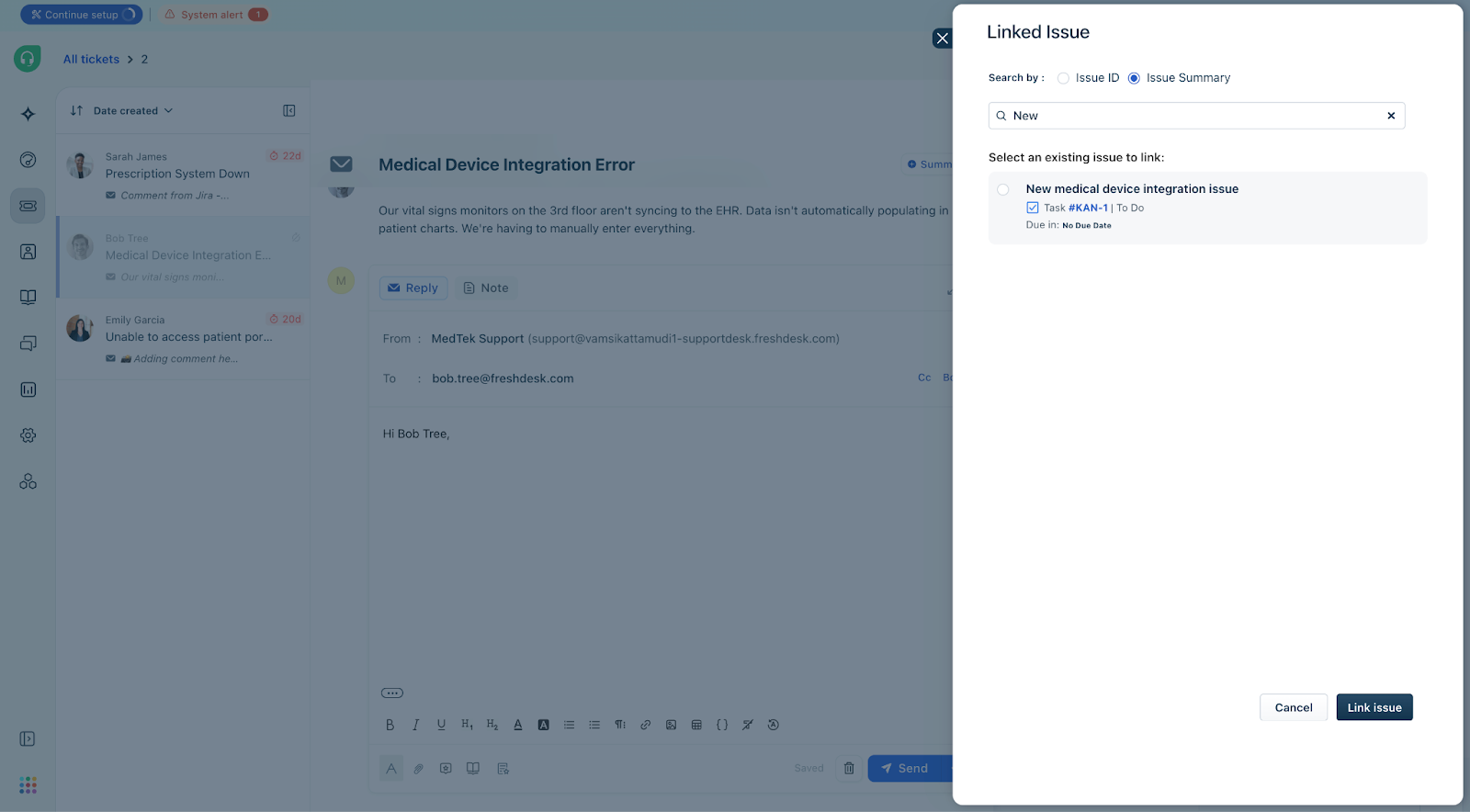
To link an existing Jira issue:
1. Select the Link Issue option in the app.
2. Search for the existing Jira issue by its Issue ID or Issue Summary.
3. The matching results are displayed; select the correct issue and link it to the Freshdesk ticket.
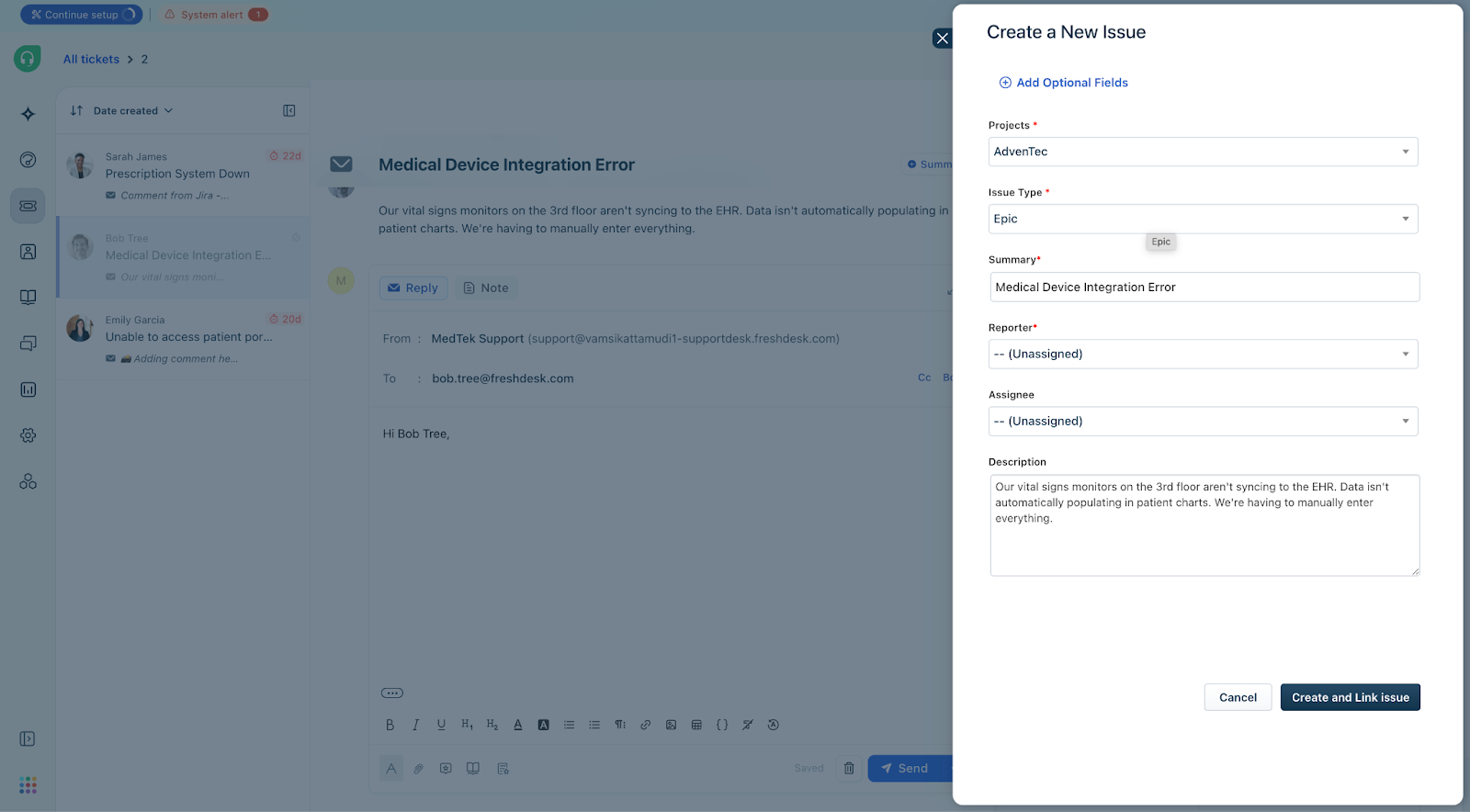
To create a new Jira issue:
1. Select the Create Issue option in the app.
2. Select the Jira Project.
3. Fill in the necessary fields, including Issue Type, Summary, Reporter, Assignee, Description, and any other optional fields.
4. Create and link the new issue to the Freshdesk ticket.
G. Post-Linking Functionality:
- In Jira, users will be able to view details of the customer tickets linked to an issue. You can choose to have up to ten Freshdesk ticket fields made visible in Jira.
- Note: This is not available for on-prem JIRA accounts.
- Agents: Can be notified via a private note in the Freshdesk ticket.
- Customers: Can be updated either by adding a public note or by sending them a direct email. For instance, when a product bug is marked as "Resolved" in JIRA, you can automatically send an email notification to the affected customers.