Last updated: 2025-02-20
Freddy AI's Summarize: Ticket content assist for quick overviews
Freddy AI Summarize is a powerful feature designed to help support teams save time and improve efficiency by automatically generating concise summaries of ticket conversations. The feature now provides richer, more structured summaries that include sections like Issue, Steps Taken, and Outcome, enabling agents to quickly grasp the context of a ticket, collaborate effectively, and deliver faster resolutions.
| This article contains:<br>1. Benefits of Using Summarize<br>2. Important Considerations for Using Summarize<br>3. Enabling or Disabling the Summarize feature<br>4. Using Summarize<br>5. Other Use Cases for Summarize<br>6. See More |
Benefits of using Summarize
Important considerations for using Summarize
Enable or disable the Summarize feature
1. Go to Admin settings. 2. Click the Freddy icon. For Freshdesk Omni account, go to Self Service and AI > Freddy for Tickets. 3. Navigate to Ticket content assist feature under Freddy AI Copilot. 4. Toggle the switch to the right to enable the feature or to the left to disable it.
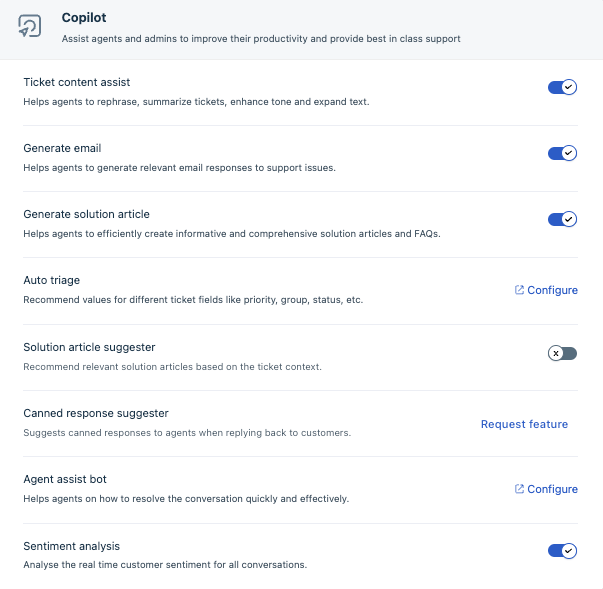
Use Summarize
1. Click on 'ticket summary': 1. Navigate to the ticket you want to summarize and click the Ticket Summary button. 2. The Summarize feature automatically generates a structured summary with sections like
Issue: Concise summary of all the queries and concerns raised by the customer up to the current point in the ticket.
Steps Taken: Quick breakdown of all the responses and resolutions taken by the Agents, including information from Private notes, if any.
Outcome: Current status or resolution of the ticket, reflecting the latest updates and the customer’s response to the actions taken.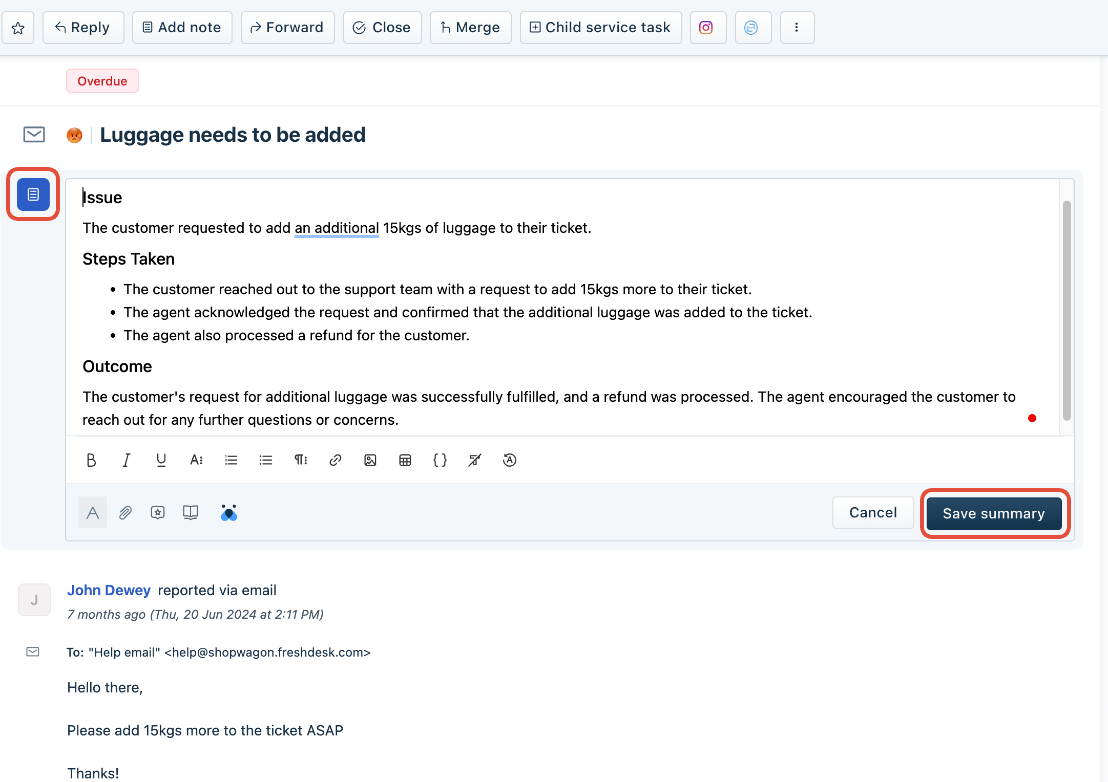 2. Save the Summary: Click Save Summary if the summary is satisfactory. You can also directly edit the text in the summary box and then save it. 3. Update the Summary: To update the summary later, click the edit button, make necessary changes, and click Update to save it. 4. Regenerate the Summary: If new replies are added, regenerate the summary to include them by clicking edit and then Generate summary. This will replace the old summary with a new one that includes all the latest updates. 5. Delete the Summary: If needed, delete the summary by clicking the delete button to remove it from the ticket and start fresh.
Other use cases for Summarize
``` The enablement of optional functionality is subject to certain feature-specific terms and conditions set forth in the Freshworks Supplemental Terms. ```